
How to Use Workflow Maps in Chat To Clients CRM
Workflow Maps in Chat To Clients CRM provides a visual overview of your workflows, folders, and connected assets. It helps you understand how automations work together without opening each workflow individually. You can explore dependencies, trace Contact Journeys, review errors, and identify opportunities to organize your account. This article explains how to navigate Workflow Maps and use its main features.
TABLE OF CONTENTS
- What is Workflow Maps?
- Key Benefits of Workflow Maps
- How to Use Workflow Maps
- Understanding the Workflow Map
- Searching and Navigating Workflow Maps
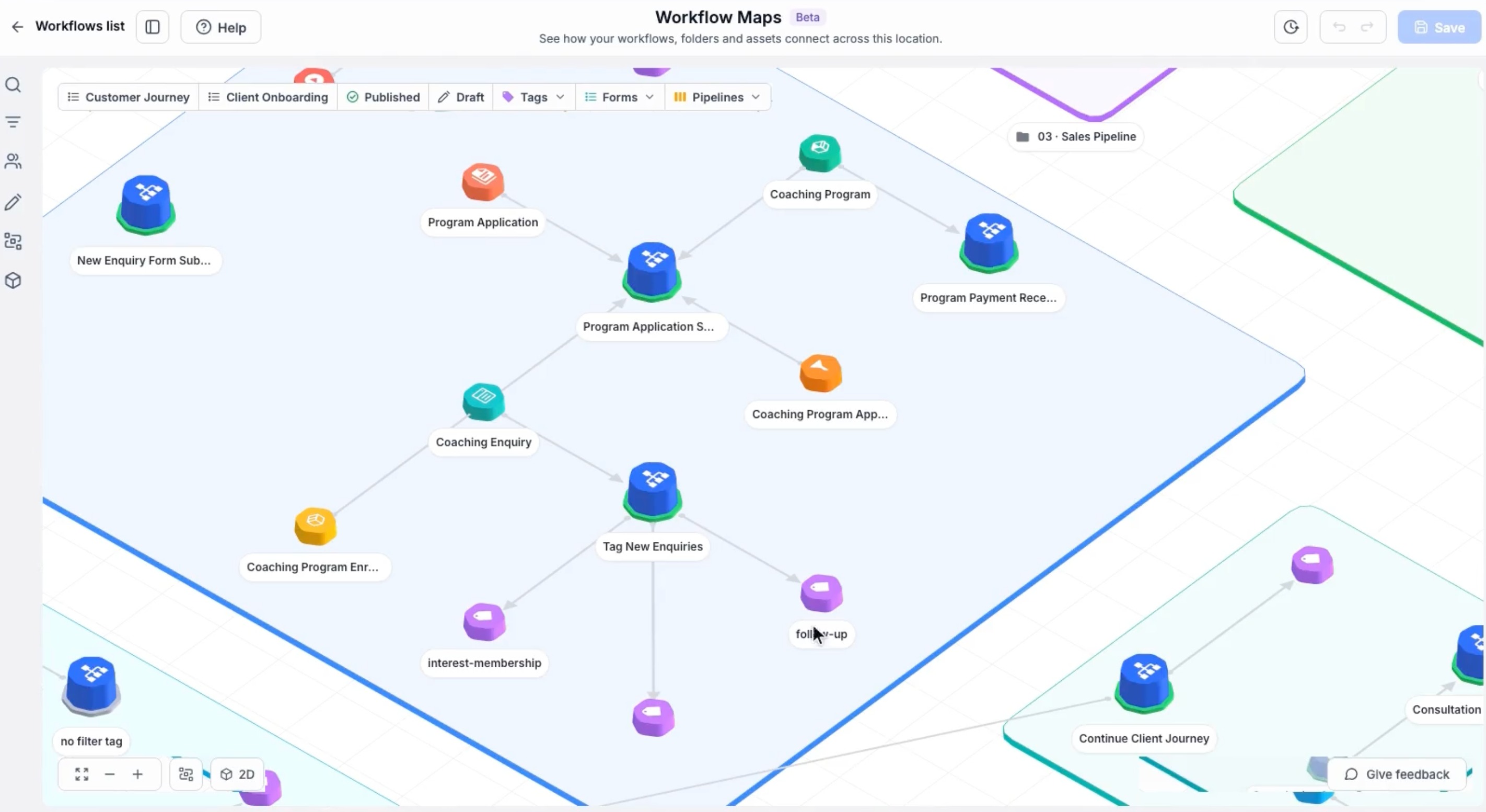
- Exploring Connected Workflows and Assets
- Tracing Contact Journeys
- Troubleshooting Workflow Errors
- Organizing the Map and Using Cleanup
- AI Assistant, Onboarding, and Resources
- Frequently Asked Questions
- Related Articles
What is Workflow Maps?
Workflow Maps is a visual workspace that displays your existing workflows and their connections to supported assets, including tags, forms, calendars, pipelines, and custom fields.
For example, a form submission may start one workflow, which adds a tag that triggers another workflow. Workflow
Maps helps you see these relationships and understand the larger automation process.
Maps are generated from your existing workflows, so you do not need to create diagrams manually. Each sub-account has its own map.
Availability: At launch, Workflow Maps is available to agency users and agency admins. The release demonstration also references Labs availability. Confirm whether Labs activation is required for your account.
Key Benefits of Workflow Maps
Workflow Maps helps you investigate automation relationships and maintain a more organized account.
Visual Overview: See workflows, folders, and connected assets together.
Dependency Tracking: Identify which workflows use specific assets.
Quick Navigation: Search, filter, and explore workflows from one workspace.
Contact Journey Tracking: Review a Contact's workflow enrollment history.
Error Investigation: Find workflows with failed executions and inspect available details.
Account Organization: Review folders, layouts, and potential cleanup opportunities.
AI Assistance: Get help understanding your automations through the available assistant.
How to Use Workflow Maps
Workflow Maps is useful when reviewing an unfamiliar account, investigating a Contact's experience, or checking dependencies before changing an automation.
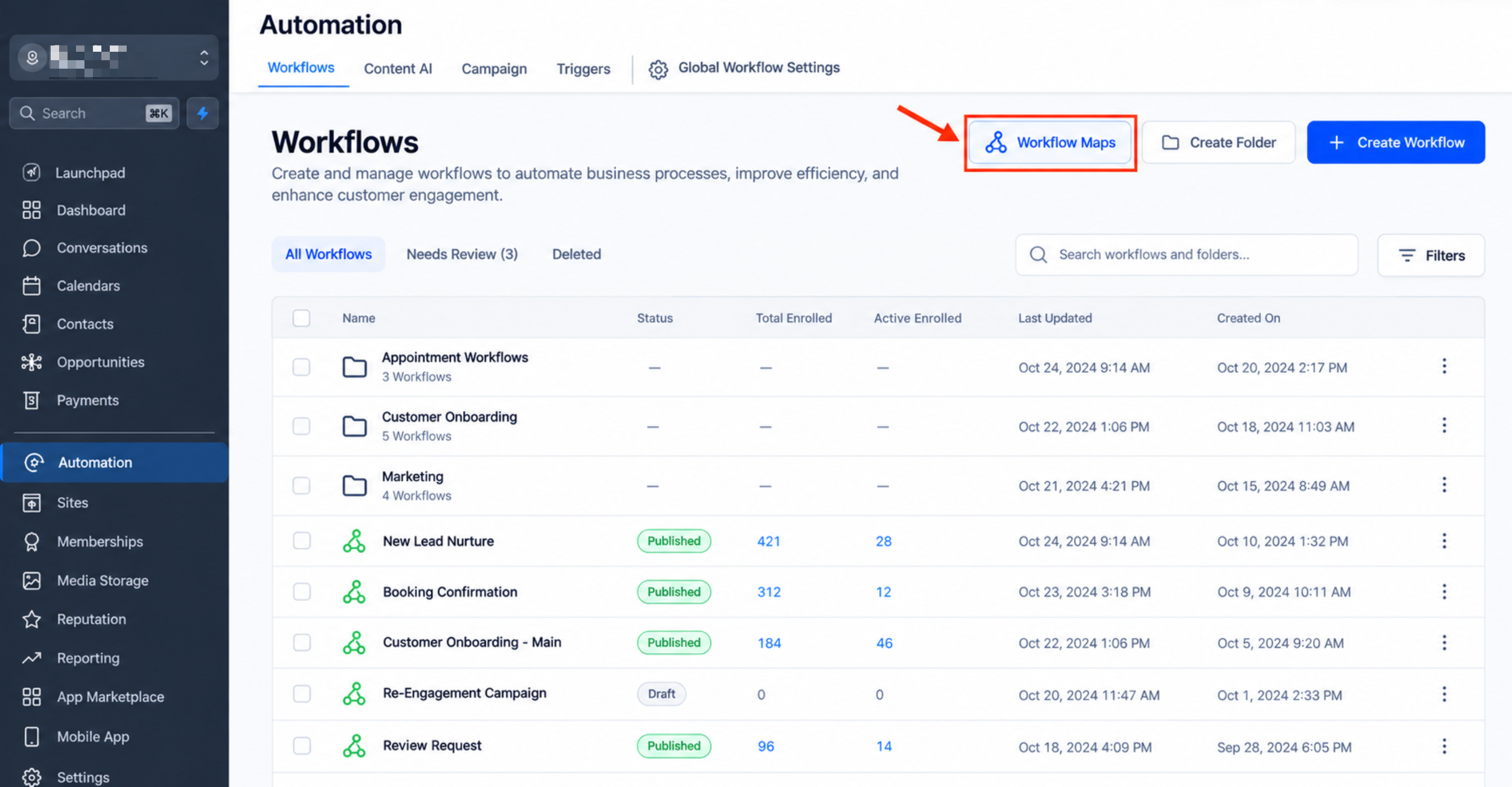
Step 1: Open Workflow Maps
Open the relevant Chat To Clients CRM sub-account.
Go to Automation → Workflows.
Select Workflow Maps.
You can also open Maps from a workflow's builder.
Step 2: Explore Your Workflows
Review the workflows and folders shown on the map.
Use Fit to display the complete view.
Select a workflow or asset.
Review its available details and connections.
Step 3: Find Specific Workflows or Assets
Open Search.
Enter the name of a workflow, asset, trigger, or action.
Select a result.
Apply filters to narrow the view if needed.
Step 4: Review Connections
Select the workflow or asset you want to investigate.
Review its connected items.
Open Linked workflows when available to explore related workflows together.
Open the relevant workflow in Workflow Builder if changes are required.
Step 5: Investigate a Contact Journey
Open the Contact tracing interface.
Search for and select the Contact.
Review their available enrollment history.
Inspect relevant waiting, completed, or failed activity.
Step 6: Review Errors and Cleanup Findings
Use the available error filters or review interface to find workflows requiring attention.
Inspect the affected execution.
Open Workflow Builder if the workflow needs correction.
Review Cleanup findings when available to identify organization opportunities.
Step 7: Get Additional Help
Open the Workflow Maps AI assistant if available.
Ask a question about the workflows or assets you are investigating.
Use onboarding or Resources for additional guidance.
Tip: Review connected workflows before modifying important assets so you can identify potential dependencies.
Understanding the Workflow Map
The map displays workflows within folders and shows their relationships with supported assets. Understanding these elements helps you identify automation dependencies before making changes.
| Element | Description |
|---|---|
| Workflow | An automation in your sub-account |
| Folder | A group of related workflows |
| Asset | A connected tag, form, calendar, pipeline, custom field, or other supported item |
| Connection | A relationship involving a workflow or asset |
| Sticky Note | An annotation used to document the map |
Select a workflow or asset to explore its available details and connections.
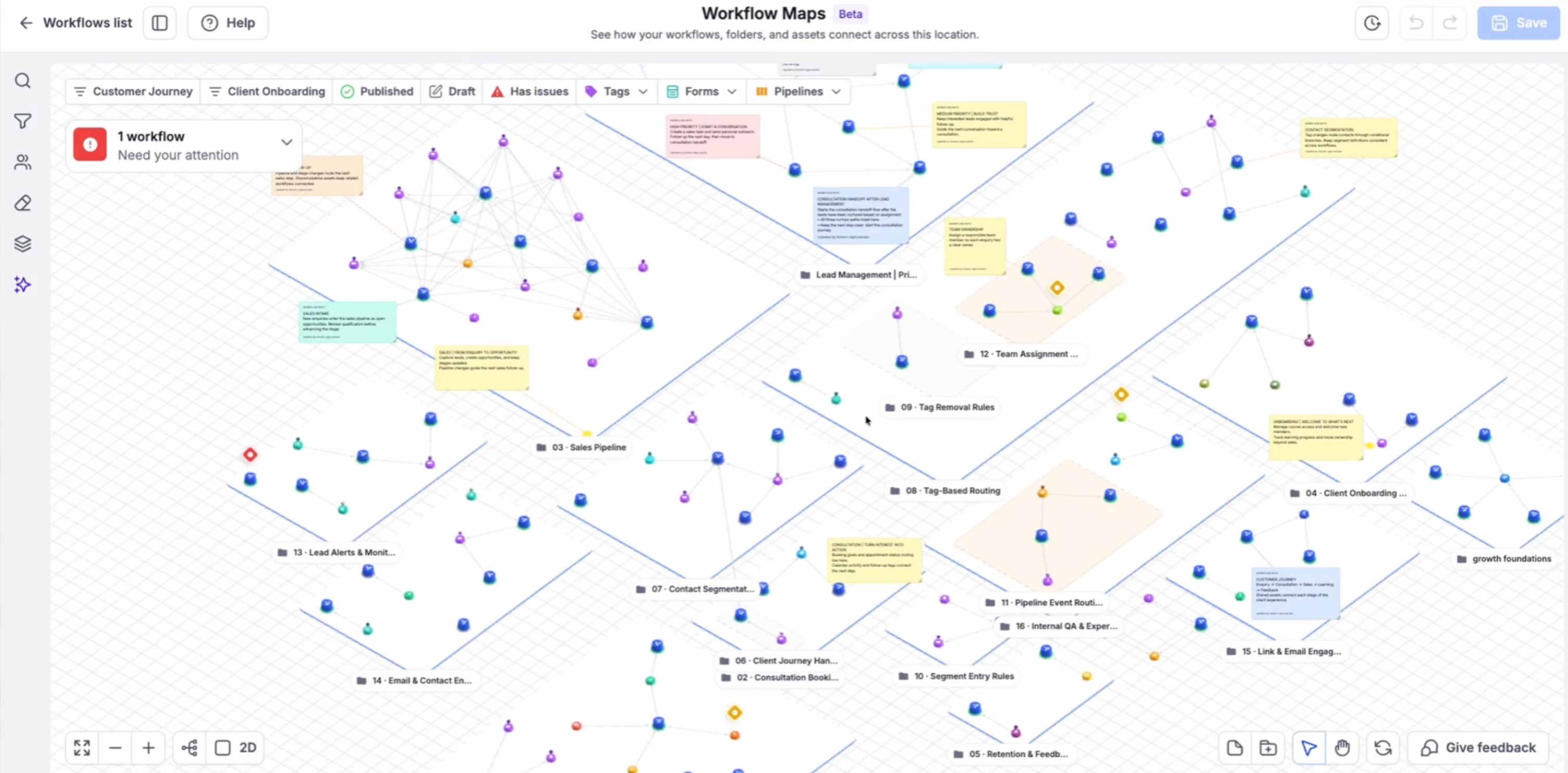
Note: Workflow Maps shows how automations are configured. It does not mean that a particular Contact has completed every visible connection.
For additional details, see Read the map and understand connections.
Searching and Navigating Workflow Maps
Search and navigation controls help you locate specific workflows or assets and focus on the connections that matter.
Available controls include:
Search: Find workflows, assets, triggers, and actions by name.
Filters: Narrow the visible map using supported criteria.
Pan and Zoom: Move around the map and inspect details.
Fit: Adjust the view to display the full map.
2D/3D: Switch between available viewing modes.
You can also refresh map data when you need to review updated workflow information.
Tip: If a workflow or asset is missing, check the active filters and refresh the map before continuing.
For detailed instructions, see Navigate, search, and filter Workflow Maps.
Exploring Connected Workflows and Assets
Connected workflows and assets help you understand how one automation may affect another.
Selecting an asset reveals its available workflow relationships. For example, you can investigate which workflows use a particular tag before changing that tag.
Linked Workflows and Workflow View
The Linked workflows option lets you explore related workflows together in a focused view.
Existing documentation refers to this interface as Workflow view, while the release also uses the term Workflow Canvas. Follow the labels shown in your Chat To Clients CRM interface.
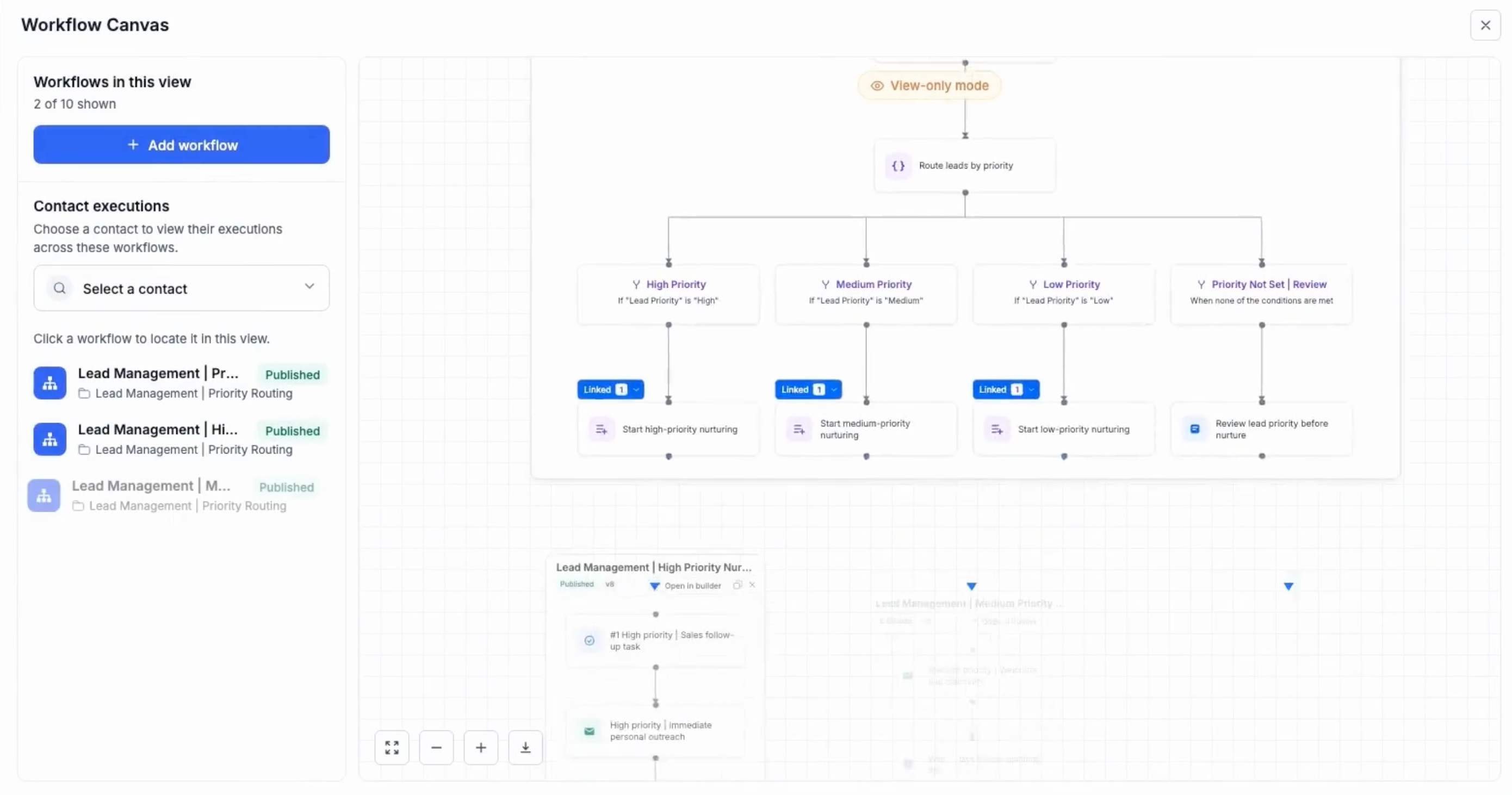
Important: Workflow Maps helps you investigate connections. To edit workflow triggers, actions, or internal logic, open the workflow in Workflow Builder.
Tracing Contact Journeys
Contact Journeys helps you understand how an individual Contact has progressed through multiple workflows.
You can search for a Contact and review available enrollment history, including completed activities, waiting steps, and failed executions.
The existing Chat To Clients CRM documentation describes a 60-day history window for Contact tracing.
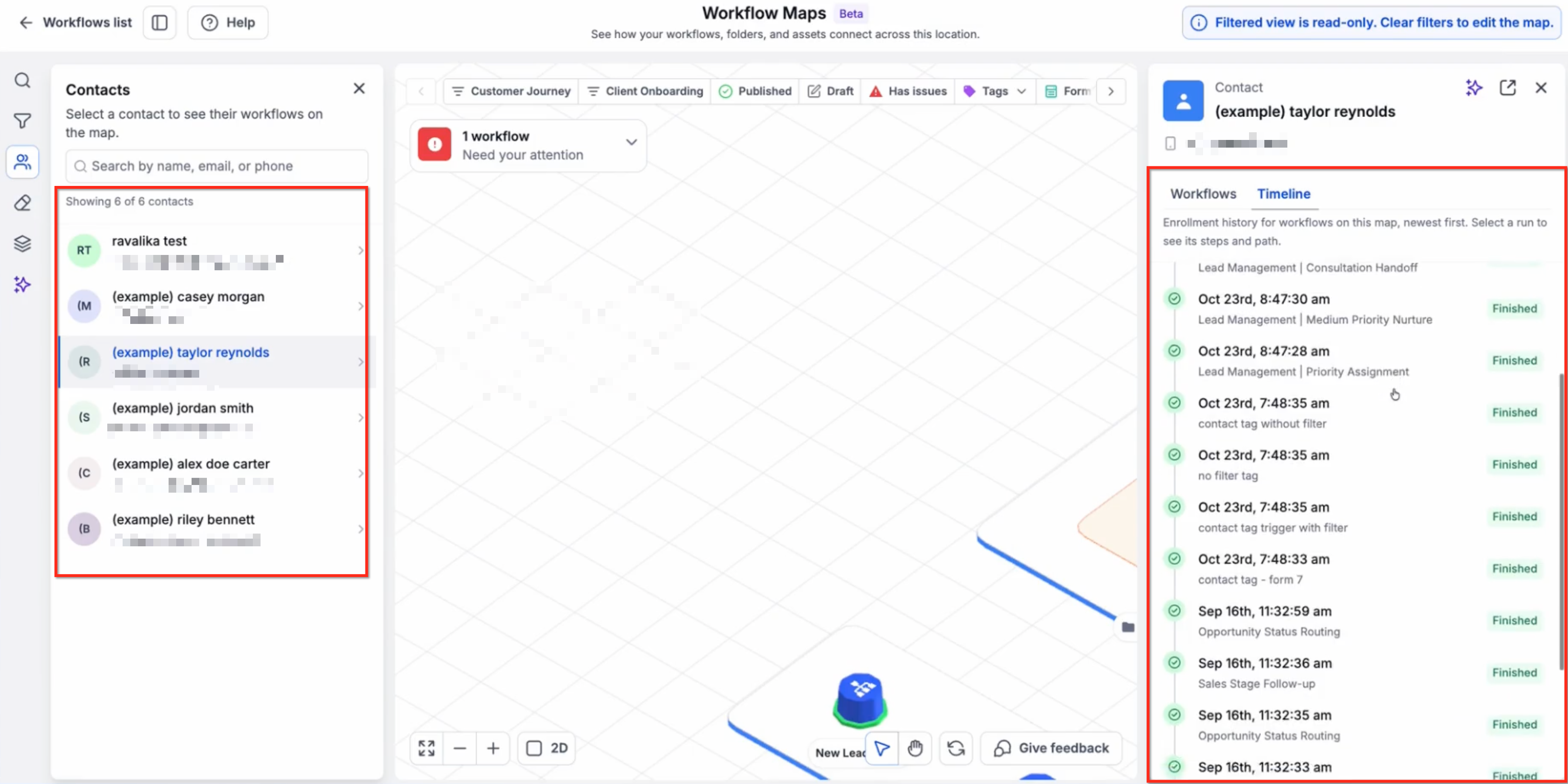
Tip: Use Contact Journeys to investigate what happened to a particular Contact. Use the main map to understand how workflows are connected.
For detailed instructions, see Trace a contact through workflows.
Troubleshooting Workflow Errors
Workflow Maps helps you locate automations with execution problems and inspect the affected steps.
You can review available error indicators, investigate failed executions, and open the relevant workflow for further troubleshooting.
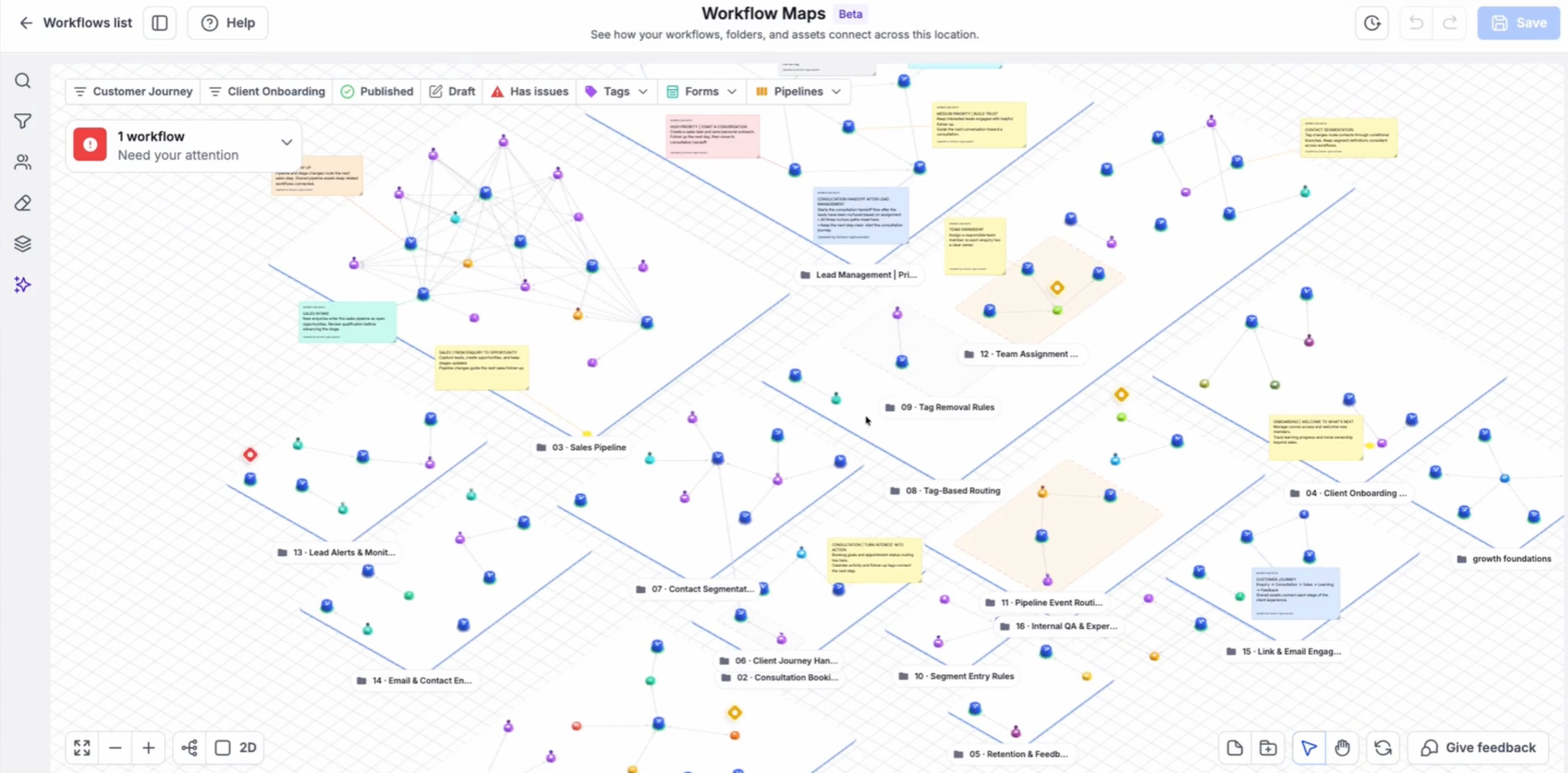
Important: Selecting Mark as read clears an error notification badge. It does not repair the workflow or retry the failed execution.
For additional guidance, see Review workflows with errors.
Organizing the Map and Using Cleanup
Workflow Maps includes organization tools that can help keep complex automation environments easier to understand.
Organizing Folders and Layouts
Agency admins can organize supported workflows and folders, adjust their arrangement, and save shared map layouts.
Saved organizational changes can affect other users who access the same sub-account.
Note: Access to view Workflow Maps does not necessarily include permission to modify or save its shared layout.
Cleanup
The release describes Cleanup as a way to identify possible maintenance tasks, including:
Workflows with default names.
Workflows without recent enrollments.
Empty folders.
These findings can help you decide which items need attention.
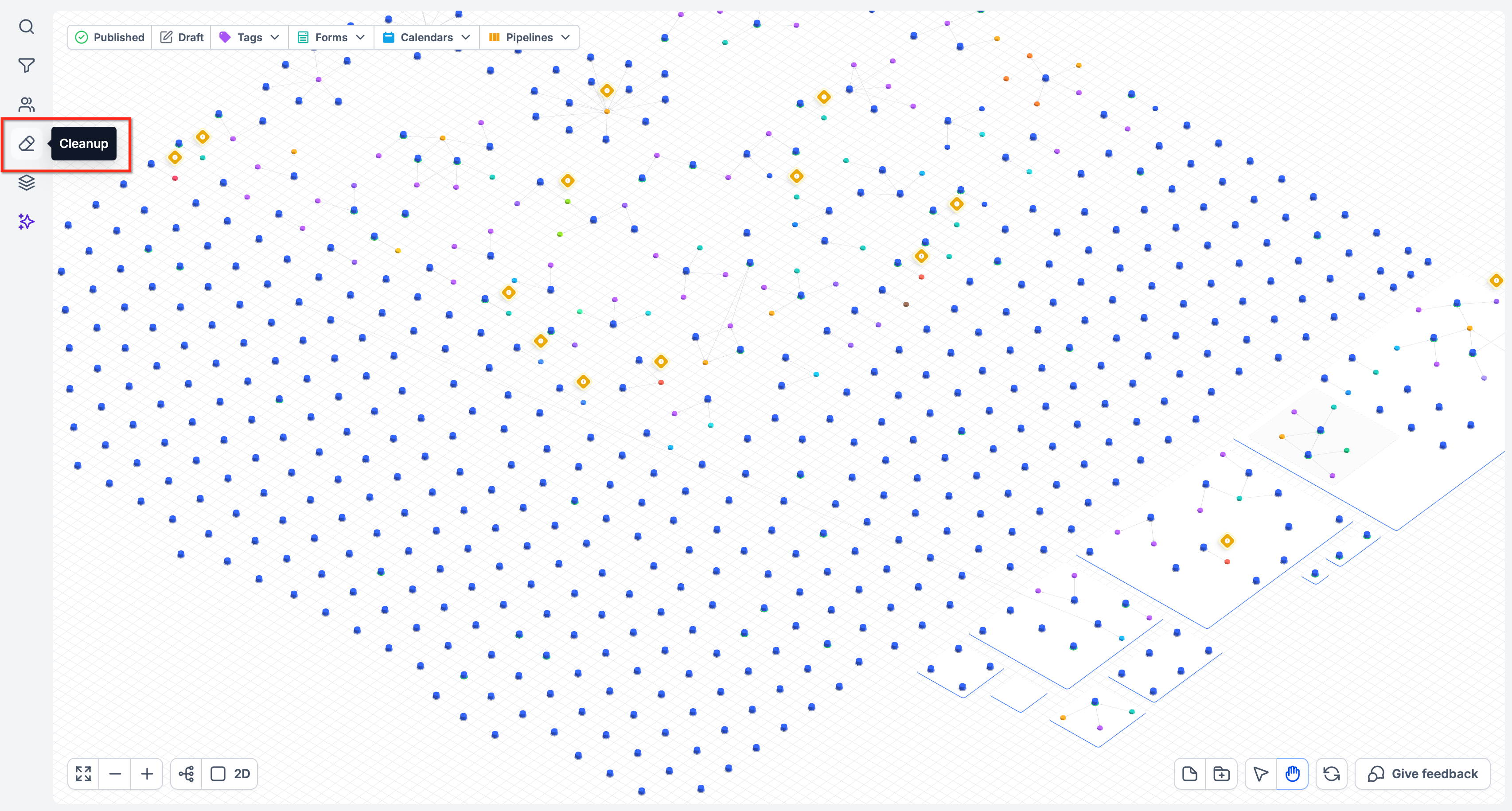
Important: Cleanup criteria, permissions, and management actions require confirmation. Do not assume that Cleanup automatically deletes or fixes anything.
AI Assistant, Onboarding, and Resources
Workflow Maps includes guidance features to help users understand the map and investigate their automation environment.
AI Assistant
The release describes an AI assistant that can help answer questions about workflow connections, troubleshooting, and account organization.
For example, you may ask which workflows are connected to a particular asset.
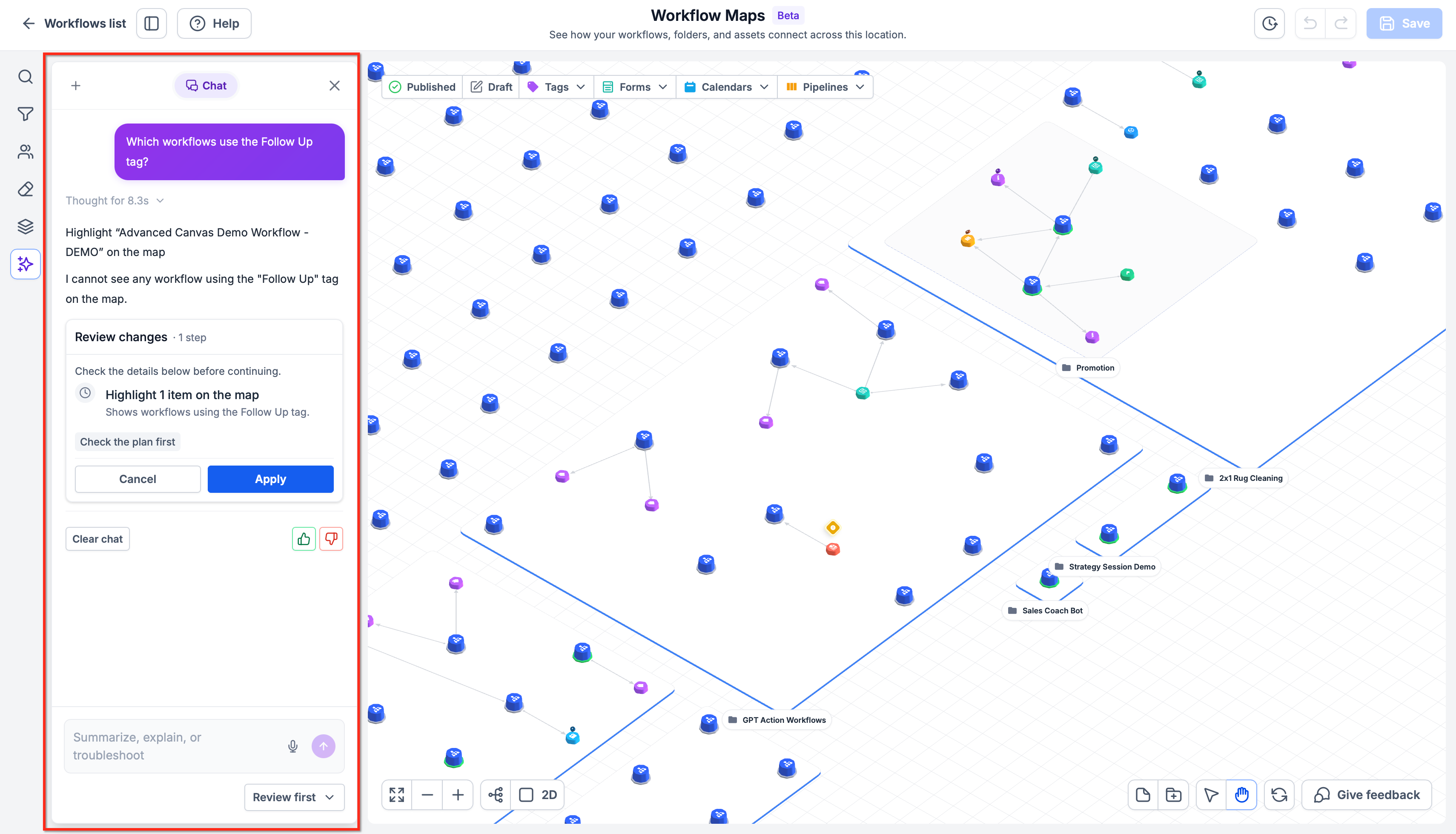
Note: The assistant's exact capabilities require verification. Do not assume it can edit workflows or resolve errors automatically.
Onboarding and Resources
Guided onboarding and Resources help users learn the interface and access available walkthroughs or reference material.
The exact controls and content may vary according to feature availability.
Frequently Asked Questions
Q: Do I need to create Workflow Maps manually?
A: No. Chat To Clients CRM generates maps from the existing workflows and supported asset connections in your sub-account.
Q: Who can access Workflow Maps?
A: The release specifies agency users and agency admins at launch. Exact eligibility and any Labs requirements should be confirmed.
Q: Can I edit workflow steps directly from Workflow Maps?
A: No. Open the workflow in Workflow Builder to edit its triggers, actions, or internal logic.
Q: Can Workflow Maps show a Contact's complete history?
A: Contact tracing displays the available workflow history. The existing documentation describes a 60-day history window.
Q: What should I do if a workflow is missing from the map?
A: Check your filters, search for the workflow, and refresh the map data.
Q: Does marking a workflow error as read fix it?
A: No. Mark as read clears the notification badge. The underlying error still requires investigation.
Q: Can everyone change the map layout?
A: No. The existing documentation identifies agency-admin permissions for organizing and saving shared layouts.
Q: Does Cleanup automatically remove unused workflows?
A: The release describes Cleanup as a way to identify items requiring review. Automatic deletion or repair is not confirmed.
Q: Can the AI assistant modify my workflows?
A: The release describes assistance with understanding and troubleshooting automations. Workflow-editing capabilities require separate verification.