
Read the map and understand connections
Learn what folders, workflow chips, assets, arrows, and badges mean, and which asset types appear on the map.
TABLE OF CONTENTS
- The map at a glance
- What the arrows mean
- What line styles mean
- Steps for inspecting a connection
- What badges mean
- Supported asset types
- Frequently Asked Questions
The map at a glance
| Item | What it shows |
|---|---|
| Folder island | A workflow folder. Workflows without a folder appear together. |
| Nested folder | A folder inside another folder, displayed on its parent island. Hover to see its full path. |
| Blue workflow chip with a green border | A published workflow. |
| Blue workflow chip with a grey border | A draft workflow. |
| Small colored asset chip | An asset a workflow uses, watches, or changes. Colors distinguish asset types. |
| Sticky note | An explanation placed on the map by your team. |
Click a workflow to inspect its details. Click an asset to find the workflows that use it.
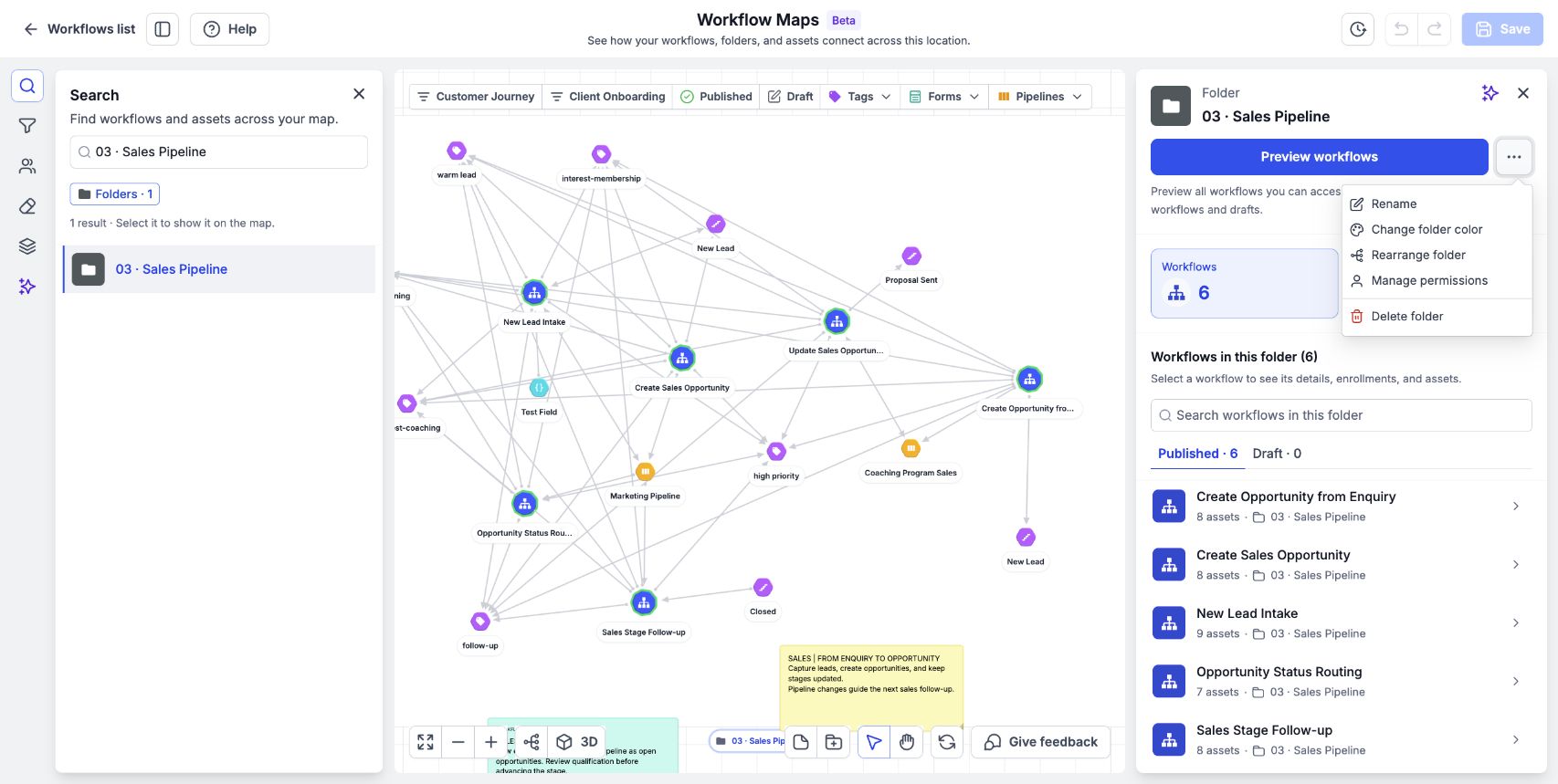
Select a folder to review its workflows and assets; the folder menu contains organizational actions.
What the arrows mean
Read a connection from the dot toward the arrowhead.
| Direction | Meaning | Example |
|---|---|---|
| Asset → workflow | A trigger relationship. The workflow watches the asset. | A form submission starts a workflow. |
| Workflow → asset | An action relationship. The workflow changes the asset. | A workflow adds a tag. |
| Asset ↔ workflow | The workflow both watches and changes the asset. | A tag is used by both a trigger and an action. |
| Workflow → workflow | A direct action adds a contact to, or removes a contact from, another workflow. | One workflow adds the contact to a follow-up workflow. |
These connections describe how the automation is configured. To inspect a particular contact’s history, use contact tracing.
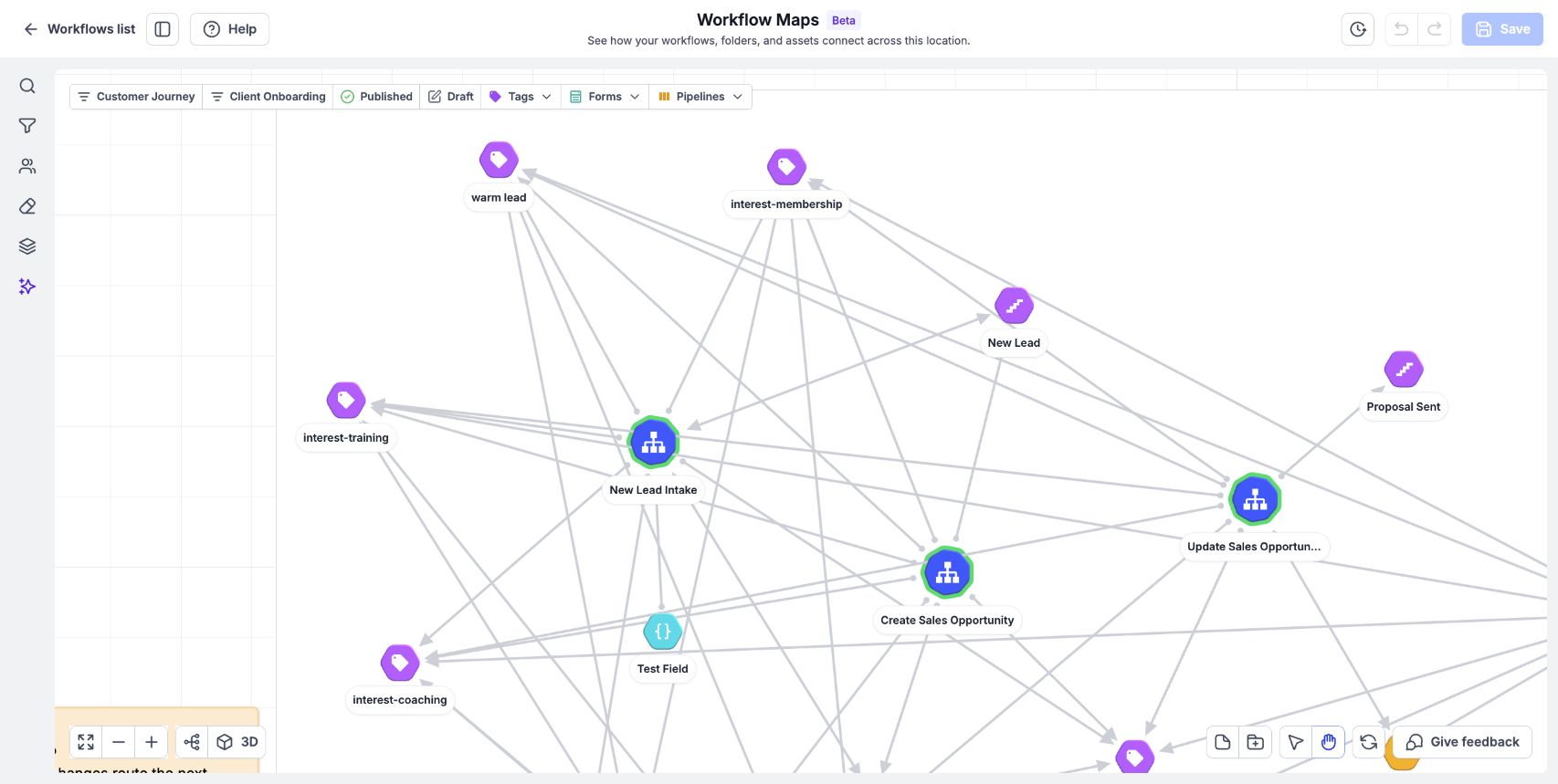
Arrowheads show the direction of configured relationships between workflows and assets.
What line styles mean
| Line style | Meaning |
|---|---|
| Solid line | A trigger or action connection that can start or change something. |
| Dashed line | A reference, such as an asset used in a filter. The reference does not start or change anything on its own. |
| Curved line between folders | The same asset is used in more than one folder. Each folder displays a copy of that asset. |
| Light blue line with a moving arrow | A connection for the item you are hovering over or have selected. The arrow follows the connection’s direction. |
| Thicker blue line | The connection you selected. Its details appear in the side panel. |
A moving arrow highlights the direction of a connection. Use contact history to investigate a specific execution.
Steps for inspecting a connection
- Zoom in if the map is fully zoomed out.
- Hover over a workflow or asset to highlight its connections.
- Click the line you want to inspect.
- Read the triggers and actions listed in the side panel.
Lines cannot be selected while the map is zoomed all the way out.
What badges mean
| Badge | Meaning |
|---|---|
| Errors | The workflow encountered errors during recent runs. |
| Usage | Click to inspect the asset’s usage across folders. |
| Missing asset | The asset no longer exists, but workflows still reference it. |
Use Review workflows with errors to investigate errors. For a missing asset, inspect the workflow references to understand where it is still used.
Supported asset types
The map supports these asset types:
- Tags and fields: Tags, Contact Custom Fields, Opportunity Custom Fields, Custom Values, Custom Objects.
- Forms and engagement: Forms, Surveys, Facebook Forms, TikTok Forms, Quizzes, Trigger Links, Chat Widgets.
- Scheduling and sales: Calendars, Users, Pipelines, Pipeline Stages, Services.
- Funnels and products: Funnels, Funnel Pages, Funnel Products, Global Products, Global Product Prices.
- Memberships and content: Membership Offers, Membership Products, Membership Categories, Membership Lessons, Videos.
- Templates and billing: Templates, Certificate Templates, Invoice Templates, Estimate Templates.
- Other assets: Ad Accounts, Workflow Links, AI Studio Projects, Listings, Listing Categories.
These groupings help you scan the list; the individual names are the supported asset types.
Frequently Asked Questions
Q: Why do I see the same asset in multiple folders?
An asset used across folders appears in each relevant folder. A curved line connects those copies.
Q: Why are wait, if/else, and goto steps missing?
They are internal workflow logic. Open the builder to see those steps. Search can still find tags referenced inside an if/else.
Q: Does a dashed line mean the workflow changes the asset?
No. It means the workflow refers to the asset, such as in a filter.
Q: What does a missing asset badge mean?
The asset has been removed, but a workflow still contains a reference to it.