
Follow linked workflows
Open the Workflow view to understand how a workflow connects to other workflows across folders.
TABLE OF CONTENTS
- What linked workflows shows
- Steps for opening linked workflows
- Read the connections
- Frequently Asked Questions
What linked workflows shows
A workflow can connect to another workflow directly or through a shared asset.
For example, one workflow may add a tag that starts another workflow. It may also use an action to add a contact to, or remove a contact from, another workflow.
Linked workflows brings these relationships into a Workflow view modal, including connections across folders.
Steps for opening linked workflows
- Open Automation → Workflows → Workflow Maps.
- Find and click the workflow you want to inspect.
- In its details panel, click Linked workflows.
- Review the connections in the Workflow view modal.
Select a workflow with direct workflow links, then click Linked workflows in its details panel.
Read the connections
Use the connection direction to understand how the workflows relate.
- An asset pointing into a workflow represents a trigger relationship.
- A workflow pointing to an asset represents an action that changes it.
- A direct workflow-to-workflow arrow represents an action that adds a contact to, or removes a contact from, another workflow.
For a shared asset, return to the map and click the asset to review its usage. Expand the relevant workflow row and use View step to inspect a listed trigger or action.
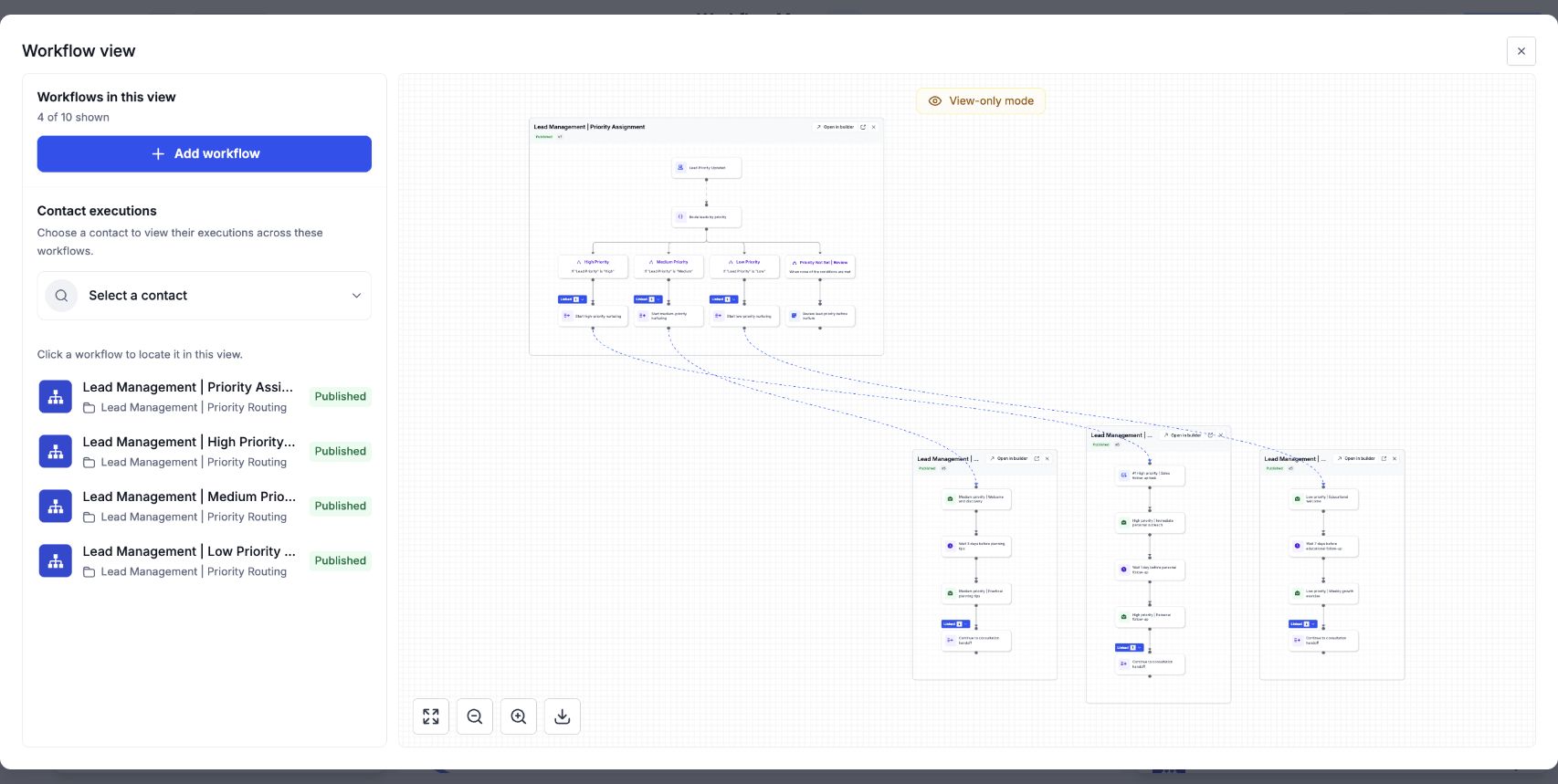
Workflow view displays the linked workflows together, including the actions that connect them.
Frequently Asked Questions
Q: Can linked workflows include workflows in other folders?
Yes. Linked workflows includes relationships across folders.
Q: Where does Linked workflows open?
It opens in a modal titled Workflow view.
Q: Does the graph show a particular contact’s journey?
Use Contacts in the map’s left rail to inspect a contact’s workflow history. Linked workflows explains the configured relationships.