
Find where an asset is used
Review the workflows connected to an asset and open the trigger or action that uses it.
TABLE OF CONTENTS
- What asset usage shows
- Steps for finding an asset’s usage
- Open the step that uses the asset
- Highlight usage across folders
- Understand an empty list or a missing asset
- Frequently Asked Questions
What asset usage shows
Selecting an asset shows which workflows use it and how. Use this before renaming or deleting a tag, form, calendar, pipeline, or another supported asset.
A workflow can use the same asset in several places. Its usage row may show separate trigger and action counts, such as 2 triggers · 1 action.
For example, before changing a lead tag, check which workflows start when that tag is added and which workflows add or remove it.
Steps for finding an asset’s usage
- Open Automation → Workflows → Workflow Maps.
- Find the asset using the map or Search.
- Click the asset.
- Review the workflows listed in the panel.
- Expand a workflow row to inspect its individual triggers and actions.
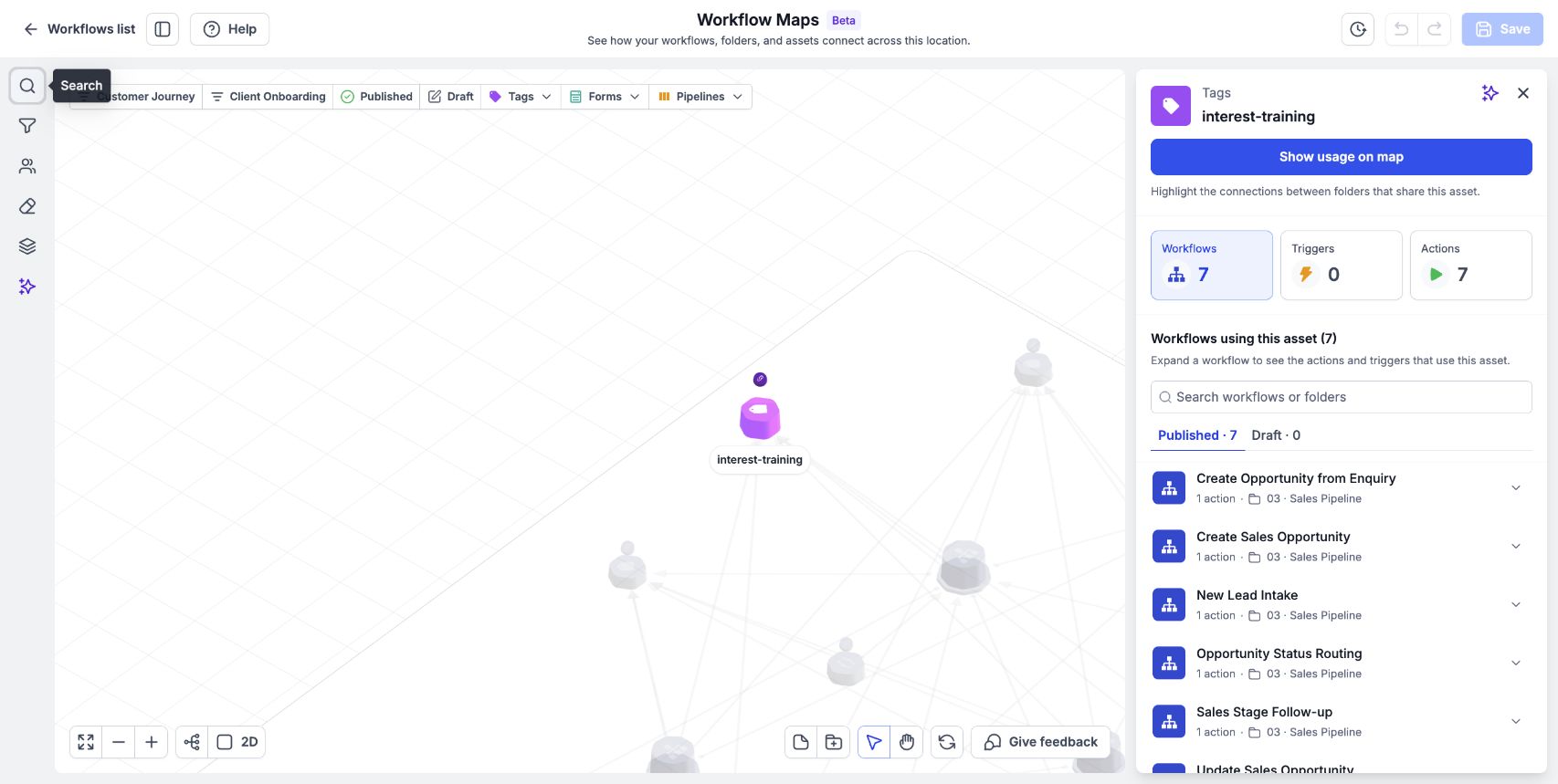
The asset panel lists its workflow usage, trigger and action totals, and published or draft workflows.
Open the step that uses the asset
- Expand the relevant workflow row in the asset’s usage panel.
- Hover over the trigger or action you want to inspect.
- Click View step.
The workflow opens at the step using that asset. Review the step before deciding what to change.
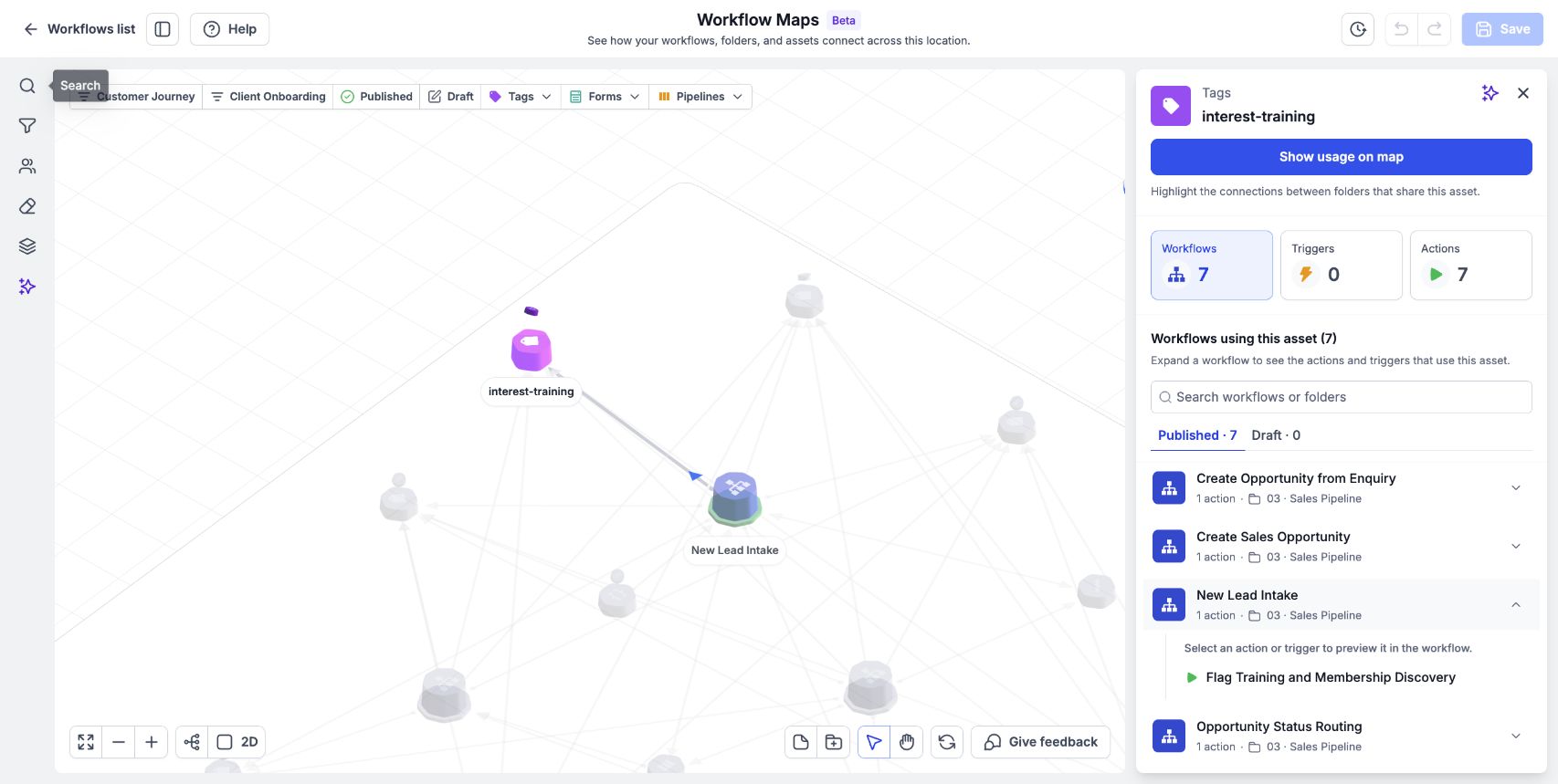
Expand a workflow to inspect the action or trigger that uses the selected asset.
Highlight usage across folders
Click Show usage on map in the asset panel to highlight the workflows that use the asset across folders.
An asset may appear in more than one folder because workflows in those folders use it. A curved line connects the folder copies. You can also click its usage badge to inspect usage across folders.
Understand an empty list or a missing asset
An empty workflow usage list means no workflow usage is listed for that asset. This check covers workflow dependencies; consider any uses outside workflows before removing an asset.
A Missing asset badge means the asset no longer exists but workflows still reference it. Inspect the references to locate the steps that need review.
Frequently Asked Questions
Q: Can one workflow use an asset more than once?
Yes. Expand the workflow’s row to review the separate triggers and actions.
Q: Can I see usage outside the current folder?
Yes. Show usage on map highlights connected workflows across folders.
Q: Can I find an asset used only in a filter or if/else?
A dashed connection indicates a reference such as a filter. Search can also find tags used inside an if/else.
Q: Does selecting an asset change it?
Selecting an asset opens its usage details. Make workflow step changes in the builder.