
Review workflows with errors
Find workflows that encountered errors, inspect failed executions, and open the workflow to fix the affected step.
TABLE OF CONTENTS
- What an errors badge means
- Steps for finding workflows with errors
- Inspect a failed execution
- Fix the step and mark the issue as read
- Frequently Asked Questions
What an errors badge means
An errors badge indicates that a workflow encountered errors during recent runs. Use it to identify workflows that need investigation.
The badge points you to a problem. Open the failed execution to read the error and identify the affected step.
Steps for finding workflows with errors
- Open Automation → Workflows → Workflow Maps.
- Click Review workflows with errors.
- Review the list, which separates Published and Draft workflows.
- Select a workflow to inspect its failed executions.
To focus the map on flagged workflows, use the Has issues filter.
Inspect a failed execution
Select a workflow in the error review to see its failed executions, the step that failed, and the error.
Read the error alongside the affected step. For example, if a webhook action failed, inspect the error for that execution before changing the action.
Use Open in builder to investigate and edit the workflow step.
To inspect a past run from a workflow’s details, select Total Enrolled, choose an enrollment, and select the failed action to open its Event details.
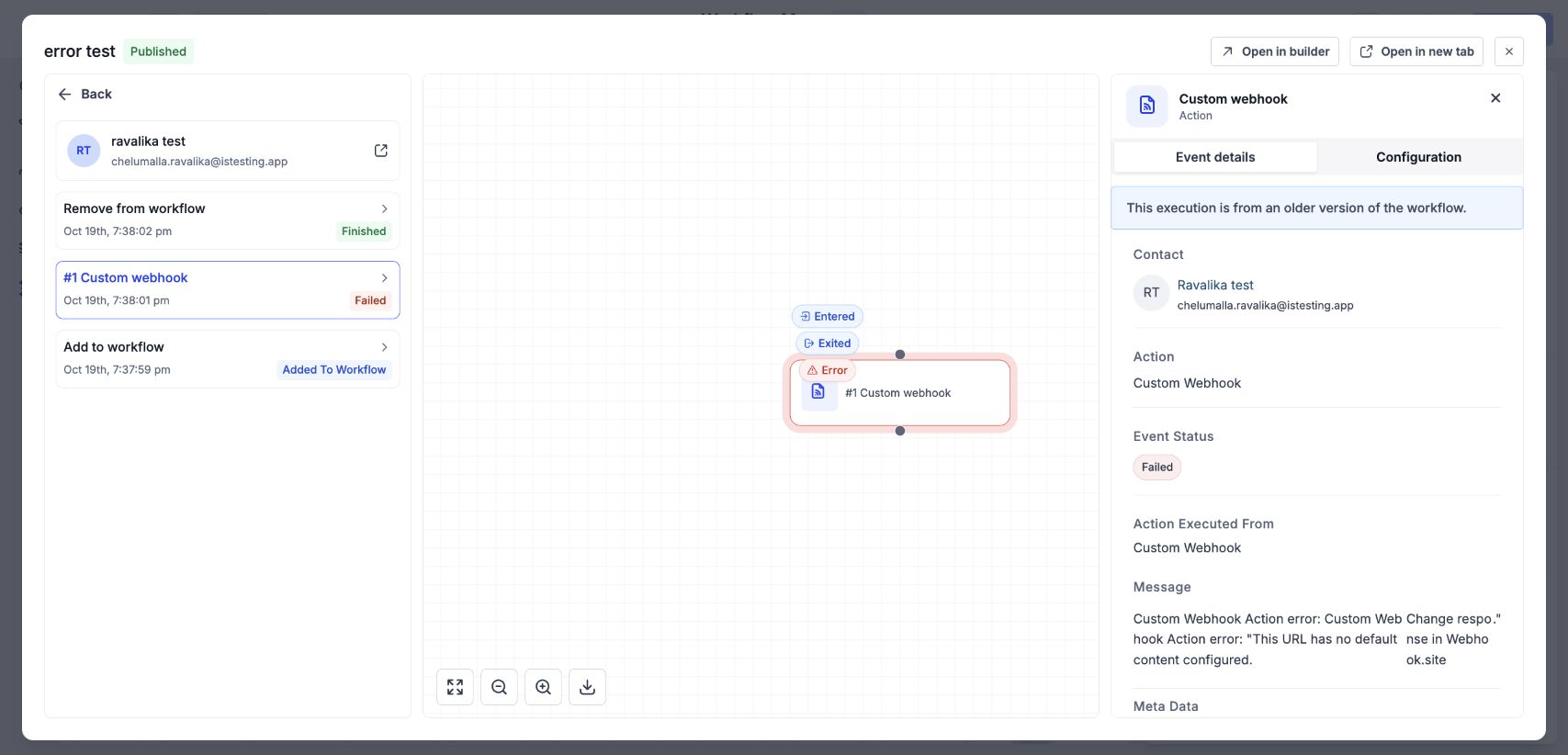
Historical execution details identify the failed action, its status, and the error message.
Fix the step and mark the issue as read
- Open the affected workflow in the builder.
- Review the error and correct the affected step.
- Return to Workflow Maps.
- Click Mark as read to clear the badge after reviewing the issue.
Mark as read clears the notification badge. Correcting the workflow requires changes in the builder; clearing the badge does not make those changes.
Frequently Asked Questions
Q: Can I view all flagged workflows in one place?
Yes. Click Review workflows with errors.
Q: Why are Published and Draft listed separately?
The review groups flagged workflows by their current publication status.
Q: Can I fix a workflow step from the map?
Use Open in builder to edit the workflow.
Q: Does Mark as read retry a failed execution?
The documented behavior is to clear the badge. Do not use it as a retry or repair action.