
Getting Started with Chat To Clients CRM for Restaurants
Chat To Clients CRM for Restaurants brings menus, reservations, dine-in service, and online ordering into one connected workspace. Agencies can create restaurant-ready sub-accounts without building everything from scratch. This guide covers the key features and steps to get your restaurant up and running.
TABLE OF CONTENTS
- What is Chat To Clients CRM for Restaurants?
- Key Benefits of Chat To Clients CRM for Restaurants
- Restaurant Overview
- Menu
- Reservations
- Dine-In Service
- Restaurant Orders
- Restaurant Website
- Restaurant Settings
- How to Set Up Chat To Clients CRM for Restaurants
- Frequently Asked Questions
- Related Articles
What is Chat To Clients CRM for Restaurants?
Chat To Clients CRM for Restaurants is an industry-specific workspace that helps restaurants manage daily operations while keeping guest information connected to Chat To Clients CRM CRM. Agencies can select the Restaurant industry when creating a sub-account to access six integrated modules.
| Module | Purpose |
|---|---|
| Overview | Monitor performance and setup progress. |
| Menu | Manage menu items, pricing, and availability. |
| Reservations | Manage bookings, tables, and walk-ins. |
| Restaurant Orders | Track dine-in, pickup, and delivery orders. |
| Restaurant Website | Accept online orders and reservations. |
| Restaurant Settings | Configure hours, payments, delivery, and notifications. |
Note: Chat To Clients CRM for Restaurants is currently available to agencies participating in the private beta.Key Benefits of Chat To Clients CRM for Restaurants
Chat To Clients CRM for Restaurants connects restaurant operations with customer management, helping businesses simplify daily tasks and deliver a more consistent guest experience.
Faster Setup: Launch a restaurant-ready sub-account using the Restaurant industry option.
Centralized Operations: Manage menus, orders, reservations, and tables in one workspace.
Connected CRM: Associate bookings and orders with Chat To Clients CRM contacts for follow-ups and campaigns.
Online Ordering: Accept pickup and delivery orders through a customizable restaurant website.
Business Insights: Monitor sales, orders, reservations, and popular menu items.
Guest Communication: Send email and SMS notifications for supported order and reservation events.
Restaurant Overview
The Overview dashboard brings together restaurant performance metrics and setup tasks. Owners and managers can monitor business activity and identify outstanding configuration steps.
Menu
The Menu module lets restaurants create and manage a single menu for their supported service channels. Centralized menu management helps maintain accurate pricing, product information, and availability.
For more information, see How to Create a Restaurant Menu in Chat To Clients CRM.
Reservations
Reservations helps front-of-house staff manage bookings, table availability, and walk-in guests. Its visual floor plan makes it easier to coordinate seating and monitor guest activity.
Navigate to Restaurants → Reservations.
Three views are available:
Front of house: View table statuses, arriving guests, and seated parties.
Timeline: Monitor reservations by time and table.
List: Search, filter, and manage bookings.
Staff can create reservations, seat walk-ins, assign tables, and review guest details.
For more information, see Restaurant Reservations: Manage Bookings, Tables, and Guests.
Dine-In Service
Dine-in service connects table reservations with kitchen orders and payments. Staff can add multiple rounds of items to a guest's booking and monitor preparation progress.
To create a dine-in order:
Open a seated reservation and select Order.
Click Add round.
Select menu items and add kitchen notes.
Click Send to kitchen.
Track the round from Accepted → In progress → Ready to serve → Served.
Staff can collect payments, add tips, and record partial manual payments for split bills.
Restaurant Orders
Restaurant Orders provides a central location for managing dine-in, pickup, and delivery orders. Staff can track order progress and identify orders requiring attention. Navigate to Restaurants → Restaurant Orders.
Orders are organized into five tabs: Active, Scheduled, Completed, All, and Canceled.
Additional capabilities include:
On-screen ringing alerts for new online orders.
Order acceptance and status updates.
A Running late filter.
Order details and payment information.
Kitchen round management for dine-in orders.
For more information, see Restaurant Orders: How to Manage Orders and Payments.
How to Set Up Chat To Clients CRM for Restaurants
Setting up your restaurant workspace ensures that menus, ordering, reservations, and payments are configured before customers begin using them. Follow the guided checklist to prepare the restaurant for daily operations.
Create a sub-account: Navigate to Sub-accounts → Create Sub-Account → Start from an industry → Restaurant. Enter the business information and create the sub-account.
Open Restaurant Overview: Inside the sub-account, navigate to Restaurants → Overview and locate the setup checklist.
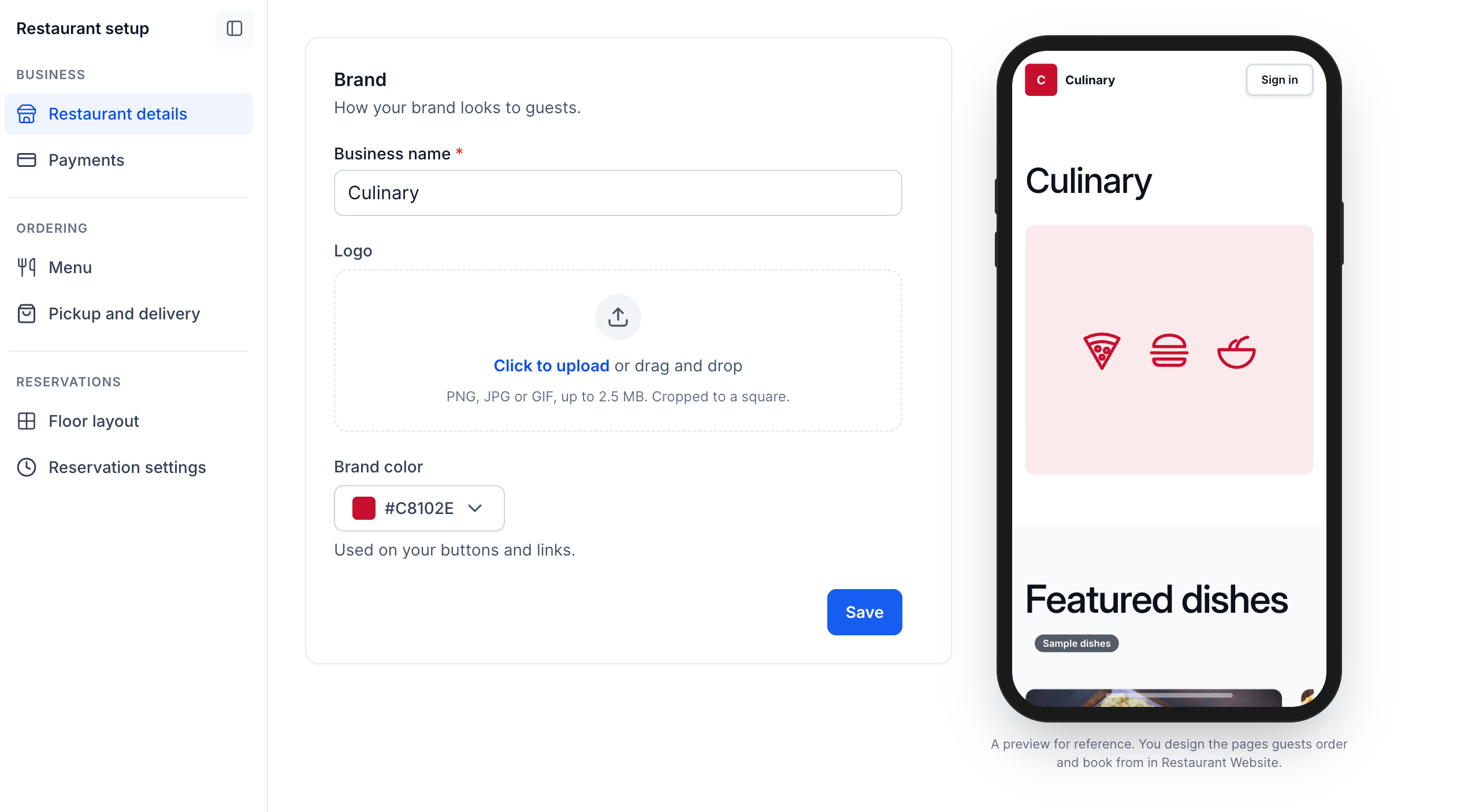
Configure Restaurant Details: Add the restaurant name, branding logo and colours.
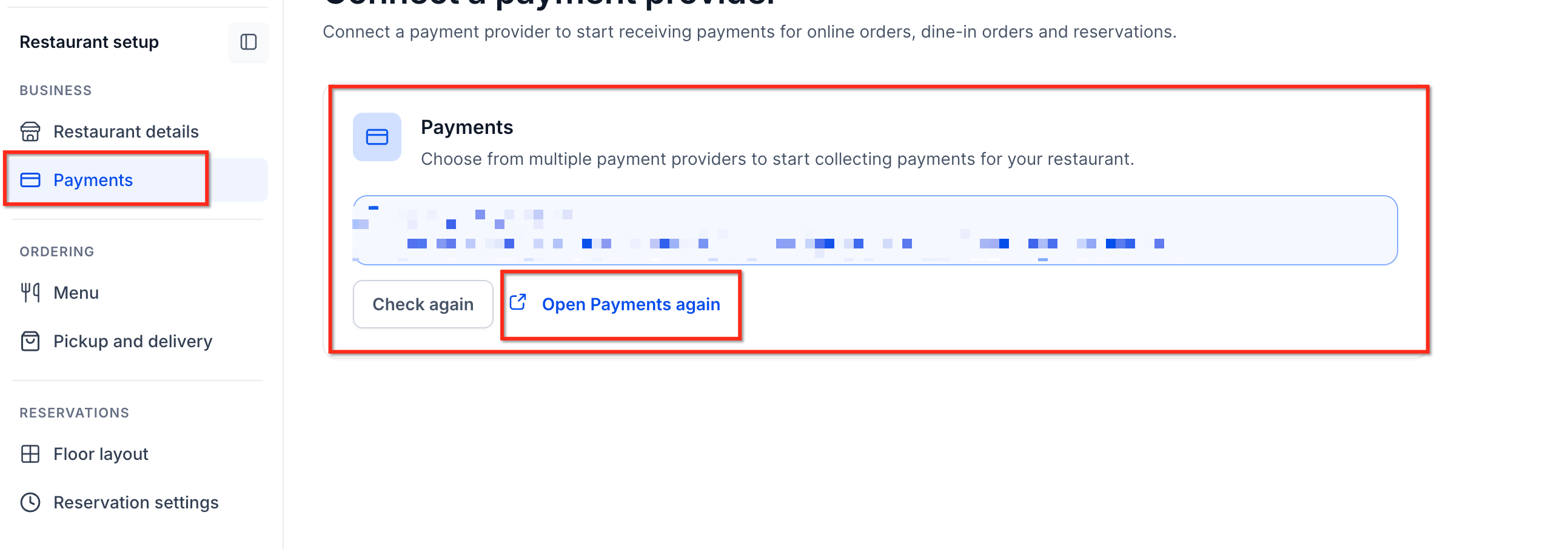
Connect Payments: Open the Payments setup task and connect a supported payment provider.
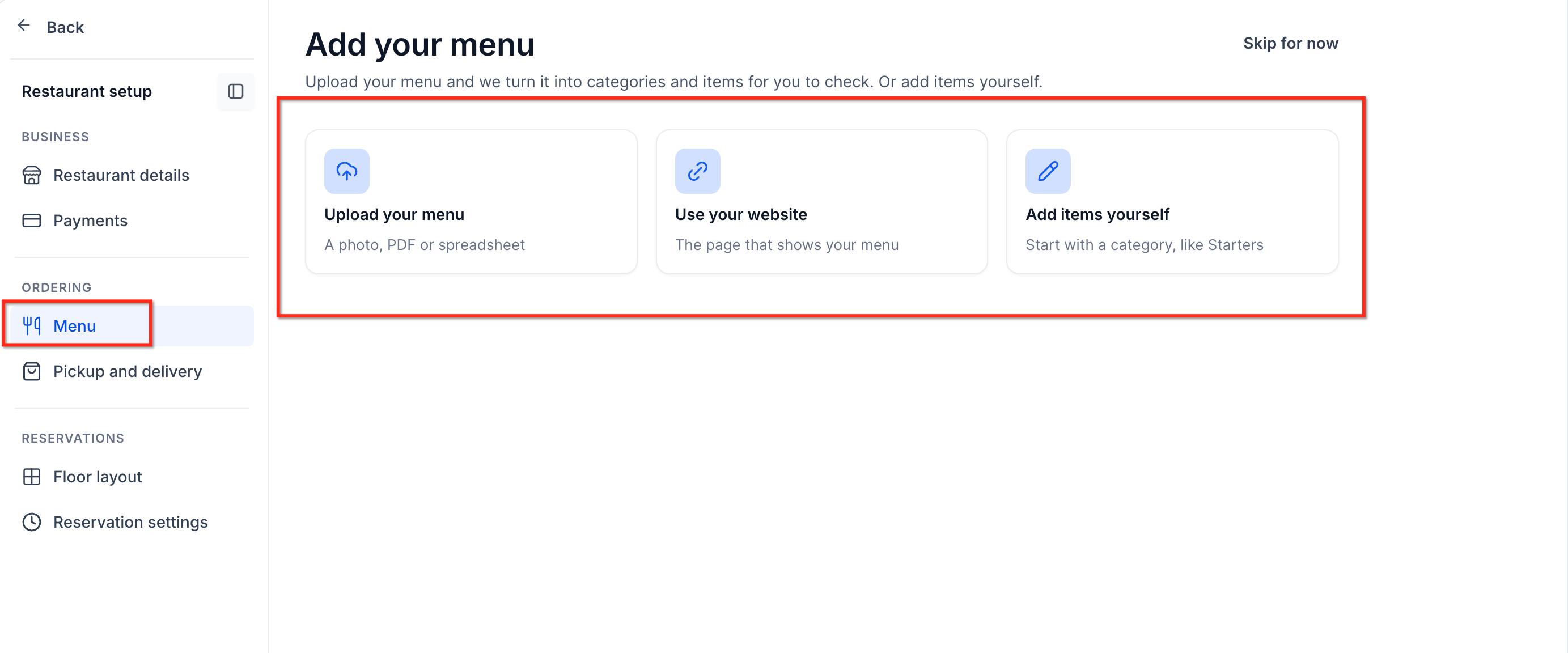
Create Your Menu: Import an existing menu or manually add categories, items, prices, and modifiers.
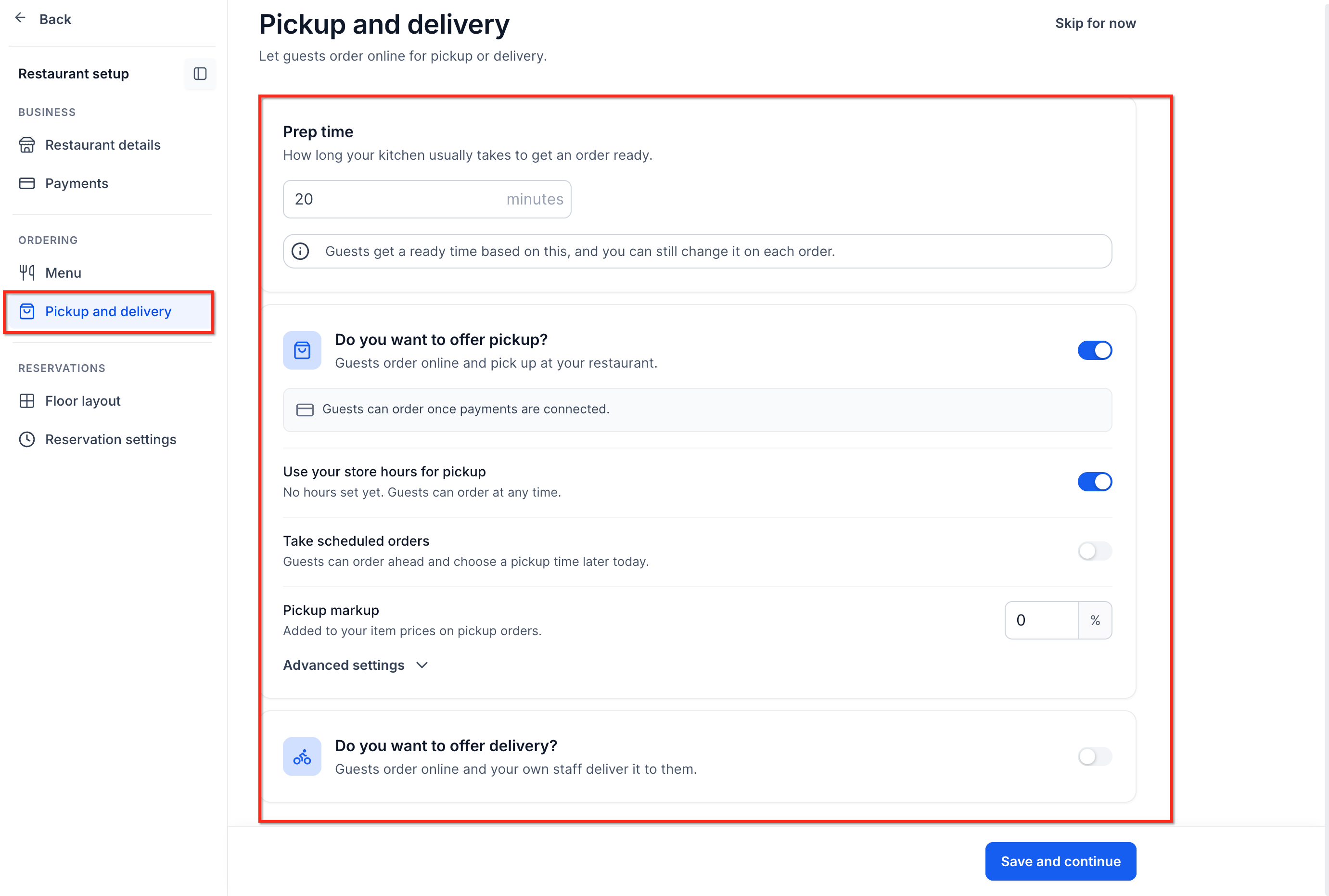
Configure Pickup and Delivery:Set preparation times, service hours, delivery areas, and applicable fees.
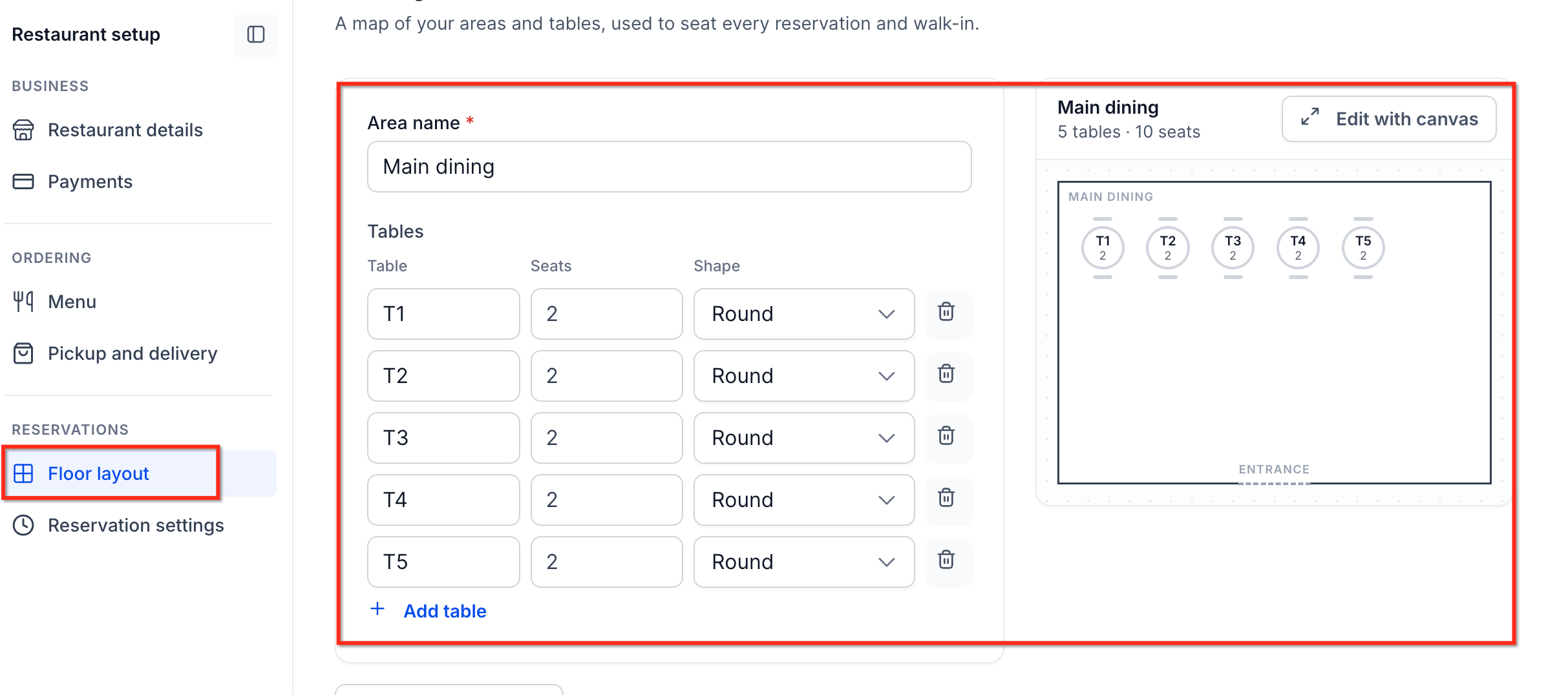
Set Up Tables: Create dining areas, add tables, and configure their capacities using the floor layout editor.
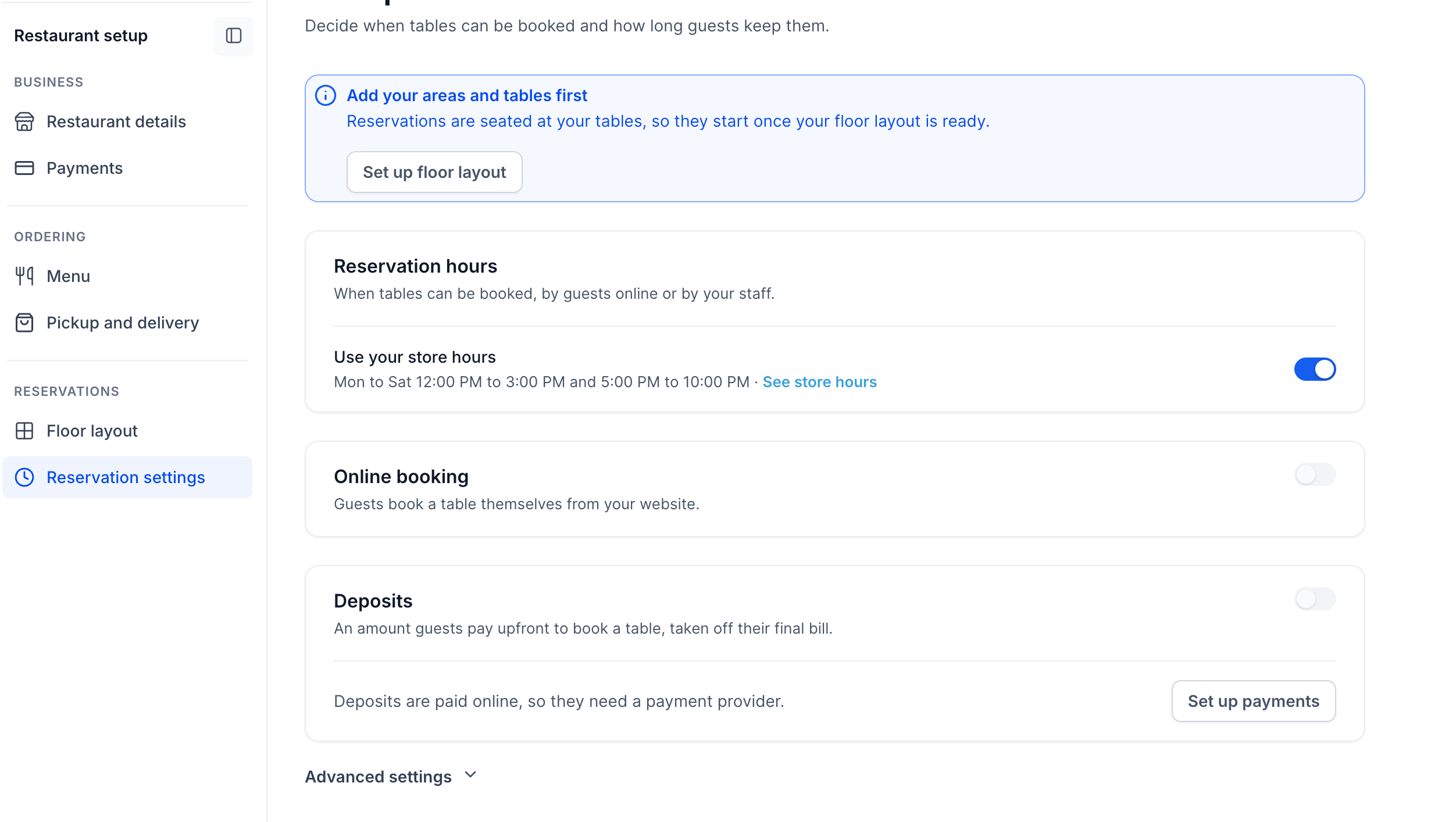
Configure Reservations: Set booking hours, availability rules, reservation durations, and optional deposits.
Publish the Restaurant Website: Customize the guest-facing pages, verify checkout readiness, connect a domain if needed, and publish.
Important: Completing the setup checklist does not automatically publish the website. Checkout Live mode must also be configured as required before accepting real payments.
For detailed instructions, see Restaurant Setup Guide: Get Ready to Take Orders and Reservations.
Frequently Asked Questions
Q: Can I enable Restaurants for an existing sub-account?
Yes. Eligible existing sub-accounts showing No industry can be assigned Restaurant through the agency's Features and Limits settings.
Q: Can restaurants accept online orders and reservations before publishing their website?
Staff can manage certain in-person operations before publication. However, guests need the published restaurant website to place online orders and reservations.
Q: Can restaurants offer different pickup and delivery prices?
Yes. Restaurants can configure channel-specific markups and applicable item-level pricing adjustments.
Q: Are third-party delivery services supported?
No. The private beta supports delivery fulfilled by the restaurant's own staff, without marketplace or courier integrations.
Q: Are restaurant guests added to Chat To Clients CRM CRM?
Restaurant bookings and orders are associated with CRM contacts, allowing businesses to use guest information for communication and follow-ups.