
AI Analyze Video
The AI Analyze Video action in Chat To Clients CRM Workflows uses Google Gemini to analyze videos and generate text-based insights. By providing a public video URL and a prompt, you can summarize videos, transcribe audio, identify visual content, and extract timestamps. The results can be used in subsequent workflow actions to automate tasks without manually reviewing every video.
TABLE OF CONTENTS
- Key Benefits of AI Analyze Video
- Supported AI Models
- Supported Video URLs and Formats
- Video Analysis Prompts and Response Output
- How to Set Up the AI Analyze Video Action
- Important Considerations and Limitations
- Common Troubleshooting
- Frequently Asked Questions
- Related Articles
Key Benefits of AI Analyze Video
AI Analyze Video helps turn video content into useful information that can be automatically processed within your workflows.
Automated Video Analysis: Analyze videos without manually watching every recording.
Visual and Audio Understanding: Identify objects, scenes, spoken content, and important moments.
Flexible Analysis Prompts: Generate summaries, transcripts, timestamps, or specific answers.
Dynamic Video Inputs: Use URLs from forms, webhooks, custom values, or previous workflow actions.
Workflow Integration: Use analysis results in contact fields, emails, notifications, or conditional actions.
AI Video Generation Integration: Analyze AI-generated videos before using them in customer-facing workflows.
Supported AI Models
AI Analyze Video offers two Google Gemini models. You can select the model that best fits your analysis requirements.
| Model | Description |
|---|---|
| Gemini 3.8 Flash | Default model |
| Gemini 3.5 Flash Lite | Alternative model |
Tip: Test both models with the same video to compare their responses.
Supported Video URLs and Formats
The action requires a publicly accessible video URL. Supported sources include YouTube videos and direct video file links.
| Source | Supported Formats |
|---|---|
| YouTube | Standard watch links, youtu.be, and Shorts |
| Direct video files | MP4, MOV, WebM, MPEG, FLV, WMV, and 3GP |
| Dynamic URLs | Custom values from forms, webhooks, and previous actions |
Important:
Video URLs must be public and accessible without authentication.
Vimeo and TikTok webpage links are not supported.
Regular webpages may produce inaccurate responses. Use a valid video URL.
Video Analysis Prompts and Response Output
The Analysis Prompt determines what Gemini extracts from the video. Clear instructions help generate results that can be used reliably in subsequent workflow actions.
Example prompts:
Summary: "Summarize the main topics discussed in this video."
Transcription: "Transcribe all spoken dialogue in plain text."
Visual Analysis: "List the objects visible in this video."
Timestamps: "Identify the important events and their timestamps."
Content Check: "Does this video contain a product demonstration? Answer YES or NO."
Using the Response Output
After processing the video, the action returns a text output called Response. You can access it through:
Previous steps → AI analyze video → Response
Use this output to update contact fields, send notifications, populate emails, or configure If/Else conditions.
Tip: For conditional workflows, request consistent responses such as YES, NO, or UNCERTAIN, and include a fallback for unexpected results.How to Set Up the AI Analyze Video Action
Proper configuration ensures the action can access your video, analyze the intended content, and return results to subsequent workflow steps.
Step 1: Add the Action
Navigate to Automation → Workflows.
Open or create a workflow.
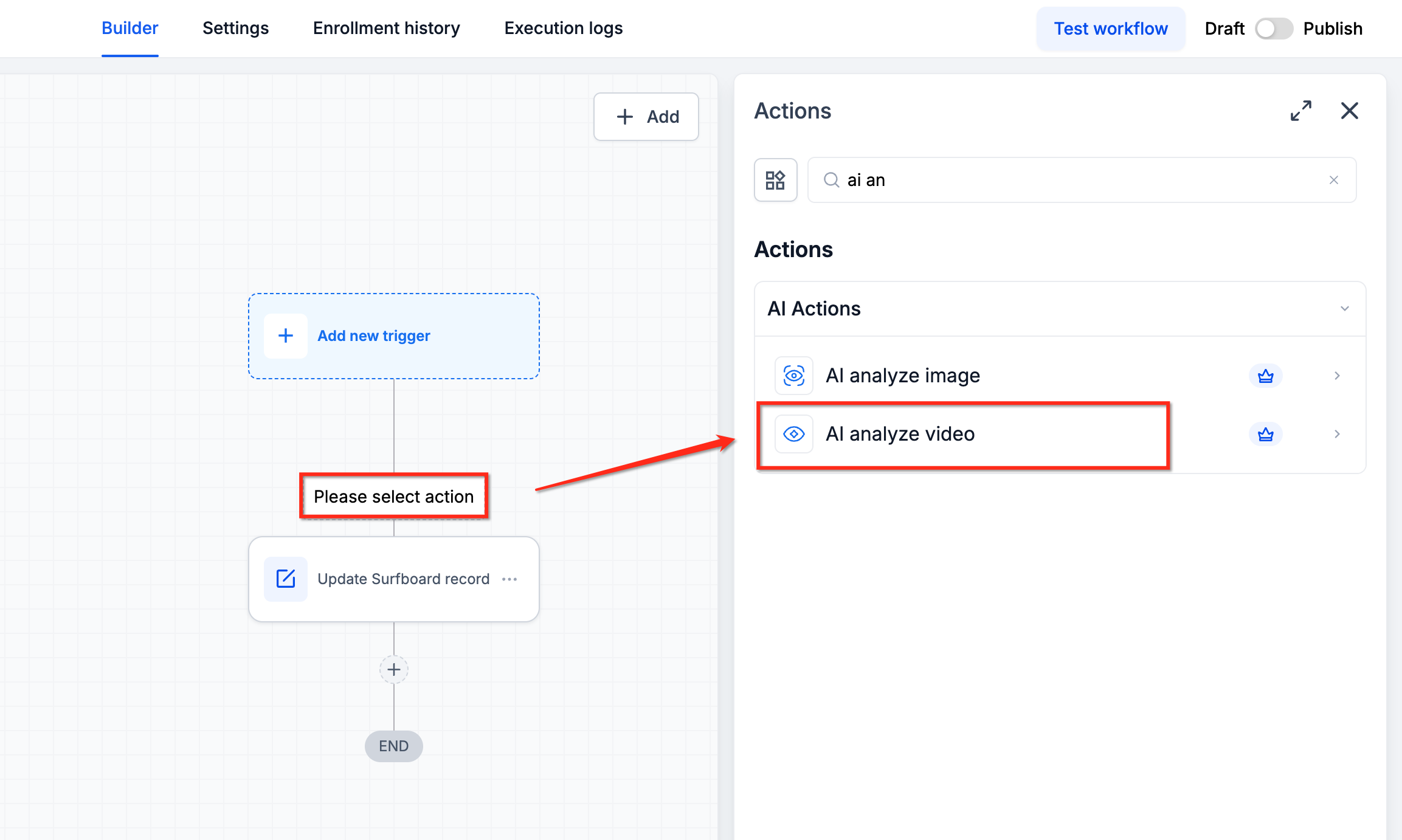
Click the + icon to add an action.
Under AI Actions, select AI analyze video.
Step 2: Select the AI Model
Choose Gemini 3.8 Flash (default) or Gemini 3.5 Flash Lite from the Model dropdown.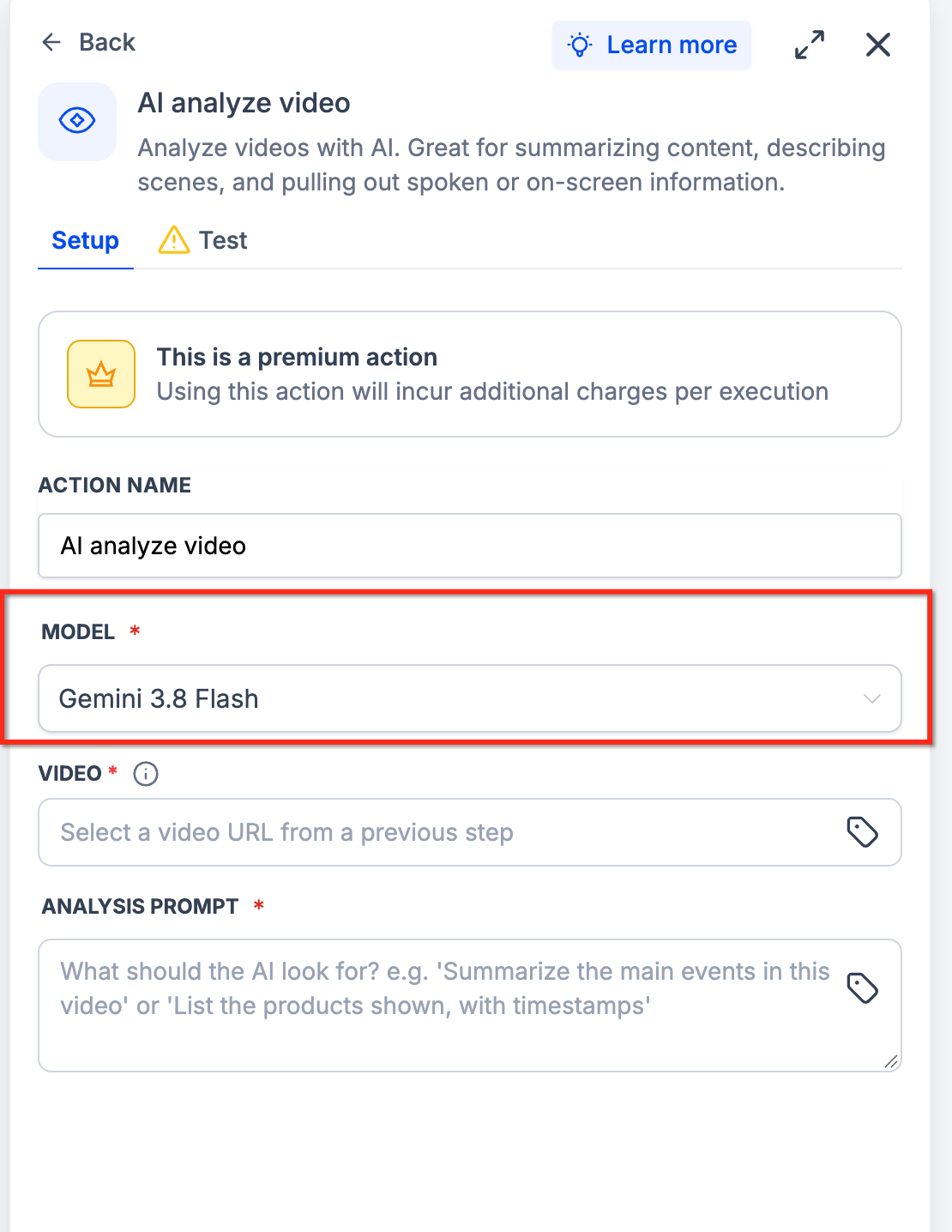
Step 3: Enter the Video URL
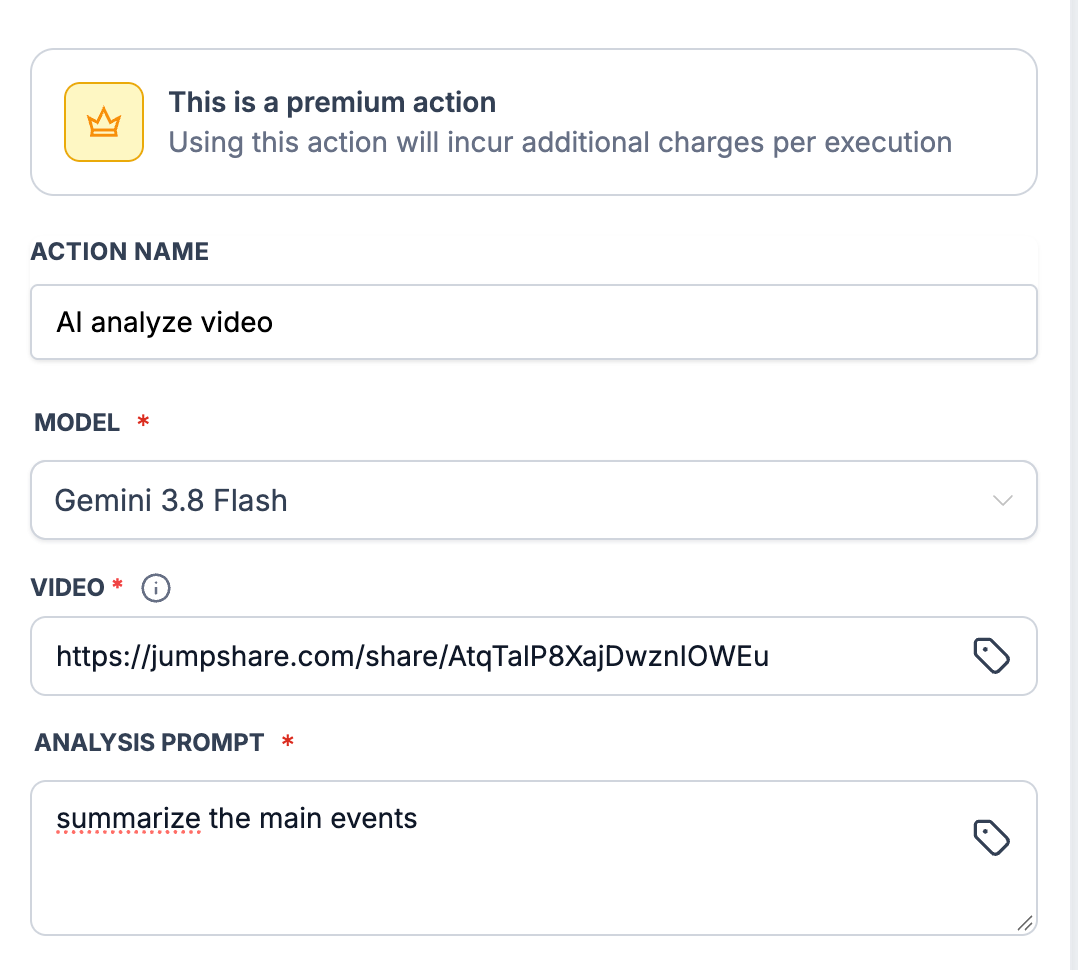
In the Video field, enter a public video URL or insert a custom value from a previous workflow step. For example, you can select a video URL generated by the AI Video Generation action.
Step 4: Write the Analysis Prompt
Enter instructions describing what you want Gemini to analyze.
Example:
"Summarize this video in three bullet points and include timestamps for important moments."
Step 5: Test the Action (Optional)
Open the Test tab.
Review the input values.
Click Test Action.
Review the generated Response under Output.
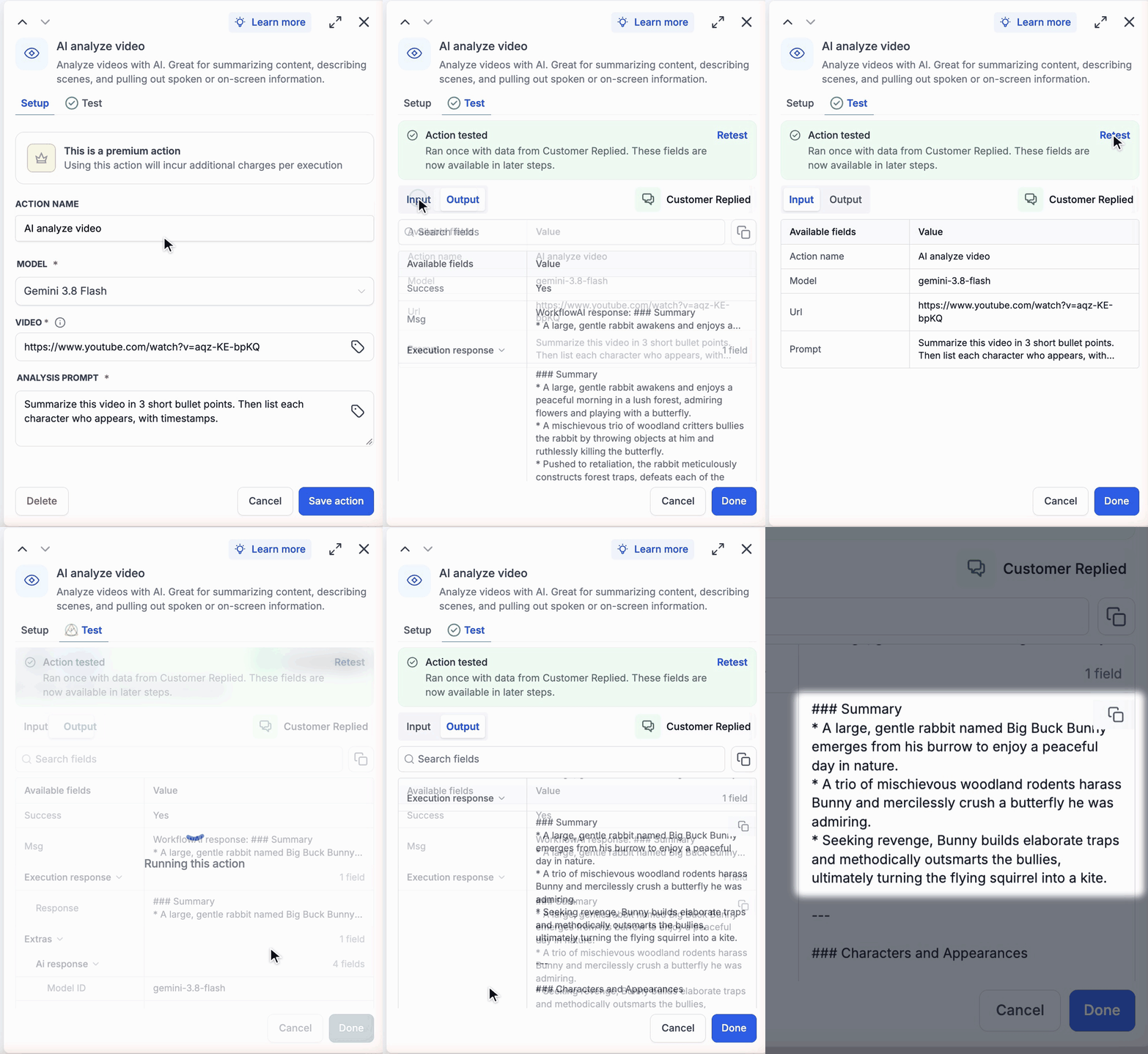
Adjust the prompt if necessary.
Note: Test executions are billable.
Step 6: Save and Use the Response
Click Save action.
Add a subsequent workflow action.
Insert Previous steps → AI analyze video → Response into a compatible field.
Save and publish your workflow.
Important Considerations and Limitations
Understanding these requirements helps prevent failed executions and unexpected results.
Premium Pricing: Each execution incurs additional charges. Costs may depend on the AI model, video duration, and response length.
Public URLs: Videos must be accessible without login credentials.
Processing Time: Larger videos may take longer to process or time out.
Retry Failed Actions: A temporary retrieval timeout may be resolved by running the action again.
Response Formatting: Gemini may return Markdown. Request plain text in your prompt when needed.
AI Accuracy: Responses may contain errors. Verify important findings before using them for consequential decisions.
Common Troubleshooting
| Issue | Recommended Solution |
|---|---|
| Video URL blocked | Use a public YouTube or direct video file URL. |
| Invalid or inaccessible URL | Confirm the video opens without authentication. |
| Processing timeout | Retry the action or use a smaller video. |
| Inaccurate response | Verify the URL and refine the prompt. |
| Unwanted Markdown formatting | Request plain text in the analysis prompt. |
For pricing details, see AI Product Pricing.
Frequently Asked Questions
Q: Can I analyze different videos in the same workflow?
Yes. Add multiple AI Analyze Video actions, each configured with its own video URL.
Q: Can the video URL change for each contact?
Yes. Use custom values to dynamically retrieve video URLs from forms, webhooks, or previous workflow actions.
Q: Can I analyze a video without audio?
Yes. Gemini can analyze visual content even when no spoken audio is present.
Q: Can I use the Response in an If/Else condition?
Yes. Request a consistent output, such as YES or NO, and configure the downstream condition accordingly.
Q: Can AI Analyze Video generate subtitles?
You can request transcriptions with timestamps, but the action returns text rather than a dedicated subtitle file.
Q: What happens if the video cannot be accessed?
The action may fail or return an inaccurate response. Verify that the URL points to a publicly accessible video.