
Test Workflow
Table of Contents
- Overview
- Key Benefits
- Ways to Test
- Test a Trigger
- Test an Action
- Test the Whole Workflow
- Review History and Retry a Run
- Run and Step Statuses
- Things to Know
- Use Case
- FAQs
Overview
Test Workflow lets you check a workflow before it goes live. You can test a single trigger with a real event from your account, test a single action with that event’s data, or run the whole workflow step by step and watch each step pass or fail.
Every test runs the real steps, so when a test works, you know the workflow works.
Key Benefits
- Real data: test with real events from your own account, not made-up values.
- One step at a time: test a trigger or a single action without running the whole workflow.
- Live progress: watch each step of a whole-workflow test run on the canvas.
- Faster debugging: open any step to see its input and output, and retry a run in one click.
- Confidence to publish: go live knowing every step has already worked.
Ways to Test
The Test tab on a trigger, and the Test workflow panel, offer two ways to test.
| Option | What it does | Use it when |
|---|---|---|
| Test using events | Listens for the next real event in your account for 15 minutes and runs the test on it. | You can fire the trigger yourself, for example by submitting the form. |
| Enroll a contact | Runs the test for a contact you pick, as if the trigger fired for them. | Firing a real event is not practical. |
Test a Trigger
This example tests a Form Submitted trigger with a real form submission.
Step 1: Open the Test tab
Click the trigger on the canvas. In the panel that opens, click the Test tab next to Setup. Choose Test using events.
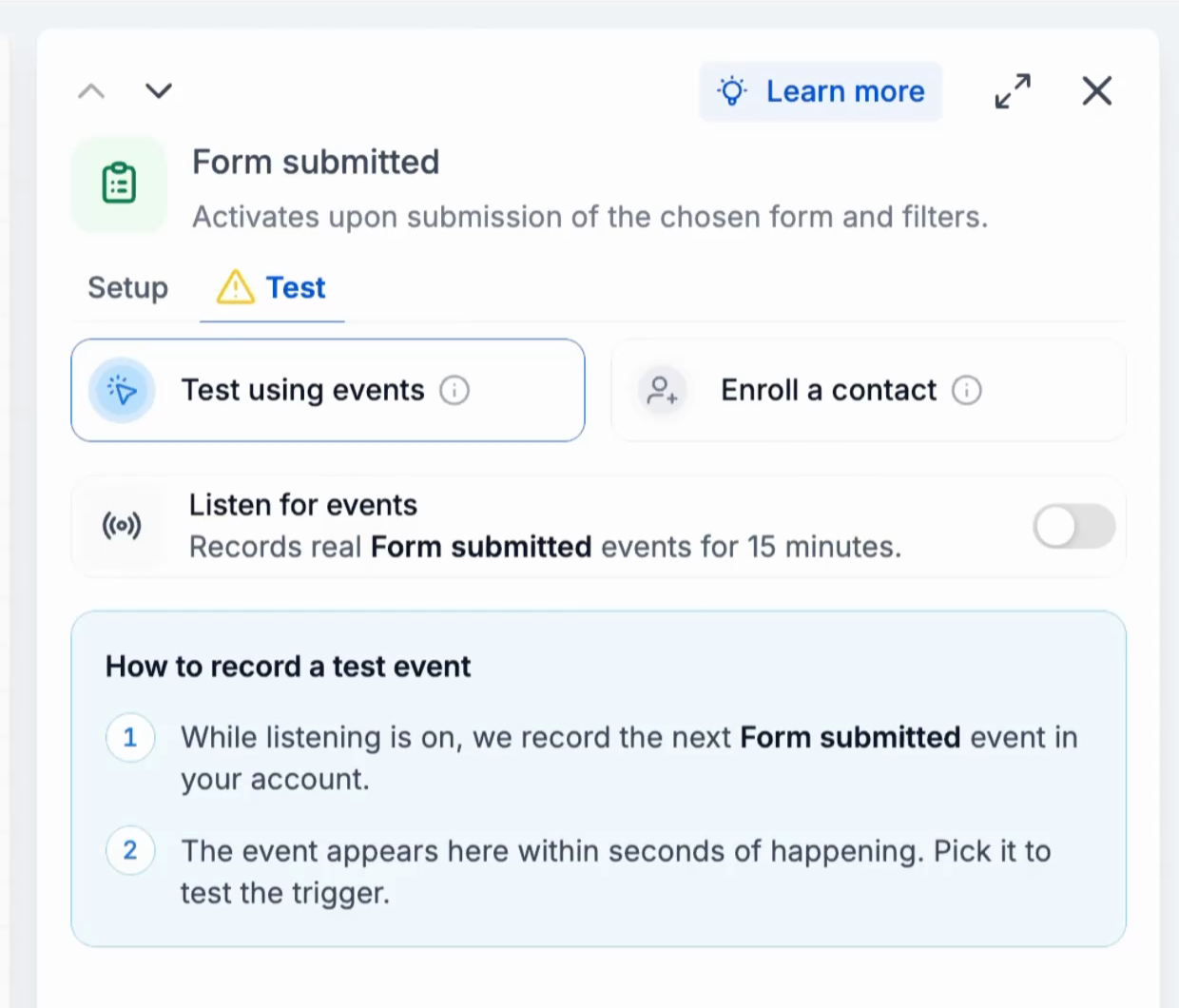
The Test tab on a Form Submitted trigger
Step 2: Switch on Listen for events
Turn on the Listen for events toggle. The panel shows how much listening time is left and how many events were recorded.
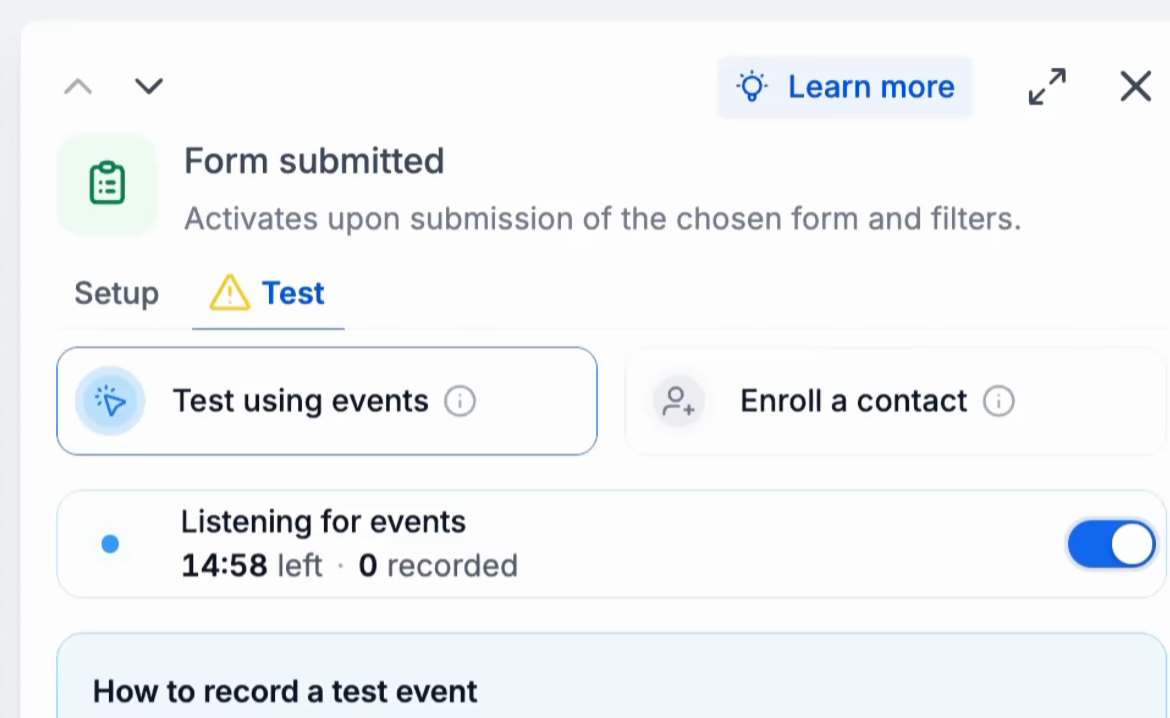
Listening for events, with the time left and the events recorded
Step 3: Fire the trigger
Do the thing that fires the trigger. For Form Submitted, open the form and submit it. The event appears in the panel within seconds.
Select the event under Select event. Event data lists every field it carries, including the form fields and the contact details.
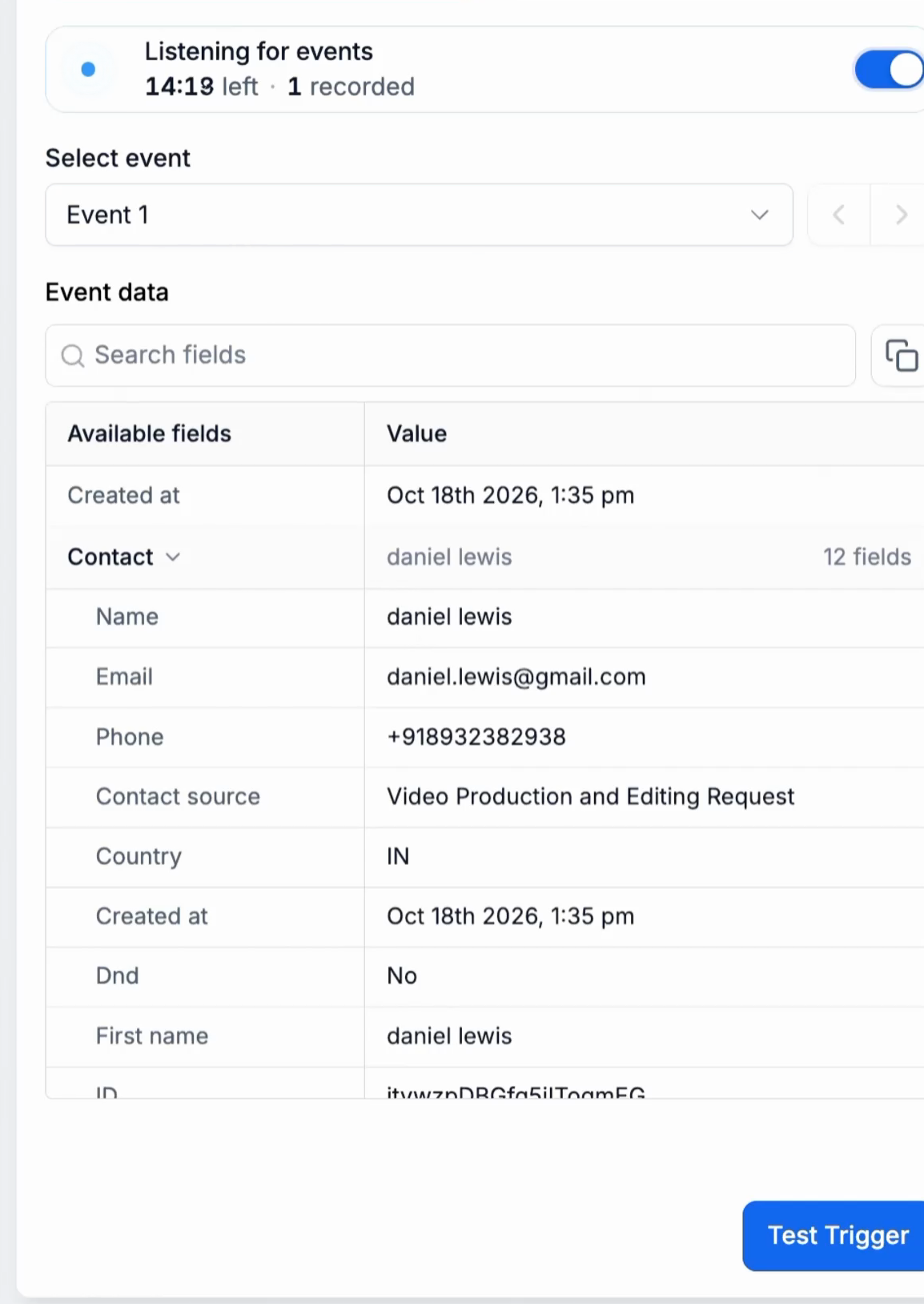
A recorded event and its event data
Step 4: Click Test Trigger
Click Test Trigger. When the test passes, the panel shows Trigger tested and the event is pinned. Every action below the trigger is tested with this event’s data.
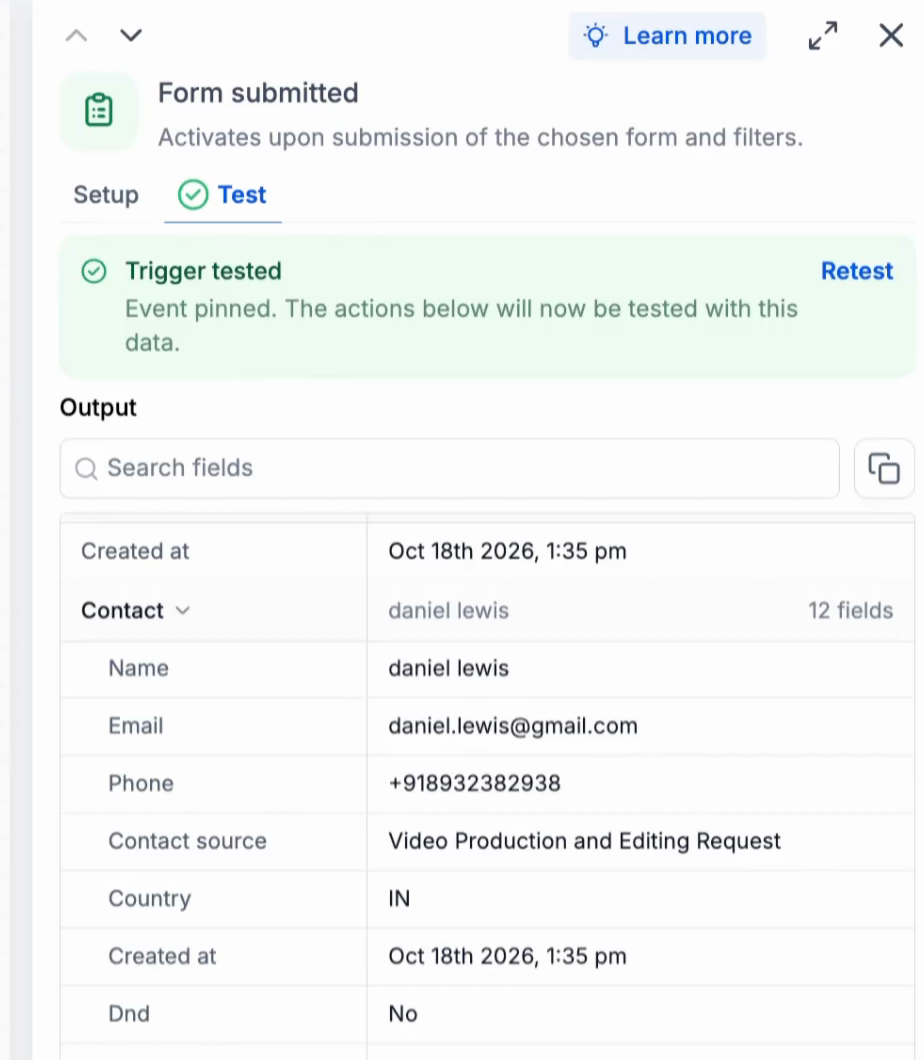
Trigger tested, with the pinned event as output
Note: Click Retest at any time to test the trigger again with a different event.
Test an Action
Step 1: Review the setup
Click the action on the canvas. On the Setup tab, check its fields. Fields that use custom values, such as Contact Full Name, are filled from the pinned event during the test.
Step 2: Run the test
Open the Test tab. Input lists the values the action will use, built from the pinned event. Click Test action.
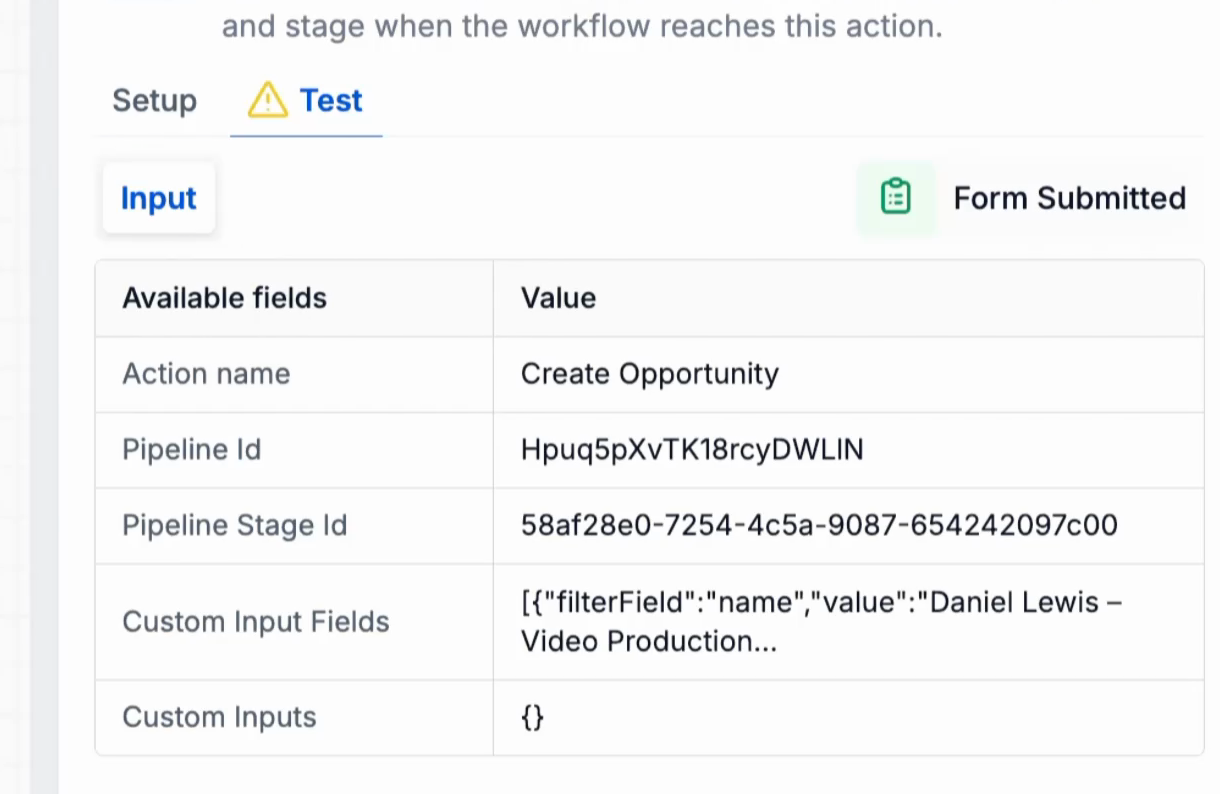
The action’s input, filled from the pinned event
Step 3: Check the output
When the test passes, the panel shows Action tested. Switch to Output to see the result, for example Success, the message and the new record’s ID. These fields are now available to later steps.
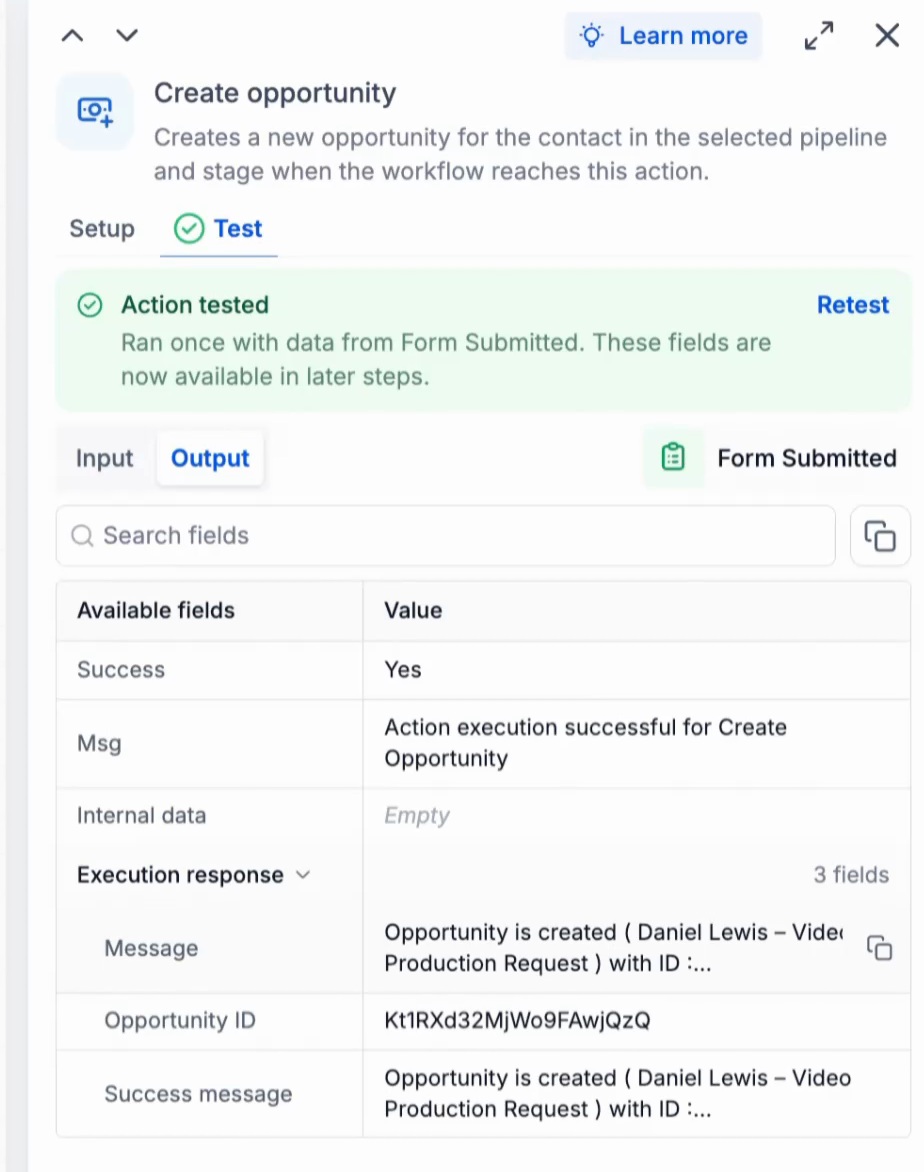
Action tested, with the output of Create Opportunity
Note: The action runs for real. In this example, the test creates a real opportunity in the pipeline.
Test the Whole Workflow
Step 1: Open Test workflow
Click Test workflow in the top right of the builder. The Test workflow panel opens on the New test tab.
Step 2: Pick the trigger and the event
Choose Test using events or Enroll a contact. Under Select Trigger, pick the trigger to run. Under Select event, pick the event to test with, or switch on Listen for events to record a new one. Check the event data, then click Start test run.
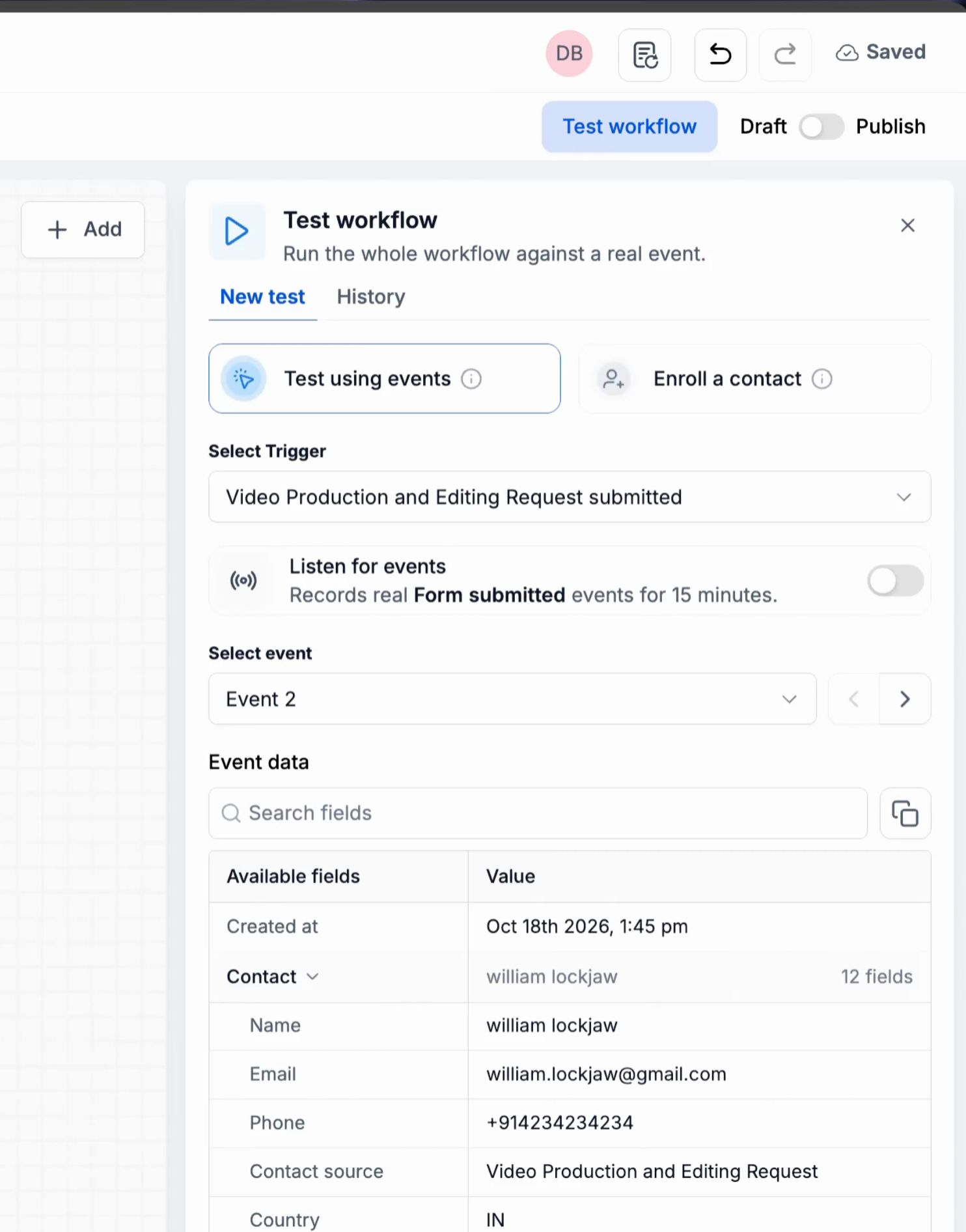
The Test workflow panel with the trigger and event selected
Step 3: Watch the run
The workflow runs action by action. Each step on the canvas shows its status as it finishes, and the History tab shows the run as Test running.
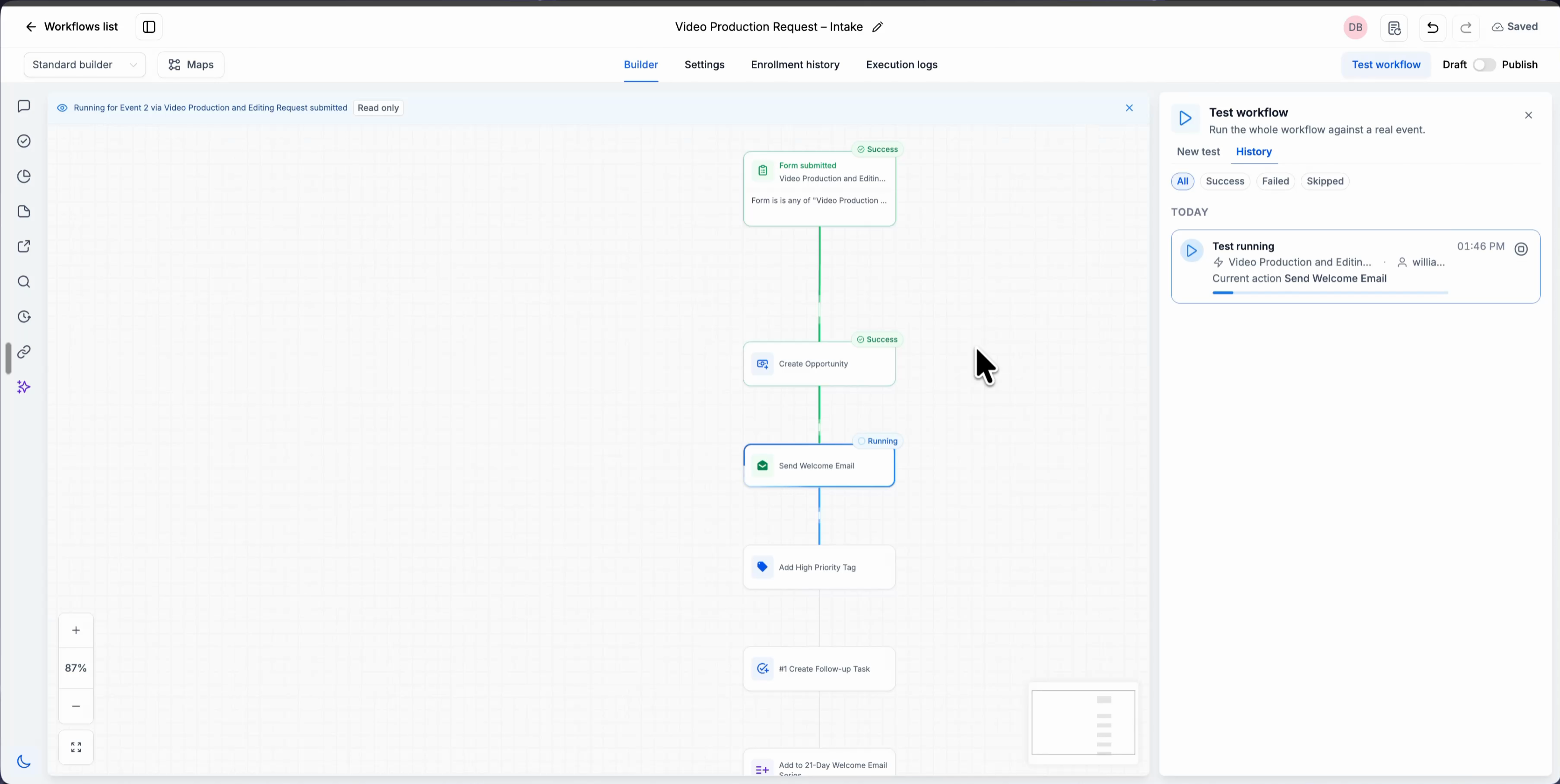
A test run in progress: finished steps show Success and the current step shows Running
Step 4: Review the result
When the run ends, the canvas shows the result of every step and History shows the final status, such as Completed with skipped steps. The canvas is read only while you view a run.
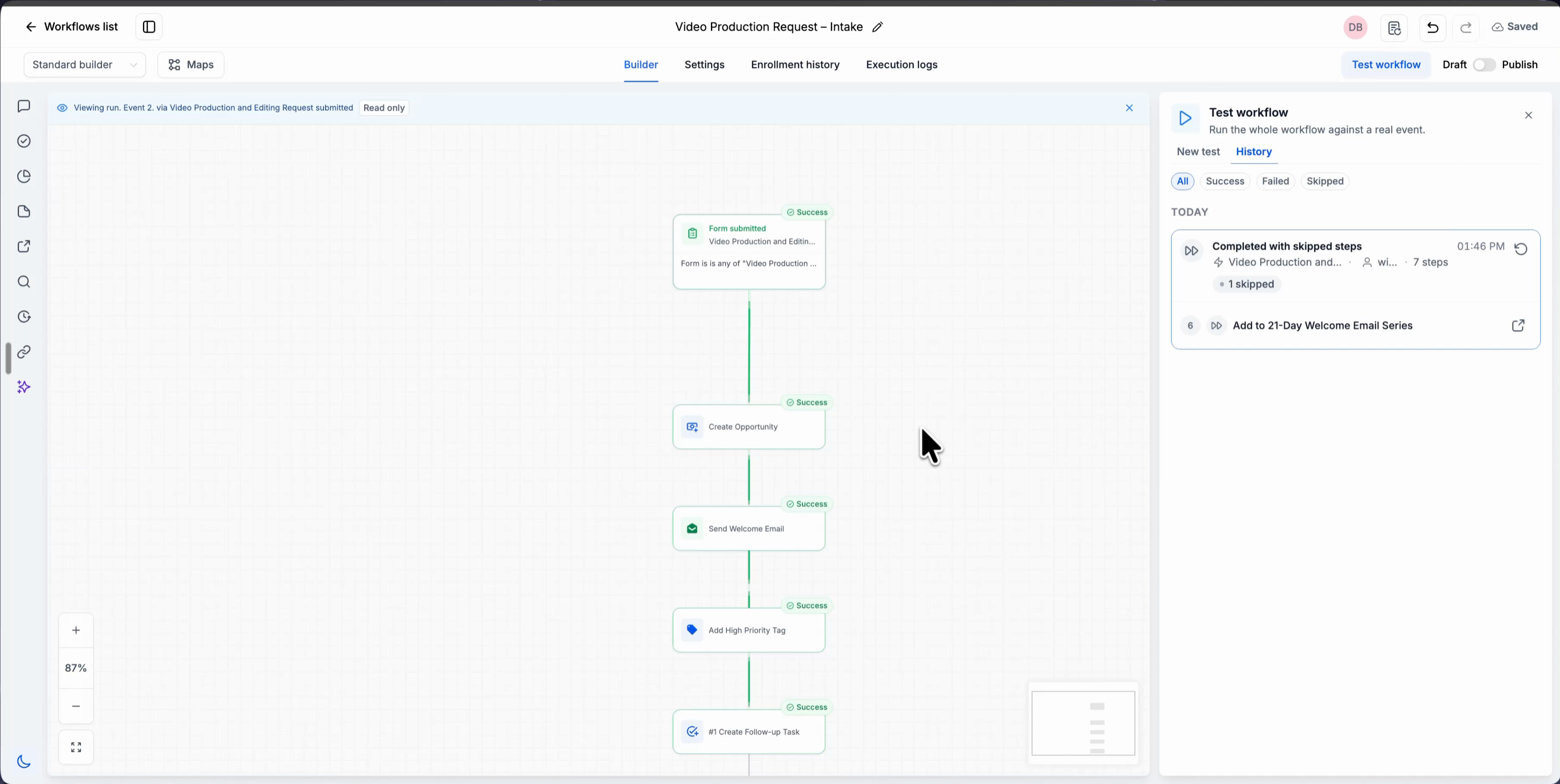
A finished run: every step’s status on the canvas and the run in History
Click any step to open its Input and Output. Use this to find the step that caused a problem.
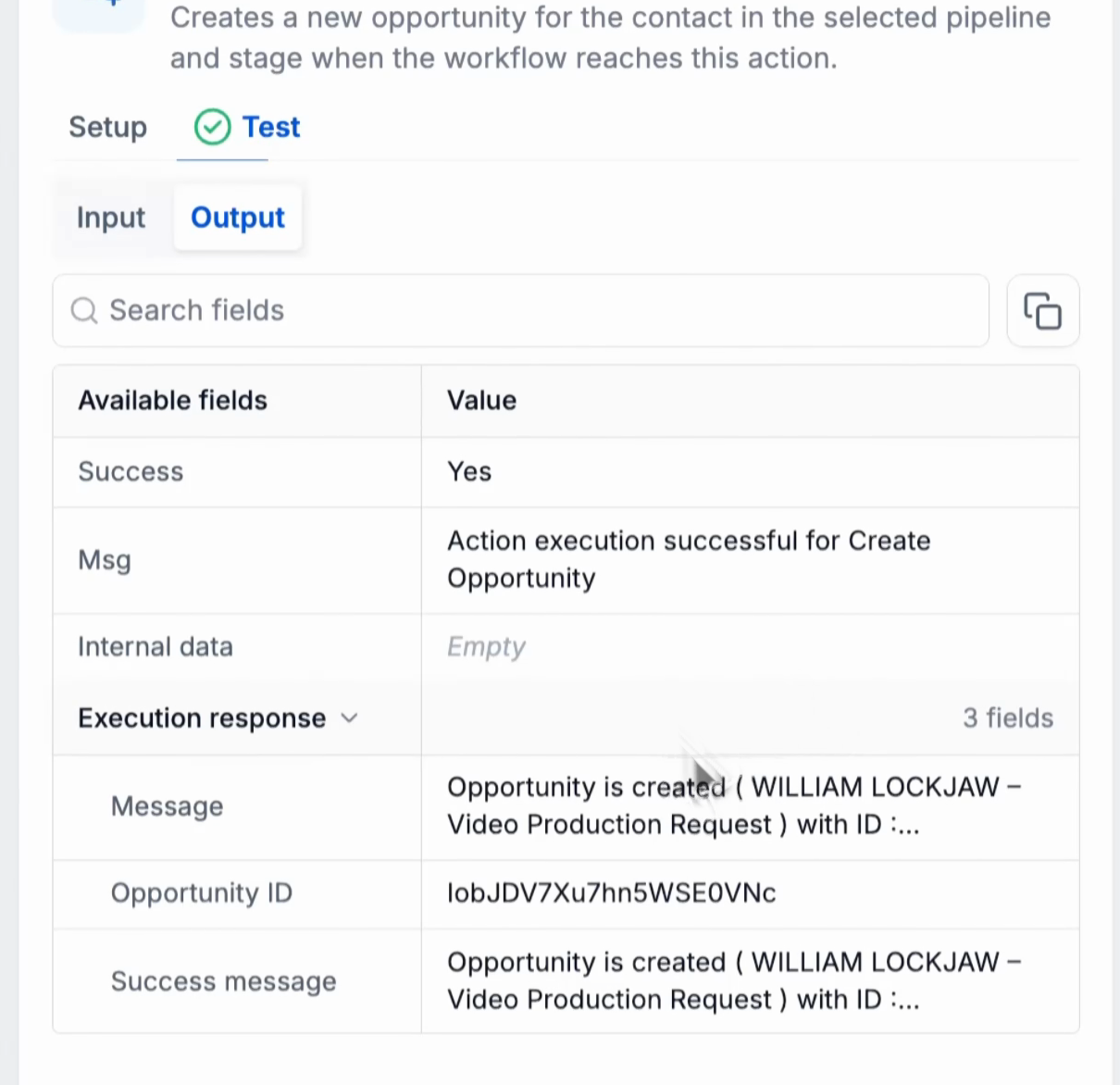
The output of one step from a test run
Review History and Retry a Run
Open the History tab in the Test workflow panel to see every test run. Filter the list by All, Success, Failed or Skipped.
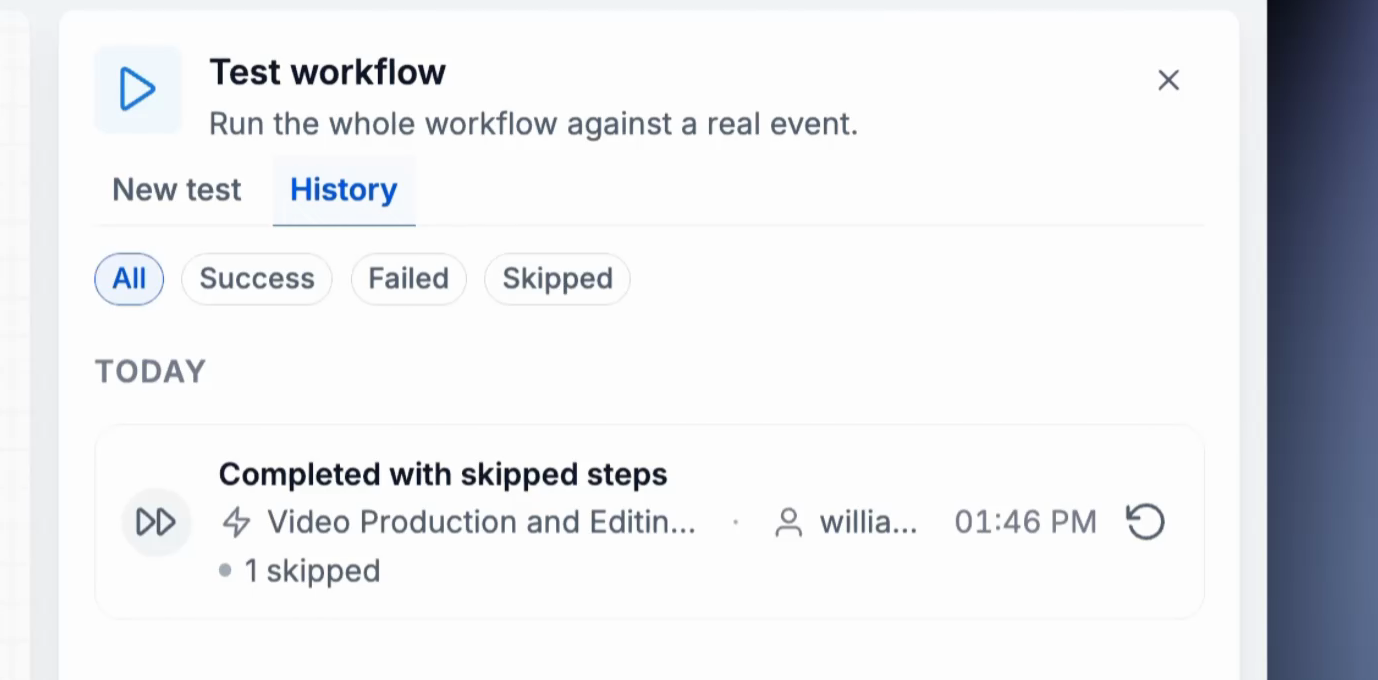
The History tab with a past test run
To run the same test again, hover over a run and click Retry run. The retry uses the same trigger data and action configuration, and appears in History as a new run.
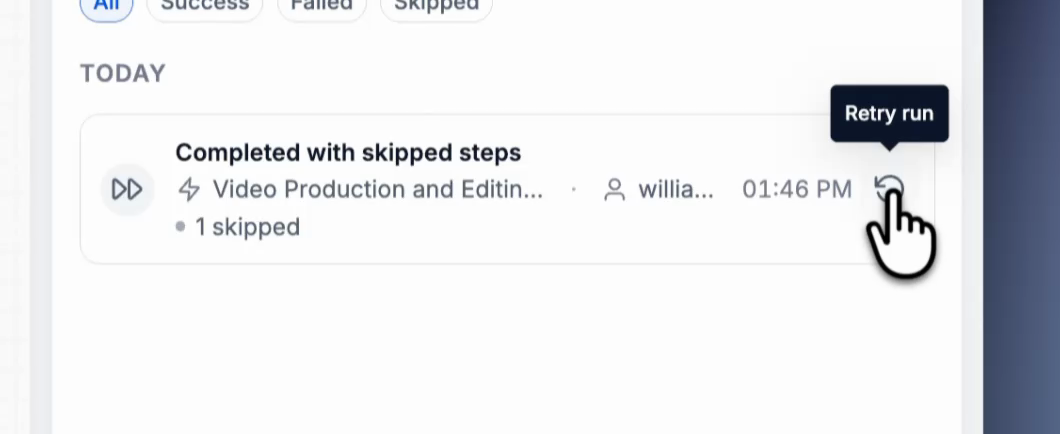
Retry run on a past test run
Run and Step Statuses
| Status | Meaning |
|---|---|
| Test running | The run is in progress. History shows the step that is running now. |
| Success | The step ran and finished without errors. |
| Failed | The step ran and returned an error. Open the step to see the error in its output. |
| Action skipped | The step did not run in this test run. |
| Completed with skipped steps | The run finished, and one or more steps were skipped. |
Things to Know
- Tests are real. Messages are sent, and records are created or changed.
- Testing is optional. You can save and publish without testing.
- The pinned event stays until you retest the trigger with another event.
- Listening lasts 15 minutes. Switch it on again if your event did not arrive in time.
Use Case
Scenario: A video agency builds a workflow for its Video Production and Editing Request form. When someone submits the form, the workflow creates an opportunity, sends a welcome email, adds a High Priority tag and creates a follow-up task.
The builder switches on Listen for events on the trigger, submits the form with their own details and tests the trigger with that event. They test Create Opportunity, check that the opportunity appears in the pipeline with the right name, then click Test workflow and run every step on a second event. The run shows each step’s result, so they publish the workflow knowing it works.
FAQs
Q: Does a test send real emails or create real records?
Yes. Every test runs the real action. A test of Send Email sends the email, and a test of Create Opportunity creates the opportunity. Test with your own details or a test form entry when you don’t want to reach a customer.
Q: What if no event arrives while I’m listening?
Listening records events for 15 minutes. If nothing arrives, switch on Listen for events again and fire the trigger once more, for example by submitting the form.
Q: Can I test a trigger without firing a real event?
Yes. Choose Enroll a contact on the Test tab. The test runs for the contact you pick, as if the trigger fired for them.
Q: Do I need to test the trigger before I test an action?
Yes. An action test uses the data of the event pinned by the trigger test. Test the trigger first, then test the actions below it.
Q: Do I have to test every step before I publish?
No. Testing is optional. You can save and publish a workflow without running any test.
Q: Where can I see a test I ran earlier?
Click Test workflow and open the History tab. Every run is listed with its status, and you can filter by Success, Failed or Skipped.
Q: What does Retry run use?
The same trigger data and the same action configuration as the original run, so you can check a fix against the exact same event.