
Workflow Action – AI Video Generation
This article explains how to use the AI Video Generation action in workflows to create short videos with AI. You'll find step-by-step configuration instructions, details on available models and settings, how to access the generated video, practical use cases, and answers to common questions.
Note: This is a premium action. Using this action will incur additional charges per execution.
Table of Contents
- What is AI Video Generation Action in Workflows?
- Key Benefits of AI Video Generation Action
- Action Details
- How to Use the AI Video Generation Action
- How to Access the Generated Videos
- Use Cases
- Tips for Better Results
- Pricing
- Frequently Asked Questions
- Related Articles
What is AI Video Generation Action in Workflows?
The AI Video Generation action, available under AI Actions in Workflows, lets you generate short videos using AI models directly inside your automation. You describe the video you want in a text prompt, choose a model and quality level, set the size and duration, and the action returns a generated video stored at a publicly accessible URL.
Generated videos are saved automatically in the Media Library and are available as variables in downstream actions, so you can send them in emails and SMS, post them to social channels, or pass them to external systems.
Key Benefits of AI Video Generation Action
- Two Veo 3.1 Models: Choose Veo 3.1 Quality for the most polished output or Veo 3.1 Fast for quicker generation.
- HD Output: Generate videos in Standard (720p) or High (1080p) quality.
- Prompt Enhancement: Refine a rough prompt into a detailed one with a single click.
- Ready-to-Use Templates: Start from a pre-written prompt for product mockups, social posts, promo flyers, and lifestyle scenes. Each template shows a sample video before you use it.
- Reference Images: Add up to three images to guide the subject and style of the video.
- Optional Audio: Add AI-generated audio, such as ambient sound and background music, to the video.
- Dynamic Prompts: Build prompts from custom values so each contact, product, or webhook payload produces a different video.
- Automatic Storage: Every generated video is saved to the Media Library at a publicly accessible URL, ready to use anywhere.
Action Details
| Field | Description |
| Action Name | A custom name used to identify the action in the workflow and execution logs. |
| Prompt | Required. A text description of the video to generate, up to 5,000 characters. Supports custom values from contact fields, webhook data, or previous workflow actions. |
| Model | The AI model used to generate the video. Available options are Veo 3.1 Quality (default) and Veo 3.1 Fast. |
| Quality | The output resolution. Available options are Standard (720p) (default) and High (1080p). |
| Templates | Pre-written prompts for common video types. Each template shows a sample video. Clicking Use this prompt fills the prompt field, which you can then edit. |
| Reference images | Optional images that guide the subject and style of the video. Add up to three JPEG or PNG images, 20 MB each, using System upload, Media library, or URL. The URL field supports custom values. Reference images require the 8 second duration. |
| Additional Settings | Optional settings for size, duration, and audio. |
How to Use the AI Video Generation Action
Step 1: Add the Action
- Go to Automation > Workflows.
- Create a new workflow or edit an existing one.
- Click the + icon to add a new action. Search for "video" or open AI Actions, then select AI Video Generation.
- Give the action a clear, descriptive name so it's easy to identify on the canvas.
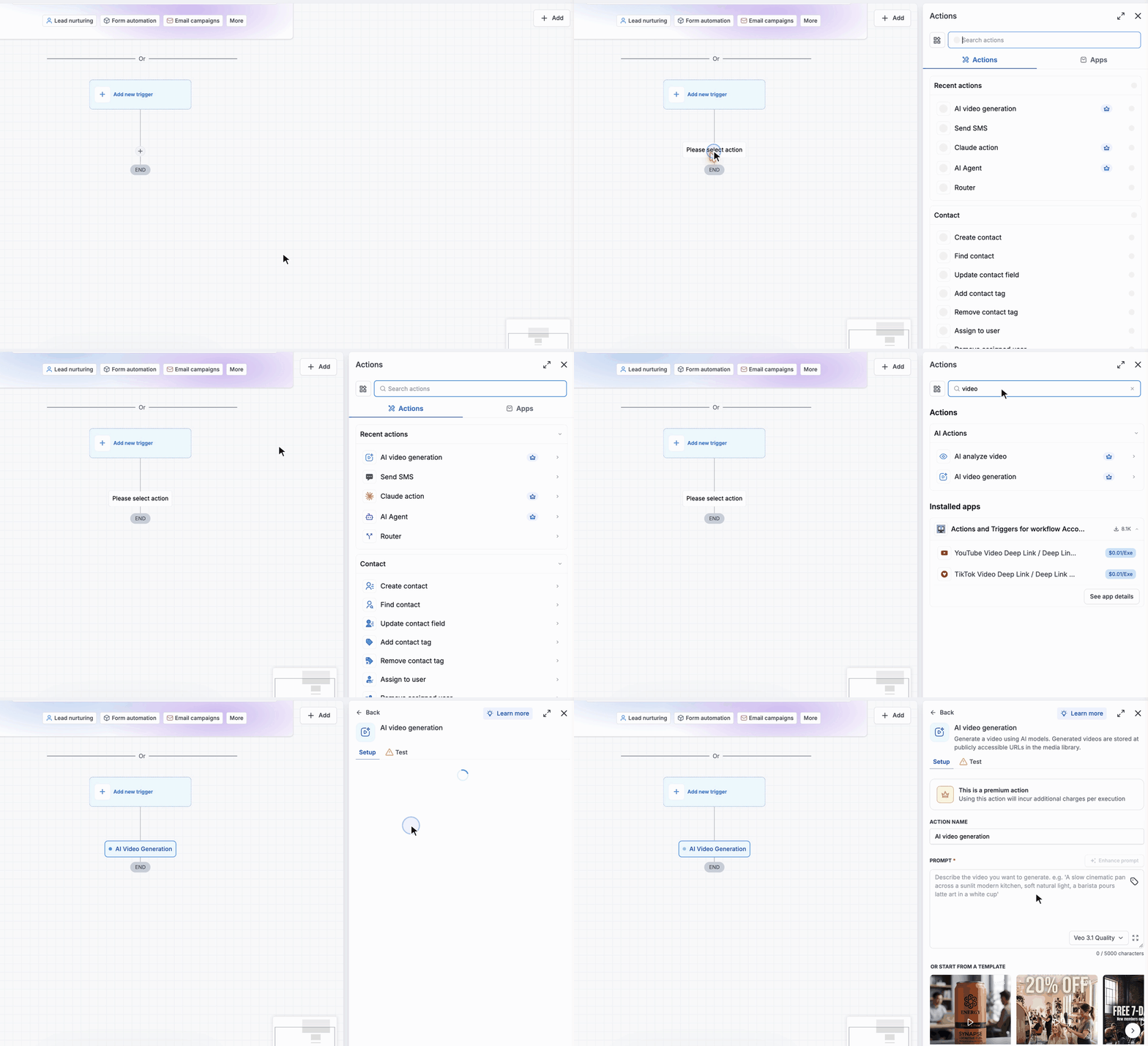
Adding the AI Video Generation action from AI Actions
Step 2: Select the Model and Quality
The model selector sits in the bottom-right corner of the prompt box. Click it to choose the AI model:
- Veo 3.1 Quality (default): The most detailed and polished output.
- Veo 3.1 Fast: Quicker generation.
In the same menu, hover over Quality to choose the resolution: Standard (720p) (default) or High (1080p). Higher resolution produces sharper video but can take longer to generate and cost more.
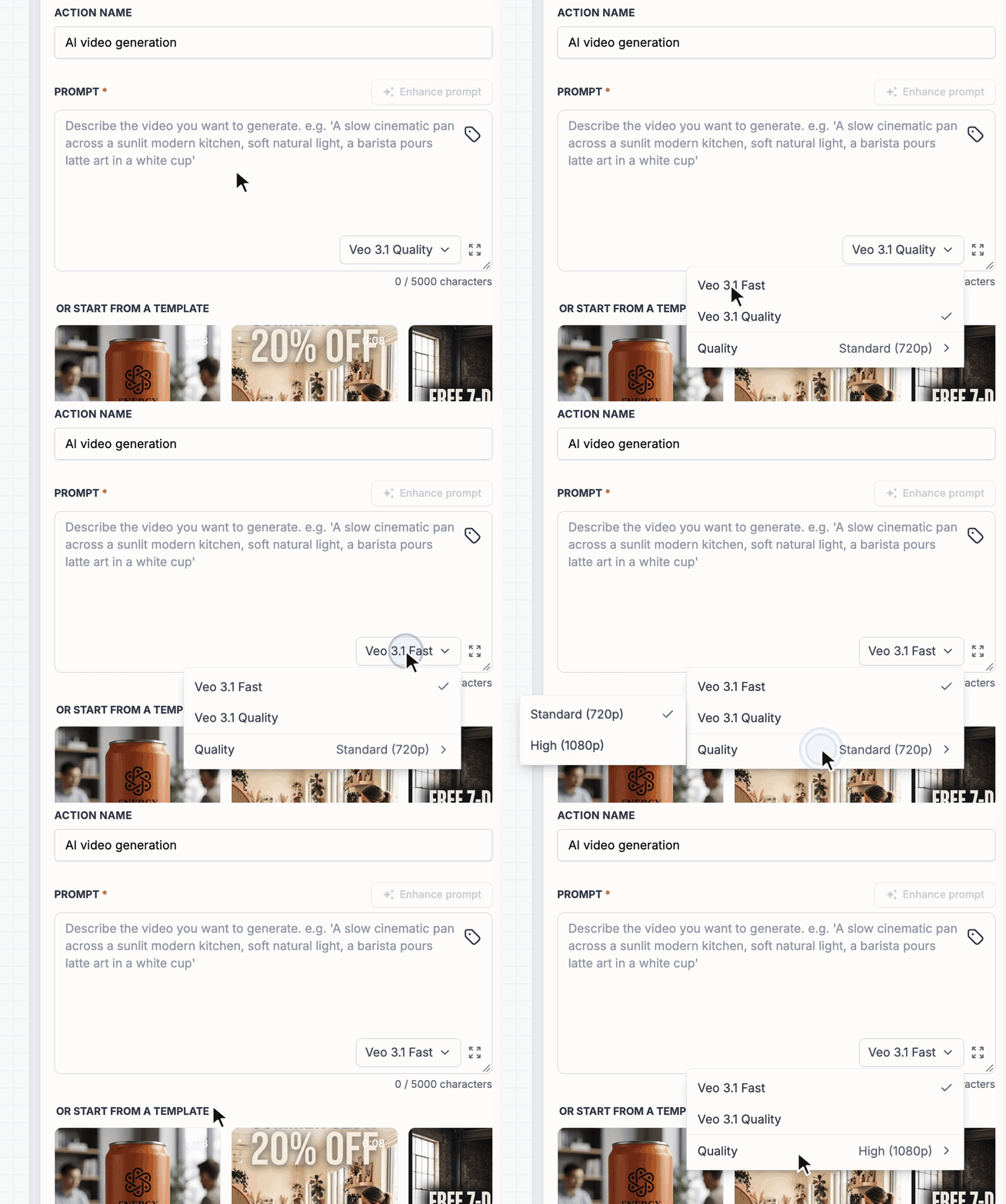
Choosing the model and the quality level
Step 3: Write the Prompt
In the prompt box, describe the video you want to generate. Be specific about the subject, the action, the camera movement, the setting, and the lighting. More detail generally produces better results. The prompt can be up to 5,000 characters, and a counter below the box shows how many you have used.
Click the tag icon in the prompt box to insert custom values, such as contact fields, webhook data, or output from previous actions. This lets you build dynamic prompts.
Click Enhance prompt above the prompt box to have AI expand and refine what you've written. You can edit the enhanced prompt further before saving. To write a long prompt, click the expand icon in the bottom-right corner of the box.
Tip: When Generate Audio is on, describe the sound you want on its own line, for example: "Audio: Quiet suburban ambience with distant songbirds." The built-in templates use this format.
Step 4: Start From a Template (Optional)
Instead of writing a prompt from scratch, you can start from one of four templates shown below the prompt box:
- Product mockups: Product shots and product showcase clips.
- Social post: Short videos styled for social media feeds.
- Promo flyer: Promotional videos and offer announcements.
- Lifestyle: Lifestyle and in-context scenes.
Click a template card to open a preview of its sample video. Click Use this prompt to fill the prompt field with that template's prompt, then tweak it to match your requirement.
A template can also update the Size setting to match its format. For example, the Lifestyle template switches Size to Portrait.
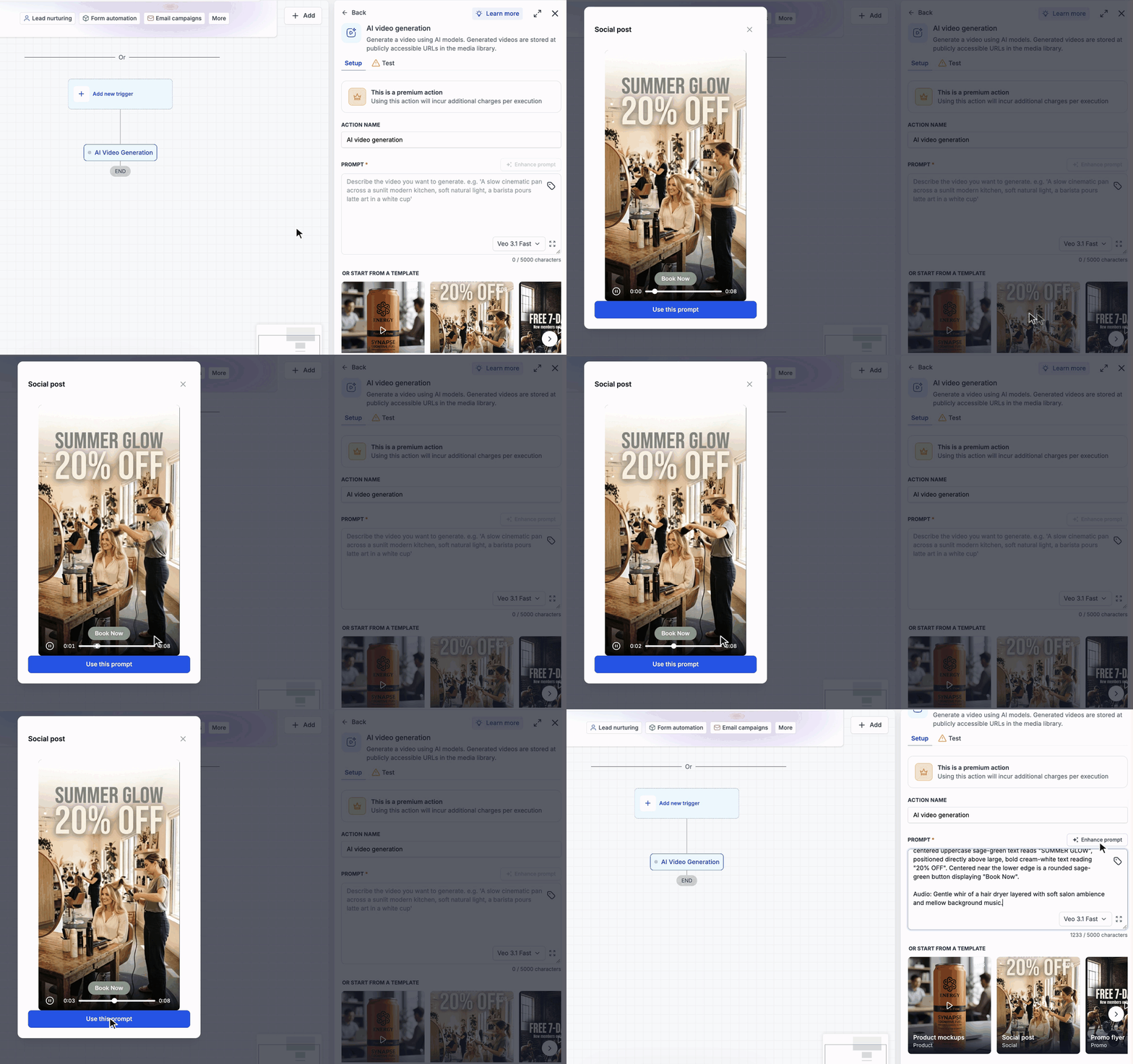
Previewing a template and using its prompt
Step 5: Reference Images (Optional)
You can attach up to three images to the action as visual context. The model uses them for the subject and style of the video, so you can show a product, a person, or a place rather than describe it in words alone.
| Source | How it works |
| System upload | Upload JPEG or PNG files directly from your computer. Click to upload or drag and drop. |
| Media library | Browse and select images already stored in your Media Library. |
| URL | Enter the URL of an image and click Add. This field supports custom values, so the URL can come from a previous action, a webhook payload, or a contact field. |
Note: Each image can be up to 20 MB. When you add reference images, Duration is set to 8 seconds automatically.
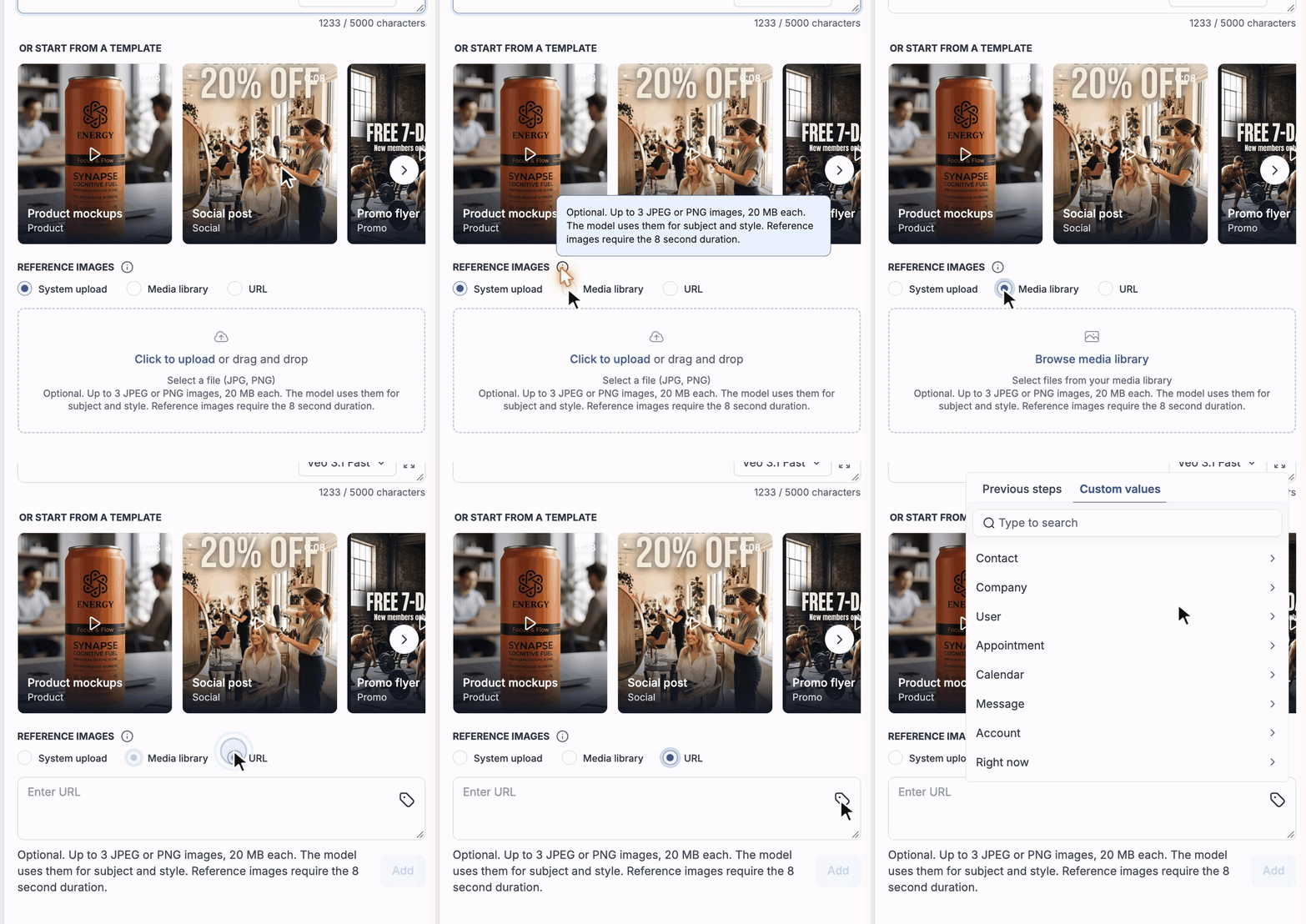
The three reference image sources: System upload, Media library, and URL
Step 6: Additional Settings (Optional)
Expand Additional Settings to set the shape, length, and sound of the video.
| Setting | Description |
| Size | The aspect ratio of the video: Landscape (1920 x 1080) or Portrait (1080 x 1920). Landscape is the default. |
| Duration | The length of the video: 4, 6, or 8 seconds. The default is 8 seconds. Duration is locked to 8 seconds when reference images are added. |
| Generate Audio | Adds AI-generated audio to the video. Off by default. Audio increases the per-second cost. |
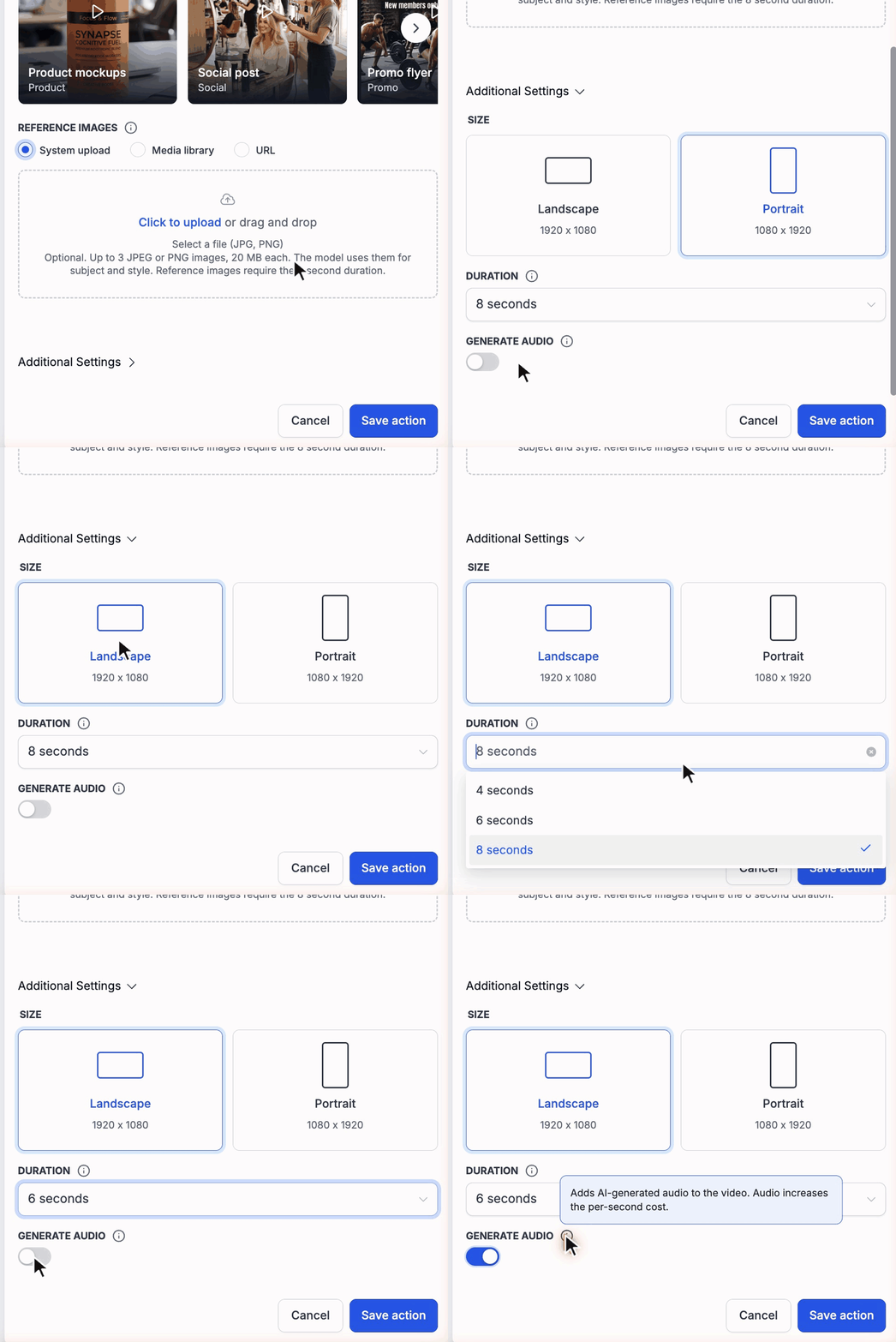
Setting size, duration, and audio, then saving the action
Step 7: Test the Action (Optional)
Open the Test tab and click Select test contact. The test contact supplies the data the action runs with. The action is saved before the contact picker opens. A test run generates a real video and is billed like a normal execution.
Step 8: Save the Action
Once your prompt and settings are configured, click Save action. The generated video will be available as a variable in all downstream actions once the workflow executes.
How to Access the Generated Videos
Once the action executes, the generated video is available in two places.
1. As Custom Values in Downstream Actions
In any action after the AI Video Generation step, open the custom value picker, go to the Previous steps tab, and select AI Video Generation. The following values are available:
- Video URL: The publicly accessible URL of the generated video. Opening this link plays the video directly, and you can download it from there. Use this value to send the video in emails or SMS, or pass it to an external system via webhook.
- Video File Path: The storage path of the generated video file.
- Video File Name: The file name of the generated video.
Note: The Previous steps tab shows these values after you select a test contact for the workflow.
2. In the Media Library
Every generated video is automatically saved to the Media Library. You can browse, download, and reuse these videos from there at any time, just like any other uploaded asset, including in emails, funnels, websites, and social posts built outside the workflow.
Use Cases
1. Personalized Video Follow-Ups
Scenario: You want each new lead to receive a short video that speaks to their interest, rather than one generic video for everyone.
Setup:
- Trigger: Contact Tag Added (e.g., "new-lead")
- Action 1: AI Video Generation. Build the prompt using contact custom values, such as the service they asked about or their city.
- Action 2: Send Email. Include the Video URL so the lead receives the video immediately.
2. Product Clips From Incoming Requests
Scenario: Product details arrive from an external system, such as a Google Sheet, a form, or a partner platform, and you want a short showcase clip for each one without waiting on a video editor.
Setup:
- Trigger: Inbound Webhook (carrying the product description and an image URL)
- Action 1: AI Video Generation. Use the Product mockups template, with the incoming description inserted into the prompt and the product image added as a reference image via URL.
- Action 2: Webhook. Send the Video URL back to the source system.
3. Social Content Pipeline
Scenario: You publish new offers often and want a vertical video for each one, ready for stories and reels.
Setup:
- Trigger: Inbound Webhook or a tag that marks a new offer
- Action 1: AI Video Generation. Use the Social post template, Portrait size, and Generate Audio on.
- Action 2: Send Email or Webhook. Deliver the Video URL to your social team or publishing tool.
More Ideas
- Event and offer teasers: Produce short promo clips for recurring promotions, seasonal offers, or local events without a video request each time.
- Catalog and listing clips: Turn a product or property photo into a short clip by adding it as a reference image.
- Creative variations for testing: Produce several video directions for the same campaign and test which performs best.
- Welcome videos: Greet new customers or members with a short branded clip as part of onboarding.
Tips for Better Results
- Describe motion, not only the subject. Say what moves and how the camera moves, for example "a slow push-in" or "a smooth pan across the room."
- Use Enhance prompt when starting from a short or rough description. It fills in detail the model needs.
- Draft fast, finish in quality. Try prompts with Veo 3.1 Fast and Standard (720p), then switch to Veo 3.1 Quality or High (1080p) for the final version.
- Match Size to the destination: Portrait for stories, reels, and mobile; Landscape for email, websites, and YouTube.
- Turn on Generate Audio only when the video needs sound, and describe the sound in your prompt.
- Test your prompt on a few sample contacts before publishing a workflow that runs at volume.
Pricing
Video generation is billed per execution. The cost depends on the length of the video and the settings you choose. <Add typical cost per video, for example the median and average cost per second or per 8 second video.>
Note: Treat these figures as a planning estimate rather than a fixed rate.
The main factors are:
- Model: The AI model you select.
- Quality: Standard (720p) or High (1080p).
- Duration: 4, 6, or 8 seconds. Reference images set the duration to 8 seconds.
- Generate Audio: Audio increases the per-second cost.
Frequently Asked Questions
Q: How much does it cost to generate a video?
The cost depends on the model, quality, duration, and whether audio is on. <Add typical cost range.> See the Pricing section above for more detail.
Q: Where is the generated video stored?
Every generated video is automatically saved to the Media Library and hosted at a publicly accessible URL. You can access it through the custom value picker in downstream actions or browse to it directly in the Media Library.
Q: Which model should I choose?
Use Veo 3.1 Quality for customer-facing videos where detail matters. Use Veo 3.1 Fast for quicker generation, drafts, and high-volume workflows. If you're unsure, run the same prompt through both models and compare the results before publishing your workflow.
Q: How long can a generated video be?
You can generate a 4, 6, or 8 second video. The default is 8 seconds.
Q: Why is Duration locked to 8 seconds?
Reference images require the 8 second duration. When you add a reference image, Duration is set to 8 seconds automatically.
Q: Can the video include sound?
Yes. Turn on Generate Audio in Additional Settings to add AI-generated audio to the video. It is off by default, and audio increases the per-second cost. Describe the sound you want in your prompt.
Q: What sizes are available?
Landscape (1920 x 1080) and Portrait (1080 x 1920). Landscape is the default.
Q: How many reference images can I add?
Up to three JPEG or PNG images, up to 20 MB each, from System upload, the Media Library, or a URL.
Q: Can I use dynamic data in the prompt?
Yes. The prompt field supports custom values, so you can insert contact fields, webhook payload data, or output from previous actions. This lets a single workflow generate a different video for every contact or every incoming request.
Q: What does Enhance prompt do?
It uses AI to expand and refine your prompt, adding detail around the scene, motion, and lighting that you may not have specified. You can review and edit the enhanced prompt before saving the action.
Q: Is the generated video public?
Yes. The video is hosted at a publicly accessible URL, so anyone with the link can open it. Keep this in mind when your prompt includes customer data.
Q: Can I send the generated video to an external system?
Yes. Because the video is hosted at a publicly accessible URL, you can pass the Video URL value to any downstream action, including outbound webhooks to deliver it to an external platform.
Related Articles
- Workflow Action – AI Image Generation
- Workflow Action – AI Analyze Image
- Workflow Action - AI Agent
- Workflow Action - AI Extract Data