
How to Use the AI Assistant in Chat To Clients CRM Workflow Maps
The AI Assistant in Workflow Maps helps you understand, organize, and manage your Chat To Clients CRM automations using natural-language requests. You can ask questions about workflows, investigate issues, find connected assets, and request workflow builds or edits directly from the map. The Assistant uses your workflow and map context to provide relevant responses while respecting your access permissions.
TABLE OF CONTENTS
- Key Benefits of the AI Assistant in Workflow Maps
- Understanding and Investigating Workflows
- Finding and Filtering Workflows
- Organizing Workflows and Folders
- Building and Editing Workflows
- Reviewing and Approving Assistant Actions
- How to Use the AI Assistant in Workflow Maps
- Frequently Asked Questions
- Related Articles
Key Benefits of the AI Assistant in Workflow Maps
The AI Assistant simplifies workflow management by helping you find information and request changes without manually navigating through multiple workflows.
Faster Workflow Understanding: Get explanations of individual workflows or summaries of entire folders.
Easier Troubleshooting: Investigate workflow issues and review connected assets.
Quick Workflow Discovery: Find, filter, or highlight workflows using natural-language requests.
Simplified Organization: Create folders, move workflows, rename items, and add notes.
AI-Assisted Automation: Request new workflows or modifications to existing ones.
Controlled Changes: Review proposed actions and approve changes when required.
Understanding and Investigating Workflows
The Assistant uses workflow and map context to answer questions about your automations. This makes it easier to understand unfamiliar workflows, investigate issues, and identify connected assets.
You can ask questions such as:
"Explain what this workflow does."
"Summarize the workflows in the Sales folder."
"Which assets are connected to this workflow?"
"Help me investigate issues in this automation."
The Assistant provides relevant information based on the available context.
Note: Investigating an issue does not automatically resolve it. Review the workflow and verify any corrective changes.
Finding and Filtering Workflows
The Assistant helps you locate relevant workflows and focus the map without manually applying multiple filters. You can describe what you want to find or highlight.
Example prompts:
"Show only drafts in the Sales folder."
"Find the welcome email workflow."
"Highlight workflows in the Onboarding folder."
"Show published workflows."
Important: Saved views preserve filters but do not save the map's zoom, position, or layout.
Organizing Workflows and Folders
The Assistant allows you to manage workflow organization through conversational requests. You can create folders, move workflows, rename items, and add notes to keep your automation environment organized.
Example prompts:
"Create a folder called Onboarding."
"Move these workflows into the Onboarding folder."
"Rename this workflow to New Lead Follow-Up."
"Add a note explaining this workflow."
Review proposed organizational changes before applying them when approval is required.
Building and Editing Workflows
The Assistant supports workflow creation and editing using natural-language instructions. Describe the automation you want to build or the changes you want to make to an existing workflow.
Example prompts:
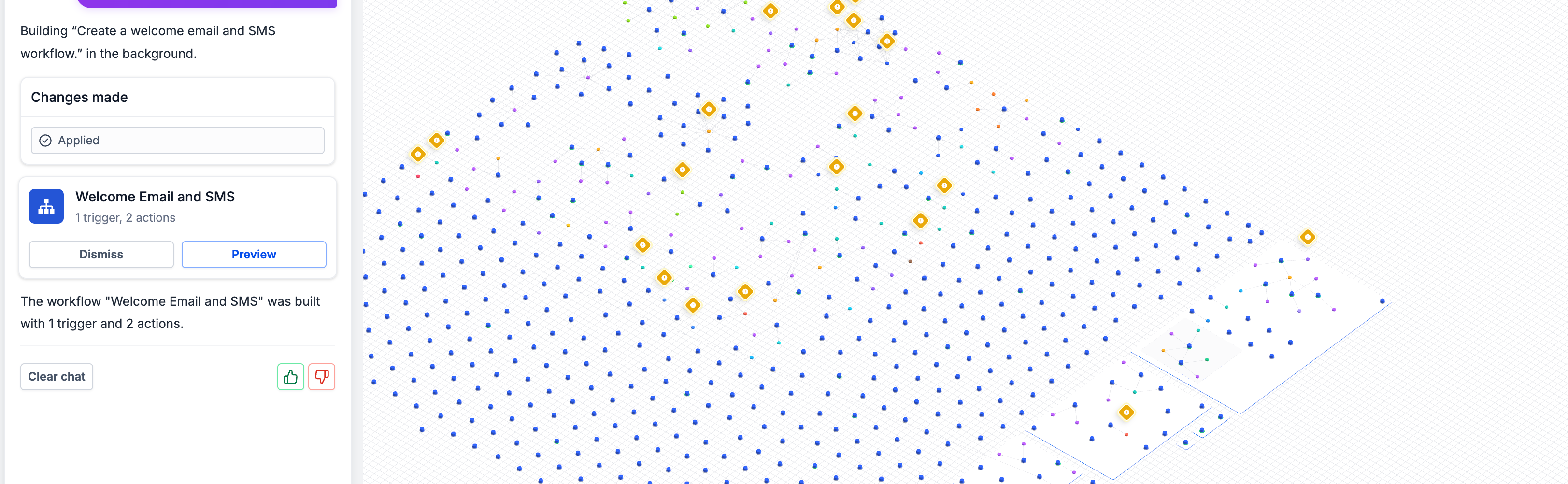
"Create a welcome email and SMS workflow."
"Build an automation for new lead follow-up."
"Add an SMS follow-up to this workflow."
Supported workflow builds and edits run as background jobs. Review proposed changes and verify the completed workflow to ensure it matches your intended automation.
Note: The Assistant may not support every workflow modification. Available actions depend on its supported capabilities.
Reviewing and Approving Assistant Actions
Approval controls help you manage changes requested through the Assistant. Reviewing proposed actions ensures the correct workflows, folders, and configurations are affected. The Assistant supports automatic approval for eligible actions. However, certain changes always require confirmation, even when automatic approval is enabled.
These include:
Deleting items.
Rearranging the entire workflow map.
The Assistant also respects your existing account permissions and cannot bypass restricted actions.
How to Use the AI Assistant in Workflow Maps
The Assistant is available directly within Workflow Maps. Follow these steps to ask questions, investigate automations, or request supported changes.
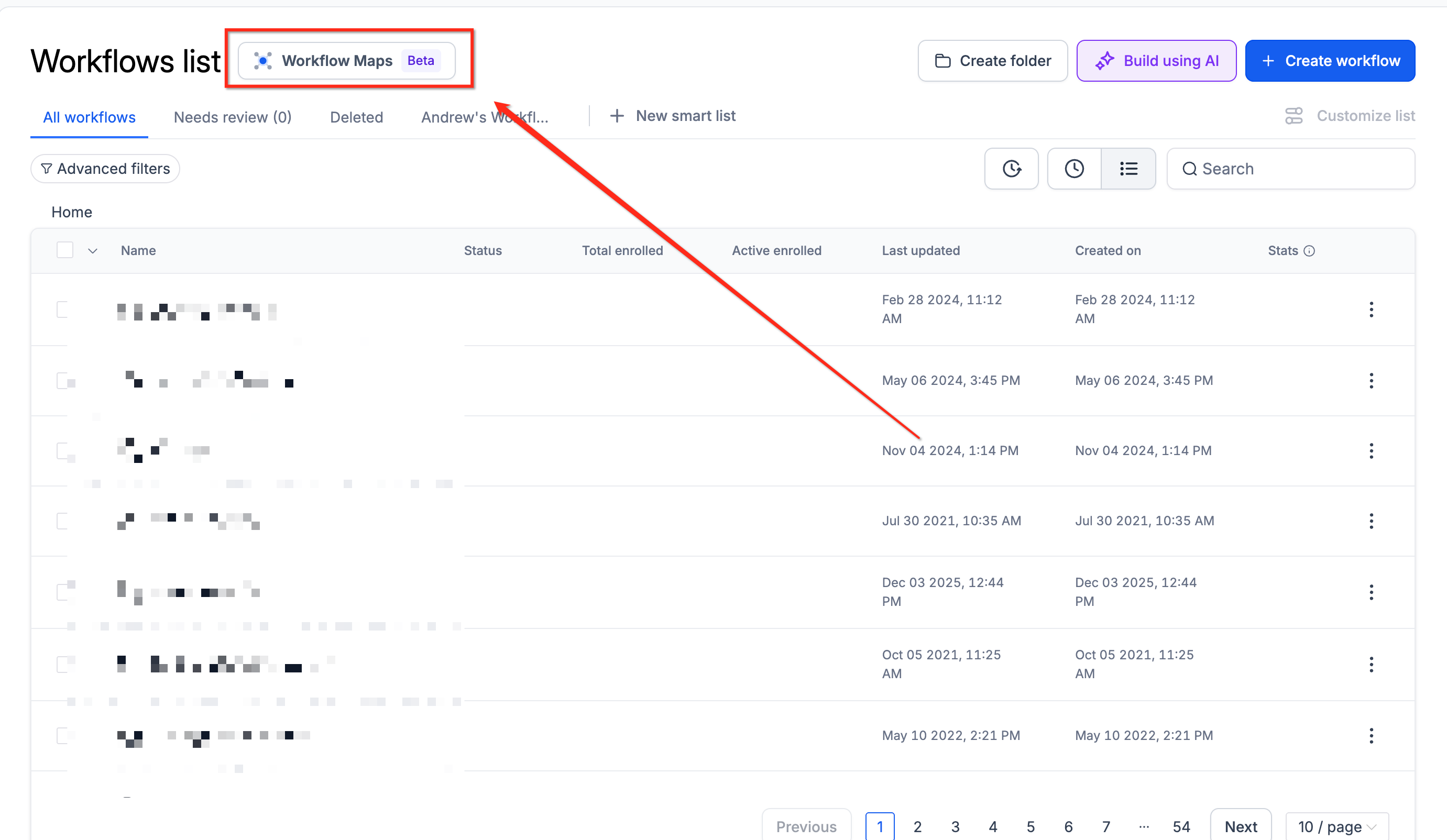
Open Workflow Maps: Navigate to Automation > Workflows > Workflow Maps.
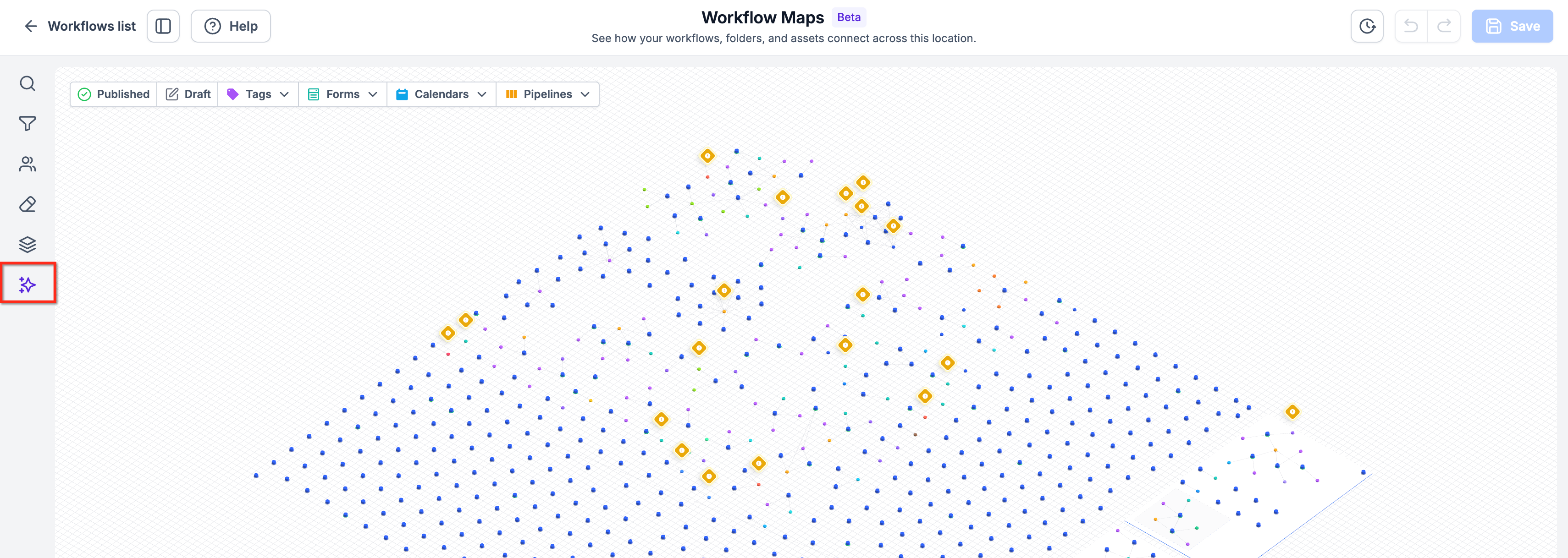
Open the Assistant: Click Assistant within Workflow Maps.
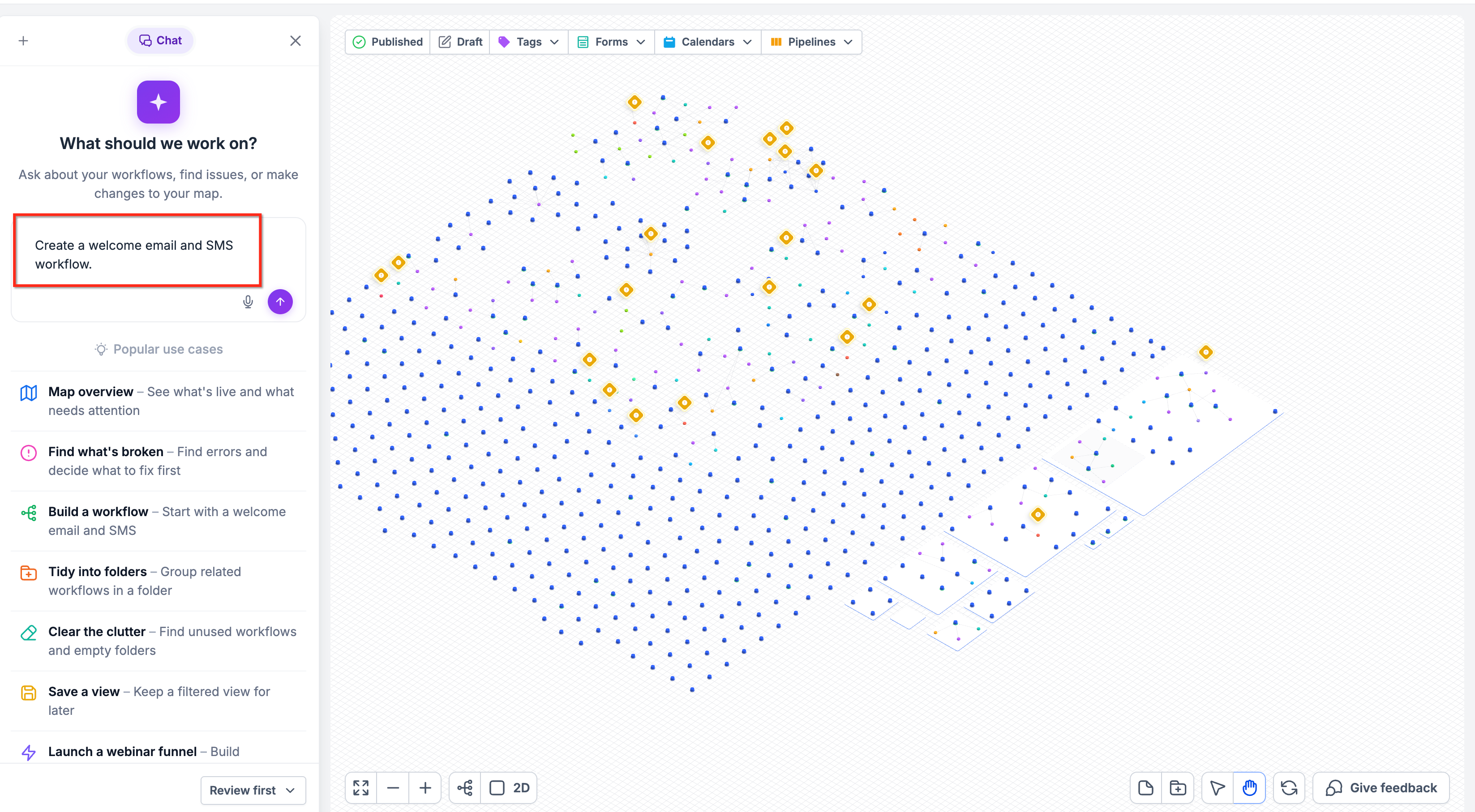
Enter Your Request: Type a question or describe an action, such as "Explain what this workflow does" or "Create a welcome email and SMS workflow."
Review the Response: The Assistant may explain a workflow, locate relevant automations, filter the map, or propose changes.
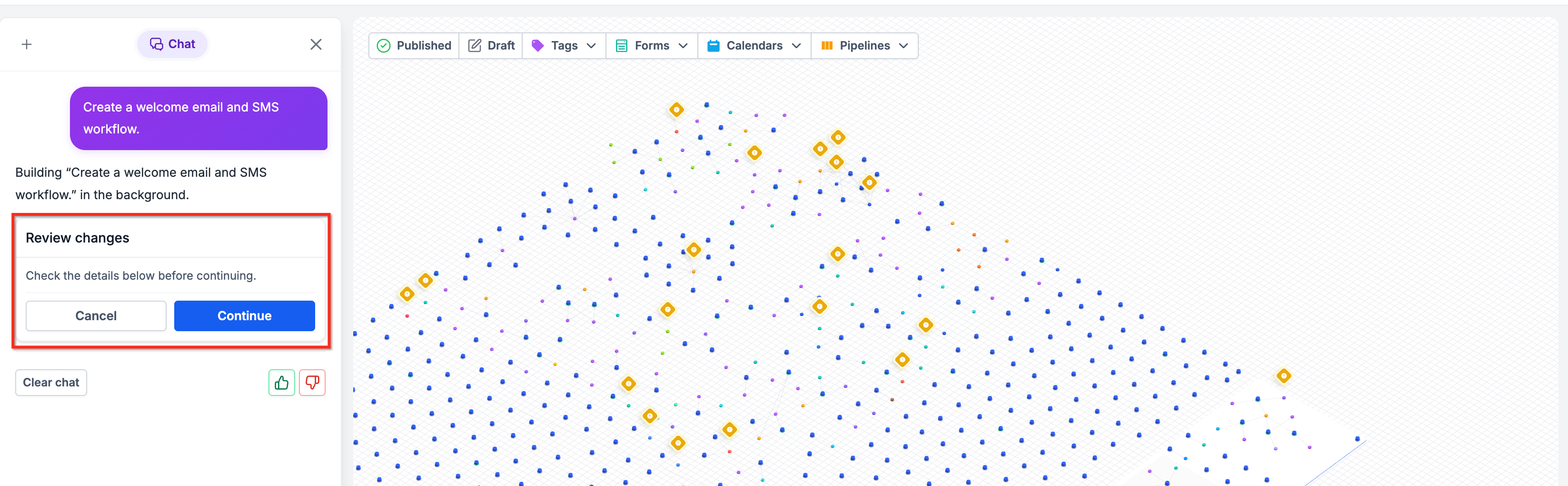
Approve Changes When Required: Review proposed actions and use the available approval controls before applying changes.
Verify the Results: Review the resulting workflow or map changes to confirm they match your request.
Frequently Asked Questions
Q: Does the Assistant work across all sub-accounts?
A: The Assistant uses the workflow and map context available within the sub-account where you are working.
Q: Can the Assistant bypass my account permissions?
A: No. The Assistant operates within your existing access permissions.
Q: Can the Assistant automatically fix workflow errors?
A: The Assistant can help investigate issues and request supported edits, but troubleshooting does not guarantee automatic resolution.
Q: Does automatic approval apply to every action?
A: No. Deletion and whole-map rearrangement always require confirmation.
Q: Can I still manage workflows manually?
A: Yes. Existing Workflow Maps navigation, filtering, and workflow management options remain available.
Q: Are workflow builds and edits completed immediately?
A: Supported builds and edits run as background jobs. Review the resulting automation after completion.