
Introduction to Workflow Maps
Understand what Workflow Maps shows, where to find it, and how to start exploring your automations.
TABLE OF CONTENTS
- What is Workflow Maps?
- Where to find Workflow Maps
- Key benefits of using Workflow Maps
- Use cases for Workflow Maps
- What you can do from the map
- Steps for getting started
- Frequently Asked Questions
What is Workflow Maps?
Workflow Maps gives you a visual overview of the workflows in your sub-account and the assets they use. It reads the workflows you have already built and draws their connections automatically.
Workflows appear inside their folders, with assets such as tags, forms, calendars, and pipelines around them. Connections help you see what starts a workflow and what the workflow changes.
For example, a form may start a lead intake workflow. That workflow may add a tag, which starts a follow-up workflow. The map helps you follow these relationships before changing part of the automation.
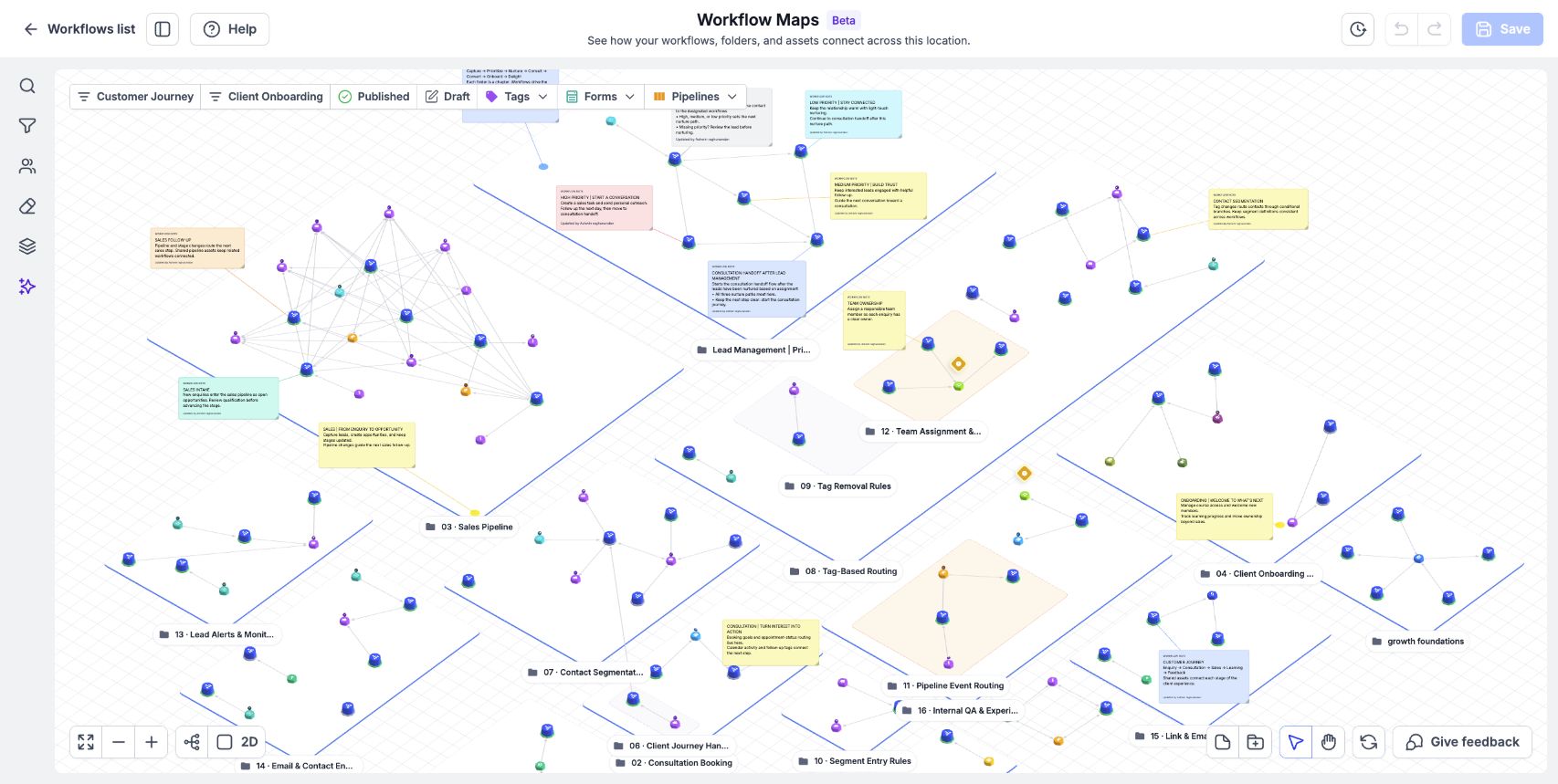
Workflow Maps brings folders, workflows, connected assets, and team notes into one view.
Where to find Workflow Maps
- Open your sub-account.
- Go to Automation, then Workflows.
- Click Workflow Maps beside the Workflows list title.
If you are already editing a workflow, click Maps in the builder’s top bar.
Each sub-account has its own map.
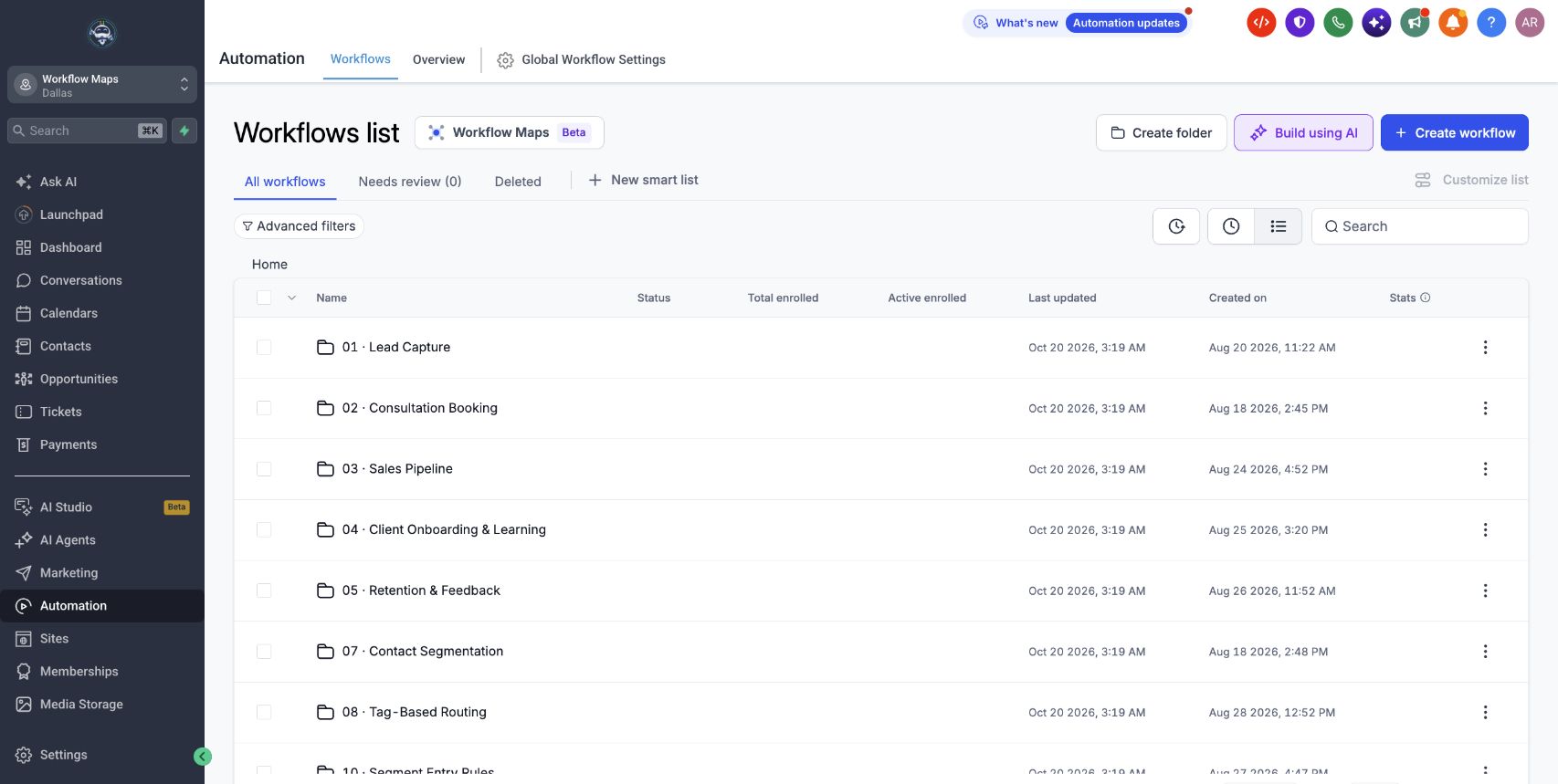
Open Automation → Workflows, then click Workflow Maps beside the Workflows list title.
Key benefits of using Workflow Maps
- Understand an account: See workflows, folders, and their connections together.
- Check dependencies: Find the workflows that use an asset before changing it.
- Investigate problems: Review workflows with errors and inspect failed executions.
- Explain a contact’s journey: Follow the workflows a contact went through.
- Keep the account understandable: Organize folders and add notes for your team.
Use cases for Workflow Maps
- Review an unfamiliar account: Start with the full map, then inspect a workflow and its connected assets.
- Prepare for an asset change: Select a tag or form and review its usage across folders.
- Investigate an unexpected message: Search for the contact and inspect its workflow history.
- Hand over an automation: Place a note beside a workflow explaining its purpose or dependencies.
What you can do from the map
Click a workflow to see its status, last updated information, enrollments, and connected assets. Preview workflow opens it without leaving the map. Open in builder takes you to the workflow for changes to its steps.
Agency admins can organize the map, rename workflows and folders, change folder colors, and save the layout for everyone in the sub-account.
Wait, if/else, goto, and other internal logic steps are viewed in the builder. The map focuses on connections between workflows and assets.
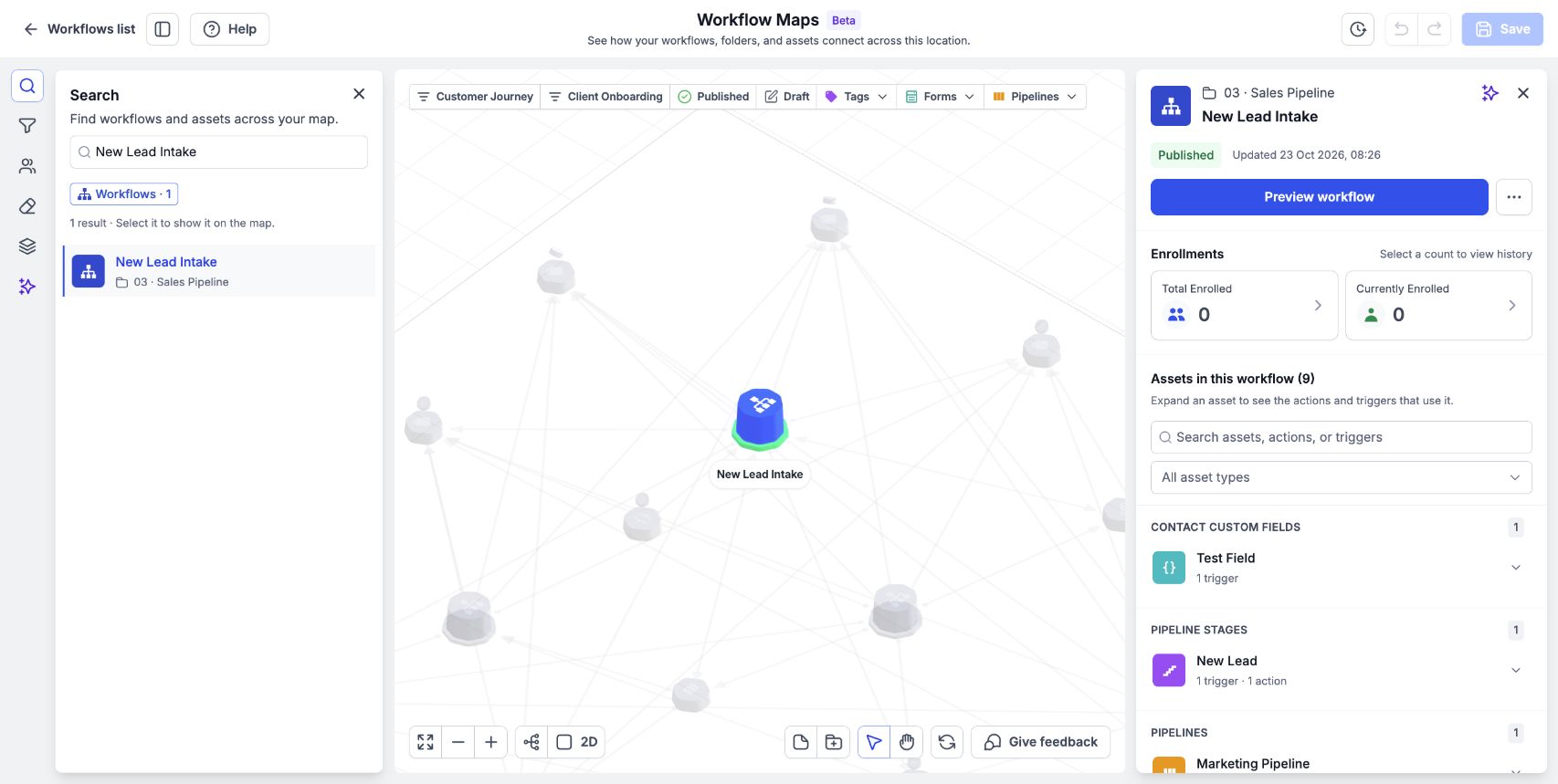
Select a workflow to see its status, enrollments, and connected assets.
Steps for getting started
- Open Workflow Maps.
- Click Fit to bring the full map into view.
- Click a workflow to inspect its details.
- Click a connected asset to review which workflows use it.
- Click a connection to inspect the triggers or actions behind it. Zoom in first if the map is fully zoomed out.
- Use Preview workflow to look inside the workflow, or Open in builder to edit its steps.
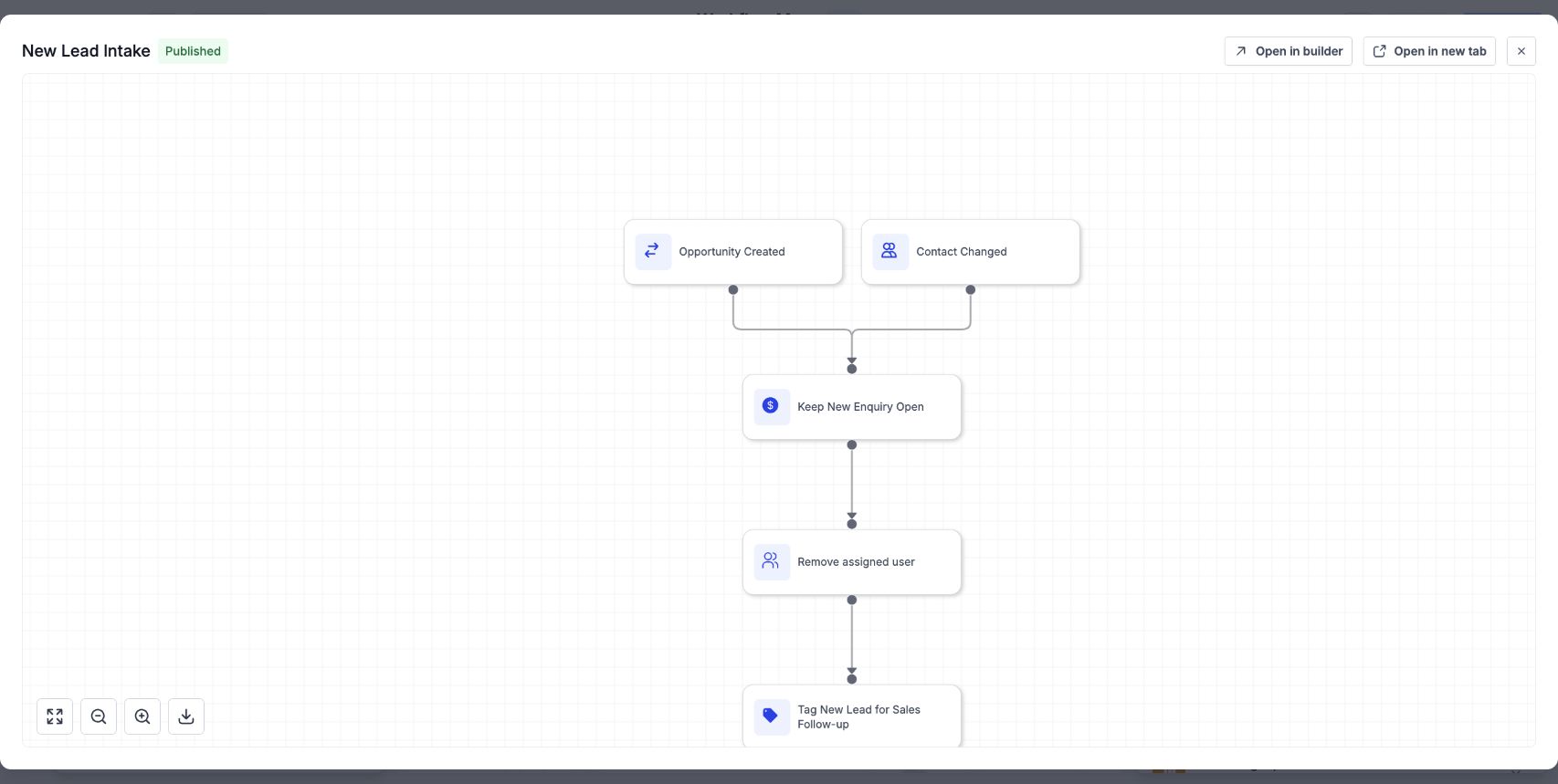
Preview workflow opens the workflow canvas with an Open in builder control.
Frequently Asked Questions
Q: Do I need to create the map manually?
No. Workflow Maps reads your existing workflows and their connections.
Q: Is there a separate map for each sub-account?
Yes. Each sub-account has its own map.
Q: Can I change workflow steps on the map?
Open the workflow in the builder to change its steps. Agency admins can make organizational changes from the map.