
App Studio: Build, Test, and Publish Apps with AI
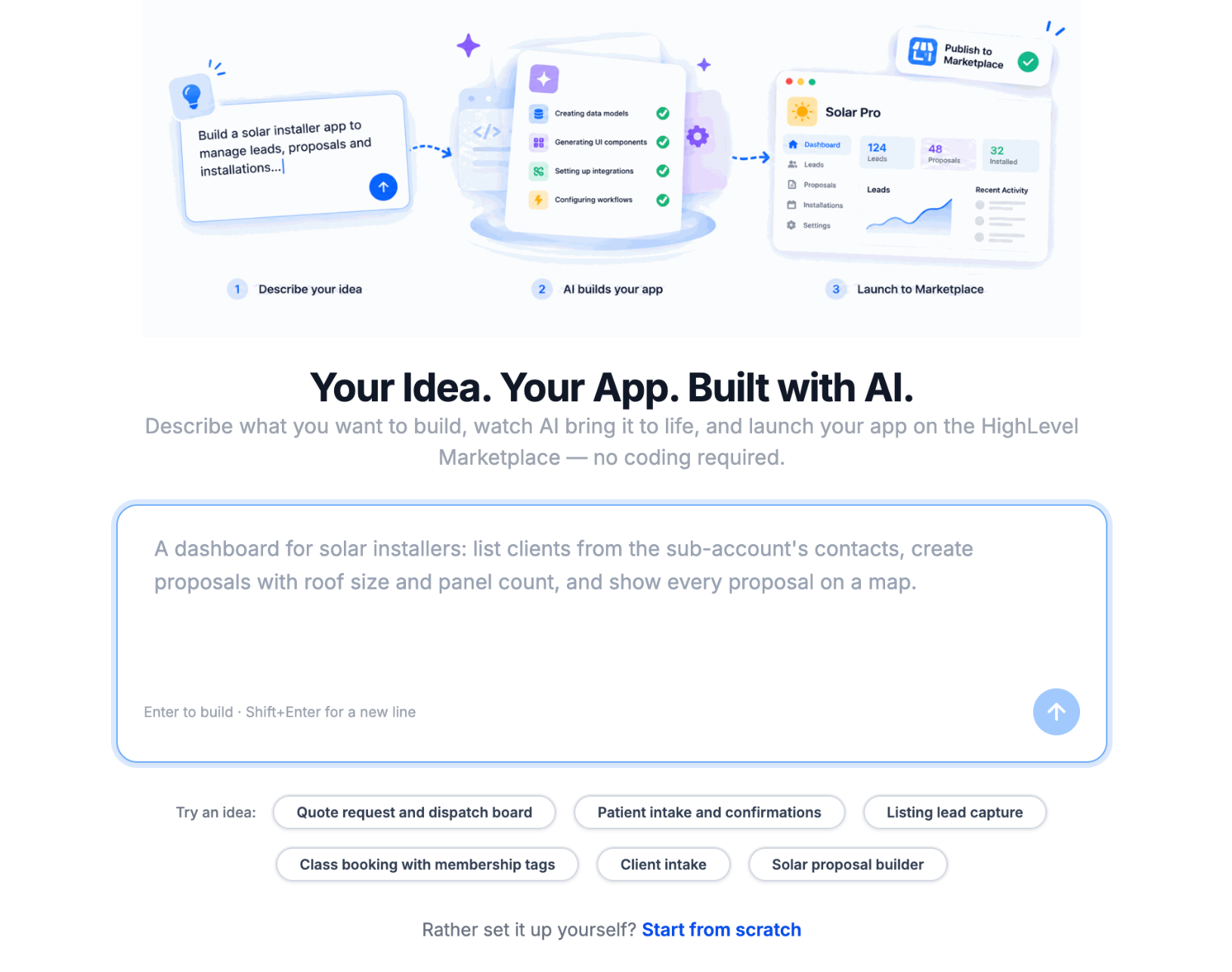
App Studio is an AI-powered app builder that lets developers and agencies create fully functional Chat To Clients CRM Marketplace applications without coding. Simply describe your idea, and App Studio generates the frontend, backend, database, hosting, and integrations.
You can customize applications through chat, test them using Chat To Clients CRM sub-account data, and publish them with shareable installation links.
TABLE OF CONTENTS
- What is App Studio?
- Key Benefits of App Studio
- AI-Powered App Building
- Native Chat To Clients CRM Integrations
- Live Preview, Version History, and Developer Tools
- Publishing and Distributing Apps
- App Studio Availability and Usage Limits
- How to Set Up and Use App Studio
- Frequently Asked Questions
- Related Articles
What is App Studio?
App Studio is an AI-powered application builder within the Chat To Clients CRM Developer Portal that turns natural-language prompts into functional Marketplace apps. It automatically handles application infrastructure, including PostgreSQL databases, OAuth, API integrations, and webhooks, eliminating much of the manual development process.
Apps run directly inside Chat To Clients CRM sub-accounts without requiring separate logins. You can generate apps from scratch or starter prompts, refine them through conversation, preview changes, and publish supported applications.
Key Benefits of App Studio
App Studio brings app creation, infrastructure management, testing, and publishing into a single AI-powered environment, making custom development faster and more accessible.
No-Code App Development: Create functional applications using natural-language prompts without manually writing code.
Faster Development: Automatically generate frontend components, backend logic, databases, and integrations.
Native Chat To Clients CRM Integration: Connect apps to contacts, opportunities, appointments, and other supported CRM data using managed OAuth, scopes, and webhooks.
Managed Infrastructure: Use built-in hosting, PostgreSQL databases, backend services, and secure third-party API integrations.
Conversational Customization: Modify features, attach mockups, and automatically detect and fix build errors through AI-assisted chat.
Live Preview and Testing: Preview changes and test applications directly inside Chat To Clients CRM sub-accounts.
Version Control and Developer Tools: Restore saved builds, download source code, and inspect database tables and environment variables.
Simplified Publishing: Publish validated app versions and distribute them through Chat To Clients CRM or grey-labeled installation links.
AI-Powered App Building
App Studio transforms written instructions into working applications, allowing you to create specialized solutions without configuring every component manually.
Create Apps from Prompts
Describe your application's purpose, features, users, and required Chat To Clients CRM integrations, or select a suggested starter prompt.
For example:
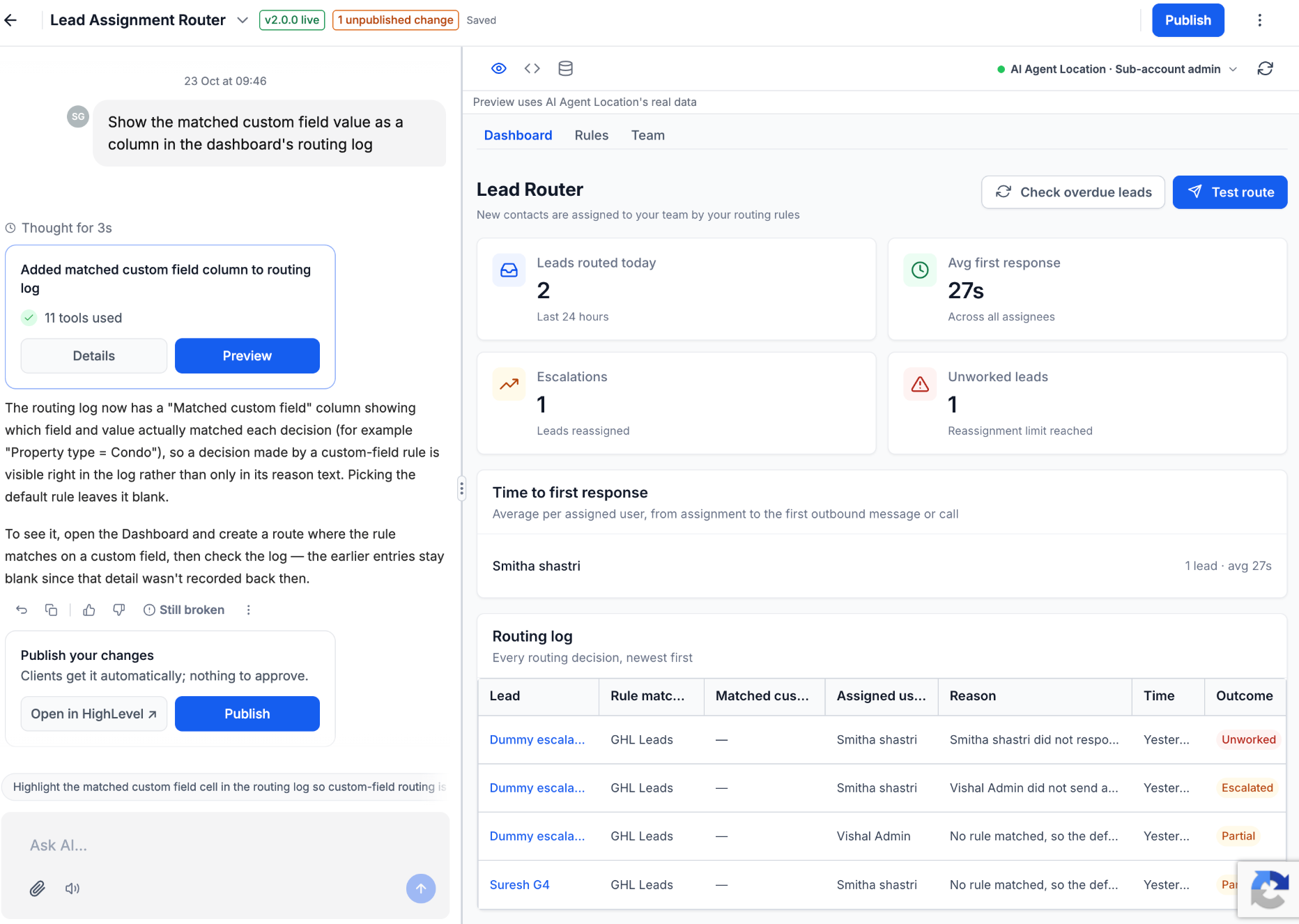
Build a lead assignment app that routes new contacts to sales representatives based on custom field values. Include a dashboard showing routing rules, assigned users, and assignment history.
App Studio generates the necessary interface, data models, integrations, and backend functionality.
Example Use Cases:
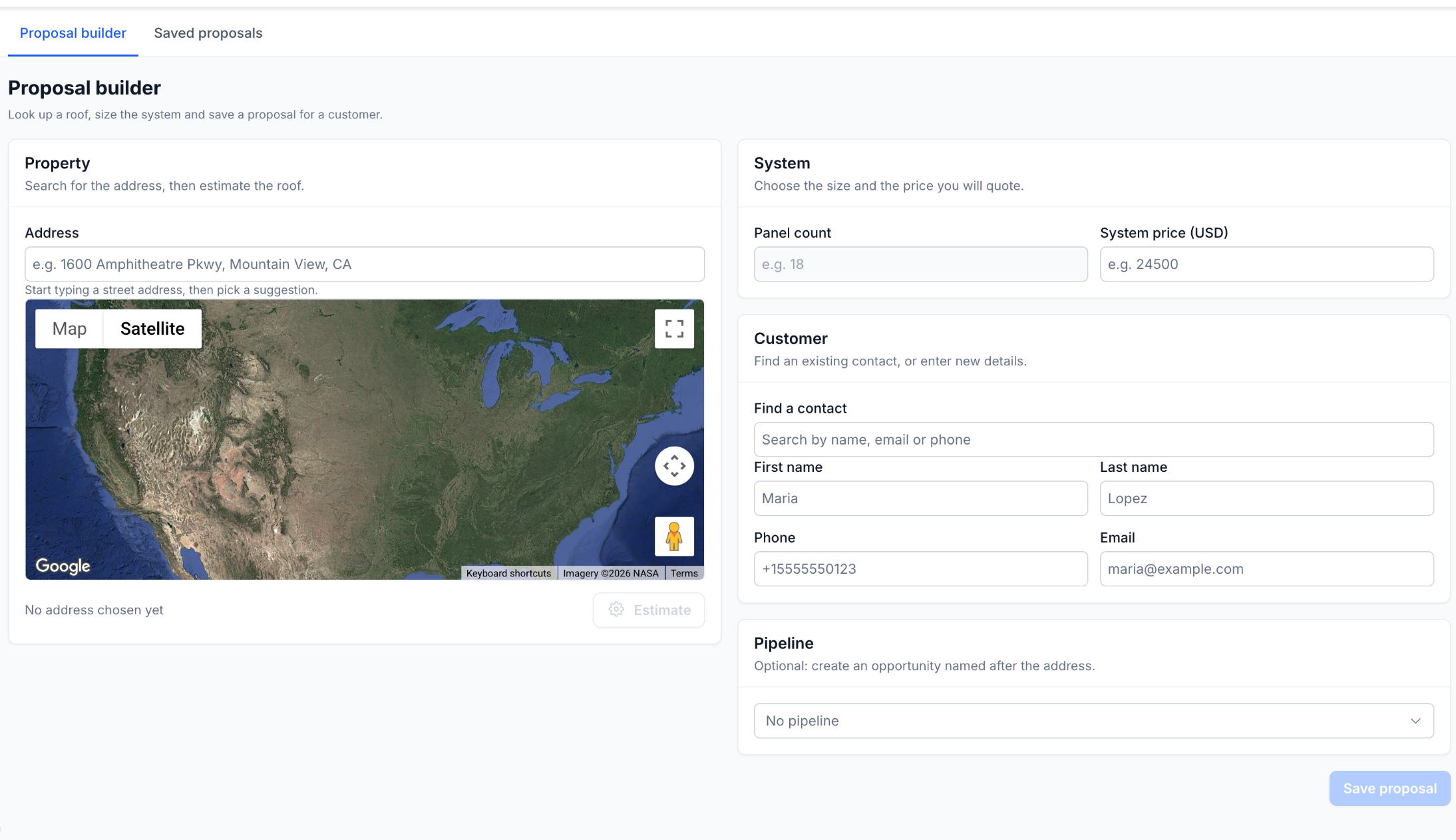
Solar Proposals: Generate solar proposals using CRM contacts, property maps, panel counts, and system pricing.
Lead Assignment: Route leads using custom rules and monitor assignment results.
Quote and Dispatch: Manage customer requests, quotes, and job assignments.
Appointments and Intake: Build custom intake forms integrated with CRM appointments.
Real Estate: Capture property leads and create opportunities.
Class Bookings: Manage registrations, bookings, and membership information.
Customize Apps Through Conversation
Once an app is generated, use the chat interface to request changes, add functionality, or troubleshoot issues.
For example:
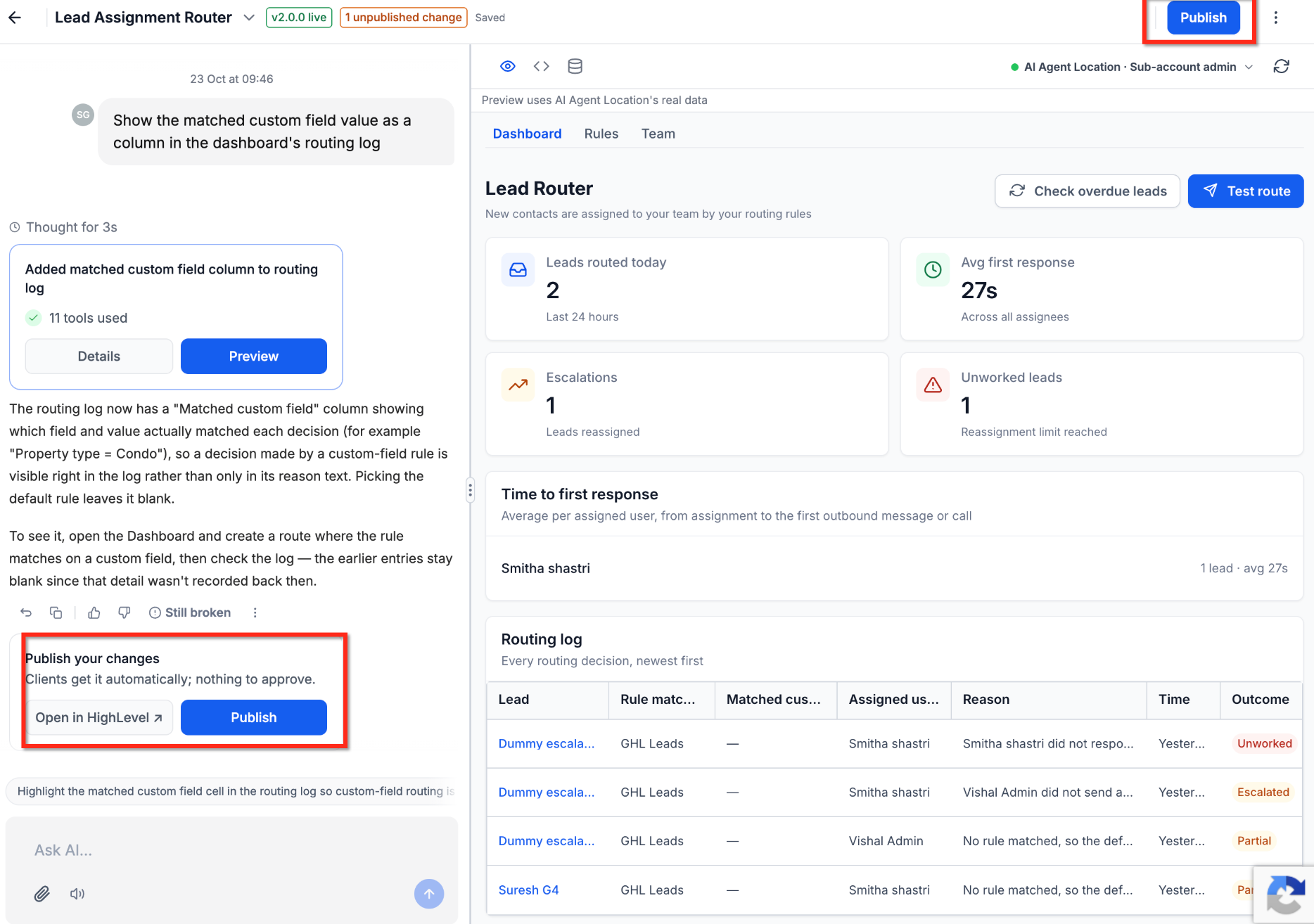
Show the matched custom field value as a column in the dashboard's routing log.
App Studio updates the relevant components and provides a revised preview. You can also attach images or mockups to guide the design, and AI can detect and attempt to fix build errors.
Native Chat To Clients CRM Integrations
App Studio connects generated applications to existing Chat To Clients CRM CRM resources, helping users create custom workflows around their business data without maintaining separate systems.
Supported capabilities include:
CRM Connectivity: Access supported contacts, opportunities, appointments, and other CRM resources.
Automatic OAuth Configuration: Configure supported authentication, required scopes, and webhooks based on application functionality.
Managed Infrastructure: Use generated frontend and backend components, PostgreSQL databases, and built-in hosting.
Third-Party Integrations: Connect supported external APIs and manage application configuration through environment variables.
Native Sub-Account Experience: Run applications directly inside Chat To Clients CRM without separate application logins.
For example, a solar proposal app can retrieve existing contacts, display property locations on a map, calculate proposal details, and optionally associate proposals with pipeline opportunities.
Important: Although App Studio automatically configures supported OAuth integrations, users must still review and authorize the permissions requested during application installation.
Learn more: API Security – OAuth Consent for Marketplace Apps.
Live Preview, Version History, and Developer Tools
App Studio provides tools to preview, test, and inspect generated applications, helping you verify functionality before publishing and recover earlier builds when needed.
Live Preview and Testing
Preview app pages, dashboards, forms, and interactions.
Review changes immediately after AI-generated updates.
Use Try it in Chat To Clients CRM to test within a selected sub-account.
Verify integrations and workflows using actual CRM data.
Version History and Developer Tools
Automatically save application builds.
Restore previous versions when needed.
Review and download generated source code.
Inspect database tables and environment variables.
Important: Testing uses real Chat To Clients CRM CRM data. Use a dedicated test sub-account whenever possible, particularly when testing apps that create, update, or delete records.
Publishing and Distributing Apps
App Studio simplifies Marketplace publishing by guiding users through version creation, validation, and installation-link sharing. Supported Marketplace settings, scopes, and webhooks stay synchronized with application changes.
Publishing capabilities include:
Publishing application versions with release notes.
Running validation checks before publication.
Managing unpublished changes and published versions.
Generating Chat To Clients CRM and grey-labeled installation links.
Sharing applications with eligible Chat To Clients CRM sub-accounts.
Important: The initial App Studio release supports private, sub-account applications only. Agency-level applications are planned for a future release.
For additional details, see Marketplace App Distribution Type.
App Studio Availability and Usage Limits
App Studio is initially available through Labs for eligible developers. Understanding its current limits helps you plan app development and avoid interruptions while generating or testing applications.
| Feature | Current Availability or Limit |
|---|---|
| Access | Early access through Labs |
| Application type | Private, sub-account apps |
| Usage metering | Team-level usage within a rolling 5-hour window |
| Usage visibility | Usage and reset information available |
| Concurrent builds | One build at a time |
| Message length | Maximum 16,000 characters |
| Image attachments | Up to 5 images per message, 5 MB each |
| Execution | Request- and webhook-based |
| Scheduled/background jobs | Not yet supported |
Coming Soon:
Agency-level applications
Client reporting starter application
Scheduled and background jobs
How to Set Up and Use App Studio
Getting started involves enabling App Studio, generating an application from a prompt, refining its functionality, testing it inside Chat To Clients CRM, and publishing a version. Following this process helps ensure the app works correctly before installation links are shared.
Step 1: Enable and Access App Studio
Open the Chat To Clients CRM Developer Portal.
If App Studio is unavailable, go to Profile Menu → Labs and enable it, if eligible.
Navigate to My Apps → Create App.
Select Build with App Studio.
Step 2: Describe and Build Your App
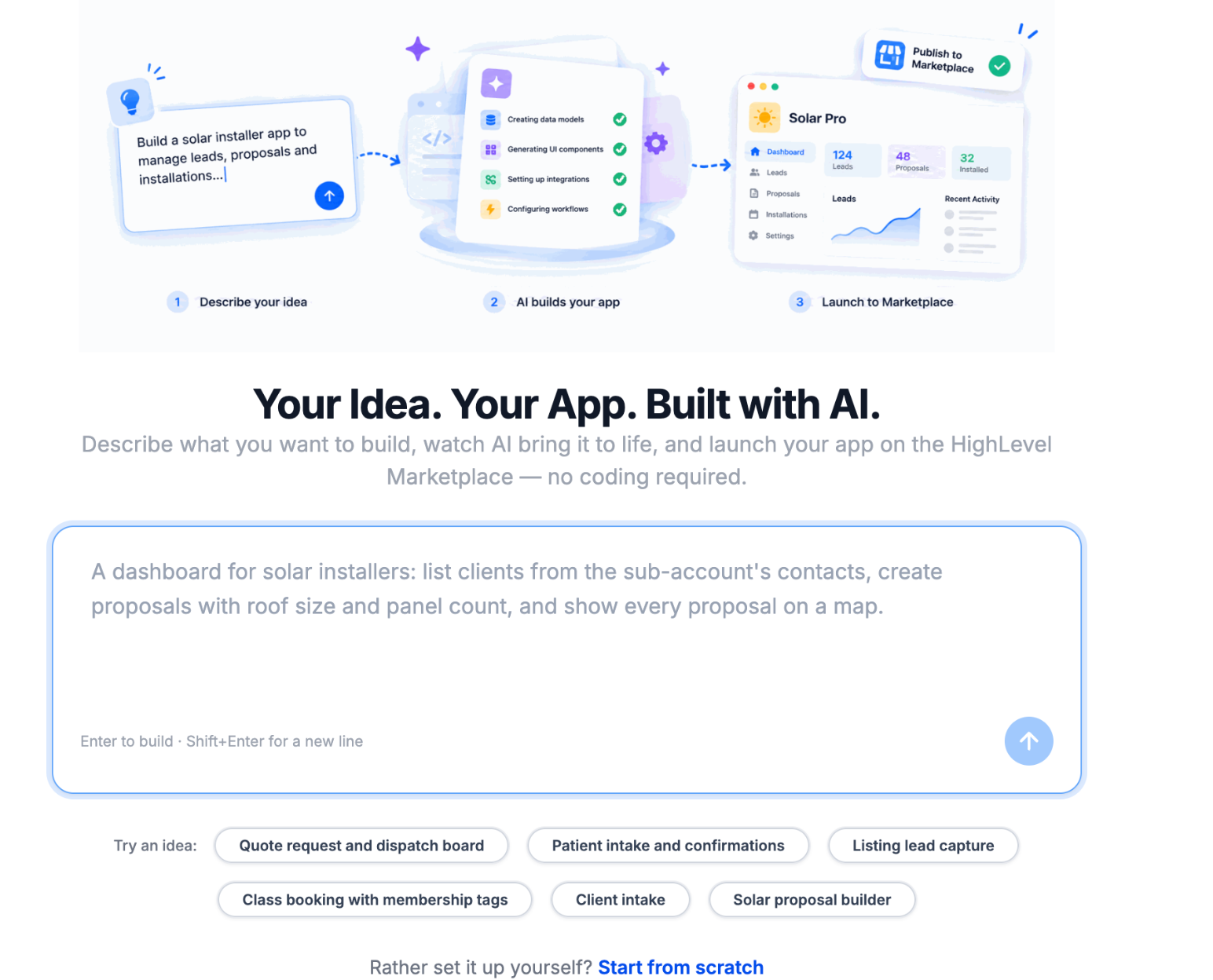
Enter a prompt describing your app's purpose, required functionality, and Chat To Clients CRM integrations, or choose a starter idea.
Attach optional mockups or reference images.
Click Build.
Review the generated application in the live preview.
Example Prompt:
Build a solar proposal app that retrieves Chat To Clients CRM contacts, displays property locations on a map, accepts panel counts and system pricing, saves customer proposals, and optionally creates pipeline opportunities.
Step 3: Customize Your App
Enter follow-up instructions in the chat panel.
Request additional features, design changes, or bug fixes.
Review the AI-generated updates.
Test the changes and continue refining the app.
For example:
Add a dashboard showing saved proposals, customer names, system prices, and proposal statuses.
Step 4: Test Your App in Chat To Clients CRM
Review the application preview.
Click Try it in Chat To Clients CRM.
Select a sub-account for testing.
Complete any required authorization.
Test forms, navigation, CRM integrations, and record creation or updates.
Return to App Studio to make corrections if necessary.
Important: Use a dedicated test sub-account to avoid unintended changes to production CRM records.Step 5: Publish and Share Your App
Confirm the application is functioning correctly.
Click Publish.
Review validation results and resolve any issues.
Add release notes if prompted.
Publish the application version.
Click Share and choose a Chat To Clients CRM or grey-labeled installation link.
Copy the link and share it with eligible users.
Recipients can follow the installation link and complete the required authorization process.
Frequently Asked Questions
Q: Do I need coding experience to use App Studio?
No. App Studio generates applications using natural-language instructions. Developers can still inspect or download source code when needed.
Q: Is App Studio the same as AI Studio?
No. App Studio builds Marketplace-integrated applications through the Developer Portal. AI Studio is a separate Chat To Clients CRM product with its own creation and publishing workflow.
Q: Can I create agency-level or public Marketplace apps?
The initial release supports private sub-account apps only. Agency-level support is planned for a future release.
Q: What happens when I reach my usage limit?
App Studio displays team-level usage and reset information for its rolling five-hour window. Check the displayed reset information to determine when additional usage becomes available.
Q: Can I run multiple builds simultaneously?
No. The initial release supports one active build at a time.
Q: Can App Studio run scheduled or background tasks?
Not yet. The initial release supports request- and webhook-based execution only.
Q: Can I restore an earlier version or download my application's code?
Yes. App Studio automatically saves builds, supports restoring previous versions, and provides source-code download options.
Q: Does testing use real Chat To Clients CRM CRM data?
Yes. Testing uses data from the selected sub-account. A dedicated test sub-account is recommended.
Q: Why can't I see App Studio in my Developer Portal?
App Studio is initially available to eligible developers through Labs. Verify your eligibility and relevant Labs settings.