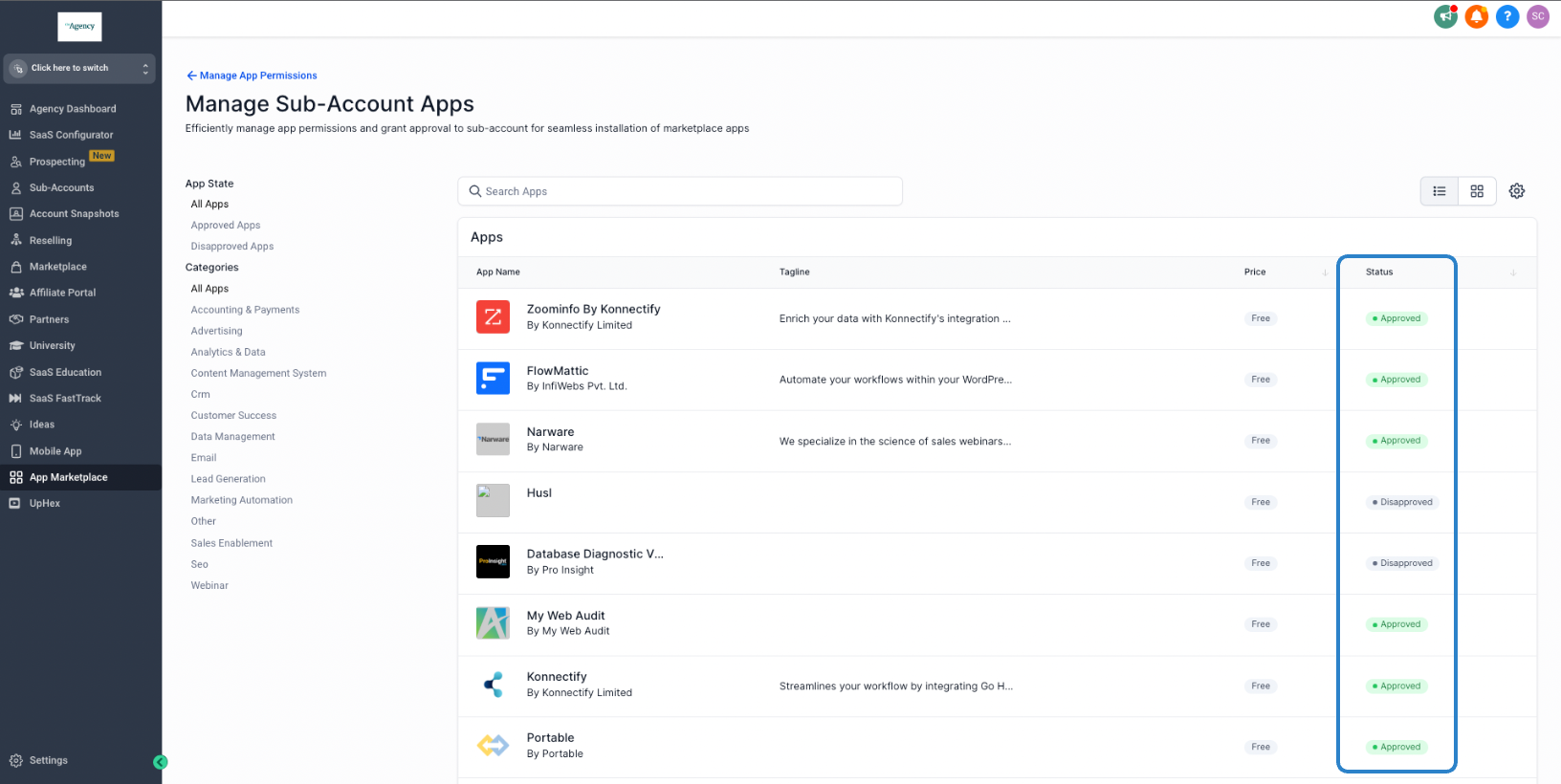
Managing Marketplace App Permissions: White Label Agency Control
This article explains how white label agencies can manage which Marketplace apps are available to their sub-accounts. Agencies can allow access to all Marketplace apps or restrict sub-accounts to apps explicitly approved by the agency.
TABLE OF CONTENTS
- Locating the App Permissions Management:
- Approving Apps:
- Disapproving Apps:
- Bulk Approve/Disapprove Marketplace Apps:
Choose Which Marketplace Apps Sub-Accounts Can Access
Use Show only approved apps to sub-accounts to control whether your sub-accounts can access all Marketplace apps or only apps your agency has approved.
Setting
| App availability for sub-accounts
|
Disabled
| All Marketplace apps are available to sub-accounts. This is the default setting.
|
Enabled
| Only Marketplace apps explicitly approved by the agency are available to sub-accounts.
|
Before enabling this setting: Review the current approval statuses in the app list and confirm that the apps you want sub-accounts to access are approved.
Manage App Access
Agency admins can control which Marketplace apps are available to their sub-accounts from one place.
Go to App Marketplace.
Click Settings.
Select Manage App Access.
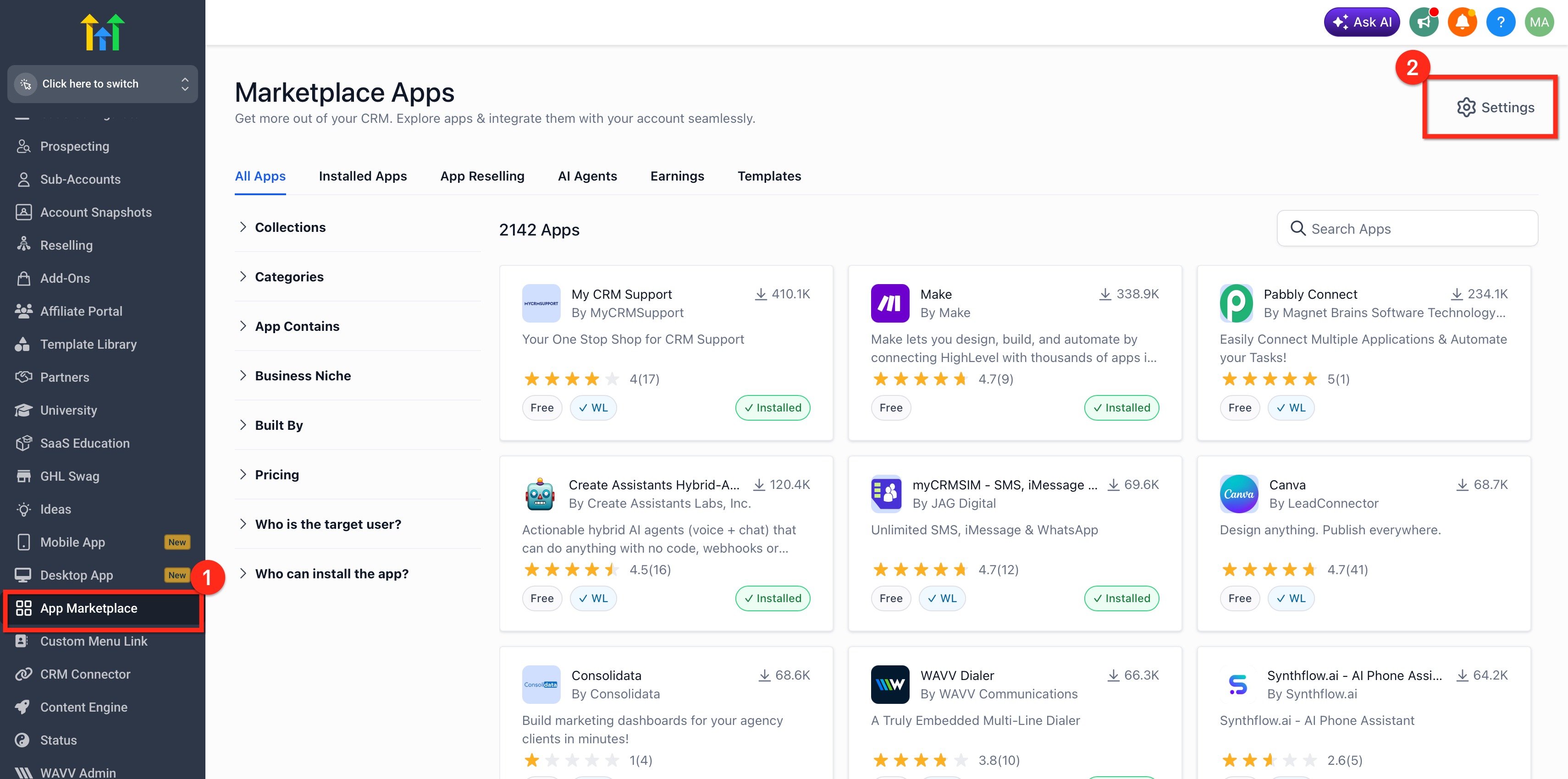
Use Show only approved apps to sub-accounts to control Marketplace app access.
Disabled: All Marketplace apps are available to sub-accounts.
Enabled: Only apps explicitly approved by the agency are available to sub-accounts.
The setting is disabled by default.
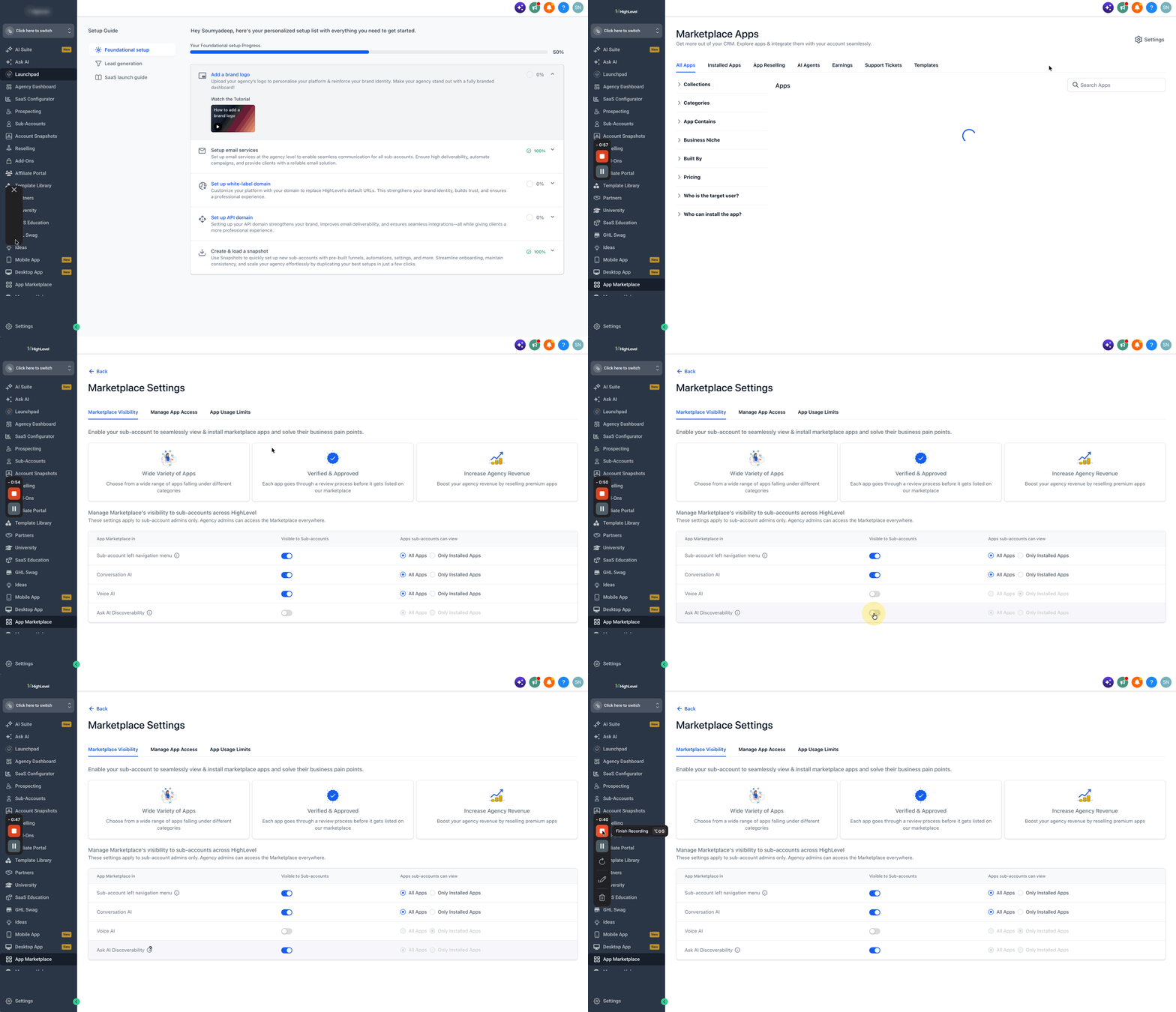
Control Marketplace Discovery in Ask AI
Agency admins can control whether sub-account admins can discover Marketplace apps through Ask AI.
Note: This setting applies only to location admins. Agency admins can always discover marketplace apps in Ask AI.
Configure Ask AI Discoverability
- Go to App Marketplace.
- Click Settings.
- Select Marketplace Visibility.
- Locate Ask AI Discoverability.
- Enable or disable the setting.
When enabled, sub-account admins can ask Ask AI for apps or integrations and receive relevant Marketplace recommendations.
When disabled, Ask AI does not surface Marketplace app recommendations to sub-account admins.
Agency admins continue to have access to Marketplace discovery.
Existing Marketplace visibility and app-access controls continue to apply.
Approve Marketplace Apps
You can review and approve Marketplace apps directly from Manage App Access.
1. Go to App Marketplace → Settings → Manage App Access.
2. Find the app you want to manage.
3. Review its current approval status.
4. Select Approve.
Use search and filters to find specific apps more quickly.
When Show only approved apps to sub-accounts is enabled, approved apps are available to sub-accounts.
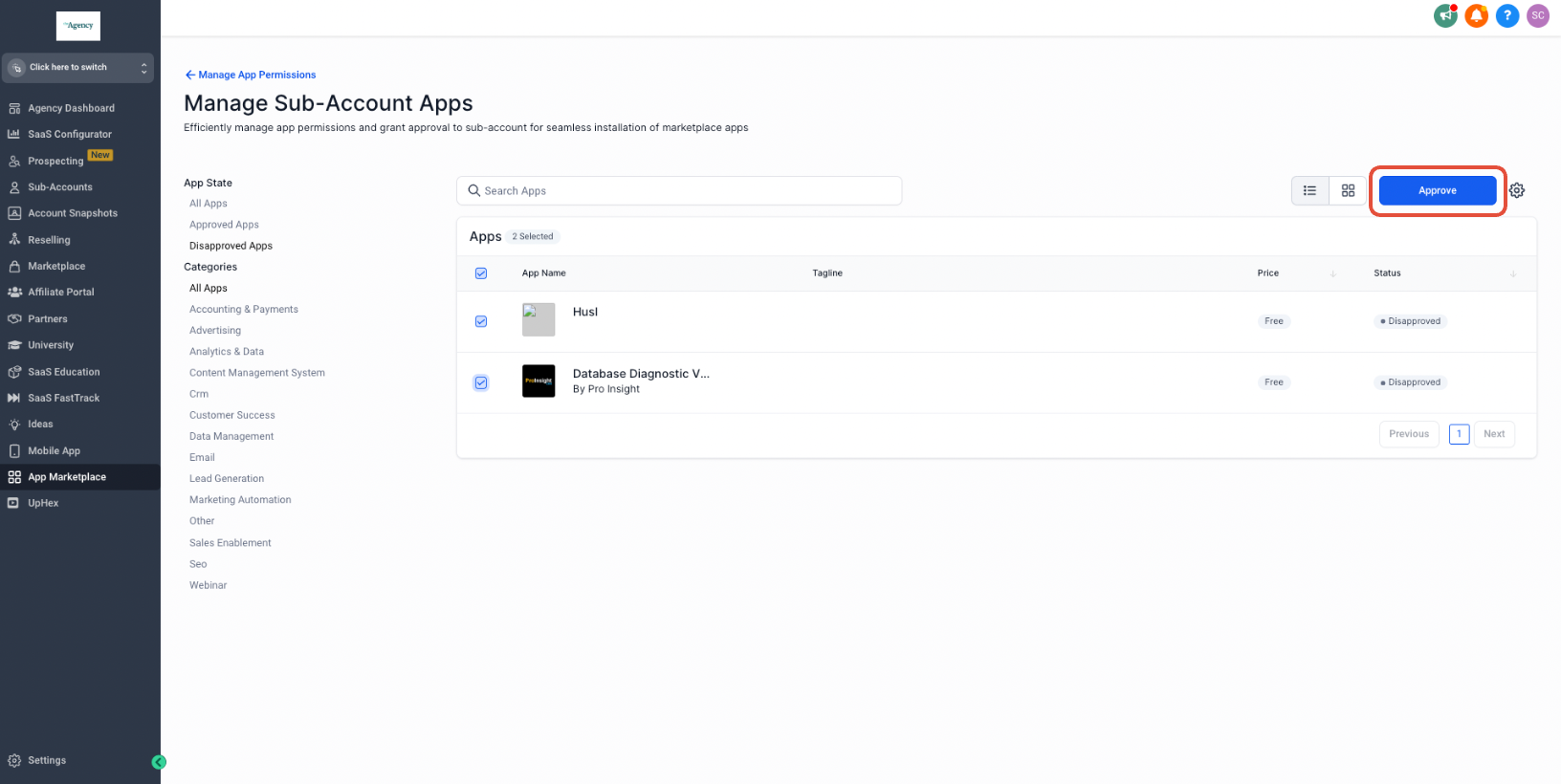
- Confirm your decision by clicking 'Approve' in the modal window.
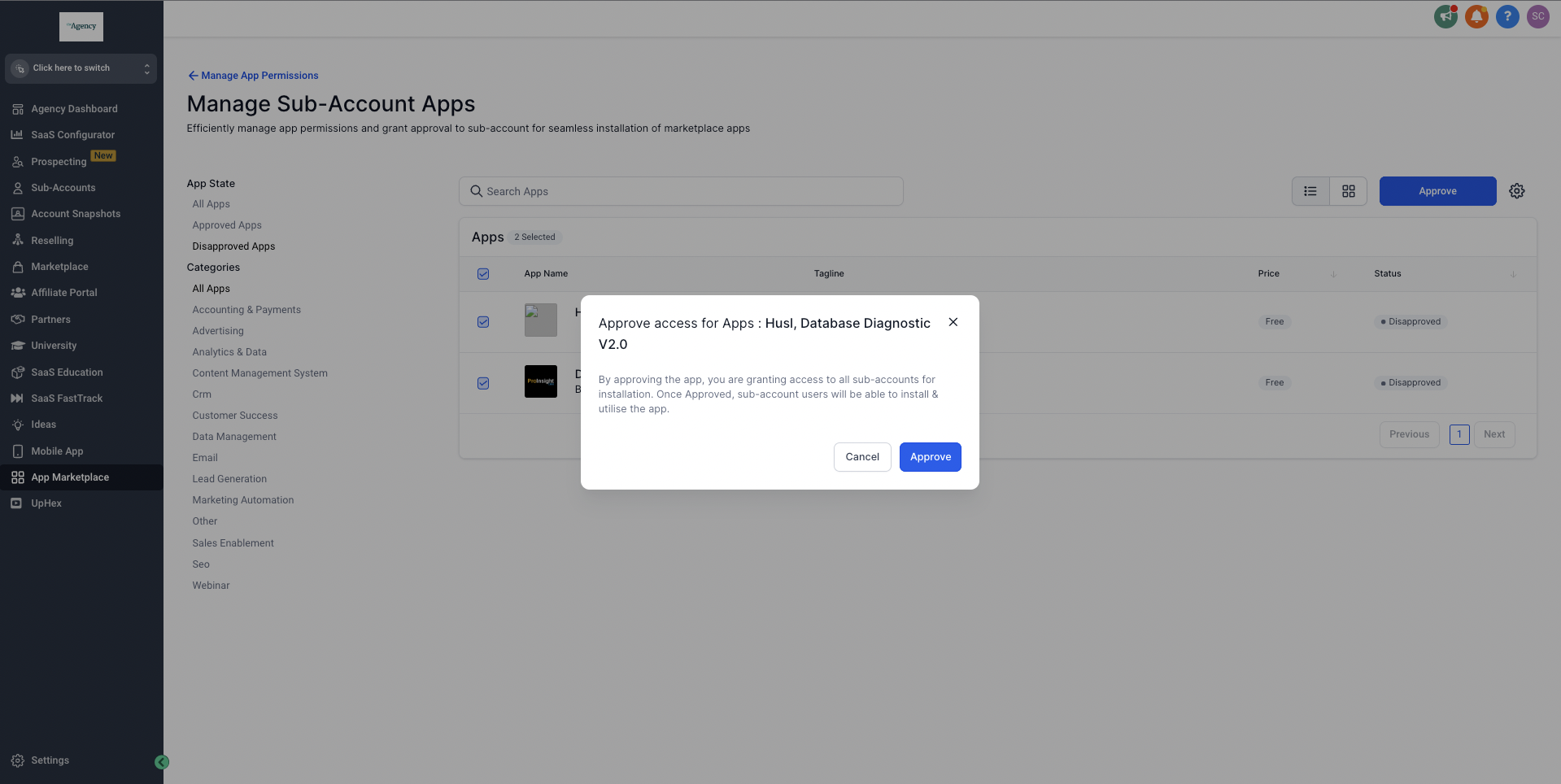
- Once approved, the apps become visible to sub-account users under their App Marketplace. These users can then view and install them.
For Individual Apps:
- Navigate to the app details page by clicking on the specific app.
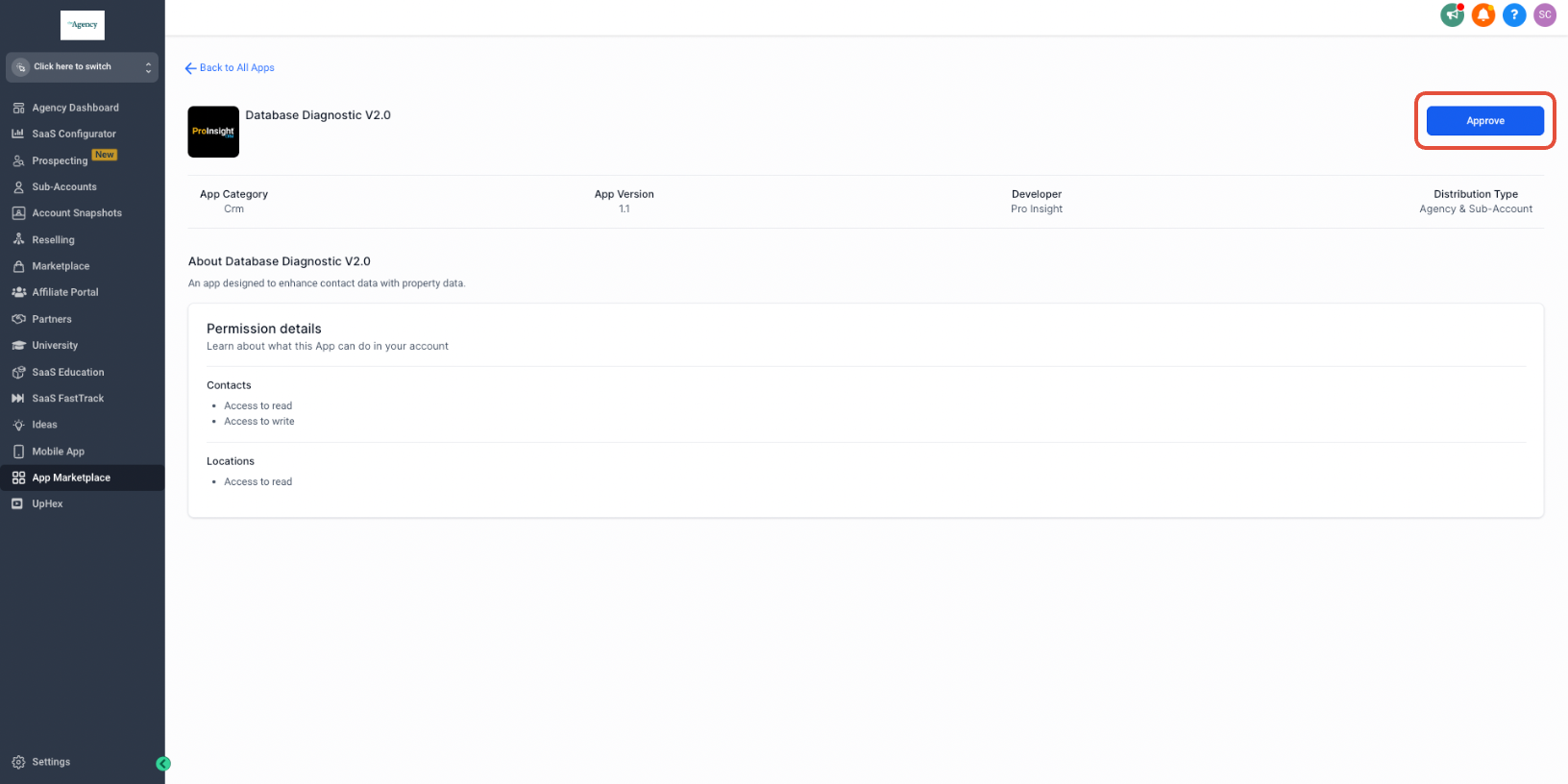
- Click 'approve' on the right top corner.
- Confirm the action by selecting 'Approve' in the modal.
Disapproving Apps:
- Under 'App state', select 'Approved apps'.
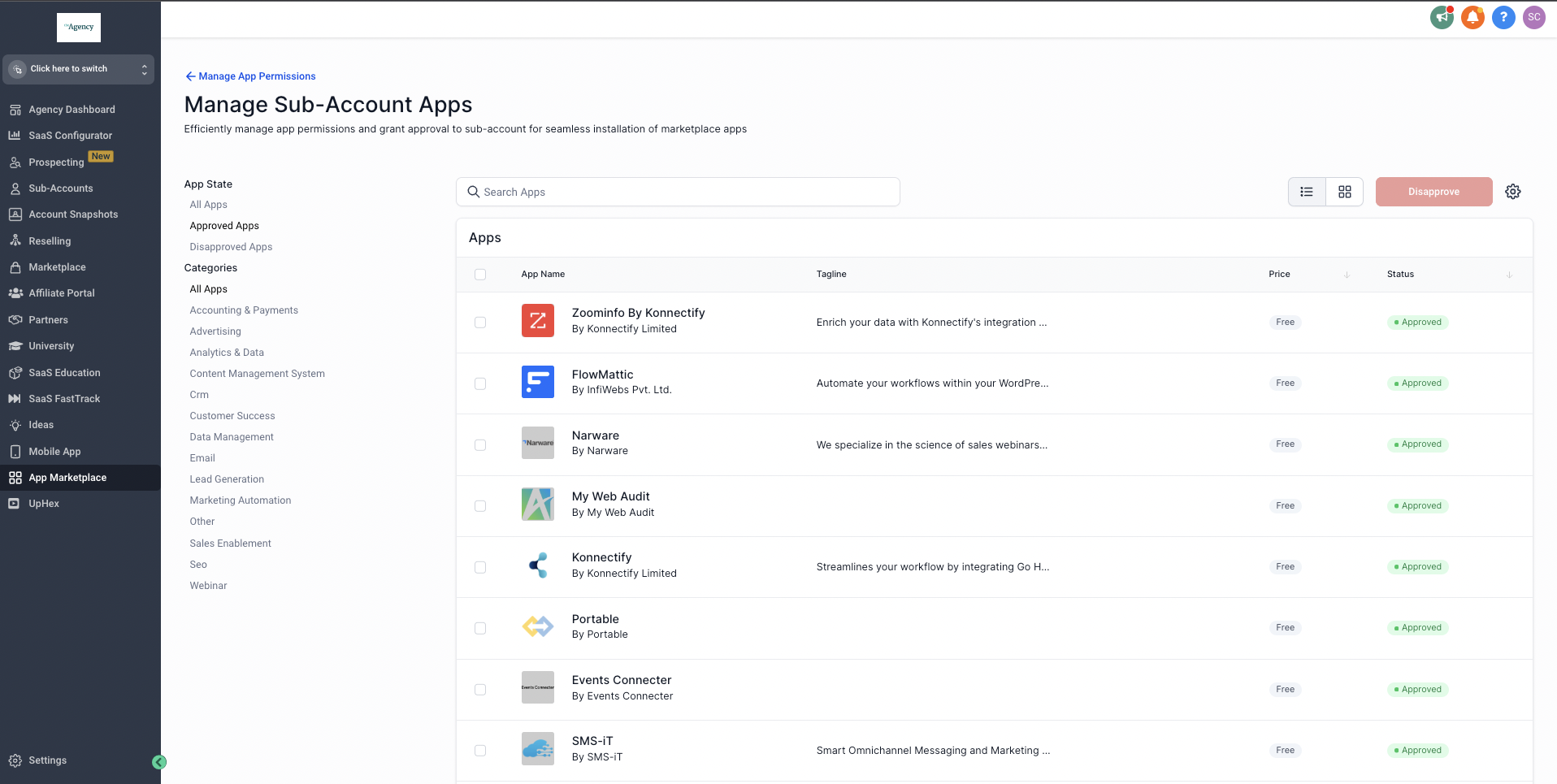
- For bulk action, choose the apps you wish to disapprove and click the 'disapprove' button on the right top corner.
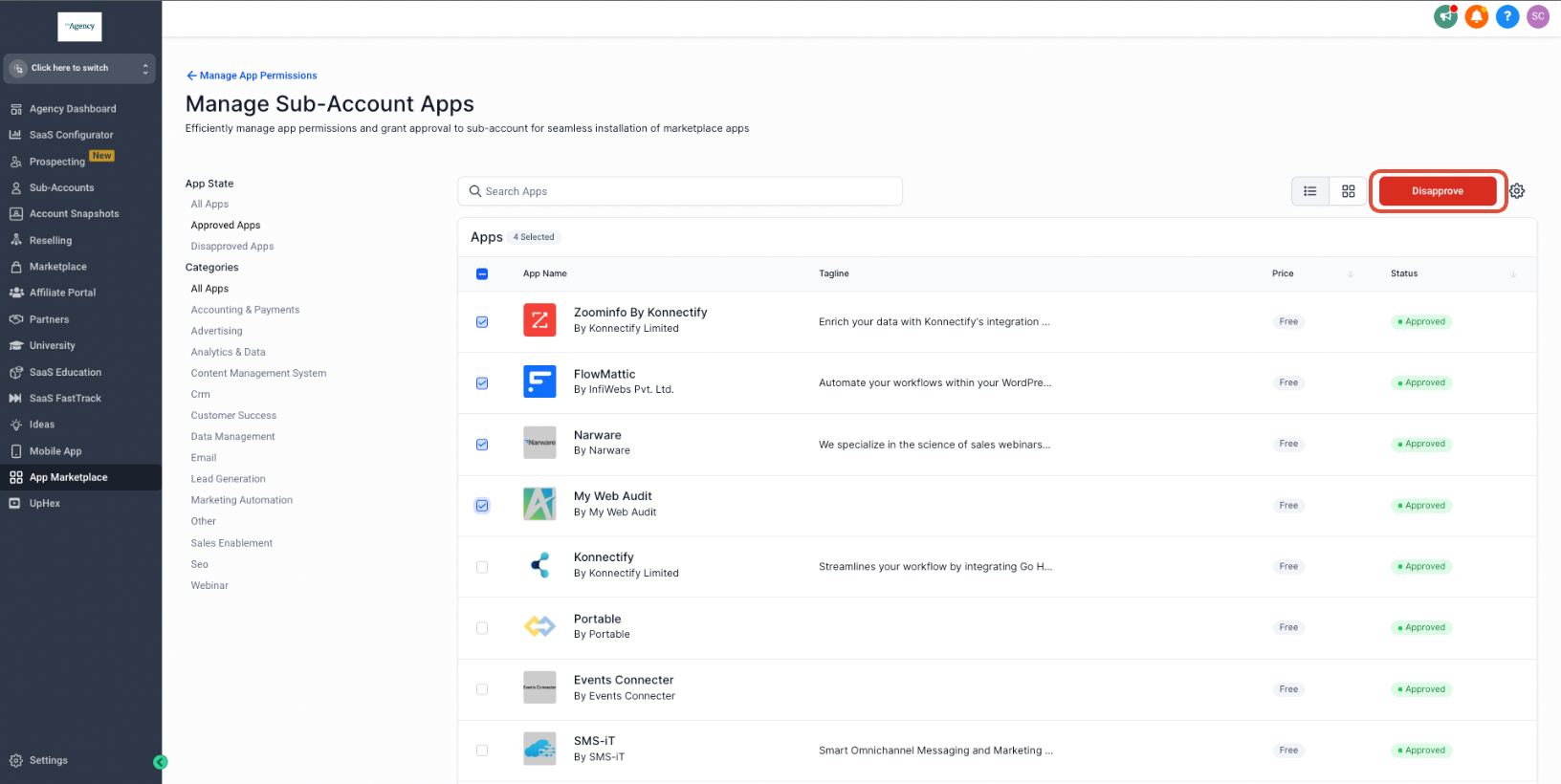
- Confirm your decision by typing 'CONFIRM' in the action box and then click on 'disapprove'.
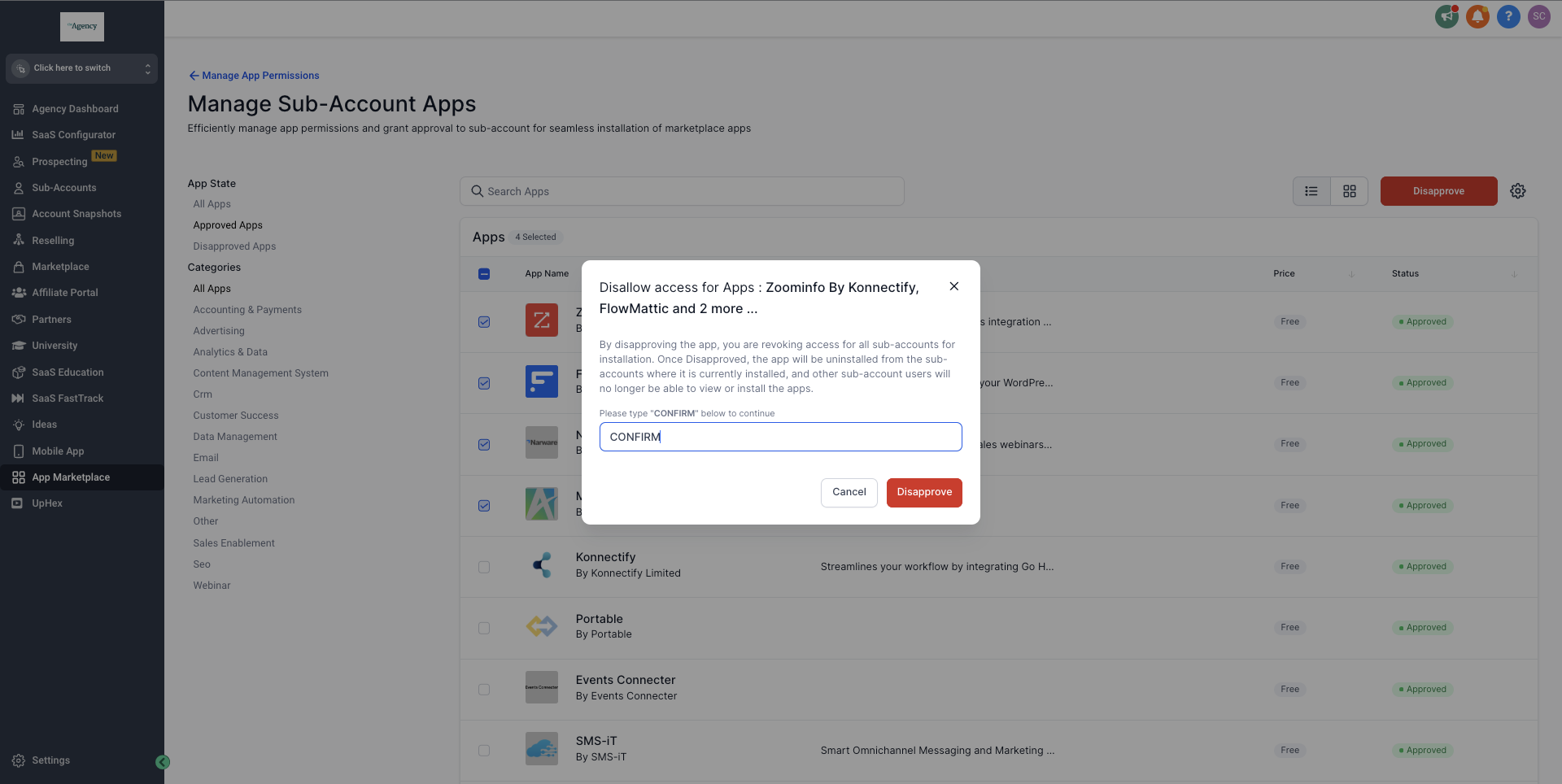
Effects of Disapproving:
- The disapproved apps will no longer be visible or installable at the sub-account level.
- If these apps were previously installed, they will be uninstalled from all associated sub-accounts. This includes any supplementary features, such as custom conversation providers, workflow actions, triggers, and more.
- Disapproved apps can be approved again in the future. However, they won't be automatically reinstalled in sub-accounts where they were previously installed. They need to be manually installed again.
Installed Apps Visibility by Level
Installed Apps may now separate app visibility into Agency Apps and Sub-account Apps, helping users manage app installations at the correct level based on their access and permissions.
Restrict Marketplace Access to Approved Apps
Agencies can choose whether sub-accounts have access to all Marketplace apps or only apps approved by the agency.
Go to App Marketplace > Settings > Manage App Access.
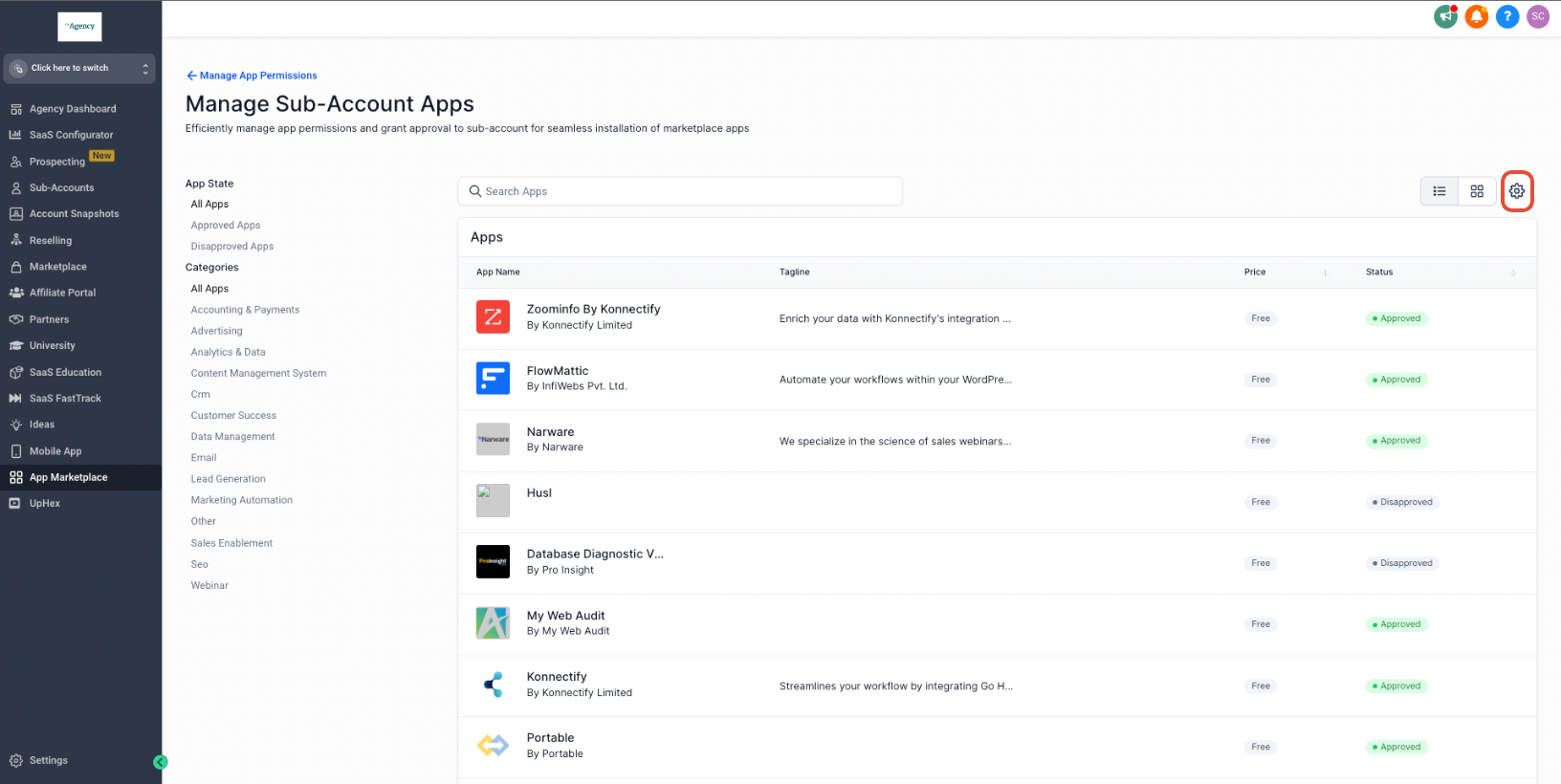
Locate Show only approved apps to sub-accounts.
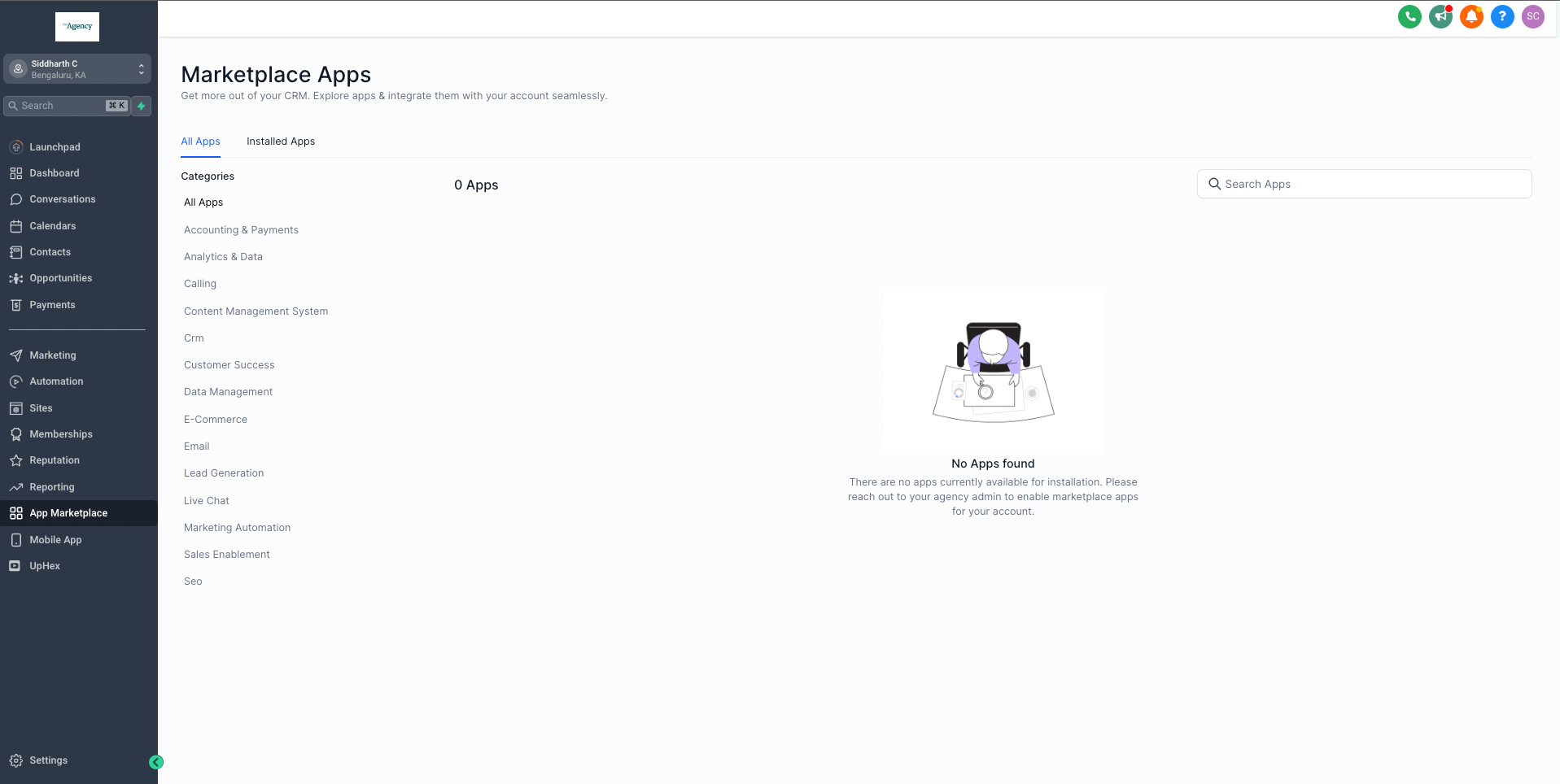
Enable the setting to restrict access to approved apps only.
Review the Marketplace app list.
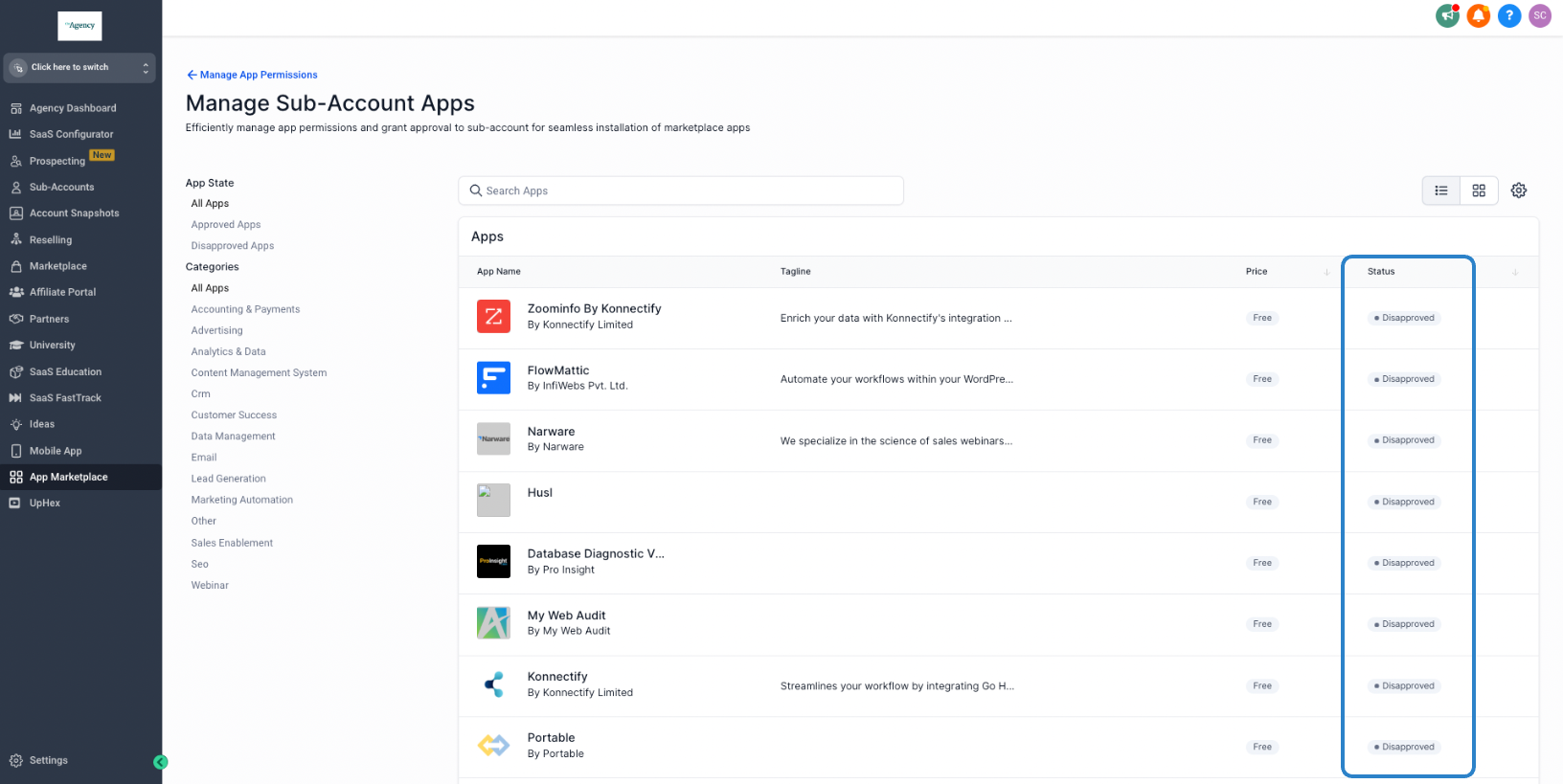
Use Approve or Disapprove to manage access for individual apps.
Use search and filters to find specific apps.
Effects of Disabling
- Sub-accounts can view or install any marketplace apps.
- This is the default setting.
Re-enabling this Option:
- Navigate to 'App Marketplace' from the left menu. (Enable from labs if not visible).
- Click 'Manage App Permissions' on the top right.
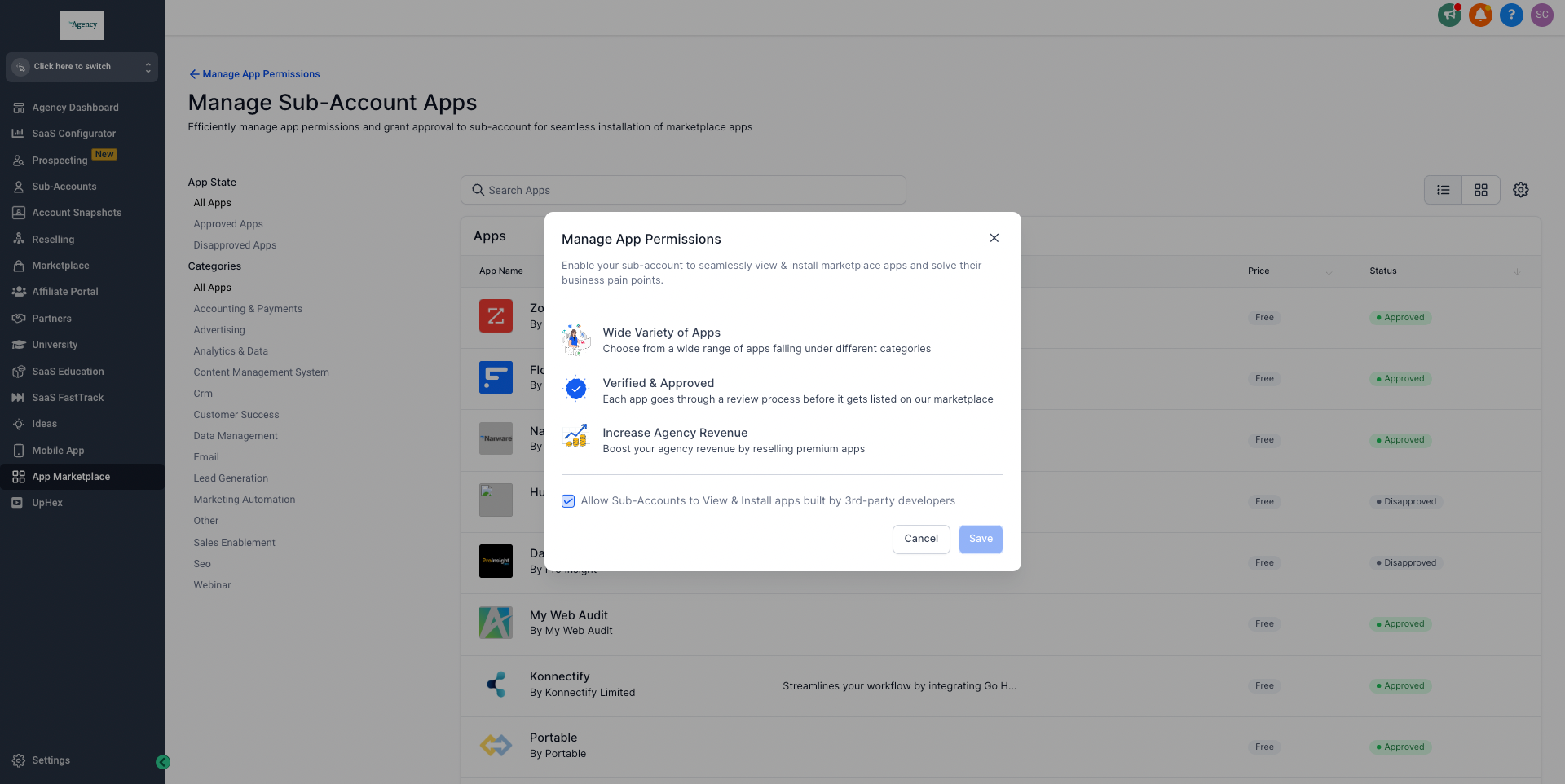
- Click the settings icon on the top right.
- Select the box 'allow sub-accounts to view and install apps built by 3rd party developers'.
- Click 'Save'.
Only Marketplace apps explicitly approved by the agency are available to sub-accounts.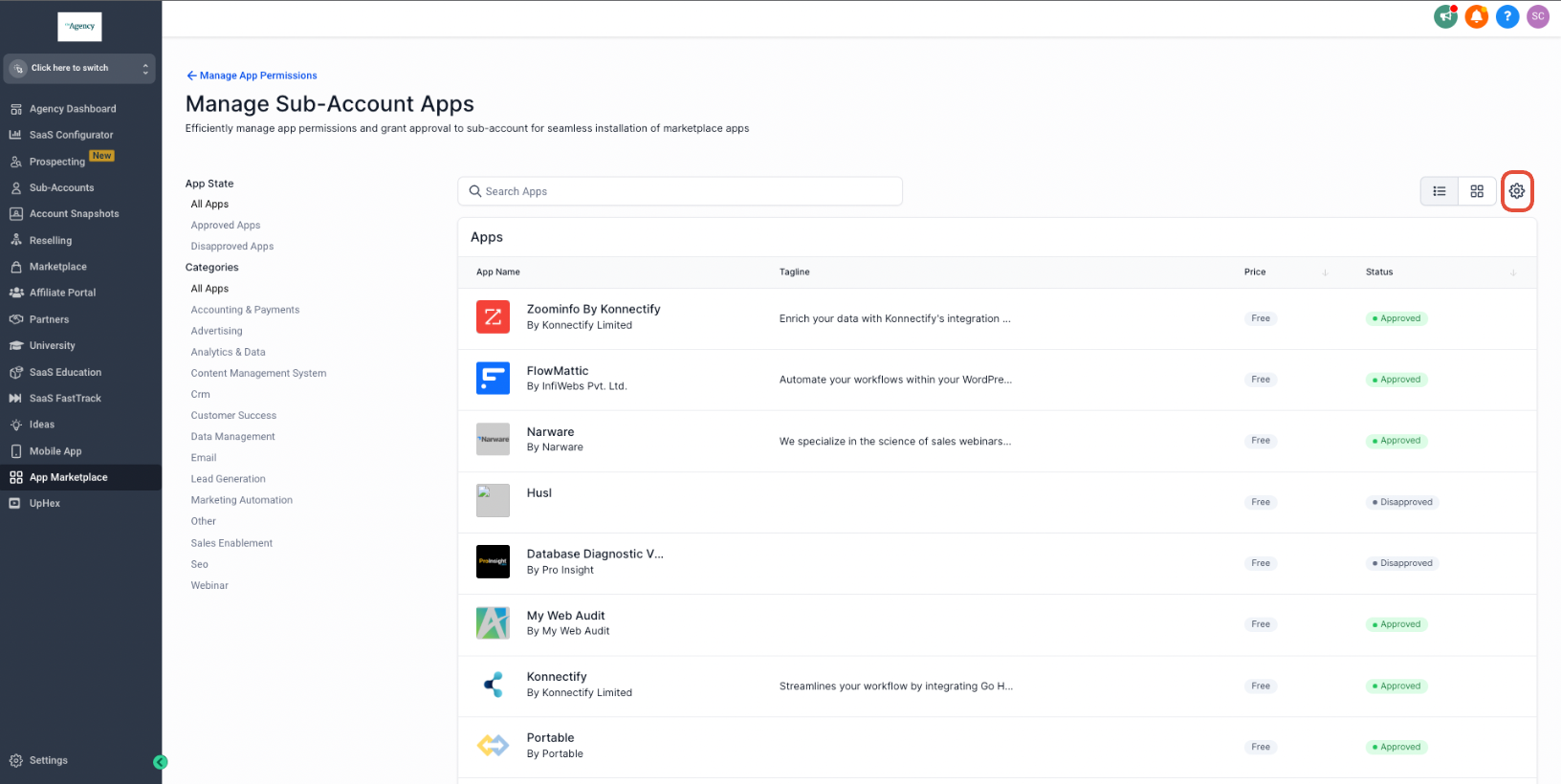
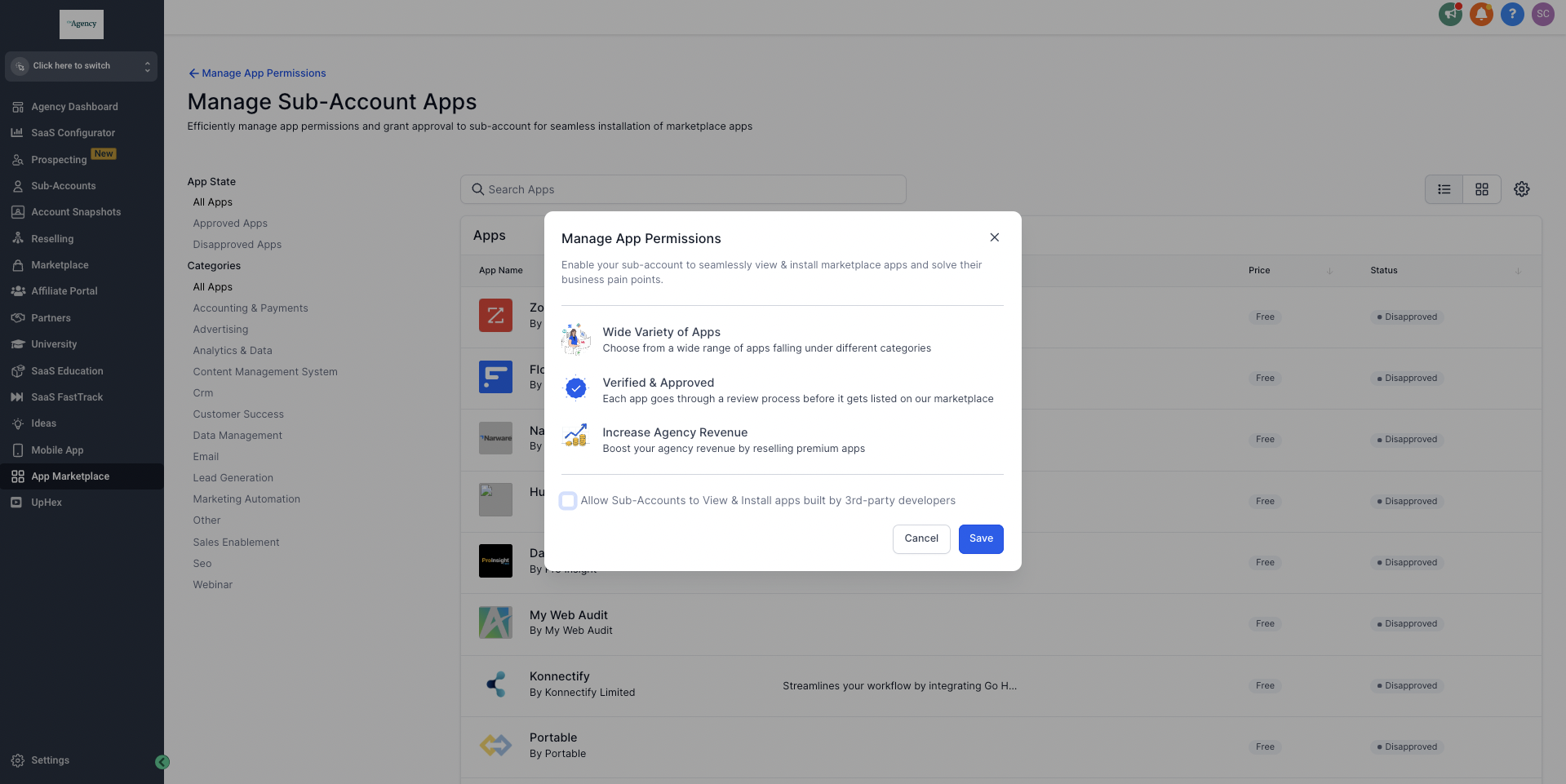
Effects of Re-enabling:
- All new public apps will automatically be approved for your sub-accounts.
- All previously approved apps will become visible and installable at the sub-account level.
- Disapproved apps will remain in their disapproved status until manually approved.