
Meta Campaign Budget Optimizer in Ad Manager
The Meta Campaign Budget Optimizer in Chat To Clients CRM Ad Manager gives advertisers greater flexibility to manage advertising budgets at the campaign or ad set level. You can let Meta automatically distribute your campaign budget, assign individual budgets to ad sets, or enable budget sharing to optimize spend across eligible ad sets. With support for Daily and Lifetime budgets, bid strategies, and post-publish budget adjustments, you can manage your Meta advertising spend directly within Chat To Clients CRM.
TABLE OF CONTENTS
- What is Meta Campaign Budget Optimizer in Ad Manager?
- Key Benefits of Meta Campaign Budget Optimizer
- Campaign Budget vs. Ad Set Budget
- Budget Sharing Across Ad Sets
- Daily and Lifetime Budgets
- Bid Strategies for Meta Campaigns
- How to Set Up Meta Campaign Budgets in Ad Manager
- Frequently Asked Questions
- Related Articles
What is Meta Campaign Budget Optimizer in Ad Manager?
Meta Campaign Budget Optimizer is a budgeting feature in Chat To Clients CRM Ad Manager that allows you to choose how your advertising budget is allocated across Meta campaigns and ad sets. Understanding the difference between campaign-
level and ad set-level budgeting helps you select the right configuration for your advertising goals.
When creating or editing a Meta campaign, you can choose between two budget configurations:
Campaign budget: Set a single budget for the entire campaign and allow Meta to automatically distribute spending across the ad sets.
Ad set budget: Set individual budgets for each ad set, giving you more control over how much is allocated to different audiences or advertising strategies.
When using Ad set budget, you can also enable optional budget sharing, allowing Meta to redistribute up to 20% of an ad set's budget between eligible ad sets based on performance. These options allow you to balance automated budget optimization with more granular spending control.
Key Benefits of Meta Campaign Budget Optimizer
Managing your Meta advertising budget effectively helps you control spending while giving Meta the flexibility to optimize campaign delivery. The enhanced budget settings allow you to choose the level of control that best fits your advertising strategy.
Flexible Budget Management: Choose between a single campaign-level budget or individual budgets for each ad set.
Automated Budget Distribution: Allow Meta to distribute your campaign budget across ad sets based on available opportunities.
Controlled Budget Sharing: Enable optional sharing of up to 20% of an ad set's budget with other eligible ad sets while maintaining individual budget configurations.
Daily and Lifetime Budget Options: Manage spending using a Daily budget or define a total budget for a scheduled campaign or ad set.
Bid Strategy Flexibility: Select supported bidding strategies, including Highest volume and Cost per result goal, to align campaign delivery with your advertising objectives.
Post-Publish Budget Adjustments: Update supported budget configurations after publishing without creating a new campaign, subject to Meta's editing restrictions.
Simplified Campaign Management: Configure budgets, schedules, and applicable bidding settings directly within Chat To Clients CRM Ad Manager.
Campaign Budget vs. Ad Set Budget
Choosing where your advertising budget is managed determines how spending is distributed across your campaign. Campaign budget allows Meta to allocate spending automatically, while Ad set budget gives you direct control over the budget assigned to each ad set.
Campaign Budget
Campaign budget allows you to define one budget for the entire Meta campaign. Instead of assigning a separate amount to every ad set, Meta distributes the available campaign budget across ad sets based on opportunities to achieve your campaign objective.
With Campaign budget, you can configure:
Daily or Lifetime budget.
Campaign-level budget amount.
Applicable bid strategy.
Example: If you configure a campaign budget of $50 per day and have three ad sets, Meta determines how to distribute that budget across the ad sets. Spending does not need to be divided equally.
When to use Campaign budget: Choose this option when you want Meta to manage budget distribution across ad sets rather than manually assigning a separate budget to each one.Ad Set Budget
Ad set budget allows you to define and manage the budget for each ad set individually. Each ad set has its own budget settings, enabling you to assign different amounts to different audiences, targeting configurations, or advertising strategies.
With Ad set budget, you can configure:
Individual Daily or Lifetime budgets.
Applicable ad set schedules.
Cost per result goal when supported by the selected configuration.
Optional budget sharing across eligible ad sets.
Example: If your campaign contains three ad sets, you could assign $20 per day to one ad set, $30 per day to another, and $50 per day to a third.
When to use Ad set budget: Choose this option when you want greater control over the spending allocated to individual ad sets.

Ad set budgets remain individually configurable when budget sharing is enabled, but Meta may redistribute an eligible portion of those budgets.
Budget Sharing Across Ad Sets
Budget sharing provides a balance between individual ad set budget control and automated spending optimization. By allowing Meta to redistribute a limited portion of budget across eligible ad sets, you can maintain your original budget configurations while giving Meta additional flexibility to respond to performance.
When you select Ad set budget, you can enable the following option:
Share up to 20% of your budget with other ad sets
When enabled:
Meta can redistribute up to 20% of an ad set's budget to or from other eligible ad sets.
Budget redistribution depends on performance and Meta's eligibility rules.
Each ad set retains its individually configured budget.
Budget sharing status is visible within the individual ad set's Budget section.
Example: Suppose you have two eligible ad sets, each configured with a $50 Daily budget. With budget sharing enabled, Meta may shift part of the budget between them based on performance, subject to the 20% sharing limit and applicable Meta rules.
Enabling budget sharing does not guarantee that Meta will redistribute the full 20%. Actual redistribution depends on the campaign configuration, eligibility, and performance.
Daily and Lifetime Budgets
Daily and Lifetime budgets define how your advertising spend is managed over time. The selected budget allocation level determines whether you configure the amount and applicable schedule for the entire campaign or separately for each ad set.
Daily Budget
A Daily budget defines the amount you want Meta to spend per day. For example, you can configure:
Campaign budget: $50 per day for the campaign.
Ad set budget: $20 per day for one ad set and $30 per day for another.
The budget is configured at the campaign or ad set level based on your selected budget setup.
Lifetime Budget
A Lifetime budget defines the total amount available for the selected campaign or ad set over its scheduled duration. For example, you could configure a Lifetime budget of $500 for a campaign scheduled to run for 10 days. When using Lifetime budgets at the ad set level, configure the applicable start and end schedule for each ad set.
Switching Between Daily and Lifetime Budgets
When configuring a budget, changing between Daily and Lifetime may affect the automatically populated budget amount.
If the default budget amount has not been modified, Chat To Clients CRM may update the default amount based on the selected budget type or duration.
If you have manually entered a budget amount, changing the budget type or schedule does not automatically overwrite your entered value.
Bid Strategies for Meta Campaigns
Bid strategies determine how Meta approaches ad delivery within your selected budget configuration. Choosing the appropriate strategy allows you to prioritize generating more results or working toward a specified cost per result.
Chat To Clients CRM Ad Manager supports applicable Meta bidding strategies, including:
Highest Volume
Highest volume allows Meta to use the available budget to generate as many results as possible. This strategy is useful when your priority is maximizing results within your selected advertising budget.
Example: An advertiser focused on generating the highest possible number of leads within an available budget may select Highest volume.
Cost per Result Goal
Cost per result goal allows you to provide Meta with a target average cost for the results generated by your advertising campaign. This strategy is useful when you have a preferred cost per lead, conversion, or other applicable campaign result. When the selected setup requires the target cost at the ad set level, you must enter the Cost per result goal within the respective ad set.
Example: If your preferred average cost per lead is $10, you can enter that target in the applicable Cost per result goal field.
How to Set Up Meta Campaign Budgets in Ad Manager
Configuring your Meta campaign budget correctly helps ensure that the right amount and applicable schedule are assigned to your campaign or individual ad sets. The following steps explain how to select a budget allocation level, configure supported budgeting options, and prepare your campaign for publishing.
Step 1: Create or Open a Meta Campaign
Navigate to Marketing > Ad Manager in your Chat To Clients CRM sub-account.
To create a campaign, click + Create Campaign.
Select Facebook as the advertising platform.
Choose Start from Scratch or an available campaign template.
Continue to the campaign builder.
To modify an existing campaign, locate the campaign in Ad Manager and select Edit from its action menu. For general campaign creation instructions, refer to Ad Manager - Create New Facebook Ad Campaigns.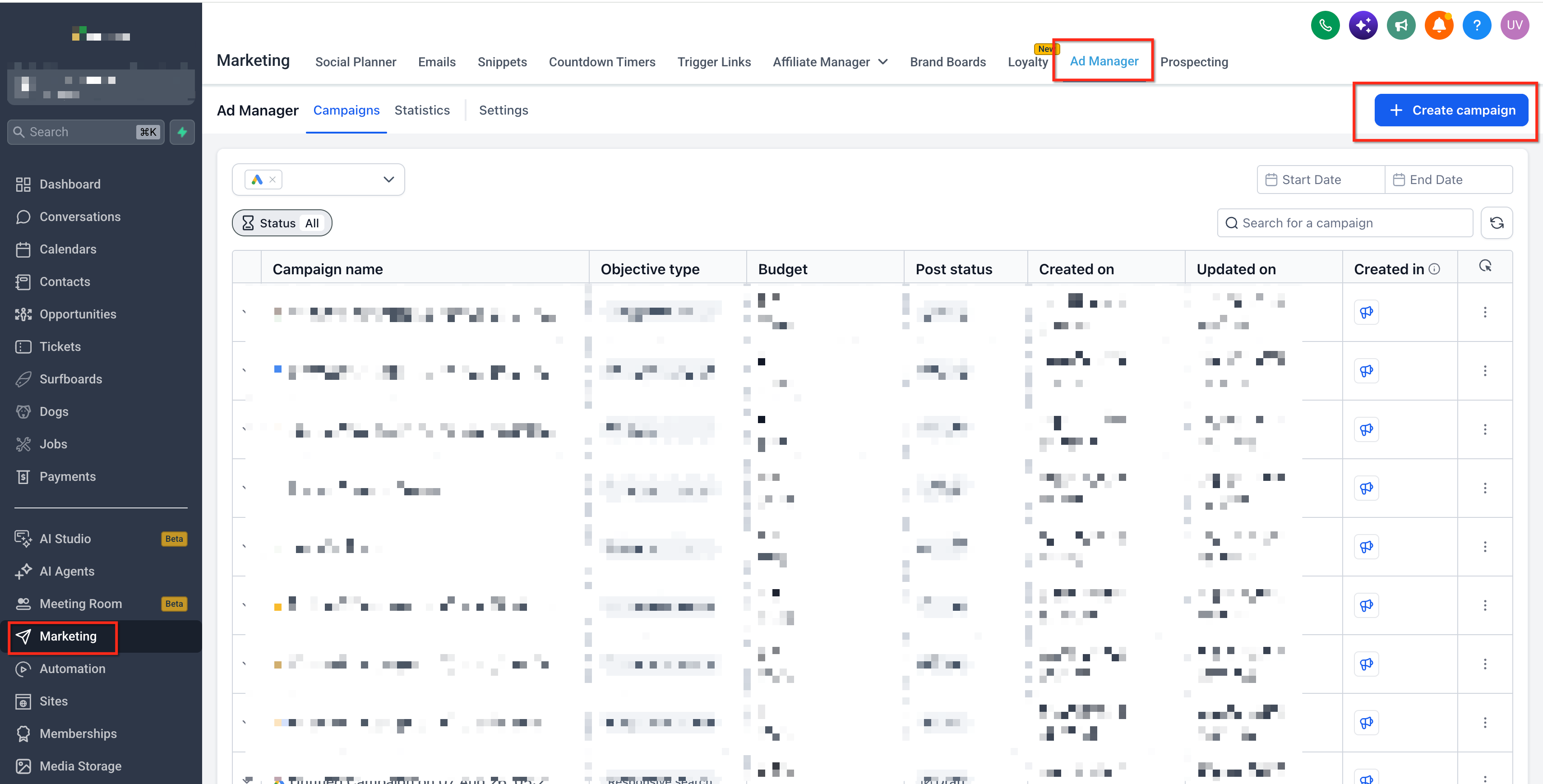
Step 2: Choose Your Budget Setup
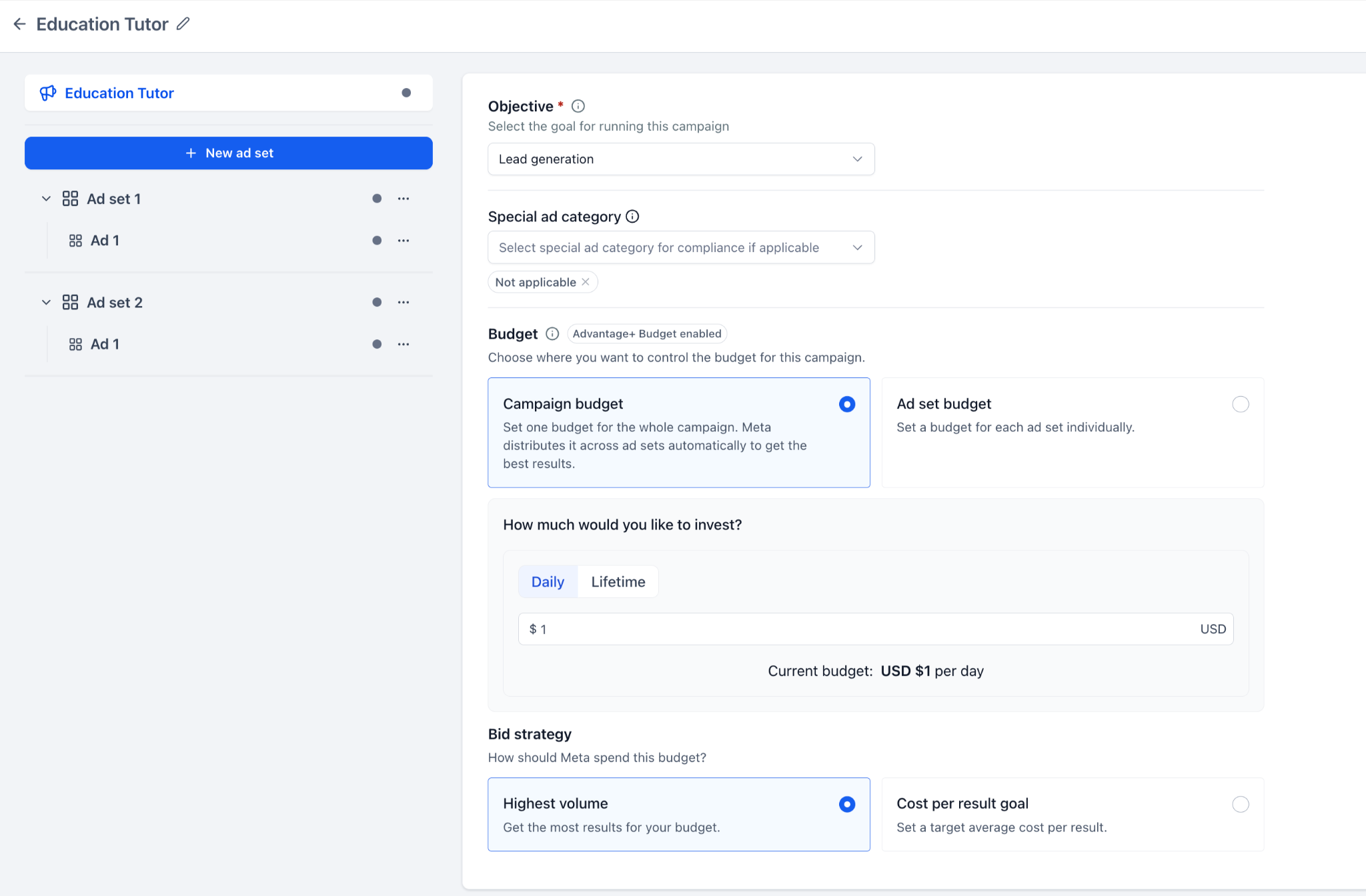
Open the campaign-level Budget section.
Locate the budget allocation options.
Select one of the following:
Campaign budget: Manage one budget for the campaign.
Ad set budget: Manage budgets individually for each ad set.
Your selection determines where the applicable budget amount and schedule controls appear.
Step 3: Configure Campaign Budget
If you selected Campaign budget:
Select Daily or Lifetime budget.
Enter the budget amount for the campaign.
Configure any applicable schedule settings.
Select the supported Bid strategy.
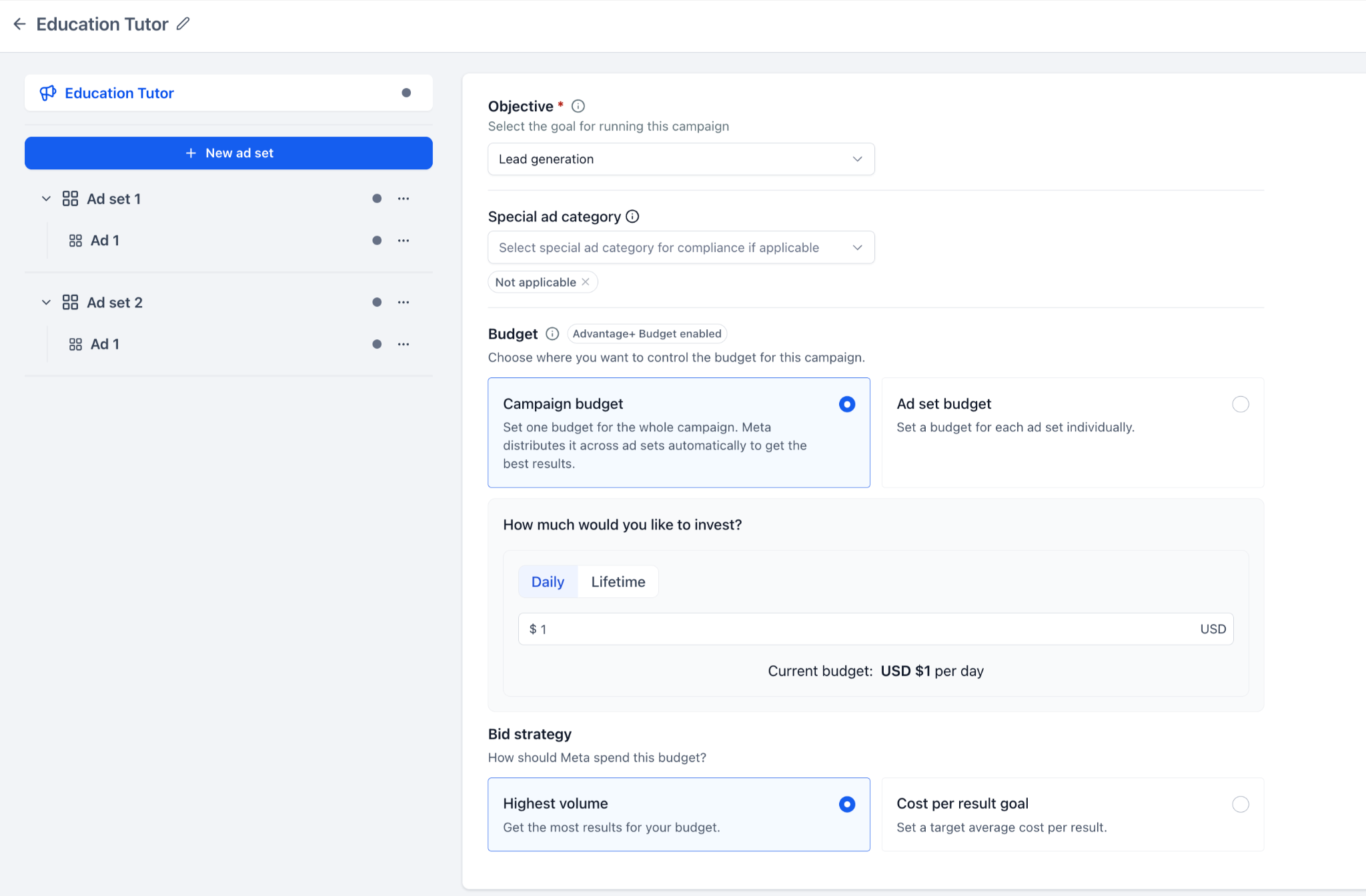
Meta will manage how the campaign-level budget is distributed across the ad sets.
Step 4: Configure Ad Set Budget
If you selected Ad set budget:
Optionally enable Share up to 20% of your budget with other ad sets.
Open the first ad set in your campaign.
Navigate to its Budget section.
Select Daily or Lifetime budget.
Enter the individual ad set budget.
Configure the applicable schedule.
Enter the Cost per result goal if required by your selected bid strategy.
Repeat the process for each applicable ad set.
You can assign different budget amounts to individual ad sets.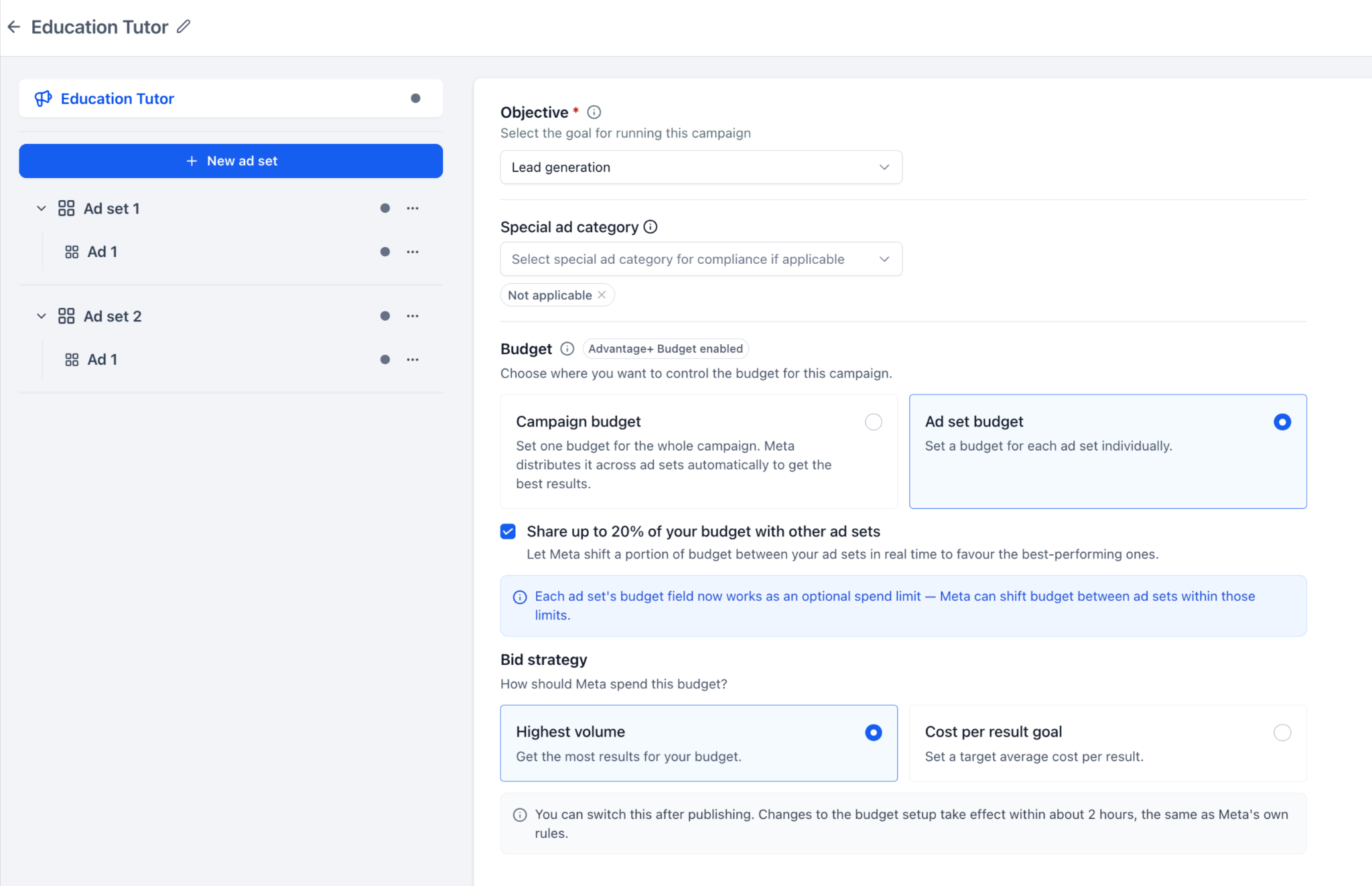
Step 5: Publish Your Campaign
Complete any remaining campaign, ad set, and ad configurations.
Click Review.
Verify your campaign details.
Click Publish Campaign Now.
Select Confirm to submit the campaign.
Meta will process the submitted campaign according to its applicable review policies. If you are editing an existing published campaign, submit the supported changes through the campaign editor.
Frequently Asked Questions
Q: What happens if an ad set is not eligible for budget sharing?
Meta applies its eligibility rules when determining whether budget redistribution is available. An ineligible ad set may not participate in budget sharing. Check the available settings and contextual guidance within Ad Manager.
Q: Can I enable budget sharing when using Campaign budget?
No. The separate 20% budget sharing option is available with Ad set budget. When using Campaign budget, Meta already distributes the campaign-level budget across ad sets.
Q: Why can't I change my budget configuration immediately after editing it?
Meta may temporarily restrict subsequent budget setup changes after an update. This restriction can last approximately two hours. You can try again once Meta permits additional changes.
Q: Can I switch from a Daily budget to a Lifetime budget after publishing?
Existing Chat To Clients CRM guidance identifies switching between Daily and Lifetime budget types as unavailable for published campaigns. This differs from supported post-publish changes between Campaign budget and Ad set budget.
Q: Why is the Cost per result goal field not available in my selected setup?
The field depends on the selected bid strategy and supported campaign configuration. When the target is applicable at the ad set level, it must be entered within the respective ad set.
Q: Does setting a Cost per result goal guarantee that Meta will achieve my target cost?
No. Cost per result goal provides a target for Meta's bidding optimization. Actual results and costs depend on campaign performance and delivery conditions.
Q: Why did the default budget amount change when I selected Lifetime instead of Daily?
Chat To Clients CRM may update automatically populated budget values when you switch budget types or modify the applicable
schedule. Amounts that you entered manually are not automatically overwritten by these changes.