
How to Create a Meta Engagement Ad with Messaging Apps
Meta Engagement ads can direct people from an ad into supported messaging conversations. In Chat To Clients CRM Ad Manager, you can configure an Engagement campaign with messaging destinations such as Facebook Messenger, Instagram Direct, and WhatsApp when the required Meta assets are available.
You can also use a Conversation Form to guide the messaging experience after someone opens the ad. This guide explains how to configure the campaign, messaging destinations, Conversation Form, creative, audience, and publishing flow.
TABLE OF CONTENTS
- What is a Meta Engagement Ad with Messaging Apps?
- Key Benefits of Meta Engagement Ads with Messaging Apps
- How To Create a Meta Engagement Ad with Messaging Apps
- Tracking & Optimisation
- Frequently Asked Questions
What is a Meta Engagement Ad with Messaging Apps?
A Meta Engagement ad with Messaging Apps is a campaign designed to start conversations through supported Meta messaging destinations.
Chat To Clients CRM Ad Manager supports the Engagement objective and allows Conversation Forms at the Ad level. The messaging experience available to a person depends on the campaign configuration and the Meta assets connected to the selected Facebook Page.
Conversation Form previews update based on the messaging apps selected for the campaign.
Key Benefits of Meta Engagement Ads with Messaging Apps
Messaging-app Engagement campaigns let businesses start conversations directly from a Meta ad while managing the campaign from Chat To Clients CRM.
- Direct conversation entry: Let people move from the ad into a supported messaging destination.
- Messaging destination options: Use available Messenger, Instagram Direct, or WhatsApp destinations based on the connected Meta assets.
- Conversation Forms: Use a Conversation Form to provide greetings, quick replies, FAQs, and supported automated responses.
- Centralized setup: Configure the Campaign, Ad Set, Ad, and Conversation Form from Chat To Clients CRM Ad Manager.
- Performance reporting: Review published campaign performance from Ad Manager Statistics.
How To Create a Meta Engagement Ad with Messaging Apps
Start from the Sub-Account Ad Manager workspace, select the Engagement objective, then configure the Ad Set and Ad details before reviewing and publishing the campaign.
Meta Ads allow businesses to drive engagement and start conversations with potential customers through messaging apps like Facebook Messenger, Instagram Direct, and WhatsApp. This guide will walk you through setting up an ad campaign with the following specifications:
- Ad Objective: Engagement
- Conversion Location: Messaging Apps
- Performance Goal: Maximise the number of conversations
Additionally, this guide highlights the exceptions where the ad or conversation form may work for one messaging app but not for others.
Step 1: Access Ad Manager
- Go to sub-account > Marketing > Ad Manager provided your onboarding is completed. (Refer link on how to enable and resell ad manager)
- Click on + Create Campaign to start a new campaign.
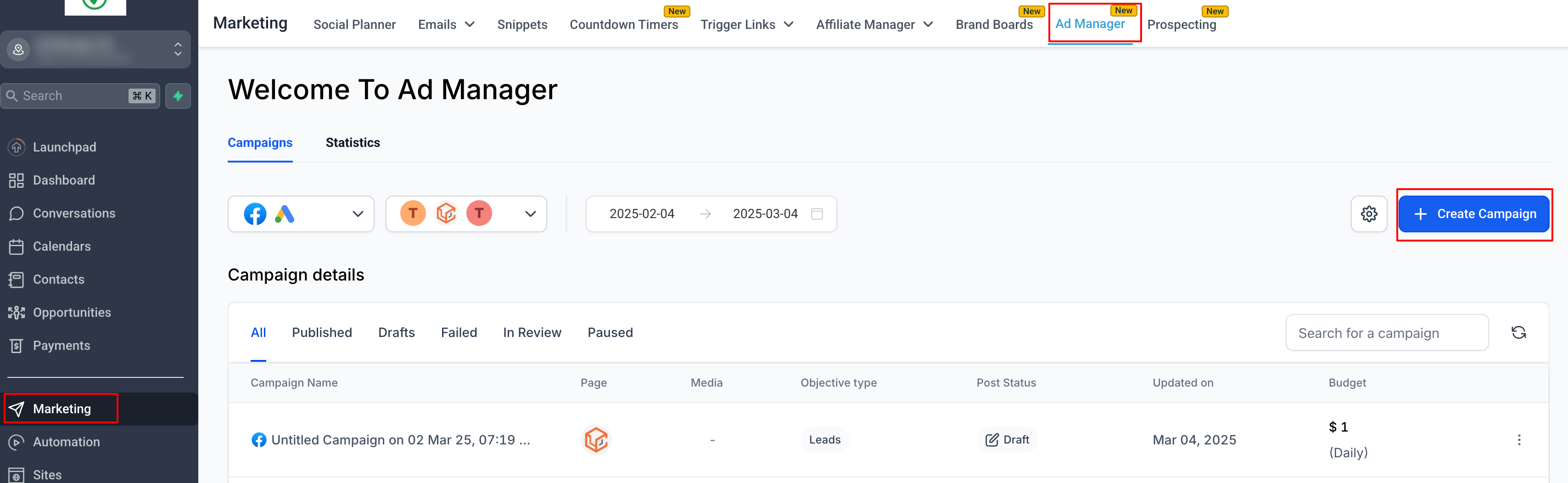
- Select Facebook Campaign and Start from scratch.
Step 2: Choose the Facebook page and Instagram account
- Select the Facebook page you want your ad to associate with and reflect your business.
- Either select an Instagram account that's connected to the selected FB page or use the Facebook page itself to showcase your ad on Instagram. Details on how to connect an Instagram account with the FB page and other important info is listed in the following help article.
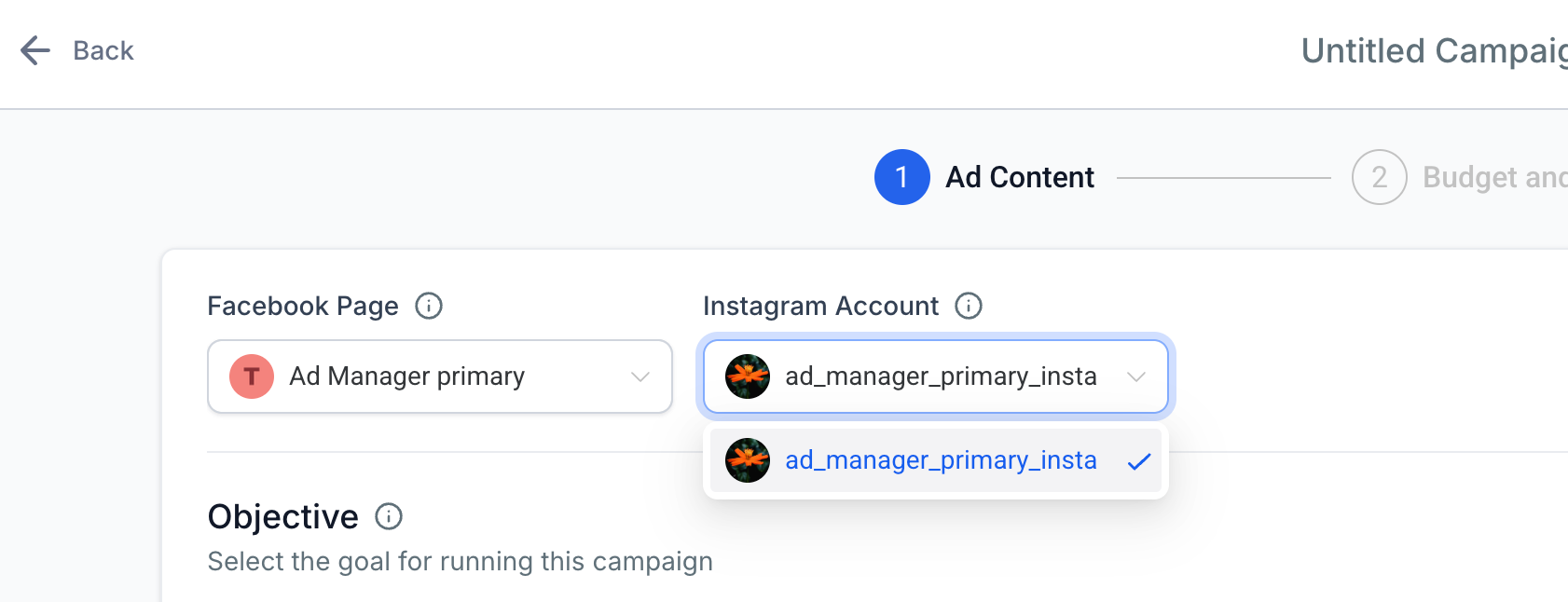
Note: Instagram messaging app will not be eligible for Click to Direct ads if there is no Insta account connected to the selected page.
Step 3: Choose the Ad Objective
- Select Engagement as the objective.
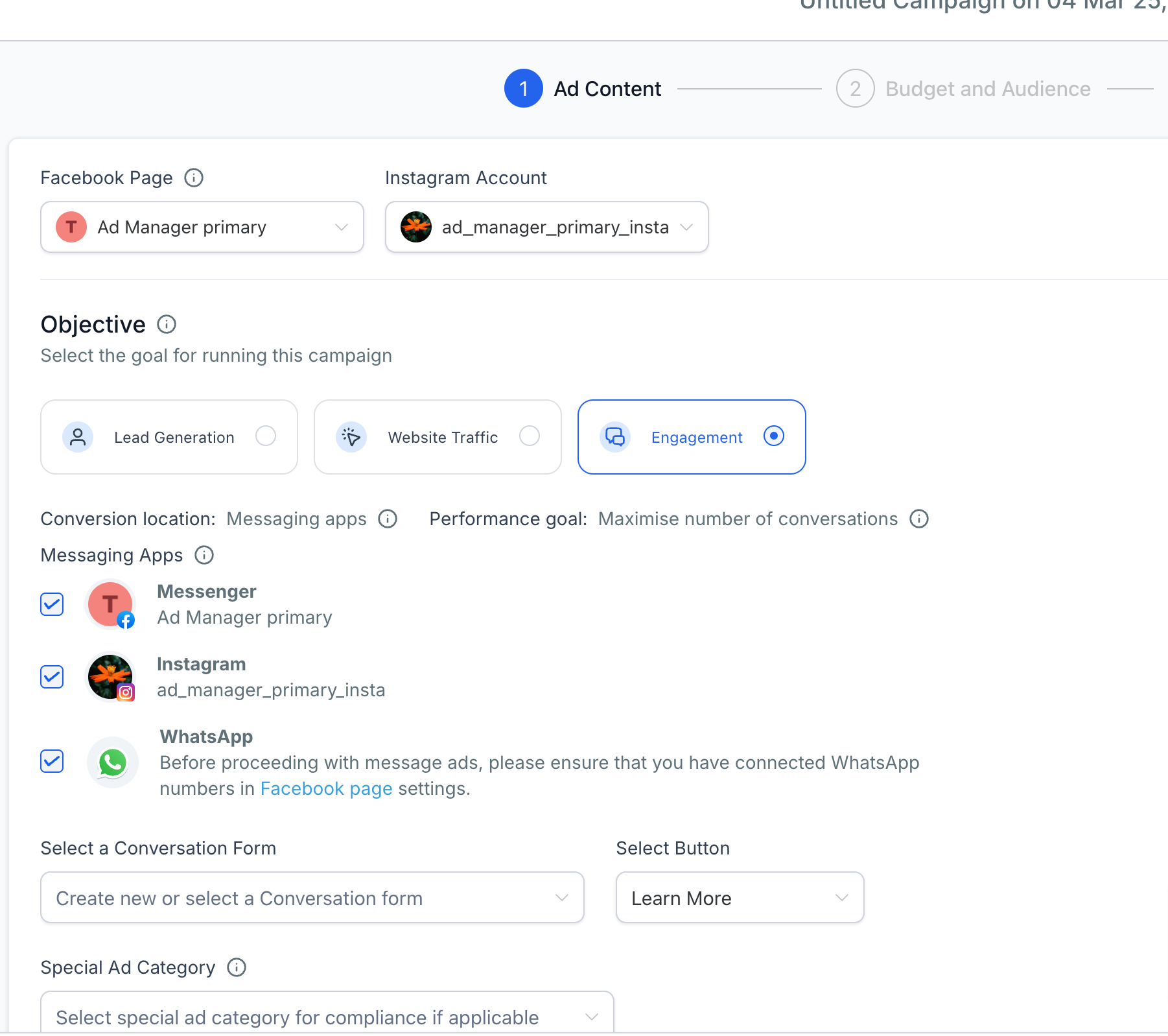
- The Conversion Location is defaulted to be 'Messaging Apps'.
- The Performance goal is defaulted to be 'Maximise number of conversations'.
- This ensures Meta optimises ad delivery to encourage users to start chats with your business.
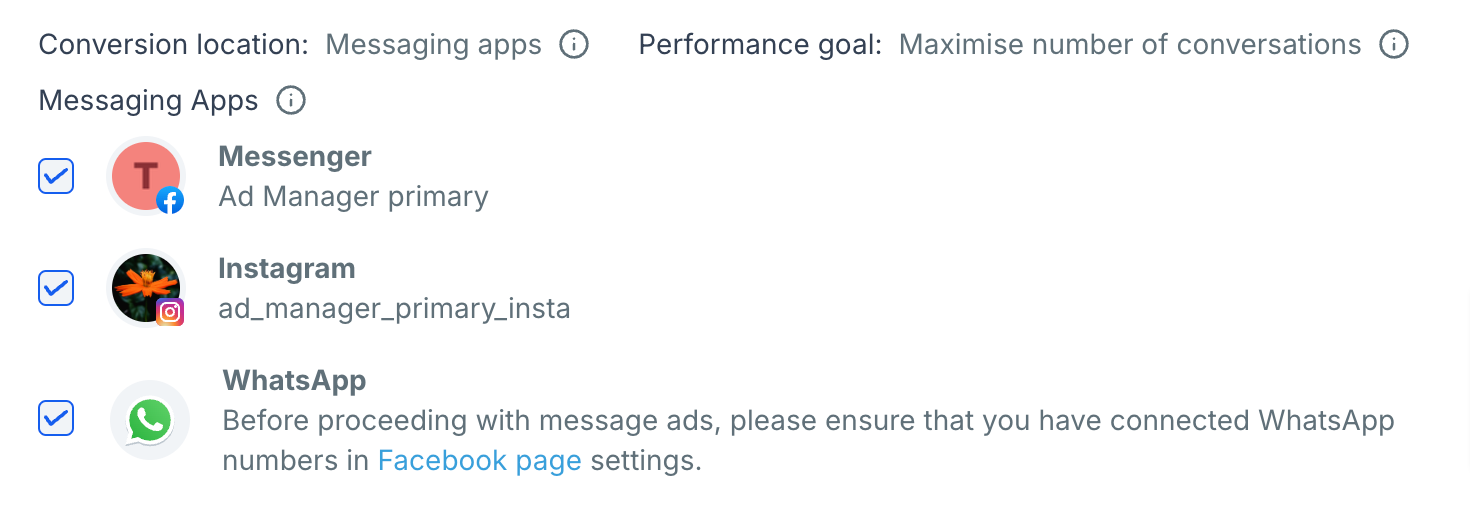
Step 4: Choose Messaging Apps for Conversations
Under the Messaging Apps section, select one or more platforms where you want to receive messages:
- Facebook Messenger
- Instagram Direct - It will be active to be used only if the selected Facebook page has an Instagram account connected to it.
- WhatsApp - The WhatsApp can be used as a messaging app for a CTX ad only if you have WhatsApp numbers added to the Facebook page that's selected for the ad campaign.
What If a Messaging App is not selected?
| Scenario | Impact |
|---|---|
| All three apps are available (Messenger, Instagram, WhatsApp) | The ad is shown across all platforms, and Meta algorithm decides which is the best app to reach the user. |
| Only Messenger and Instagram Direct are available | WhatsApp is not an option. Users can message you via Messenger or Instagram Direct. |
| Only WhatsApp is available | Users will be directed only to WhatsApp for conversations. The ad won't run on Messenger or Instagram. |
| Only one app is available | The ad campaign will be shown across all platforms but user is limited to reach you only via that messaging platform. |
| None of the messaging apps are available | The ad cannot be created under this objective. You may need to choose another objective (e.g., Traffic or Leads). |
Step 5: Create or Use a Conversation form
The details on how to create or use an already created conversation form are explained in detail in this help article.
Step 6: Select Placements
Use the placement controls available for the Engagement campaign.
- Use the default placement option when you want Meta to use the eligible placements available for the campaign.
- Enable Manual Placements when you need to select eligible placements individually.
Available placements can depend on the campaign configuration and current Meta support.
Step 7: Create Your Ad
- Select an Ad Format:
- Single Image/Video – A simple ad with one visual.
- Carousel – Multiple images/videos users can scroll through.
- Write Engaging Ad Copy:
- Keep it short and compelling.
- Highlight a strong Call-to-Action (CTA) like "Message Us Now!".
- Set Up the Call-to-Action (CTA):
- Choose "Send Message".
- If multiple messaging apps are selected, Meta will optimise the best platform to message you where you're most likely to respond.
Step 8: Budget & Schedule
Select the budget controls available for the Ad Set.
1. Choose a Daily Budget or Lifetime Budget.
2. Enter the budget amount.
3. Configure the available start and end scheduling options when needed.
Meta ad spend is charged through the payment method associated with the connected Meta ads account.
Step 9: Set Up the Audience
- Choose your audience based on location, age, gender, and detailed targeting.
- Use Custom Audiences to target existing customers or lookalike audiences to find new users.
Step 10: Review and Publish
- Double-check all settings.
- Click Publish to launch your ad.
- Monitor performance in Ad Manager Statistics.
Tracking & Optimisation
- Use Meta Pixel to track user interactions.
- Create a CAPI action to send back details to Meta for effective tracking of conversations.
- Optimise by testing different creatives and audience segments.
- Adjust budget and placements based on performance metrics.
Optional: Send Supported Conversion Events to Meta

Meta Conversion API setup is separate from creating the messaging ad.

Chat To Clients CRM currently supports an Instagram DM event type in the Meta Conversion API workflow for Click-to-Direct ads. Configure this only when your reporting or attribution workflow requires that supported event.

For exact triggers, event types, pixels, and workflow configuration, use the dedicated Meta Conversion API documentation rather than configuring CAPI from this campaign-creation guide.
Frequently Asked Questions
Q: Which campaign objective should I use for this messaging workflow?
Use the Engagement objective for the Conversation Form workflow documented in this article.
Q: Can I create a Conversation Form in Ad Manager?
Yes. Engagement campaigns can select an existing Conversation Form or create a new one from the Ad-level setup.
Q: Which messaging apps does the current article support?
The existing Chat To Clients CRM workflow documents Facebook Messenger, Instagram Direct, and WhatsApp. Exact availability depends on the Meta assets and connections available for the campaign.
Q: Where can I review campaign performance after publishing?
Go to Sub-Account → Marketing → Ad Manager → Statistics.
Q: Do I need Meta Pixel to receive messaging conversations?
The current Chat To Clients CRM documentation does not identify Meta Pixel as a requirement for receiving messaging conversations in this campaign setup.
Q: Can I use Meta Conversion API with Click-to-Direct ads?
Yes. Current Chat To Clients CRM workflow documentation supports an Instagram DM CAPI event type for Click-to-Direct ads. Configure it separately through Workflows when your use case requires supported conversion-event reporting.