
Rolling Notifications for Snapshot Push
This article explains how Chat To Clients CRM’s “rolling notifications” improve the experience of pushing snapshots to multiple sub-accounts. Instead of receiving a separate notification for every location, grouped updates keep your notifications cleaner and easier to follow.
Please Note: This article only explains how rolling in-app notifications are displayed during snapshot pushes. If you're looking for information about email notifications, please refer to Snapshot Notification Preferences.TABLE OF CONTENTS
- What is a Snapshot Push?
- What Is the Rolling Notification Feature?
- Key Benefits of Rolling Notifications
- Snapshot Pushed to 10 or fewer sub-accounts
- Smart Notification Grouping (Snapshot pushed to more than 10 sub-accounts)
- Individual Failure Notifications
- Frequently Asked Questions
- Related Articles
What is a Snapshot Push?
A snapshot push is the process of copying a predefined configuration, funnel, workflow, or entire account setup from one Chat To Clients CRM account (often an agency template) into another sub-account. This allows agencies to quickly deploy a standardized setup across multiple client accounts without rebuilding each one from scratch.
What Is the Rolling Notification Feature?
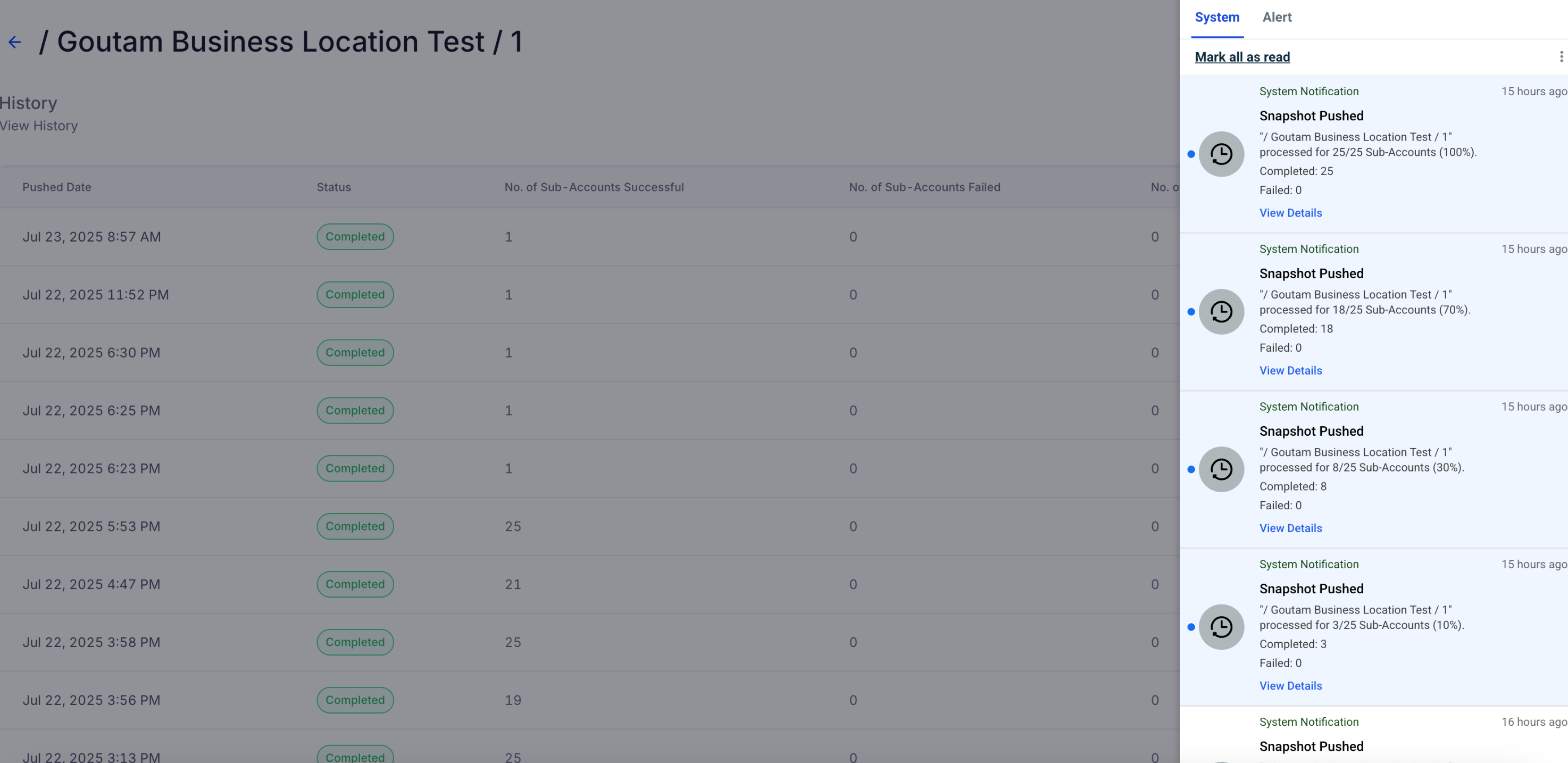
Rolling Notifications streamline how notifications are delivered when pushing a snapshot to multiple sub-accounts. Previously, users received a separate notification for every location. Now, when pushing to more than 10 sub-accounts, notifications are grouped and sent at progress intervals (10%, 30%, 70%, 100%).
Key Benefits of Rolling Notifications
Grouped notifications reduce clutter and improve visibility into snapshot progress.
Reduces notification overload when pushing to 10+ sub-accounts.
Delivers grouped progress updates at 4 key milestones (10%, 30%, 70%, 100%).
Maintains individual notifications for fewer than 10 sub-accounts.
Helps admins monitor large snapshot pushes more easily.
No change required — this update is automatically enabled.
Retains visibility into failed snapshot pushes with individual alerts.
Snapshot Pushed to 10 or fewer sub-accounts
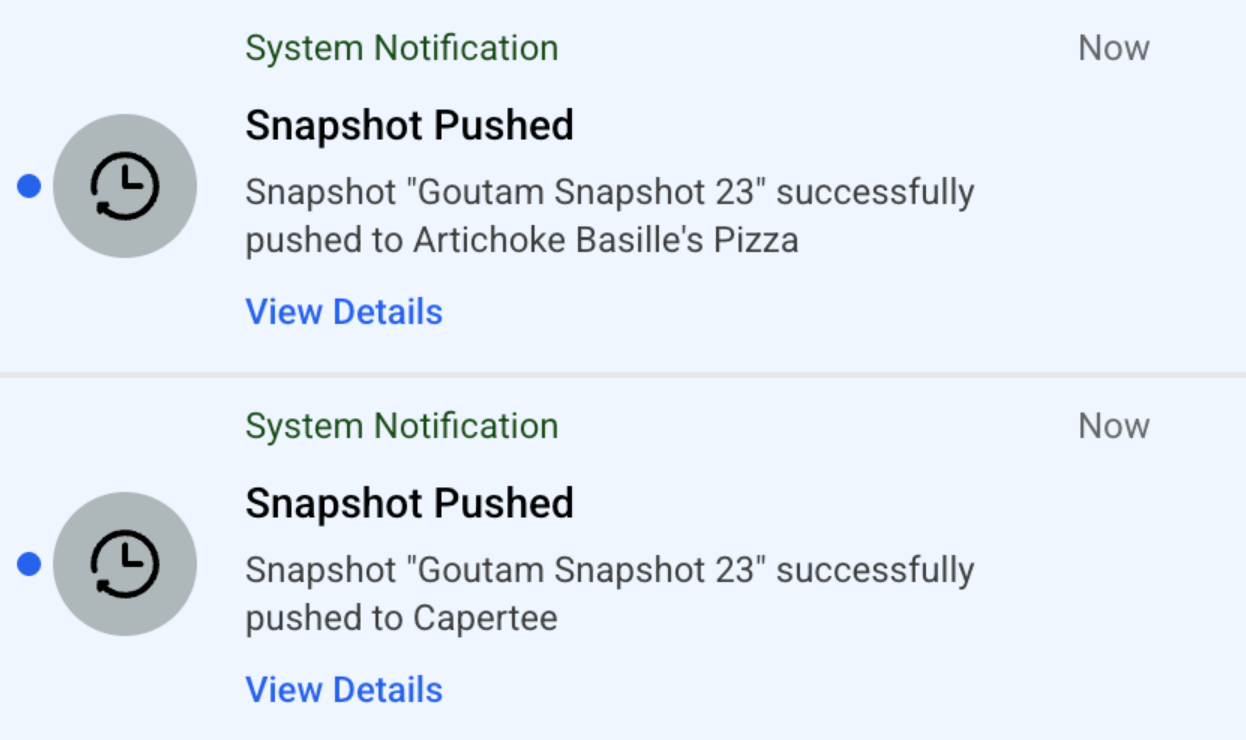
If you push a snapshot to fewer than 10 locations, you’ll receive an individual notification for each location, just as before.
Smart Notification Grouping (Snapshot pushed to more than 10 sub-accounts)
- For pushes to fewer than 10 locations, individual notifications are delivered as done previously, offering detailed insights for each location.
- When deploying to 10 or more locations, notifications are consolidated into rolling alerts triggered at key milestones—10%, 30%, 70%, and finally 100% of the locations processed.
- This grouping strategy reduces clutter and helps you focus on overall progress while still keeping critical stages visible.
Individual Failure Notifications
- Each failed snapshot push generates its own notification to draw immediate attention.
- This targeted alert system enables rapid troubleshooting and minimizes the risk of systemic issues remaining unresolved.
- The approach helps maintain complete transparency throughout the snapshot process, setting the stage for better maintenance and faster resolutions.
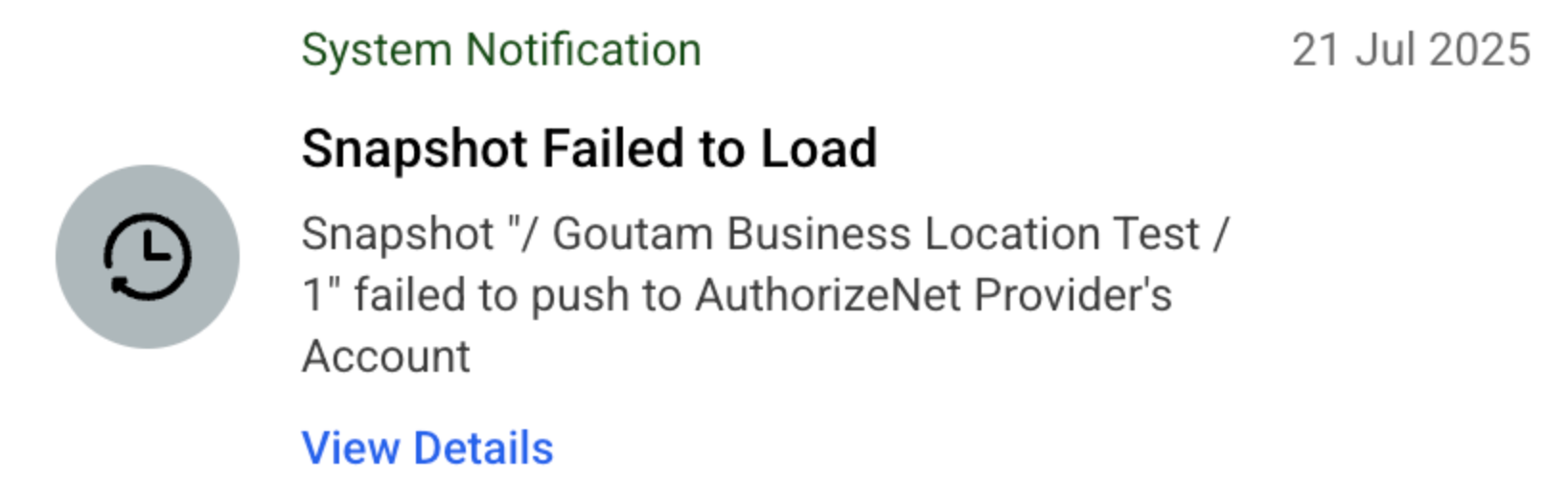
IMPORTANT: Every milestone or failure alert contains a blue “View Details” link that opens Snapshot → Push History pre-filtered to that deployment, saving you multiple clicks.Frequently Asked Questions
Q: Can I turn off grouped notifications?
No, this is a system-level enhancement and cannot be toggled.