
ClickFunnels to Chat To Clients CRM (Migration Guide)
This is a comprehensive guide for migrating your sales funnels, websites, courses, and other digital assets from ClickFunnels to Chat To Clients CRM. The goal is to ensure a seamless transition, preserve functionality, and enhance your marketing capabilities with Chat To Clients CRM’s advanced features.
IMPORTANT: Make sure you migrate all of the following components when switching over from ClickFunnels to Chat To Clients CRM.

1. Courses & Products
2. Payment Integrations
3. Forms
4. Websites & Funnels
5. Store Funnels
6. Email Marketing
7. Contacts
TABLE OF CONTENTS
- Migrate Courses
- Migrate Products
- Migrate Payment Integrations
- Migrate Websites & Funnels
- Rebuild Online Stores (E-commerce)
- Migrate Email Marketing
- Migrate Contacts
- Additional Considerations
- Frequently Asked Questions
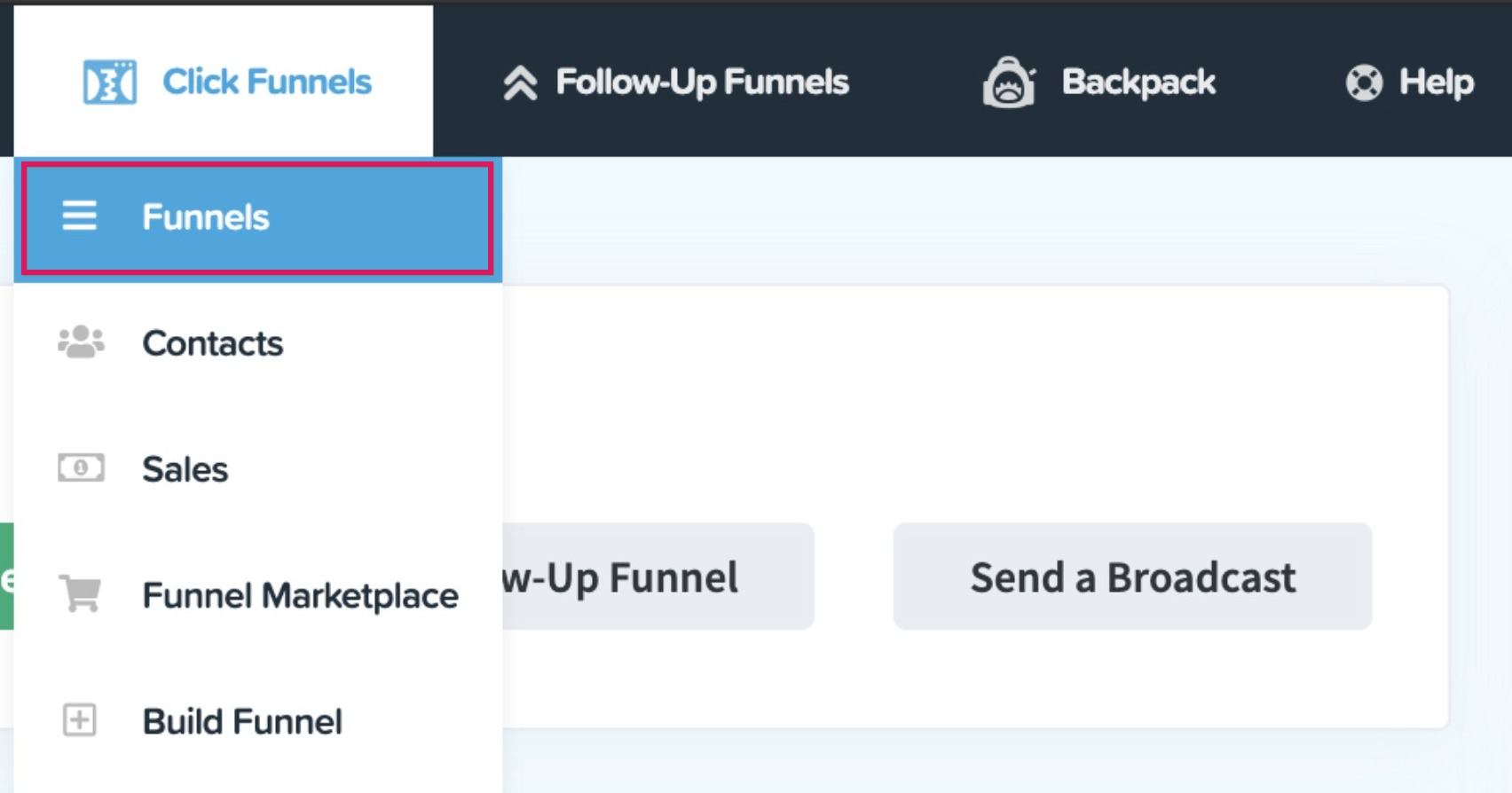
Classic ClickFunnels Menu
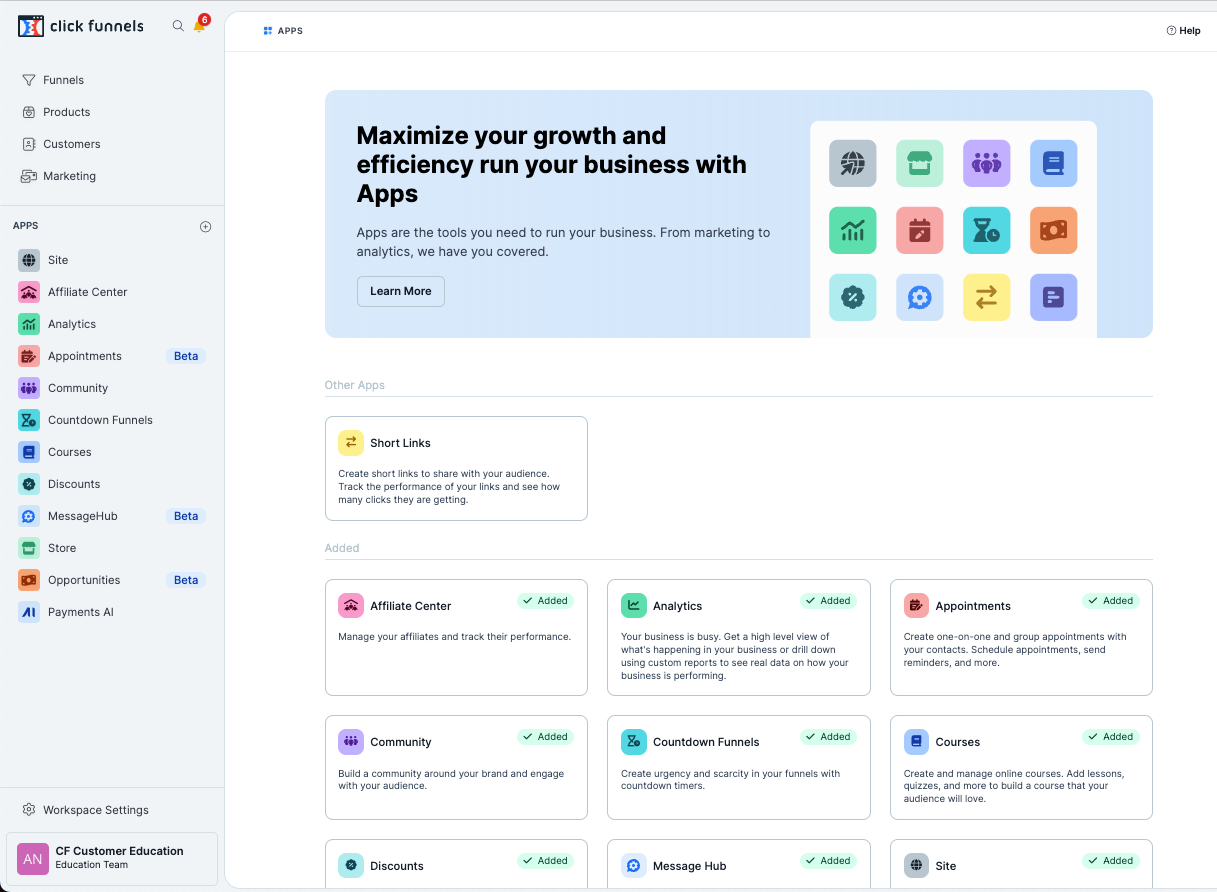
ClickFunnels 2.0 Menu
By default, only Funnels, Products, Customers, and Marketing are available. Users can add more apps like Opportunities, Sites, Automation, Courses, and Store.
Migrate Courses
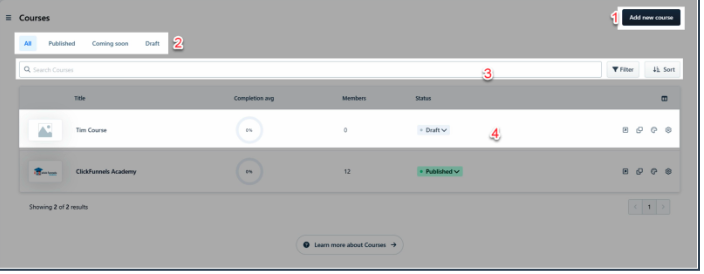
The Courses dashboard displays your existing courses, shows extra information about each course, and lets you make new courses. We will recreate course products in Chat To Clients CRM.
Step 1: Document Course Structure
- Log into ClickFunnels 2.0 and List Courses: Document each course in ClickFunnels, including the modules, lessons, and any associated content like quizzes or downloadable files.
- Note Settings: Record settings such as course status (published, draft), member access, and customization options.
Step 2: Recreate Courses in Chat To Clients CRM
Step 3: Post-Migration Check
- Test Course Access: Ensure that users can access the course correctly, that content is displayed as intended, and that completion tracking works.
Migrate Products
Step 1: Export Products from ClickFunnels as a CSV
- Log into ClickFunnels 2.0: Navigate to Products and use the checkboxes to select the products in the export.
- Export Products: Click Actions or Bulk actions and select Export from the drop-down menu. Schedule the export in your timezone and click Export Products. Store this for safekeeping
Step 2: Import Products into Chat To Clients CRM
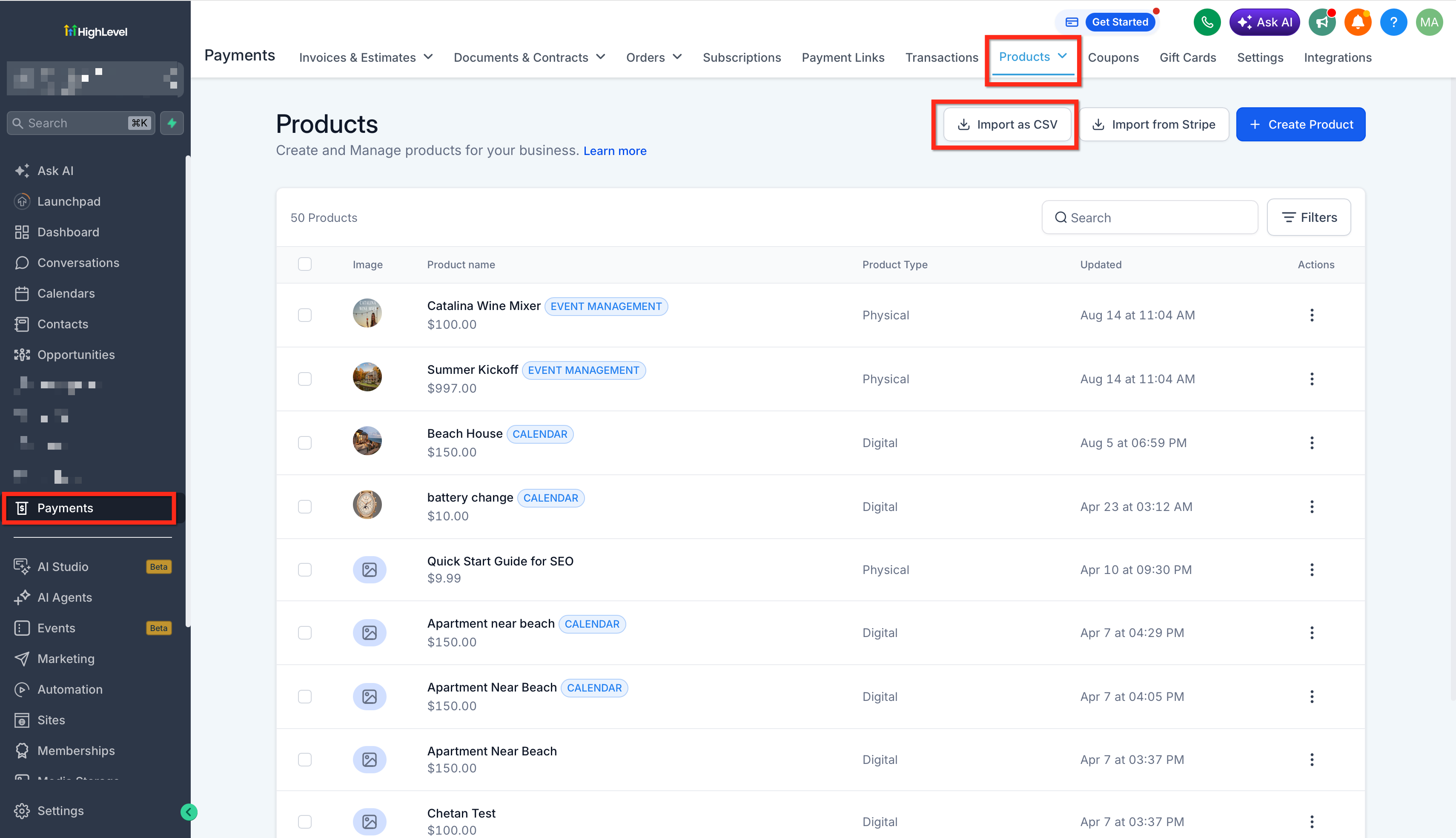
- Import Products into Chat To Clients CRM: In Chat To Clients CRM, go Payments > Products > Import as CSV in the top left.
- Click here to learn more about importing products into Chat To Clients CRM
Migrate Payment Integrations
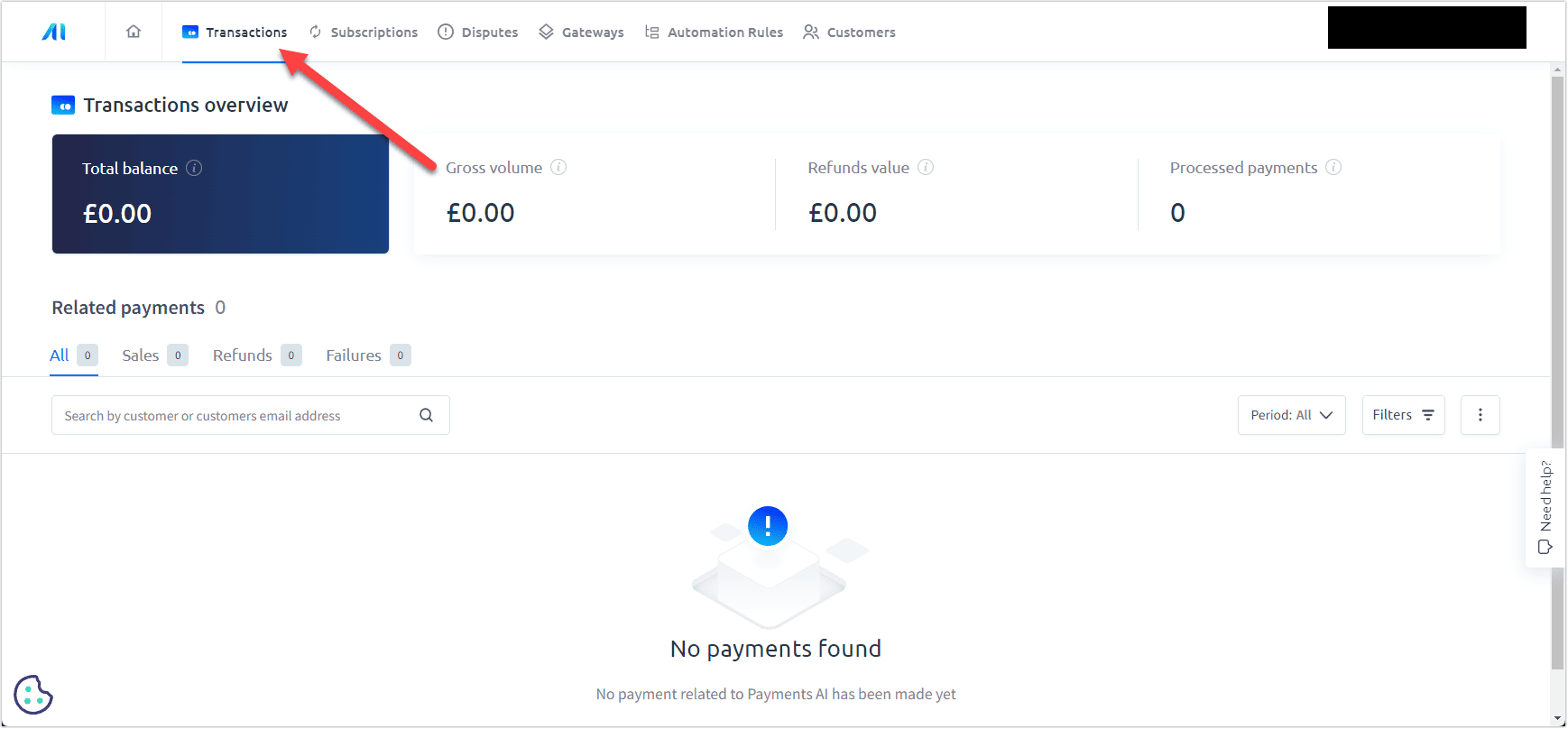
Payments AI in ClickFunnels 2.0 is an integrated system that handles payments through multiple gateways, such as Stripe, PayPal, Klarna, and others. The integration needs to be created in Chat To Clients CRM Payments.
Step 1: Access Payments AI
- Document Payment Methods: Click on Payments on the bottom left side. In the top navigation bar, click Gateways to open the payment gateway management area.
Step 2: Connect Chat To Clients CRM to your Preferred Payment Method
- Connect Stripe:
- Log into the Chat To Clients CRM sub-account.
- Go to Payments > Integrations to connect Stripe, then follow the authorization process.
- Click here to learn to Connect Stripe
- Click here to learn how to manage payment methods displayed with Stripe integration
- Log into the Chat To Clients CRM sub-account.
- Connect NMI: Click here to learn how to connect NMI to your Chat To Clients CRM location.
- Authorize.net: Click here to learn how to connect Authorize.net to your Chat To Clients CRM location.
Migrate Websites & Funnels
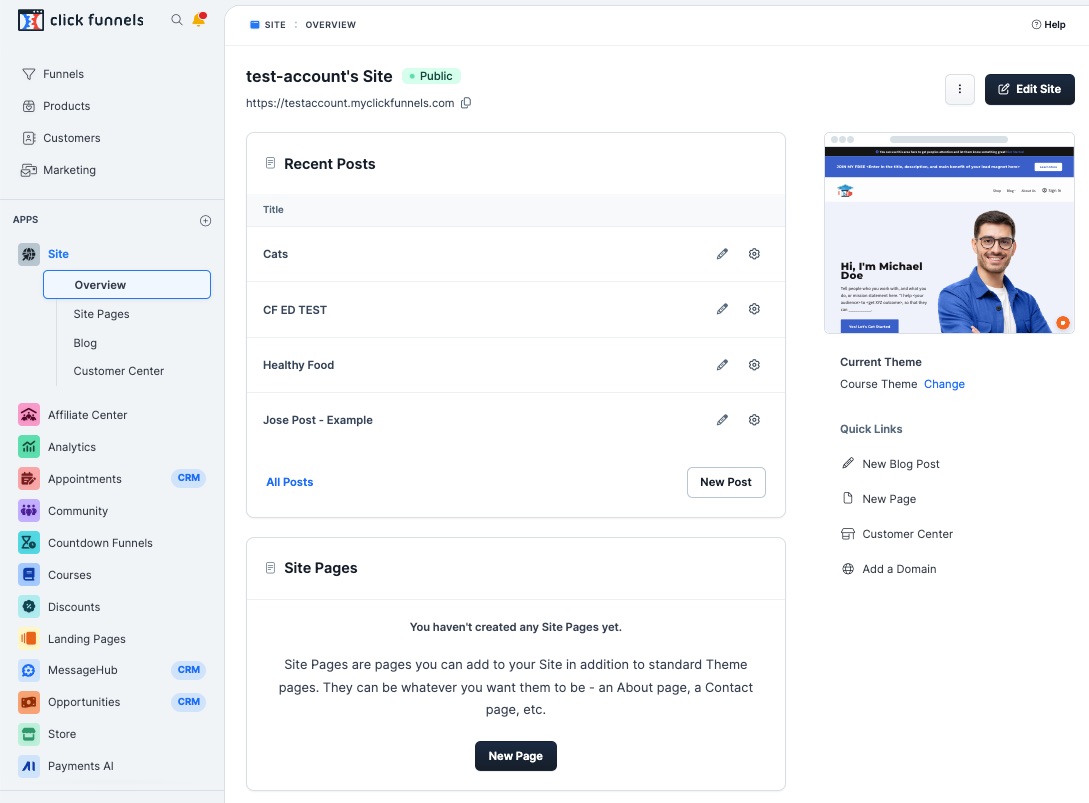
In ClickFunnels, you build and manage sales funnels and websites using the Page Editor and Site Overview. These funnels and websites can be recreated in Chat To Clients CRM.
Step 1: Document Funnel & Website Details
- List Funnels & Pages: In ClickFunnels, document each funnel and page, including the URL, structure, content, tracking codes, and any integrated forms or payment gateways.
- Note Specific Settings: Record settings such as themes, style guides, custom CSS, and any additional configurations for each funnel or site.
Step 2: Import Funnels from ClickFunnels
Rebuild Online Stores (E-commerce)
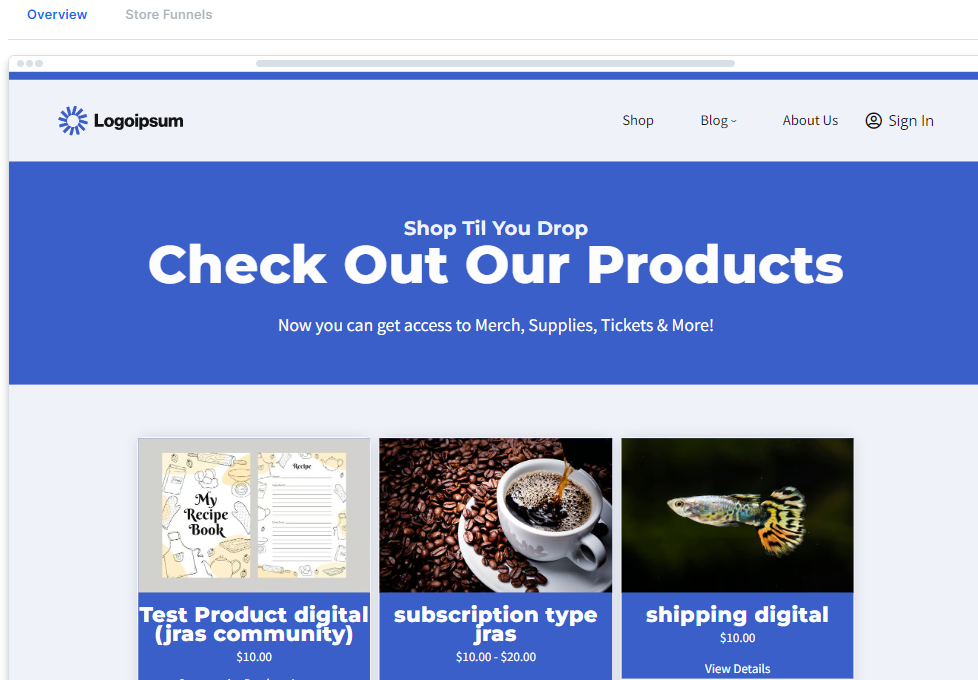
Store Funnels in ClickFunnels manage product sales and checkout processes. These funnels need to be recreated in Chat To Clients CRM to maintain e-commerce functionality.
Step 1: Document Store Funnel Details
- List Store Funnels: Document each store funnel in ClickFunnels, including product details, checkout pages, upsell/downsell pages, and payment integrations.
- Record Product Settings: Ensure you have all product information, pricing, and any customizations recorded.
Step 2: Recreate Store Funnels in Chat To Clients CRM
Step 3: Post-Migration Check
- Test Purchase Flow: Perform a test purchase to ensure the checkout process works smoothly and all upsells/downsells are functioning correctly.
Migrate Email Marketing
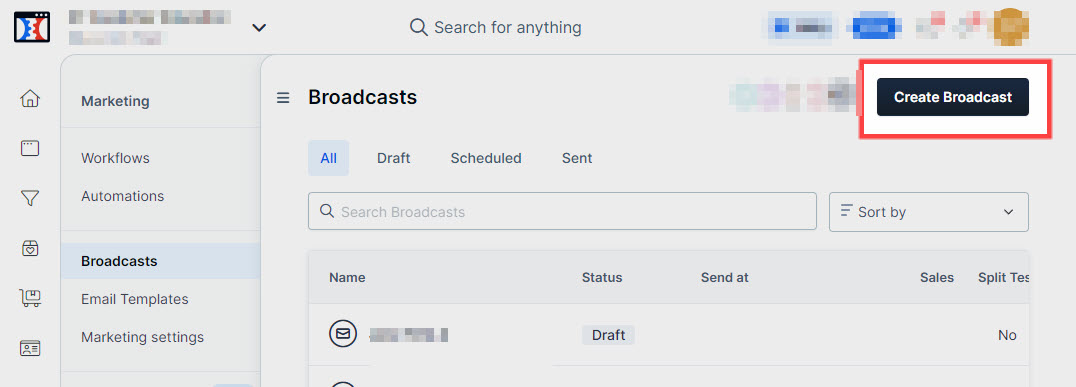
ClickFunnels allows for basic email marketing through workflows and broadcasts. In Chat To Clients CRM, these can be recreated with more advanced automation and multi-channel engagement options.
Step 1: Document Email Workflows & Broadcasts
- List Workflows & Broadcasts: Document all email workflows and broadcasts in ClickFunnels, including triggers, email content, and timing.
- Capture Email Templates: Save copies of all email templates used in ClickFunnels.
Step 2: Recreate Email Sequences in Chat To Clients CRM
- Click here to learn How to Use Email Template Builder in the Workflow Send Email Action
- Click here to learn How to Send a Regular Email Campaign (Send Now or Schedule)?
- Click here to learn more about Different Email Sending/ Delivery Method(s)
- Click here to learn how to Preview And Test Your Email Campaign/Templates
- Click here to learn more about Email Statistics
Migrate Contacts
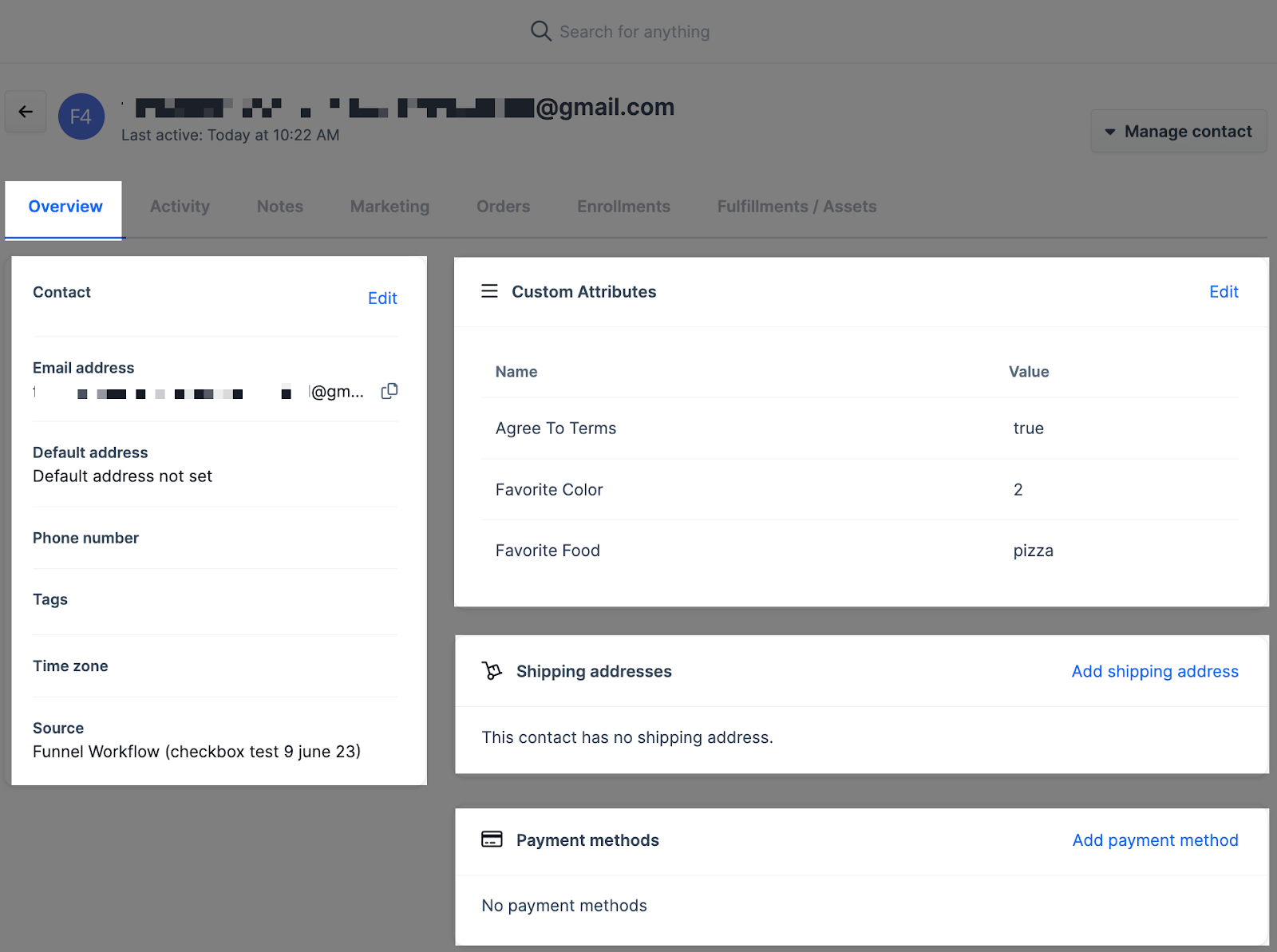
ClickFunnels' Contact Profiles provide a view of each lead’s information, including their email address, tags, custom attributes, and actions within your funnels. Custom attiributes in ClickFunnels 2.0 are custom fields. ClickFunnels Contact Filtering allows users to filter contacts by applying various conditions, such as tags or product purchases.
Step 1: Export Contacts
- Access Contacts in ClickFunnels 2.0: Click Customers from the left-hand main menu. Filter Contacts or check the box at the top of the table to select all Contacts on the current page.
- Export to CSV: Check the box next to each field for the data you wish to export. Tip: Start with Email, Phone, Name, and Timezone
Step 2: Review Exported Data
- Verify Data Integrity: Open the CSV files to ensure all necessary information has been captured accurately.
Step 3: Bulk Import Contacts into Chat To Clients CRM
- Click here to learn how to bulk import contacts into Chat To Clients CRM.
- If you're having trouble bulk importing contacts, click here to learn more about Troubleshooting Bulk Imports Via CSV.
Additional Considerations
Step 1: Training and Support
- Internal Training: Provide training sessions for team members on using Chat To Clients CRM, focusing on new features and differences between ClickFunnels and Chat To Clients CRM Funnels, Memberships and Online Stores.
- Access Chat To Clients CRM Support:Ensure your team knows how to access Chat To Clients CRM’s support resources
Step 2: Ongoing Monitoring
- Monitor Performance: Regularly review the performance of funnels, courses, and email campaigns in Chat To Clients CRM to ensure they meet your business needs.
- Optimize Settings:Use Chat To Clients CRM’s analytics tools to identify areas for improvement post-migration.
Frequently Asked Questions
How do I document and recreate my courses from ClickFunnels to Chat To Clients CRM?
Log into ClickFunnels 2.0, document each course's structure (including modules, lessons, and associated content like quizzes or downloadable files), note all settings (status, member access, customization options), and then recreate these courses in Chat To Clients CRM. After migration, test course access to ensure users can access content correctly and completion tracking works properly.
How do I export my products from ClickFunnels?
Log into ClickFunnels 2.0, navigate to Products, use the checkboxes to select the products you want to export, click Actions or Bulk actions, and select Export from the drop-down menu. Schedule the export in your timezone and click Export Products. Store this export file for safekeeping.
How do I import my ClickFunnels products into Chat To Clients CRM?
You can either import existing products from Stripe or import products as a CSV file. For CSV import, go to Payments > Products in Chat To Clients CRM, then click Import as CSV in the top left.
How do I set up payment integrations in Chat To Clients CRM to match my ClickFunnels setup?
First, document your current payment methods in ClickFunnels by clicking on Payments and then Gateways. In Chat To Clients CRM, connect your preferred payment method (NMI, Authorize.net, or Stripe). For Stripe, log into your Chat To Clients CRM sub-account, go to Payments > Integrations, and follow the authorization process. You can then manage which payment methods are displayed with your Stripe integration.
How do I migrate my websites and funnels from ClickFunnels?
Document each funnel and page in ClickFunnels, including URLs, structure, content, tracking codes, and integrated forms or payment gateways. Note specific settings such as themes, style guides, custom CSS, and any additional configurations. Then import your funnels from ClickFunnels to Chat To Clients CRM.
How do I recreate my store funnels in Chat To Clients CRM?
Document each store funnel in ClickFunnels, including product details, checkout pages, upsell/downsell pages, and payment integrations. Record all product information, pricing, and customizations. Recreate these store funnels in Chat To Clients CRM, and perform a test purchase to ensure the checkout process works smoothly and all upsells/downsells function correctly.
How do I migrate my email marketing from ClickFunnels to Chat To Clients CRM?
Document all email workflows and broadcasts in ClickFunnels, including triggers, email content, and timing. Save copies of all email templates used. Recreate these email sequences in Chat To Clients CRM using the Email Template Builder in the Workflow Send Email Action. You can send regular email campaigns, choose different email delivery methods, preview and test your campaigns, and view email statistics.
How do I export contacts from ClickFunnels and import them into Chat To Clients CRM?
In ClickFunnels 2.0, click Customers from the left-hand main menu. Filter contacts or check the box at the top of the table to select all contacts on the current page. Export to CSV by checking the box next to each field for the data you wish to export (start with Email, Phone, Name, and Timezone). Review the exported data to ensure all necessary information has been captured accurately. Then bulk import the contacts into Chat To Clients CRM.
What should I do if I encounter issues with the bulk import of contacts?
Refer to the "Troubleshooting Bulk Imports Via CSV" section in the SOP. Common issues include formatting problems in the CSV file, duplicate records, or missing required fields. Ensure your CSV is properly formatted and contains all necessary data before attempting the import.
What training and support resources are available for my team during the migration process?
Provide internal training sessions for team members on using Chat To Clients CRM, focusing on new features and differences between ClickFunnels and Chat To Clients CRM Funnels, Memberships, and Online Stores. Ensure your team knows how to access Chat To Clients CRM's support resources, including 24/7 Customer Support Options and Priority Support Upgrade.