
User Access
Managing who has access to your Chat To Clients CRM account is important for security, efficiency, and accountability. This article explains how to manage users at both the agency and sub-account levels, configure user details and account assignments, control roles and permissions, manage Login As access, and verify sensitive login-email changes. You'll also learn how email-change security alerts work and how to restore a previous login email address if an unexpected change occurs.
TABLE OF CONTENTS
- Agency User Management
- User Management (Sub-Account Level)
- Permissions & Roles Overview
- Email Change Verification
- Email-Change Security Alerts and Reversal
- Best Practices
- Frequently Asked Questions
- Related Articles
Agency User Management
Who This Is For
This section applies to agency owners and admins who need to grant access to employees or client personnel across multiple sub-accounts.
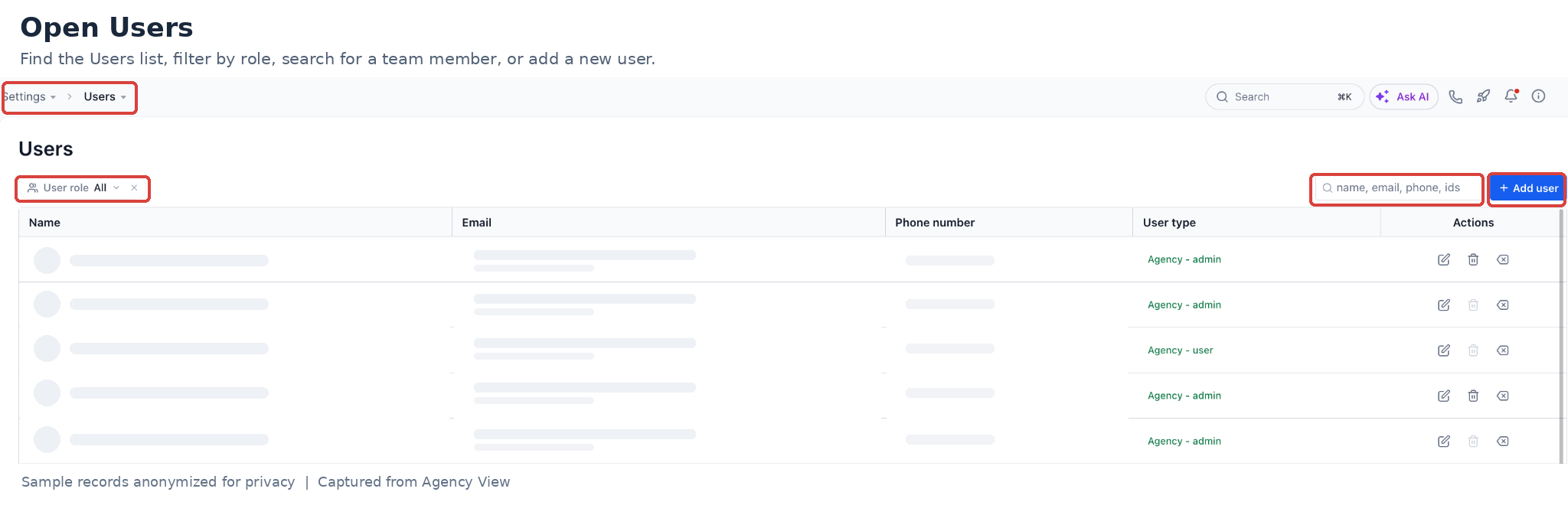
How to Access
- From Agency View, go to Settings.
- Select Users.
What You Can Do
From Users, you can search the user list, add new users, edit existing users, manage roles and permissions, transfer ownership when applicable, manage sub-account access, or remove users.
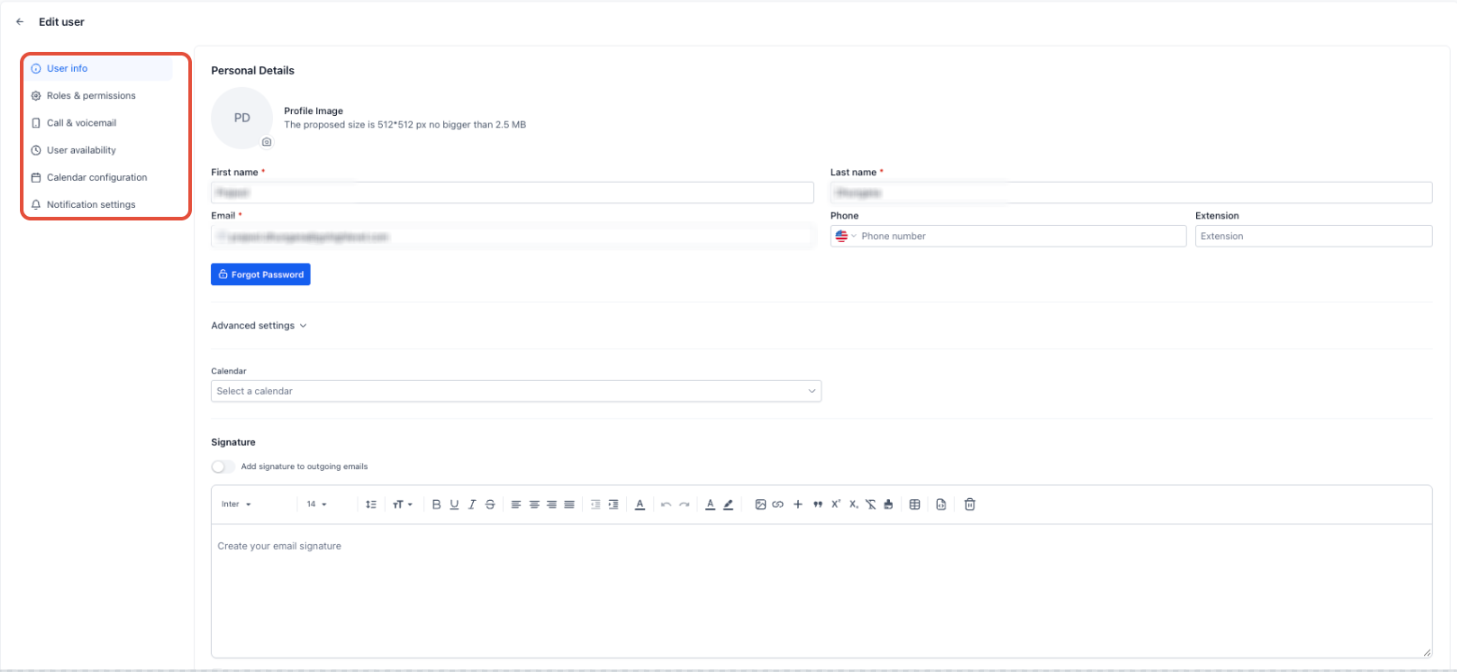
When adding or editing a user, you can configure supported user details, roles, permissions, and account assignments.
- Personal logo for the user profile
- First name
- Last name
- Email address used as the login email
- Phone number
- Password
- Permissions
- User Type
- Agency: The user can access all client accounts under the agency.
- Account: The user can access only selected client accounts.
- Agency: The user can access all client accounts under the agency.
Account Assignment
- For an Agency user type, specify which client accounts the user should receive notifications for.
- For an Account user type, select the specific client accounts the user can access.
The redesigned Users experience also provides user search, clearer owner-role guidance, ownership transfer controls, improved duplicate-email guidance, and call-forwarding and voicemail options during user creation.
If an email address already exists in the agency, Chat To Clients CRM provides guidance on the appropriate next step, such as contacting the agency admin or adding the existing user from Users.
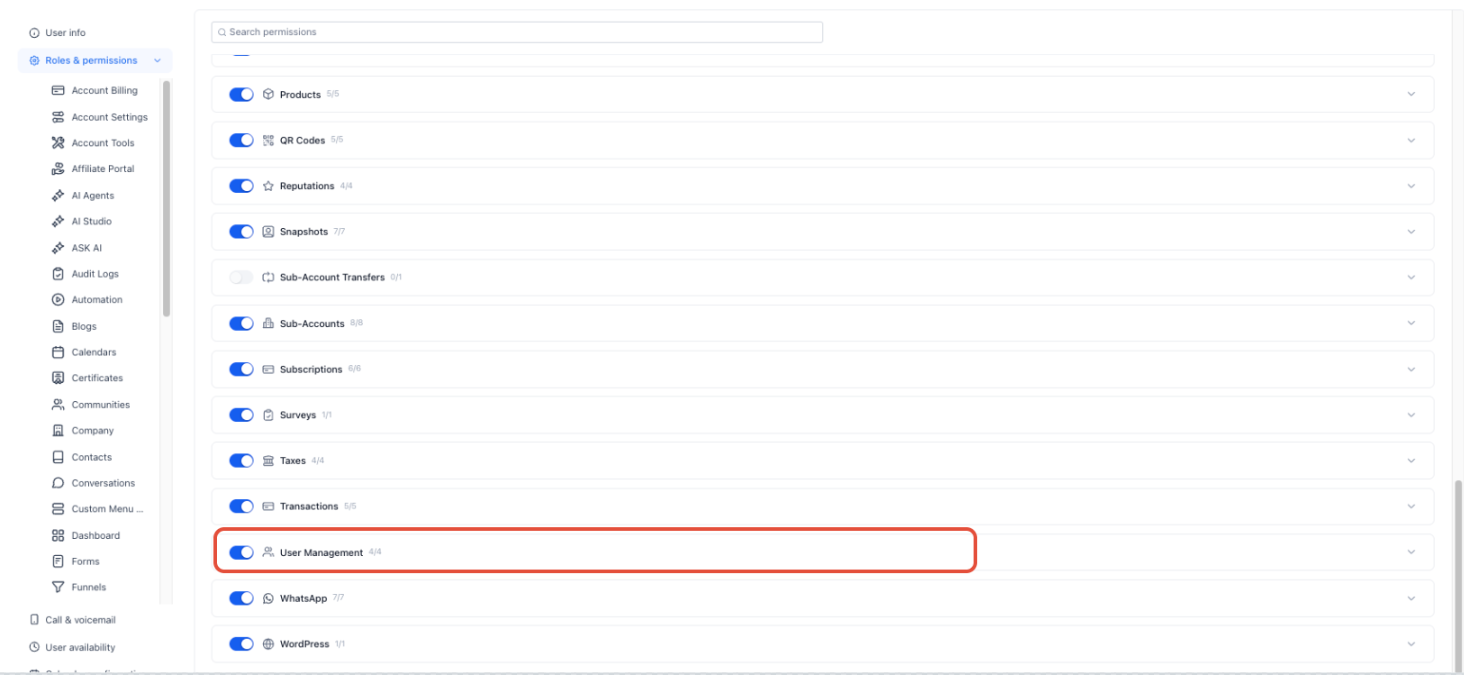
Login As Permission
The ability to Login As another user is permission-gated for each admin. When Enable Login As is turned off for a user, the Login As option is hidden.
Go to Agency View → Settings → Users → Edit User → Roles & Permissions → User Management to manage this permission.
User Management (Sub-Account Level)
Who This Is For
This section applies to admins and users who manage access within a specific Chat To Clients CRM sub-account. Users added here are also visible in the Agency-level Users area.
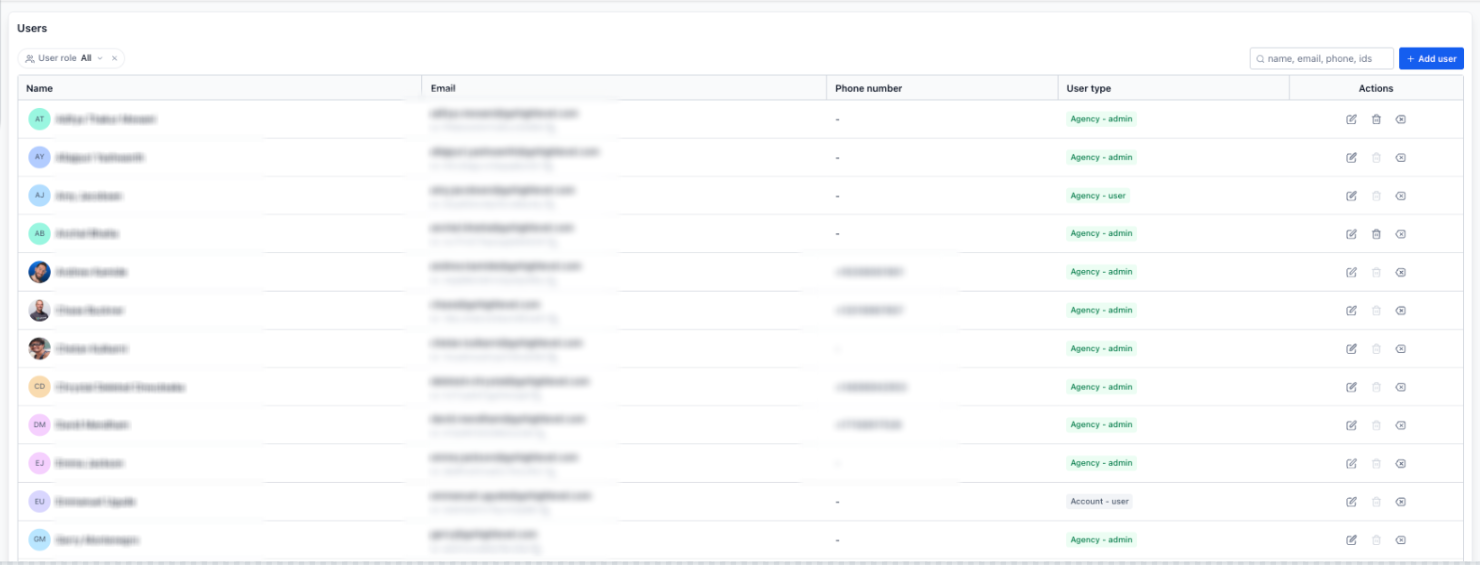
How to Access
- Open the required Sub-Account.
- Go to Settings → Users.
What You Can Do
From Users, you can search, add, edit, and remove users and manage their available roles, permissions, and access settings.
Supported user details include:
- Personal logo
- First name
- Last name
- Email used for login
- Phone number
- Password
- Permissions
When creating a user, the redesigned experience also includes available call-forwarding defaults and voicemail setup.
If the email address already exists in the agency, Chat To Clients CRM provides guidance on the appropriate next step, such as contacting the agency admin or adding the existing user from Users.
Automatic personal booking calendar creation for newly added sub-account users depends on the agency-level Preloaded Example Data setting in Settings → Company.
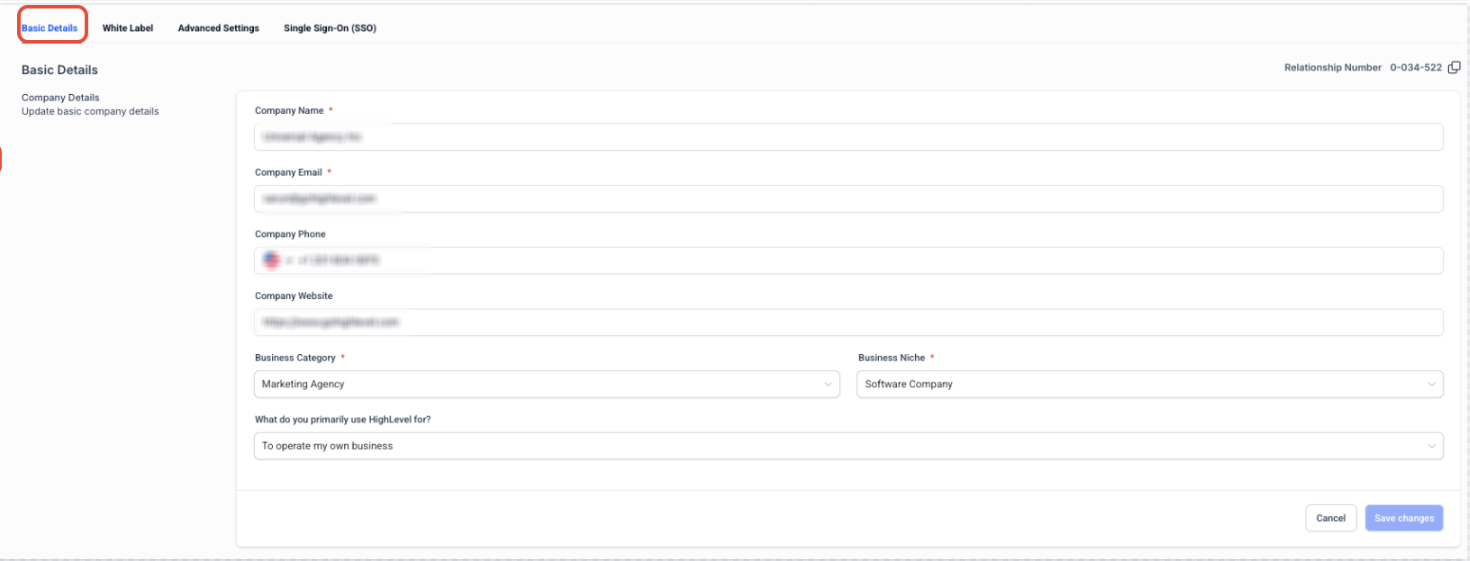
Permissions & Roles Overview
You can control what each user can access and what actions they can perform by assigning the appropriate roles and permission scopes.
Permissions can determine which areas of Chat To Clients CRM a user can access, which actions they can perform, and which accounts or assigned data they can work with.
Email Change Verification (Multi-Channel OTP)
Changing a user's login email is a sensitive update. Chat To Clients CRM supports multi-channel OTP verification so identity can still be confirmed when the existing email address is inaccessible.
Available verification methods:
- Email OTP
- Phone (SMS) OTP
- TOTP (Authenticator app)
The verification methods shown depend on the user's verified 2FA methods.
When You Change Your Own Email
Users can manage their own login email from My Profile → Security.
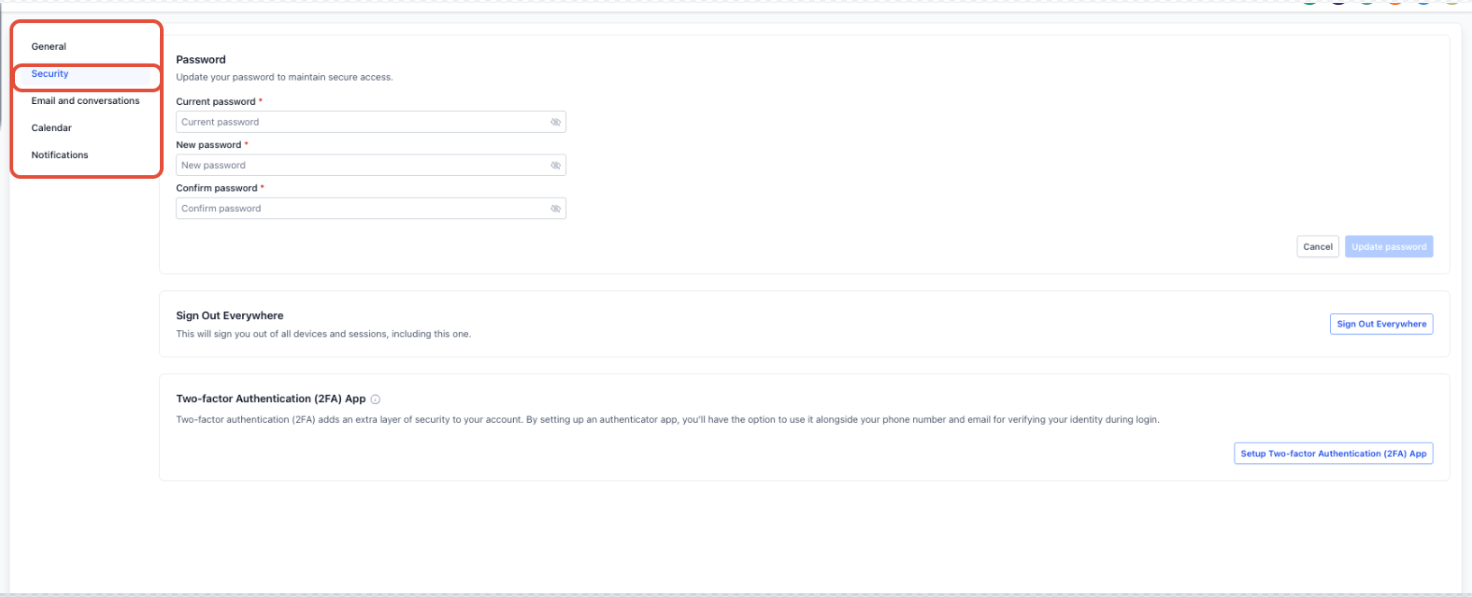
- The system prompts you to verify using another available 2FA method, such as SMS or an Authenticator app.
- If no other verified method is available, you are prompted to set up an authenticator app.
When an Admin Changes Another User's Email
The system shows the available verification methods for that user, which can include Email, SMS, and/or an Authenticator app.
Email-Change Security Alerts and Reversal
Chat To Clients CRM sends security alerts whenever a user's login email address changes. These notifications help users identify unexpected account changes and restore their previous email address without contacting an administrator. The security alerts provide an additional layer of protection alongside the existing email-change verification process.
How Email-Change Security Alerts Work
Security alerts keep users informed when their login email address changes, whether they make the update themselves or an administrator makes it on their behalf. Each alert provides details to help the account owner recognize and respond to an unexpected change.
When a user's login email address changes:
- Email Notification: A security alert is sent to the previous email address. This ensures the person who previously controlled the login email receives notification of the change.
- In-App Notification: The affected user also receives a security notification within Chat To Clients CRM.
- Change Details: The alert identifies what changed and when the change occurred. The timestamp is displayed in the user's timezone.
- Change Attribution: The alert identifies the initiator as "by you" or "by your admin," helping users distinguish their own changes from administrator-initiated updates.
- Admin-Initiated Changes: Alerts also cover supported administrative and impersonation flows when an email address changes on a user's behalf.
If you recognize the email change and intended to make it, no further action is required.
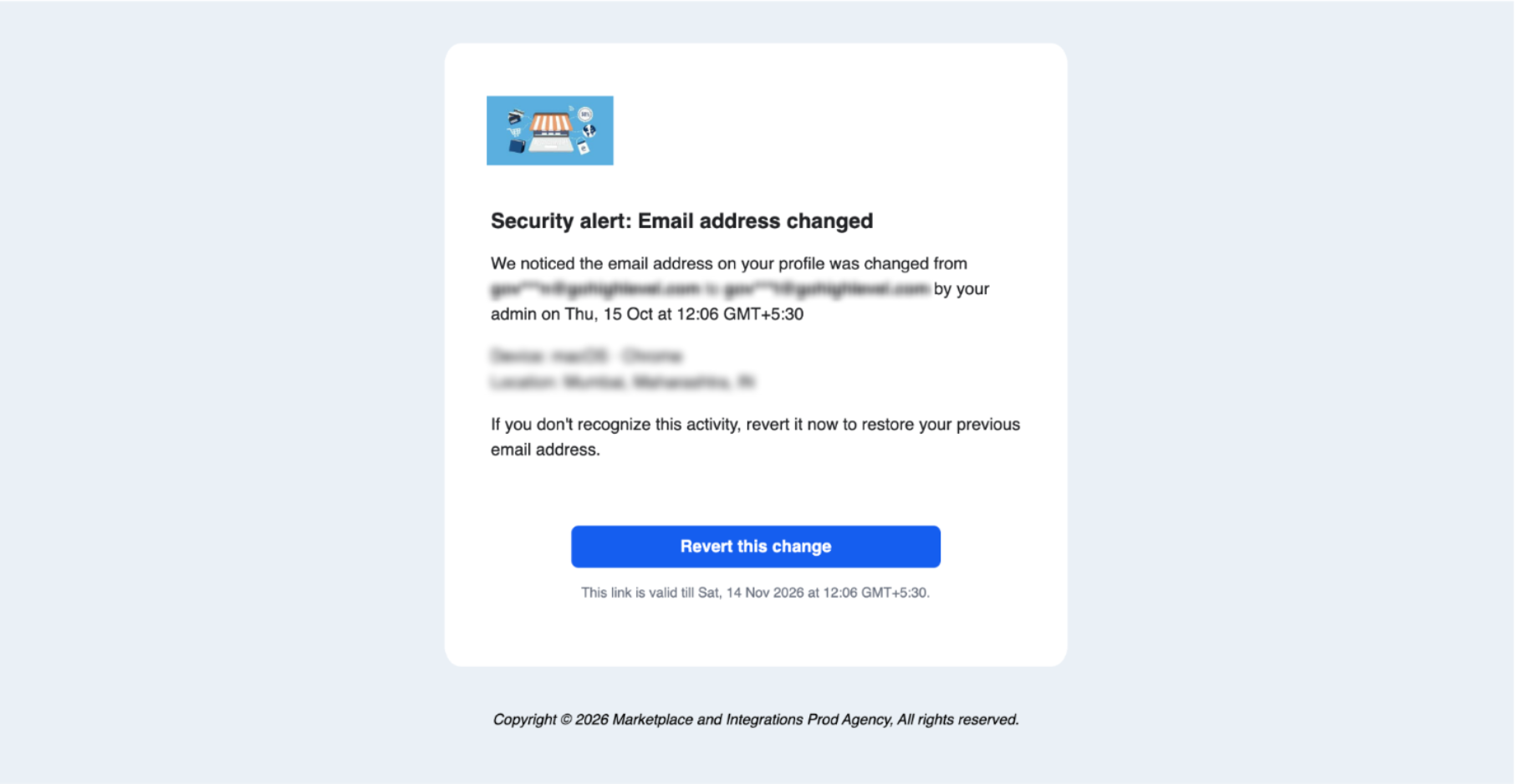
Example security alert email showing the date, change details, and available reversal action.
How to Reverse an Unexpected Email Change
If your login email address changes without your knowledge, you can restore your previous email using the reversal link included in the security email. This self-service recovery process does not require you to log in, making it possible to reverse the change even if your account access has been affected.
- Open the inbox associated with your previous login email address.
- Find and open the security alert notifying you that your email address has changed.
- Review the change details, including when the change occurred and whether it was initiated by you or your administrator.
- Click the reversal link provided in the security email. Chat To Clients CRM restores your previous login email address without requiring you to sign in.
- Review the confirmation page to verify that your previous email address has been restored.
Important: The reversal link is valid for 30 days and can be used only once. If the email change was expected, you do not need to use the reversal link.
After the previous email address is restored, Chat To Clients CRM displays a confirmation page indicating that the reversal is complete.
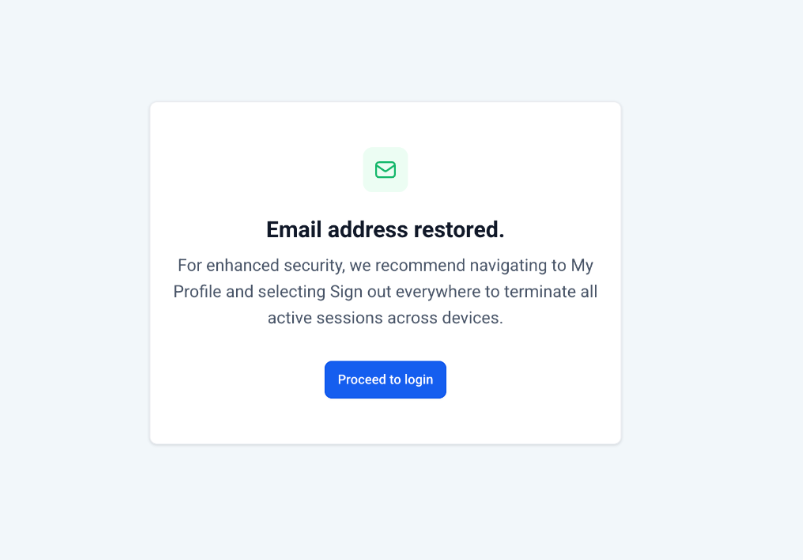 Example confirmation page displayed after restoring the previous login email address.
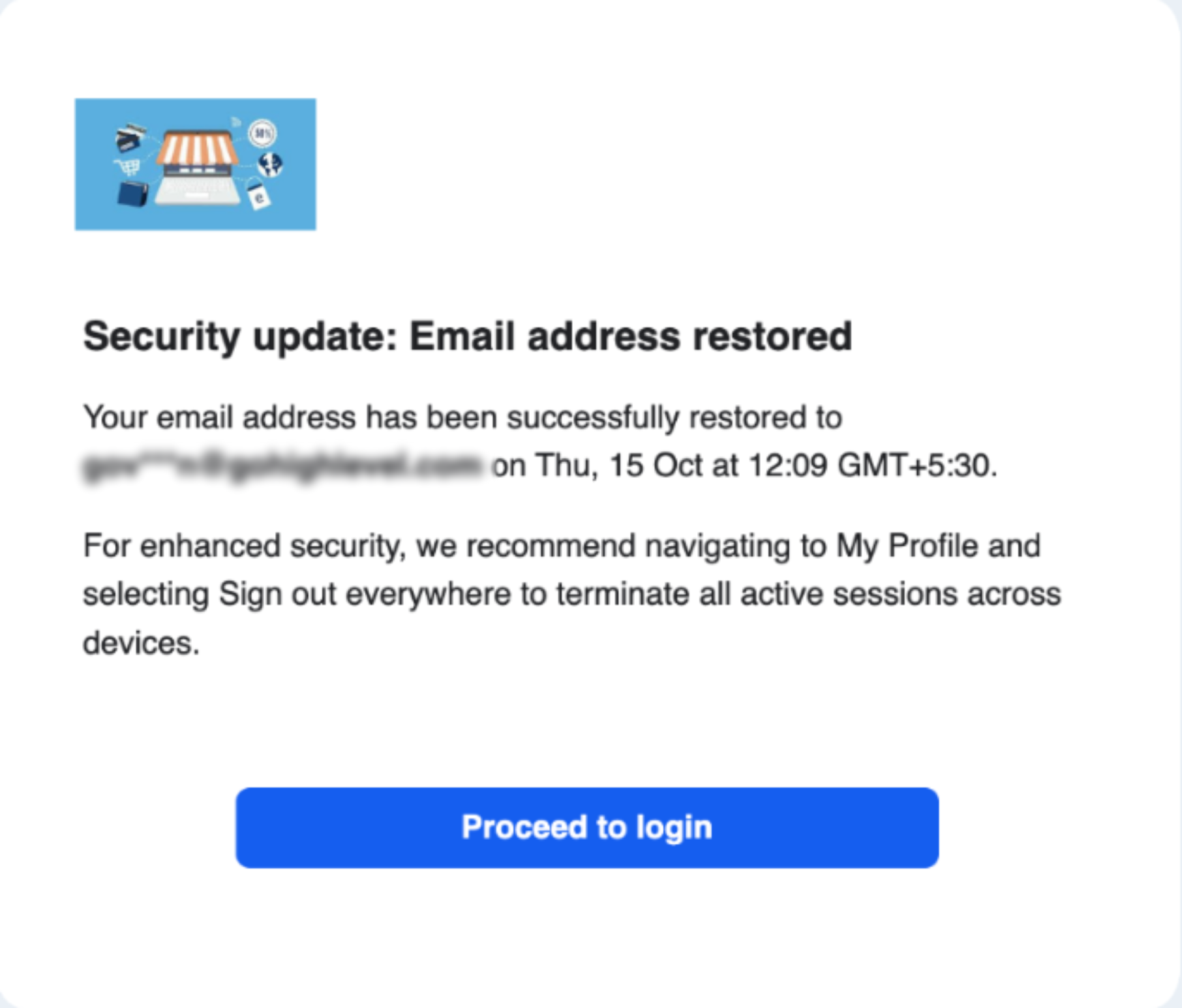
Example of an email message indicating that a login email address was restored.
A reversal link can only be used once. If the link has already been used, it cannot complete another reversal. Contact your agency if you need assistance.
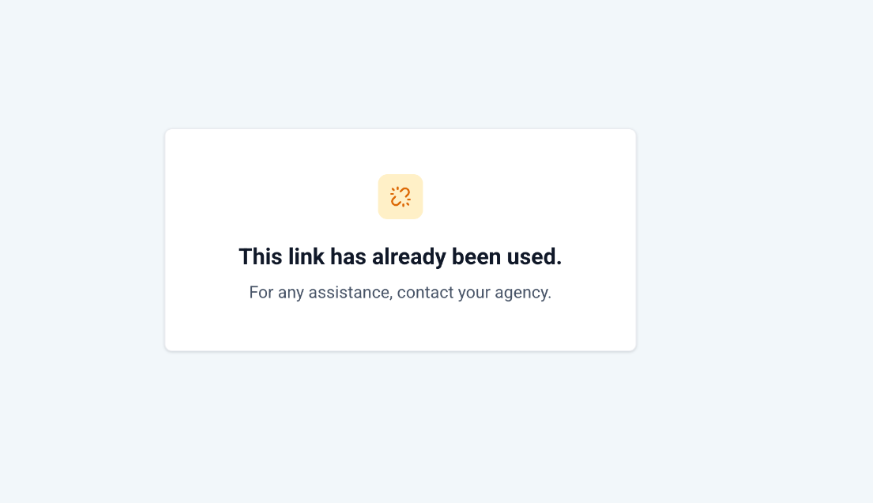
Example screen for a reversal link that has already been used.
Security, Branding, and Language Support
Email-change security alerts protect account access while maintaining a consistent experience for users across different agencies and languages. Notifications and recovery pages support agency branding and localization, while completed reversals are recorded for accountability.
- Agency Branding: Security alerts use the agency's logo and domain to maintain the agency's branded experience.
- Language Support: Security alerts and reversal pages support 12 locales. If a translation is unavailable, the affected text appears in English.
- Auditability: Every completed email-address reversal is recorded.
- Automatic Alerts: Notifications are triggered by supported login-email changes, including updates made directly by a user or on the user's behalf.
Email-change security alerts complement the existing multi-channel OTP verification process. Verification helps secure the email update, while security alerts provide visibility and recovery after the change occurs.
Best Practices
- Use least privilege: Give users only the permissions they need. Avoid granting full agency access unless necessary.
- Use Account-type users for limited access: Choose this user type when someone should have access only to selected client accounts.
- Track changes: Maintain clear records of who has access and when access changes are made.
- Review access periodically: Update permissions or remove users when their responsibilities change or access is no longer required.
Frequently Asked Questions
Q: What's the difference between an Agency user type and an Account user type?
An Agency user type grants access across all client accounts under the agency. An Account user type restricts access to only the client accounts you explicitly select.
Q: If I add a user under Users in a sub-account, will they appear in Agency User Management?
Yes. Users added in a sub-account are also visible in the Agency-level Users list.
Q: Can I set different permission levels for different users?
Yes. Permission settings let you control which supported features and actions each user can access.
Q: How do I change someone's access later if their role changes?
Open the relevant user record in Users at either the Agency or Sub-Account level, then update the user's type, assigned accounts, roles, or permissions as needed.
Related Articles
- Admin vs. User Roles and Permission Scopes
- User Roles, Permissions and Assigned Data: Subaccount
- How to Create a User or Admin to Manage Multiple Locations Without Giving Them Agency Access
- Agency | Managing User Roles & Permissions
- Login As User (Agency Admin Only)
- Phone Number Change Security Alerts and Reversal