
How to See Who Answered a Call in the Chat To Clients CRM Mobile App
Chat To Clients CRM Mobile lets you see who actually answered a call, rather than relying only on the conversation's assigned user. The Answered By field identifies the teammate or phone number that handled the call. A device icon also shows where the call was answered, when that information is available. This guide explains how to find and understand these details.
TABLE OF CONTENTS
- What Is Answered By?
- Key Benefits of Answered By
- Prerequisites and Limitations
- How to See Who Answered a Call
- Understanding Answering Devices
- Frequently Asked Questions
- Related Articles
What Is Answered By?
Answered By is a field in the Chat To Clients CRM mobile app's Message Details that identifies who picked up a call. It reports the actual answerer, who may be different from the teammate assigned to the conversation.
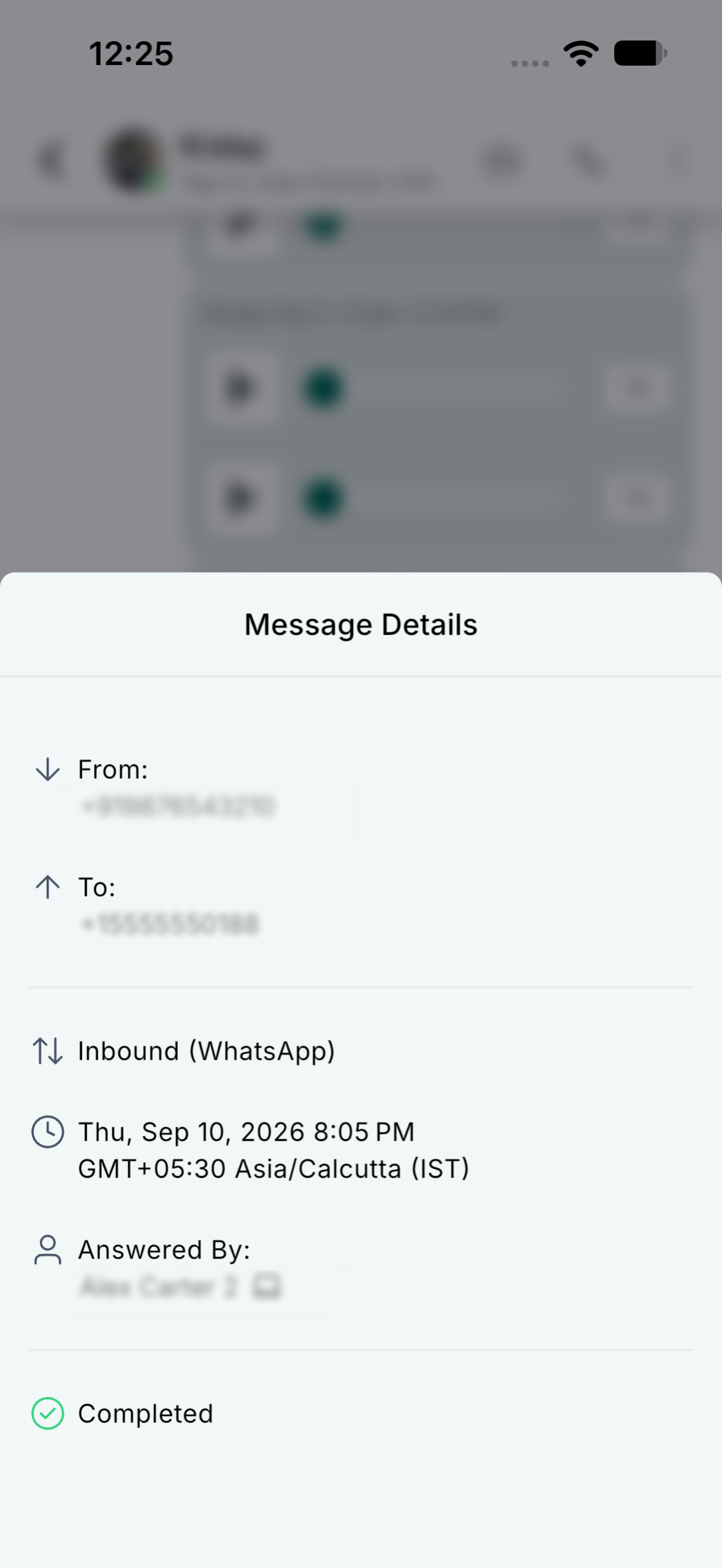
This information is available for regular phone calls, IVR calls, and WhatsApp calls when the answering details are available.
Key Benefits of Answered By
Knowing who handled a customer call helps your team direct follow-ups appropriately and understand call activity without relying solely on the conversation assignment.
- Clear Accountability: Identify the teammate who answered a call.
- Faster Follow-Ups: Reach the person who actually spoke with the customer.
- Better Call Reviews: Understand who handled a call and which device was used, when that information is available.
Prerequisites and Limitations
Answered By information depends on the mobile app version, the type of call, and the call details available to Chat To Clients CRM. Check the requirements and limitations before reviewing call records.
Prerequisites
Use a supported mobile app version and open an existing call message in Conversations to access the available answering information.
- Chat To Clients CRM mobile app version 4.27.x or later, once the enhancement is available for your account.
- An iOS or Android device.
- A conversation containing a call record.
Limitations
Some details may be unavailable even when the call record is present. The available data determines whether the answerer appears as a name or a masked phone number and whether a device icon is shown.
- Phone numbers are masked when a call is answered through a phone number.
- No device icon appears when the answering device is unknown.
- This enhancement is documented for call messages in Conversations. Separate call-log support is planned.
How to See Who Answered a Call
The call message's details identify who answered it, which can be more useful than the conversation assignment when multiple team members can receive incoming calls.
- Open the Chat To Clients CRM mobile app.
- Navigate to Conversations.
- Open a conversation containing a call.
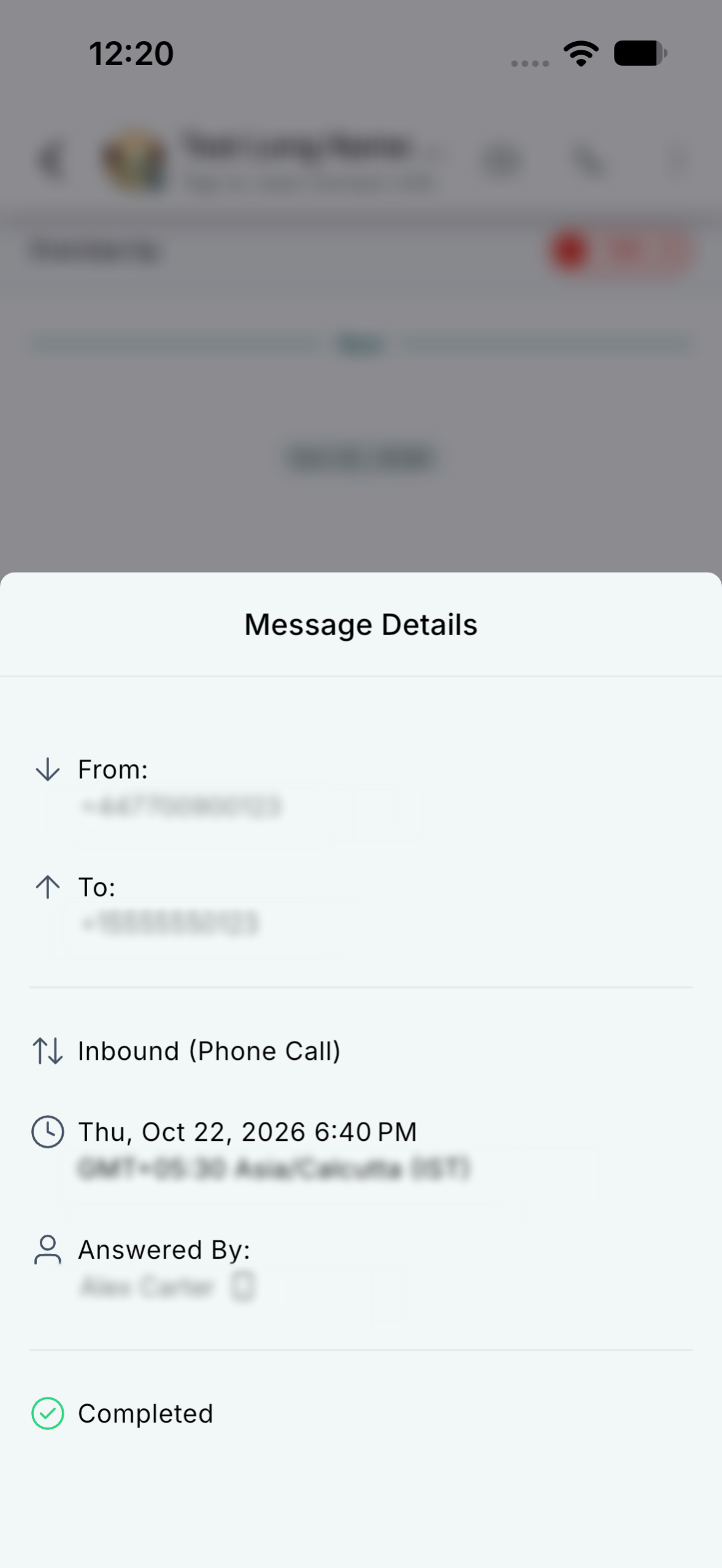
- Long-press the call message and select Details.
- In Message Details, find Answered By. Review the displayed teammate name or masked answering phone number, along with a device icon when available.
Understanding Answering Devices
The device icon beside Answered By helps identify how the call was answered. Use this information to distinguish calls handled through Chat To Clients CRM apps, a phone number, or a SIP endpoint.
- Web app: The call was answered through the web application.
- Mobile app: The call was answered through the mobile application.
- Phone number: The call was answered through a phone number. The displayed number is masked.
- SIP: The call was answered through a SIP endpoint.
If the answering device is unknown, Answered By does not display a device icon.
Frequently Asked Questions
Q: Why does Answered By show a different person from the assigned user?
The assigned user is associated with the conversation, while Answered By identifies who actually picked up the call. The two can be different.
Q: Will Answered By always display a teammate's name?
No. If a call is answered through a phone number, the field can display a masked phone number rather than a teammate's name.
Q: Why is there no device icon next to Answered By?
The answering device may be unknown. When that information is unavailable, no device icon is shown.
Q: Can I use Answered By for IVR and WhatsApp calls?
Yes. The feature covers regular phone calls, IVR calls, and WhatsApp calls, subject to the call details available.
Q: Can I find Answered By in the mobile call log?
The enhancement is documented for call messages in Conversations. Call-log support is planned separately, so use Message Details for this workflow.
Q: What should I check if Answered By is unavailable?
Confirm that you're using Chat To Clients CRM mobile app version 4.27.x or later, that the enhancement is available for your account, and that you're opening Details for a call message in Conversations. The available information can vary by call.