
Manage Service Appointments in the Appointment Modal
Manage Service bookings more efficiently with the Appointment modal. Review booking details, edit and duplicate appointments, generate reschedule links, create blocked slots, and view assigned resources. You can also review intake forms attached during Service booking creation.
TABLE OF CONTENTS
- What Is the Appointment Modal for Service Appointments?
- Key Benefits of Managing Service Appointments
- How to Access the Appointment Modal
- View a Submitted Service Booking Form
- Generate and Copy a Reschedule Link
- Edit Service Appointments
- Duplicate Service Appointments
- Blocked Slots on Your Service Calendar
- Show Resource in Appointment Modal
- Use Custom Values in Service Notifications
- Frequently Asked Questions
- Related Articles
What Is the Appointment Modal for Service Appointments?
The Appointment modal is the side panel where admins and staff review and take action on a single Service booking. It centralizes essential tasks such as editing details, rescheduling, duplicating appointments, and reviewing submitted booking forms so teams can maintain accurate calendars with less back-and-forth.
Key Benefits of Managing Service Appointments
Managing appointment details from one place helps staff respond to scheduling changes and review customer information without navigating through multiple screens.
- Speed: Edit and reschedule Service appointments without leaving the page.
- Control: Block unavailable time from the booking workflow.
- Scalability: Duplicate bookings for repeat or similar clients.
- Form visibility: Review intake form submissions attached when Service bookings were created.
How to Access the Appointment Modal for Service Appointments
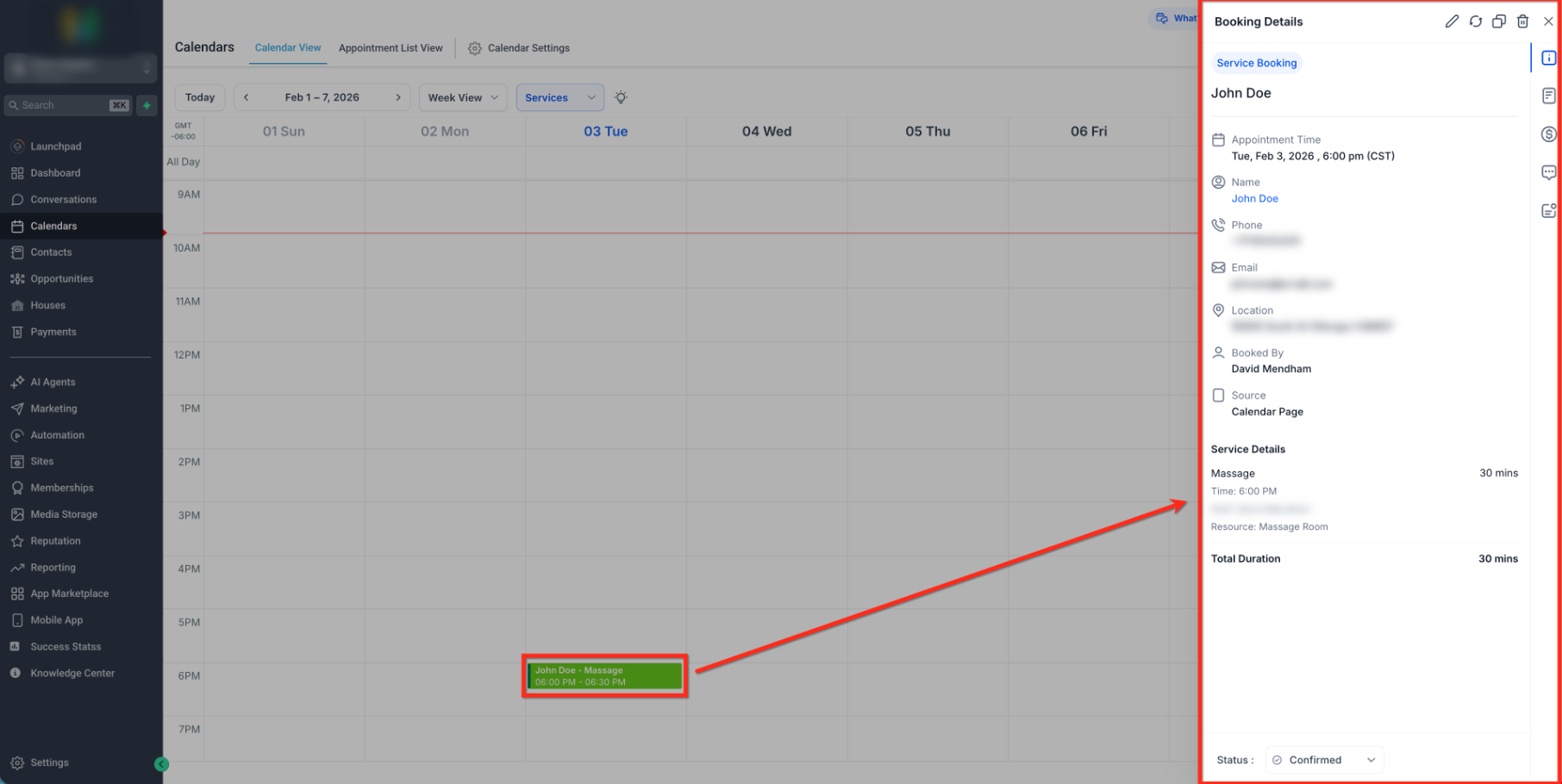
Opening a Service appointment displays its Booking Details side panel, where you can review information and use the available appointment actions.
- Go to Calendars → Calendar View (or Appointment List View) and select Services.
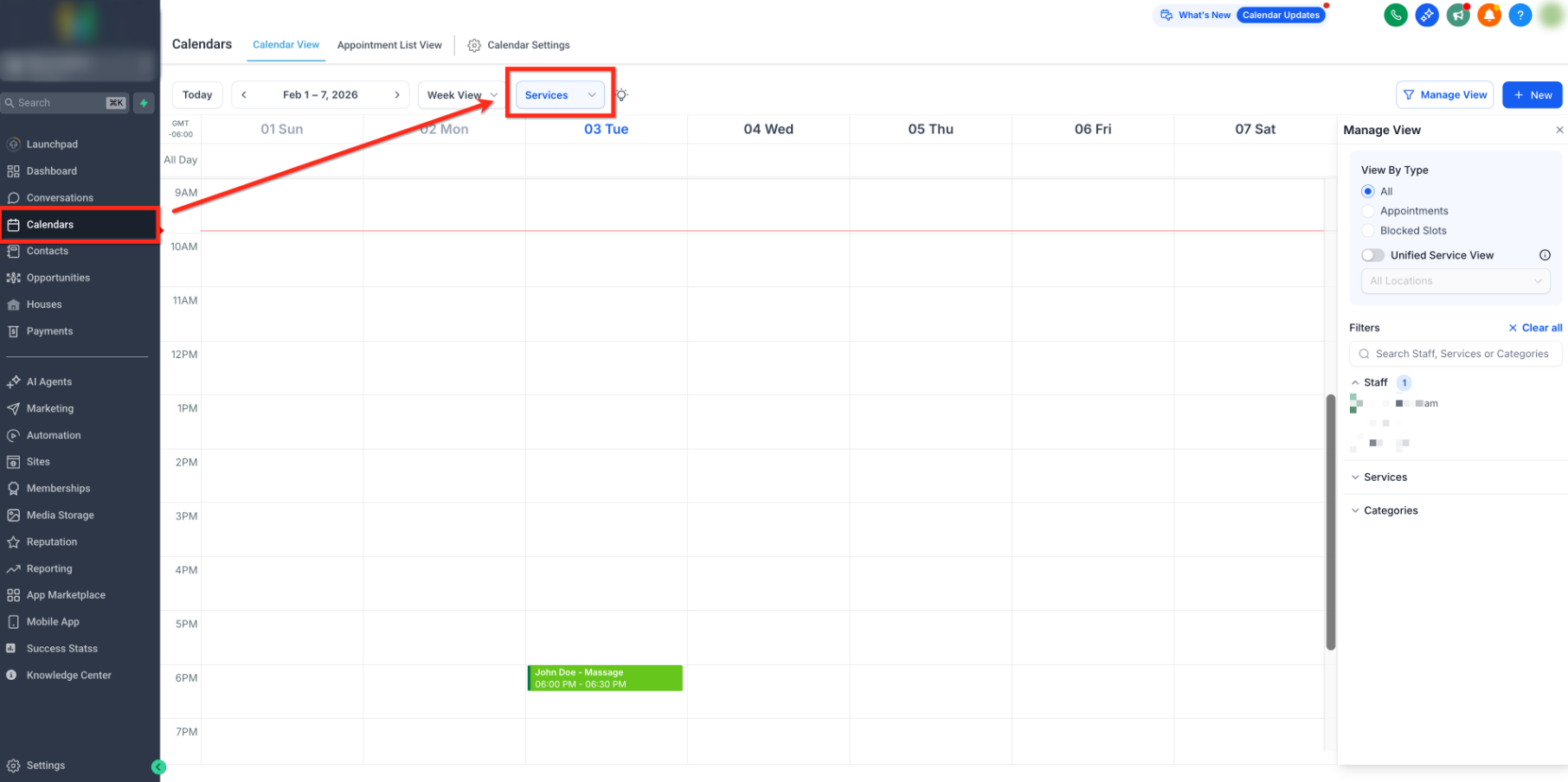
- Click an appointment to open Booking Details in the side panel (the Appointment modal).
View a Submitted Service Booking Form
When a form is attached while creating a Service booking, its submitted responses can be reviewed from Booking Details. This allows your team to access customer intake information alongside the saved appointment.
- Go to Calendars → Calendar View and select Services.
- Select the saved Service appointment to open Booking Details.
- Click the form icon in the booking details panel to open Form submission.
- Review the submitted answers.
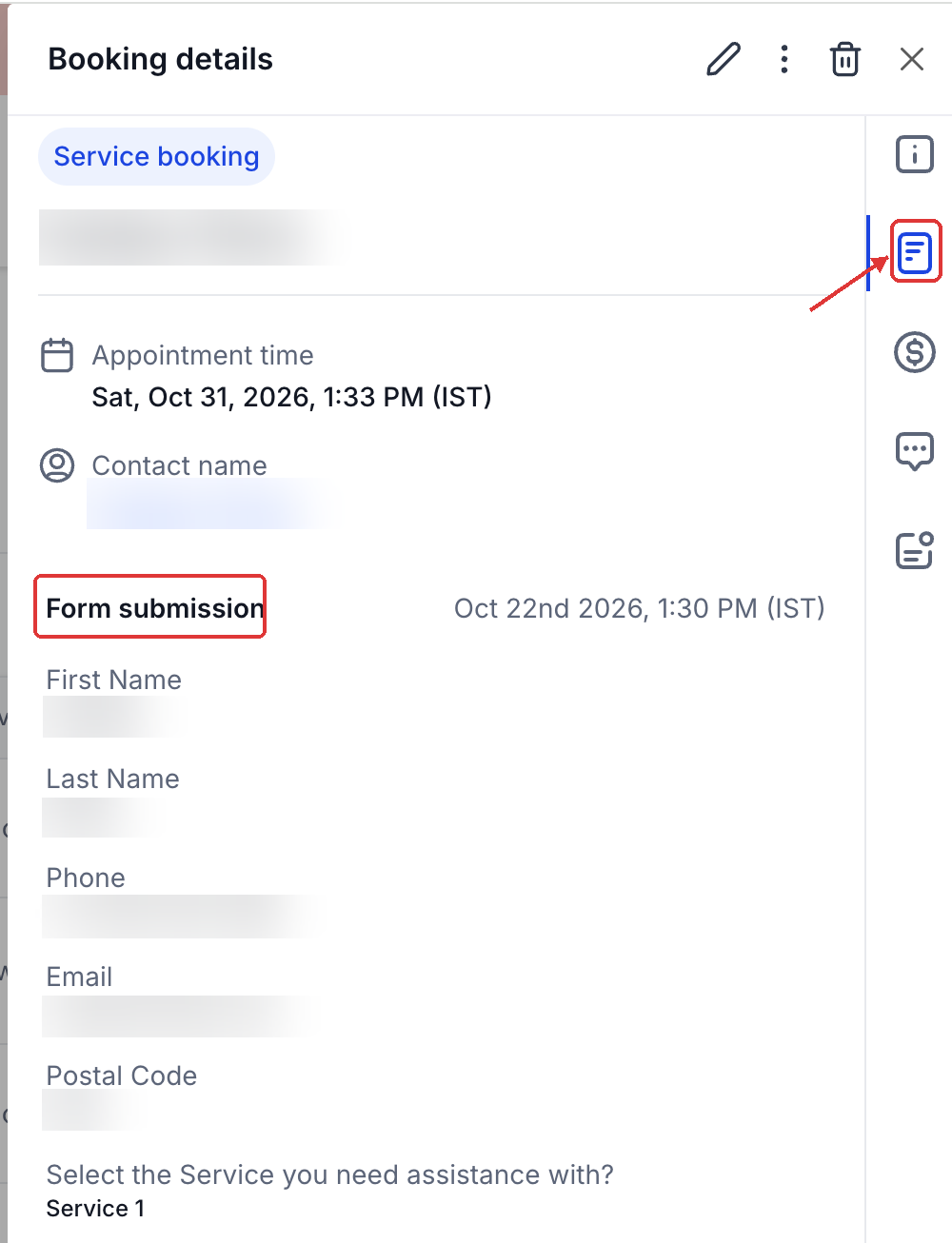
Important: A form must be attached during booking creation. You cannot attach a form to an existing booking or edit its submitted form afterward.
Generate and Copy a Reschedule Link
Use the appointment's reschedule link when you want the customer to choose a new time themselves. You can generate the link directly from an existing Service appointment and share it through your preferred communication channel.
- Open the Service appointment.
- Click Appointment Actions.
- Select Generate Reschedule Link.
- After the link is generated, click Copy Link.
- Share the link with the customer.
The customer can open the shared link and use the existing rescheduling flow to choose a new appointment time.
Edit Service Appointments
Editing options depend on whether payment has been collected. Unpaid appointments allow more changes, while paid appointments restrict structural edits to protect the existing booking and payment details.
Edit Unpaid Appointments
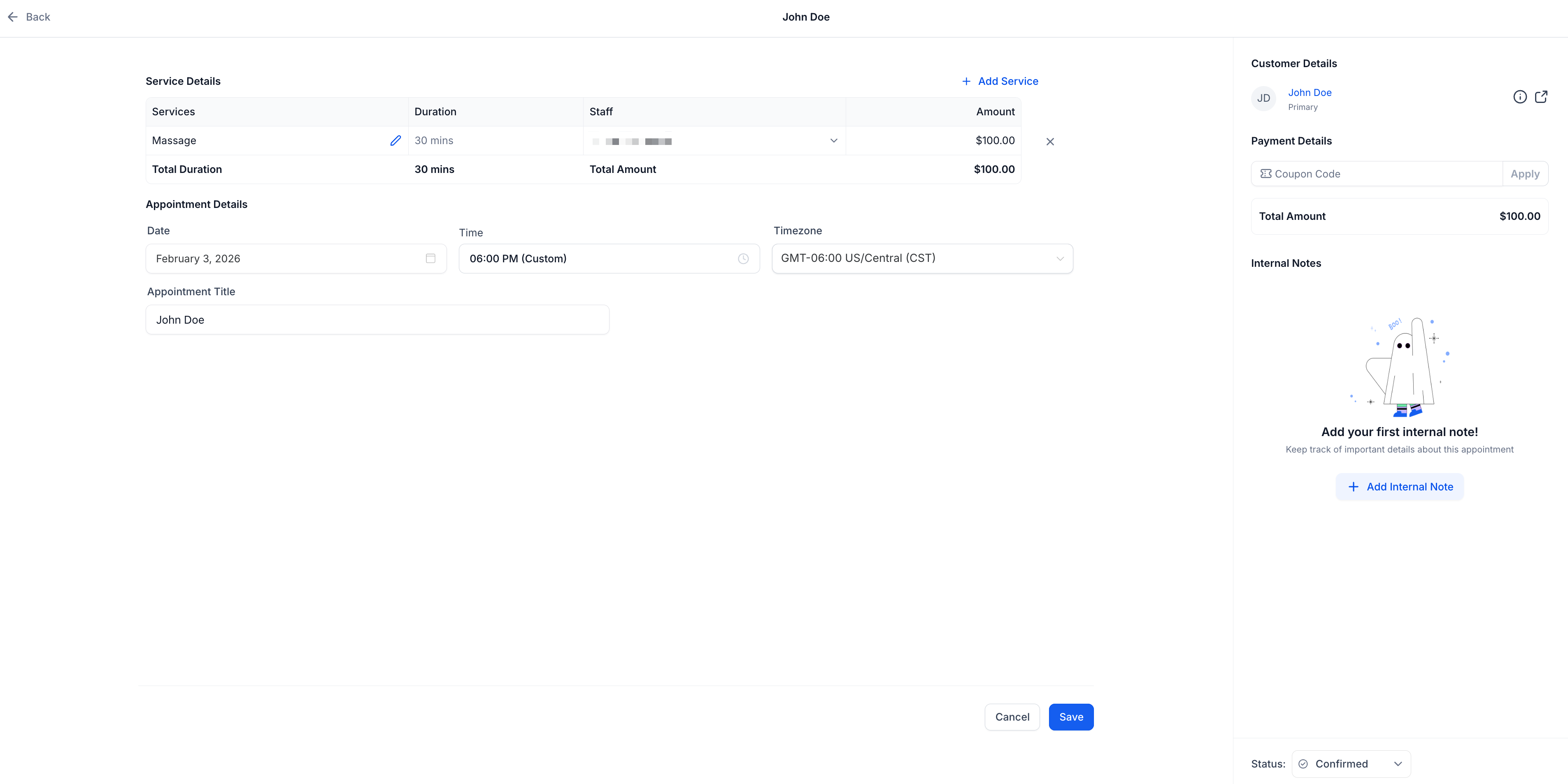
Users can modify unpaid Service appointments directly from the edit screen without canceling or rebooking. This makes it easier to handle last-minute requests, corrections, or changes.
Supported changes include:
- Add or remove Services.
- Add or remove Add-Ons.
- Change Staff or Service Variants.
- Change the Location, appointment title, date/time, timezone, or coupon codes.
To edit an unpaid Service appointment:
- Select the appointment you want to edit, then click the pencil icon to open the editor.
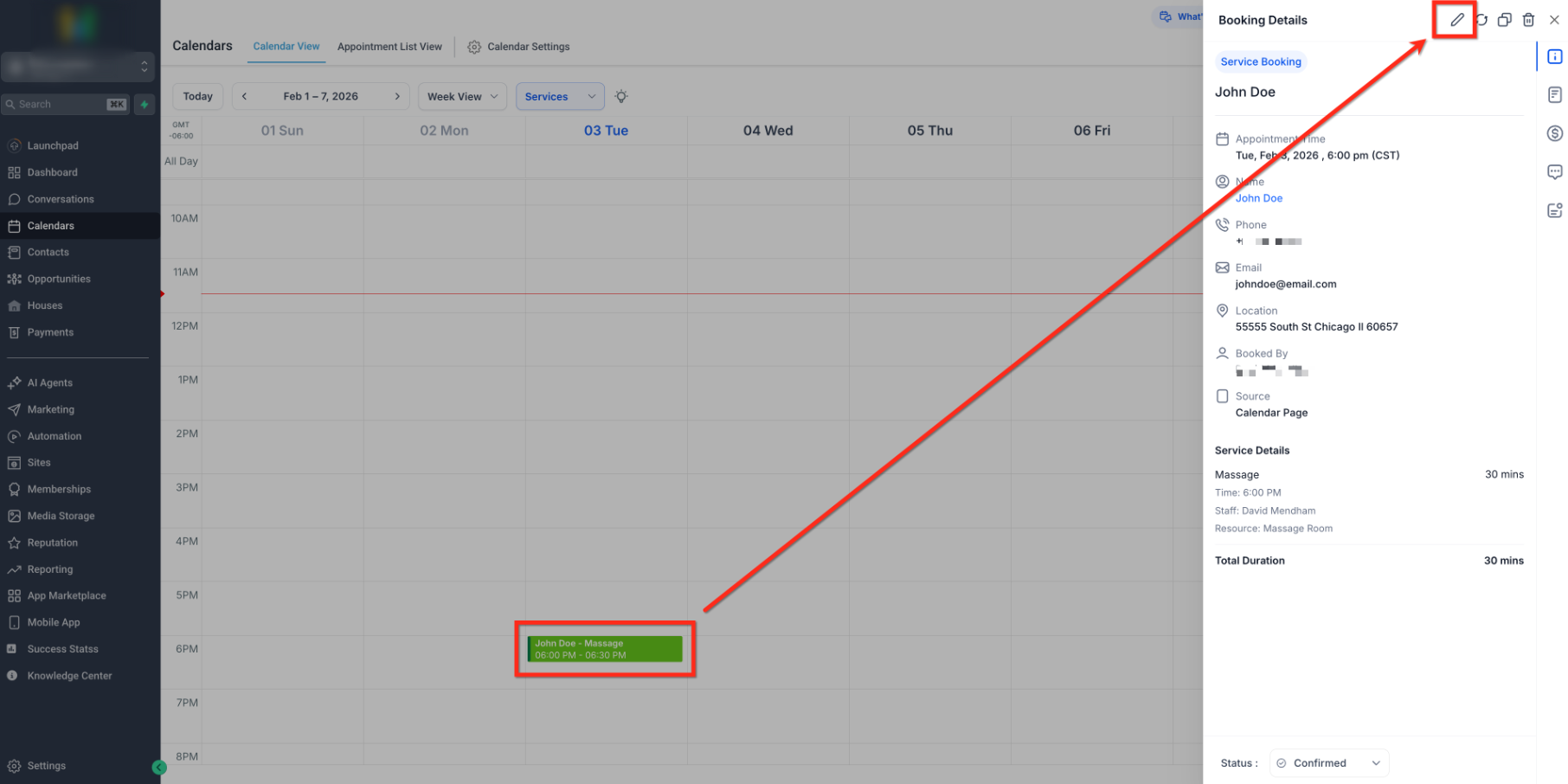
- Adjust the applicable services, add-ons, staff/variant, location, title, date/time, timezone, or coupon codes, then click Save.
Enhanced Support for Paid Appointments
Paid appointments remain locked for structural changes, such as changing the service or staff. You can duplicate an appointment to create a new booking, adjust its details, and rebook without starting from scratch.
The edit screen displays a message explaining which details can and cannot be changed.
Duplicate Service Appointments
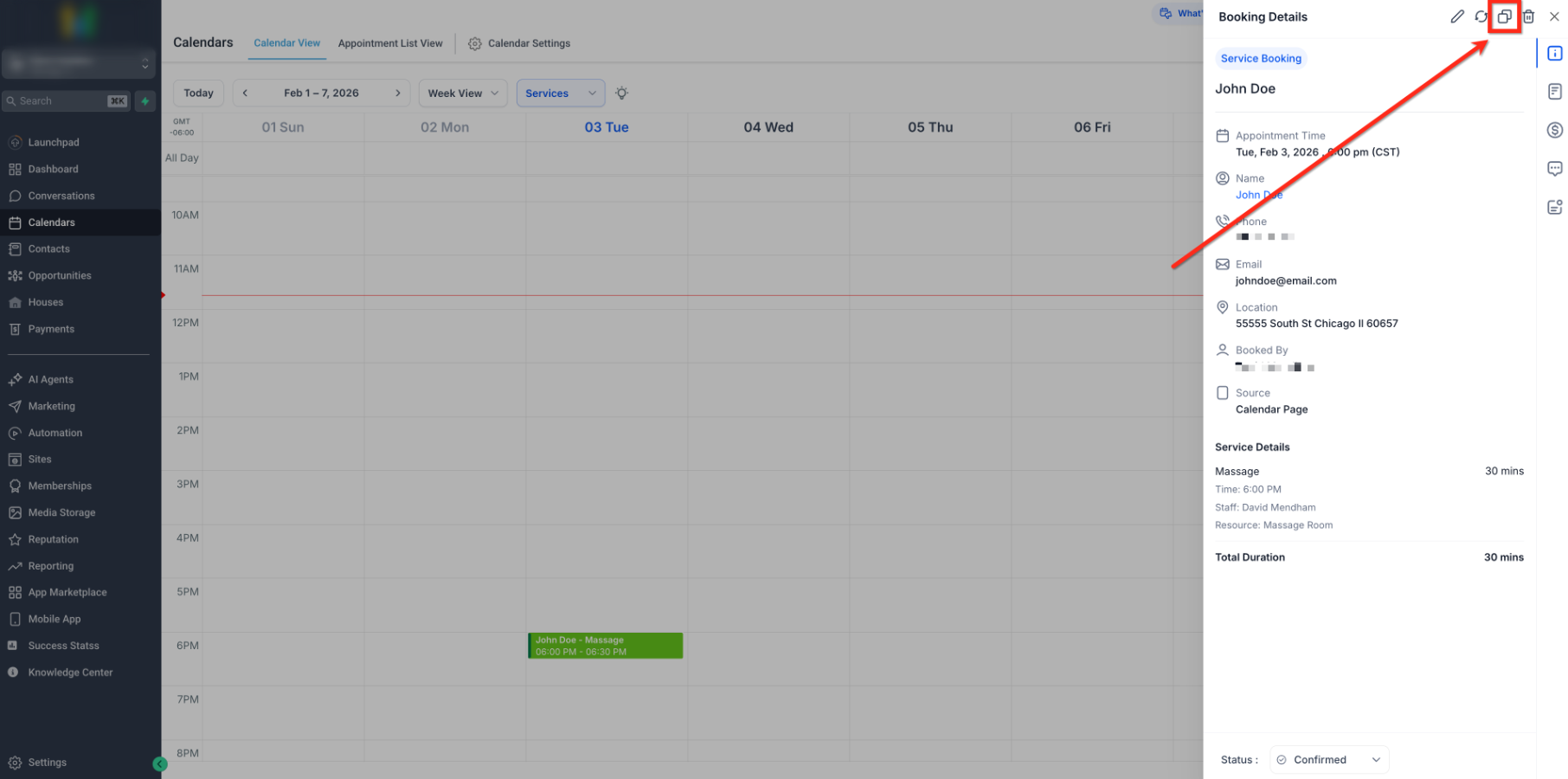
Duplicating a booking helps you quickly create a repeat or similar Service appointment by carrying over the existing details instead of entering them again.
The Duplicate Appointment button is available in the Appointment modal. Open the appointment you want to duplicate, then select the Duplicate icon. Review and adjust the copied details before completing the new booking.
Blocked Slots on Your Service Calendar
Blocked slots let you mark time as unavailable, keeping your calendar accurate and helping prevent accidental bookings.
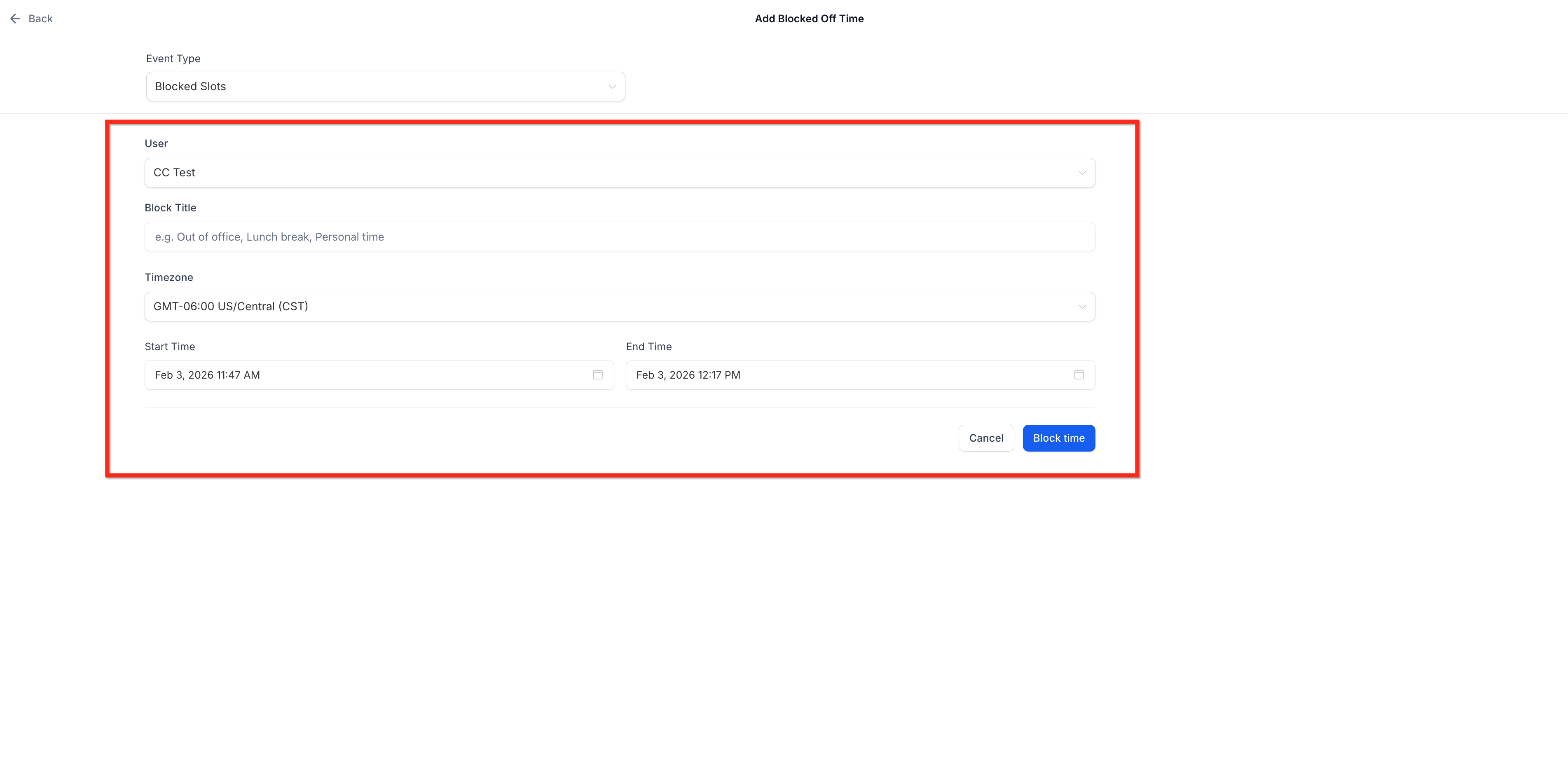
To create a blocked slot:
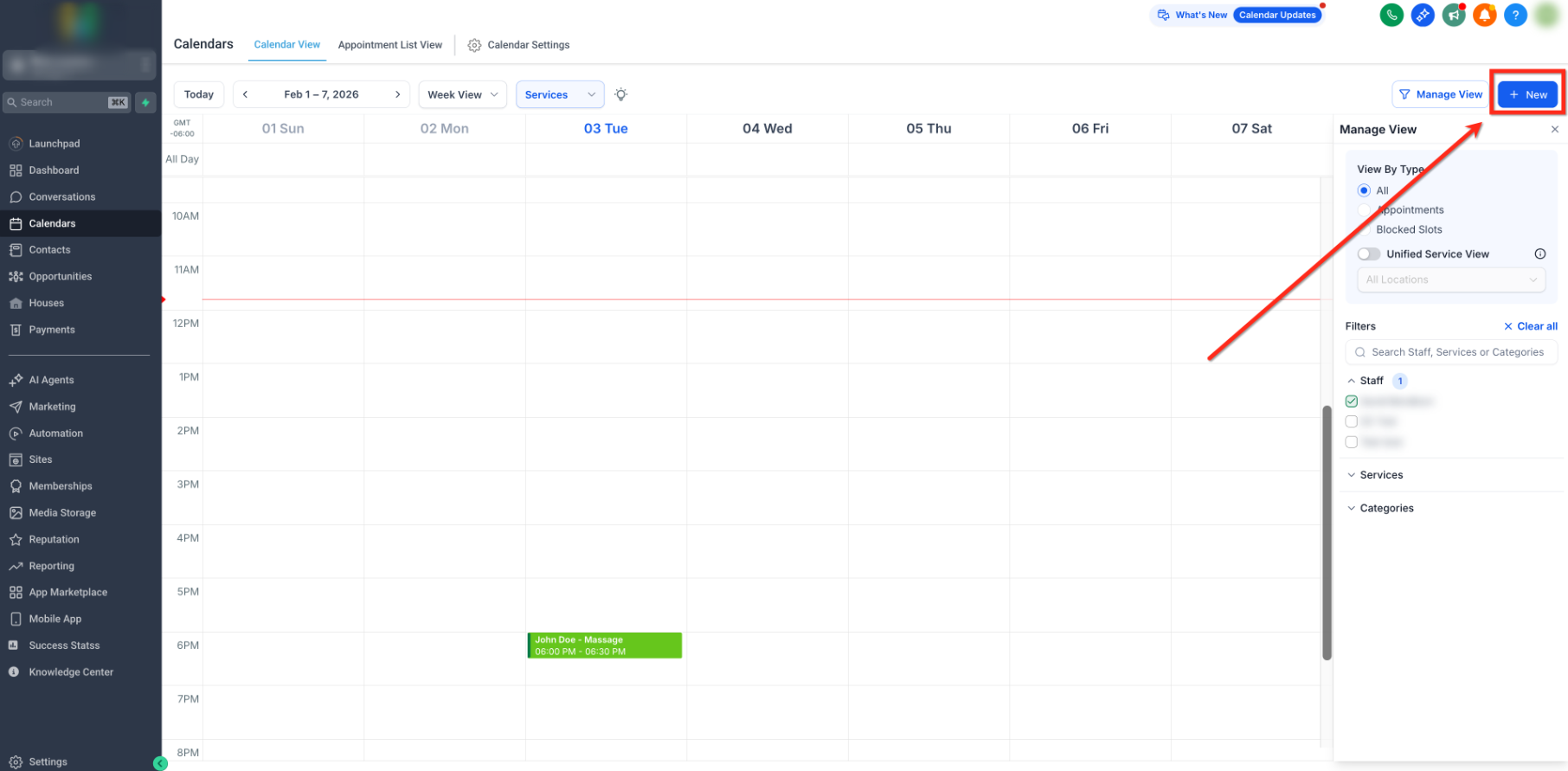
- Click New Booking in your calendar.
- Switch Event Type to Blocked Slot.
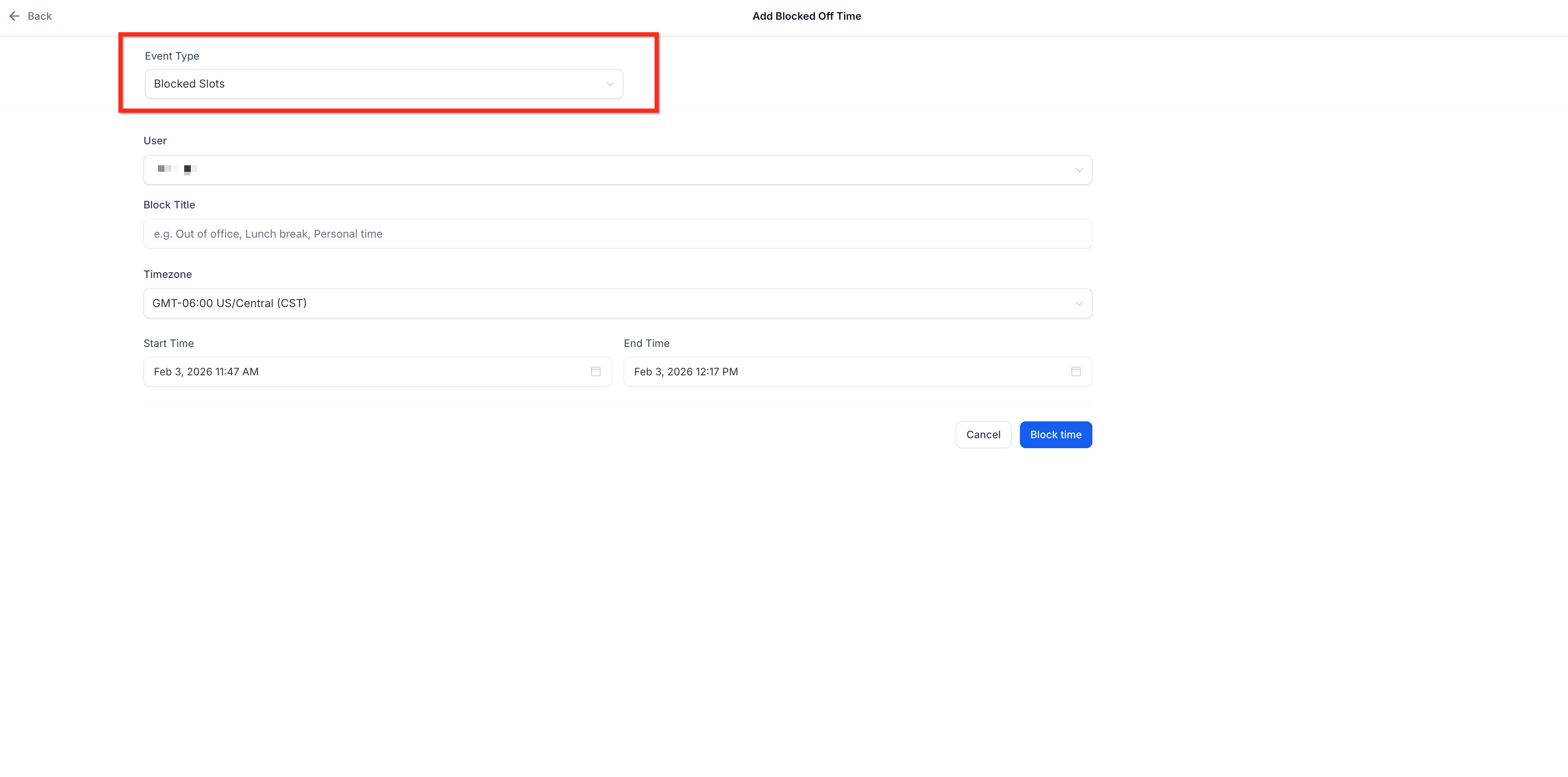
- Select the date/time, title, and staff, then click Block Time.
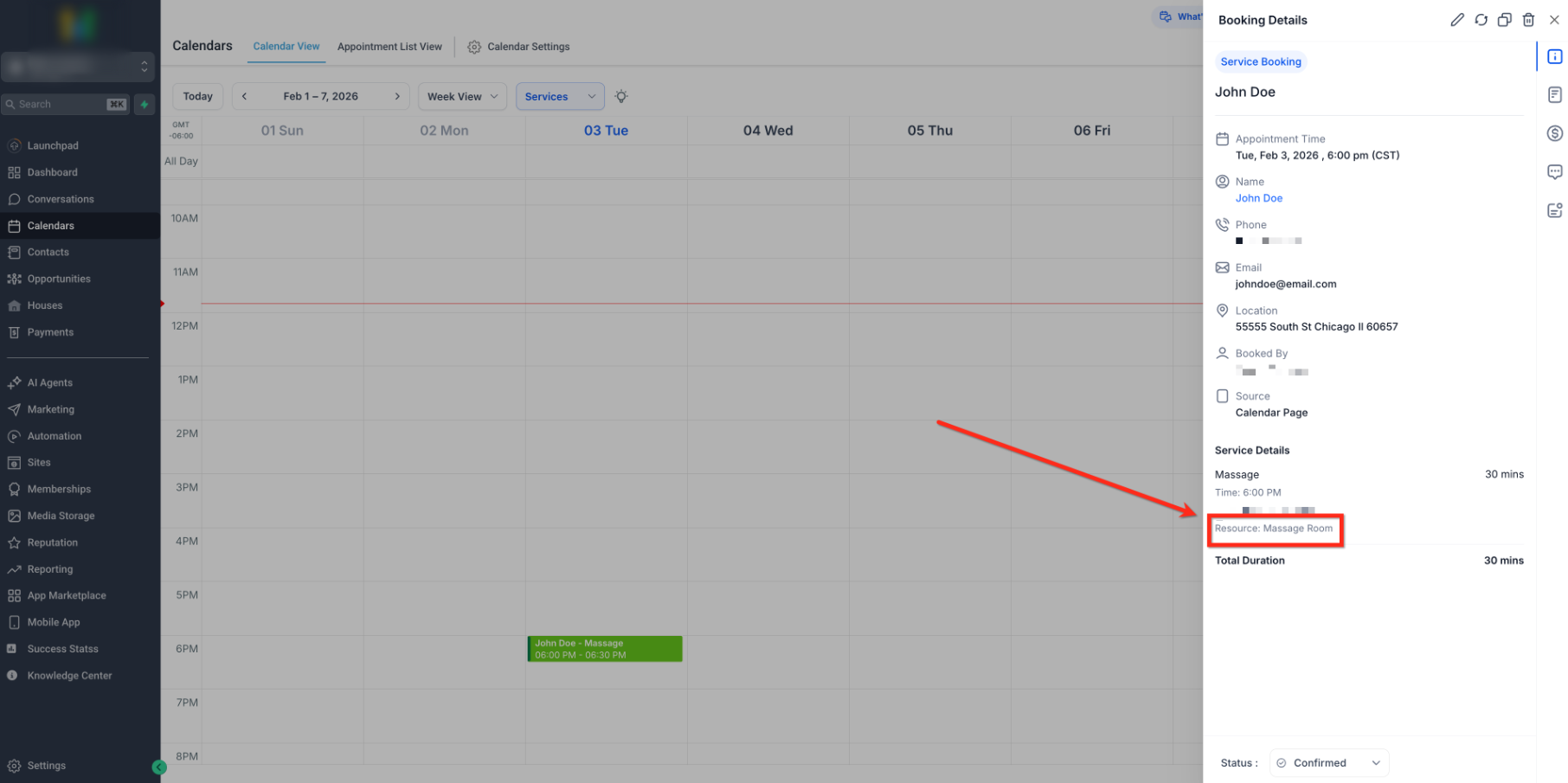
Show Resource in Appointment Modal
The Appointment modal displays the resource assigned to a Service booking. Seeing the booked resource helps your team understand which person or resource has been reserved and avoid confusion about allocation.
Use Custom Values in Service Notifications
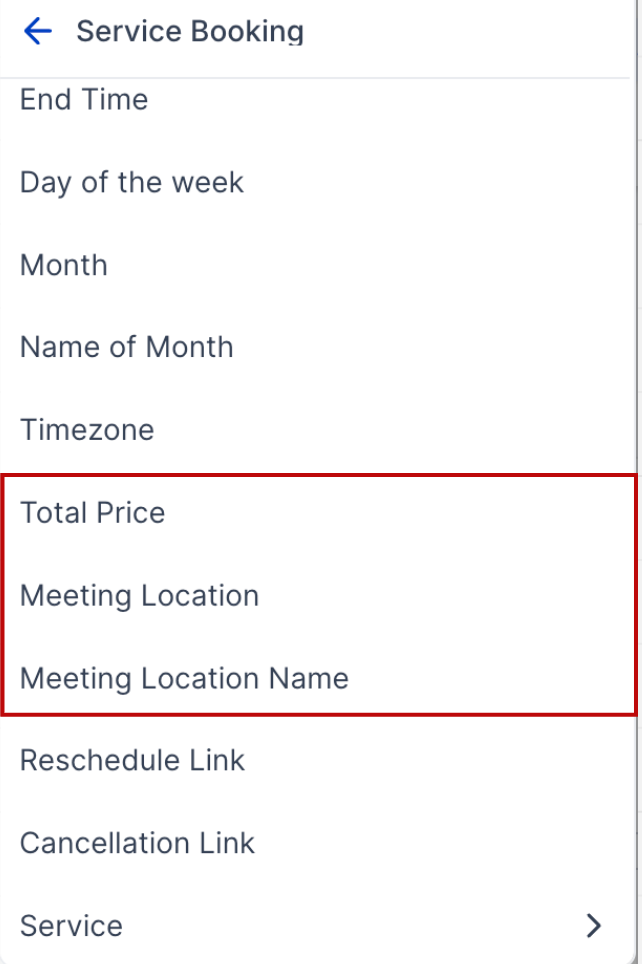
Custom values let you include relevant booking details in customer confirmations, reminders, and other notifications without entering the information manually each time.
Two custom values are available for calendar notifications:
- Service Booking Price
- Meeting Location Name (short label instead of the full address)
To use these values:
- Go to Calendars → Calendar Settings → Notifications.
- Open the notification template (confirmation, reminder, etc.).
- Insert Service Booking Price or Meeting Location Name from the merge field picker.
- Save and test the notification.
Frequently Asked Questions
Q: Can I change the staff or service after payment is collected?
Structural edits (services, add-ons, staff/variant, coupon, title, location) are locked on paid bookings. Reschedule the date/time or use Duplicate Appointment to rebook with changes.
Q: What carries over when I duplicate an appointment?
Contact, services, add-ons, staff/resource, meeting location, and notes typically carry over. Adjust anything needed before booking the copy.
Q: Does rescheduling a paid appointment change the existing order or payment?
No. The payment remains associated with the original booking.
Q: Can I attach a form to a Service appointment after it has been created?
No. Forms can only be attached during booking creation. If a form was attached, you can review its submitted responses from Booking Details, but you cannot add or edit a form afterward.