
Attach Forms to In-App Service and Rental Bookings
Collect customer intake information by attaching a form while manually creating Service or Rental bookings directly in Chat To Clients CRM. The form opens within the booking process, allowing you to complete it on the customer's behalf.
Chat To Clients CRM preselects the configured form and fills supported contact details from the selected contact. This guide covers attaching forms, completing bookings, viewing submissions, and understanding the current limitations.
TABLE OF CONTENTS
- What Is In-App Booking Form Attachment?
- Key Benefits of In-App Booking Form Attachment
- Prerequisites and Limitations
- How to Attach Forms to Service and Rental Bookings
- How to View a Submitted Booking Form
- Frequently Asked Questions
- Related Articles
What Is In-App Booking Form Attachment?
In-App Booking Form Attachment allows you to collect customer information while creating a new Service or Rental booking in Chat To Clients CRM. The Booking form section lets you open an available form, complete it for the customer, and attach it before creating the booking.
This helps your team collect consistent intake information whether a customer books online or a staff member creates the booking directly in the app.
Key Benefits of In-App Booking Form Attachment
Attaching forms during manual booking helps your team gather the right information upfront without requiring customers to complete a separate booking page.
- Consistent intake: Collect form responses for both manually created and online bookings.
- Prefilled contact details: Automatically populate first name, last name, email, and phone from the selected contact.
- Flexible form selection: Use the configured form or select another available form from the dropdown.
- Accessible submissions: Review the completed intake information from the booking details after creation.
Prerequisites and Limitations
Use a Chat To Clients CRM Sub-Account with Service or Rental booking access. Select the customer during booking creation and choose an available form to collect their intake information.
- Supported bookings: New Service and Rental bookings created in-app.
- Optional attachment: You can create a booking without attaching a form.
- Contact prefill: First name, last name, email, and phone are populated from the selected contact.
- Hidden form elements: CAPTCHA, product-selling, and payment elements do not appear inside the embedded form.
Important: Forms can only be attached during booking creation. You cannot attach a form to an existing booking or edit its submitted form afterward. Review the form before completing the booking.
Note: Payment and product elements are hidden from the form itself. This does not remove separate payment or product controls from the main booking screen.
How to Attach Forms to Service and Rental Bookings
Attach the form while creating the booking, before selecting the final booking action. The form selection and completion process is similar for Services and Rentals.
Create a Service Booking With an Attached Form
When manually creating a Service booking, you can complete an intake form for the selected customer before confirming their appointment.
- Open the relevant Chat To Clients CRM Sub-Account.
- Select Calendars from the left navigation.
- Open Calendar View.
- Select Services from the scheduling-type selector.
- Click + New to open New booking.
- Under Customer details, select the contact.
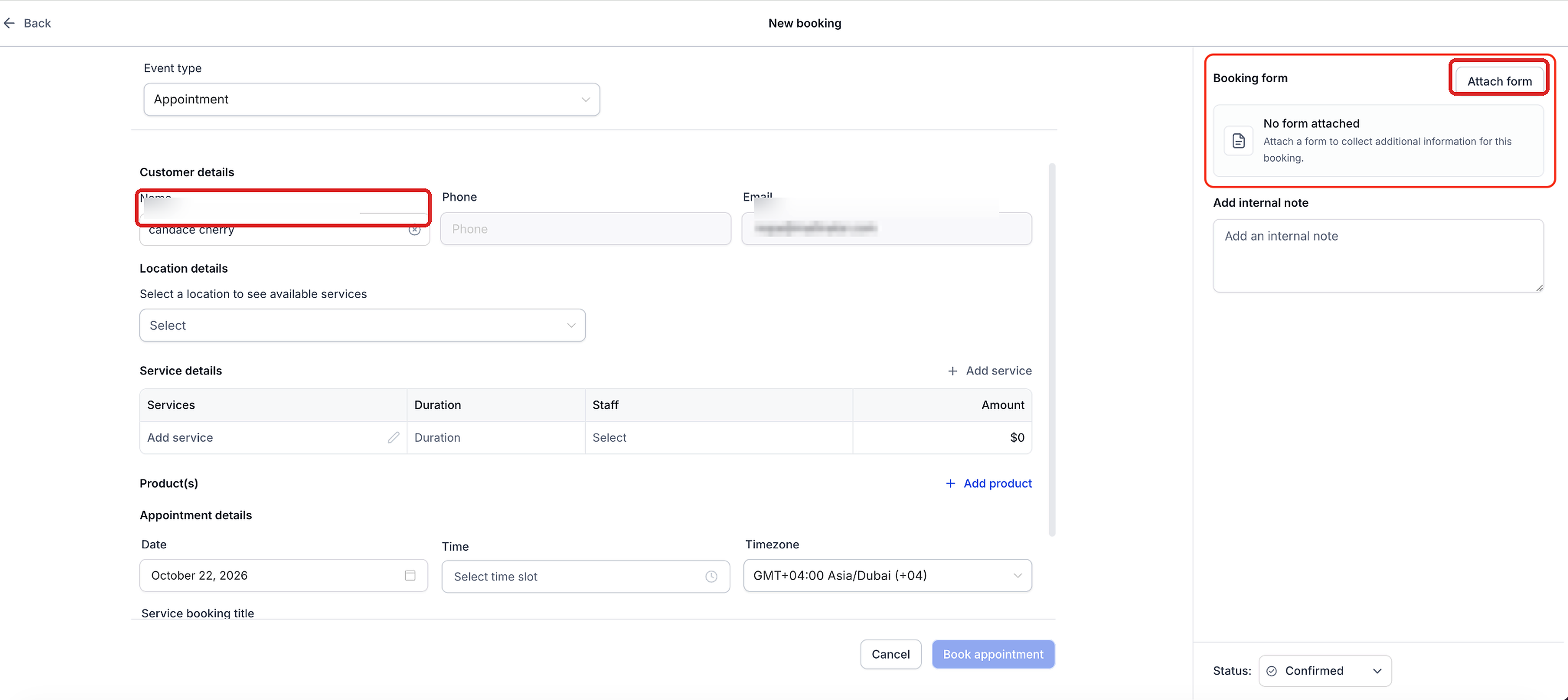
- In the Booking form section on the right, click Attach form.
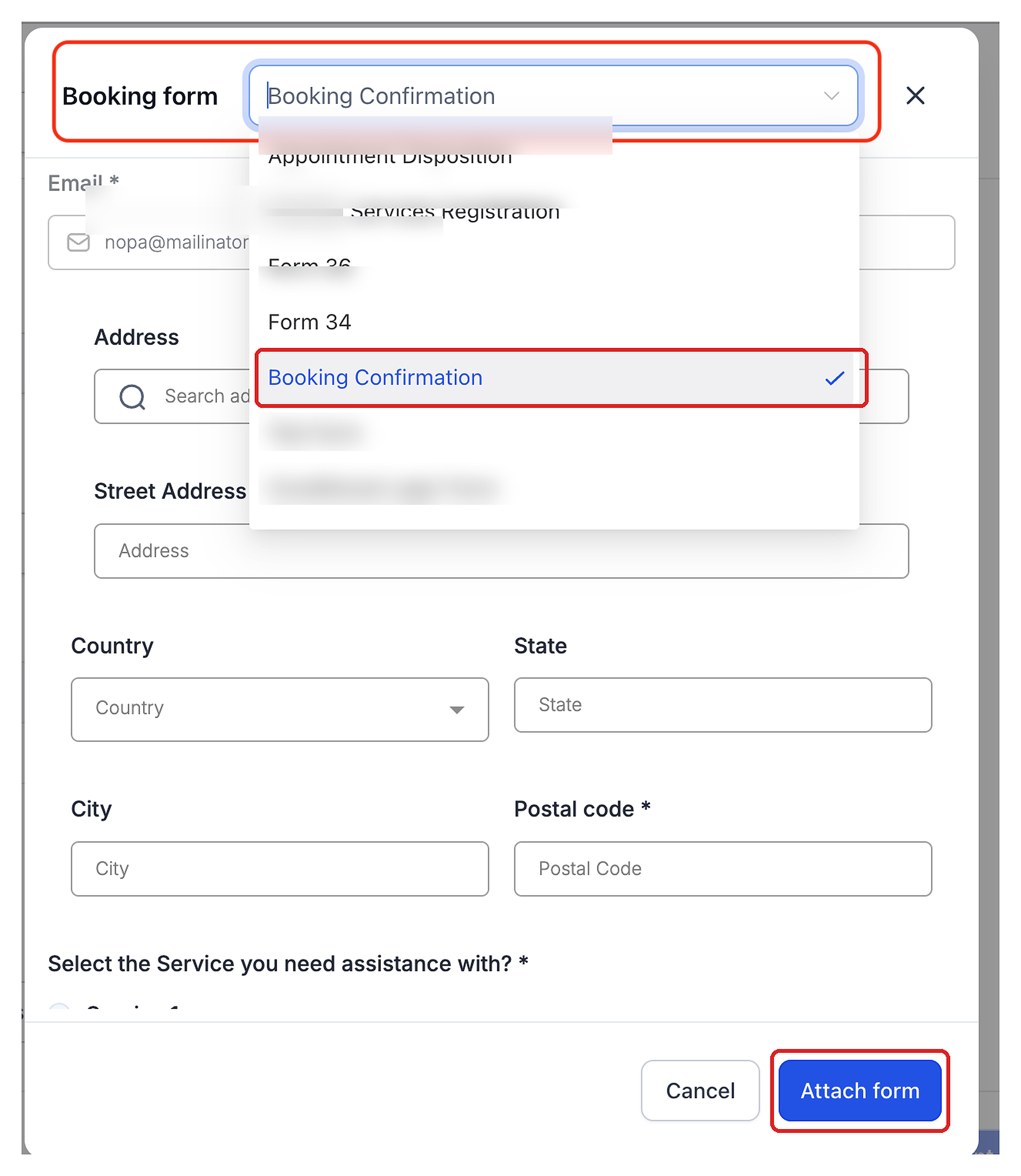
- Review the configured form preselected in the Booking form dropdown.
- If needed, select another available form from the dropdown.
- Review the prefilled contact details and complete the remaining applicable fields on the customer's behalf.
- Click Attach form at the bottom of the form window.
- Confirm that the selected form appears in the Booking form section.
- Complete the applicable location, service, staff, date, time, and other booking details.
- Review the booking and click Book appointment.
Create a Rental Booking With an Attached Form
Rental bookings use the same optional form attachment process. Complete the intake form before finalizing the rental reservation.
- Open the relevant Chat To Clients CRM Sub-Account.
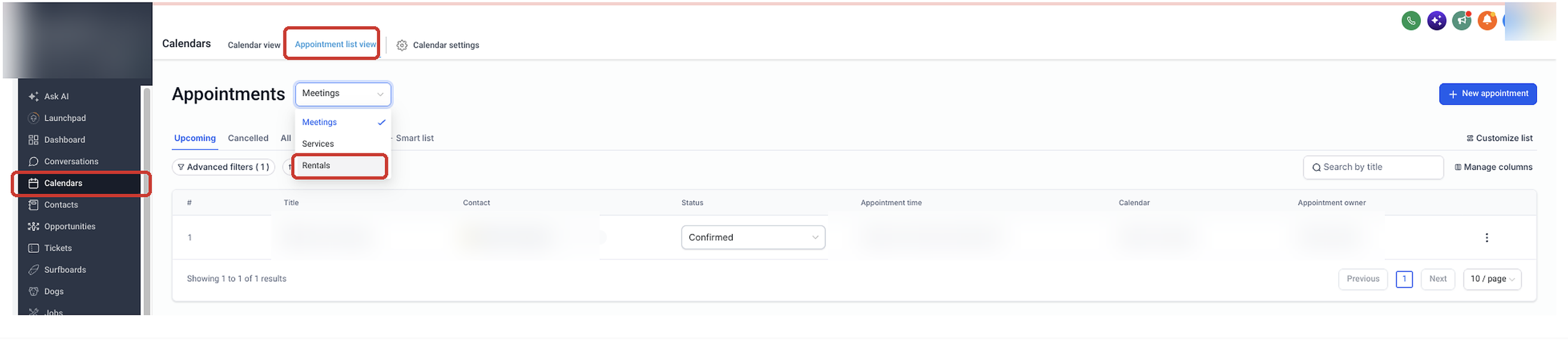
- Select Calendars from the left navigation.
- Open Appointment List View.
- Select Rentals from the scheduling-type dropdown.
- Click + Create Booking to open New booking.
- Under Customer details, select the contact.
- In the Booking form section, click Attach form.
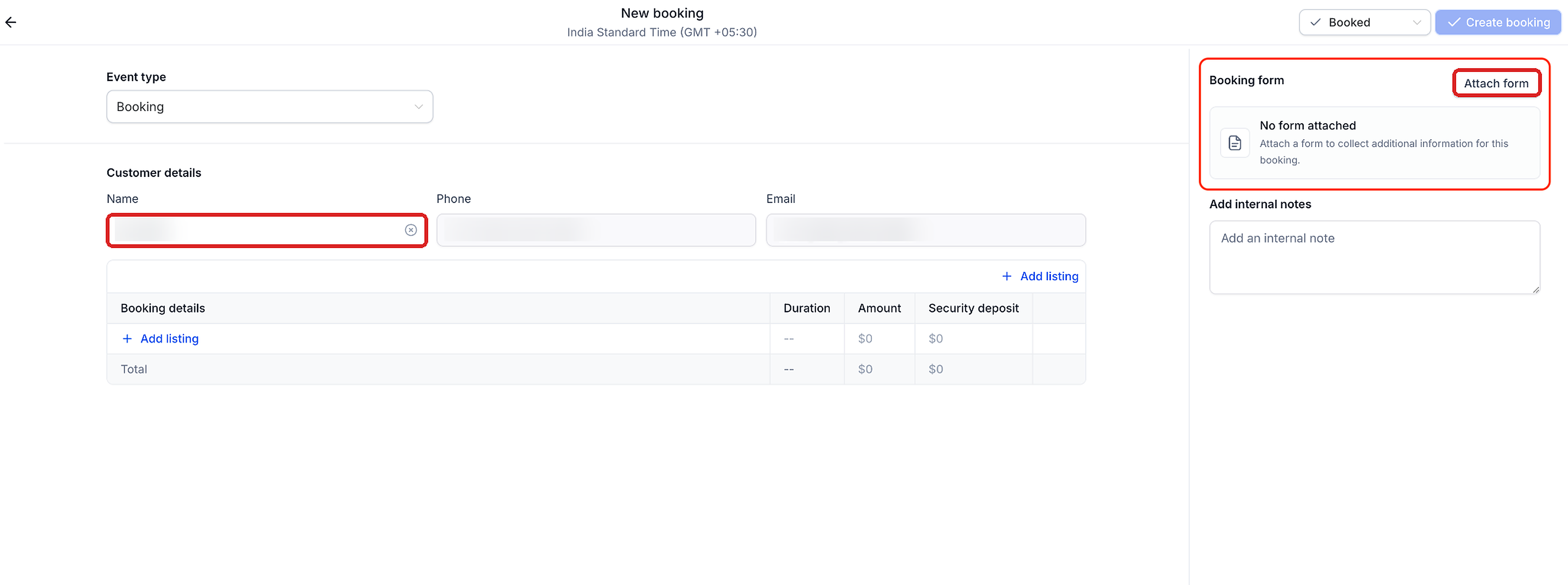
- Review the preselected form or choose another available form from the Booking form dropdown.
- Review the prefilled contact details and complete any remaining applicable form fields.
- Click Attach form in the form window.
- Confirm that the selected form appears in the Booking form section.
- Under Booking details, click + Add listing and complete the applicable rental details.
- Select the appropriate booking status.
- Review the booking and click Create booking.
How to View a Submitted Booking Form
After creating a booking with an attached form, you can return to its booking details to review the submitted information.
View a Service Booking Form Submission
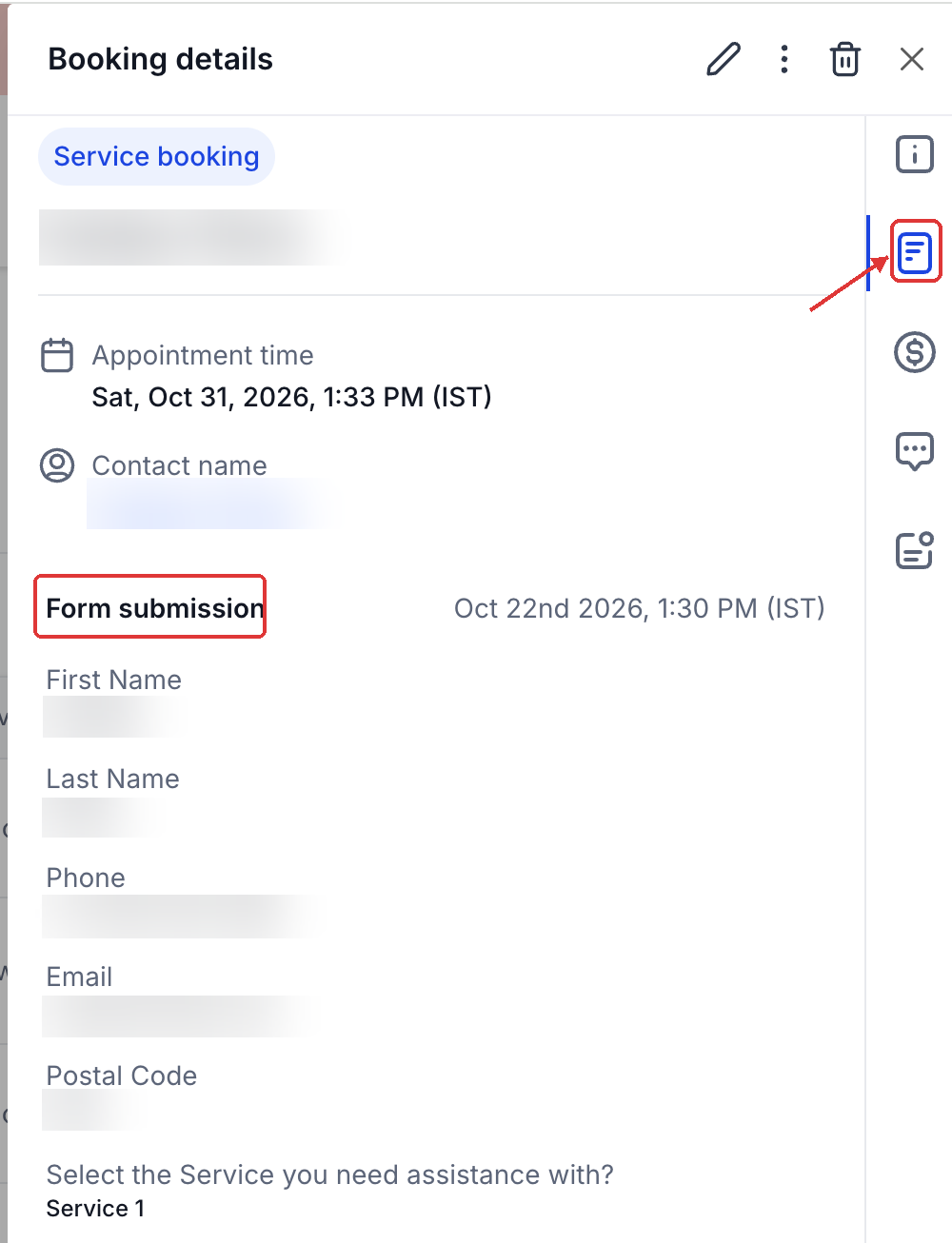
The Service booking details panel displays the submitted form responses alongside the appointment information.
- Open the relevant Chat To Clients CRM Sub-Account.
- Select Calendars.
- Open Calendar View and select Services.
- Select the saved appointment to open Booking details.
- Select the form icon in the booking details panel to view Form submission.
View a Rental Booking Form Submission
Rental booking details can also be reopened to review information associated with the reservation.
- Open the relevant Chat To Clients CRM Sub-Account.
- Select Calendars.
- Open Appointment List View.
- Select Rentals from the scheduling-type dropdown.
- Locate the saved booking and select View to open its booking details.
- Review the attached form submission in the booking details.
Frequently Asked Questions
Q: Is a form required when creating a Service or Rental booking?
No. Attaching a form is optional, and you can create the booking without one.
Q: Does the preselected form attach automatically?
No. You must complete the form and select Attach form before finishing the booking.
Q: Can I choose a different form for a booking?
Yes. Use the Booking form dropdown to select another available form before attaching it.
Q: Can I attach or edit a form after creating the booking?
No. Forms can only be attached during booking creation and cannot be added or edited afterward.