
What are Contactless Forms in Chat To Clients CRM?
Contactless Forms in Chat To Clients CRM allow you to create Opportunities, Companies, and Custom Object records without requiring contact information. You can create an opportunity independently or create two associated records from a single form submission. This simplifies quote requests, deal registrations, property inquiries, and other business processes without creating unnecessary contact records.
Note: This feature is currently available as part of the Opportunity

First Private Beta and is accessible only in locations enabled for the beta.
TABLE OF CONTENTS
- Key Benefits of Contactless Forms
- Supported Object Combinations
- Adding Object Fields
- Understanding Association Labels
- Configuring Opportunity Settings
- How to Set Up Contactless Forms
- Frequently Asked Questions
- Related Articles
Key Benefits of Contactless Forms
Contactless Forms help businesses collect the right information and automatically organize records without depending on contact details.
No Contact Required: Create opportunities and other supported records without collecting a name, email, or phone number.
Multiple Record Creation: Create two linked records from a single form submission.
Automatic Associations: Connect records using predefined association labels.
Flexible Data Collection: Add Opportunity, Company, and Custom Object fields based on your needs.
Opportunity Configuration: Set the pipeline, stage, status, and value for newly created opportunities.
Supported Object Combinations
Contactless Forms support different object combinations, allowing you to create records that match your business processes.
| Combination | Example Use Case |
|---|---|
| Opportunity Only | Quote request or project inquiry |
| Opportunity + Company | Partner deal registration |
| Opportunity + Custom Object | Property viewing request |
| Company + Custom Object | Commercial lease inquiry |
When two objects are included, Chat To Clients CRM creates both records and automatically links them using the selected association label.
Adding Object Fields
The Add Object Fields option lets you select fields from Opportunities, Companies, or existing Custom Objects. This ensures submitted information is stored directly in the appropriate records.
Open the Form Builder.
Click Add Object Fields.
Select Opportunity, Company, or a Custom Object.
Choose the fields to include in your form.
Important: Opportunity Name is required whenever a form contains Opportunity fields.
Understanding Association Labels
Association labels define how two records are connected. When adding fields from a second object, Chat To Clients CRM prompts you to select a label, such as Primary Company, Business, or Listing.
To configure an association label:
Navigate to Settings > Objects > Associations. (Available once you choose the object)
Create or select the required association label.
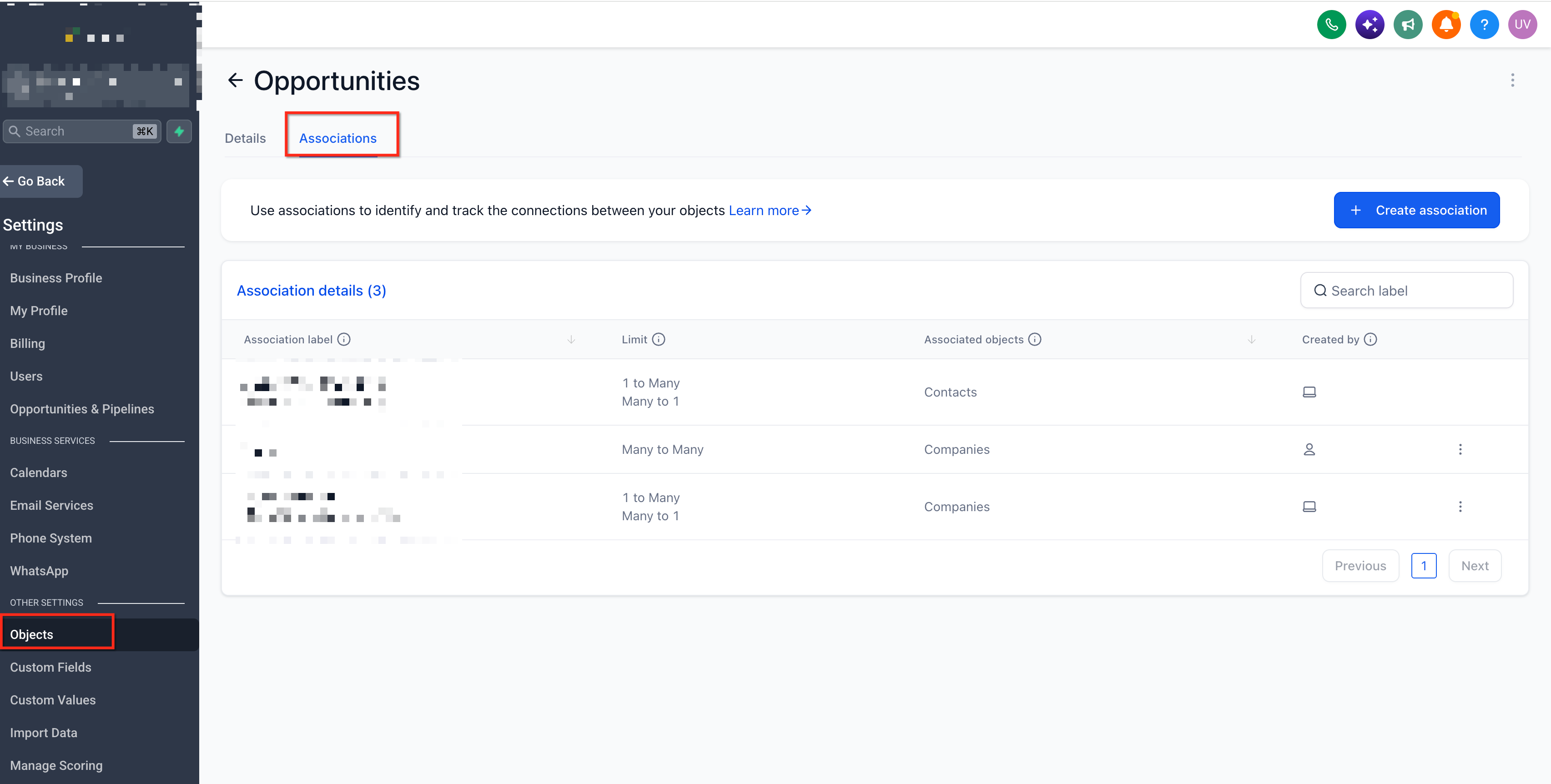
Return to the form and select the label when adding the second object.
Click Save.
For more details, see Associations Between Opportunities, Companies & Custom Objects.
Configuring Opportunity Settings
Opportunity Settings determine where newly created opportunities appear in the CRM. You can configure the pipeline, stage, status, and opportunity value for every submission.
Select the Opportunity Name field.
Click Edit Opportunity Settings.
Configure the Pipeline, Stage, Status, and Opportunity Value.
Save your settings.
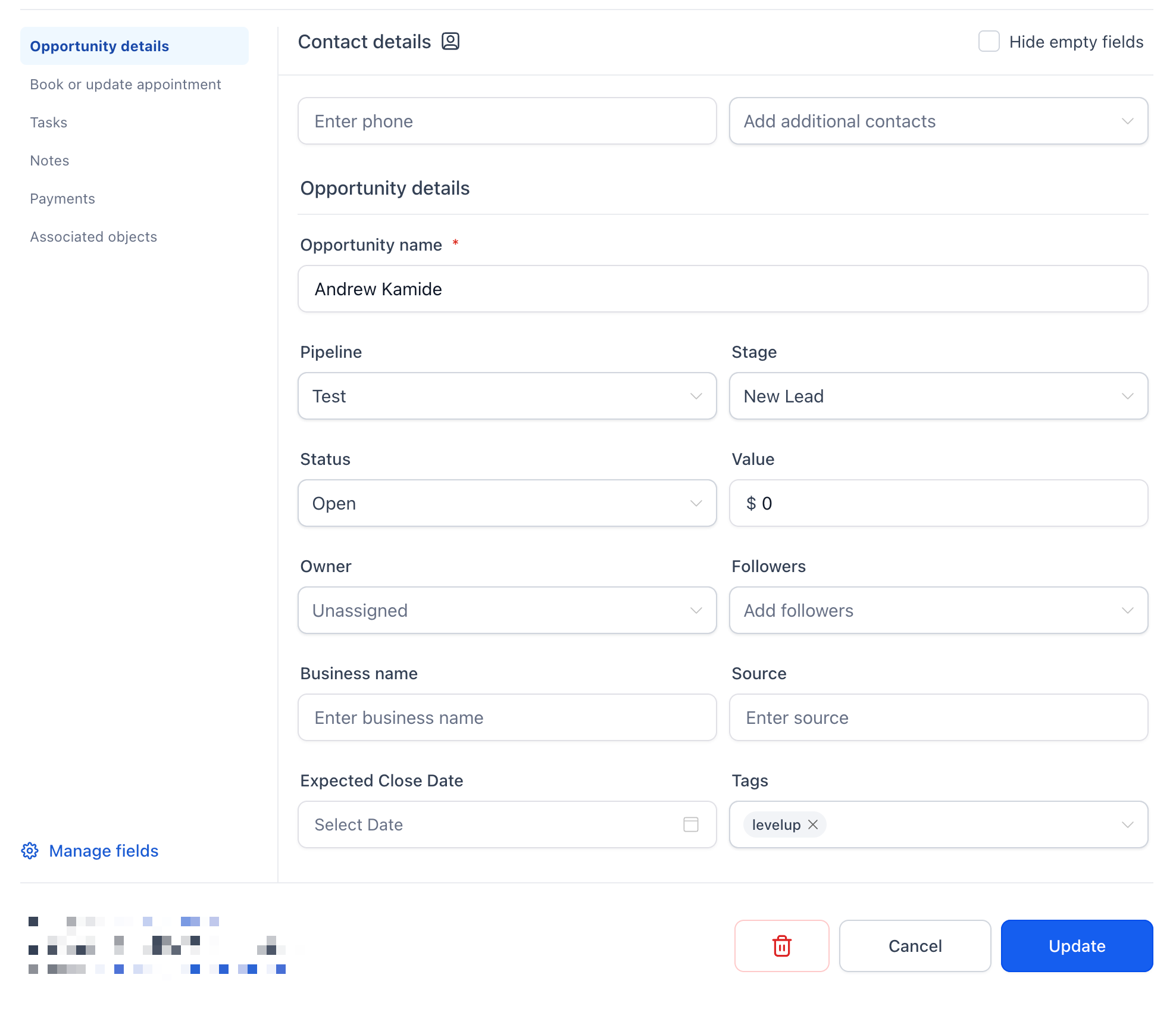
Opportunities created through these forms have their Source set to FORM.
Note: Opportunity Value is configured in Opportunity Settings. To collect an amount entered by the visitor, use an Opportunity Custom Field such as Proposal Amount.How to Set Up Contactless Forms
Setting up a contactless form involves adding the required object fields, configuring associations when applicable, and defining opportunity settings. Proper configuration ensures the correct records are created automatically when someone submits the form.
Open the Form Builder: Navigate to Sites > Forms and create or open a form. Remove the default Contact fields.
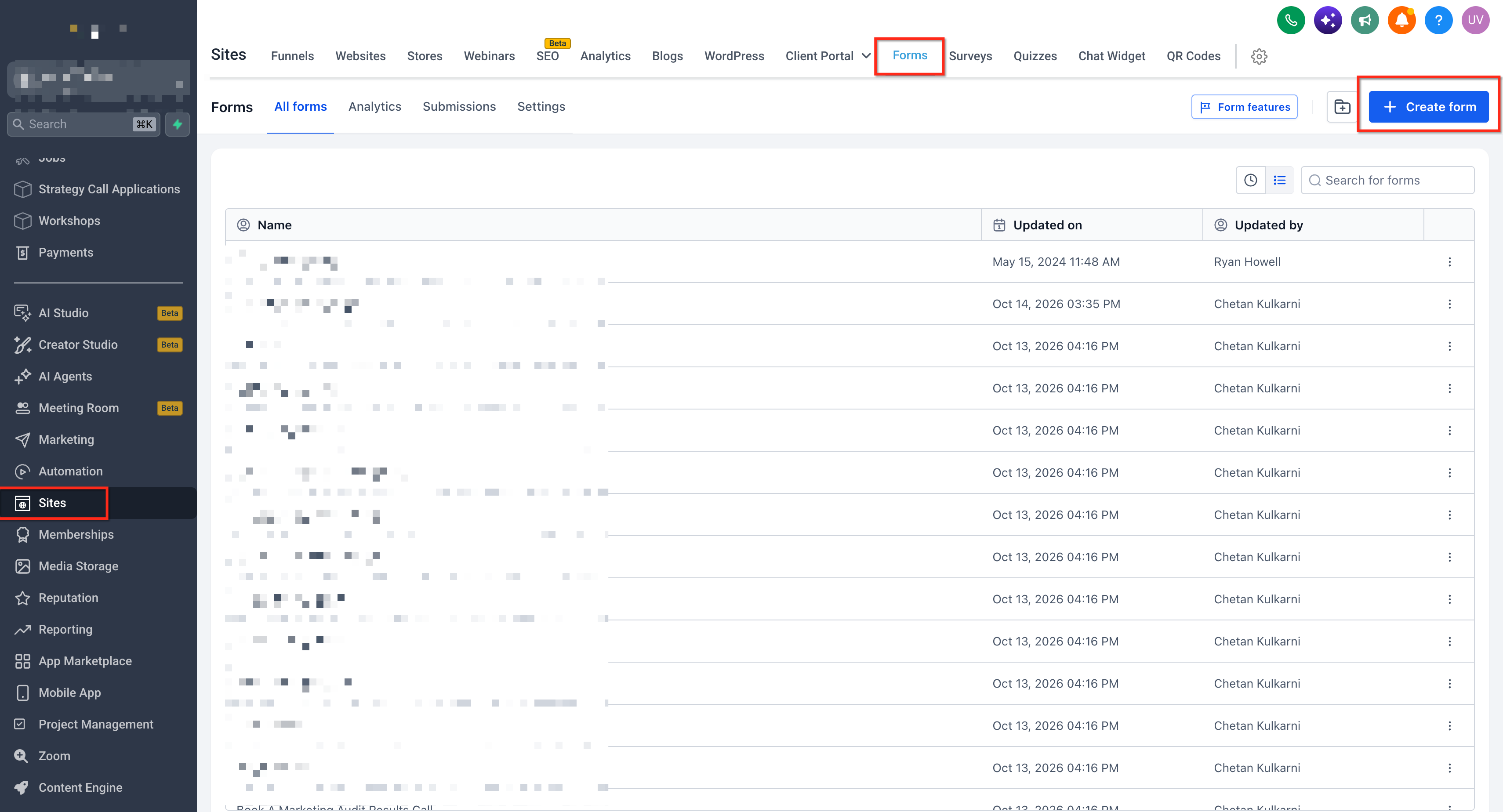
Add Object Fields: Click Add Object Fields, choose Opportunity or Company, and add the required fields.
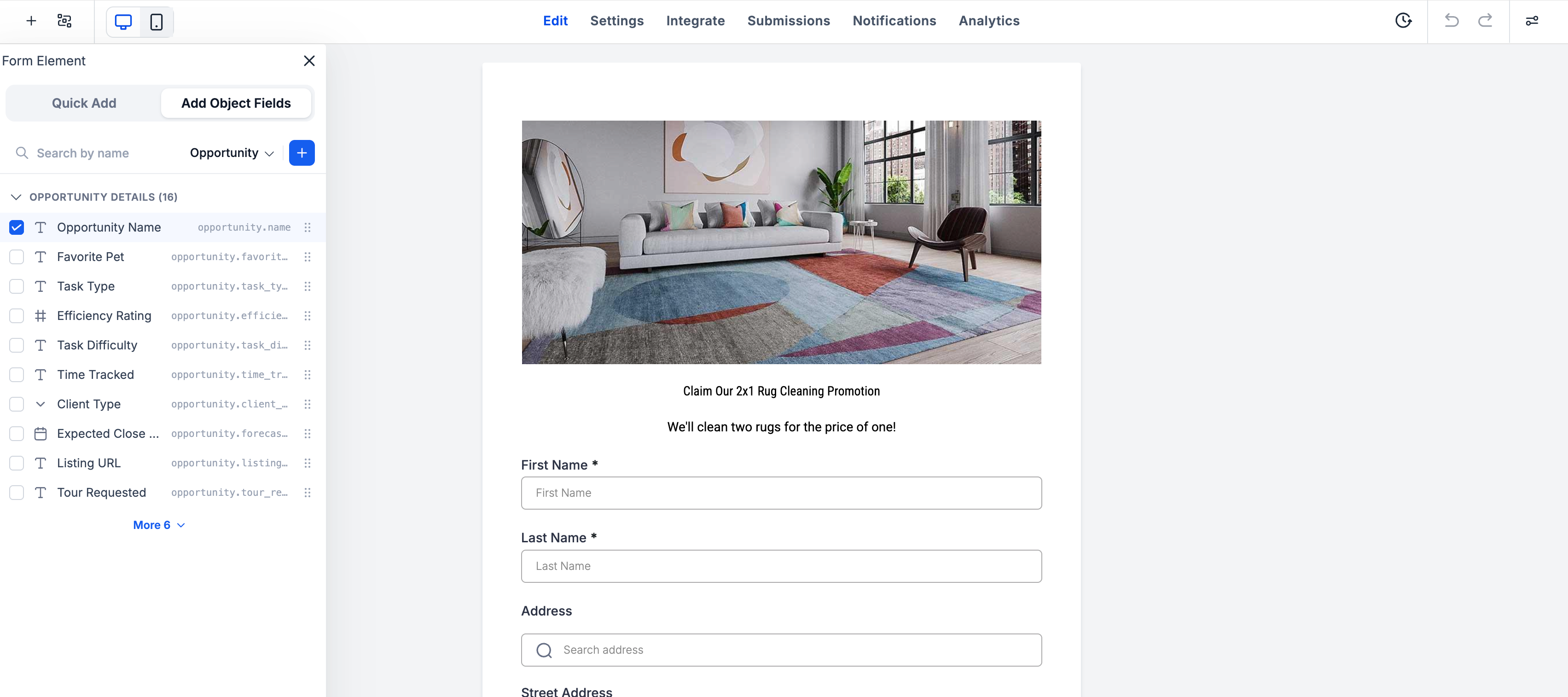
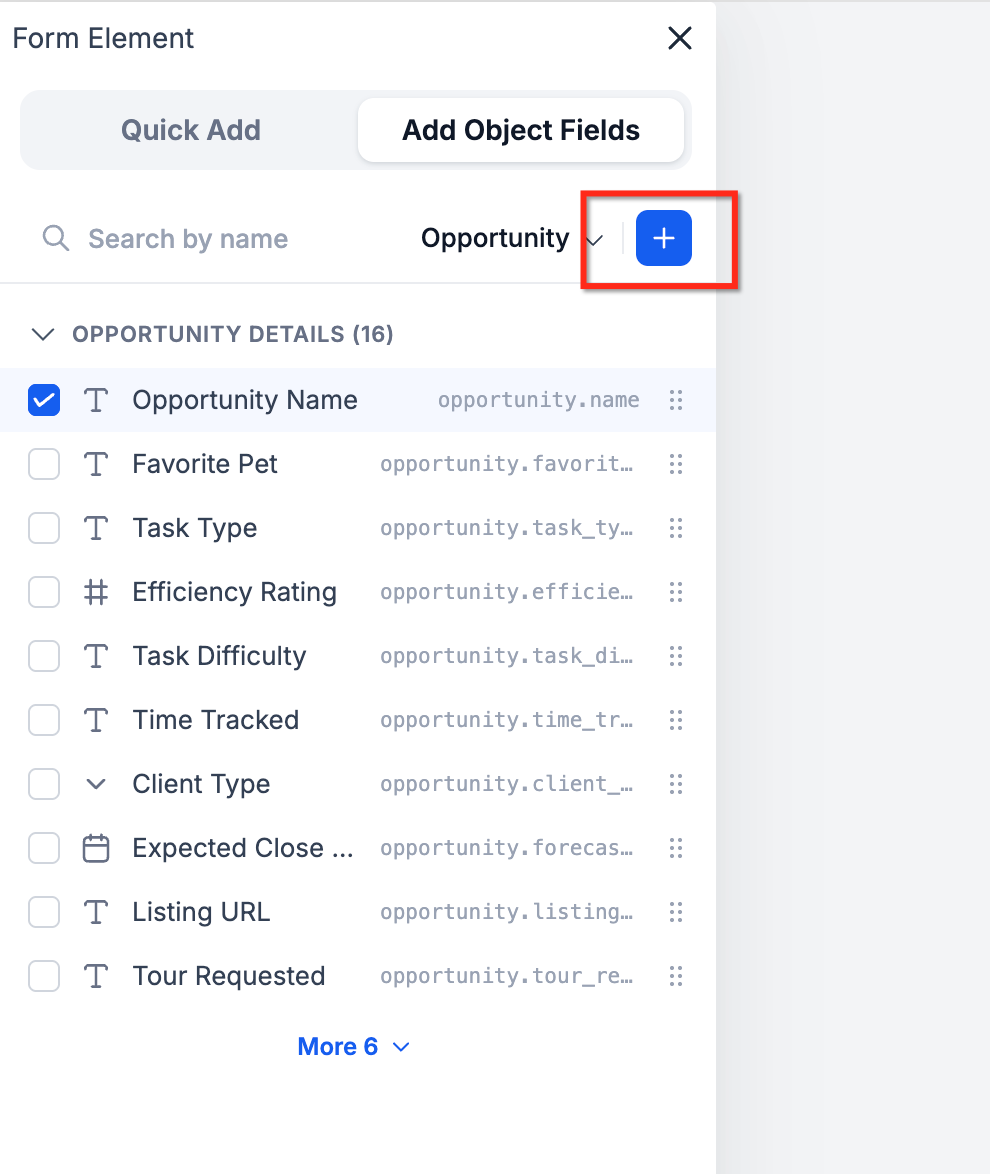
Add a Second Object (Optional): Switch the object dropdown to Company or a Custom Object, add its fields, select the association label in the pop-up, and click Save. Skip this step for an opportunity-only form.
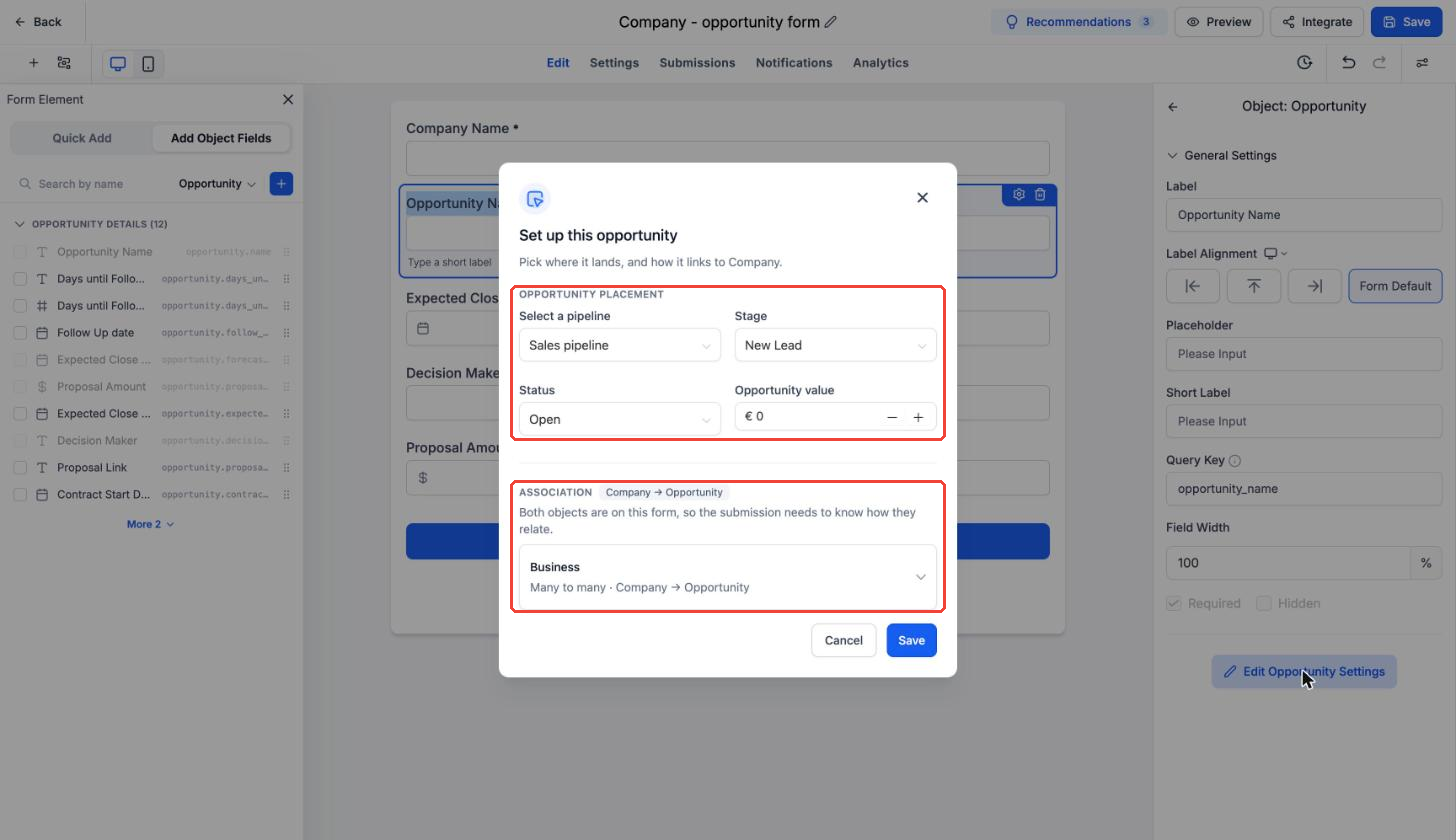
Configure Opportunity Settings: If the form includes Opportunity fields, select Opportunity Name > Edit Opportunity Settings and configure the pipeline, stage, status, and value.
Save and Share: Save the form and share it using the available publishing options.
Review Submissions: Navigate to Sites > Forms > Submissions to view submitted entries. Check the created records to verify their associations.
Frequently Asked Questions
Q: Can I create an opportunity without a contact?
Yes. An opportunity-only form creates an opportunity without requiring contact information.
Q: Can a form create more than two records?
The release currently documents single-opportunity forms and supported two-object combinations. Creating more than two records is not confirmed.
Q: Can I use my own association labels?
Yes. Configure association labels under Settings > Objects > Associations before selecting them in the form.
Q: Can visitors enter an opportunity value?
You can collect a visitor-entered amount using an Opportunity Custom Field. This does not automatically change the Opportunity Value configured in the form settings.
Q: Can I use contactless Forms in Surveys and Quizzes?
The release confirms this functionality for Forms. Support for Surveys and Quizzes has not been established.