
How to Use Your Automatically Created Profile and Business Cards
Chat To Clients CRM automatically creates a personal Profile Card and a shared Business Card the first time an authorized user opens the QR icon in a sub-account. Both cards use existing account information, so you can start sharing without building them manually. You can customize card details and appearance, share cards by link or QR code, track scans, and optionally collect leads through Exchange Contact. This guide explains how to access, customize, share, and manage permissions for automatically generated Profile and Business Cards.
TABLE OF CONTENTS
- What Are Automatically Generated Profile and Business Cards?
- Key Benefits of Profile and Business Cards
- Prerequisites and Limitations
- How to Set Up and Use Your Cards
- Card Permissions and System Folders
- Frequently Asked Questions
- Related Articles
What Are Automatically Generated Profile and Business Cards?
Profile and Business Cards are digital cards that share personal or business information through a link or QR code. Chat To Clients CRM creates both cards automatically the first time an authorized user opens the QR icon in a sub-account.
| Card | Details | Access |
|---|---|---|
| Profile Card | Uses your name, title, and contact details. | Personal to each team member. |
| Business Card | Uses the sub-account's business information. | Shared by users with the appropriate permission. |
Each card has its own shareable link, downloadable QR code, and scan analytics. You can update the card later without creating it again.
Key Benefits of Profile and Business Cards
Automatically generated cards make it easier to share contact information while providing customization, lead collection, and scan tracking.
- Ready to use: Both cards are created automatically using existing account details.
- Easy sharing: Copy a link, download a QR code, or save a supported QR code to a digital wallet.
- Custom links: Add X, Instagram, Facebook, LinkedIn, YouTube, websites, booking pages, portfolios, and other links.
- Contact sharing: Let visitors save your contact details directly to their phones.
- Lead capture: Enable Exchange Contact to collect visitor details in your CRM.
- Scan analytics: Track how often each card is scanned.
- Flexible design: Customize card colors, appearance, and landing-page details.
Prerequisites and Limitations
Access to automatically generated cards depends on the user's QR Codes access and card permissions. View access allows a user to view and share a card, while Manage access is required to edit it.
- You must have QR Codes access and the appropriate card permission.
- Save Contact is enabled automatically on both cards.
- Exchange Contact is disabled by default.
- Regular users can access only their own Profile Cards.
- The Business Card is shared within the sub-account.
- These permissions do not affect manually created QR codes.
Note: If a user does not have permission to access either card, the QR icon is not displayed.
How to Set Up and Use Your Cards
Profile and Business Cards are generated automatically on first access, so no manual card creation is required. Once available, you can review their information, customize them, and share them with others.
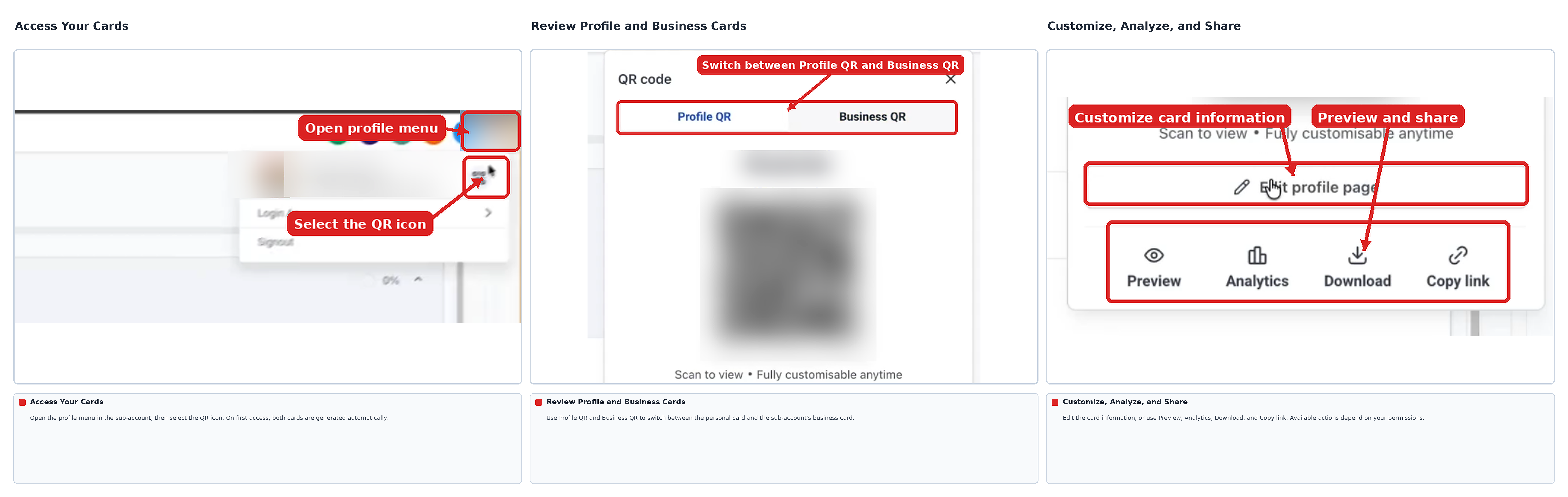
Access Your Profile and Business Cards
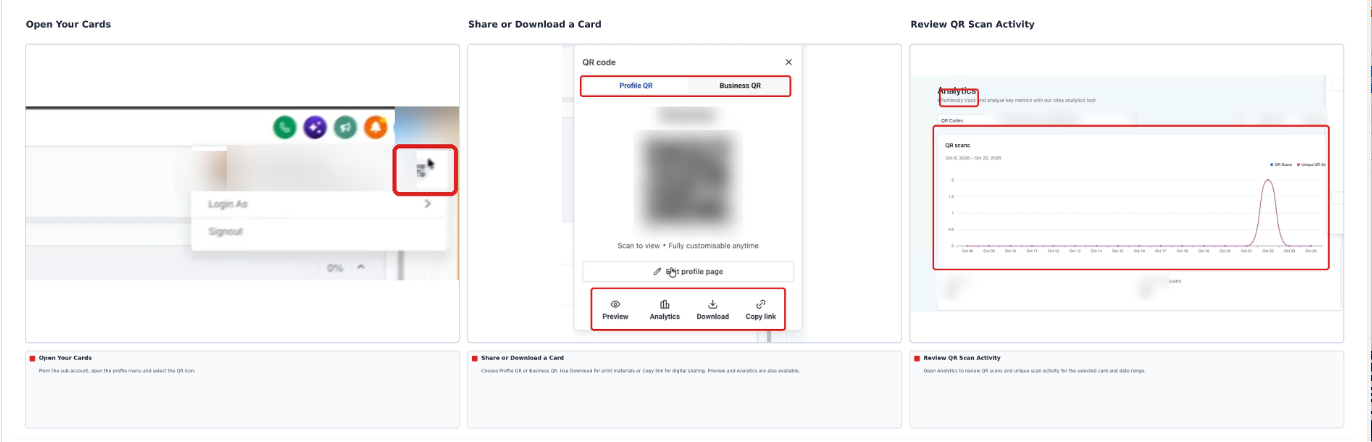
The QR icon in the top navigation bar provides quick access to both cards from inside a sub-account.
- Open your Chat To Clients CRM Sub-Account.
- Click the QR icon in the top navigation bar.
- On first access, Chat To Clients CRM automatically generates your Profile Card and the sub-account's Business Card.
- Review the cards shown in the popover. Available actions depend on your permissions.
Customize Your Cards
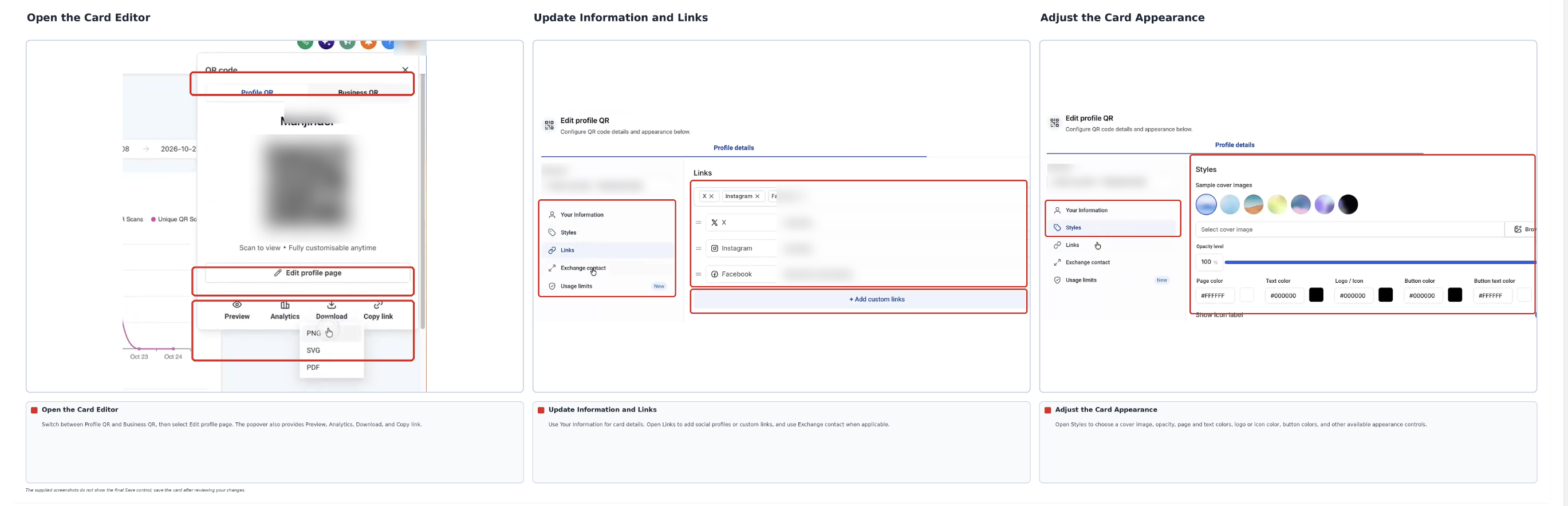
Both cards remain editable after automatic creation. Users with Manage permission can update card information, links, and appearance.
- From your Sub-Account, click the QR icon.
- Locate the card you want to customize.
- Open the card editor.
- Update the available personal or business details.
- Add social profiles or custom links, such as a website, email address, booking page, or portfolio.
- Adjust the card's design, colors, or landing-page options as needed.
- Save your changes.
Enable Exchange Contact to Collect Leads
Exchange Contact allows someone viewing your card to submit their information through a form. When submitted, Chat To Clients CRM creates a CRM contact and records which card generated the submission.
- From your Sub-Account, click the QR icon.
- Open a card you have permission to manage.
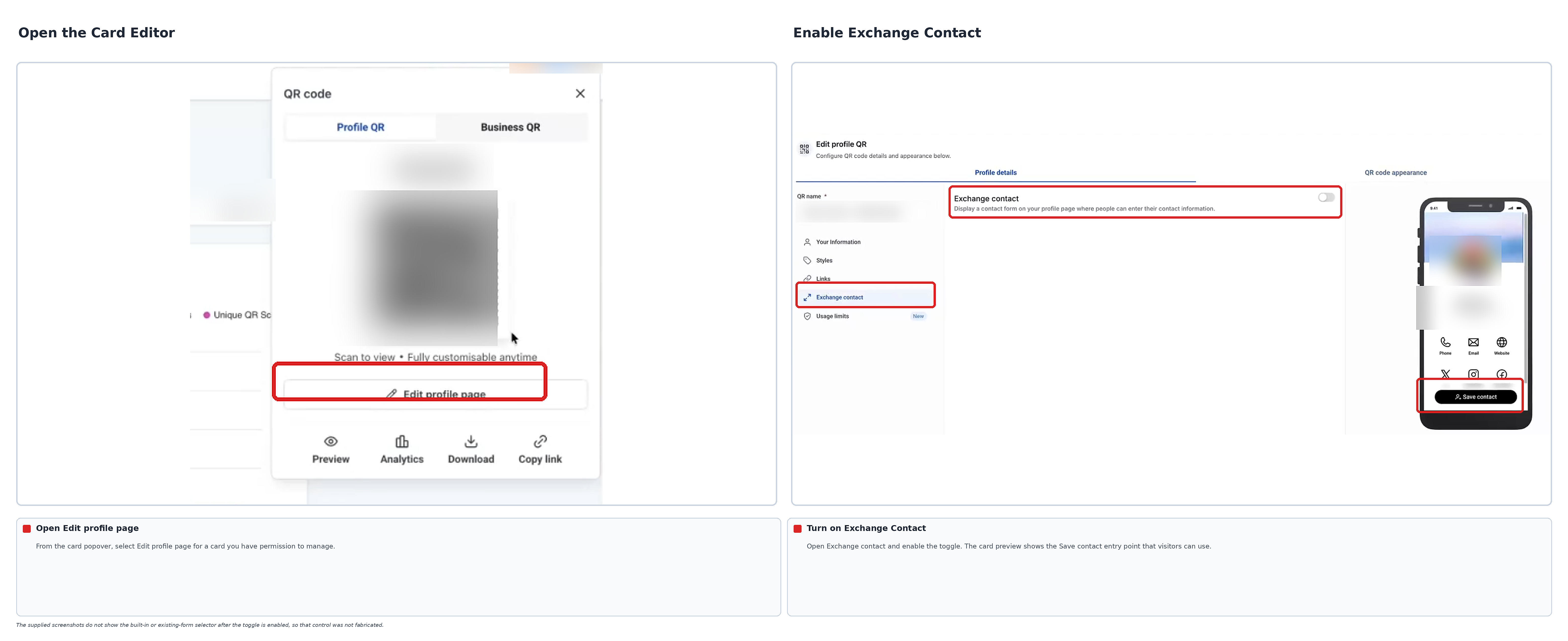
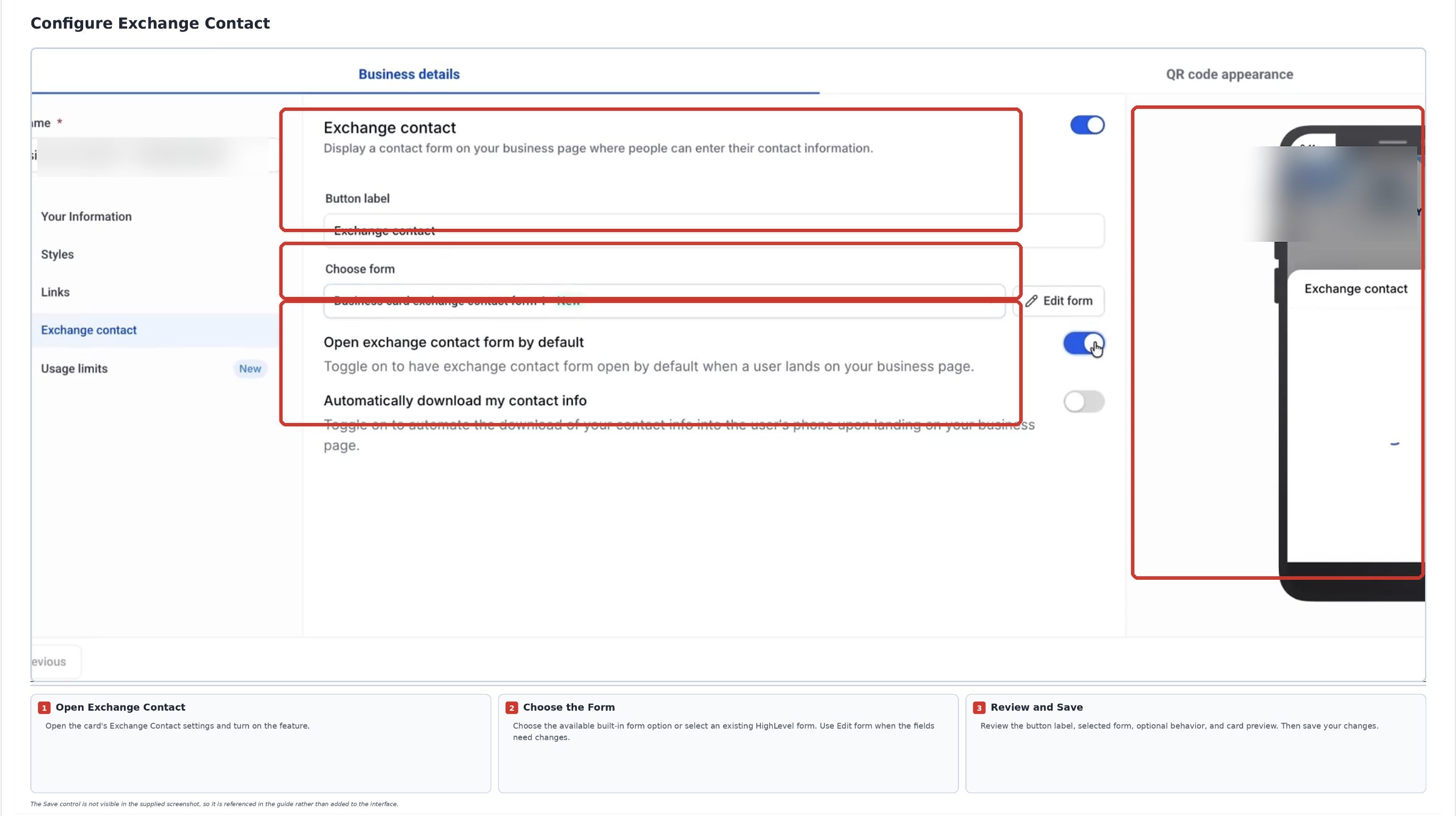
- Open the card's Exchange Contact settings and enable the feature.
- Choose the available built-in form option or select an existing Chat To Clients CRM form.
- Review the configuration and save your changes.
Note: Exchange Contact is optional. Visitors can still use Save Contact to save your details without submitting their own information.
Share Your Cards and Review Scans
Each card has its own link and QR code. You can share the card digitally, download its QR code for print or in-person use, and review scan activity.
- From your Sub-Account, click the QR icon.
- Locate the card you want to share.
- Use the available sharing controls to copy the card link or download its QR code.
- Share the link online or use the QR code on printed materials.
- Open the card's analytics to review scan activity.
Card Permissions and System Folders
Chat To Clients CRM provides separate permissions for personal Profile Cards and the shared Business Card. System folders keep automatically generated cards organized separately from manually created QR codes.
Manage Card Permissions
Administrators can control which users can view or manage automatically generated cards.
- Open the relevant Chat To Clients CRM Sub-Account.
- Select Settings from the left navigation.
- Click Users.
- Open the user whose permissions you want to change.
- Select Roles & Permissions.
- Find the QR Codes permission area and enable the required QR Codes access.
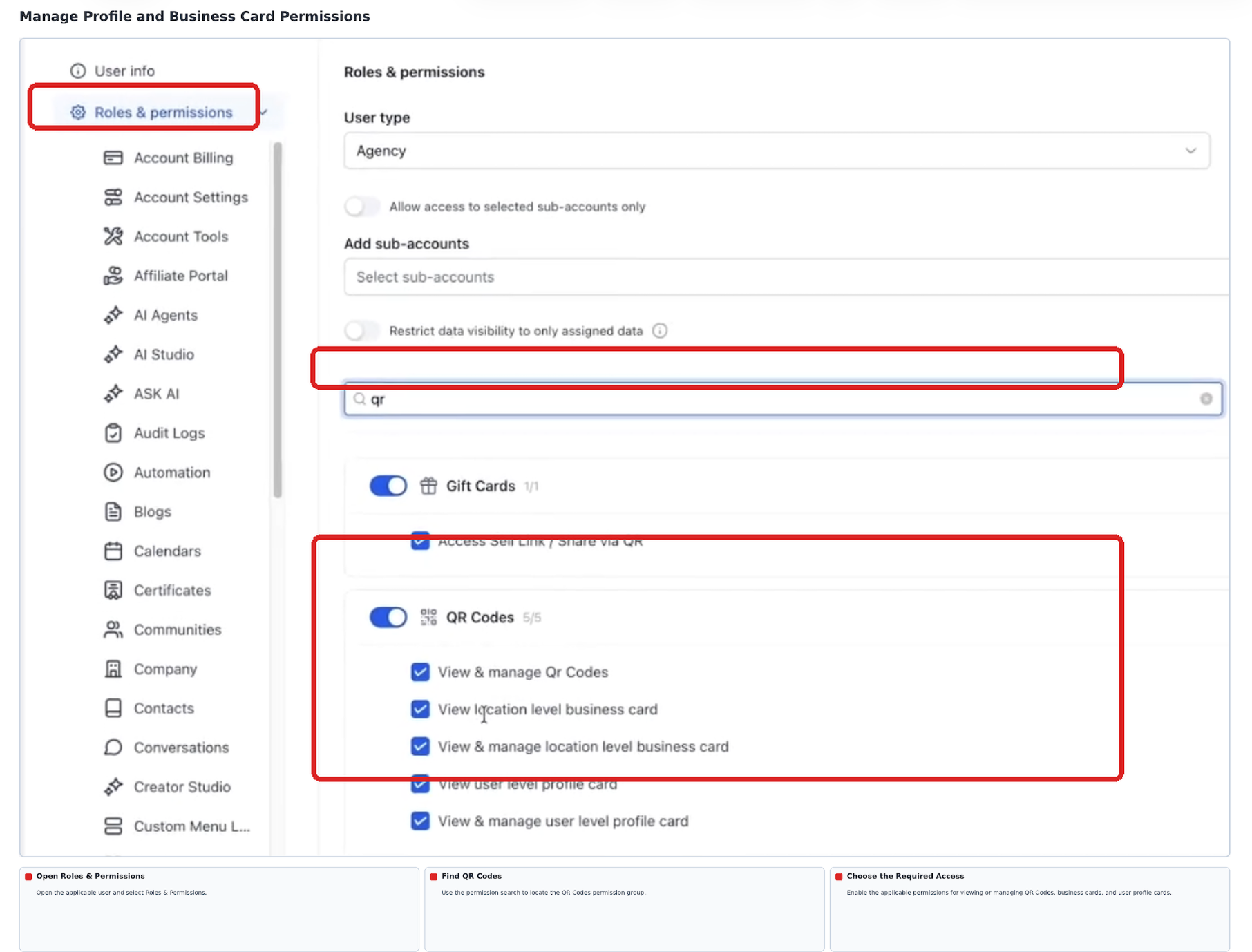
- Configure the appropriate card permissions.
- Click Save.
The four card permissions are:
| Permission | What It Allows |
|---|---|
| View location level business card | View the Business Card, analytics, and downloads. |
| View & manage location level business card | View and edit the shared Business Card. |
| View user level profile card | View permitted Profile Cards, analytics, and downloads. |
| View & manage user level profile card | View and edit permitted Profile Cards. |
Important permission rules:
- Manage includes View. You do not need to enable both.
- The four permissions are enabled by default for users, subject to QR Codes access.
- Disabling QR Codes access clears and disables the card permissions.
- Regular users can access only their own Profile Cards.
- Administrators with the appropriate permission can manage other users' Profile Cards.
- Users with Business Card access see the same shared card for their sub-account.
Find Cards in System Folders
Automatically generated cards are stored in protected system folders separately from manually created QR codes.
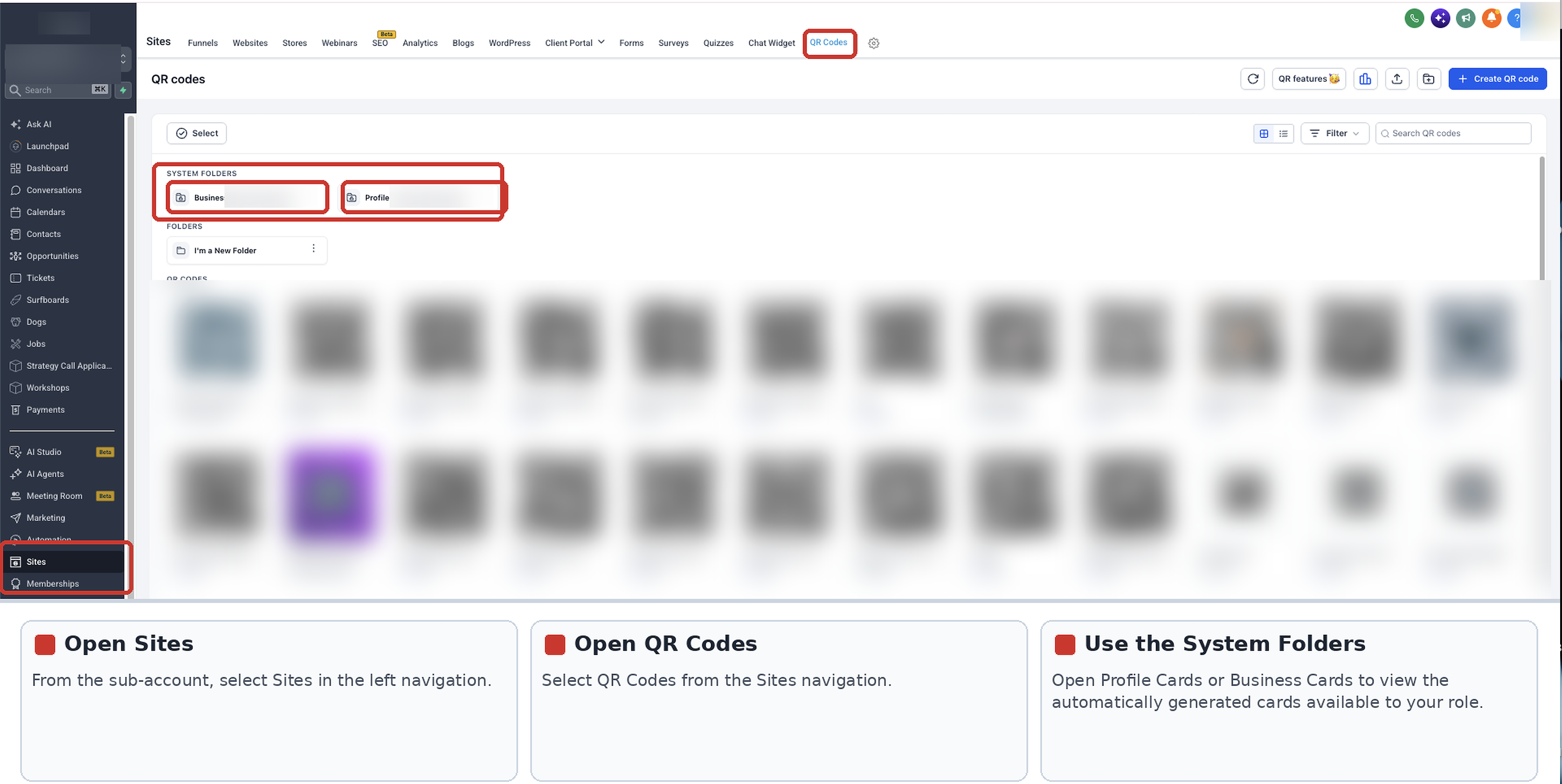
- From your Chat To Clients CRM Sub-Account, select Sites.
- Open QR Codes.
- Locate the System folders section.
- Open Profile Cards or Business Cards to view the cards available to your role.
Note: System folders cannot be renamed or deleted, and new QR codes cannot be created inside them. Automatically generated cards remain editable when the user has the appropriate Manage permission.
Only agency or sub-account administrators with matching permissions can access these cards through the QR Codes list. Regular users can access their own Profile Card through the top-bar QR icon.
Frequently Asked Questions
Q: Why can't I see the QR icon?
You need QR Codes access and the appropriate card permission. If neither card is accessible, the QR icon is hidden.
Q: Can someone save my contact information without sharing theirs?
Yes. Save Contact is enabled automatically. Exchange Contact is separate and optional.
Q: Can I use an existing Chat To Clients CRM form for Exchange Contact?
Yes. You can select an existing form instead of using the built-in form option.
Q: Can team members edit the shared Business Card?
Only users with the appropriate Business Card Manage permission can edit it.
Q: Do these card permissions change my existing QR codes?
No. The four card permissions apply only to automatically generated Profile Cards and Business Cards.