
Manage QR Codes with Search, Filters, Views, and Bulk Actions
Managing a large QR Code library is easier with search, type filters, Grid and List views, quick actions, and bulk management tools. You can quickly find specific QR Codes, identify their type, access common actions, open individual analytics, and manage selected codes without opening each QR Code separately. This article explains how to find, organize, and manage QR Codes efficiently from the QR Codes listing.
Overview of QR Codes Bulk Actions, Renaming & Copy Link Shortcut
The QR Codes listing brings search, filtering, viewing options, quick actions, and bulk management into one place. These controls help you work with larger QR Code libraries while reducing the number of steps needed to find or manage a specific code.
From the listing, you can search QR Codes by name, filter by one or more QR Code types, switch between Grid and List views, access frequently used actions, and manage selected QR Codes in bulk.
Key Benefits of QR Code Bulk Actions
- Find QR Codes faster: Search by name and filter by one or more QR Code types to narrow the listing.
- Choose your preferred view: Switch between Grid and List views based on how you want to browse and manage QR Codes.
- Access common actions faster: Use quick actions for Edit, Copy link, and Analytics without opening each QR Code.
- Identify codes more easily: Type tags help distinguish QR Codes directly from the listing.
- Manage multiple codes efficiently: Select QR Codes and use bulk actions such as Download, Delete, and Move to Folder.
- Open analytics directly: Go from a QR Code card or row to that code's scan analytics without locating it again in the Analytics area.
Search and Filter QR Codes
Search and filters help narrow a large QR Code library so you can quickly find the codes you need before viewing or managing them.
1. From the Sub-Account, go to Sites → QR Codes.
2. Enter a QR Code name in the search field to narrow the listing.
3. Open the Type filter.
4. Select one or more QR Code types you want to display.
5. Use search and Type filters together when you need to narrow the results further.
6. Review the active filter count to see how many QR Code types are currently applied.
Switch Between Grid and List Views
Grid and List views give you different ways to browse the same QR Code library. Use the view that makes it easiest to identify and manage the QR Codes you are working with.
1. Go to Sites → QR Codes.
2. Use the view toggle on the QR Codes listing.
3. Select Grid to browse QR Codes as cards, or select List to review them in rows.
4. In List view, use the available row-level actions to manage an individual QR Code.
Selecting QR Codes in Bulk
Selection enables the bulk toolbar. Choose specific QR Codes or select all visible to run a mass action.
Step 1: Navigate to QR Codes
From the sub-account dashboard, go to Sites → QR Codes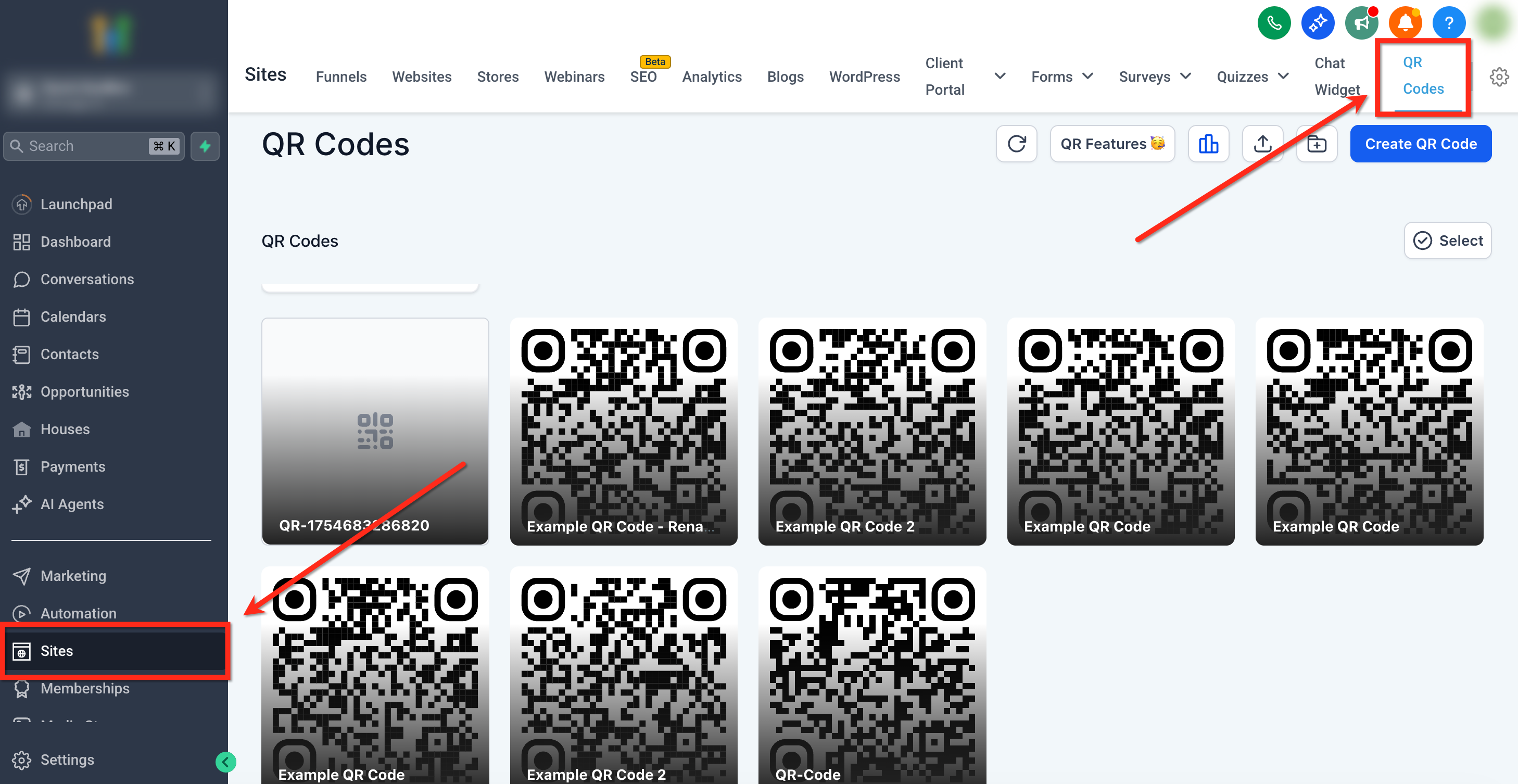
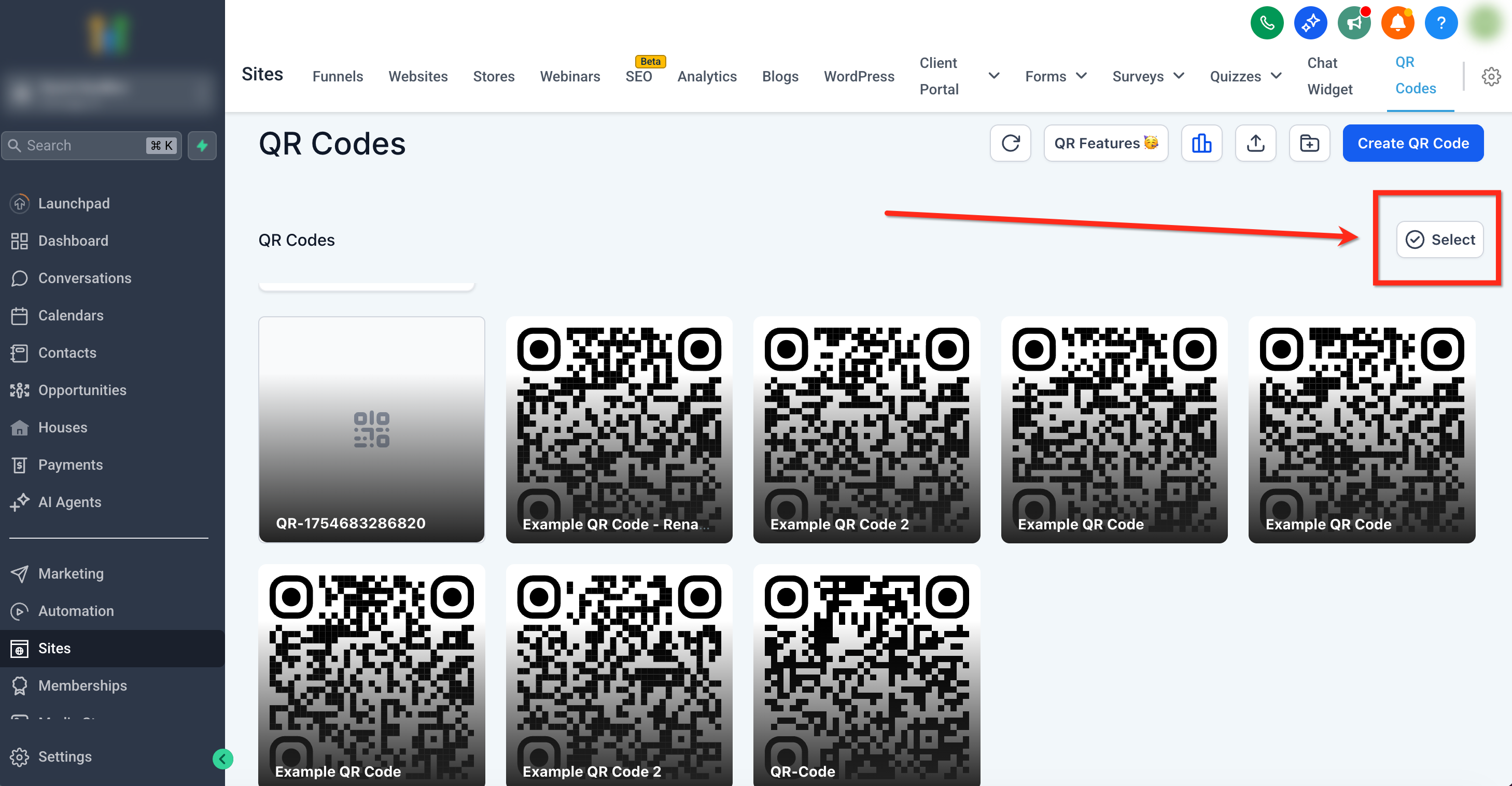
Step 2: Enable Select
Click Select (top right) to enable checkboxes on each card.
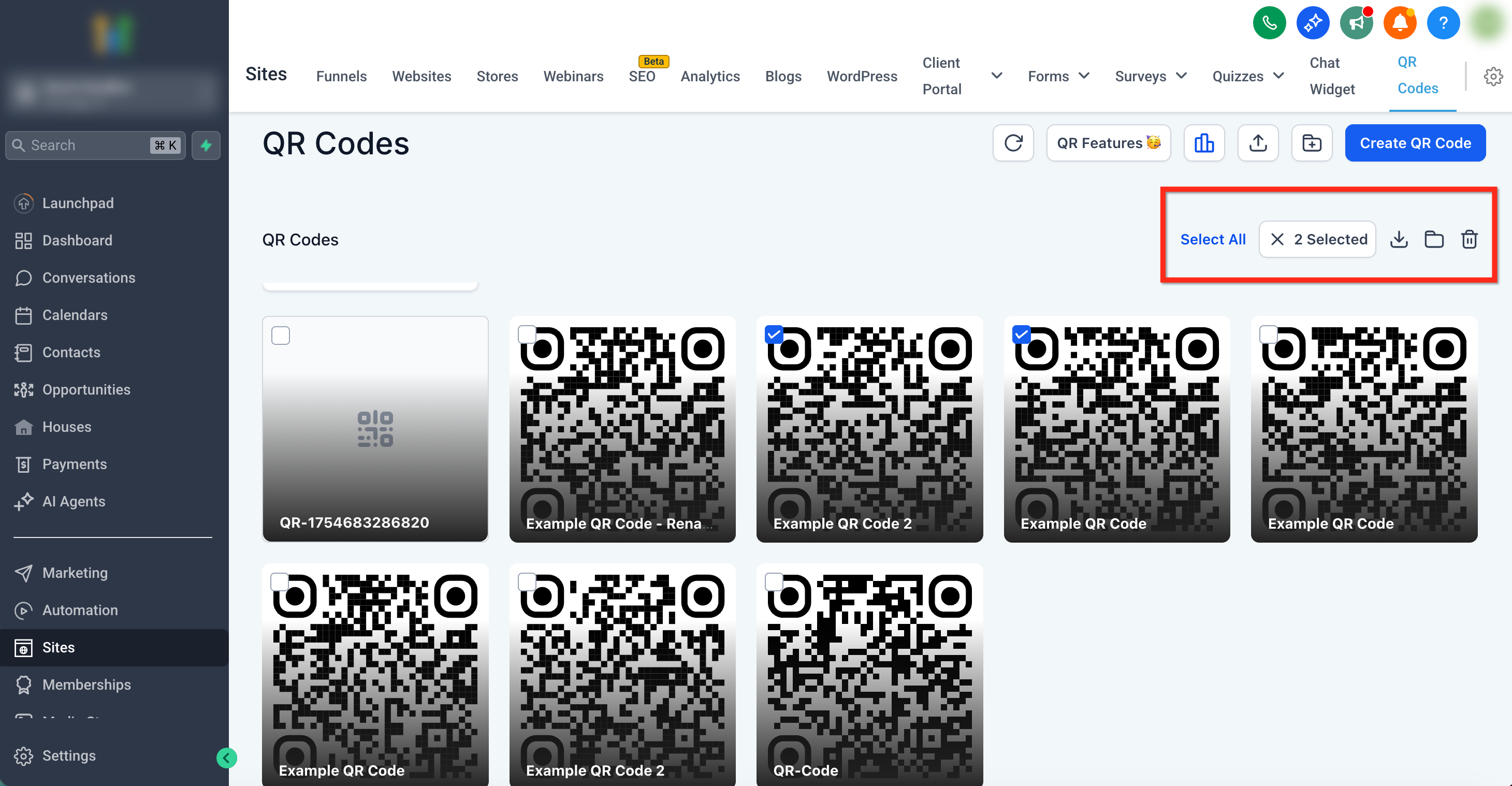
Step 3: Select QR Codes
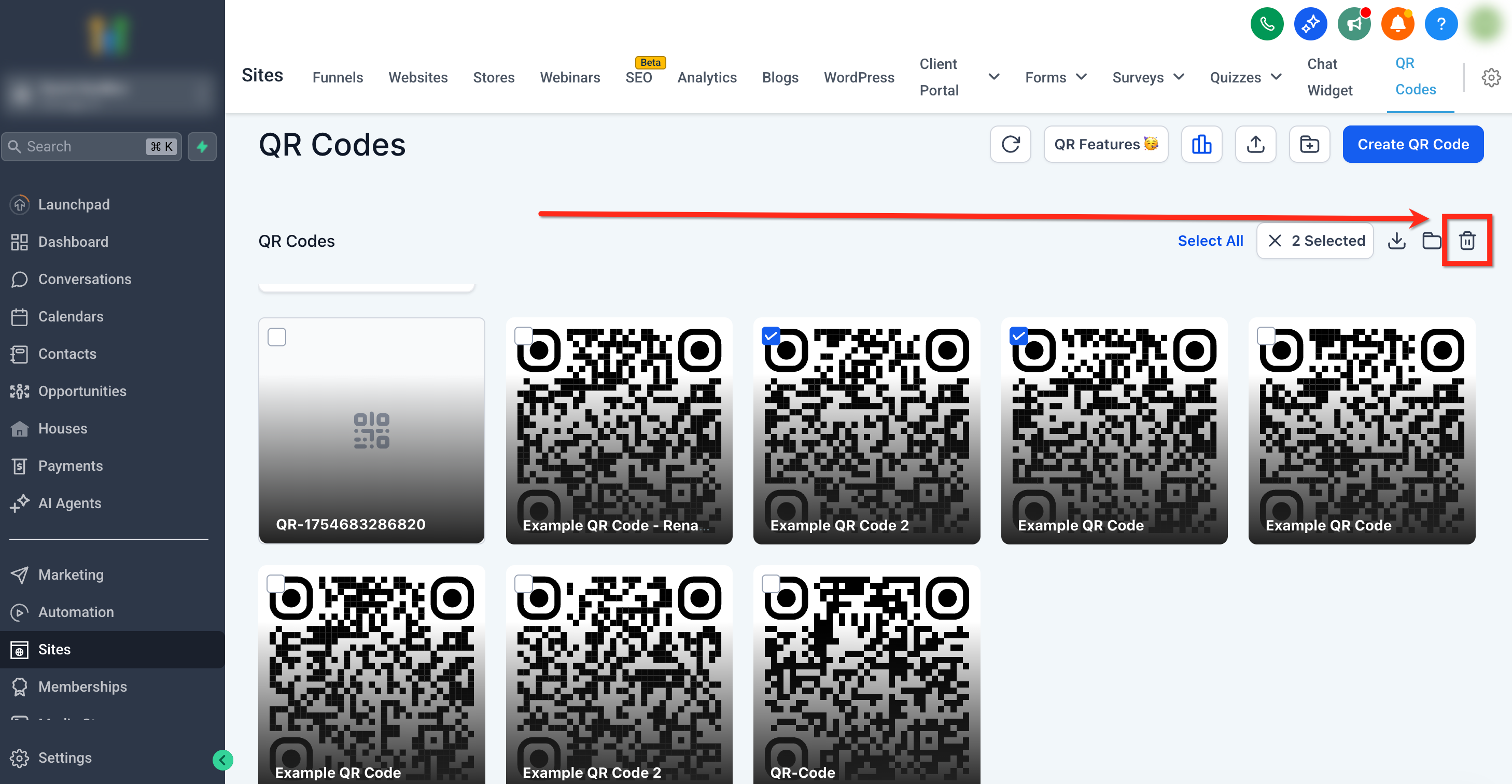
Check the items you want to manage. A counter (e.g., “3 Selected”) appears with bulk action icons in the top-right corner.
Bulk Download (PNG, SVG, PDF)
Export many QR Codes at once. Chat To Clients CRM generates ZIP files in the background and starts the download when ready.
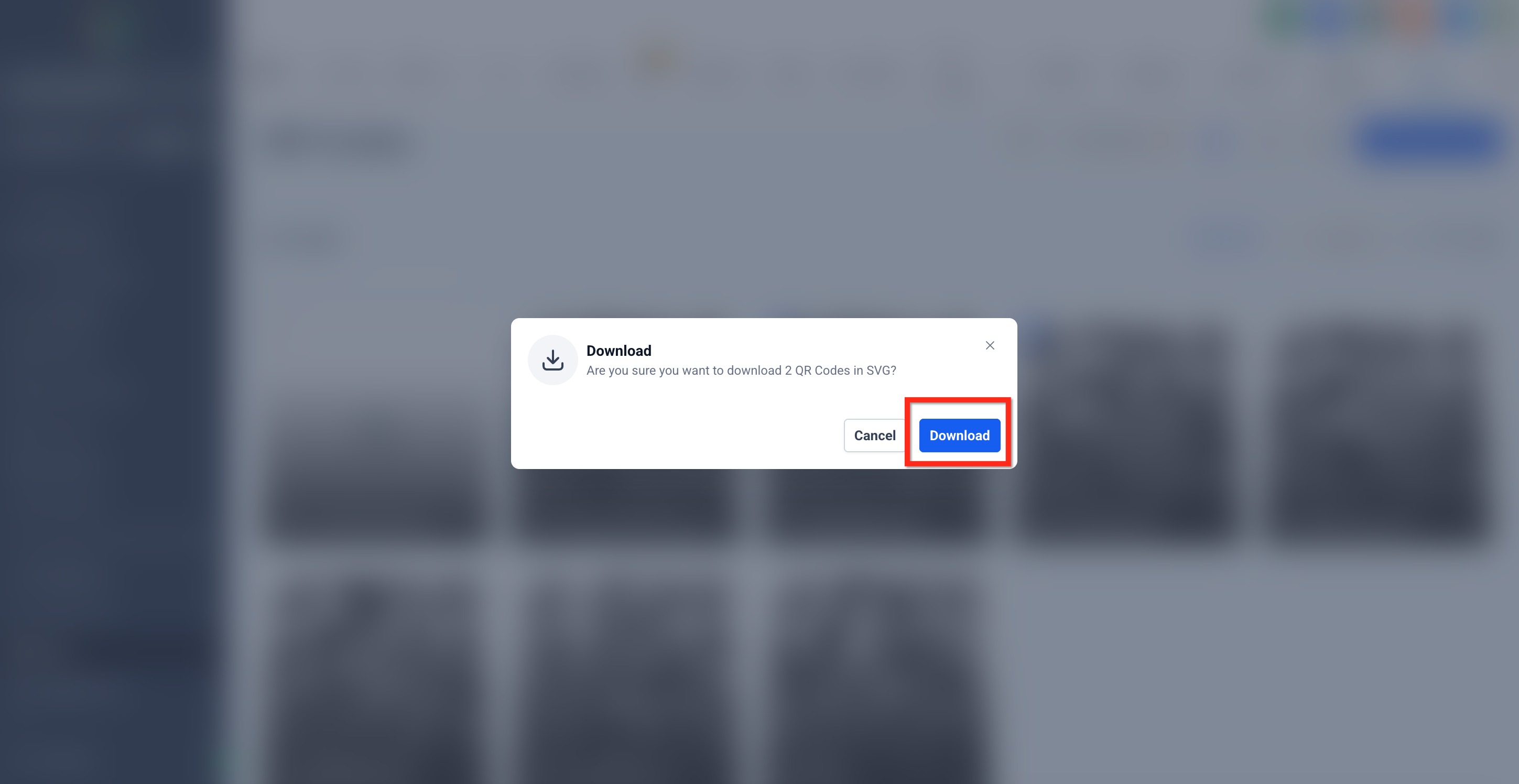
With items selected, choose Download from the bulk toolbar, then pick PNG, SVG, or PDF.
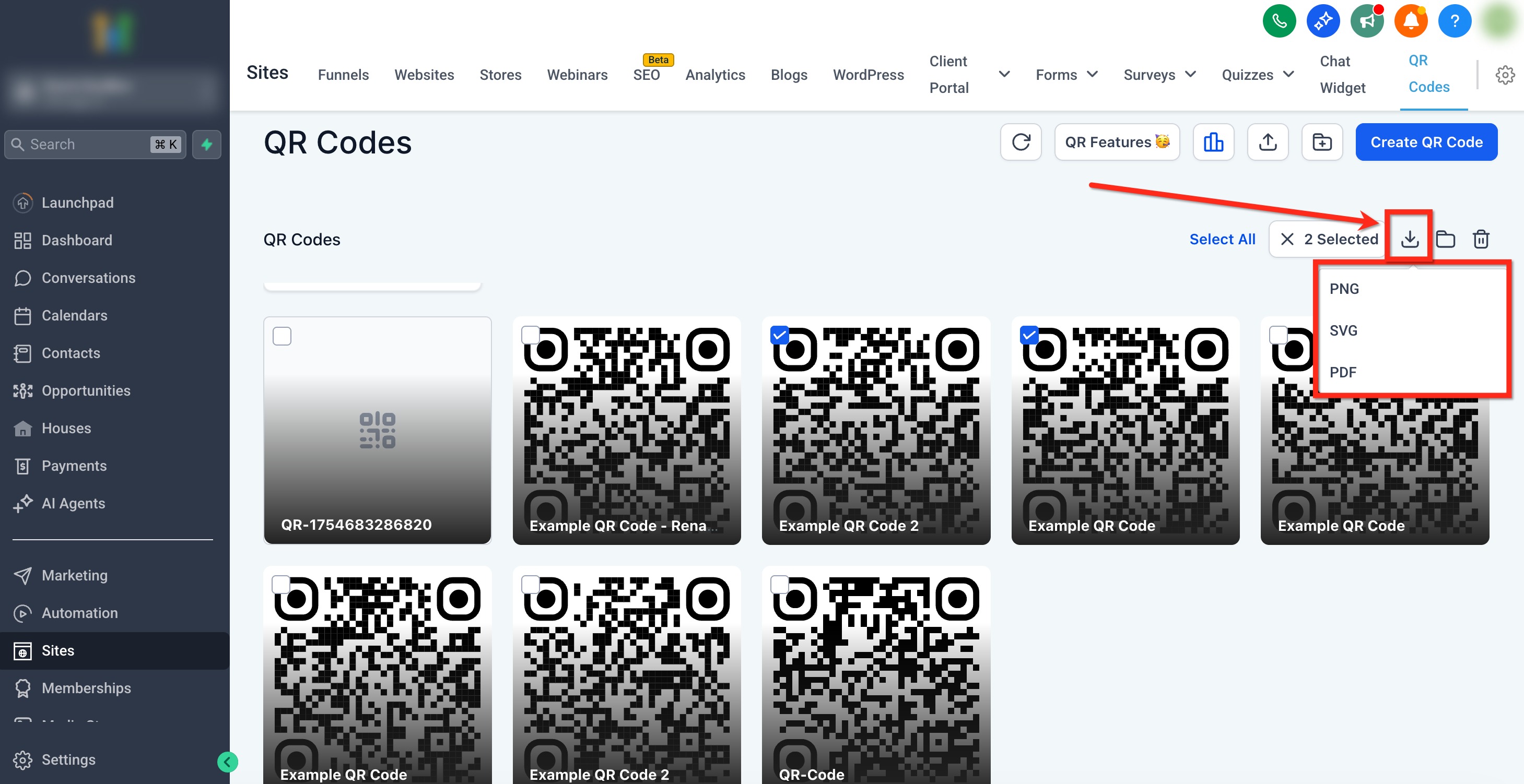
Confirm the download in the pop-up.
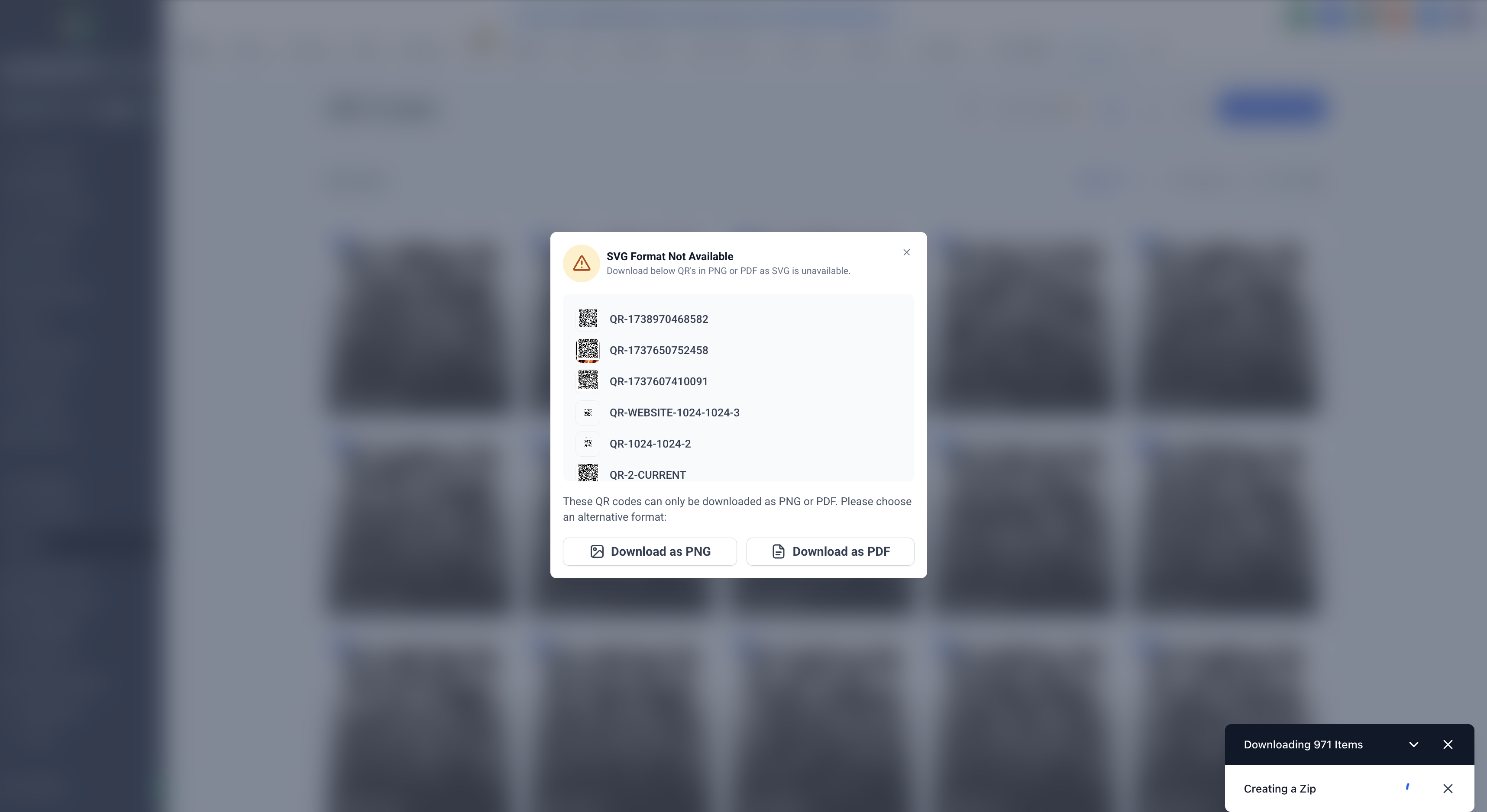
- If a QR Code’s requested format isn't available, you'll be offered alternative formats to choose from.
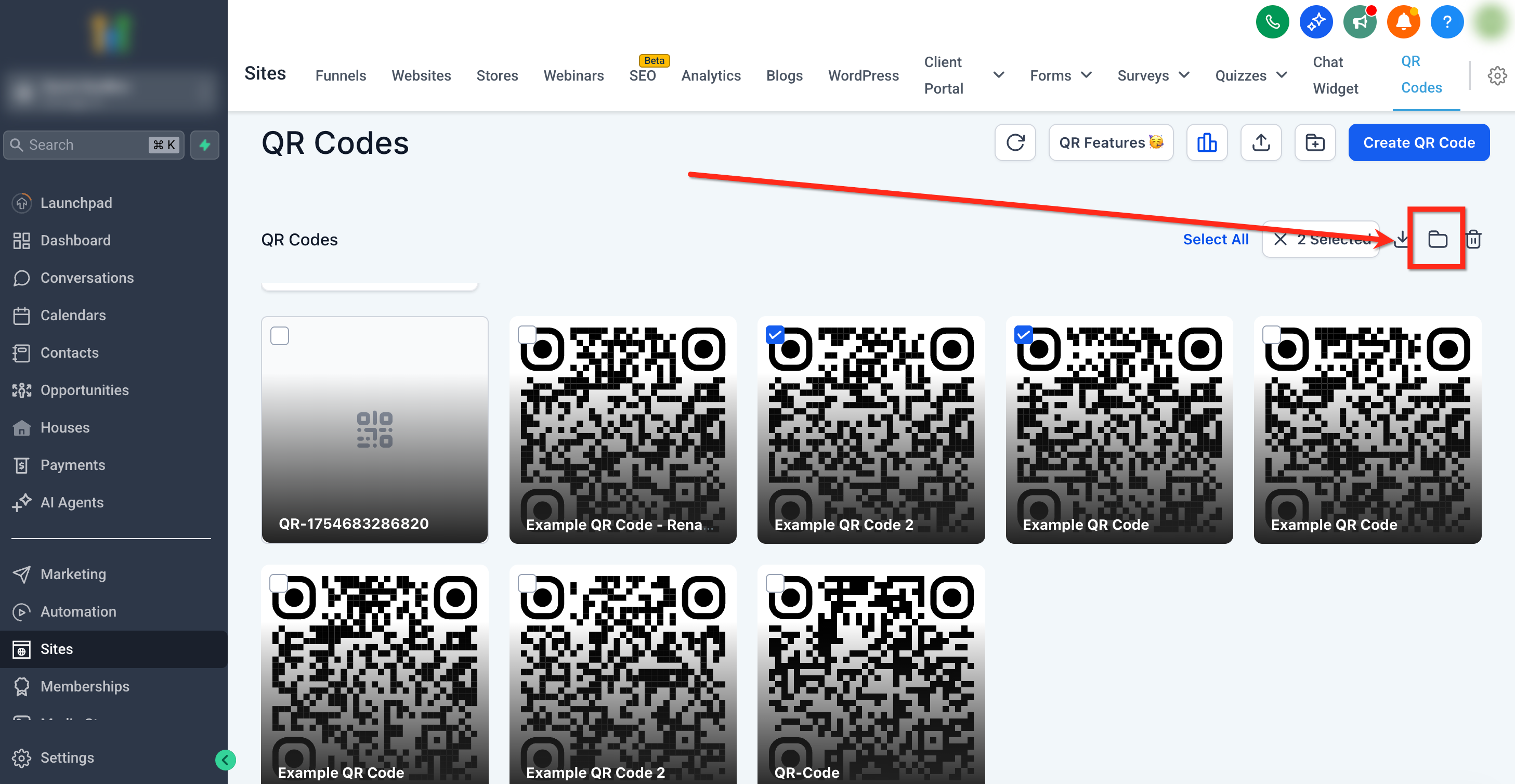
Move to Folder (Bulk)
Keep your library tidy by moving many QR Codes into a folder at once.
With items selected, click the Move to Folder icon.
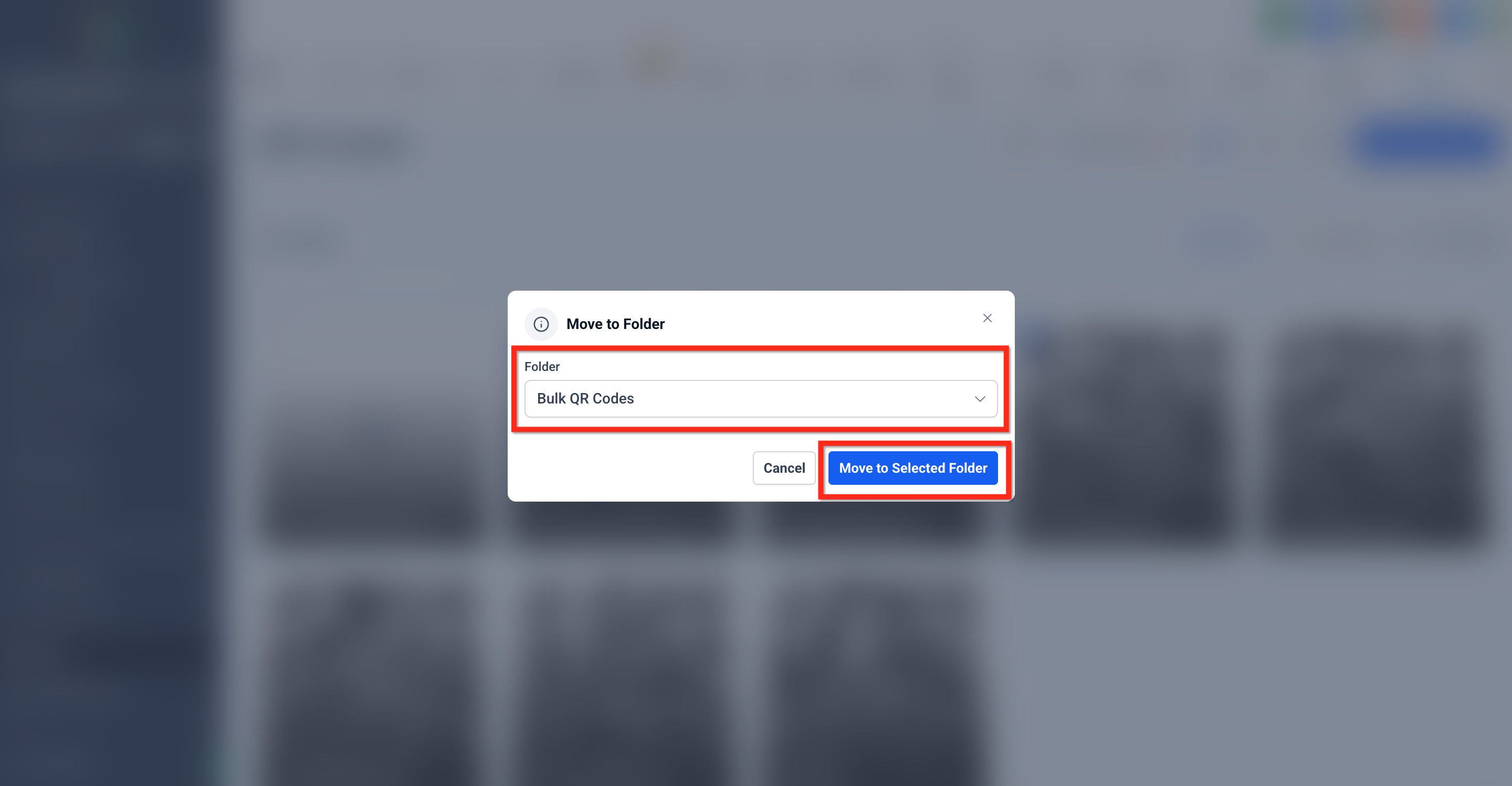
Choose a destination folder from the dropdown and click Move to complete.
Bulk Delete
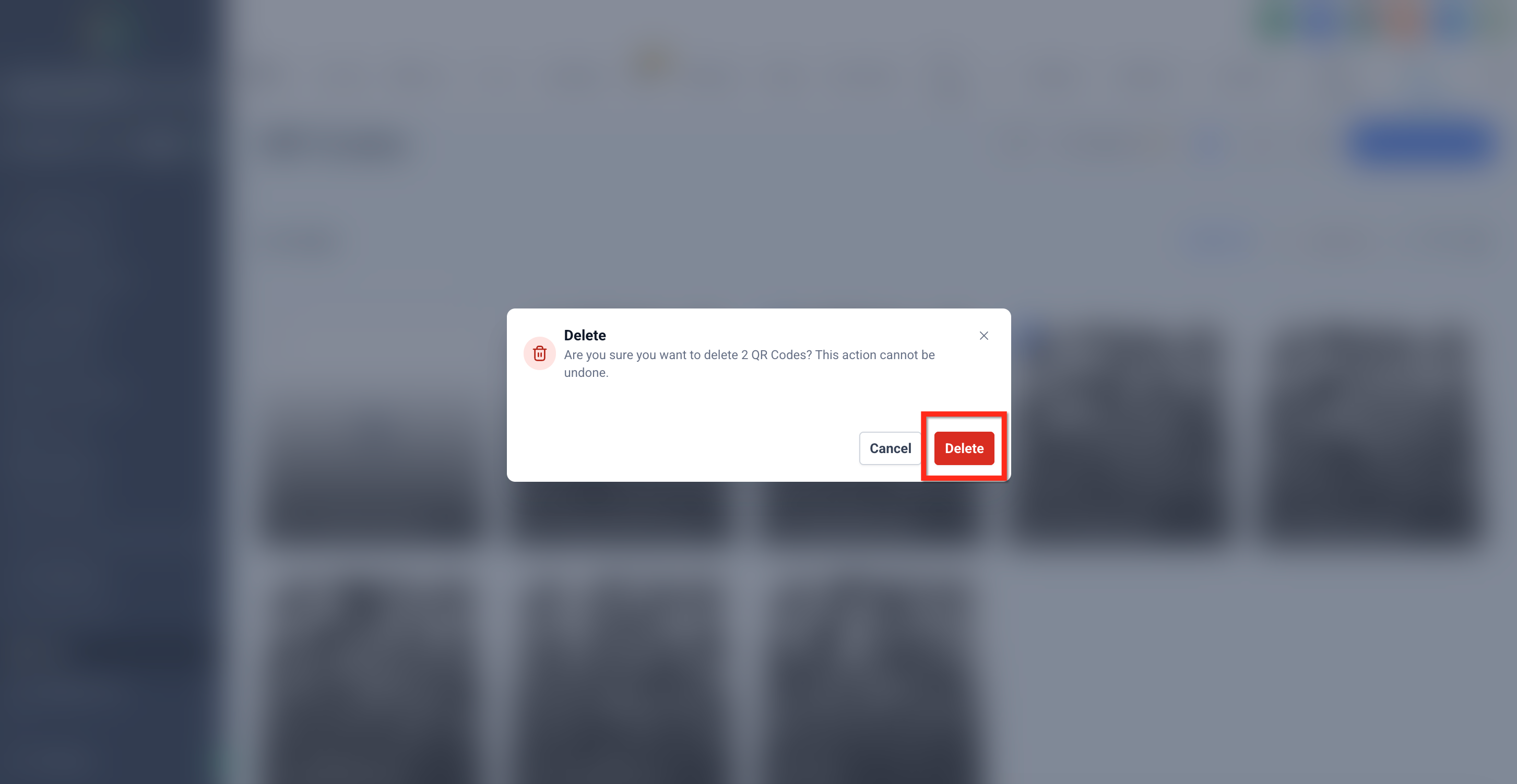
Remove unwanted QR Codes safely. A confirmation helps prevent accidental loss.
With items selected, click the Delete icon.
Review the confirmation message and click Delete to proceed.
Quick Actions and QR Code Details
Frequently used actions are available directly from the QR Codes listing, reducing the need to open each code or navigate through additional menus.
Quick Actions in Grid View
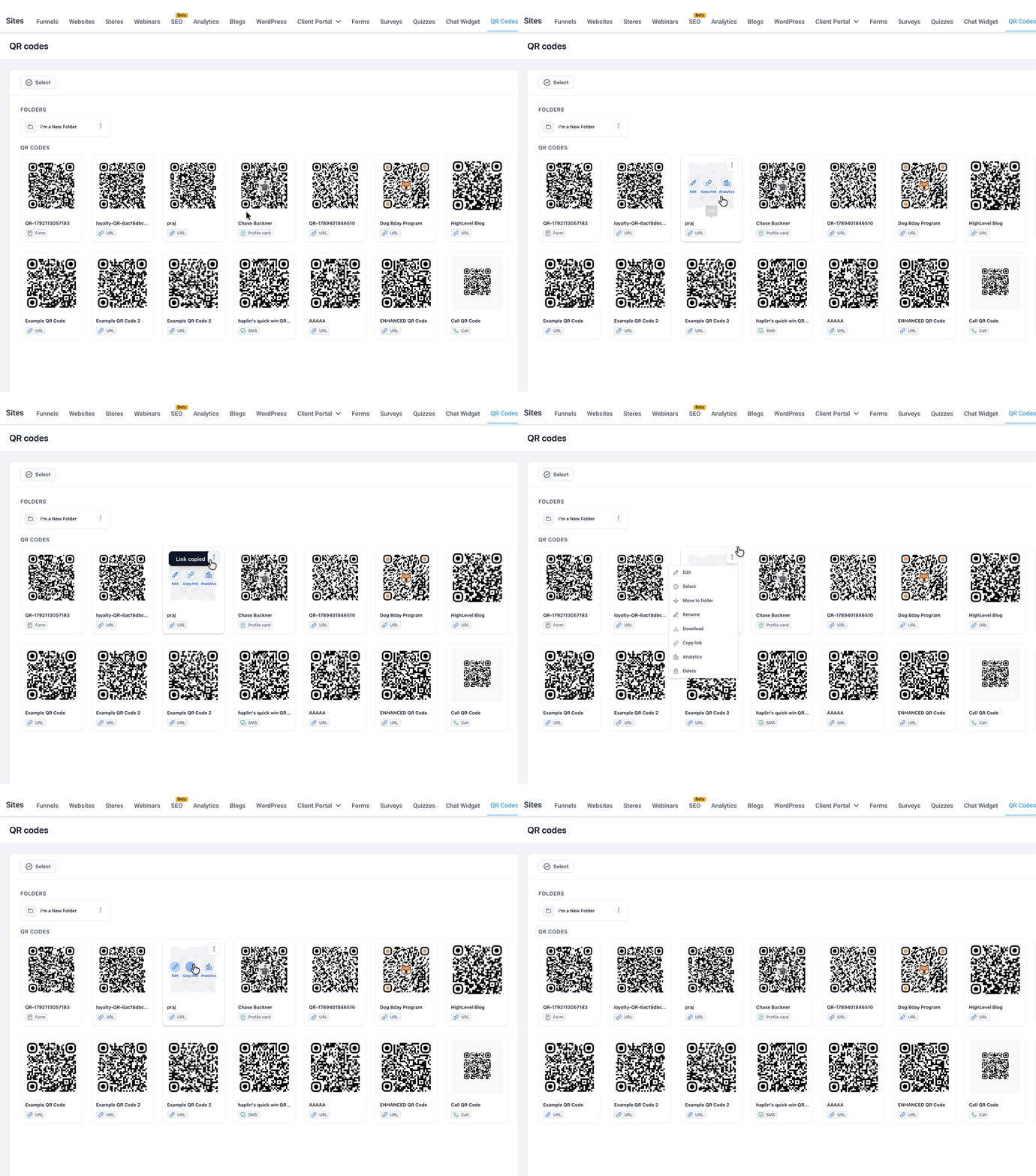
Hover over a QR Code card to access the available quick actions:
- Edit: Open the QR Code editor.
- Copy link:Copy the QR Code link.
- Analytics: Open analytics for that specific QR Code.
Use the 3-dot menu when you need additional actions that are not shown as quick actions.
Identify QR Codes by Type
Each QR Code card displays a type tag to help you identify the type of code without opening it. Hover over the type tag to view additional information about the QR Code.
Renaming QR Codes
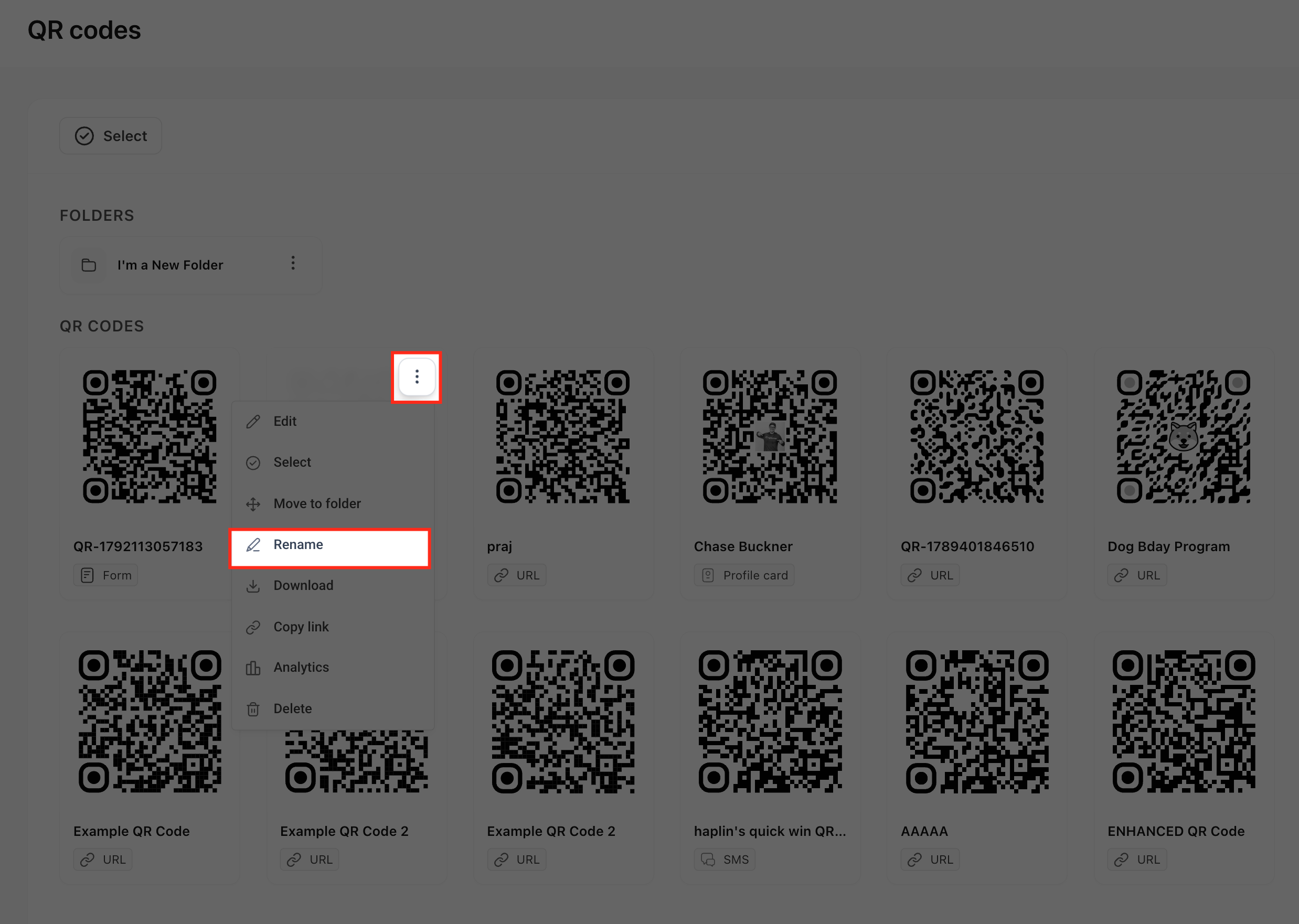
Rename items without leaving the page. Use consistent naming to improve searchability and reporting.
Hover any QR Code card and click the ⋯ menu → Rename.
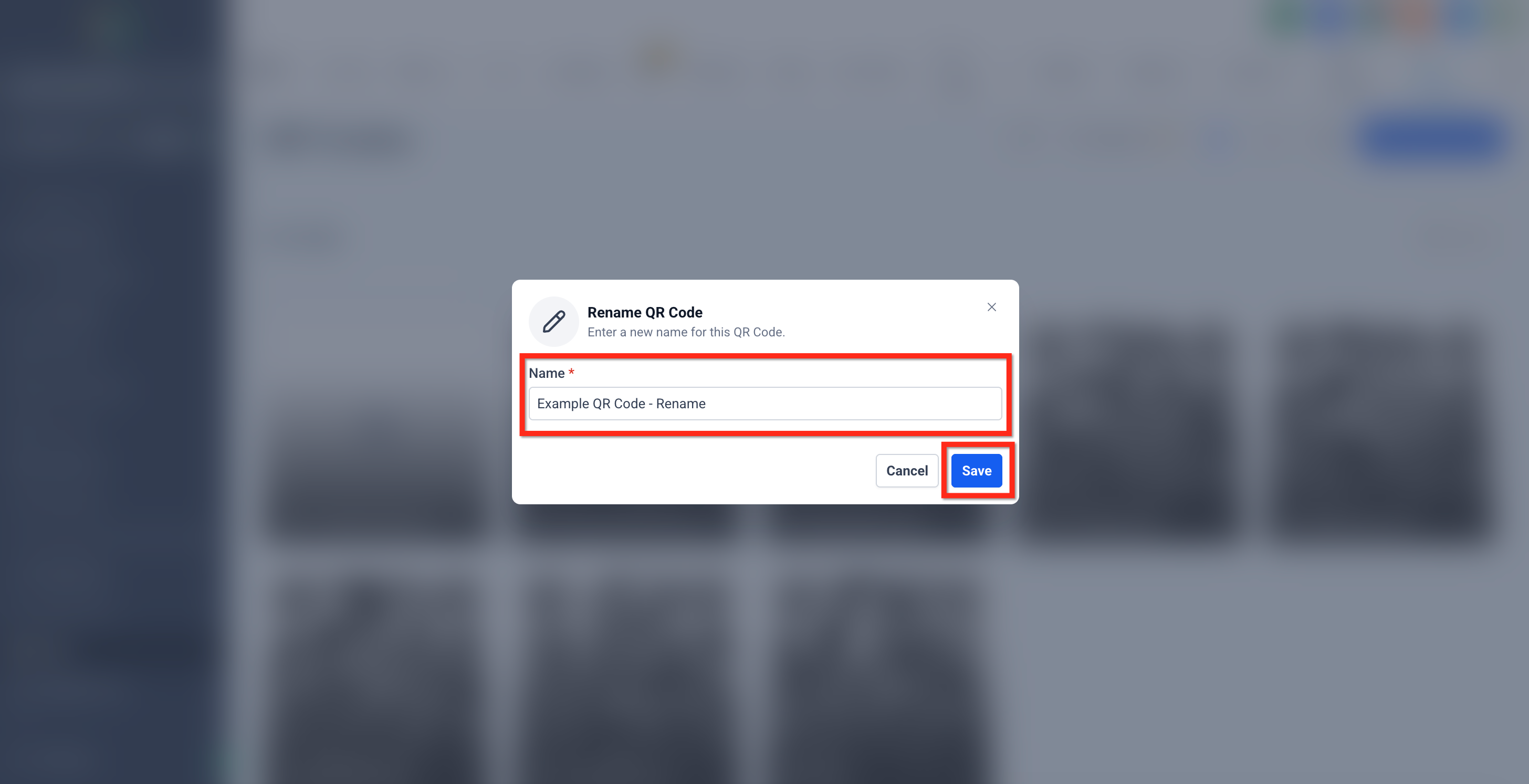
Enter the new name and click Save.
Copy Link from the QR Code
Instantly copy a direct link to the QR Code for sharing in emails, docs, or print workflows.
Hover a QR Code card, click Copy Link. alternatively, you can copy link from three dots menu and select copy link option.
View Analytics for a QR Code
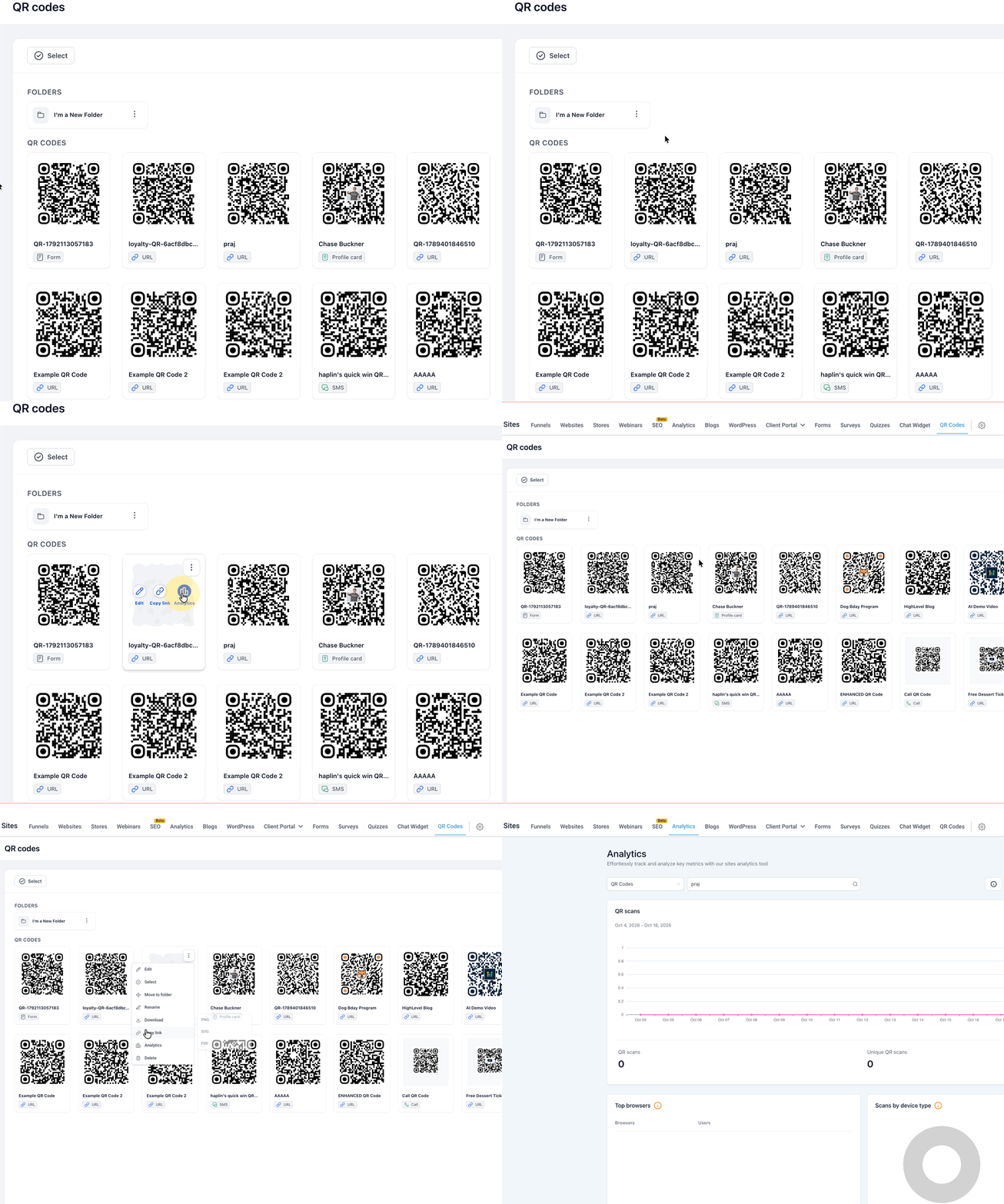
Open analytics directly from the QR Codes listing when you want to review scan activity for a specific code. This saves you from opening the broader Analytics area and searching for the QR Code again.
Hover over the QR Code card and select Analytics. Review the analytics for the selected QR Code.
Folder‑Level Actions: Download All / Rename
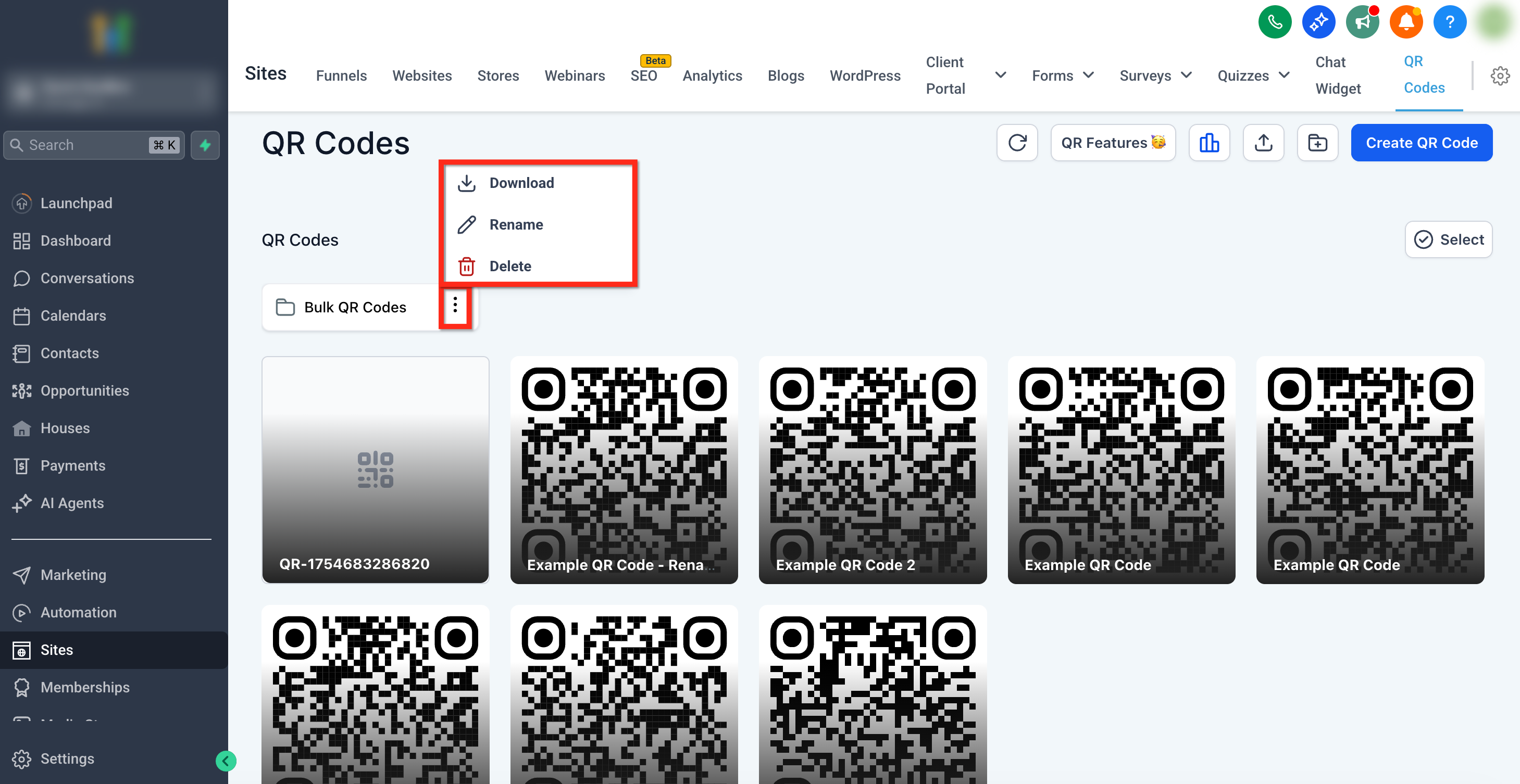
Manage whole folders quickly—download everything inside or rename the folder. To make folder-level edits, click the 3 dot icon on the folder.
Click the Download icon on a folder to export all contained QR Codes (ZIP, async).
Click the Rename icon on a folder to change its name.
Click the Delete icon to remove all QR Codes in a folder.
Frequently Asked Questions
Q: Where can I find these bulk actions?
In Sites → QR Codes, click Select to enable the bulk toolbar at the top right.
Q: Which formats can I download?
PNG, SVG, or PDF. Large batches are delivered as ZIP files.
Q: I chose SVG, but I see an “SVG Format Not Available” message. What now?
Some older QR Codes may not support SVG. Use the dialog to switch to PNG or PDF for those items.
Q: Can I download everything inside a folder at once?
Yes. Click the Download icon on the folder to export all codes (async ZIP).
Q: Is delete permanent?
Yes. Bulk delete is irreversible. Download any needed codes before deleting.
Q: Are there selection limits?
You can select many items at once; very large batches may be split into multiple ZIPs. (If you encounter limits, reduce the selection and repeat.)