
How to Automate Internal Comments in Chat To Clients CRM Workflows
The Add Internal Comment workflow action lets you automatically post private comments in Chat To Clients CRM conversations. Use it to share customer context, provide follow-up instructions, and @mention team members without manual effort. Comments appear in the conversation history and are never sent to customers.
TABLE OF CONTENTS
- What is the Add Internal Comment Workflow Action?
- Key Benefits of the Add Internal Comment Workflow Action
- @Mentions in Automated Internal Comments
- Important Considerations and Limitations
- How to Set Up the Add Internal Comment Workflow Action
- Frequently Asked Questions
- Related Articles
What is the Add Internal Comment Workflow Action?
The Add Internal Comment action automatically posts internal comments to a contact's conversation when a workflow runs. It helps teams coordinate follow-ups, share important information, and keep internal communication organized. For example, when a high-priority lead enters a workflow, you can add a comment mentioning the assigned user with instructions to follow up.
Key Benefits of the Add Internal Comment Workflow Action
Automated internal comments help teams stay informed and take timely action without switching between tools.
Automated Communication: Add internal comments based on workflow triggers.
Team Collaboration: @mention users to bring their attention to conversations.
Better Context: Keep instructions and customer information within the conversation history.
Faster Follow-Ups: Notify relevant team members when leads need attention.
Private Communication: Share internal information without sending messages to customers.
@Mentions in Automated Internal Comments
@Mentions allow you to identify team members who should review or act on a conversation. Mentioned users are added as contact followers and receive notifications according to their individual notification settings.
Two mention options are available:
Assigned User: Dynamically mentions the contact's assigned user when the workflow runs.
Specific User: Mentions one or more team members selected from the sub-account.
If a contact has no assigned user, the Assigned User mention is omitted. The remaining comment text is still posted if it is not empty.
Important: Mentioned users are added as contact followers, which can grant them access to view and reply to the conversation.Important Considerations and Limitations
Understanding how automated comments behave helps prevent missing information, unintended notifications, and unnecessary workflow errors.
Internal comments are visible only to team members, not customers.
Comments do not consume SMS or email messaging credits.
Comments cannot be edited or deleted after posting.
Attachments are not supported.
An action with no comment text is skipped.
Removing a mention from a workflow does not remove followers added by earlier executions.
Mention notifications depend on user settings under Settings → My Profile → Notifications.
How to Set Up the Add Internal Comment Workflow Action
Configuring this action allows workflows to automatically add conversation context and notify the appropriate team members.
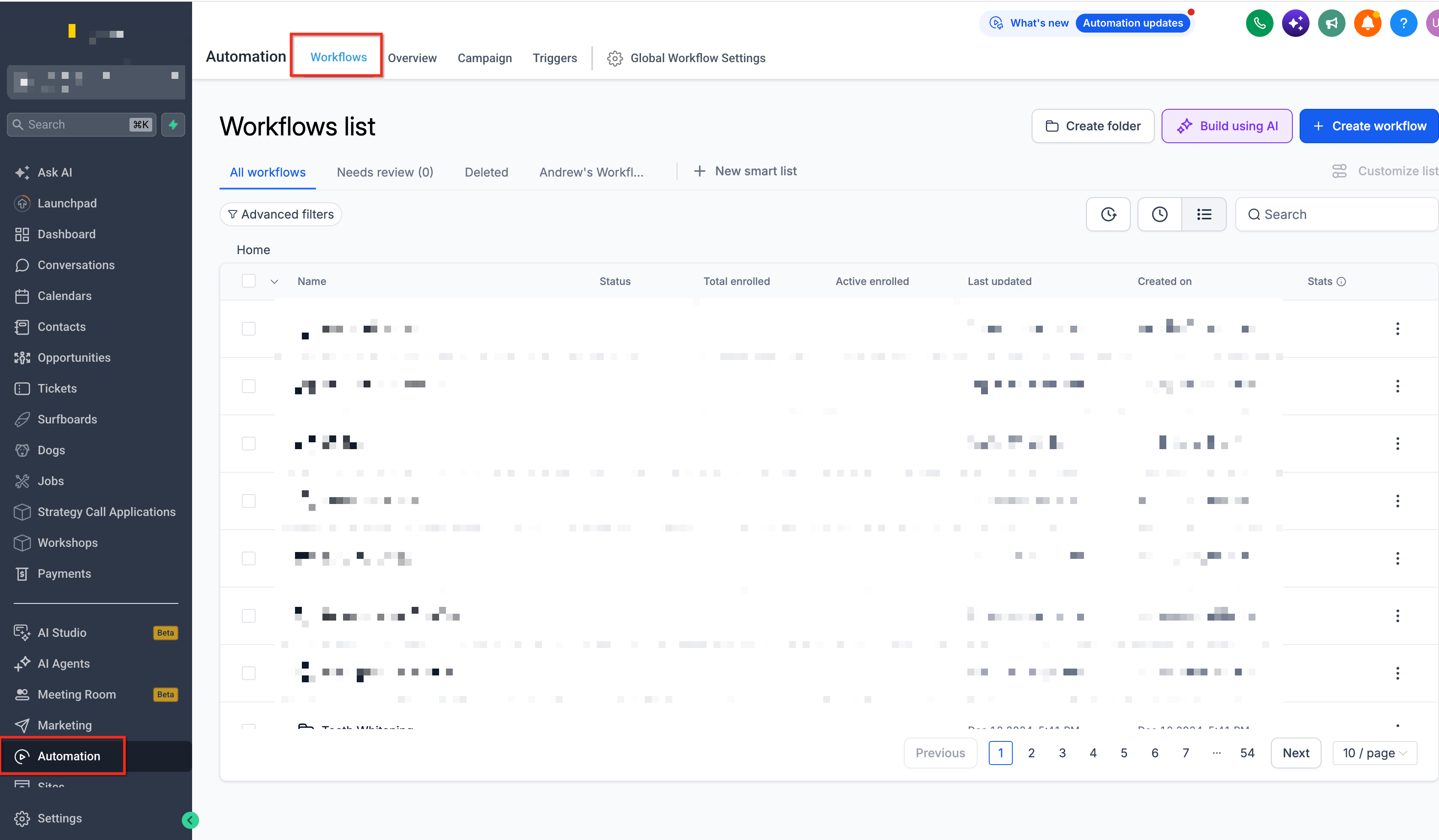
Open Workflows: Navigate to Automation → Workflows and create a new workflow or open an existing one.
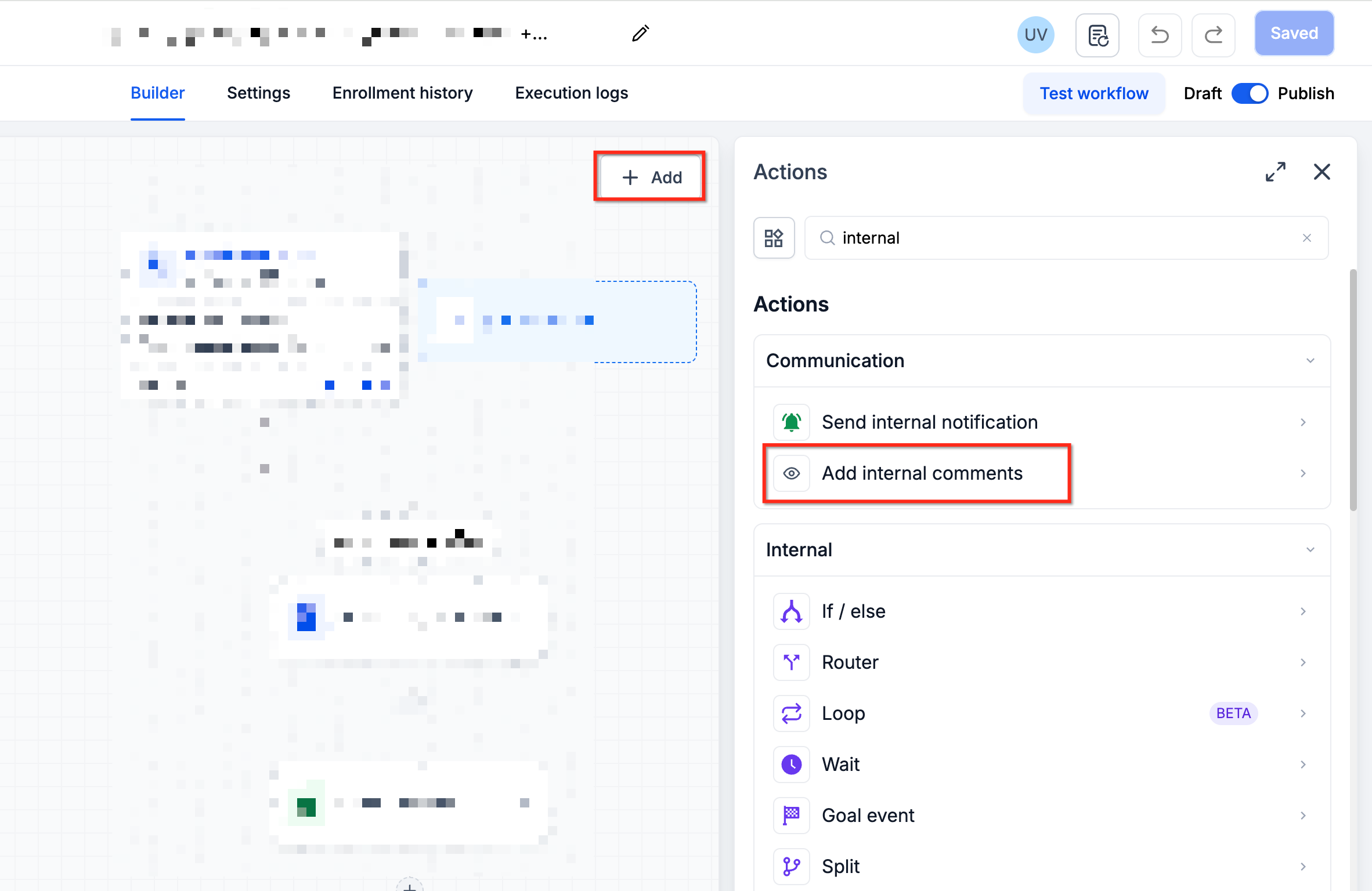
Add the Action: Click the + icon and select Add Internal Comments under Communication Actions.
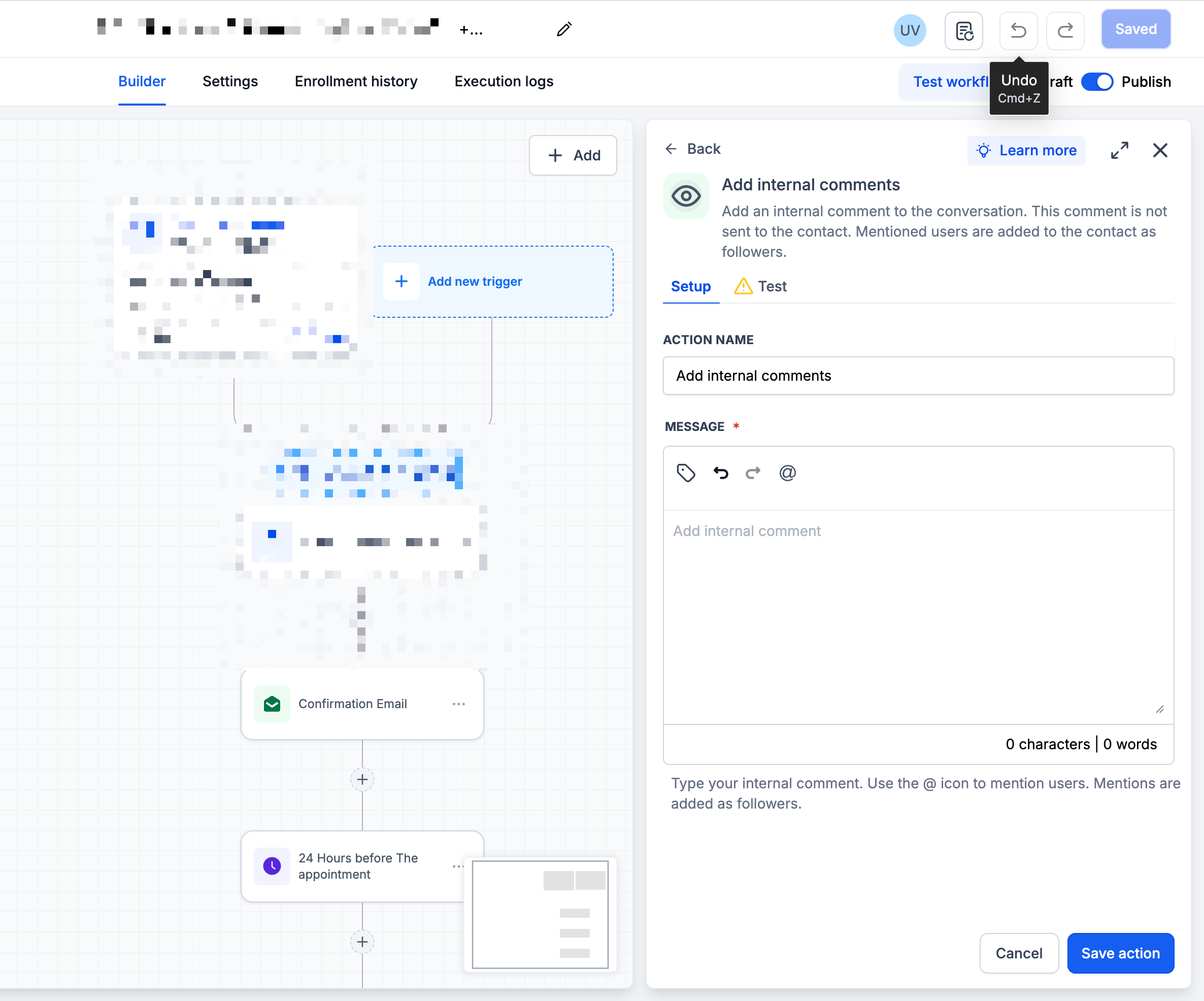
Enter Your Comment: Write the information or instructions you want your team to see.
Add @Mentions: Use the @ option to select Assigned User or Specific User as needed.
Save the Action: Click Save Action to add it to your workflow.
Test and Publish: Test the workflow using a test contact, verify that the comment appears correctly, and publish the workflow.
Example Use Cases:
High-Priority Lead: "Hot lead received. @Assigned User — Please follow up as soon as possible."
Missed Appointment: "Customer missed their appointment. Please contact them to reschedule."
Escalation: "This conversation requires additional assistance. Please review and follow up."
Frequently Asked Questions
Q: Will customers see automated internal comments?
No. Internal comments remain private and are not sent through customer communication channels.
Q: Can I mention multiple team members?
Yes. You can mention multiple Specific Users in a single comment.
Q: What happens if the contact has no assigned user?
The Assigned User mention is omitted. If other comment text exists, the comment is still posted.
Q: Do @mentions notify team members?
Yes, according to each user's notification preferences.
Q: Can internal comments be edited or deleted?
No. Posted internal comments cannot be edited or deleted.
Q: What happens if the comment is empty?
The workflow skips the action. You can review the reason in the workflow Execution Logs.
Q: Where can I find automated internal comments?
Open the conversation in Conversations. Comments appear in the timeline. You can also use the Internal Comments and Mentions filters.
Q: Is Add Internal Comment the same as Add to Notes?
No. Add Internal Comment posts directly to the conversation timeline, while Add to Notes stores information in the relevant record's Notes area.