
Workflow Actions - Add Internal Comment
TABLE OF CONTENTS
- What is the Add Internal Comment Action?
- How to Use the Add Internal Comment Action
- How @Mentions Work in the Action
- Where the Comment Appears
- Important Considerations
- Frequently Asked Questions
- Related Articles
What is the Add Internal Comment Action?
The Add Internal Comment action lets a workflow post a private, internal-only note into a contact's conversation thread. The comment is added to the conversation just like an internal comment written manually from the Conversations page — it is never sent to or visible to the contact. This action is useful when you want automation to leave context for your team instead of messaging the contact. For example: flagging a hot lead for follow-up. You can also @mention teammates inside the comment. Mentioned users are notified and are added to the contact as followers.
How to Use the Add Internal Comment Action
Step 1: Open the Workflow Builder
Navigate to Subaccount > Automations and open the workflow, or create a new one from scratch or from a recipe.
Step 2: Add the action
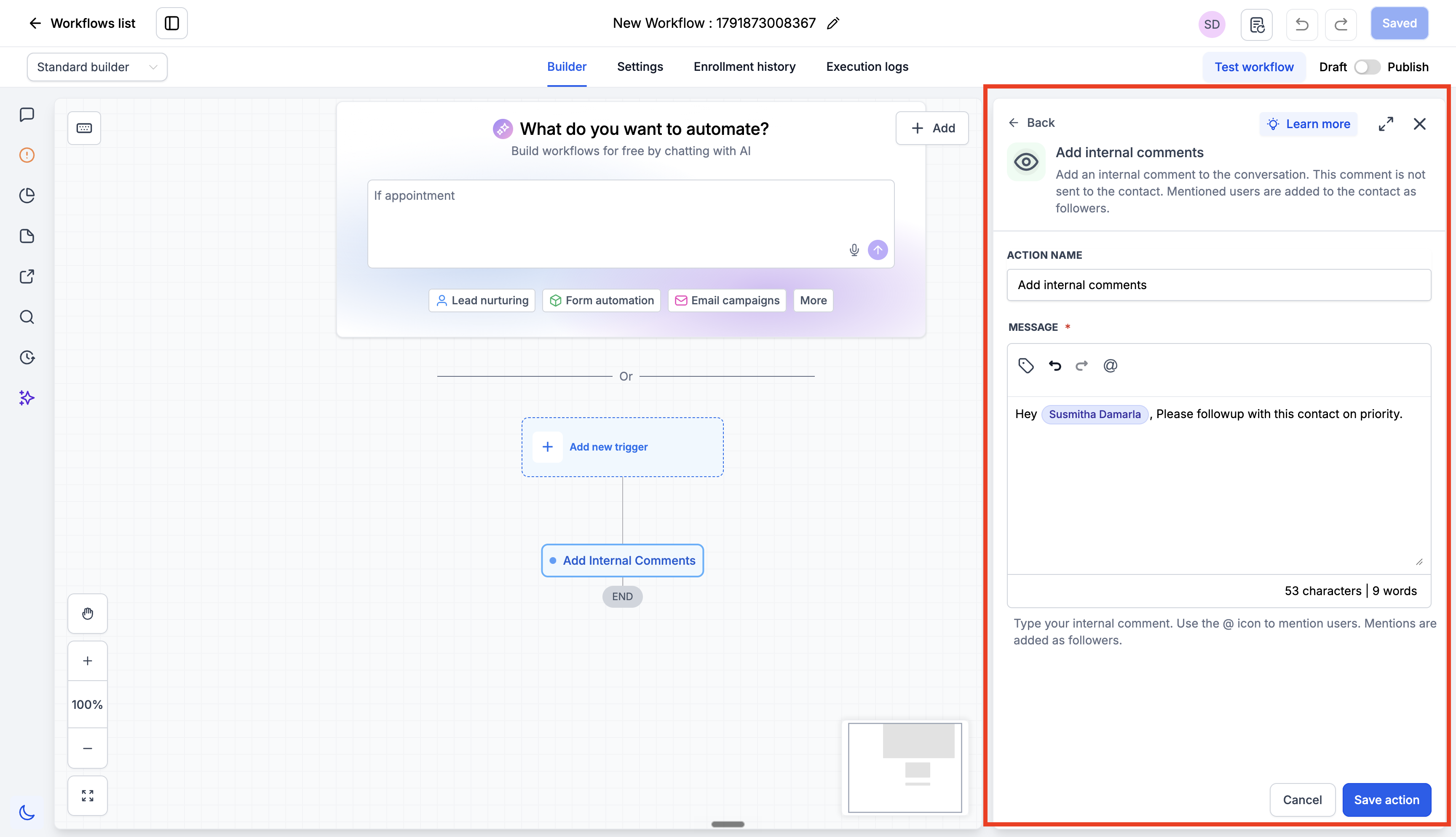
In the workflow builder, click the plus (+) to open the actions menu. Under the Communication category, search or scroll to find Add Internal Comments.
Step 3: Write the comment
Type the comment your team should see in the text editor. The editor supports:
- @ (mention) — insert a mention of a teammate.
- Undo / Redo — revert or reapply your last edit while composing.
The comment body is required. If the action runs with no text in the comment, it is skipped.
Step 4: Save the action
Click Save Action to add it to the workflow. Test the workflow, then publish it when you are ready.
How @Mentions Work in the Action
Click the @ icon in the editor to insert a mention. You will see two options:
| Option | What it does |
|---|---|
| Assigned User | Dynamically mentions whichever user is assigned to the contact at the moment the action runs. |
| Specific user | Mentions a fixed user you choose from the list of users in the sub-account. The list is searchable, and you can add more than one mention to the same comment. |
What happens when the comment is posted:
- Each mentioned user is added to the contact as a follower. Followers can view and reply to the conversation.
- Each mentioned user receives a notification, based on their own notification preferences (Settings > My Profile > Notifications).
- If Assigned User is used and the contact has no assigned user, no mention is applied. The comment still posts with the rest of your text.
Note: Mentioning a user who did not previously have access to the contact will grant them access, because they are added as a follower. This matches the behavior of mentioning a user in an internal comment from the Conversations page. Keep this in mind when mentioning users in workflows that run at scale.
Where the Comment Appears
Once the action runs, the internal comment is posted into the contact's conversation thread:
- It appears inline in the conversation timeline, in chronological order with other messages.
- It is not delivered to the contact through SMS, email, or any other channel, and does not consume messaging credits.
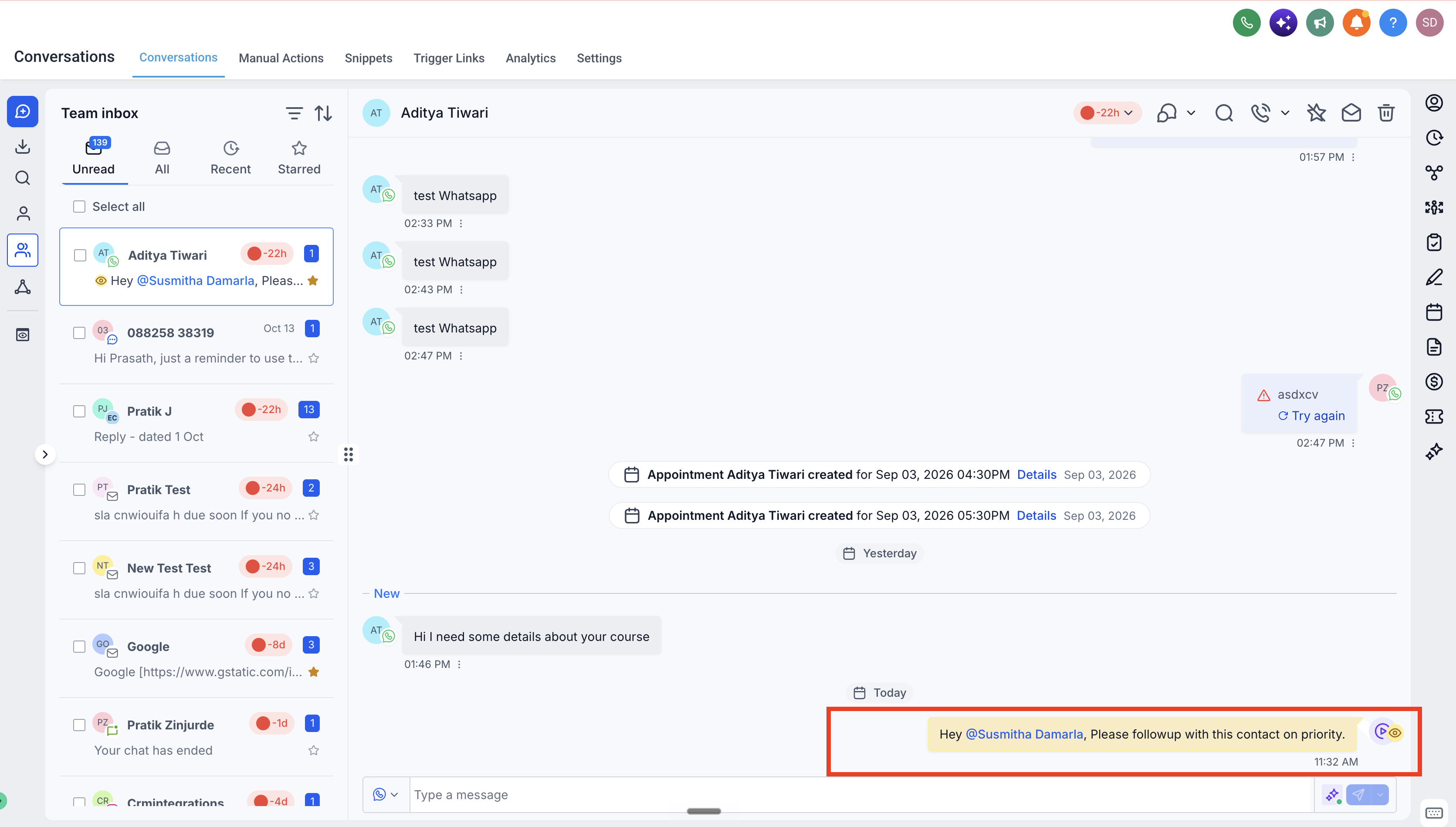
To find internal comments quickly in Conversations, use:
- The Internal Comments filter, to show only internal comments within a conversation.
- The Mentions of Me filter, to see conversations where you were mentioned.
- The Mentions of a Specific User filter, to see conversations where a chosen teammate was mentioned.
Important Considerations
- Comment text is required. If the action runs and the comment has no text — for example, the comment contained only an Assigned User mention and the contact was unassigned — the action is skipped and the execution log records: "There is no text added in this comment, so this action is skipped."
- Internal comments cannot be edited or deleted after posting. Review your comment text before publishing the workflow.
- Attachments are not supported in internal comments.
- Followers are additive. Removing the mention from the workflow action later does not remove followers who were already added to contacts by previous runs.
- Test before publishing. Run the workflow against a test contact to confirm the comment text, the mention, and the notification all behave as expected.
Frequently Asked Questions
Q: Will the contact ever see the internal comment?
A: No. Internal comments are private to your team. They are not sent to the contact through any channel and are not visible to the contact.
Q: Does this action use SMS or email credits?
A: No. The internal comment is posted to the conversation and is not delivered to the contact, so no messaging credits are consumed. Notifications sent to mentioned users follow those users' own notification settings.
Q: What happens if the contact has no assigned user and I used the Assigned User mention?
A: No user is mentioned. If the comment contains other text, the comment still posts without a mention. If the comment contained only the Assigned User mention and no other text, the action is skipped and this is recorded in the execution log.
Q: Can I mention more than one user in the same comment?
A: Yes. You can insert multiple mentions in the same comment, and each mentioned user is notified and added to the contact as a follower.
Q: Will mentioning a user give them access to the contact?
A: Yes. Mentioned users are added to the contact as followers, and followers can view and reply to that conversation. This is the same behavior as mentioning a user from the Conversations page.
Q: Where can I confirm the action ran?
A: Open the workflow's Execution Logs and locate the contact's run. The log shows whether the Add Internal Comment action executed or was skipped, along with the reason.
Q: Can I add internal comments outside of workflows?
A: Yes. You can add internal comments manually from the Conversations page, and there is also a public API endpoint for posting internal comments programmatically.