
Workflow Action - Live Chat Interactive Messenger
Live Chat workflows can guide website visitors through common requests without requiring them to type a detailed message. The Live chat interactive messenger action lets you display interactive buttons directly inside a Live Chat conversation. Each button can direct the visitor to a specific workflow branch or open an HTTPS link, while a Timeout branch handles unanswered prompts. This guide covers how to configure interactive buttons, build workflow branches, and review visitor selections in Chat To Clients CRM Conversations.
TABLE OF CONTENTS
- What is Live Chat Interactive Messenger?
- Key Benefits of Live Chat Interactive Messenger
- Prerequisites and Limitations
- How To Setup Live Chat Interactive Messenger
- Understand Button Selections in Live Chat and Conversations
- Frequently Asked Questions
What is Live Chat Interactive Messenger?
Live Chat Interactive Messenger is a Chat To Clients CRM workflow action that sends an interactive card into a Live Chat conversation after a visitor sends a message.
The card supports a message, an optional image, and up to five interactive buttons. Visitors can select an option such as "Track my order," "Return / Refund," or "Talk to support" without typing their request.
Each button can either initiate a specific workflow branch or open an HTTPS link. The action also includes a Timeout branch to handle situations where visitors do not select a workflow option within the configured waiting period.
Businesses can use these selections to send follow-up messages, apply tags, assign contacts to users, or perform other supported workflow actions.
Key Benefits of Live Chat Interactive Messenger
Interactive buttons provide a structured way to handle routine visitor requests. Instead of manually sorting every incoming message, businesses can configure workflows that respond to the option a visitor selects.
One-tap visitor responses: Let visitors choose predefined options without typing a detailed explanation of their request.
Automated conversation routing: Create a separate workflow branch for each action button to send visitors through the appropriate follow-up process.
Flexible workflow actions: Send Live Chat messages, apply contact tags, or assign users based on the selected option.
Self-service links: Add buttons that open HTTPS pages, such as a Help Center or order information page.
Timeout handling: Continue through a dedicated Timeout branch if the visitor does not make a selection within the configured waiting period.
Clear selection visibility: Display the visitor's selected button in Conversations so team members can review the choice before responding.
Faster workflow setup: Start from the Chat Widget builder using a connected workflow or a Quick Workflow starting point.
Prerequisites and Limitations
Before setting up Interactive Messenger, ensure that your Live Chat environment and workflow are configured correctly. Understanding the supported button behaviors and limitations helps prevent unexpected outcomes.
Prerequisites
Use a Live Chat or All-in-One Chat widget configured for Live Chat interactions.
Configure and install the Chat Widget on the website where visitors will interact with it.
Have access to the Sub-Account's Chat Widget and Workflow Builder configuration areas.
Configure a Customer Replied workflow trigger for the relevant Live Chat widget.
Have an HTTPS destination URL available for any button that opens a website.
Supported capabilities and limitations
Maximum buttons: Each interactive card supports up to five buttons.
Optional images: Supported image formats include JPG, PNG, and WEBP.
Image sources: Images can be uploaded from the system or selected from the Media library.
Button behaviors: Buttons can perform workflow actions or open HTTPS links.
Workflow branches: Each action button has a corresponding branch on the workflow canvas.
Timeout: A separate Timeout branch runs when the configured waiting period expires without a qualifying selection.
Single action selection: Only the first workflow branch-button selection is accepted. Other workflow branch buttons become unavailable afterward.
Link buttons: Website link buttons remain clickable after a workflow branch-button selection.
Message trigger: The interactive workflow card appears after a visitor sends a message that activates the configured workflow.
Important: The button-selection timeout is different from the Chat Widget's general inactivity or chat-closure settings.
How To Setup Live Chat Interactive Messenger
You can configure Interactive Messenger from the Chat Widget builder or directly inside the Workflow Builder. Both methods create a workflow that sends an interactive card and responds to a visitor's selection.
The Chat Widget builder provides a shortcut to a workflow associated with the selected widget. The manual method lets you configure the trigger and action in the Workflow Builder.
Configure From the Chat Widget Builder
The Chat Widget builder provides the shortest route from a specific widget to its interactive workflow. This method is useful when configuring automated responses for an existing Live Chat experience.
From the Sub-Account view, select Sites in the left-hand menu.
Select Chat Widget.
Open the existing Live Chat or All-in-One Chat widget you want to configure.
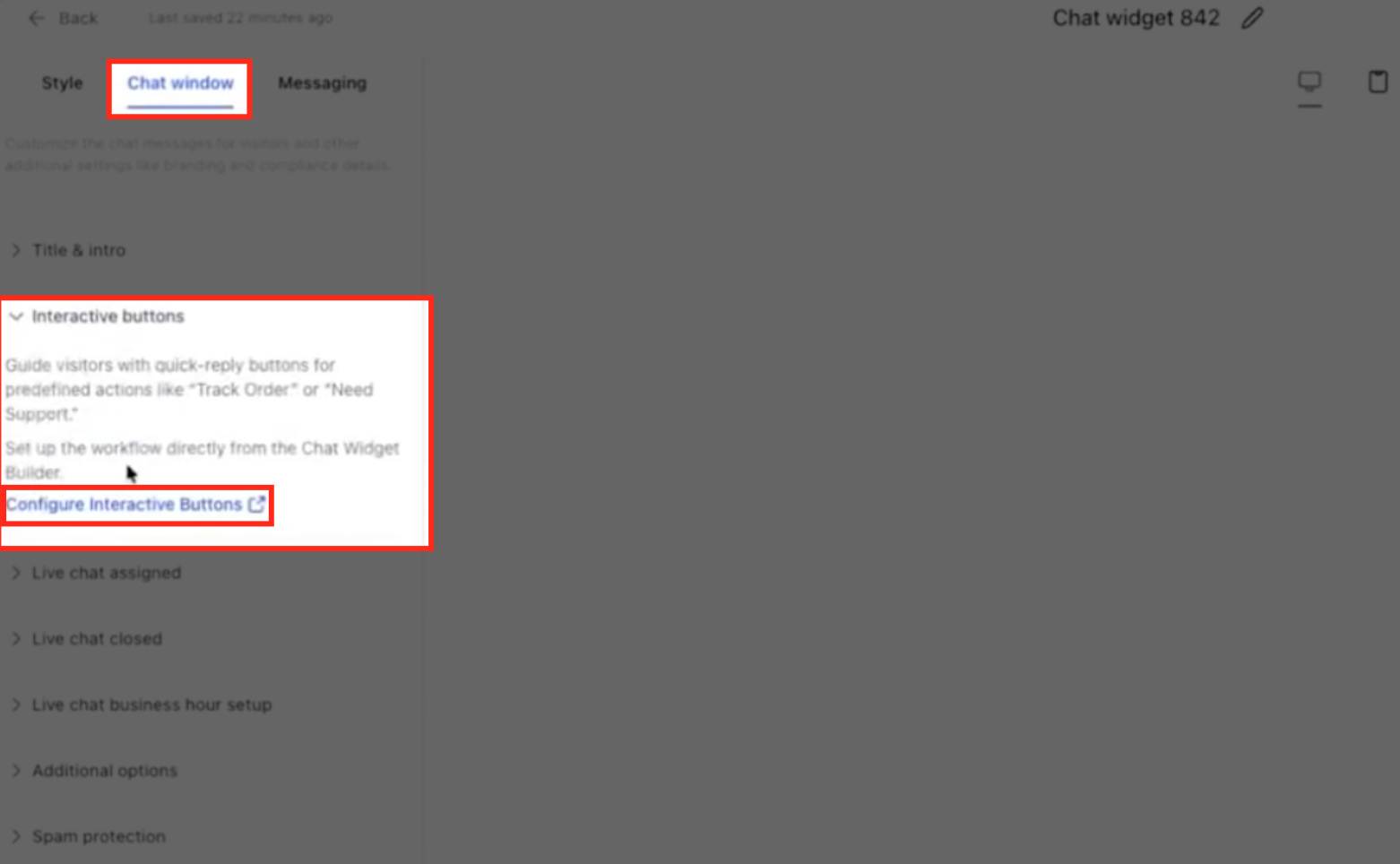
In the widget builder, select the Chat window tab.
Expand the Interactive buttons section.
Click Configure Interactive Buttons.
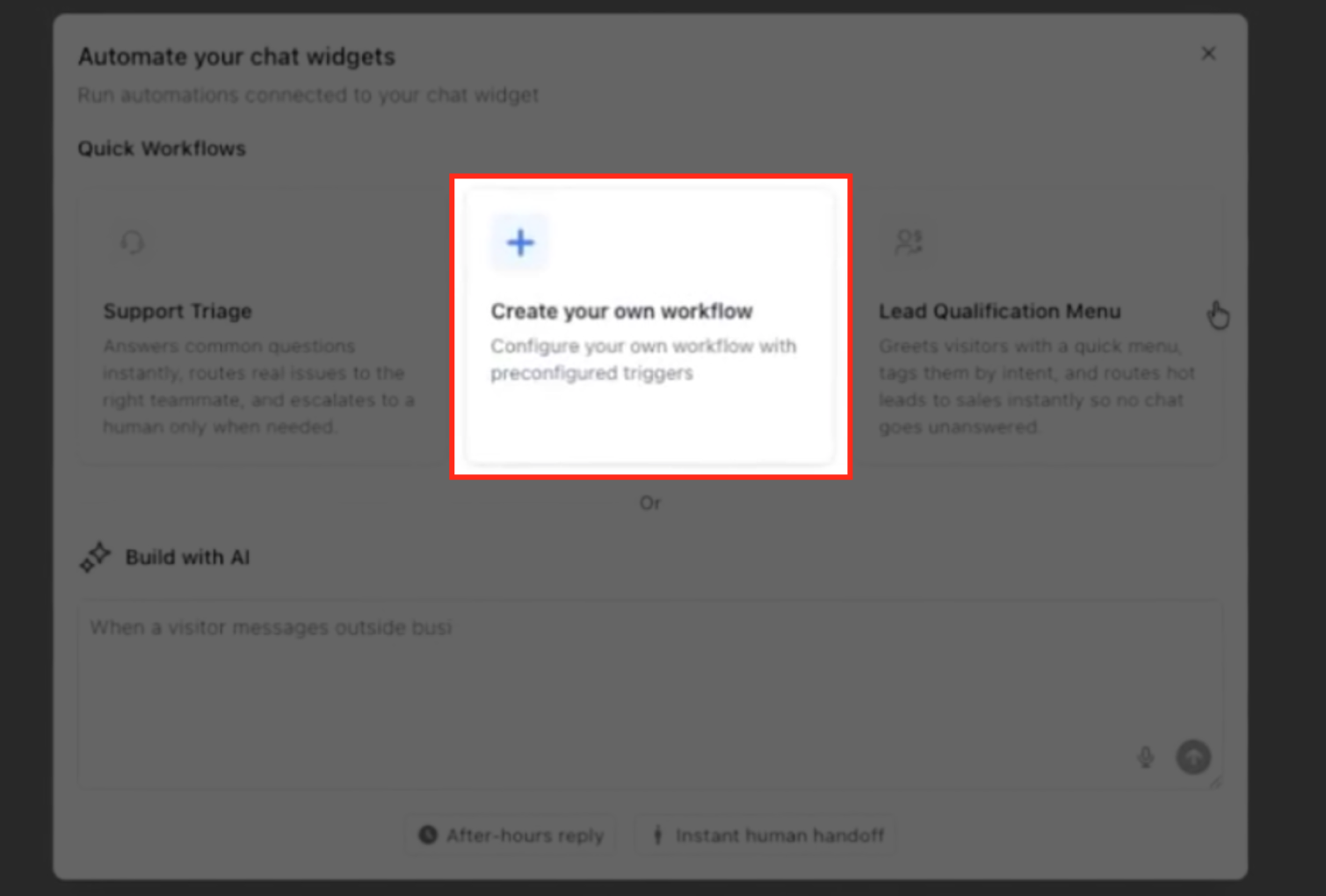
In the Automate your chat widgets window, choose how you want to start:
Support Triage: Start from a workflow designed for common support requests.
Lead Qualification Menu: Start from a workflow designed to route visitors based on their responses.
Create your own workflow: Open a workflow connected to the selected widget, with the Customer Replied trigger and Live chat interactive messenger action already added.
Select Create your own workflow to configure a custom interactive card.
In the Workflow Builder, locate the existing Customer Replied trigger and Live chat interactive messenger action.
Open the Live chat interactive messenger action to configure its message, image, and buttons.
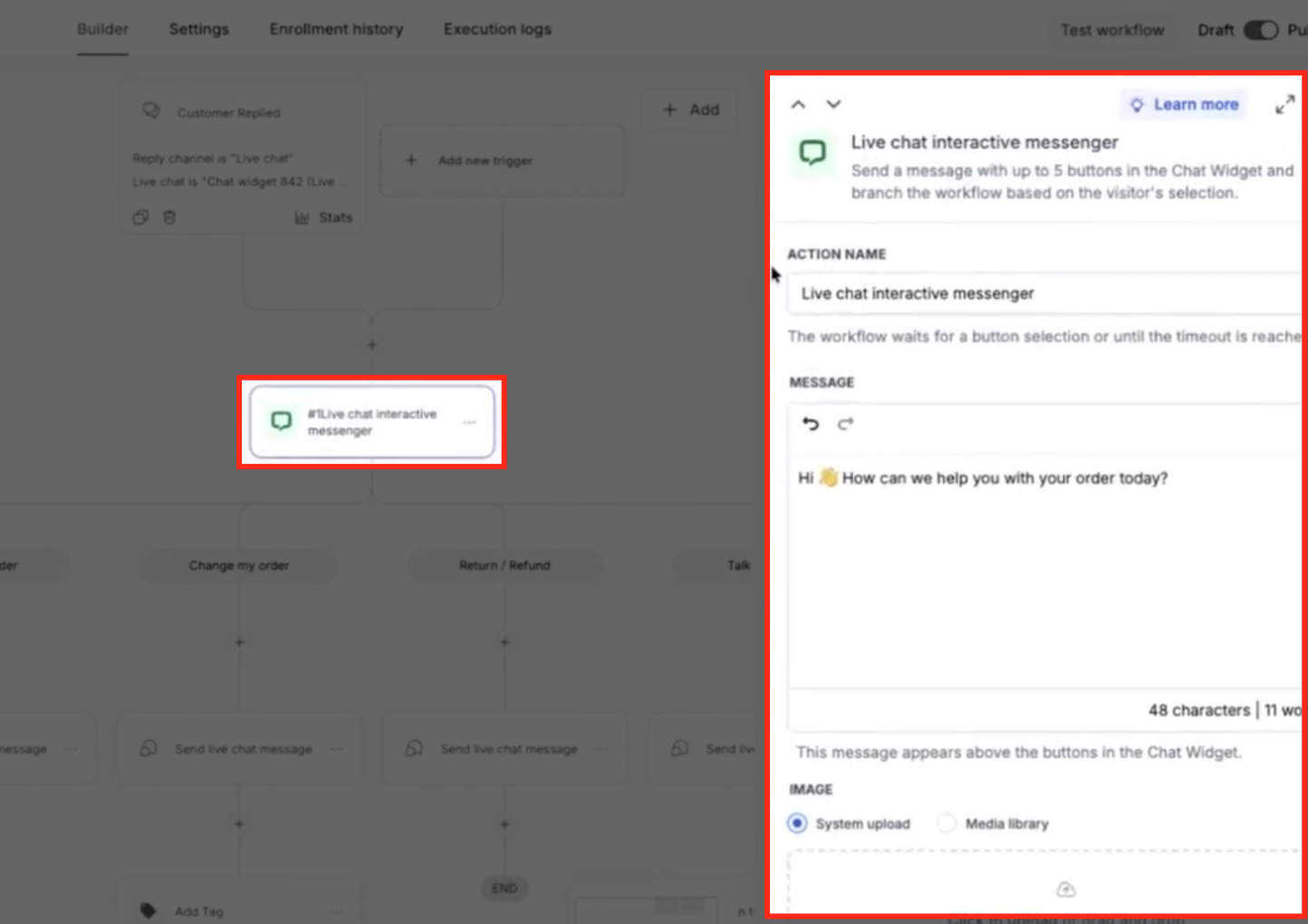
Note: When you use Create your own workflow from the Chat Widget builder, the associated trigger and interactive action are already added. You do not need to recreate them manually.
Configure From the Workflow Builder
You can set up Live chat interactive messenger directly from the Workflow Builder. This gives you the flexibility to add interactive buttons to a new or existing workflow without starting from the Chat Widget builder.
From the Sub-Account view, navigate to Automation → Workflows. Click Create Workflow to start a new workflow, or open an existing one. If you're creating a new workflow, follow the workflow-creation prompts to enter the builder.
Next, click + Add New Trigger and select Customer Replied. Give the trigger a recognizable name, then click + Add Filters to specify which Live Chat conversations should activate the workflow.
Configure the filters based on your widget type:
Live Chat widget: Set Reply Channel to Live chat, then use Live chat is to select the specific widget.
All-in-One Chat widget: Set Reply Channel to All-in-One Chat, choose the appropriate option under Chat Type is (Chat Widget or Live Chat), and select the widget using Chat Widget is or Live Chat is.
Once the trigger is configured, click Save Trigger. On the workflow canvas, click the + icon where you want to add the next action and select Live chat interactive messenger.
Open the action to configure your message, optional image, and interactive buttons.
Configure the Message, Image, and Buttons
The Live chat interactive messenger action lets you customize the message visitors see, add an optional image, and offer clickable buttons to guide their next steps.
From the Sub-Account view, navigate to Automation → Workflows and open the workflow you want to configure. On the workflow canvas, click the Live chat interactive messenger action to open its settings. You can update the ACTION NAME to make the action easier to identify.
Start by entering your question or greeting in the MESSAGE field. For example, "Hi How can we help you with your order today?" If you'd like to include an image, go to IMAGE and choose System upload to add a JPG, PNG, or WEBP file, or select Media library to use an existing image.
Next, scroll to the Buttons section and enter the text you want visitors to see in BUTTON LABEL, such as "Track my order." Under ON CLICK, choose what should happen when someone selects the button:
Perform actions: Directs the visitor through the corresponding workflow branch, where you can configure follow-up actions.
Open website URL: Opens an HTTPS link that you enter in the WEBSITE URL field, such as
https://example.com/help.
To offer more choices, click + Add button and configure each additional button the same way. You can include up to five buttons in a single interactive card.
Once everything looks right, click Save action to save your configuration.
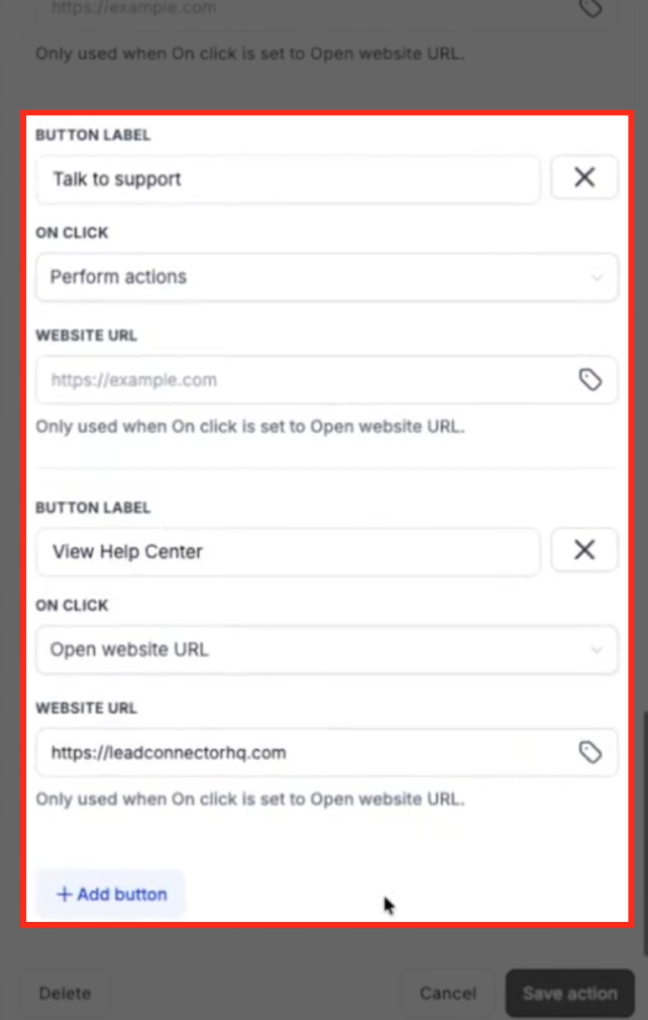
Example interactive card
Message: "Hi ? How can we help you with your order today?"
| Button Label | On Click | Intended Outcome |
|---|---|---|
| Track my order | Perform actions | Start the order-tracking workflow branch |
| Change my order | Perform actions | Start the order-change workflow branch |
| Return / Refund | Perform actions | Start the return or refund workflow branch |
| Talk to support | Perform actions | Start a support-routing branch |
| View Help Center | Open website URL | Open an HTTPS help page |
These labels are examples. Configure the actual workflow steps and website destinations for your business.
Configure Button Branches and Timeout
Each button configured to perform an action gets its own workflow branch, allowing you to automate what happens based on the visitor's selection. The Timeout branch provides a fallback when the visitor doesn't respond within the configured waiting period.
From the Sub-Account view, navigate to Automation → Workflows and open your workflow. Select the Live chat interactive messenger action, configure how long the workflow should wait for a visitor's response, and click Save action.
On the workflow canvas, you'll see separate branches for your action buttons, along with a Timeout branch. Click the + icon under a button branch to add the action you want to perform when that option is selected. For example, you can:
Send live chat message: Send a follow-up message based on the visitor's selection.
Add Tag: Apply a tag to categorize the visitor's request.
Assign to User: Route the contact to a team member for assistance.
Configure and save each action, then repeat the process for the remaining button branches.
For the Timeout branch, click + and add the action that should run if the visitor doesn't select an option within the configured time. For example, you can send a follow-up Live Chat message or assign the contact to a team member.
Once all branches are configured, review each workflow path to make sure visitors are routed to the appropriate next step before publishing.
Tip: Use descriptive button labels and workflow action names so team members can identify each routing path easily.
Publish and Test the Workflow
Before making your interactive workflow available to visitors, test it to ensure the buttons display correctly and each selection triggers the intended action. You can also review the visitor's selection in Conversations.
From the Sub-Account view, navigate to Automation → Workflows and open your configured workflow. Make sure the Customer Replied trigger, Live chat interactive messenger action, and corresponding button branches are configured correctly. Once everything is ready, set the workflow to Publish.
Next, visit the website where your Chat Widget is installed and open the chat. Send a test message, such as "Hello," to trigger the workflow. The interactive card should appear with your configured message, optional image, and buttons.
Test the different button behaviors to make sure everything works as expected:
Perform actions: Select a button and confirm that it becomes highlighted while the other workflow branch buttons become unavailable. Check that the corresponding workflow branch executes the intended actions.
Open website URL: Click a link button and verify that it opens the configured HTTPS destination.
Timeout: Start another test without selecting an option. Once the configured waiting period expires, verify that the workflow follows the Timeout branch.
Finally, return to the Sub-Account view and select Conversations from the left-hand menu. Open the Conversations tab, locate the test conversation in the Team inbox, and select it to review the visitor's recorded button selection.
Understand Button Selections in Live Chat and Conversations
Interactive Messenger makes the visitor's selection visible in both the chat experience and Chat To Clients CRM Conversations. These selection states help prevent multiple workflow branches from running and provide context when a team member takes over.
What visitors see
Before a selection, the card displays its configured buttons.
When the visitor selects a workflow branch button, the selected button becomes highlighted.
Other workflow branch buttons on that card become disabled.
Website link buttons remain clickable.
The visitor cannot activate a second workflow branch from the same card.
What team members see
In Conversations, the interactive card shows the selected button.
Team members can review the recorded selection when responding to the conversation.
The selected option provides context about the visitor's original request.
Frequently Asked Questions
Q: Is Conversation AI required to use Live Chat Interactive Messenger?
A: No. Live chat interactive messenger is a workflow action configured in the Workflow Builder. Conversation AI Rich Elements Support is a separate feature with its own settings.
Q: Can a card contain both workflow buttons and website links?
A: Yes. You can configure individual buttons to perform workflow actions or open HTTPS links. Each action button uses its configured workflow branch.
Q: Can I create an Interactive Messenger workflow without using a Quick Workflow?
A: Yes. You can select Create your own workflow from the Chat Widget builder or configure the trigger and action directly in Automation → Workflows.
Q: Can I route a visitor to a team member after they select a support option?
A: Yes. Configure the corresponding button branch with an assignment action, such as Assign to User, to route the contact to the appropriate team member.