
How to Use the Guided Managed Agent Builder in Chat To Clients CRM
The Guided Managed Agent Builder in Chat To Clients CRM helps you create and edit AI agents using natural-language instructions. With targeted edits, guided clarifying questions, and a live configuration panel, you can make changes without rebuilding your agent. The builder also keeps related instructions synchronized and uses resources available in your sub-account. This article explains how these improvements work and how to use them effectively.
TABLE OF CONTENTS
- What is the Guided Managed Agent Builder in Chat To Clients CRM?
- Key Benefits of the Guided Managed Agent Builder
- Targeted Configuration Edits
- Guided Clarifying Questions and Intent Recognition
- Live Editable Configuration Panel
- Smart Cascades and Instruction Synchronization
- How to Use the Guided Managed Agent Builder
- Frequently Asked Questions
- Related Articles
What is the Guided Managed Agent Builder in Chat To Clients CRM?
The Guided Managed Agent Builder is an AI-powered experience in Agent Studio that allows you to create and modify Managed Agents (formerly Super Agents) through conversation. Instead of manually updating every setting, you can describe the changes you want, review the results in a live configuration panel, and adjust supported fields directly.
The builder also recognizes questions, requests clarification when needed, and preserves unrelated configuration settings when making targeted edits. These improvements are available for Managed Agents in Agent Studio without additional feature setup.
Key Benefits of the Guided Managed Agent Builder
The Guided Managed Agent Builder simplifies agent creation and editing while giving you greater control over configuration changes.
Targeted Edits: Modify specific agent settings without affecting unrelated configurations.
Guided Clarification: Resolve unclear requests by selecting the correct resources instead of relying on assumptions.
Intent Recognition: Ask questions or request changes without unintentionally modifying your agent.
Live Configuration Updates: Watch instructions, triggers, tools, skills, and Knowledge Bases update in real time.
Inline Editing: Fine-tune supported configuration fields directly from the configuration panel.
Smart Cascades: Automatically synchronize related instructions when triggers, plugins, or Knowledge Bases change.
Account-Grounded Resources: Configure agents using existing forms, calendars, pipelines, Knowledge Bases, and connected apps from your sub-account.
Targeted Configuration Edits
Targeted editing allows you to make precise changes to an existing Managed Agent without regenerating its entire configuration. This helps preserve working instructions, triggers, and connected resources while you refine specific behaviors.
For example, if you want an existing agent to communicate more conversationally, enter:
"Make this agent's tone friendlier without changing its existing triggers or Knowledge Base."
The builder updates the relevant instructions while preserving unrelated settings.
Other examples include:
"Add a trigger for the Contact Us form."
"Make the agent's responses shorter."
"Update the instructions to ask for an email address before creating a task."
When an edit affects a related configuration element, the builder may also synchronize the corresponding instructions.
Guided Clarifying Questions and Intent Recognition
The builder identifies whether you are asking a question, requesting a configuration change, or providing an unclear instruction. This helps prevent unintended edits and ensures the correct resources are selected. When a request contains missing or ambiguous information, the builder asks a focused clarifying question instead of guessing.
For example, if your sub-account contains multiple forms named "Contact Us," entering:
"Add a trigger for the Contact Us form."
prompts the builder to ask which form should be used.
The builder also uses resources available in your Chat To Clients CRM sub-account, helping prevent invalid selections.
| Request | Builder Behavior |
|---|---|
| "What can this agent do?" | Explains the agent's capabilities without changing its configuration. |
| "Make the tone friendlier." | Updates the relevant agent instructions. |
| "Improve this agent." | Asks for clarification before making changes. |
| "Add a trigger for the Contact Us form." | Selects the matching form or asks which one to use if multiple matches exist. |
| "Use the Support Knowledge Base." | Uses the available resource or requests clarification if it cannot be identified. |
The same intent recognition applies when creating a new agent. If you enter a question instead of a creation instruction, the builder responds to the question rather than creating an unintended agent.
Live Editable Configuration Panel
The live configuration panel displays agent settings as the builder processes your requests. This provides immediate visibility into configuration changes and allows you to review or adjust supported fields before publishing.
The panel displays key agent configurations, including:
Instructions: Define the agent's behavior and communication guidelines.
Triggers: Determine which events start the agent.
Tools: Provide access to supported actions and integrations.
Skills: Enable the agent to perform specific tasks.
Knowledge Bases: Provide information the agent can reference.
As the builder processes a request, instructions stream into the panel while configuration elements populate as they are resolved. You can also edit supported fields directly instead of submitting another conversational request.
Smart Cascades and Instruction Synchronization
Smart cascades automatically keep an agent's instructions aligned with its configuration. When you modify a trigger, plugin, or Knowledge Base, the builder updates related instructions where necessary while preserving unrelated settings.
For example, enter:
"Replace the current Knowledge Base with the Support Procedures Knowledge Base."
The builder updates the selected Knowledge Base and adjusts related instructions to reflect the change. Similarly, changing a trigger can update instructions associated with when and why the agent runs.
Smart cascades apply to:
Triggers: Keep instructions aligned with the events that start the agent.
Plugins: Reflect changes to available integrations and capabilities.
Knowledge Bases: Keep instructions consistent with the agent's information sources.
Review the updated configuration before publishing to ensure the changes match your intended behavior.
How to Use the Guided Managed Agent Builder
The Guided Managed Agent Builder allows you to create or edit an agent, review changes as they happen, and test its behavior before publishing. Following these steps helps ensure the agent is configured correctly while preserving existing settings.
Step 1: Open the Managed Agent Builder
Log in to your Chat To Clients CRM sub-account.
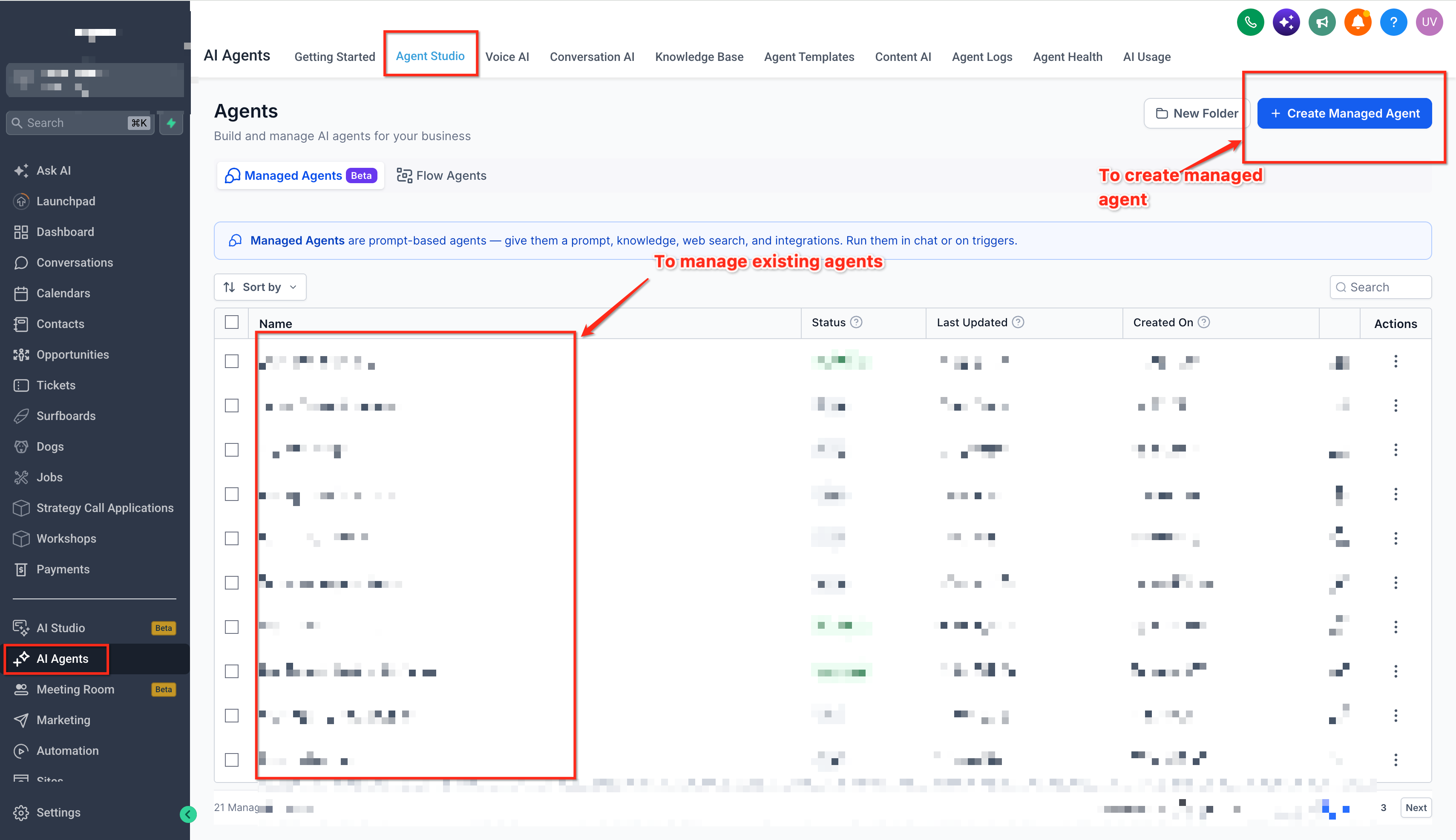
Navigate to AI Agents → Agent Studio.
Open the Managed Agents tab.
Create a new Managed Agent or open an existing one for editing.
Step 2: Enter Your Instructions
In the builder's conversational composer, describe what you want to create or change.
For example:
"Add a form submission trigger for the Demo Request form without changing the existing tools or Knowledge Base."
Submit your request.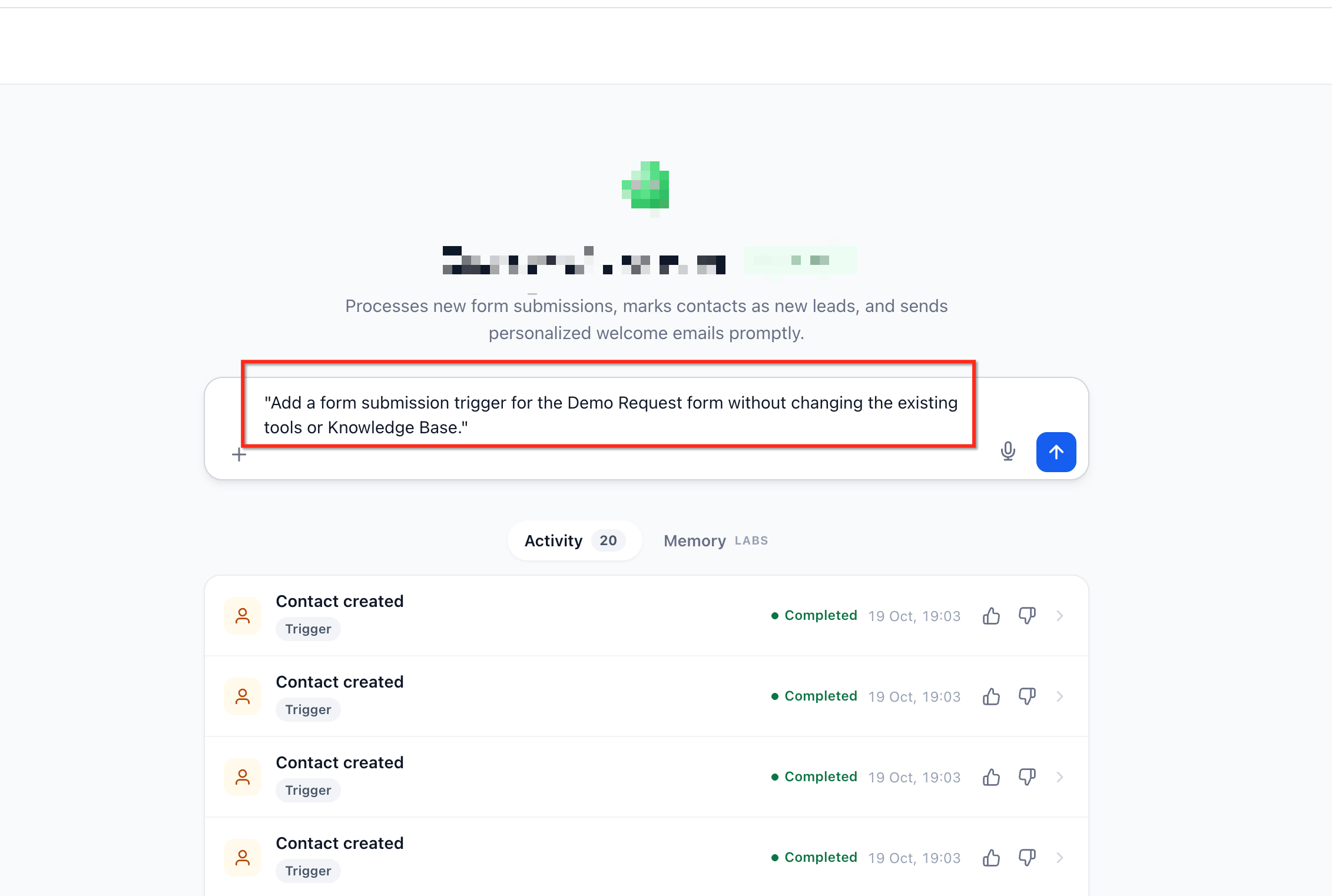
Step 3: Answer Clarifying Questions
If the builder asks for clarification, select the appropriate resource or provide the missing information. The builder then continues applying the requested changes.
Step 4: Review and Adjust the Configuration
Watch the changes appear in the live configuration panel. Verify the updated instructions, triggers, tools, skills, and Knowledge Bases.
If necessary, make additional requests or modify supported fields inline.
Step 5: Test and Publish
Use the available Test option to verify the agent's behavior.
Confirm the requested changes work as expected.
Check that unrelated settings and capabilities remain unchanged.
Make any necessary adjustments.
Select Publish when the configuration is ready.
Frequently Asked Questions
Q: Do I need to enable the guided-builder improvements?
No. The improvements are available for Managed Agents in Agent Studio without additional feature setup.
Q: Can I ask questions without changing my agent?
Yes. The builder distinguishes informational questions from editing requests and responds without intentionally modifying the configuration.
Q: What happens if the requested form or resource cannot be found?
The builder asks for clarification rather than using an invalid or invented resource. Verify that the resource exists in your sub-account.
Q: Can I edit configurations directly without using prompts?
Yes. The live configuration panel supports inline editing of available fields.
Q: Will changing a trigger or Knowledge Base overwrite all my instructions?
No. Smart cascades update related instructions as needed while preserving unrelated configurations.
Q: Does using account-grounded resources guarantee the agent will work correctly?
No. Account-grounded selection helps prevent invalid resource references, but you should still review and test the agent before publishing.