
Chat Widget Analytics: How to Use Insights Feature in Chat To Clients CRM
Chat Widget Analytics (Insights) brings widget performance data into a single dashboard in Chat To Clients CRM. You can follow the visitor journey from widget load to open to lead and identify where engagement drops. You can also compare widgets, inspect underlying records, and review daily engagement and customer feedback. This guide walks you through accessing Insights, applying filters, and understanding each report.
What is Insights?
Insights is a Chat Widget Analytics dashboard within Chat To Clients CRM's Chat Widget area. It brings together engagement, lead generation, individual widget performance, and customer sentiment so you can evaluate how visitors interact with your chat widgets.
The dashboard uses existing widget event data to show how visitors progress from loading a widget to opening it and becoming leads. You can review performance across all widgets in an account or narrow the results using widget and date-range filters.
Insights includes a conversion funnel, headline performance indicators, per-widget reporting, engagement charts, customer sentiment trends, and drill-down records.
Key Benefits of Chat Widget Analytics (Insights)
Understanding how visitors interact with your chat widgets helps you identify which widgets attract attention, which generate leads, and where engagement decreases. Insights combines these measurements into a single reporting experience.
Track visitor conversions: Follow widget loads, opens, and leads through a conversion funnel. Review stage-by-stage progression and the overall conversion rate to identify where visitors stop engaging.
Monitor performance at a glance: View key metrics for satisfaction, open rate, active widgets, and leads generated without comparing individual widget records manually.
Compare widget performance: Review loaded and opened counts, open rates, leads, and customer feedback for individual widgets. Sort performance columns and filter widgets by name.
Investigate underlying activity: Select available metric values to examine the records behind the reported numbers.
Analyze engagement trends: Compare opened and not-opened activity over time using daily charts and different visualization modes.
Understand customer sentiment: Review positive and negative visitor feedback, overall satisfaction, and daily feedback trends.
How To Setup Chat Widget Analytics (Insights)
Chat Widget Analytics is accessed from the Chat Widget area in Chat To Clients CRM. Once you open Insights, you can select the reporting period and widgets you want to analyze, then explore the available performance reports.
The release documents an analytics workflow rather than a separate widget installation process.
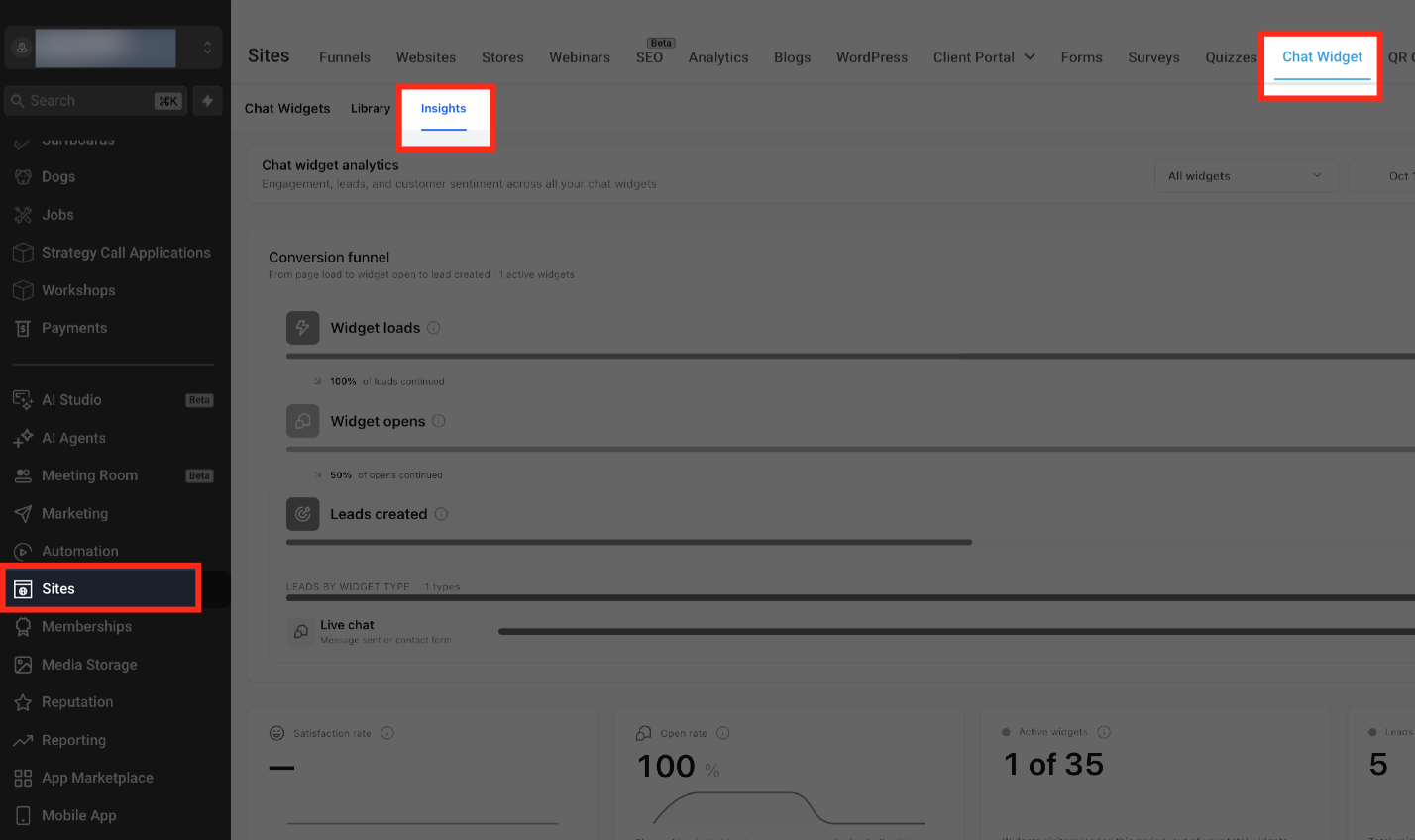
Step 1: Open Sites
From your Chat To Clients CRM Sub-Account view, select Sites.
In the Sites navigation, select Chat Widget.
Step 2: Open the Insights tab
In the Chat Widget area, select Insights.
The Chat widget analytics dashboard opens, displaying analytics for the current widget and date selections.
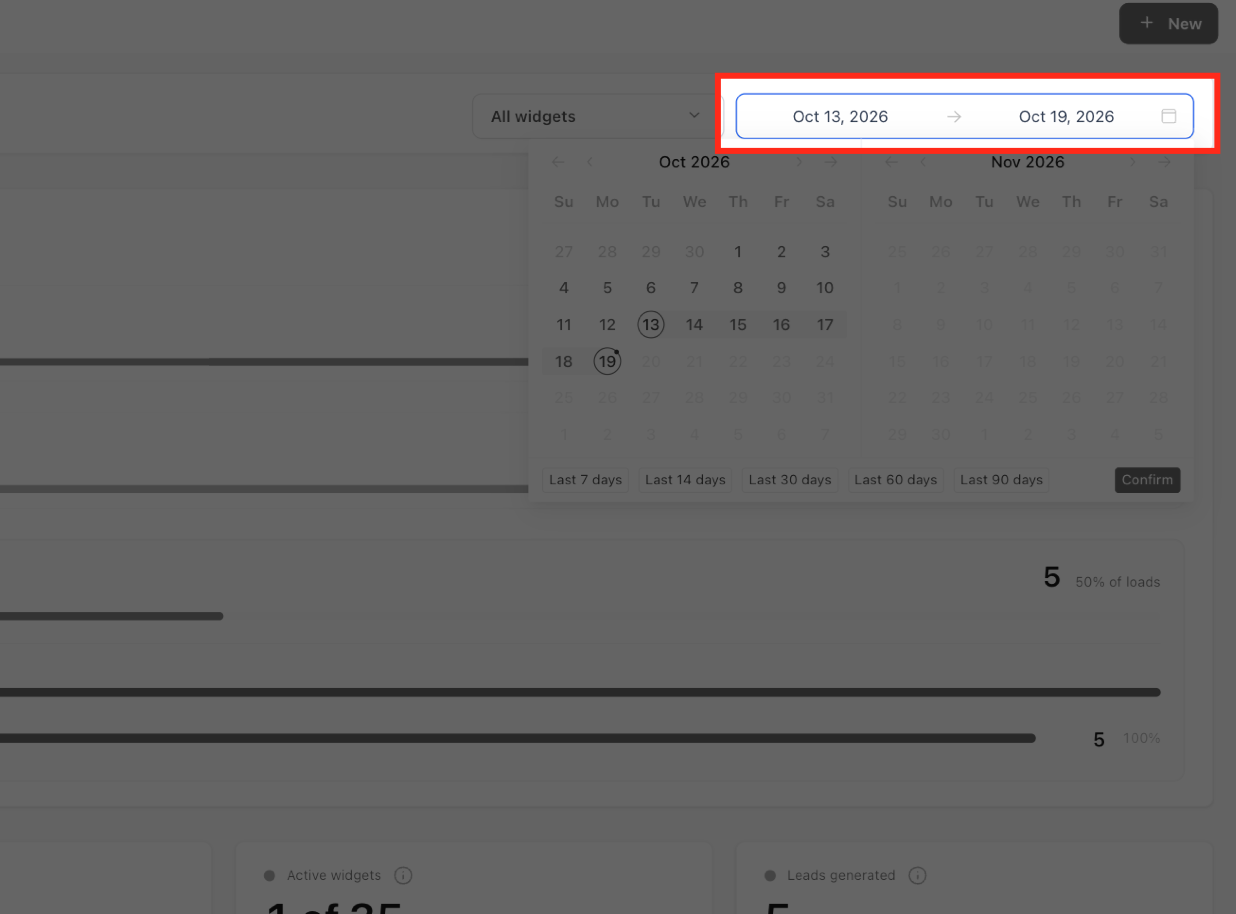
Step 3: Select the reporting period
In the upper-right corner, select the date-range picker.
Choose the reporting period you want to analyze.
Step 4: Filter the widgets
Select the All widgets dropdown near the date-range picker.
Choose the widgets you want to include in the report. You can select multiple widgets or keep the report focused on all widgets.
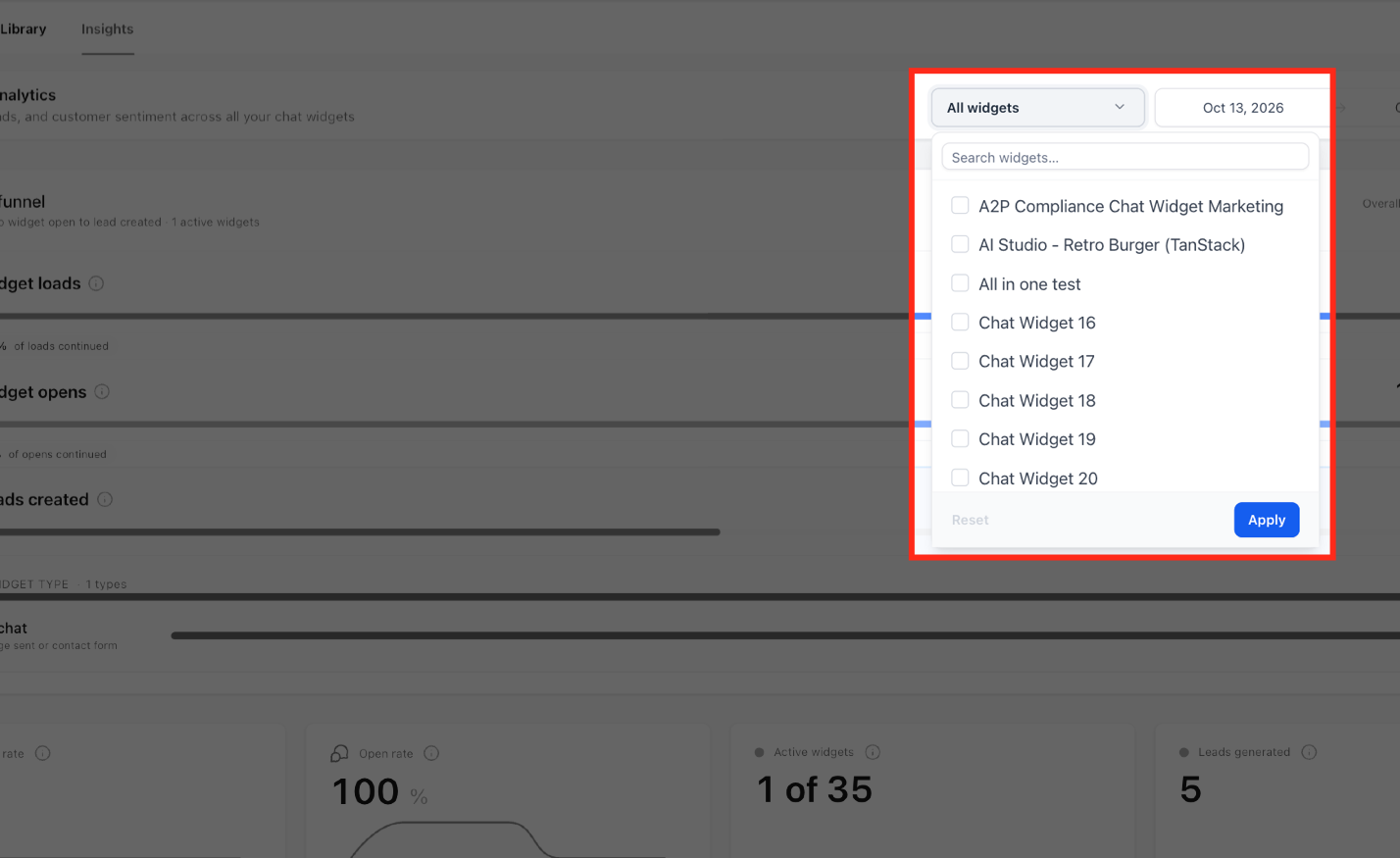
The selected widget and date filters control the analytics displayed throughout the dashboard.
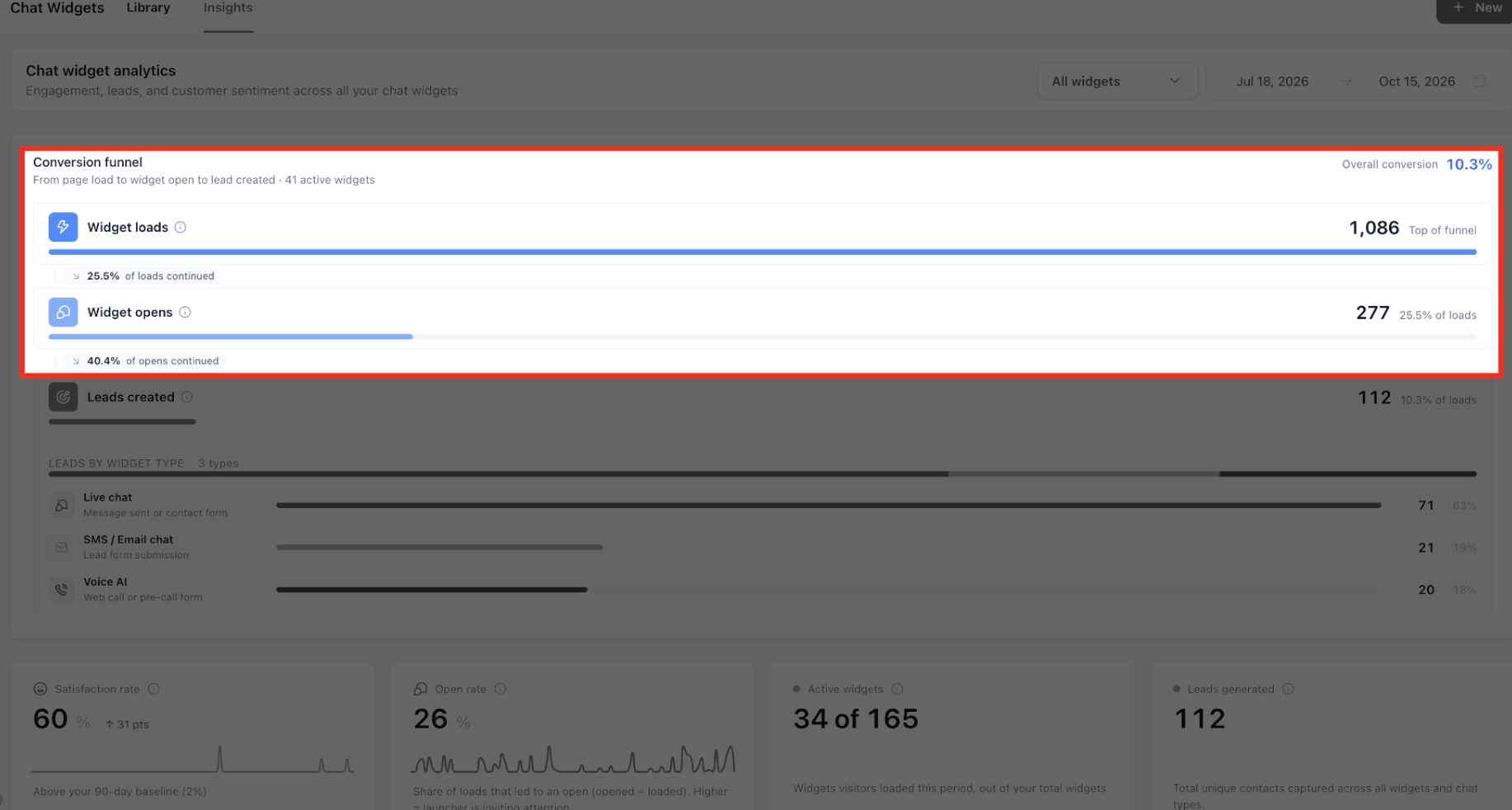
Step 5: Review the conversion funnel and key metrics
Locate the Conversion funnel to review Widget loads, Widget opens, Leads created, and the overall conversion rate.
Review the four headline KPI cards to evaluate open rate, active widgets, leads generated, and satisfaction rate.
Step 6: Compare individual widgets
Scroll to Widget performance.
Use the Filter widgets by name... field to find a specific widget.
Select a column heading to sort the table by the corresponding metric.
Select an available metric value, such as a number in Leads generated, to inspect its underlying records.
Review the record drawer, then select X in the upper-right corner to close it.
Step 7: Explore engagement and customer sentiment
Scroll to Engagement to review the overall open rate and daily loaded/opened activity.
On the Daily loaded & opened trend chart, choose Stacked, Paired, or Drop-off to change the chart view.
Continue to Customer sentiment to review the overall satisfaction breakdown.
On the Daily feedback trend chart, choose Stacked, Paired, or Net to view feedback in different formats.
Understanding Conversion Metrics and KPIs
The conversion funnel and headline KPI cards help you understand how effectively chat widgets turn visitor activity into leads. Together, these reports show where interactions begin, how visitors progress, and the overall results generated by your widgets.
Conversion Funnel and Leads by Widget Type
The conversion funnel displays the visitor journey in three stages. Comparing these stages helps identify where engagement decreases between a widget appearing on a page and a lead being generated.
The funnel includes:
Widget loads: The number of times chat widgets loaded during the selected reporting period.
Widget opens: The number of recorded widget opens.
Leads created: The number of leads attributed to chat widget interactions.
The funnel shows stage-to-stage continuation percentages and an Overall conversion rate. The conversion rate represents leads created as a percentage of widget loads in the supplied example.
Below the funnel, Leads by widget type breaks generated leads into the widget types represented in the report.
The supplied example includes:
Live chat: Message sent or contact form.
SMS / Email chat: Lead form submission.
Voice AI: Web call or pre-call form.
This breakdown helps you compare the contribution of different chat experiences to overall lead generation.
Headline Performance Indicators
The headline KPI cards summarize important results from the selected widgets and reporting period. They help you review widget visibility, engagement, lead generation, and customer feedback without opening each widget individually.
| KPI | What It Shows |
|---|---|
| Satisfaction rate | The satisfaction percentage reported from chat widget feedback. |
| Open rate | The percentage of widget loads that resulted in an open, calculated as Widget opens ÷ Widget loads. |
| Active widgets | Widgets that recorded loads during the selected period, displayed against the total widget count. |
| Leads generated | The total unique contacts captured across the included widgets and chat types, as described in the dashboard. |
The supplied dashboard also displays mini trend charts on the Satisfaction rate and Open rate cards. These help illustrate recent changes in the reported metrics.
Comparing Widget Performance and Reviewing Records
The Widget performance table lets you evaluate how individual chat widgets contribute to engagement, leads, and feedback. This view is useful when your account contains multiple widgets and you want to identify differences in their results.
Widget performance table
The table displays the following information for each widget:
| Column | Description |
|---|---|
| Widget | The name of the chat widget. |
| Chat type | The chat type associated with the widget. |
| Loaded | Number of recorded widget loads. |
| Opened | Number of recorded widget opens. |
| Open rate | Percentage of widget loads that led to an open. |
| Leads generated | Leads generated through the widget. |
| Positive | Positive feedback count. |
| Negative | Negative feedback count. |
| Satisfaction | Satisfaction result for the widget, where available. |
Use the widget-name filter to narrow the table to matching widgets. You can also sort columns to compare activity and performance.
The table supports pagination when the results extend beyond the current page.
Reviewing the underlying records
Widget performance includes drill-down functionality that lets you inspect the records behind reported values. Selecting a supported metric opens a detail drawer.
For example, selecting a Leads generated value opens the corresponding lead-record view.
The supplied lead drawer includes:
Contact ID
Name
Email
Phone
Created at
The available information depends on the records displayed.
Analyzing Chat Widget Engagement
Engagement analytics help you understand whether visitors interact with widgets after they load. Comparing opened and not-opened activity across the selected reporting period can reveal changes in visitor behavior.
Engagement overview
The Engagement overview uses a donut chart to summarize widget interaction.
It displays:
Open rate: The percentage of widget loads resulting in an open.
Widget opened: The count of recorded widget opens.
Not opened: The count of widget loads that did not result in an open.
The chart gives you a quick view of how much widget exposure leads to direct interaction.
Daily loaded & opened trend
The Daily loaded & opened trend chart displays widget activity by day across the selected reporting period.
It distinguishes between:
Widget opened
Not opened
You can switch between three chart modes:
Stacked: View the activity series together in a stacked chart.
Paired: Compare the series alongside each other.
Drop-off: View the chart's drop-off presentation.
Understanding Customer Sentiment
Customer sentiment analytics bring together feedback collected through chat widgets. These reports help you evaluate visitor satisfaction and identify changes in positive or negative feedback over time.
Overall satisfaction
The Overall satisfaction chart displays a satisfaction percentage and a visual breakdown of feedback.
The report distinguishes between:
Positive: Feedback recorded as positive.
Negative: Feedback recorded as negative.
The donut chart summarizes the overall satisfaction result for the selected reporting context.
Daily feedback trend
The Daily feedback trend chart displays positive and negative feedback activity over time.
You can choose between three display modes:
Stacked: Display positive and negative feedback together in a stacked view.
Paired: Compare positive and negative feedback side by side.
Net: View feedback using the chart's net presentation.
Frequently Asked Questions
Q: Is Chat Widget Insights the same as Chat Widget Analytics in AI Studio?
No. Chat Widget Insights is accessed through Sites → Chat Widget → Insights. AI Studio has a separate analytics view for widgets used in AI Studio projects, accessed through AI Studio → More → Analytics → Chat Widgets.
Q: How is Chat Widget Insights different from Google Analytics 4 tracking?
Chat Widget Insights displays widget analytics directly inside Chat To Clients CRM. Google Analytics 4 tracking is a separate reporting option that lets you monitor chat widget interaction events in GA4.
Q: What does Live chat mean in the widget-type breakdown?
In Chat To Clients CRM, Live Chat is the setup label for the Web Chat channel used for real-time website messaging. The Insights breakdown uses Live chat as a widget-type label.
Q: Why can a widget show loads but no opens?
Widget loads and widget opens are tracked as separate activities. A widget can load on a page without the visitor opening it, so the performance table can show a loaded count even when the opened count is zero.