How to Add Chat Widgets in AI Studio
AI Studio lets you create customized chat widgets that match the websites and apps you build in Chat To Clients CRM. Instead of using a standard chat bubble, you can design a chat experience that fits your site's branding while still using Chat To Clients CRM's existing chat functionality. This article explains how to create, customize, manage, and track chat widgets in AI Studio.
TABLE OF CONTENTS
- Chat Widgets in AI Studio
- How AI Studio Chat Widgets Work
- How to Add a Chat Widget in AI Studio
- Chat Widget Settings
- Chat Widget Analytics
- Related Articles
Chat Widgets in AI Studio
AI Studio Chat Widgets let you create a chat experience that looks and feels like a natural part of your website. Simply ask AI Studio to add a chat widget, and it builds one that matches your site's colors, fonts, and layout. You can customize everything from the greeting and placement to the overall appearance using AI prompts or by editing the code.
AI Studio builds the chat interface directly into your application's code, while Chat To Clients CRM powers the messaging behind it. This means your widget can have a completely customized design while still using your existing Chat To Clients CRM contacts, Conversations, and chat widget settings. You can even create multiple chat widgets in the same project for different pages or visitor experiences.
Note: AI Studio supports Live Chat and SMS / Email Chat. Voice Chat, WhatsApp, Facebook Messenger, and Instagram chat widgets are not currently supported.
How AI Studio Chat Widgets Work
When someone sends a message through the widget, it appears in Conversations, where your team can read and reply to it. Replies are delivered back to the visitor through the chat widget, just like a standard Live Chat conversation!
The widget also supports existing Chat To Clients CRM chat functionality, including conversation history, file attachments, message delivery status, business hours, and spam protection. Returning visitors can continue previous conversations, and the widget follows your configured chat settings.
Each widget created through AI Studio also appears under Sites → Chat Widgets in your Chat To Clients CRM account, alongside your other chat widgets. If you open an AI Studio-created widget for editing, you'll be directed back to AI Studio to manage its settings.
How to Add a Chat Widget in AI Studio
AI Studio creates and connects chat widgets through a guided setup process, so you don't need to manually install embed code.
- From within your AI Studio project, enter a prompt asking AI Studio to add a chat widget.
For example, "Add a chat widget to my website."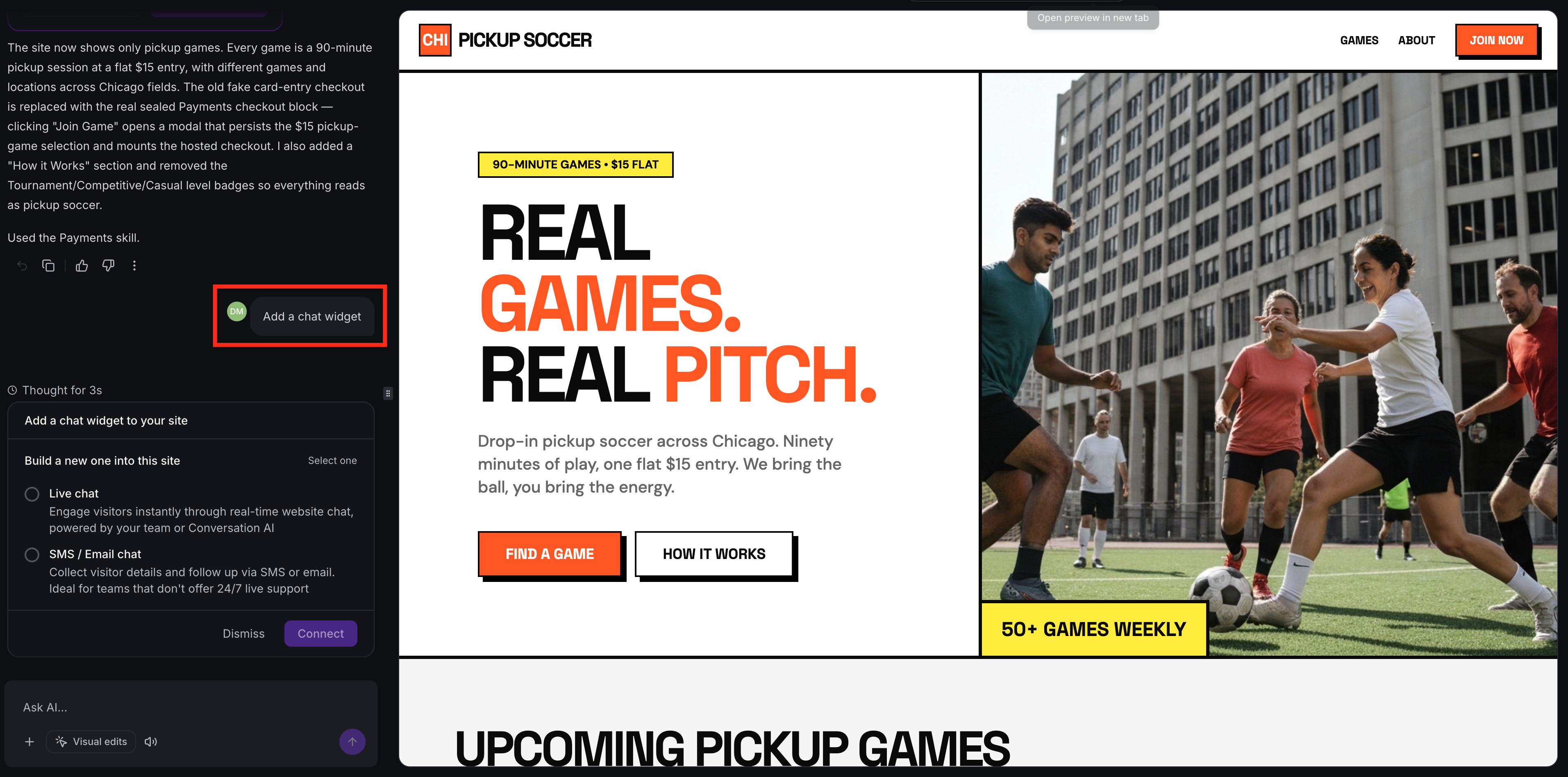
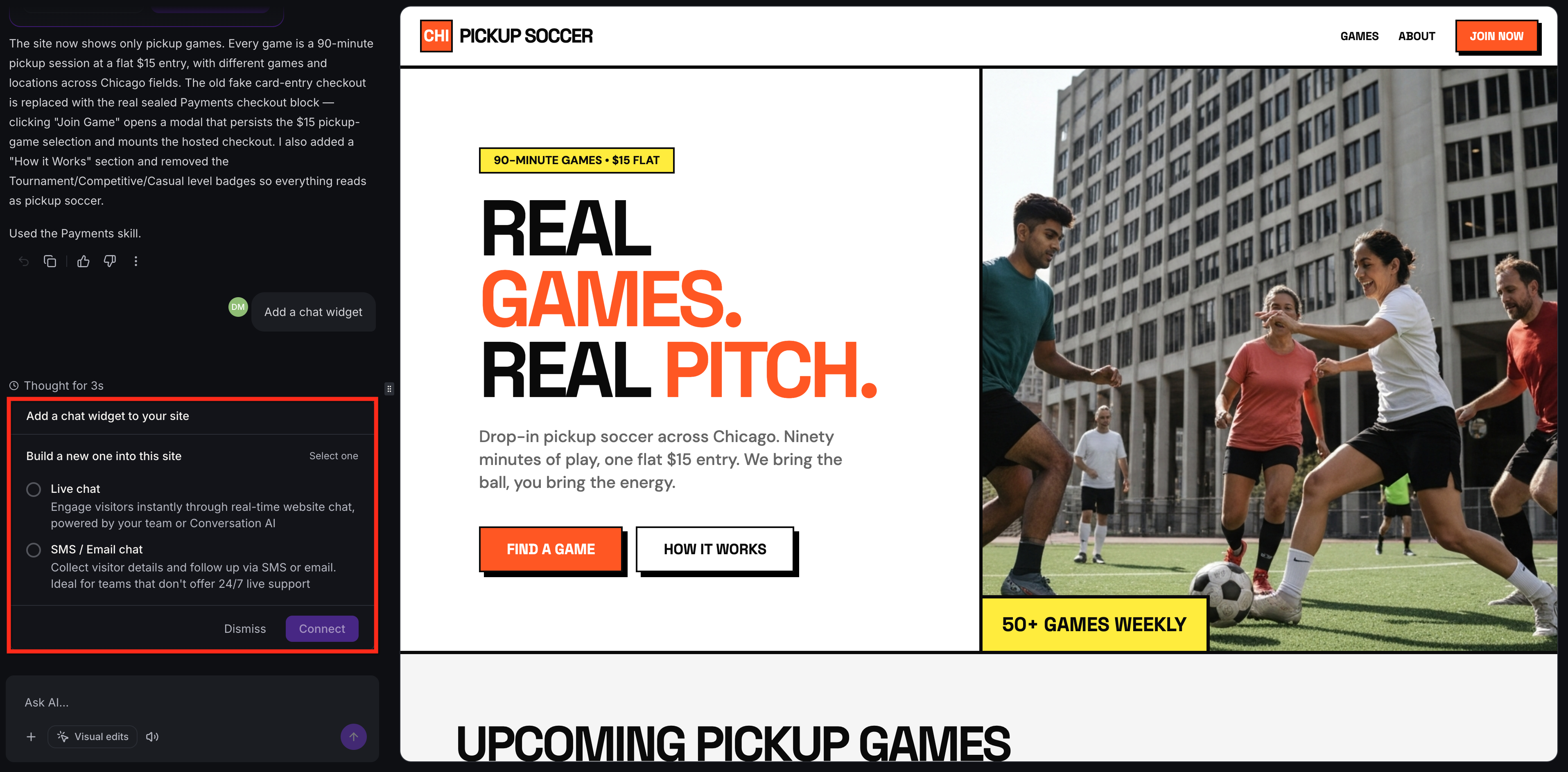
Choose the chat type you want to add, then click Connect.
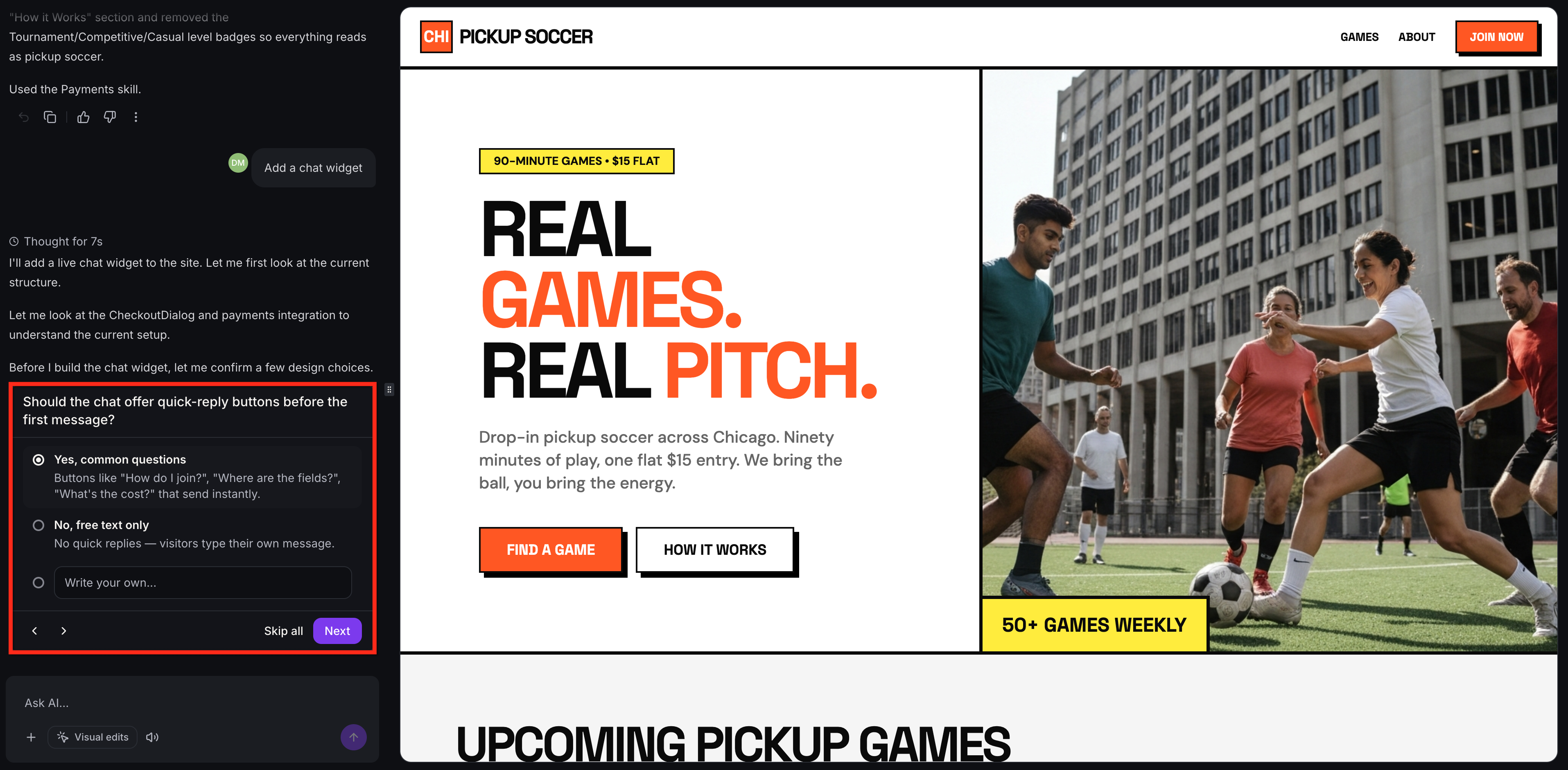
- Answer AI Studio's design questions to customize the chat experience. You can choose how the widget greets visitors, where it appears, and the tone of its messages.
- Once AI Studio finishes, it creates a chat widget in your Chat To Clients CRM account, names it after your project, and connects it to your application automatically. Open your application preview to see how the widget looks and interacts with visitors.
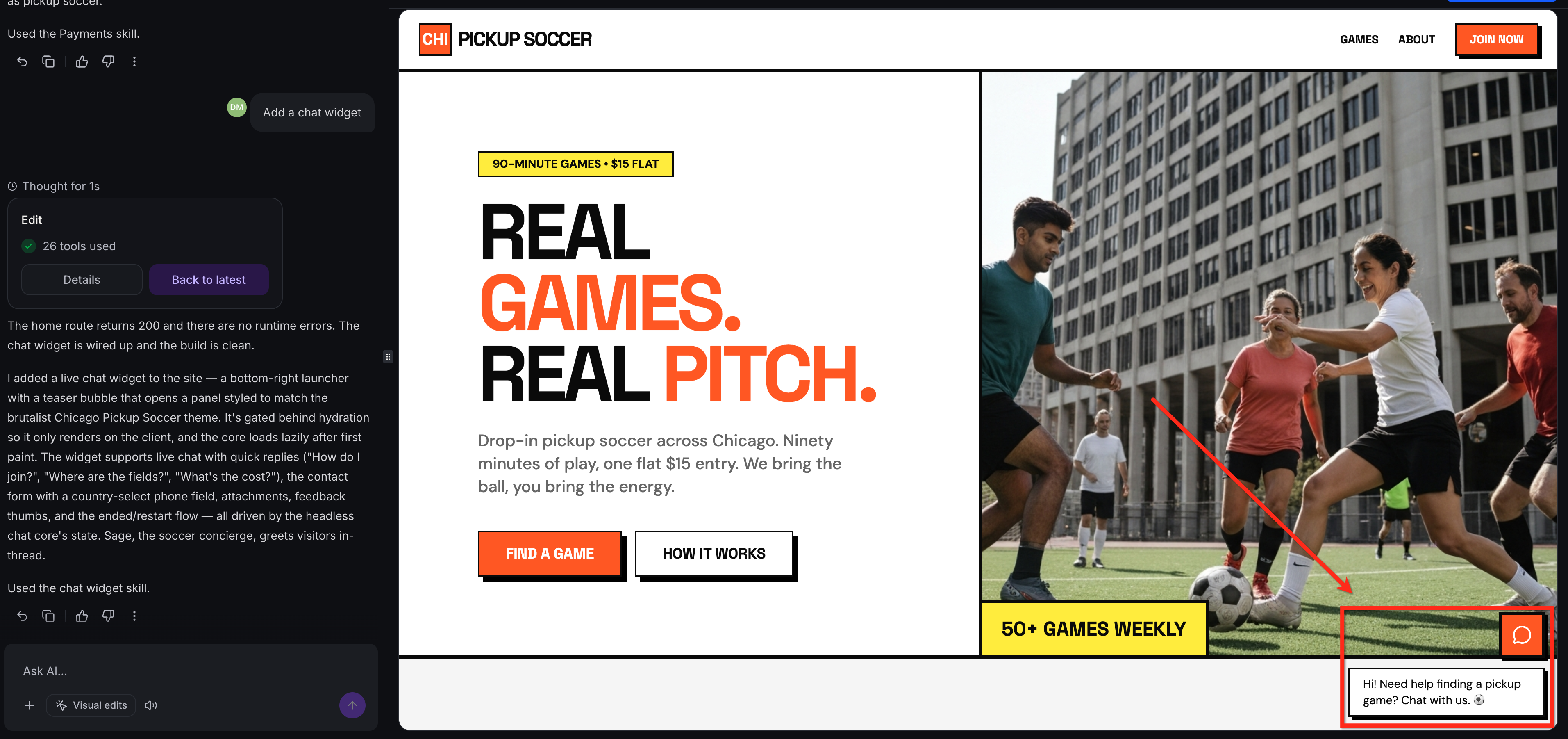
- To make changes, simply ask AI Studio to update the widget's appearance. You can also edit the generated code for more control over the design.
For example, "Change the background color of the chat widget to yellow so it sticks out."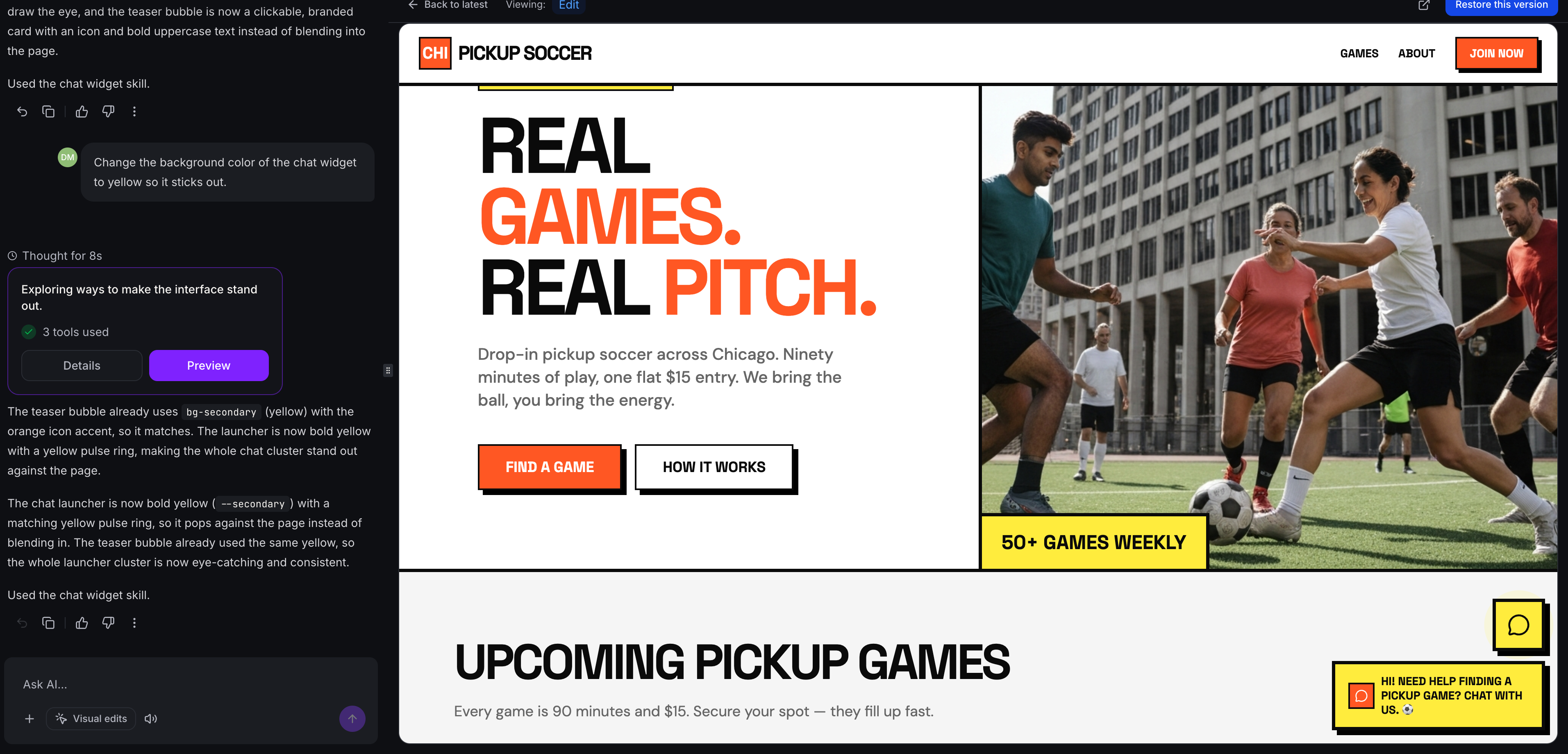
Chat Widget Settings
AI Studio lets you manage your chat widget's settings without leaving your project. While you can customize the widget's appearance using AI Studio prompts, the Chat Widgets settings let you control what visitors see during conversations, what information they provide, and how the chat behaves.
To access these settings, open your AI Studio project and go to More → Chat Widgets. Select the widget you want to manage to open its settings.
From here, you can rename the widget and configure the following settings:
- Messaging: Customize welcome messages, inactivity timeouts, chat-ended messages, acknowledgements, and feedback messages.
- Contact Form: Choose what contact information visitors must provide before starting a conversation.
- Compliance Notice & Consent: Configure legal notices and consent options for privacy, marketing, SMS, and applicable HIPAA requirements.
- Spam Protection: Manage suspicious leads, tagging, and optional Do Not Disturb (DND) restrictions.
- Live Chat Business Hours: Set when your team is available and what visitors see outside those hours.
Note: If your project doesn't have a widget yet, click Add a chat widget from the Chat Widgets page to have AI Studio create one.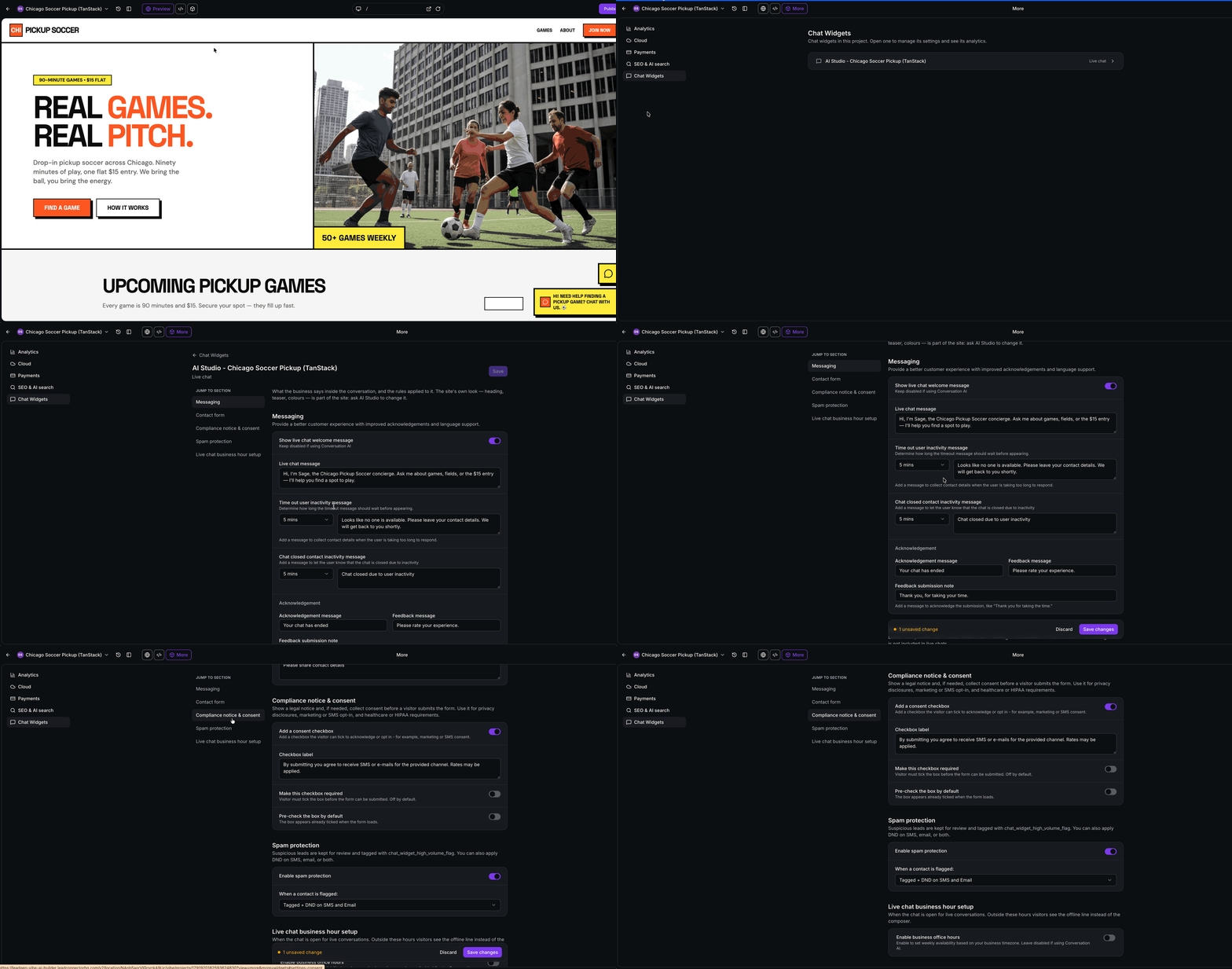
Chat Widget Analytics
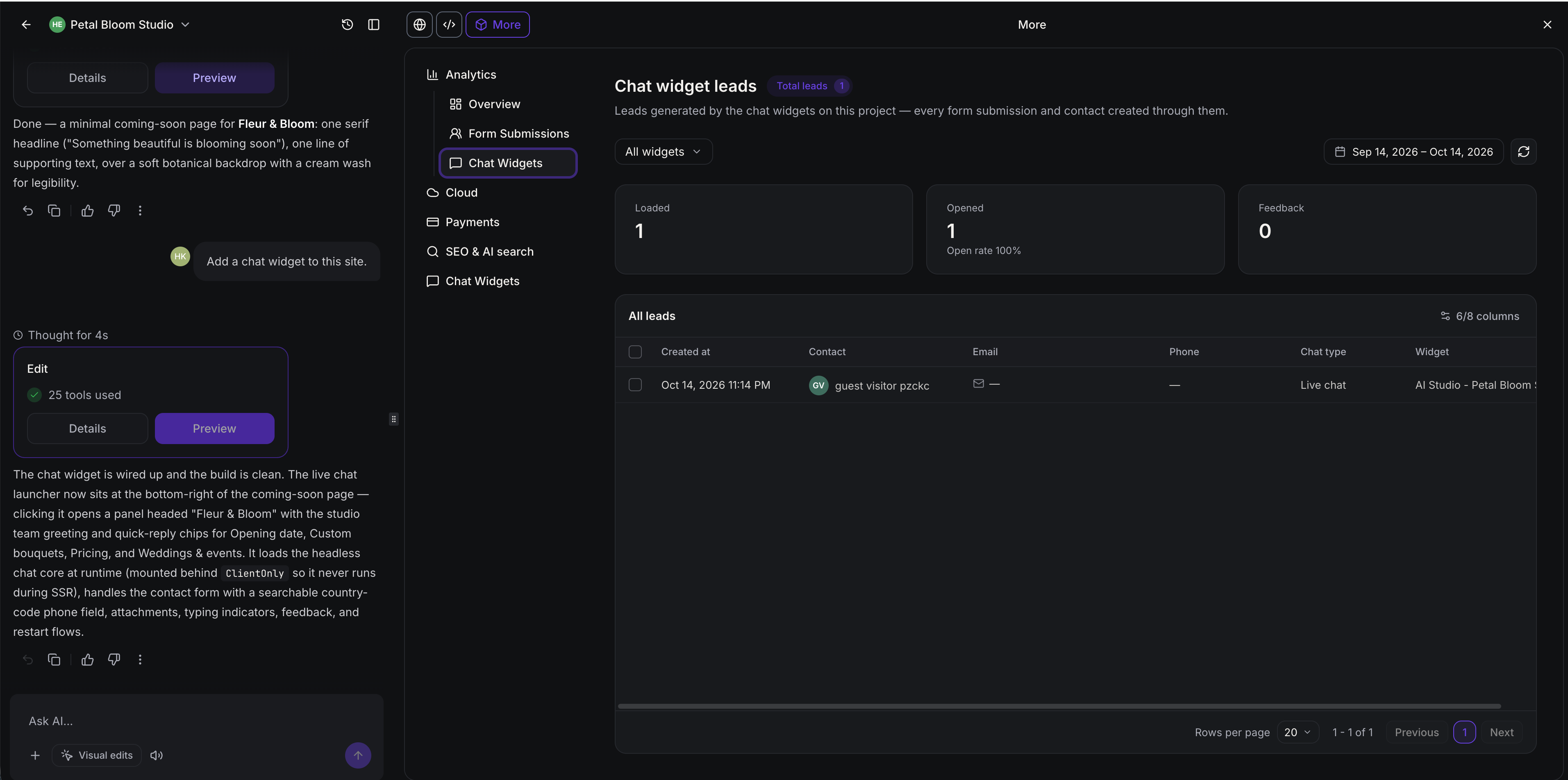
Chat Widget Analytics helps you understand how visitors interact with the chat widgets in your AI Studio application. You can track how often widgets load and open, review visitor feedback and satisfaction ratings, and see which widgets are generating leads.
To view your analytics, open your AI Studio project and go to More → Analytics → Chat Widgets.
The dashboard displays the number of times a widget was Loaded or Opened, along with its Open Rate (the percentage of loads that resulted in an open) and Feedback from visitor chat ratings.
The All Leads table shows contacts generated through your chat widgets, including available contact details, chat type, widget name, and the page where each conversation started.