
How to Migrate Existing React Projects to SSR in AI Studio
Existing React projects in Chat To Clients CRM AI Studio can now be migrated to a server-side rendering (SSR) architecture using TanStack Start. The Migrate to SSR feature creates a separate copy of your project, allowing you to add server functions, secure secrets, and other backend capabilities without affecting your published website.
Your original project, connected domains, and version history remain unchanged throughout the migration. This guide explains how to migrate an existing React project, monitor migration progress, and prepare the new project for publishing.
TABLE OF CONTENTS
- What is Migrate to SSR in AI Studio?
- Key Benefits of Migrate to SSR
- Migration Eligibility and Requirements
- What Happens to Your Original Project?
- Migration Status and Available Actions
- How to Migrate an Existing React Project to SSR
- Review Forms, Calendars, and Workflow Connections
- Review Publishing and Domain Connections
- Frequently Asked Questions
- Related Articles
What is Migrate to SSR in AI Studio?
Migrate to SSR is an advanced feature in Chat To Clients CRM AI Studio that converts an existing React/Vite project to the TanStack Start architecture. Instead of modifying the original project, AI Studio creates a separate draft and uses AI agents to perform the conversion. This approach lets you explore full-stack capabilities while keeping your existing website live and unchanged.
Server-side rendering (SSR) generates page HTML on the server before delivering it to a visitor's browser. TanStack Start also supports server functions, REST APIs, and secrets, allowing applications to handle backend operations and sensitive credentials outside browser code.
The migration feature is particularly useful for existing projects that need:
Server-side rendering: Generate HTML on the server for public-facing pages and content.
Server functions: Execute backend application logic without exposing the implementation in the browser.
REST APIs: Create HTTP endpoints for integrations, webhooks, and external services.
Secrets: Store API keys, authentication tokens, and other sensitive values for use by server-side functionality.
Migrating is optional. Existing React projects that do not require these capabilities can continue using their current architecture.
For a detailed explanation of these capabilities, see AI Studio: SSR, Server Functions, REST APIs, and Secrets.
Key Benefits of Migrate to SSR
Migrating an existing React project to SSR gives you access to full-stack functionality while reducing the risks associated with changing a published application. By creating a separate project, AI Studio lets you review the converted application before deciding whether to publish it or connect an existing domain.
Preserve Your Published Website: Keep your original React project, live website, and connected domains unchanged during migration.
Access Server-Side Capabilities: Enable SSR, server functions, REST APIs, and secrets through the TanStack Start architecture.
Avoid Rebuilding From Scratch: Bring your existing project pages into a new draft instead of recreating the entire application manually.
Migrate With AI Assistance: Allow AI Studio agents to analyze your project and perform the framework conversion through chat.
Test Before Publishing: Review the migrated project independently before making changes to your live website.
Retain Your Original Project History: Keep previous versions associated with the original project while starting fresh in the migrated copy.
Choose When to Switch: Publish the new project or move a domain only when you are ready.
Migration Eligibility and Requirements
The migration action is designed for existing React/Vite projects that need the newer TanStack Start architecture. Understanding the eligibility requirements helps you determine whether migration is available and avoids unnecessary changes to projects that already support server-side functionality.
The Migrate to SSR option is available when the following conditions are met:
The project uses the existing React/Vite architecture.
You have permission to edit the project.
You access the migration action from the project's settings.
The option is marked Advanced in Project Settings.
What Happens to Your Original Project?
AI Studio separates migration from publishing to protect your existing website. When you start a migration, the system creates a new project alongside the original rather than converting the live project directly. Understanding what stays with the original and what moves into the copy helps you plan a safe transition.
When migration begins:
AI Studio creates a new project within the same sub-account.
The pages from your original project are copied into the new project.
AI Studio suggests the name
{project name} (TanStack), which you can edit before creating the copy.The new project begins as a draft and is not automatically published.
The original project retains its existing version history.
The new project starts with a separate AI Studio chat.
Your original published site and connected domains remain unchanged.
The following table summarizes the differences between the two projects.
| Project Component | Original React Project | Migrated Project |
|---|---|---|
| Architecture | Remains React/Vite | Converted to TanStack Start |
| Project pages | Preserved | Copied into the new project |
| Project name | Unchanged | Customizable before migration |
| Publishing status | Unchanged | Starts as a draft |
| Connected domains | Remain connected | Not automatically transferred |
| Version history | Retained | Begins separately |
| AI Studio chat | Existing chat remains | Starts a new chat |
| Workflow associations | Existing associations remain | Require review and updates where applicable |
Important: Migrating to SSR does not automatically replace your published site or transfer its custom domains. Publishing the converted project and moving an existing domain are separate actions. If you decide not to use the migrated project, the original React project remains available and unchanged.Migration Status and Available Actions
AI Studio temporarily restricts certain project actions while agents convert the copied application to TanStack Start. These restrictions help prevent conflicting changes during the upgrade, while allowing you to follow progress and interact with the migration through chat.
After migration starts, the new project's dashboard card displays the status Migrating to SSR. While this status is active, the following actions are available:
| Action | Availability During Migration |
|---|---|
| Preview the project | Available |
| Use AI Studio chat | Available |
| Delete the migrated project | Available |
| Publish the project | Unavailable |
| Save code changes | Unavailable |
| Restore previous versions | Unavailable |
| Modify domain settings | Unavailable |
| Change slugs | Unavailable |
| Remix the project | Unavailable |
These restrictions apply to the migrated copy while migration is incomplete. They do not modify the original project.
Migration completion
When the migration finishes successfully, the Migrating to SSR status clears and the new project becomes a normal TanStack Start application.
Incomplete migrations
If the migration stops before completing, the migration status remains visible. Open the migrated project's chat and enter: "continue the migration"
AI Studio can resume the conversion using the same copied project.
Important: Starting another migration from the original React project creates an additional copy. To continue an incomplete migration, use the existing migrated project's chat instead.How to Migrate an Existing React Project to SSR
Migrating from Project Settings provides a controlled way to upgrade an existing React application without interrupting your live website. The process creates a separate copy, starts the AI-assisted conversion, and allows you to review the result before publishing.
Step 1: Open Your Existing React Project
Sign in to your Chat To Clients CRM account.
Open the sub-account containing the React project.
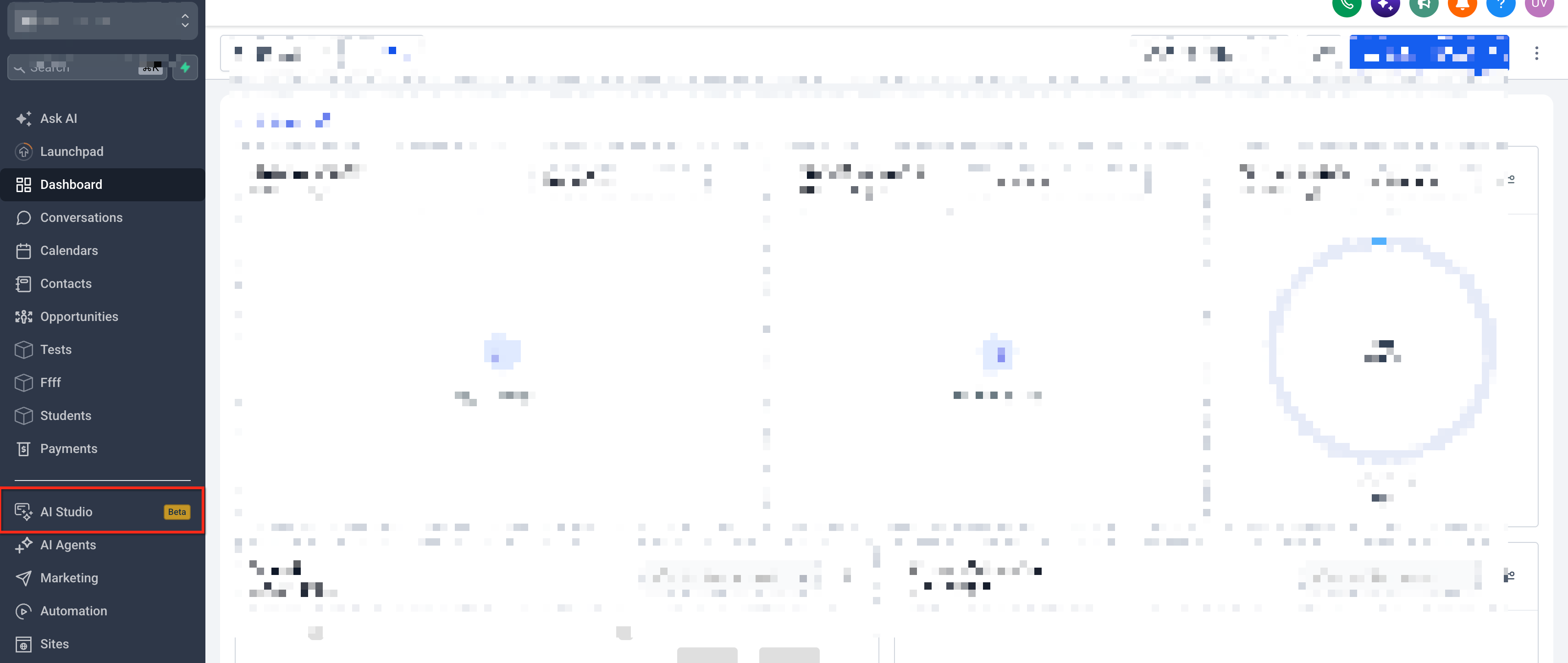
Navigate to AI Studio.
Open the existing React/Vite project that you want to migrate.
Step 2: Open Project Settings
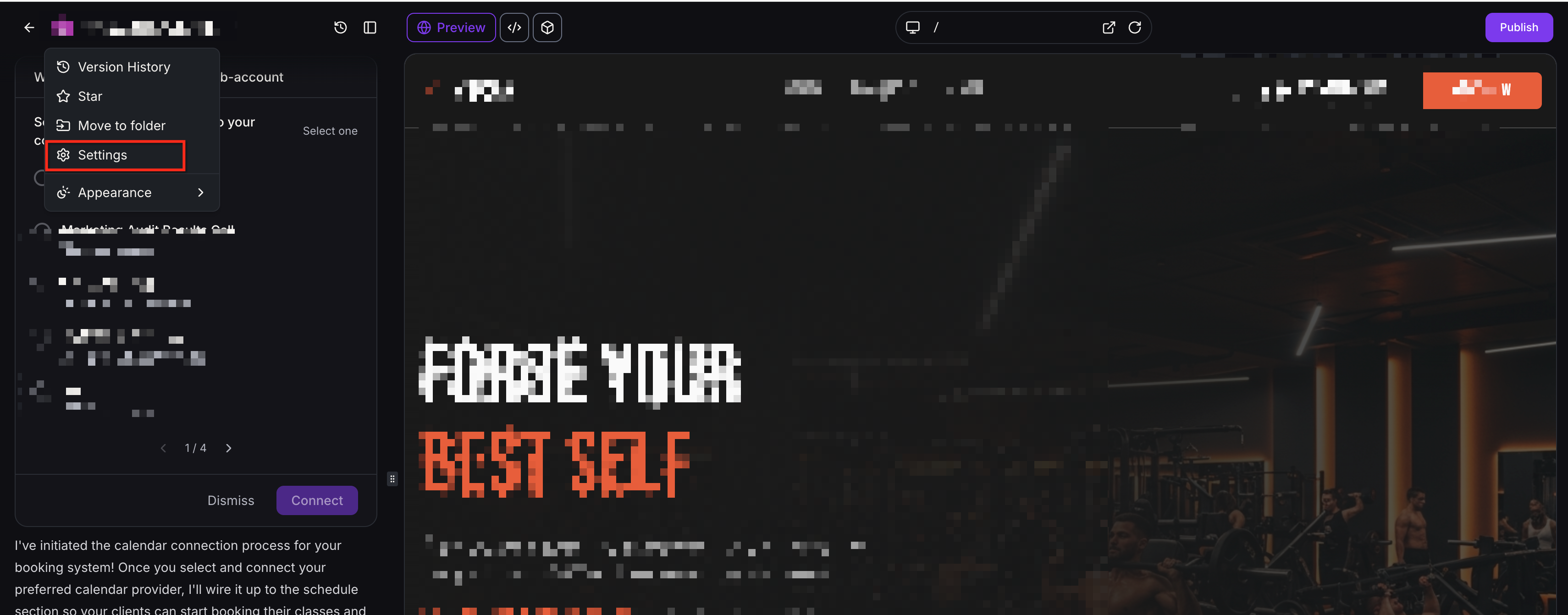
Navigate to Project Settings.
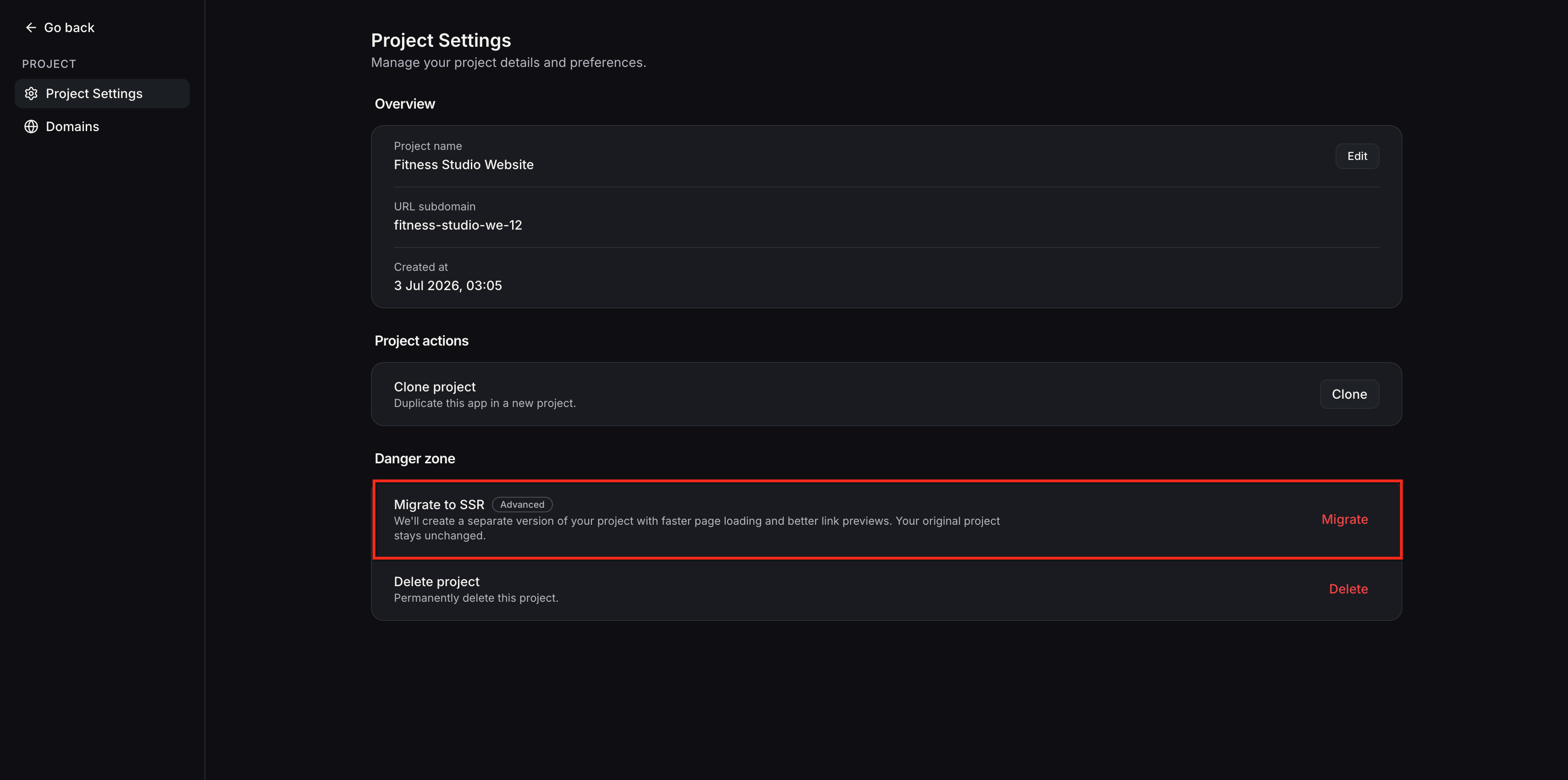
Locate Migrate to SSR.
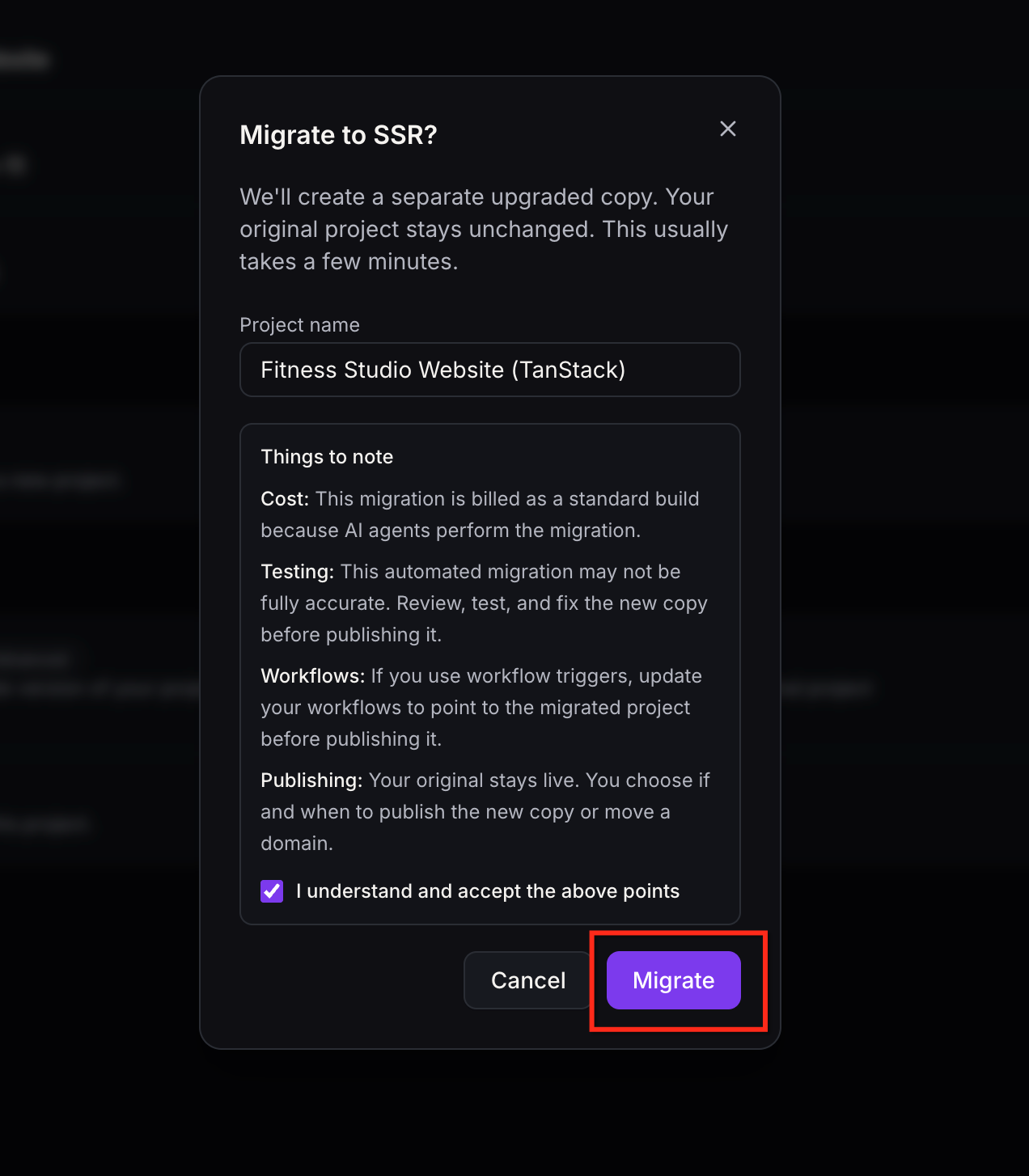
Step 3: Review the New Project Name
AI Studio prompts you to confirm the name of the project that will be created.
Review the suggested name:
{project name} (TanStack).Edit the name if you want to use a different naming convention.
Confirm that the new project will be created separately from the original.
Using a recognizable project name can make it easier to distinguish the converted application from the original React project.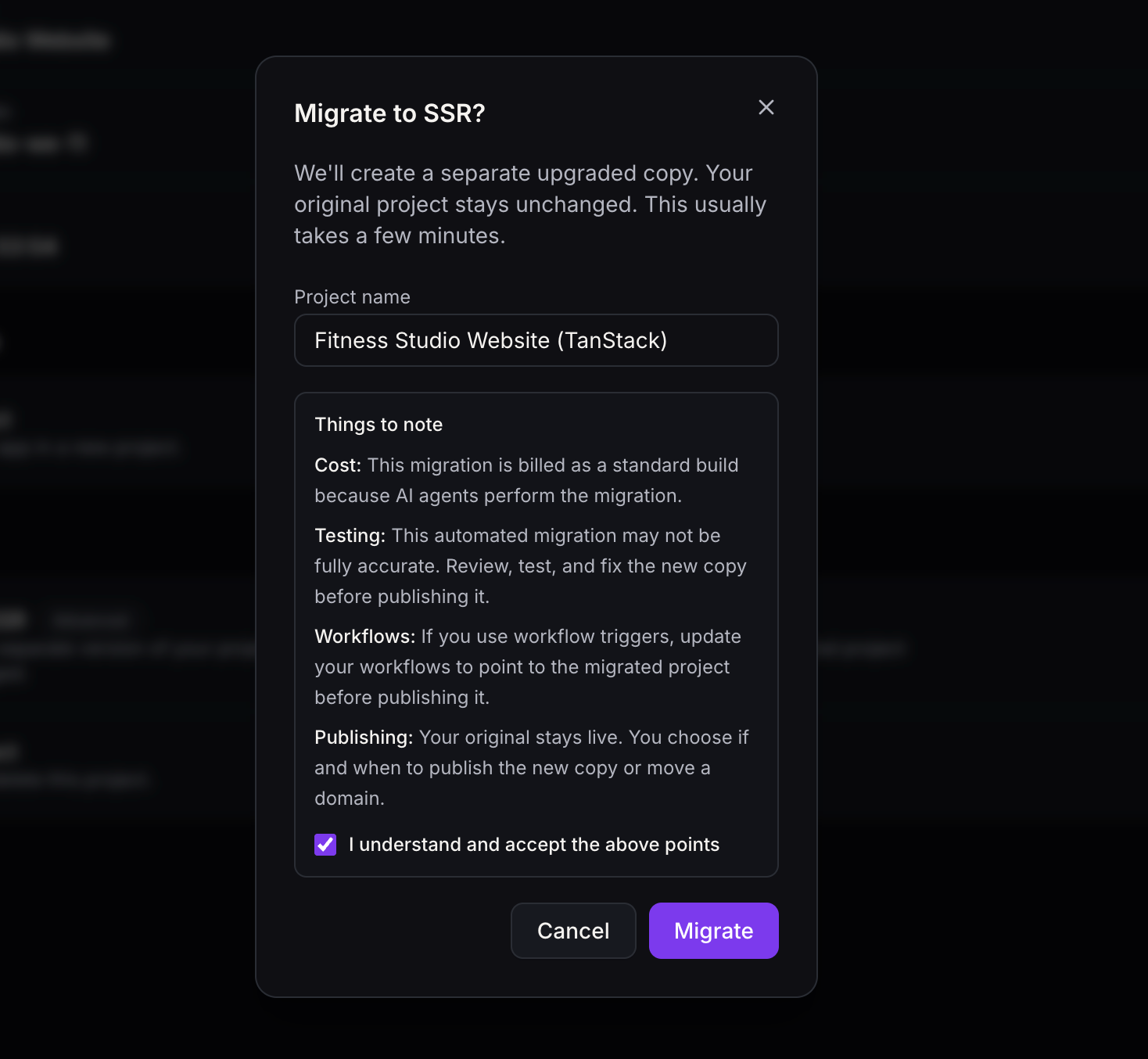
Step 4: Review the Migration Notes
Before starting the conversion, review the migration notes presented by AI Studio. Pay particular attention to the following:
The new project will be created as a draft.
The original published website will remain unchanged.
Existing domains will stay connected to the original project.
Previous versions will remain in the original project's history.
The new project will start a separate chat.
Certain actions will be unavailable while migration is running.
Accept the migration notes to continue.
Step 5: Start the Migration
Click Migrate to confirm.
AI Studio creates a new project within the same sub-account.
The system opens the newly created project.
AI Studio starts the conversion through the project's chat.
Step 6: Monitor the Migration
Follow progress in the migrated project's chat.
Check the dashboard for the Migrating to SSR status.
Use Preview when available to inspect the project.
Allow the AI-assisted conversion to finish before attempting to publish or make restricted changes.
The status clears when the project is ready as a TanStack Start application. If the process stops before completion, enter continue the migration in the migrated project's chat. Do not restart migration from the original project unless you intentionally want to create another copy.
Step 7: Review the Completed Project
After the migration status clears:
Open the converted project.
Preview its pages and navigation.
Review the generated application for missing functionality or unexpected changes.
Test the features that required SSR or server-side functionality.
Use AI Studio chat or supported editing tools to fix any remaining issues.
Important: A completed migration does not guarantee that every part of the application works exactly as before. Review and test the converted project before publishing it.Review Forms, Calendars, and Workflow Connections
Migrating a project does not automatically redirect workflow triggers from the original project to the new project. Review existing integrations before switching to the migrated website.
Identify the forms and calendars used by the original application.
Confirm that the migrated project's forms and calendars work correctly.
Review any CRM connections used by those components.
Navigate to Automation > Workflows.
Open workflows associated with the original AI Studio project.
Review the trigger filters for project, form, page path, and domain.
Update the relevant filters or connections when transitioning to the migrated project.
After publishing, submit test entries and verify the expected workflow executions.
Existing project-specific workflow triggers remain associated with the original project until their configurations are updated.
For more information, see AI Studio Form Submitted Workflow Trigger.
Review Publishing and Domain Connections
Publishing the migrated project is a separate decision from completing the framework conversion.
Before publishing:
Confirm that the migrated project is functioning correctly.
Identify which domain or published URL you want to use.
Verify all relevant workflows and integrations.
Review important page titles, metadata, and SEO settings.
Plan any domain transition separately to avoid disrupting your existing live website.
Your original website and connected domains remain unchanged until you make separate publishing or domain configuration changes.
For additional guidance, see AI Studio in Chat To Clients CRM.
Frequently Asked Questions
Q: Should I migrate my React project just because TanStack Start is available?
No. Migration is optional. If your existing React project meets your requirements and does not need server-side rendering or full-stack functionality, you can continue using it without migrating.
Q: Can I migrate the same original React project more than once?
Yes. Starting migration again from the original project creates another separate copy. If you are trying to finish an incomplete conversion, resume the existing migrated project instead of creating another copy.
Q: What if the migrated application looks different from my original website?
Review the differences in Preview and use AI Studio chat or available editing tools after migration to correct them. The AI-assisted conversion may require additional changes before the new application is ready to publish.
Q: How can I tell whether my migration is complete?
The project's Migrating to SSR status clears once the converted application becomes a normal TanStack Start project. You should still test the application's behavior before publishing.
Q: Can I use my existing workflow automations with the migrated project?
Yes, but project-specific workflow configurations may need to be updated. Review the original project's triggers and filters, configure them for the migrated project where appropriate, and test submissions after publishing.
Q: Do I need to recreate my API keys and integrations after migration?
The release does not guarantee that every integration or credential configuration transfers automatically. Review the migrated application's integration requirements and configure any necessary secrets or connections before publishing.