
How to Set Up and Customize the New Order Form in Chat To Clients CRM
The redesigned Order Form in Chat To Clients CRM makes it easier to create flexible, branded checkout experiences for funnels and websites. With a single Order Form element, you can switch between One-step, Two-step, and Split layouts without rebuilding your checkout.
You can also add CRM custom fields, customize products and order bumps, and control the appearance of your checkout using advanced styling options. This article explains how to configure the new Order Form, customize its features, and migrate existing order forms when you're ready.
TABLE OF CONTENTS
- What is the New Order Form?
- Key Benefits of the New Order Form
- How to Set Up the New Order Form
- Order Form Layouts
- Contact Fields and CRM Custom Fields
- Products and Checkout Options
- Order Bumps
- Themes and Styling
- Customizing Order Form Content
- Migrating Existing Order Forms
- Undoing a Migration
- Frequently Asked Questions
- Related Articles
What is the New Order Form?
The new Order Form is a unified checkout element that lets you collect customer information, display products, and accept payments through a customizable checkout experience. Instead of using separate One-Step and Two-Step elements, you can now choose between three layouts within the same element and change them whenever needed.
The redesigned Order Form introduces a centralized customization workspace that brings contact fields, products, order bumps, checkout behavior, shopper-facing content, and visual styling together. A live preview displays your changes alongside the settings, making it easier to customize checkout forms without repeatedly switching between panels.
You can also collect additional customer information using supported CRM custom fields and customize the appearance of both the Order Form and its order bumps with dedicated styling options.
Key Benefits of the New Order Form
The redesigned Order Form provides greater flexibility over how customers complete checkout and how your checkout pages match your brand. By combining layout, field management, product settings, and visual customization into one workspace, you can make changes without repeatedly rebuilding your forms.
Three Flexible Checkout Layouts: Switch between One-step, Two-step, and Split layouts while preserving your existing field, product, content, and styling configurations.
Centralized Configuration: Manage checkout settings, shopper-facing content, products, and styling from one workspace with a live preview.
CRM Custom Fields: Collect additional customer information directly at checkout using supported CRM custom field types.
Advanced Styling Options: Choose from six design presets and customize more than 80 styling properties to match your brand.
Customizable Order Bumps: Design order bumps independently using dedicated presets and detailed appearance controls.
Flexible Product Management: Add and manage products, adjust quantity options, display product details, and control coupon availability.
Customizable Shopper Experience: Edit field labels, placeholders, validation messages, checkout buttons, and other customer-facing text.
Optional Legacy Migration: Convert eligible existing order forms to the new experience without automatically changing your other forms.
How to Set Up the New Order Form
Proper setup ensures that your checkout uses the intended layout, collects the correct customer information, displays the appropriate products, and provides a consistent checkout experience. Before publishing, activate the feature, configure the Order Form, and test the published checkout.
Step 1: Enable the New Order Form Feature
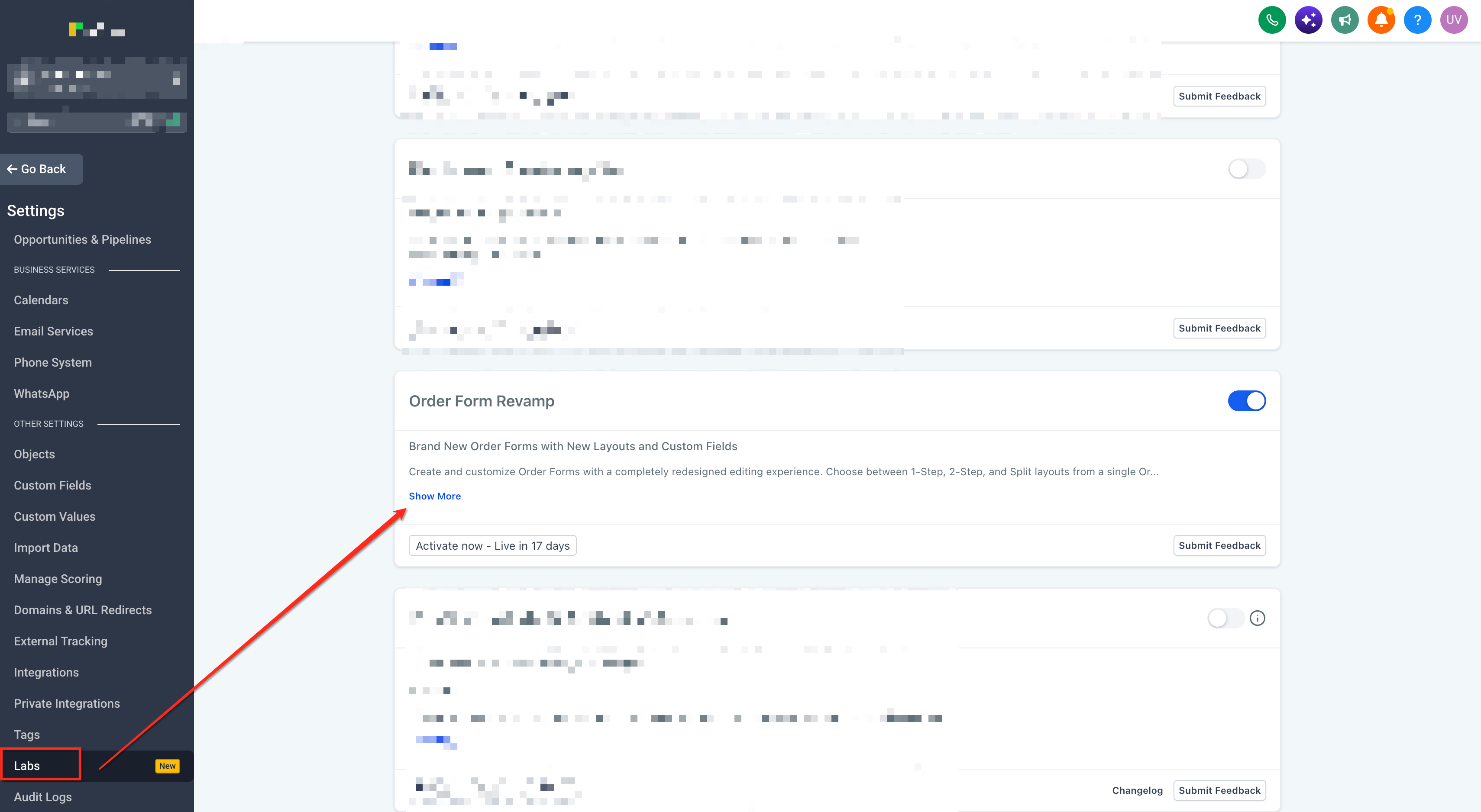
The redesigned Order Form is available through a Labs feature setting.
Navigate to Agency Settings.
Open Labs.
Search for Brand New Order Forms with New Layouts and Custom Fields.
Select Activate Feature.
Step 2: Add an Order Form to Your Page
Open the relevant sub-account.
Navigate to Sites → Funnels or the website builder.
Open the funnel or website containing your checkout page.
Select the page you want to edit.
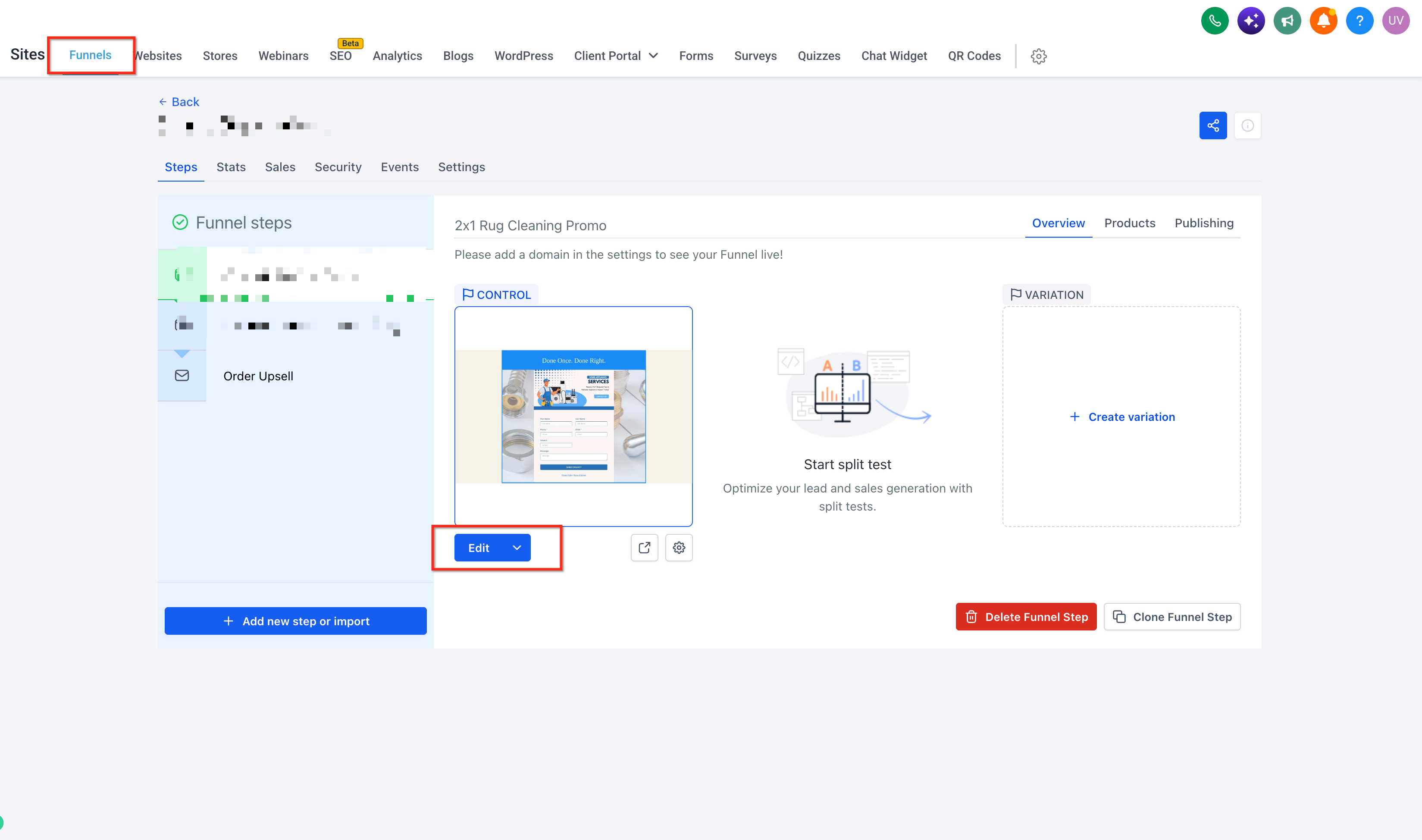
Open the page builder.
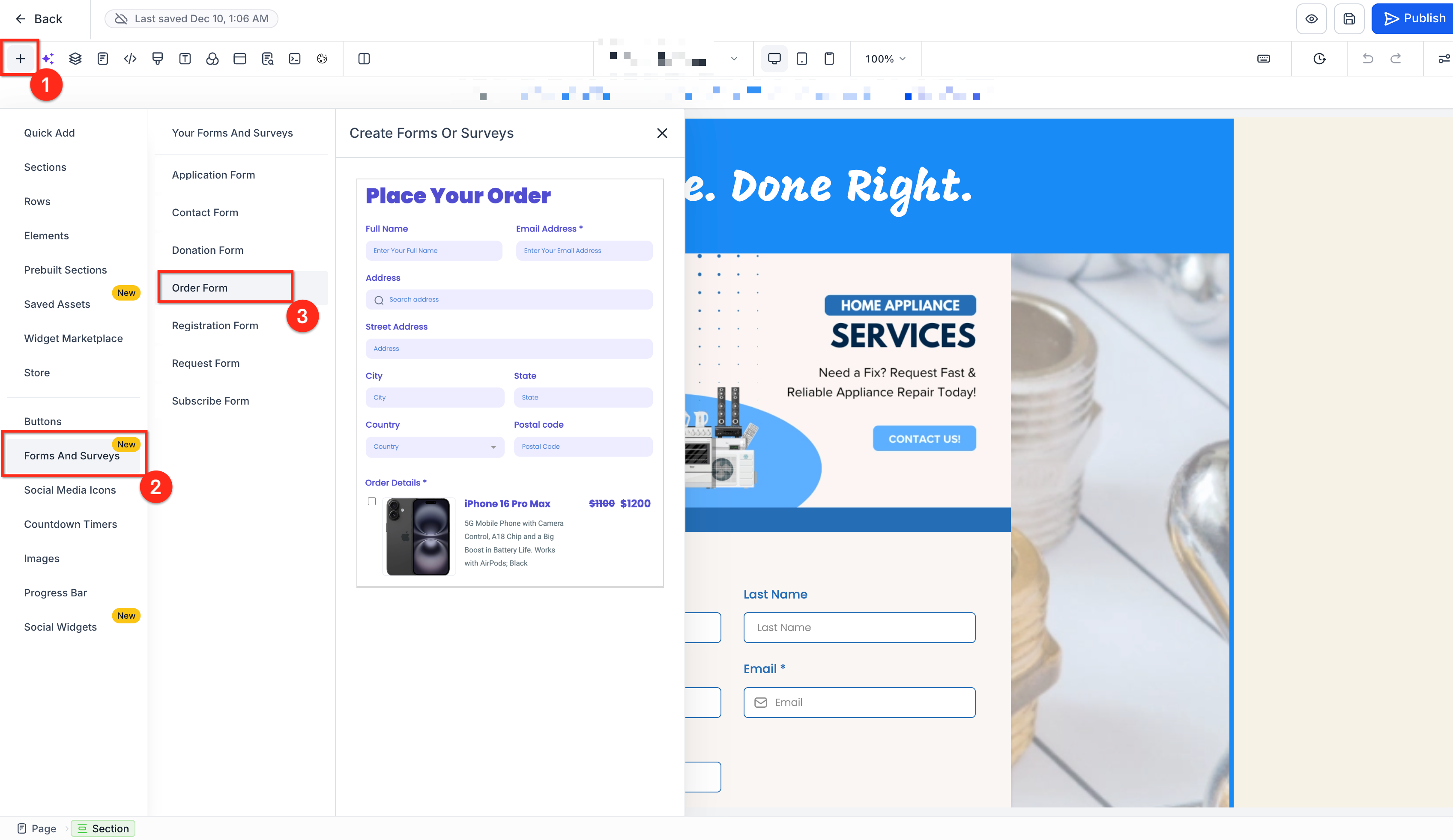
Click Add Elements.
Locate and add the Order Form element.
Select the element and click Customize order form.
The Order Form customization workspace opens, allowing you to configure the checkout.
Step 3: Choose Your Checkout Layout
In the Order Form customization workspace, open Steps.
Select one of the following layouts:
One-step
Two-step
Split
Review the layout in the live preview.
Switch between layouts as needed until you find the best arrangement for your checkout.
Your configured fields, products, order bumps, content, and styling remain associated with the Order Form when you change layouts.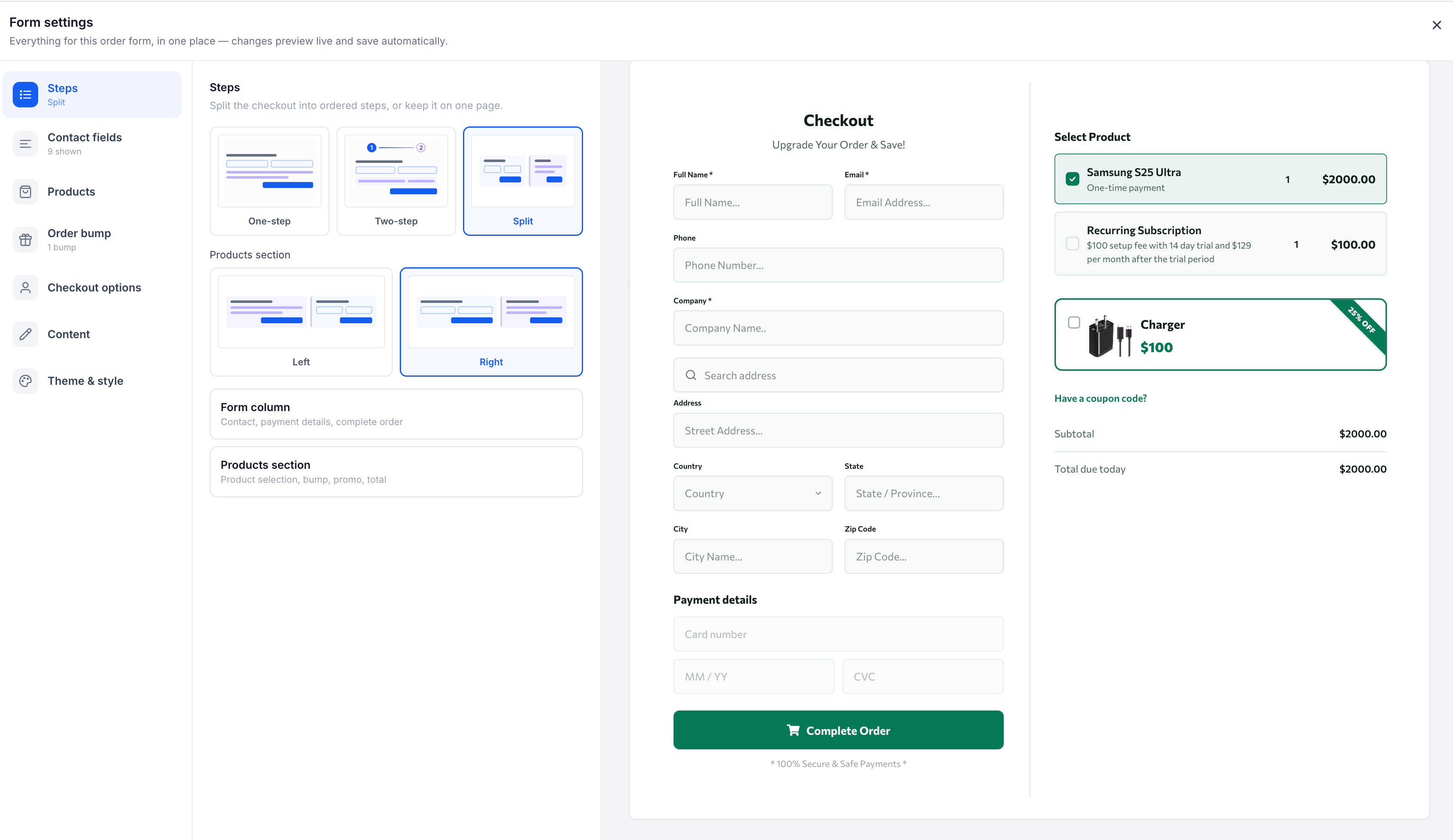
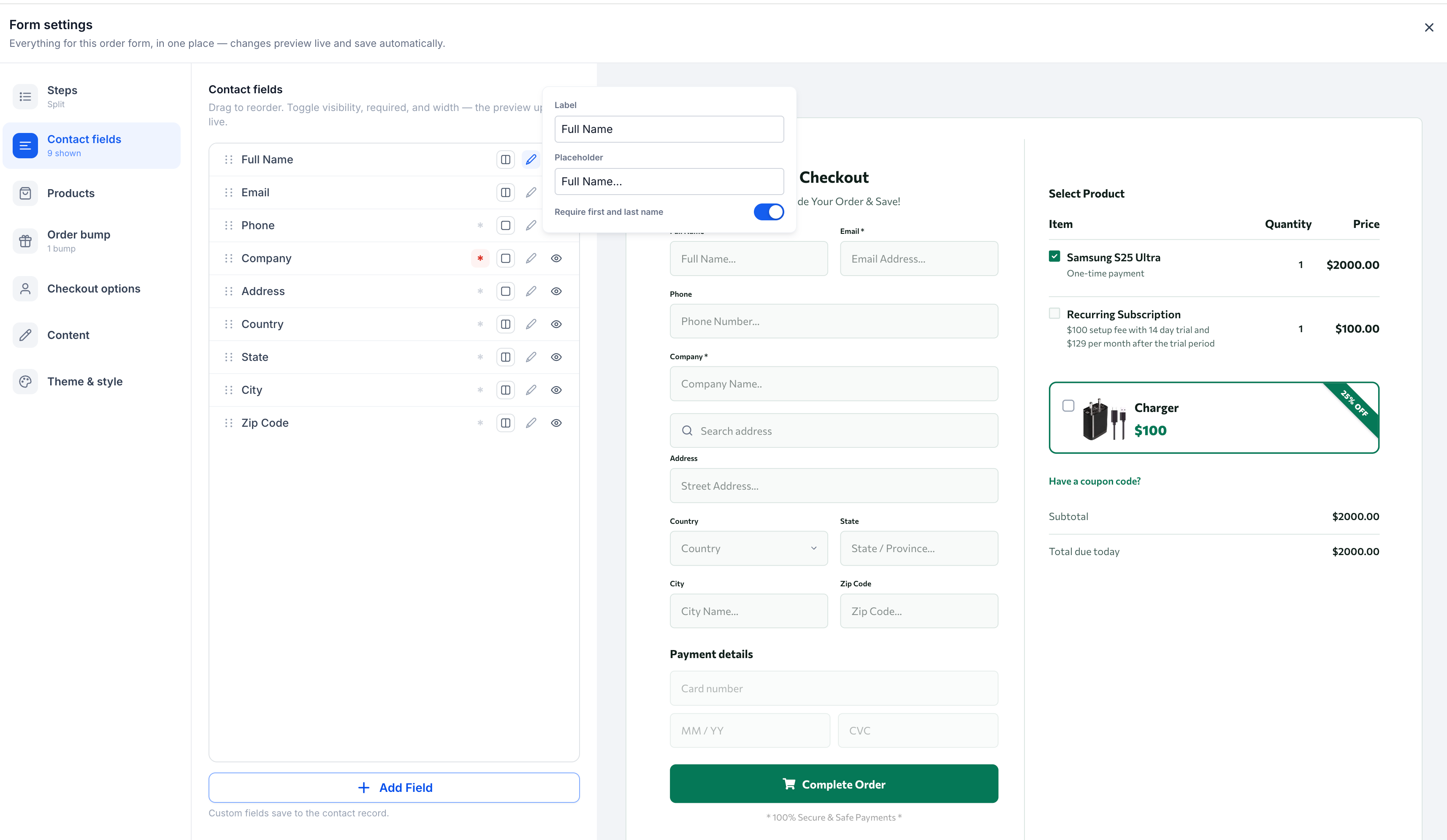
Step 4: Configure Contact Fields
Open Contact fields.
Review the standard contact fields.
Show or hide supported fields as needed.
Configure mandatory fields where available.
Reorder fields to control their position.
Choose full-width or half-width arrangements.
Use the custom field picker to add supported CRM custom fields.
Review the updated form in the preview.
Full Name and Email remain required. If a required custom field does not already exist in the CRM, create it through the Custom Fields settings before selecting it in the Order Form.
Step 5: Configure Products
Open Products.
Search for the products and prices you want to offer.
Add the applicable products.
Review the product rows.
Edit, duplicate, reorder, or remove rows as needed.
Enable multiple quantities where applicable.
Configure maximum quantity limits.
Choose whether to display product images and descriptions.
Configure multi-product selection if needed.
Enable coupon entry if customers should be able to apply eligible discounts.
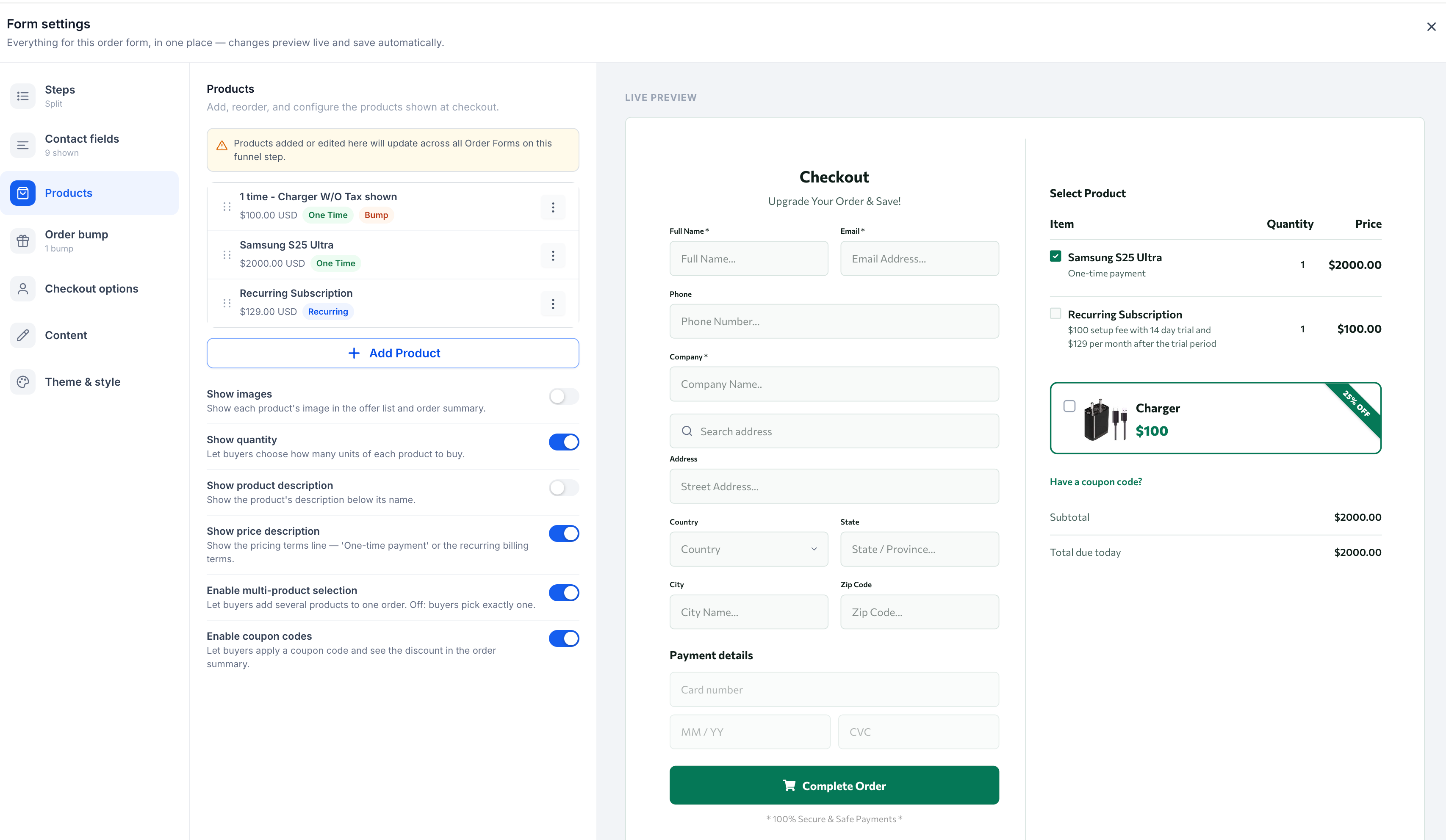
Important: Changes to funnel-step products may affect other Order Forms on the same step. Review the existing products before making changes.Step 6: Configure Order Bumps
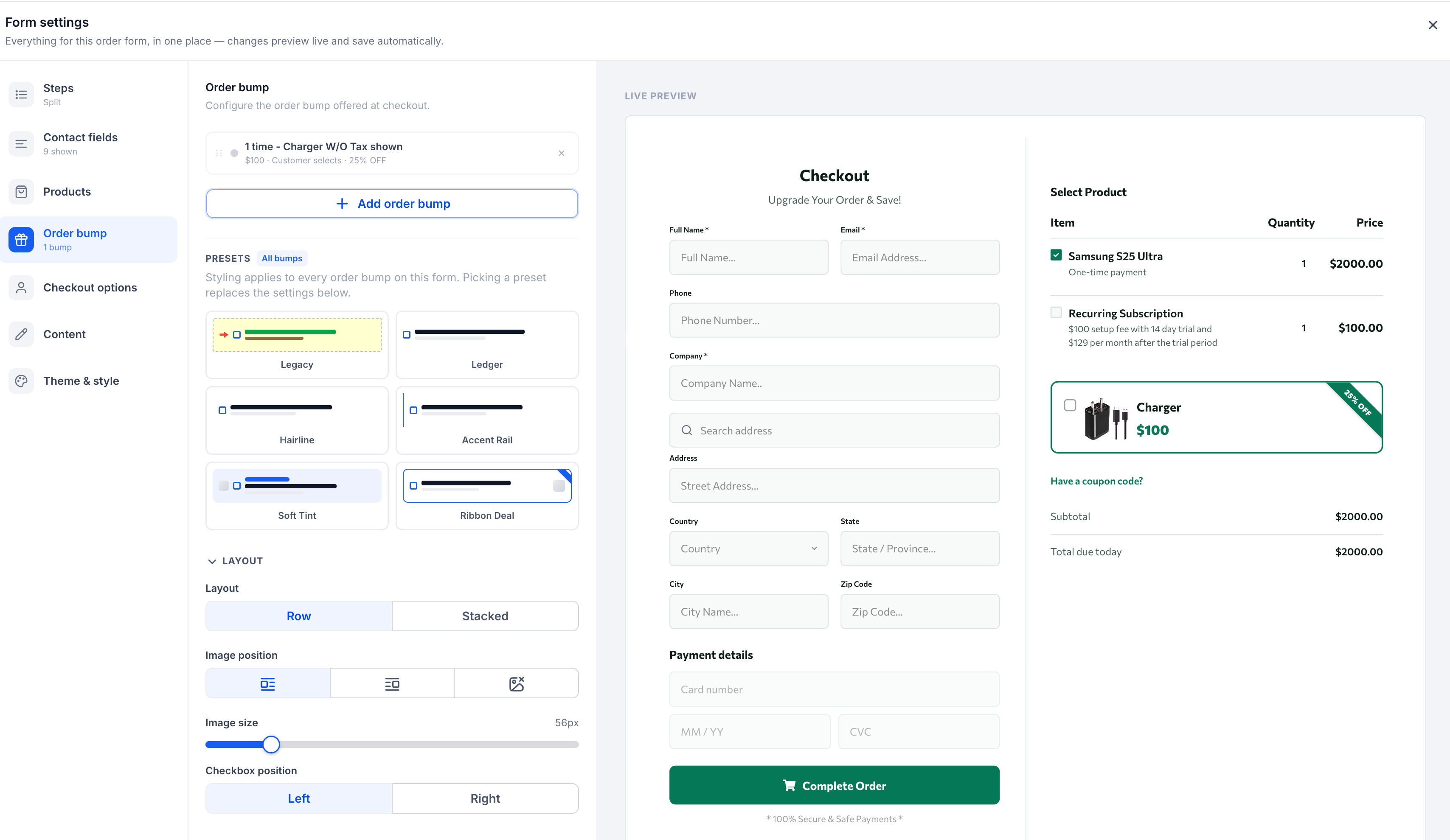
Open Order bump.
Configure the product you want to offer as an additional purchase.
Enter the order bump headline.
Add supporting text.
Configure an image override if needed.
Set the initial selection state.
Choose one of the available bump styling presets.
Customize the appearance using the dedicated styling controls.
Review the bump in the checkout preview.
Step 7: Configure Checkout Options
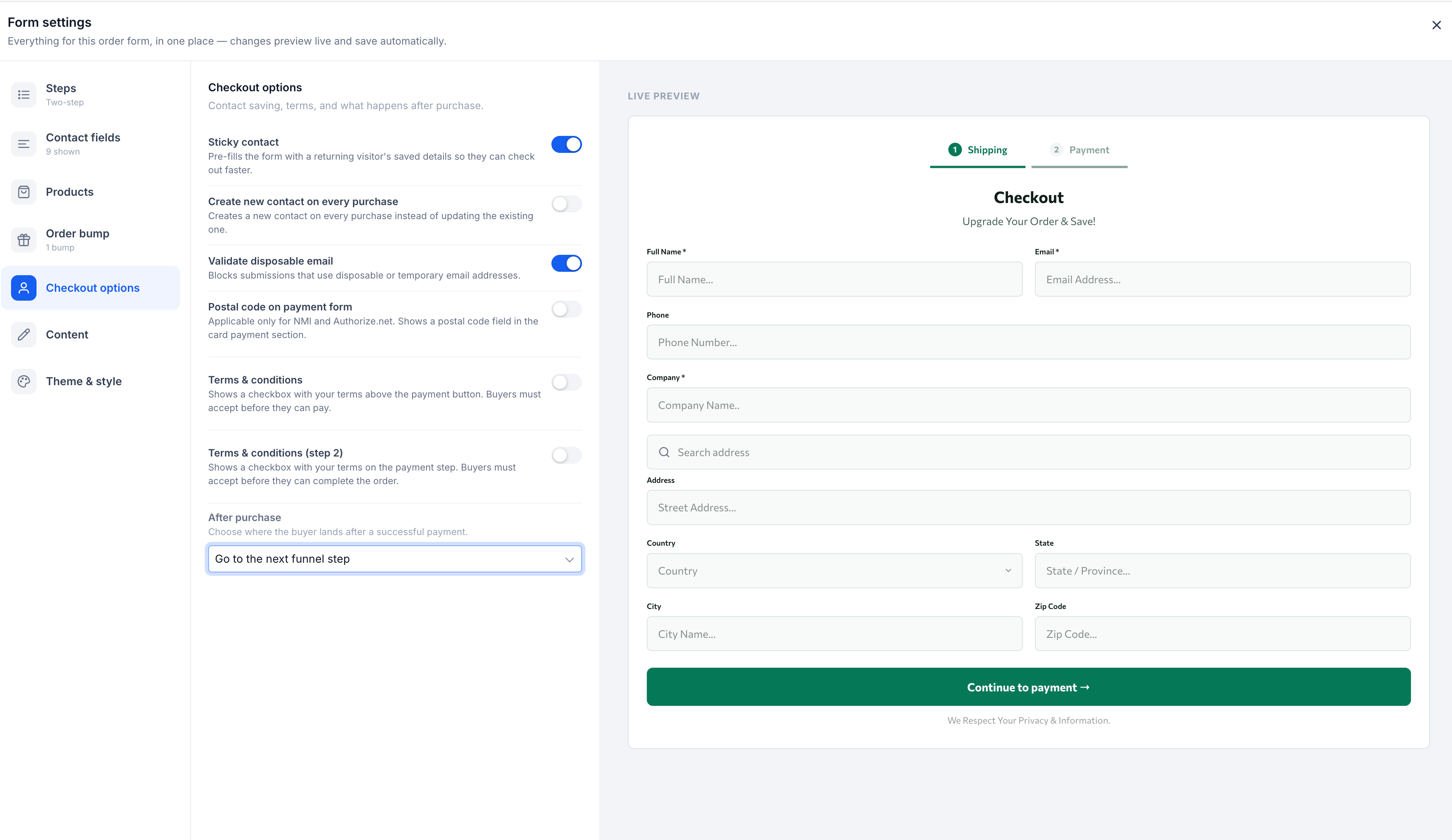
Open Checkout options.
Review the available checkout behavior settings.
Configure applicable options, such as coupons, terms, and other supported checkout behaviors.
Confirm that the settings are appropriate for the products and purchase experience you are creating.
Review the settings carefully before publishing, especially when your checkout includes subscriptions, discounts, taxes, or additional purchase options.
Step 8: Customize Checkout Content
Open Content.
Edit step headlines and supporting text.
Customize field labels and placeholders.
Update validation messages.
Customize product summary labels and payment-related text.
Update checkout button text.
If using Two-step, customize the step navigation labels.
Review the wording in the preview.
Use concise, descriptive language so customers can understand each stage of checkout.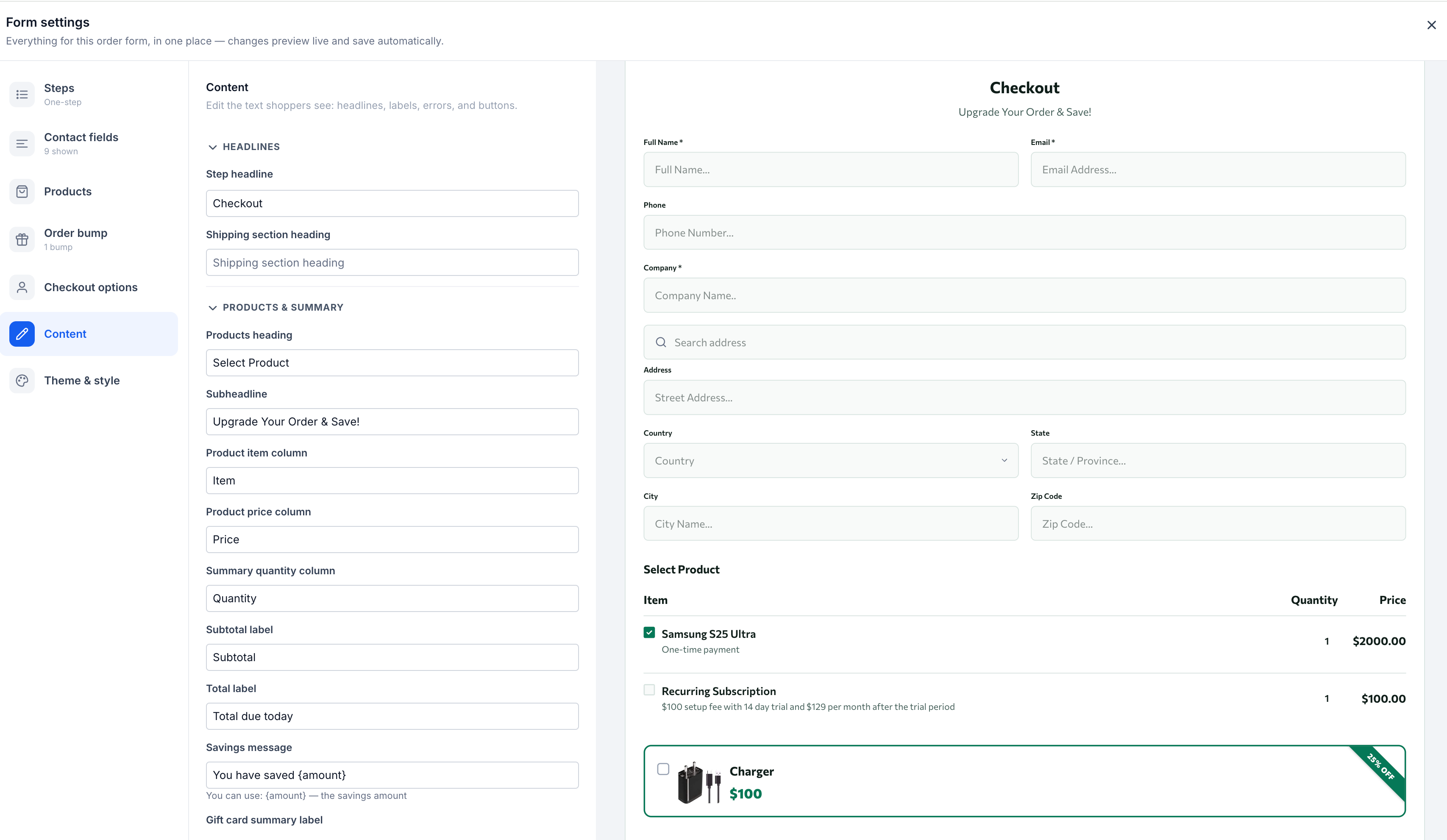
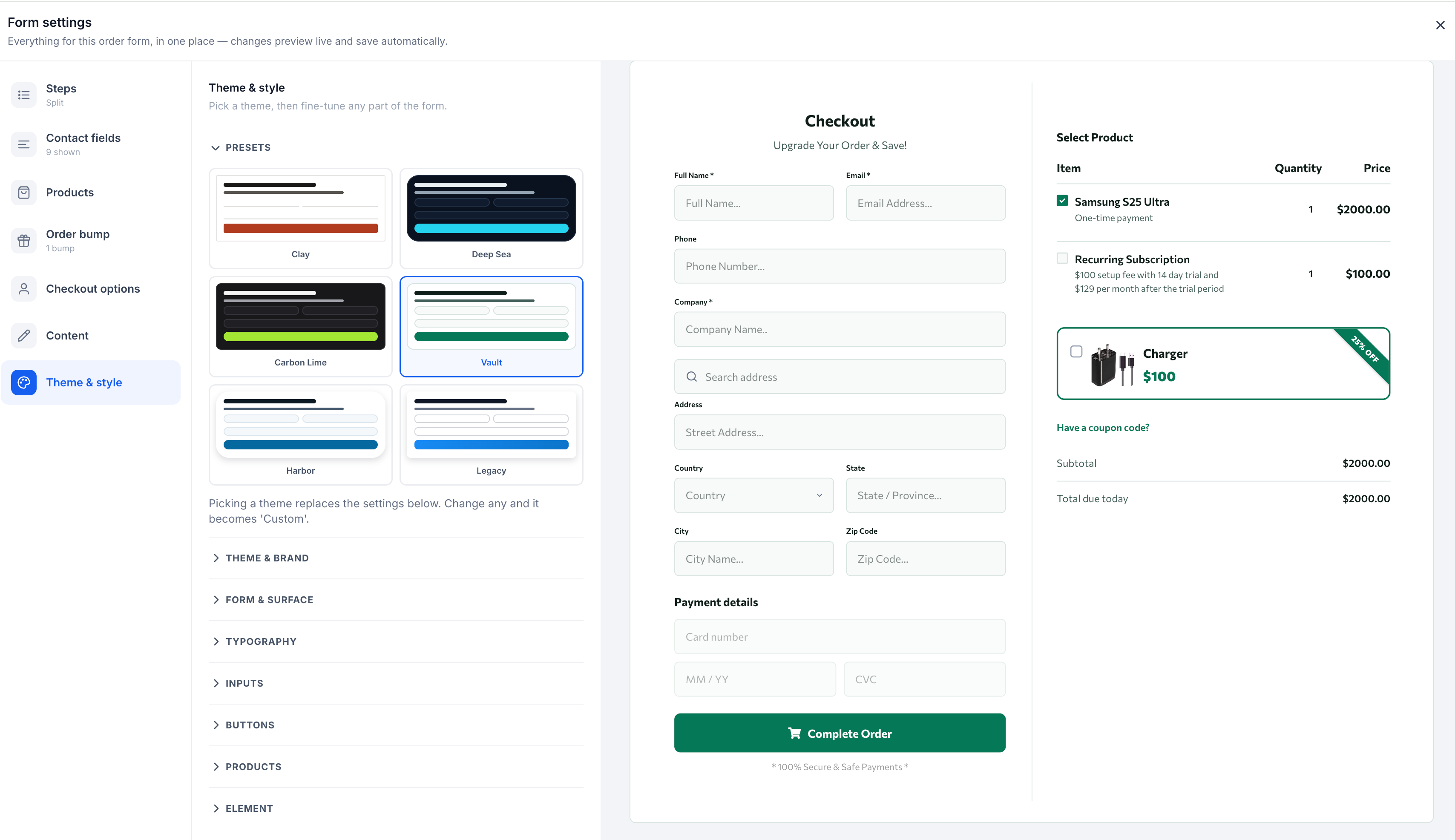
Step 9: Apply a Theme and Customize Styling
Open Theme & style.
Select a theme preset.
Configure your preferred brand colors.
Adjust typography and input styling.
Customize buttons, product presentation, and step indicators.
Adjust device-specific sizing, spacing, and alignment where available.
Review the appearance using the live preview.
Return to the Order bump styling controls if you want to adjust the bump separately.
Step 10: Save, Publish, and Test
Save your Order Form configuration.
Save and publish the checkout page.
Open the published page.
Verify that the correct layout is displayed.
Confirm that standard and custom fields appear as expected.
Review product selection, prices, and quantity controls.
Check applicable coupon and order bump behavior.
Verify required field validation and checkout navigation.
Test the checkout using the applicable payment provider's supported test process.
Review the checkout on desktop and mobile devices.
Important: The builder preview uses placeholder payment fields and locally calculated totals. Always verify the published checkout rather than relying exclusively on preview values.Order Form Layouts
The new Order Form includes three layouts designed for different checkout experiences. Choosing the right layout helps you organize contact information, payment details, and product summaries based on how you want customers to complete their purchases.
One-step Layout: The One-step layout displays the checkout process on a single screen. Customers can enter their contact details, review their products, and complete payment without navigating between checkout steps.
This layout can be useful when you want to keep the purchasing process straightforward and display the necessary checkout information together.
Two-step Layout: The Two-step layout divides checkout into two stages.
Step 1: Collects and validates the customer's contact information.
Step 2: Displays the payment stage so the customer can complete the purchase.
Contact information collected during the first stage is carried forward into the payment stage. This layout can be useful when you want customers to provide their contact details before proceeding to payment.
Split Layout: The Split layout displays the checkout form and offer summary in side-by-side columns. This creates a checkout experience where customers can view product information alongside the form.
When the available element width becomes too narrow, the layout automatically stacks the columns to accommodate the available space.
Important: You can change layouts without recreating the Order Form. Existing fields, products, order bumps, shopper-facing content, and styling settings carry over when switching between layouts.Contact Fields and CRM Custom Fields
Contact fields determine what customer information is collected during checkout. The redesigned Order Form lets you customize standard contact fields and add supported CRM custom fields, making it possible to collect information that is specific to your business or offer.
Standard Contact Fields
The Order Form supports nine standard fields:
Full Name
Email
Phone
Company
Address
City
State/Province
Postal Code
Country
You can customize the arrangement and display of supported standard fields using the following options:
Field Visibility: Show or hide fields based on the information you want to collect.
Required Fields: Make supported fields mandatory when customers complete checkout.
Field Order: Reorder fields to control their position in the form.
Field Width: Display fields at full width or half width to optimize the form layout.
Important: Full Name and Email are always required because they are necessary for checkout submission.

Address-related fields are managed as a smart address group that adjusts its arrangement based on the available width.
CRM Custom Fields
CRM custom fields allow you to capture information beyond the standard checkout fields. For example, you might collect a customer's preferred service date, additional instructions, or information about the product or service they are purchasing.
The Order Form supports the following types of CRM custom fields:
Text
Numeric
Phone
Monetary
Large text
Date
Option-based fields, such as and selections
File upload
Signature
Custom fields can be added through the field picker in the Order Form customization workspace. Custom field configuration, including predefined dropdown choices and other option values, remains managed within the CRM. The Order Form uses those configurations when displaying the fields to customers.
To create or manage custom fields, refer to Creating and Managing Custom Fields for Better Data Organization.
Products and Checkout Options
Product settings determine what customers can purchase and how product information appears during checkout. The new Order Form provides controls for product selection, quantities, display options, and discount entry while maintaining the existing checkout capabilities.
Product Management
The Products settings let you manage the products and prices associated with your checkout. Available controls include:
Search for and add products and prices.
Edit existing product rows.
Duplicate product rows.
Reorder products.
Remove products.
Allow customers to select multiple quantities.
Configure the maximum quantity allowed.
Show or hide product images.
Show or hide product descriptions.
Enable or disable multi-product selection.
Important: Products remain associated with the funnel step rather than an individual Order Form. Changes to the products attached to a funnel step can affect every Order Form on that step.
Checkout Options
Checkout options control how customers interact with your form and complete their purchases. The redesigned Order Form retains supported checkout capabilities, including:
Coupon codes
Taxes
Gift cards
Recurring prices
Sticky Contact
Terms and Conditions
Post-purchase redirects
You can also enable or disable coupon entry in the checkout configuration. If you want customers to apply discounts, create the applicable coupons in Chat To Clients CRM and configure their eligibility.
For more information, refer to Getting Started with Coupons.
Order Bumps
Order bumps let you present an additional product offer during checkout. The redesigned Order Form includes dedicated order bump styling controls so you can customize how these offers appear without changing the styling of the primary checkout form.
For more details check, Order Bump Configuration
Themes and Styling
Themes control the visual appearance of the Order Form, including colors, typography, buttons, input fields, spacing, and product presentation. The redesigned styling system gives you more control over your checkout design while allowing you to start from a predefined theme.
Important: The builder preview is intended for visual configuration. Payment fields are represented by placeholders, and preview totals are calculated locally. The amounts shown in the builder preview may differ from those on the published checkout.Customizing Order Form Content
Checkout content helps customers understand what information to enter, what they are purchasing, and how to complete the order. The Content settings allow you to customize customer-facing wording without relying on custom code. Use clear labels and concise instructions so customers understand what is required before submitting their order.
Migrating Existing Order Forms
Existing Order Forms continue to function without requiring migration. The new Order Form provides an optional migration process for eligible legacy elements, allowing you to adopt the redesigned experience individually while preserving your existing checkout configuration.
Undoing a Migration
Migration is a single undoable action. If you decide not to keep the migrated version, you can use the builder's Undo action to restore the original element.
Custom CSS Considerations
Custom classes and custom CSS are preserved during migration. However, the redesigned Order Form uses different underlying markup. Custom CSS selectors written specifically for the legacy form structure may no longer match the migrated element. Review and test any custom CSS after migration to ensure the published checkout displays correctly.
Important: Migration is optional, occurs one eligible element at a time, and does not have a required deadline. Order Forms that have not been migrated continue to operate using their existing configurations.Frequently Asked Questions
Q: Do I need to migrate all my existing order forms to use the new Order Form?
No. Existing order forms continue working without mandatory migration. You can create a new Order Form while leaving existing legacy elements unchanged.
Q: Can I migrate some order forms and leave others unchanged?
Yes. Migration is performed individually for eligible elements. You can migrate one Order Form while keeping others in their existing configurations.
Q: What happens if my custom CSS looks different after migration?
The new Order Form uses different markup from the legacy element. Although custom CSS and custom classes carry over, selectors targeting the original markup may need to be updated. Review the published checkout after migration.
Q: Why does the total in the builder preview differ from the published checkout?
The builder calculates preview totals locally and does not reproduce every live checkout calculation. The published checkout should be used to verify actual pricing behavior, including applicable taxes and discounts.
Q: Where do I update the choices in a custom dropdown field?
Update the choices in the CRM custom field configuration. The Order Form reads the options from the CRM rather than maintaining a separate set of choices.
Q: Why did a product change affect another Order Form on the same funnel step?
Products are associated with the funnel step rather than a specific Order Form element. Changes to products on that step can affect every Order Form connected to it.
Q: Can I style order bumps differently from the rest of the checkout?
Yes. Order bumps have their own styling controls and presets, allowing you to customize their presentation independently from the main Order Form.
Q: Why can't I find the redesigned Order Form in the builder?
Confirm that the Brand New Order Forms with New Layouts and Custom Fields feature has been activated in Agency Settings → Labs for the applicable sub-account.
Q: Does switching from Two-step to Split remove the information I've configured?
No. Switching layouts preserves the Order Form's configured fields, products, order bumps, shopper-facing content, and styling. Review the new layout afterward to make sure the presentation fits your needs.