
How to Select Your First Action During Chat To Clients CRM Onboarding
Getting started with Chat To Clients CRM is easier when you know what to focus on first. The personalized onboarding experience allows new customers to select an initial action based on their business goals and access guidance to complete it. With direct navigation to relevant features, tutorial videos, and guided product tours, you can start using Chat To Clients CRM more confidently and achieve your first goal faster.
TABLE OF CONTENTS
- What is Action Selection During Onboarding?
- Key Benefits of Action Selection During Onboarding
- Suggested Onboarding Actions
- Custom Action Suggestions
- Personalized Redirection to Your Selected Action
- Recommended Actions in Launchpad
- How to Select Your First Action During Onboarding
- Frequently Asked Questions
- Related Articles
What is Action Selection During Onboarding?
Action Selection During Onboarding is a personalized onboarding feature that helps new Chat To Clients CRM customers identify and complete their first important task. Instead of navigating the platform to determine where to begin, you can choose a suggested action that aligns with your immediate business needs.
Once you select an action, Chat To Clients CRM directs you to the corresponding product page within your sub-account. Tutorial videos and guided product tours provide assistance to help you complete the task.
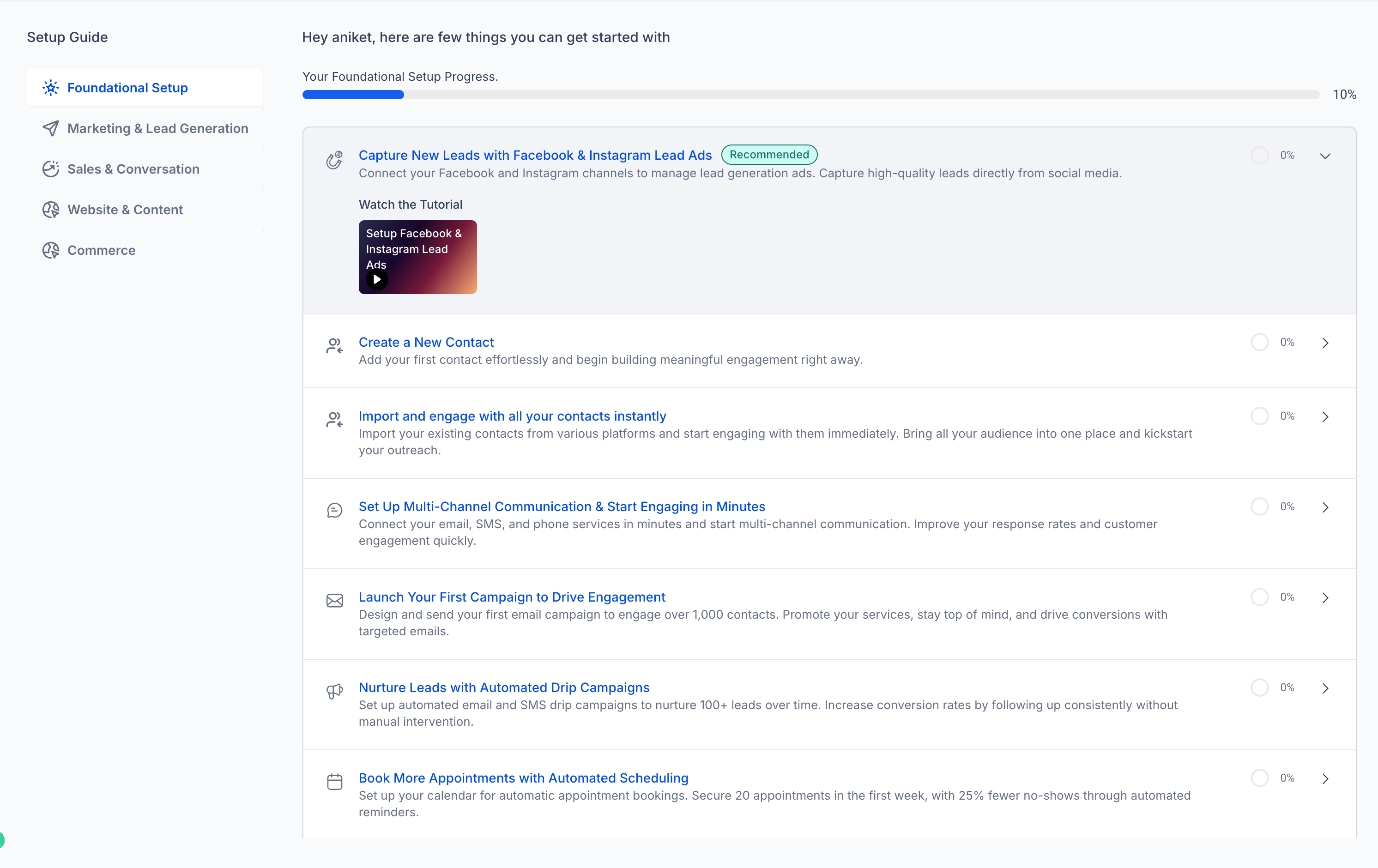
Your selected action also appears at the top of your Launchpad with a Recommended label, making it easier to return to your initial goal and track your onboarding progress.
Key Benefits of Action Selection During Onboarding
Choosing a specific goal during onboarding creates a more focused experience, helping you prioritize essential tasks and become familiar with Chat To Clients CRM's features without unnecessary navigation.
Personalized Onboarding: Select an initial action based on your business priorities rather than following a generic setup path.
Faster Time to Value: Start working toward a meaningful business outcome immediately after onboarding.
Direct Feature Access: Navigate automatically to the product page associated with your selected action.
Guided Learning: Access tutorial videos and product tours that help you understand how to complete your task.
Flexible Feedback: Suggest an action that better matches your needs when the available options are not relevant.
Easy Action Tracking: Find your selected action at the top of the Launchpad with a Recommended label.
Consistent Navigation: Access the relevant sub-account product page regardless of whether you identify as an Agency User or SaaSpreneur.
Suggested Onboarding Actions
Suggested onboarding actions help you identify a useful starting point based on common activities performed by new Chat To Clients CRM customers. These recommendations are informed by Launchpad engagement trends, making it easier to choose a task that can deliver immediate value.
During onboarding, Chat To Clients CRM presents a selection of actions that you can choose from. Consider which action best supports your immediate business objective. For example, you may want to begin by configuring a core feature or preparing a tool your business will use regularly.
The suggested actions are intended to simplify decision-making so you can move directly into using the platform.
Custom Action Suggestions
Custom Action Suggestions allow you to share an onboarding goal when none of the predefined actions match your needs. This feedback helps Chat To Clients CRM understand which additional onboarding experiences may be useful to customers in the future.
If you don't find a relevant action among the available suggestions, you can enter your preferred action using the free-text input field.
Describe the task you would like to accomplish as clearly as possible so your feedback accurately represents your goal.
For example, you might describe a specific setup activity or business outcome you want to prioritize.
Important: Custom suggestions are currently collected as feedback for future improvements. Submitting a suggestion does not automatically create a new onboarding action or personalized product tour.Personalized Redirection to Your Selected Action
Personalized redirection connects your onboarding choice with the relevant Chat To Clients CRM feature, reducing the steps required to begin your first task. This allows you to move from selecting a goal to working toward completing it without manually searching for the correct product page.
After you select one of the suggested onboarding actions, Chat To Clients CRM automatically directs you to the corresponding product page within your sub-account.
The destination provides onboarding guidance through resources such as:
Tutorial Videos: Short instructional videos that introduce the relevant feature and help you understand how to use it.
Product Tour Guide: Interactive, on-screen guidance that walks you through supported setup activities.
Relevant Feature Access: Direct access to the Chat To Clients CRM tools needed to complete your selected task.
This redirection also applies to customers who identify as Agency Users or SaaSpreneurs. Previously, these customers were directed to the agency account by default. With personalized action selection, choosing a supported onboarding action takes you directly to the corresponding sub-account product page instead.
Recommended Actions in Launchpad
The Launchpad provides a centralized location for guided onboarding activities and helps you keep track of your progress. By placing your selected action at the top of the list, Chat To Clients CRM makes it easier to recognize your initial goal and continue working toward completing it.
After selecting an onboarding action, you can find it displayed at the top of the Launchpad with a Recommended
label.
This placement helps you:
Quickly identify your selected onboarding goal.
Return to the task when you need additional guidance.
Access related tutorials and supported guided walkthroughs.
Review onboarding progress as you complete available actions.
Supported Product Tour Guides can mark an action complete when the guided process finishes successfully.
For additional information about Launchpad navigation and tracking, see Subaccount Launchpad.
How to Select Your First Action During Onboarding
Selecting your initial onboarding action helps Chat To Clients CRM connect you with the features and guidance most relevant to your immediate goals. Completing this process gives you a clear starting point and reduces the effort required to locate your first setup task.
Follow these steps to choose an action and begin your onboarding journey.
Step 1: Begin Your Chat To Clients CRM Onboarding
Sign in to your new Chat To Clients CRM account and follow the onboarding process until you reach the step asking you to select your first action.
Step 2: Review the Suggested Actions
Review the list of suggested actions and identify the option that best matches what you want to accomplish first. Choose an action that aligns with your immediate business needs.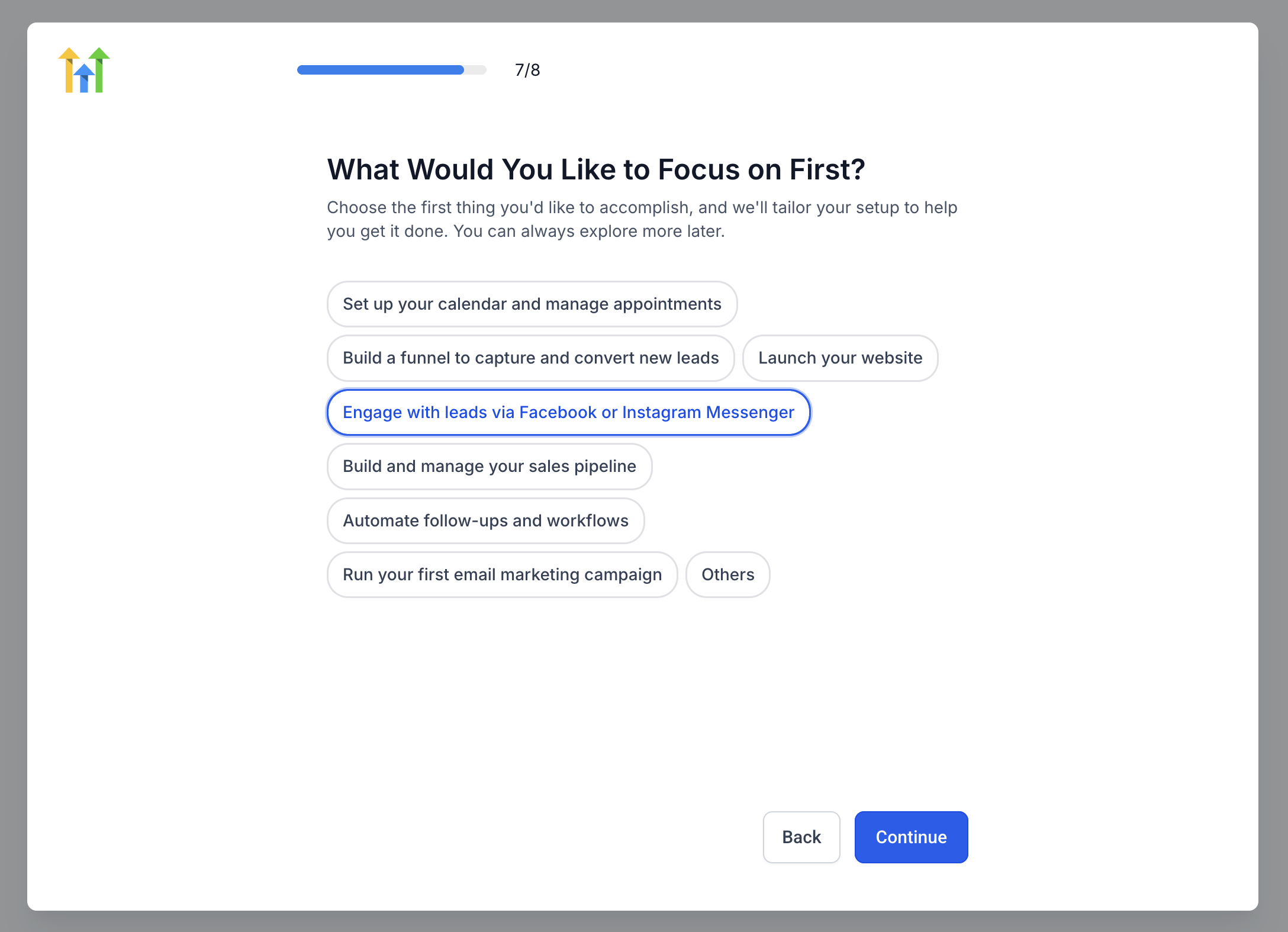
Step 3: Select Your Preferred Action
Choose your preferred action and follow the on-screen prompt to continue. If none of the suggested actions are relevant, use the custom suggestion field to submit feedback about your preferred goal.
Step 4: Access the Corresponding Product Page
After you proceed with a suggested action, Chat To Clients CRM redirects you to its corresponding product page within your sub-account. The page provides access to relevant features and supporting onboarding guidance.
Step 5: Follow the Tutorial or Product Tour
Use the available instructional resources to understand and complete your selected action. Depending on the supported experience, you may be able to:
Watch a tutorial video explaining the feature.
Follow on-screen prompts in the Product Tour Guide.
Complete the required configuration or setup activity.
Step 6: Return to Launchpad to Review Your Progress
Navigate to Launchpad in the sub-account's left navigation menu. Your selected onboarding action should appear at the top of the Launchpad with the Recommended label. Review its progress and continue completing other relevant onboarding actions as needed.
Frequently Asked Questions
Q: Is action selection available to existing Chat To Clients CRM customers?
A: The original release introduced action selection for new customers. The newer Subaccount Launchpad also has rollout and eligibility requirements. Existing accounts should not assume they will receive the new onboarding selection screen.
Q: Is the onboarding action selection feature available on every Chat To Clients CRM plan?
A: The initial release confirmed availability for new customers on the $97 plan, with expansion to the $297 and $497 plans planned. The broader Subaccount Launchpad now supports eligible customers on these plans, but availability of the specific first-action selection step has not been independently confirmed for every tier.
Q: Can I change my selected onboarding action later?
A: Launchpad allows you to access other supported onboarding actions. However, whether you can modify the original action selected during onboarding has not been confirmed.
Q: What happens if I cannot complete an action because of missing permissions?
A: Some onboarding tasks require specific user permissions. If you cannot complete an action, ask your agency administrator to verify your access to the relevant feature. Product tours may prevent progress when required permissions are unavailable.
Q: What should I do if I cannot find Launchpad in my account?
A: Confirm that your account is eligible for the current Launchpad experience and that your user role has the required permissions. Availability may also depend on your agency's signup date and rollout group.
Q: Can I access onboarding guidance again after leaving the product page?
A: Yes, supported Launchpad actions can be reopened from the Launchpad. Available Product Tour Guides may also allow you to replay the guided experience.