
Use Your Existing Verified Number for Calls in the Chat To Clients CRM Mobile App
Use a phone number you already own to place outbound voice calls directly from the Chat To Clients CRM mobile app. Once your personal or business number is verified, it can appear alongside your Chat To Clients CRM numbers in the mobile Call Dialer, letting you choose the number contacts see when you call. This makes it easier to start calling without purchasing a Chat To Clients CRM number first while keeping a familiar caller ID.
TABLE OF CONTENTS
- What is Calling From an Existing Verified Number?
- Key Benefits of Calling From an Existing Verified Number
- Verified Caller ID Requirements
- Verified Numbers vs. Chat To Clients CRM Numbers
- Verified Caller ID vs. SIM-Based alling
- Availability and App Requirements
- Important Calling Restrictions
- How to Set Up and Call From Your Existing Verified Number
- Frequently Asked Questions
- Related Articles
What is Calling From an Existing Verified Number?
Using an existing verified number allows you to place outbound calls through the Chat To Clients CRM mobile app while displaying a personal or business phone number you already own as the caller ID. Chat To Clients CRM verifies ownership of the number before it can be used as a Verified Caller ID, helping ensure users are authorized to display that number when calling contacts.
With the supported mobile app version, verified numbers appear as calling options in the Select call from screen alongside available Chat To Clients CRM numbers. You can identify an existing verified number by its Verified badge and select it before placing the call.
Key Benefits of Calling From an Existing Verified Number
Using an existing number can reduce the setup required to begin making outbound calls while allowing contacts to see a phone number they may already recognize. It also gives users more flexibility when choosing which available number to use from the mobile dialer.
No Chat To Clients CRM number purchase required: Start making supported outbound calls with an existing verified number without purchasing a Chat To Clients CRM number first.
Familiar caller ID: Display a personal or business number your contacts may already recognize when you place the call.
Centralized number selection: View verified numbers and available Chat To Clients CRM numbers together from the mobile Call Dialer.
Quick switching: Choose the appropriate outbound number when you need to call from a different available number.
Easy identification: Verified numbers are marked with a Verified badge so they can be distinguished from other available numbers.
Verified Caller ID Requirements
Verified Caller ID confirms that you control the phone number you want to display during outbound calls. Completing verification before using the mobile dialer helps prevent unauthorized numbers from being used as caller IDs.
The number must first be added and verified in Chat To Clients CRM. For Chat To Clients Phone accounts, you can add a Verified Caller ID from the sub-account's phone-number settings. Chat To Clients CRM calls the number during verification and asks you to enter the displayed verification code. After successful verification, the number is added to the sub-account's verified caller IDs.
Chat To Clients CRM currently applies a default limit of 10 verified caller IDs per sub-account. Additional capacity may require contacting Chat To Clients CRM Support.
For the complete verification process, see How to Set Up Verified Caller ID (Use your number for Voice Calls).
Verified Numbers vs. Chat To Clients CRM Numbers
Understanding the difference between verified caller IDs and Chat To Clients CRM-managed numbers helps you choose the right option for your calling needs. A verified number lets you display a number you already own for supported outbound calls, while a number purchased through Chat To Clients CRM can support additional phone-system functionality depending on its capabilities and configuration.
A verified number is an existing number whose ownership has been confirmed so it can be displayed as an outbound caller ID. A Chat To Clients CRM number is purchased or otherwise managed through the Chat To Clients CRM phone system and can be configured for supported inbound calling, outbound calling, messaging, voicemail, routing, and other phone features.
The mobile Call Dialer can list your verified numbers alongside available Chat To Clients CRM numbers, allowing you to choose which supported number to use before placing a call.
Verified Caller ID vs. SIM-Based alling
Verified Caller ID and SIM-based calling both allow you to work with numbers you already use, but they represent different calling methods. Knowing which method is being used helps avoid confusion about how the call is placed and which phone system handles it.
When you select an existing verified number from the Chat To Clients CRM Call Dialer, the call is being initiated through the Chat To Clients CRM calling experience using that verified number as the displayed caller ID.
SIM-based calling instead uses the phone's native carrier calling functionality. It should not be treated as the same feature as choosing a Verified Caller ID from the Chat To Clients CRM dialer.
For additional information about mobile calling options, see Outbound Calling Using the Chat To Clients CRM Mobile App.
Availability and App Requirements
Using the correct mobile app version ensures the updated caller-selection experience is available on your device. Older app versions may not display verified numbers using the workflow described in this article.
This feature is Live and is available on:
Chat To Clients CRM mobile app: Version 4.25.0 or later
Chat To Clients CRM mobile app: Version 4.25.0 or later
White-labeled mobile apps: Self-serve white-labeled apps
If the expected caller-ID options are missing, confirm that the mobile app is running a supported version and that the phone number has already been successfully verified.
Important Calling Restrictions
Telecommunications regulations can affect whether a Verified Caller ID can be used for certain calls. Reviewing applicable restrictions before relying on a verified number helps prevent failed calls and unexpected caller-ID behavior.
Chat To Clients CRM currently documents that, due to local regulations in India, calls from a +91 caller ID to a +91 destination using this verified-caller-ID workflow are not supported. This restriction has applied since August 1, 2024.
Other carrier, country, or phone-system requirements may also affect supported calling behavior.
How to Set Up and Call From Your Existing Verified Number
Properly verifying the number and selecting it from the mobile dialer ensures Chat To Clients CRM can offer it as an authorized outbound caller-ID option. Complete the verification process first, then choose the verified number when you are ready to place a mobile call.
Verify Your Existing Number
Open the appropriate Chat To Clients CRM sub-account.
Go to Settings.
Open Phone Numbers.
Select Add Number, then choose Add Verified Caller ID.
Enter the personal or business phone number you own.
Click Verify Number.
Chat To Clients CRM displays a verification code and places a verification call to the number.
Answer the verification call and enter the provided code.
After verification succeeds, confirm that the number appears as a verified caller ID.
Select the Verified Number in the Mobile App
Make sure you are using Chat To Clients CRM v4.25.0 or later, Chat To Clients CRM v4.25.0 or later, or a supported self-serve white-labeled app.
Open the Call Dialer in the mobile app.
Tap the option to open the Select call from screen.
Review the available calling numbers.
Find your existing number marked with the Verified badge.
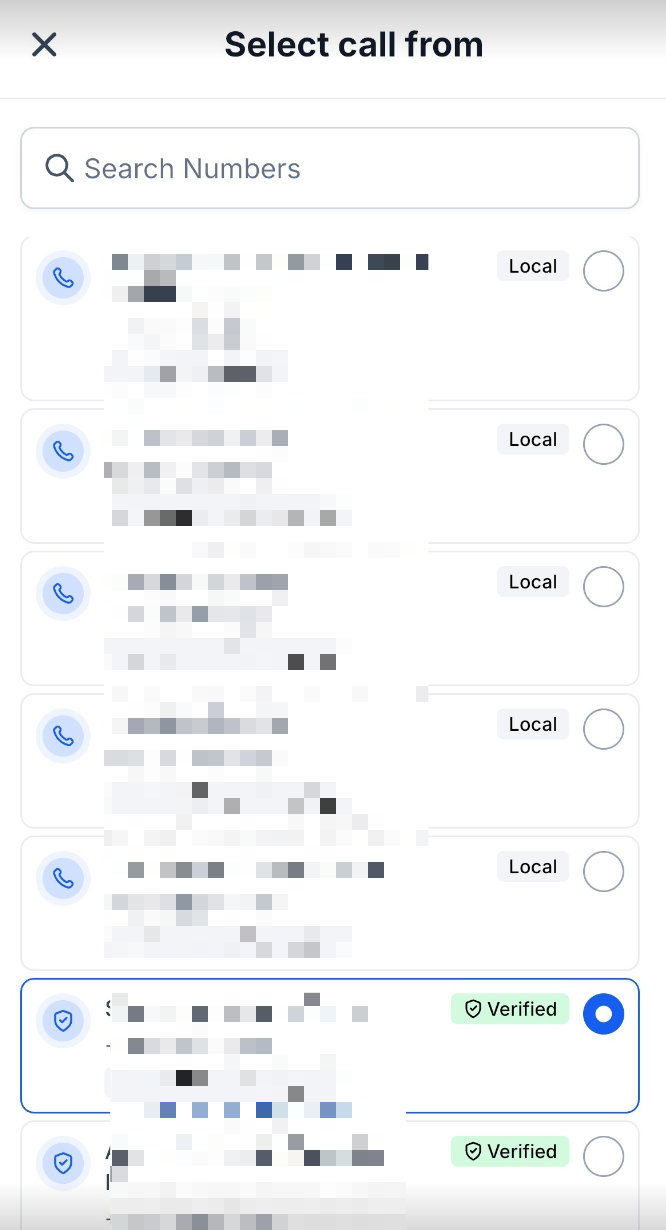
Tap the verified number to select it.
Enter or select the contact you want to call.
Place the call.
The selected verified number is used as the outbound caller ID for the call.
Frequently Asked Questions
Q: Do I need to purchase a Chat To Clients CRM number before using my existing number in the mobile dialer?
No. With the supported mobile app version, an eligible existing number that has been verified can be selected for outbound calling without first purchasing a Chat To Clients CRM number.
Q: Why don't I see my existing phone number in the Select call from screen?
Confirm that the number has successfully completed Verified Caller ID verification and that you are using Chat To Clients CRM or Chat To Clients CRM version 4.25.0 or later, or a supported self-serve white-labeled app. If the number still does not appear, review your phone setup and account configuration.
Q: How can I tell which number is my verified number?
Existing verified numbers display a Verified badge in the caller-selection experience.
Q: Can I still call from a Chat To Clients CRM number?
Yes. When available to your account, Chat To Clients CRM numbers can appear alongside verified numbers so you can select the appropriate number before calling.
Q: Is choosing a verified number the same as making a SIM-based call?
No. Selecting a Verified Caller ID from the Chat To Clients CRM Call Dialer is different from using your device's native carrier or SIM-based calling functionality.
Q: Can I have more than one Verified Caller ID?
Yes. Chat To Clients CRM currently documents a default limit of 10 verified caller IDs per sub-account. Contact Chat To Clients CRM Support if additional capacity is required.
Q: Can I use a +91 verified number to call another +91 number in India?
Not with this Verified Caller ID workflow. Chat To Clients CRM documents that +91-to-+91 calls using a verified caller ID are not supported due to local regulations.
Q: Does verifying my existing number turn it into a Chat To Clients CRM-managed phone number?
No. Verified Caller ID confirms that you control a number so it can be used as the displayed caller ID for supported outbound calls. Purchasing a Chat To Clients CRM number is a separate process that adds a phone number managed through the Chat To Clients CRM phone system.