
How to Purchase a Phone Number
Purchasing a phone number in Chat To Clients CRM gives a sub-account a dedicated number for supported voice and messaging activities. This guide covers the Chat To Clients Phone purchase process, including number selection, identity and regulatory requirements, and troubleshooting when a purchase cannot be completed. It also explains what to check after purchasing so the new number is ready for the calling and messaging activities you plan to use.
TABLE OF CONTENTS
- What is Purchasing a Phone Number in Chat To Clients CRM?
- Key Benefits of Purchasing a Phone Number
- Before You Purchase a Phone Number
- How to Purchase a Phone Number
- After Purchasing Your Phone Number
- Troubleshooting Phone Number Purchase Errors
- Frequently Asked Questions
- Related Articles
What is Purchasing a Phone Number in Chat To Clients CRM?
Purchasing a phone number adds a new business number to a specific Chat To Clients CRM sub-account. The number can then be configured for supported calling, messaging, routing, voicemail, user assignment, and automation based on your business needs. Phone numbers are managed at the sub-account level, so purchasing from the intended location helps ensure the number is available where it will be used.
The in-app purchasing steps in this guide apply to Chat To Clients Phone-managed sub-accounts. If your agency uses its own Twilio account connected to Chat To Clients CRM, purchase the number from the Twilio sub-account associated with the intended Chat To Clients CRM location instead. For instructions, see Buying a Twilio Number in Your Connected Twilio Account .
Key Benefits of Purchasing a Phone Number
A dedicated business number gives you greater control over how calls and messages are managed inside the sub-account. After purchase, the number can be configured according to the communication needs of an individual user, team, department, or business workflow.
- Two-Way Communication: Use supported phone numbers for inbound and outbound voice and messaging.
- Local or Toll-Free Options: Search for supported local or toll-free numbers based on country, number type, and current availability.
- Centralized Communication: Manage phone activity alongside contacts, conversations, workflows, and other Chat To Clients CRM tools.
- Flexible Call Routing: Configure how incoming calls reach individual users, multiple team members, forwarding numbers, or voicemail.
- Business and Personal Separation: Use a business number instead of relying on a team member's personal phone number.
Before You Purchase a Phone Number
Choose the Right Phone Number Path
Select the option that matches what you want to do before starting the purchase process.
Buy a new local number: Continue with the Chat To Clients Phone purchase steps in this article.
Buy a new toll-free number: Follow the toll-free number purchase guide.
Port or move an existing number: Use the Moving Phone Numbers: Migration Guide.
Can't find the number or area code you need: Review the Unavailable Phone Number guide.
Having trouble with identity verification: Review the Persona verification troubleshooting guide.
Confirm Your Phone Provider
The phone provider determines where a new number should be purchased. Using the correct purchasing workflow helps ensure the number is associated with the intended Chat To Clients CRM sub-account.
Chat To Clients Phone: Follow the in-app purchasing steps in this article.
Agency-connected Twilio: Purchase the number from the appropriate Twilio sub-account connected to the Chat To Clients CRM location. For instructions, see Buying a Twilio Number in Your Connected Twilio Account.
Review Number Availability and Costs
Phone number inventory changes regularly, so a supported country or number type may not always have the exact number or area code you want. Availability can depend on the country, area code, number type, supported capabilities, regulatory requirements, and current provider inventory.
Purchased phone numbers also have recurring monthly rental charges. Pricing varies by country and number type, and additional usage or registration charges may apply depending on how the number is used. For current rates, see the Phone System Pricing & Billing Guide.
Complete Identity Verification When Required
Persona identity verification helps verify the person responsible for an Chat To Clients Phone-managed sub-account before certain phone-number purchases and compliance actions. Persona is required when purchasing an eligible +1 number for the United States, Canada, or Puerto Rico, or a +972 number for Israel if the sub-account has not completed Persona verification before.
Persona is generally a one-time process per sub-account. For eligibility requirements and troubleshooting, see Identity Verification for Phone Number Purchases (US/CA/PR/IL).
Check Regulatory Requirements
Some countries and number types require an Address Bundle, Regulatory Bundle, supporting documentation, or other regulatory information before a phone number can be provisioned. Requirements vary by country and number type, so complete any regulatory prompts displayed during the purchase process. For setup instructions, see Regulatory Bundle and Address Creation for Sub-Accounts.
Use the Appropriate Process for a Number You Already Own
Purchasing is intended for obtaining a new phone number. If you already own the number you want to use, the correct process may involve porting, importing, moving, or hosting the existing number instead of purchasing another one. If the number is currently with another provider, see Porting Options: US In-App vs International Manual Process.
Checking the phone provider, number requirements, and intended use before purchasing helps prevent common
How to Purchase a Phone Number
How to Purchase a Phone Number
Purchasing the number from the intended Chat To Clients Phone-managed sub-account ensures it is added to the location where it will be used. Complete any identity, address, or regulatory requirements that appear during the purchase process before finalizing the transaction.
Step 1: Open Phone System
Opening Phone System from the intended sub-account ensures that the new number is purchased for the correct location.
- Log in to the Chat To Clients CRM sub-account where you want to purchase the number.
- Click Settings.
- Select Phone System.
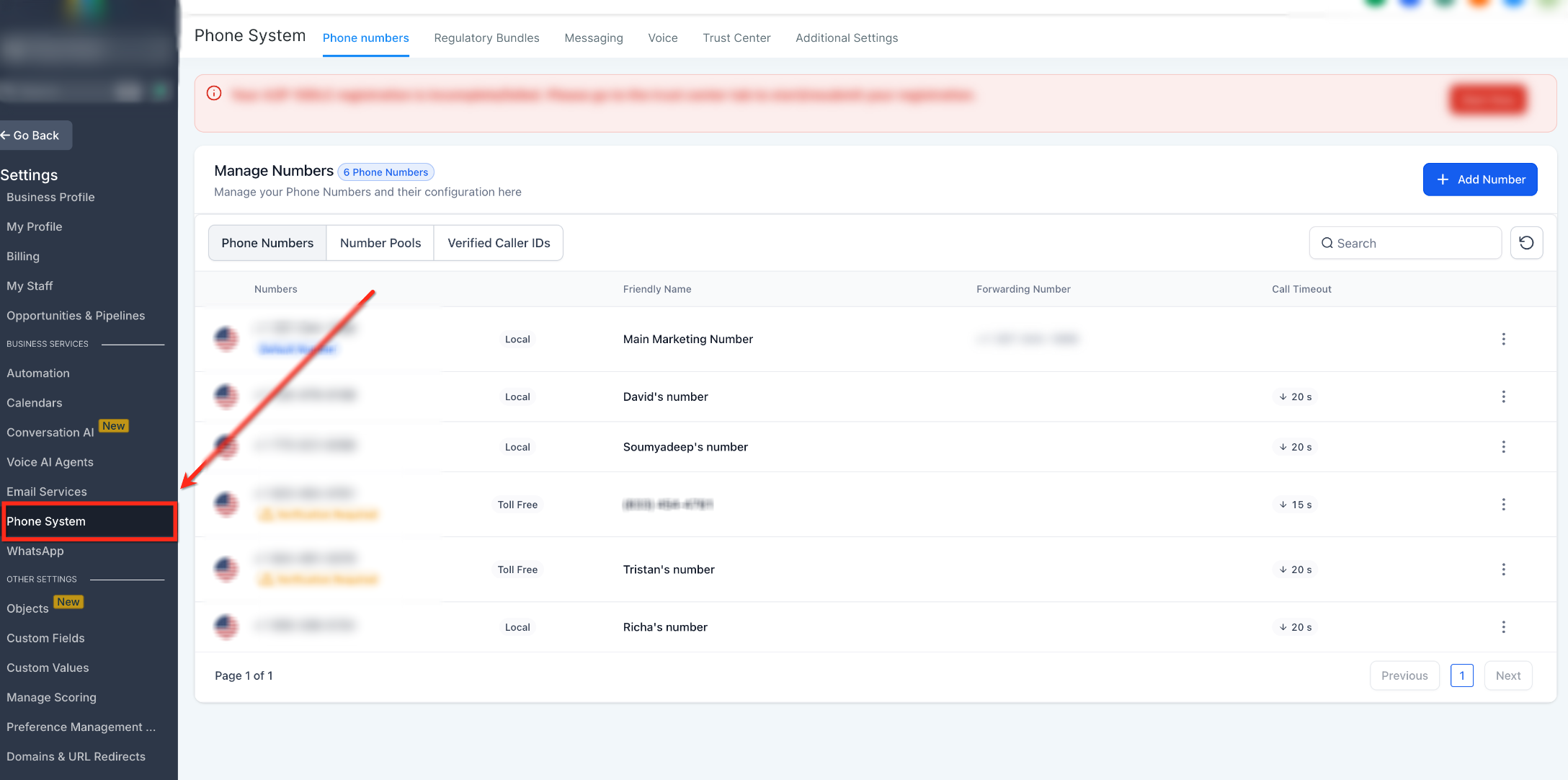
If Persona verification is required for the purchase, Chat To Clients CRM may prompt you to complete verification during the purchase flow.
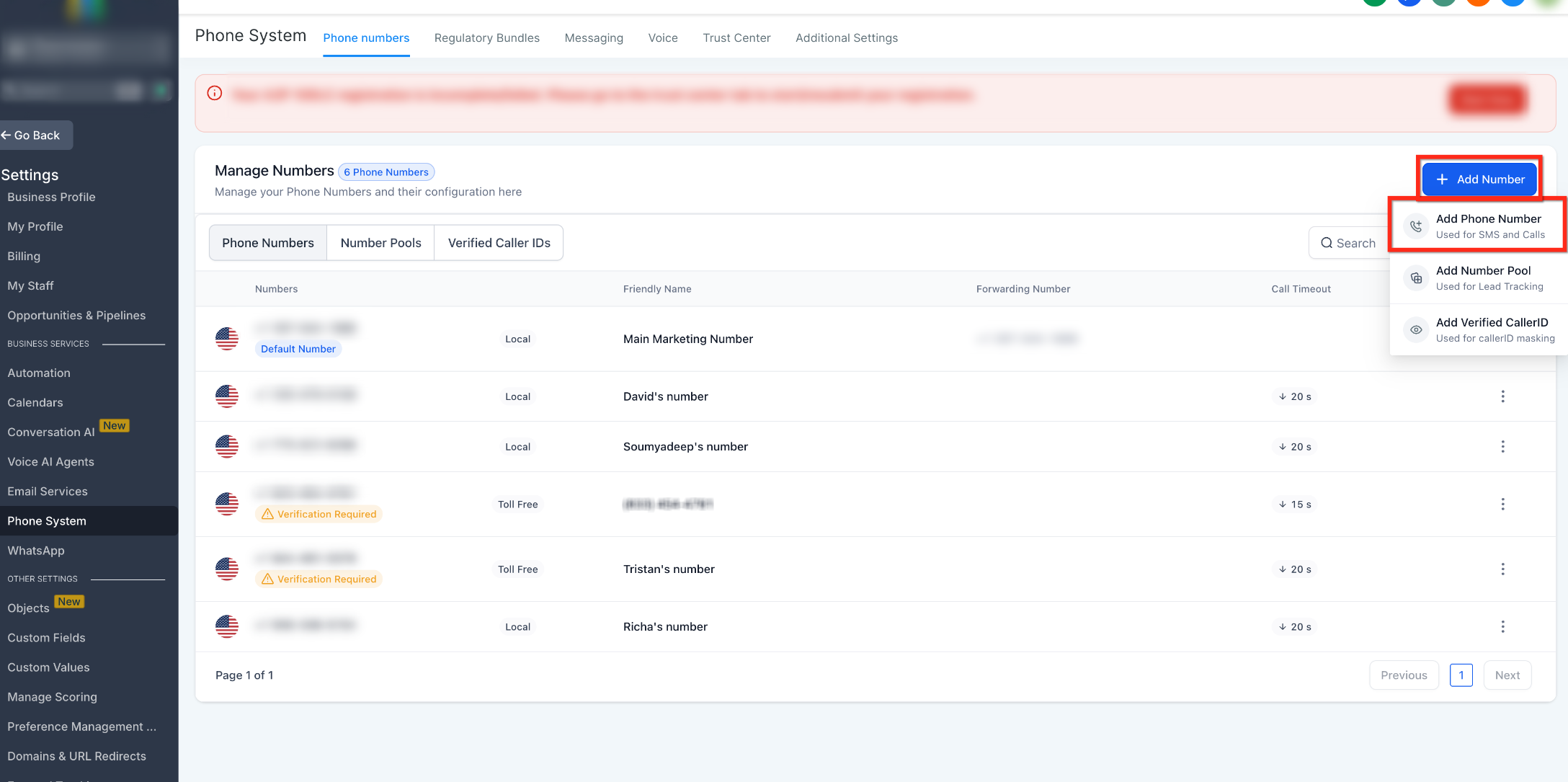
Step 2: Add a Phone Number
The + Add Number menu contains the options for adding phone resources to the sub-account. Select the phone-number option to begin searching for a new number.
- From Phone System, open the Phone numbers tab.
- Click + Add Number.
- Select Add Phone Number.
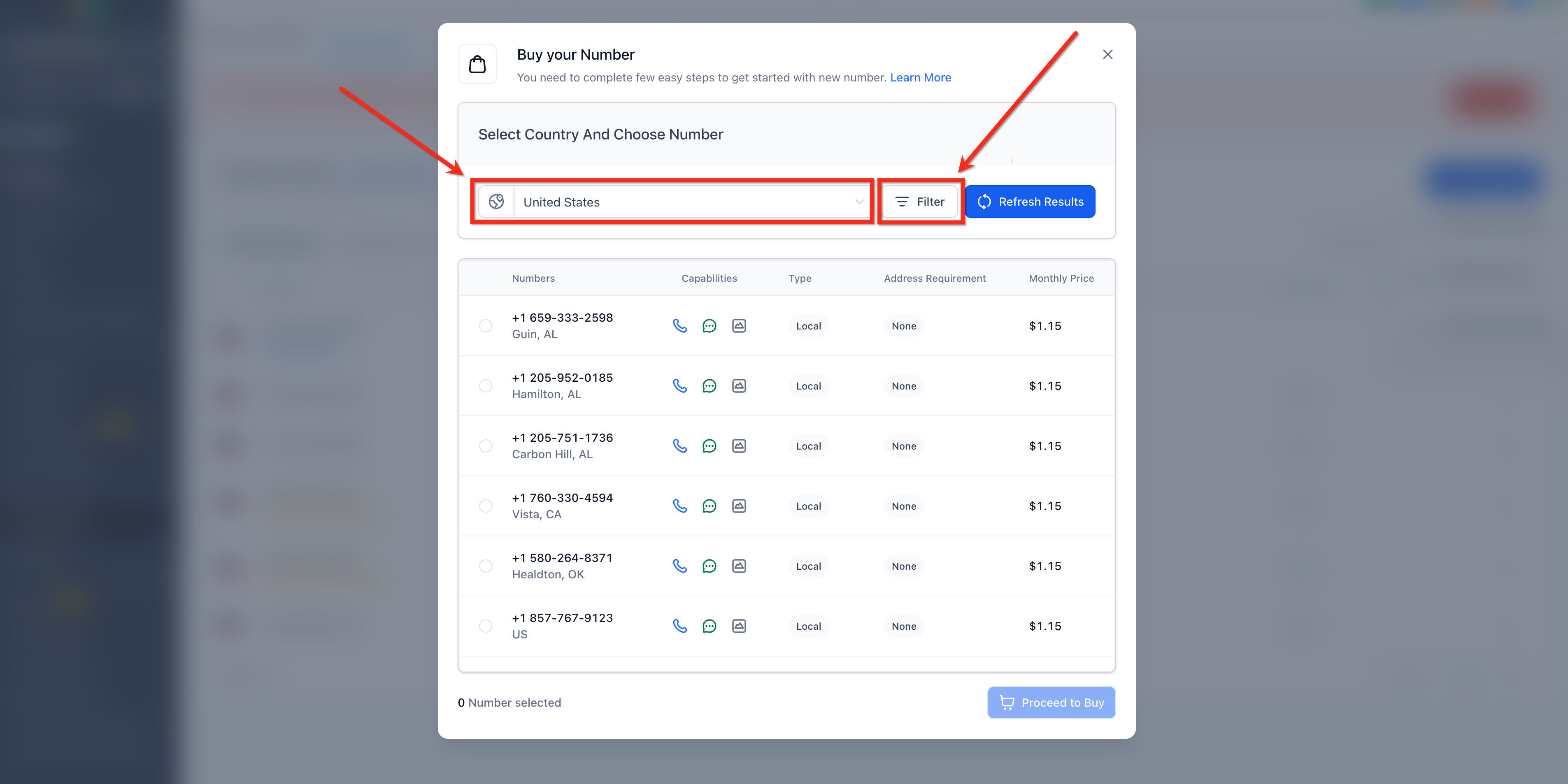
Step 3: Select the Country and Search Filters
Choosing the country determines the available phone-number inventory and applicable purchasing requirements. Filters help narrow the available results to numbers that match your preferred digits, capabilities, or number type.
- Select the desired Country.
- Click Filter to refine the available results.
- Apply the filters that are relevant to your needs.
Available filters can include:
- Digits or phrases within the phone number
- Voice capability
- SMS capability
- MMS capability
- Local or toll-free number type
Step 4: Choose an Available Number
Reviewing the available inventory lets you compare phone numbers, capabilities, number type, address requirements, and displayed pricing before making a selection.
- Review the available phone numbers.
- Select the number you want to purchase.
- If you want to view different inventory, click Refresh Results.
- If necessary, adjust your filters or search another appropriate area code.
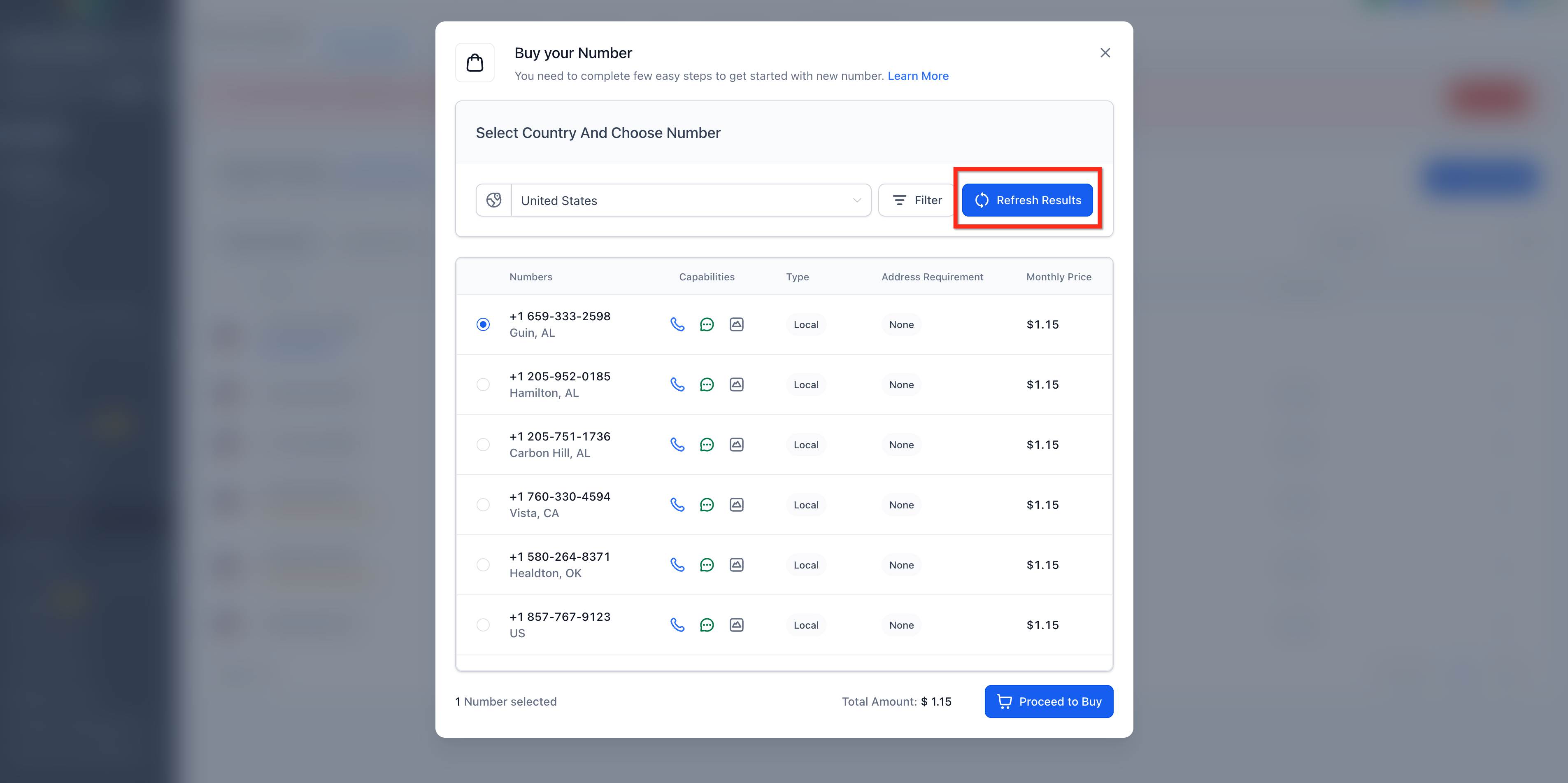
If no suitable number is available, try broader filters, a nearby or overlay area code, or another supported number type.
If you still cannot find a suitable number, see How to Request a Number That's Not Available.
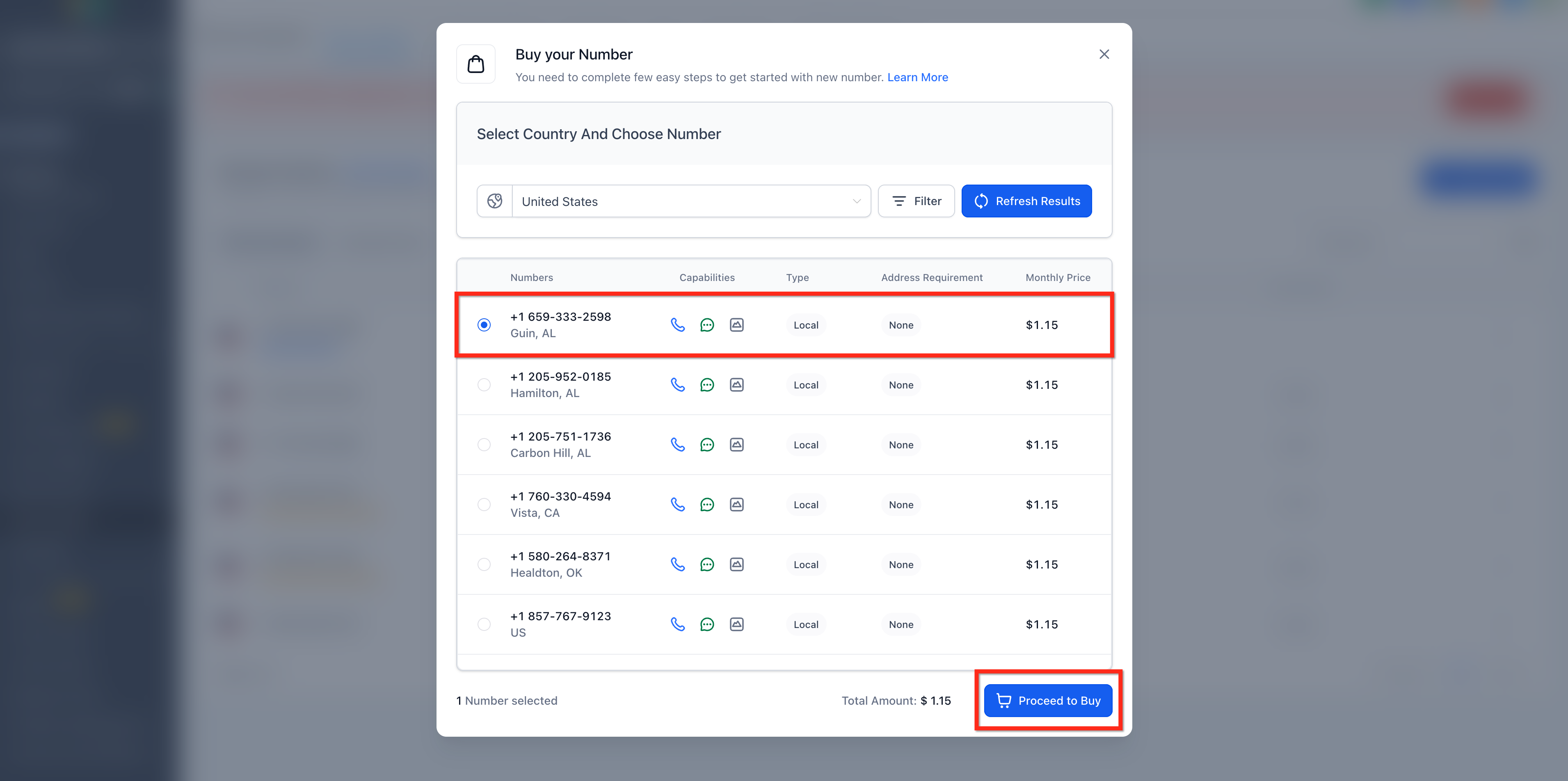
Step 5: Complete the Purchase
Reviewing the selected number and any required compliance information before confirming the transaction helps prevent failed purchases and unexpected setup requirements.
- Select the desired phone number.
- Review the displayed capabilities, number type, address requirement, and monthly price.
- Click Proceed to Buy.
Depending on the selected country and number type, Chat To Clients CRM may require an approved address or Regulatory Bundle before the transaction can be completed. Complete the requested information before proceeding.
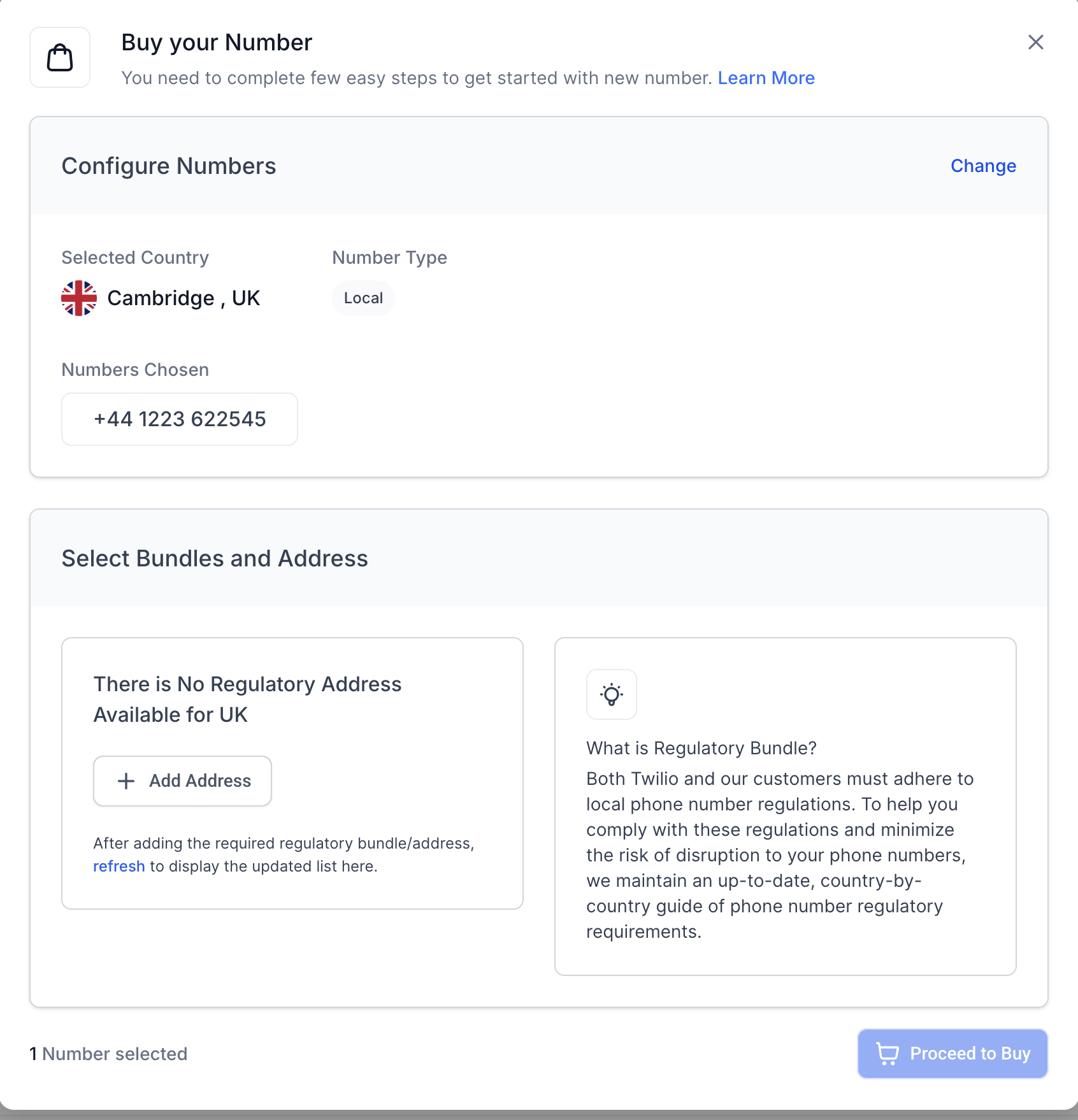
- Complete any required identity, address, Regulatory Bundle, or confirmation prompts.
- Confirm the purchase.
After a successful purchase, Chat To Clients CRM displays the newly purchased number and may identify additional configuration or registration requirements based on how the number will be used.
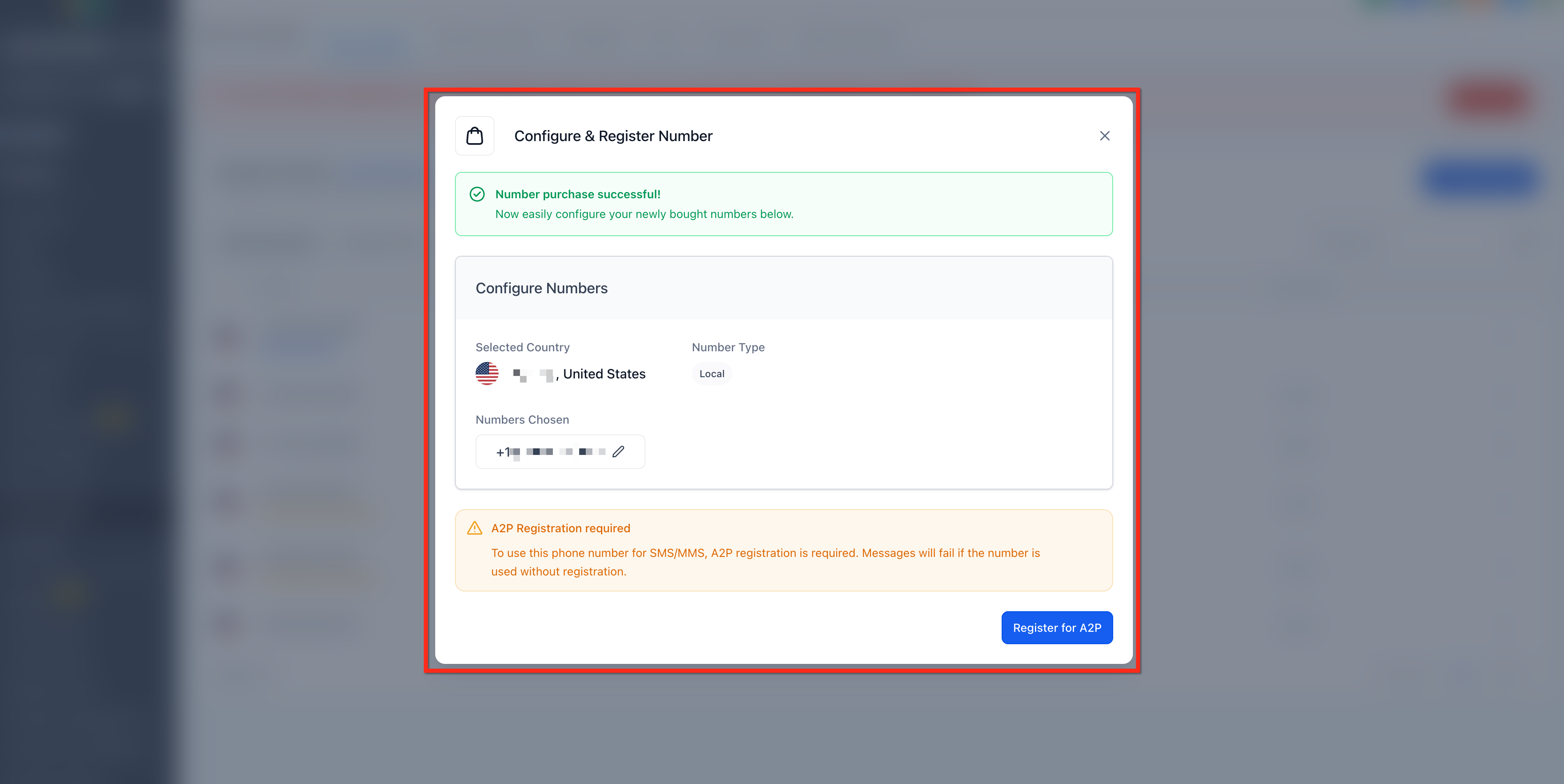
Registration required notice for the newly purchased US local number.
After Purchasing Your Phone Number
A successful purchase adds the number to the sub-account, but additional configuration or messaging registration may still be required before the number is ready for its intended use. Confirm the number appears in Phone System, configure its call behavior, and complete any applicable messaging requirements.
- Go to Settings → Phone System → Phone numbers.
- Confirm that the newly purchased number appears in the list.
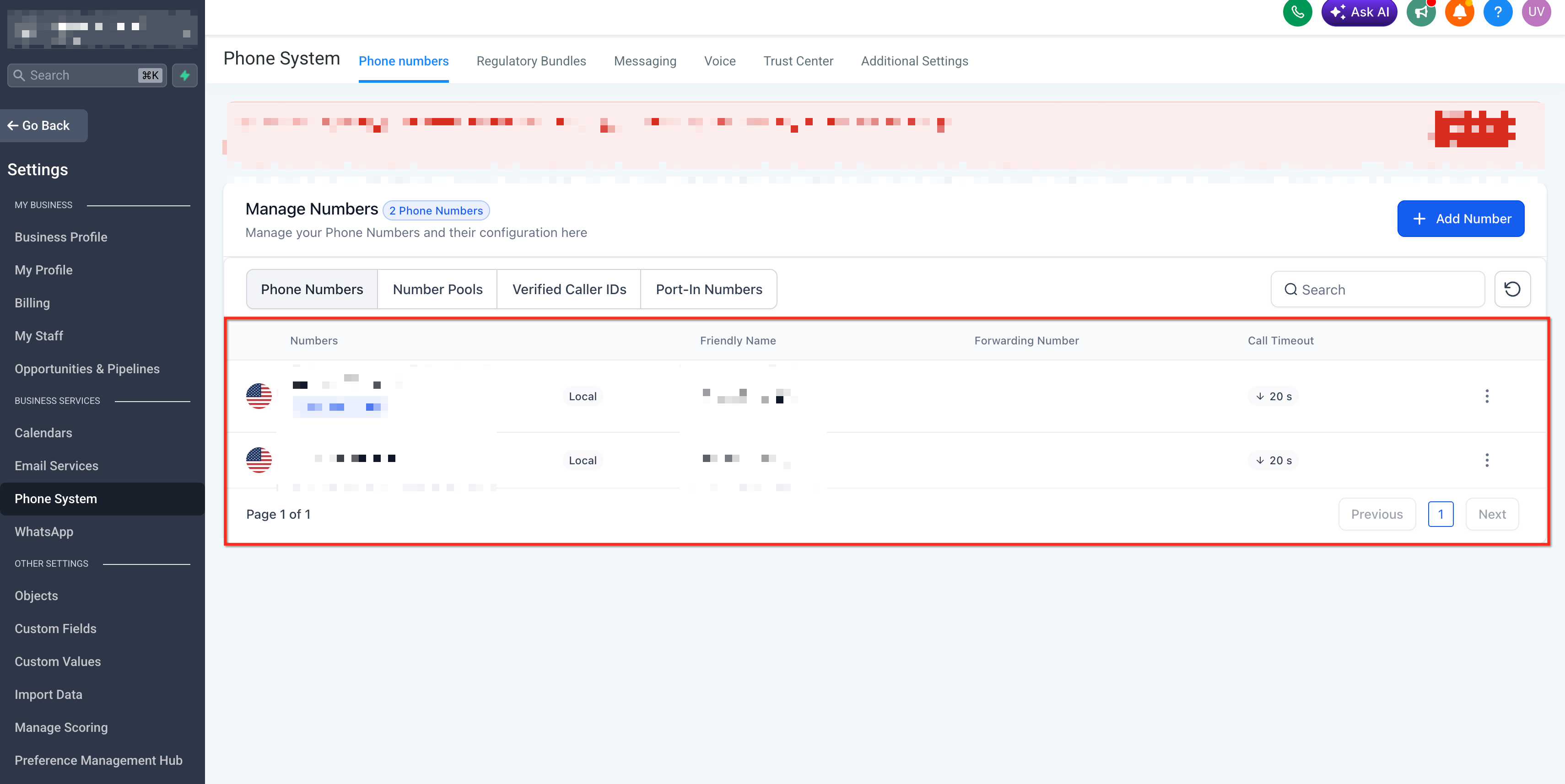
- Open the number's configuration.
- Configure the appropriate routing, forwarding, voicemail, or user settings.
- Make a test call to the number from another phone to confirm inbound calling works as intended.
- Complete any messaging registration or verification required for the number before relying on it for SMS or MMS.
For detailed routing, forwarding, voicemail, and phone-number settings, see Overview of Phone Number Configuration Options.
Complete Messaging Registration When Required
Messaging capability on a phone number does not automatically mean that all business messaging traffic is ready to send. Registration requirements depend on the number type and the recipients you plan to message.
- US 10-digit local numbers: Businesses sending applicable business text messages to US recipients using 10-digit long-code numbers must complete A2P 10DLC registration. See A2P 10DLC Registration: Brand and Campaign Registration .
- Toll-free numbers: Toll-free numbers used for SMS or MMS messaging to recipients in the United States or Canada must complete Toll-Free Verification. See the Toll-Free Number Verification Guide for Chat To Clients Phone (US/Canada) .
Troubleshooting Phone Number Purchase Errors
A failed purchase can be caused by identity verification, regulatory requirements, changing inventory, restrictive search criteria, or the phone provider connected to the location. Checking these items in order can help determine whether the issue can be resolved directly or requires assistance from Chat To Clients CRM Support.
Purchase Error Checklist
If Proceed to Buy does not complete the transaction, a number cannot be processed, or Chat To Clients CRM displays a message directing you to contact Support, use the checks below before repeatedly attempting the purchase.
- Confirm the sub-account: Make sure you are purchasing from the location where the number should be used.
- Confirm the phone provider: The in-app workflow in this article is for Chat To Clients Phone. Agencies using their own connected Twilio account should purchase the number from the appropriate Twilio sub-account.
- Check Persona verification: If you are purchasing an eligible +1 or +972 number, complete any Persona identity-verification prompt that appears.
- Check address or regulatory requirements: If the selected country or number type requires an Address Bundle or Regulatory Bundle, complete the required information and approval before retrying the purchase.
- Refresh the inventory: The selected number may no longer be available. Click Refresh Results and try another available number.
- Broaden the search: If suitable numbers do not appear, adjust restrictive filters or try a nearby or overlay area code.
- Contact Chat To Clients CRM Support if the error continues: If Chat To Clients CRM specifically directs you to Support, or the purchase still fails after completing the checks above, contact Support and provide the error details. See 24/7 Customer Support Options .
Information to Provide Chat To Clients CRM Support
Providing the exact purchase details and error information helps Support distinguish between an inventory issue, compliance requirement, and account-specific purchase failure.
Include:
- Sub-account name
- Location ID
- Country
- Number type
- Selected phone number, if applicable
- Exact error message
- Screenshot or screen recording of the error
- Persona verification status, if applicable
- Regulatory Bundle or Address status, if applicable
- Troubleshooting steps already attempted
Important: Do not provide passwords, payment-card information, government-issued identity documents, or other sensitive credentials unless Chat To Clients CRM provides an approved secure method for submitting the required information.
Frequently Asked Questions
Q: Why does the monthly price in my account differ from the price shown in a screenshot?
A: Phone-number pricing varies by country and number type, and pricing can change over time. The screenshots in this article illustrate the purchasing workflow and should not be treated as a pricing quote.
Q: Is Persona verification the same as A2P 10DLC or Toll-Free Verification?
A: No. Persona verifies identity for eligible Chat To Clients Phone compliance actions. A2P 10DLC and Toll-Free Verification are separate messaging-registration processes that apply to specific number types and messaging use cases.
Q: Can one Chat To Clients Phone number route calls to multiple team members?
A: Yes. A number can be configured as a dedicated inbound line for one user or use shared routing to ring multiple team members. For setup options, see How to Assign Chat To Clients Phone Numbers to Users .
Q: Does SMS or MMS capability mean I can start sending messages immediately?
A: Not necessarily. Capability indicates that the number supports that type of communication, but applicable carrier registration or verification requirements must still be completed before messaging can be used as intended.
Q: Can I purchase another number if a specific area code is unavailable?
A: Yes. You can search another available area code or number type. If you specifically need an unavailable number or area code, follow the unavailable-number request process.