
Troubleshooting Calendar Availability with Calendar AI
Calendar AI makes it easier to understand why appointment times are unavailable without manually investigating each slot. Ask questions in plain language about a specific time, an entire day, a calendar, or a team member, and Calendar AI identifies the availability condition preventing a booking. When a reliable explanation cannot be provided, Calendar AI directs you to the full Troubleshooting View for deeper investigation.
TABLE OF CONTENTS
- What is Calendar AI Availability Troubleshooting?
- Key Benefits of Calendar AI Availability Troubleshooting
- Questions You Can Ask Calendar AI
- Troubleshooting a Specific Appointment Slot
- Troubleshooting a Team Member's Availability
- Troubleshooting an Entire Day
- How Calendar AI Handles Ambiguous Requests
- What Happens When Calendar AI Cannot Determine the Reason?
- How To Use Calendar AI to Troubleshoot Availability
- Frequently Asked Questions
- Related Articles
What is Calendar AI Availability Troubleshooting?
Calendar AI availability troubleshooting provides a conversational way to investigate booking availability in Chat To Clients CRM. Instead of starting with the detailed calendar troubleshooting grid, you can describe the availability issue in everyday language and receive an explanation based on the calendar or team member involved.
Calendar AI can troubleshoot questions about:
A specific appointment slot
An entire day
A specific calendar
A team member
A team member who serves multiple calendars
Calendar AI can also recognize when a request needs more context. If a name could refer to multiple calendars or
team members, it can ask a clarifying question before troubleshooting the issue.
Key Benefits of Calendar AI Availability Troubleshooting
Calendar AI reduces the effort required to investigate unavailable appointment times while keeping detailed troubleshooting tools available when additional investigation is needed.
Natural-language troubleshooting: Ask why a time is unavailable without manually working through the Troubleshooting View first.
Specific availability explanations: Get the availability reason Calendar AI can identify for the requested calendar, team member, date, or time.
Team member troubleshooting: Investigate a person's availability even when you do not start with a specific calendar.
Whole-day summaries: Understand availability across a day through summarized time segments instead of reviewing every slot individually.
Smart clarification: Calendar AI asks for additional information when it cannot reliably determine which calendar or team member you mean.
Reliable fallback behavior: When a supported explanation cannot be produced, Calendar AI tells you rather than generating a reason and provides access to the full Troubleshooting View.
Permission-aware results: Availability troubleshooting follows existing access and permission controls.
Questions You Can Ask Calendar AI
The amount of information you include in your question determines the scope Calendar AI can investigate. You can start with a precise slot when you already know which booking time is causing a problem or use a broader question when you need to understand a person's or calendar's availability.
Examples include:
"Why isn't 5 PM on August 8 available on my Sales Call calendar?"
"Why isn't Jane available on Friday?"
"Why isn't my Sales Call calendar available tomorrow?"
"Why aren't there any appointments available Friday afternoon?"
You do not need to follow a fixed command format. Calendar AI interprets the request conversationally and asks for clarification when additional information is necessary.
Troubleshooting a Specific Appointment Slot
Slot-level troubleshooting is useful when a customer or team member expects a particular appointment time to be bookable but the time does not appear as available. Calendar AI investigates the requested time and provides the supported reason preventing that slot from being booked.
For example, you can ask:
"Why isn't 5 PM on August 8 available on my Sales Call calendar?"
Calendar availability can be affected by several settings and conflicts. Chat To Clients CRM's calendar troubleshooting tools can identify conditions such as working hours, scheduling notice, buffer time, booking limits, blocked time, external calendar conflicts, unavailable resources, and other availability restrictions.
When Calendar AI identifies the blocking condition, use the explanation to determine which calendar or availability setting may need attention.
For more detailed troubleshooting information, see Troubleshooting Tool for Calendar.
Troubleshooting a Team Member's Availability
Team-member troubleshooting lets you start with the person whose availability you are investigating rather than finding and checking each calendar first. This is especially useful when team members participate in multiple calendars or use centralized schedules.
For example:
"Why isn't Jane available on Friday?"
Calendar AI resolves the team member and evaluates the relevant calendar context. When a team member serves multiple calendars and the intended context is unclear, Calendar AI can ask whether you want to investigate a particular calendar or the person's overall schedule.
A team member's bookability can depend on more than general working hours. Calendar-specific availability, schedules, conflicts, assignment rules, and other booking conditions can influence whether an appointment can be scheduled.
For more information about managing user availability, see Schedules — Centralized Availability Management.
Troubleshooting an Entire Day
Whole-day troubleshooting helps reveal broader availability patterns without requiring you to ask about every appointment slot individually. Calendar AI groups repeated availability conditions into useful time segments so you can quickly understand how availability changes throughout the day.
For example, a day's results could indicate that one portion of the day falls outside available hours while another portion is affected by a specific conflict.
This summarized approach prevents the same reason from being repeated for every affected slot. If you need more precise information after reviewing the summary, ask a follow-up question about the relevant time or slot.
How Calendar AI Handles Ambiguous Requests
Calendar and team-member names can sometimes overlap or provide insufficient context on their own. Calendar AI evaluates the information in your request before deciding whether additional clarification is required, helping keep straightforward troubleshooting requests conversational.
For example, a name in your request could represent:
A calendar
A team member
Both a calendar and a team member
A team member associated with multiple calendars
When the intended calendar or person can be determined from your request, Calendar AI continues without unnecessary questions. When multiple interpretations could change the troubleshooting result, it asks you to clarify the intended context.
What Happens When Calendar AI Cannot Determine the Reason?
Reliable availability troubleshooting depends on having a supported explanation for the requested booking condition. When Calendar AI cannot produce a clear reason or encounters a technical issue, it does not invent an explanation.
Instead, Calendar AI communicates that it cannot provide a supported reason and directs you to the full Troubleshooting View. The detailed troubleshooting interface can then be used to investigate the affected date and appointment slot.
For more information about the detailed troubleshooting experience, see Troubleshooting Tool for Calendar.
How To Use Calendar AI to Troubleshoot Availability
Using Calendar AI as the first troubleshooting step can reduce the time spent manually reviewing availability conditions. No additional configuration is required for this capability; availability troubleshooting is accessible from the Calendar AI experience.
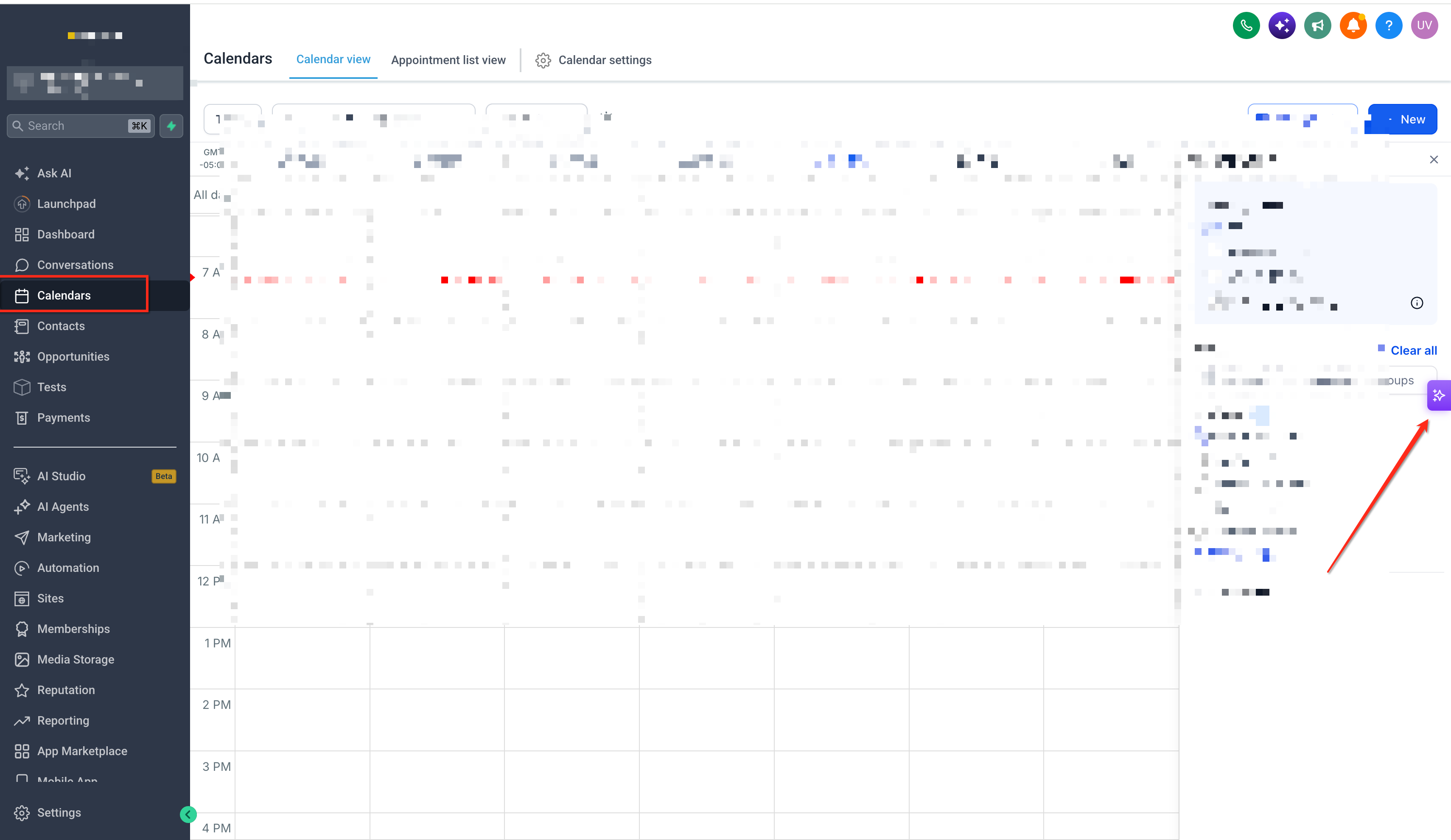
Go to Calendars in Chat To Clients CRM.
Open the Calendar AI launcher.
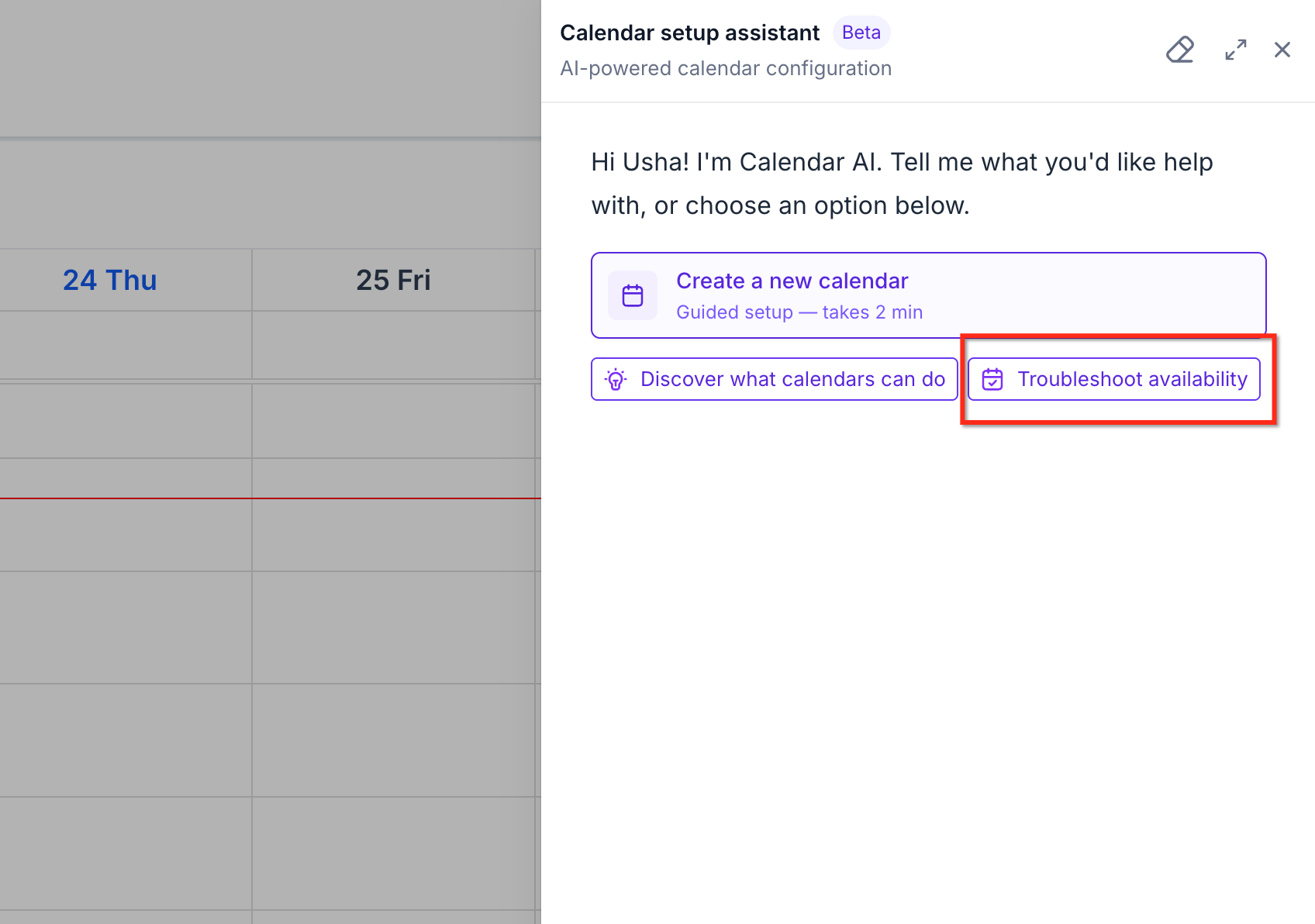
Select the Troubleshoot availability chip, or enter an availability question in plain language.
Ask about the relevant slot, date, calendar, or team member. Include specific information such as the date and time when you want a precise slot-level explanation.
If Calendar AI asks a clarifying question, select or provide the intended calendar, team member, or schedule context.
Review the availability explanation.
Ask a follow-up question when you need more detail about a particular time or slot.
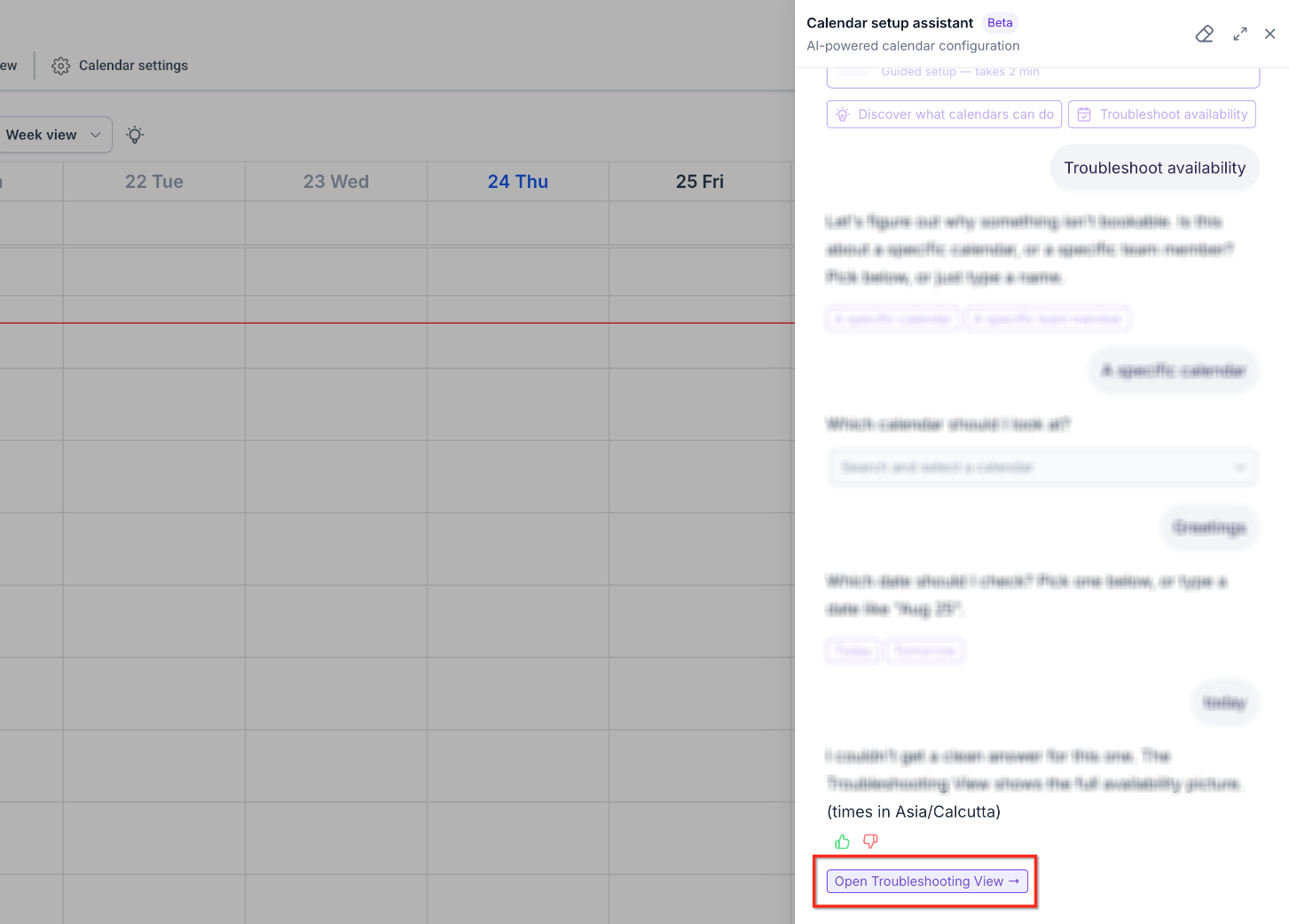
If Calendar AI cannot provide a supported explanation, open the provided Troubleshooting View to investigate the issue in greater detail.
Frequently Asked Questions
Q: Do I need to configure Calendar AI before troubleshooting availability?
No. The availability troubleshooting capability does not require additional setup.
Q: Do I need to know the exact calendar before asking about a team member?
Not necessarily. You can begin by asking about the team member. If additional calendar context is necessary to determine the intended availability, Calendar AI can ask you to clarify.
Q: What happens if a team member serves more than one calendar?
Calendar AI can account for the calendars the team member serves. When the intended context cannot be determined reliably, it can ask whether you want to investigate a specific calendar or the person's broader schedule.
Q: Can I investigate several unavailable times at once?
You can ask about an entire day rather than checking every slot separately. Calendar AI summarizes repeated availability conditions by relevant time segments, and you can request additional slot-level detail afterward.
Q: What should I do if Calendar AI cannot explain an unavailable slot?
Use the link to the full Troubleshooting View provided by Calendar AI. The detailed view provides a deeper way to investigate the calendar and affected slots.
Q: Does Calendar AI reveal other users' calendar information while troubleshooting?
Calendar AI availability troubleshooting follows existing privacy and permission controls, so troubleshooting does not provide access beyond what the user is already permitted to view.
Q: Can I ask follow-up questions after receiving an availability summary?
Yes. For example, after asking about an entire day, you can follow up about a specific portion of that day when you need more detailed slot-level information.