
Schedules - Centralized Availability Management
Schedules provide a centralized, reusable way to manage calendar availability for every user in Chat To Clients CRM. By setting hours once and applying them anywhere, you save time, reduce errors, and keep your booking experience consistent.
TABLE OF CONTENTS
- What are Schedules?
- Key Benefits of Schedules
- Accessing Schedules
- Select User
- Create New Schedule
- Edit Schedule
- Edit Schedule - Calendar Link
- Custom Schedules (Calendar-Specific Availability)
- Transition for Existing Calendars (Custom Schedules)
- Frequently Asked Questions
- Related Articles
What are Schedules?
Schedules are shared availability templates that combine weekly working hours, date-specific overrides, and staff-level time-zone settings into a single, reusable object. Instead of editing each calendar individually, you attach a schedule to any calendar that should follow those hours, enabling truly centralized availability management.
This feature is currently available via Labs. Go to Agency Settings > Labs > Sub-Account and enable Calendars - Schedules.

NOTE: Schedules and Custom Schedules are different. A Schedule is centrally managed. A Custom Schedule is a set of edits to a Schedule in one Calendar and it is managed only in that Calendar.
Key Benefits of Schedules
- Manage every user’s hours from one place—no more calendar-by-calendar edits.
- Re-use the same schedule across multiple calendars or services.
- Give every new user a built-in default schedule for immediate booking readiness.
- Maintain flexibility: create one-off custom schedules when an individual calendar needs special hours.
- Automatic migration of legacy availability means zero downtime or re-work.
Each User can have multiple Schedules.
Each Calendar can have one Schedule per User at a time.
Accessing Schedules
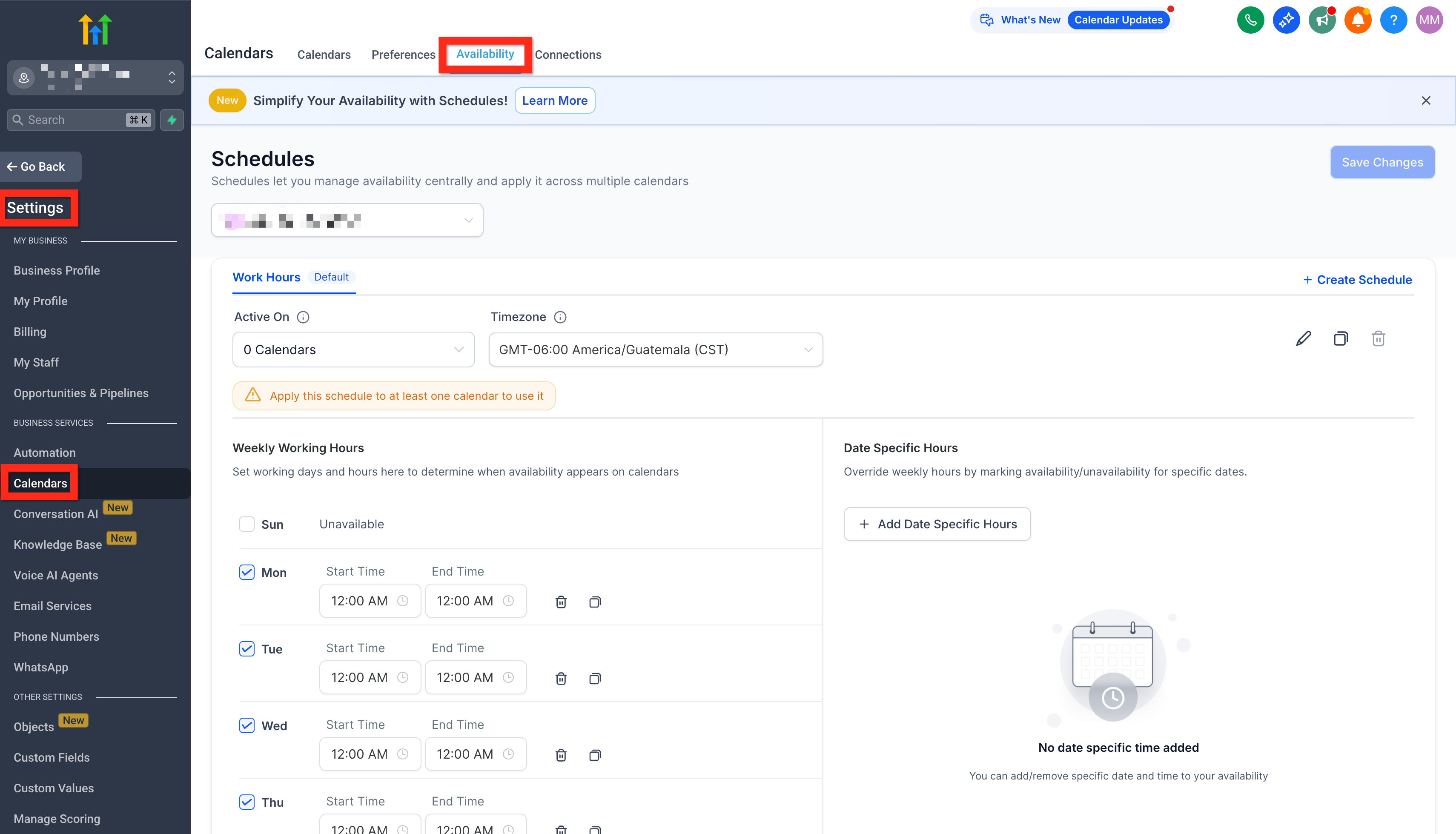
To access all Schedules, navigate to Calendars > Calendar Settings > Availability (or Settings > Calendars > Availability).
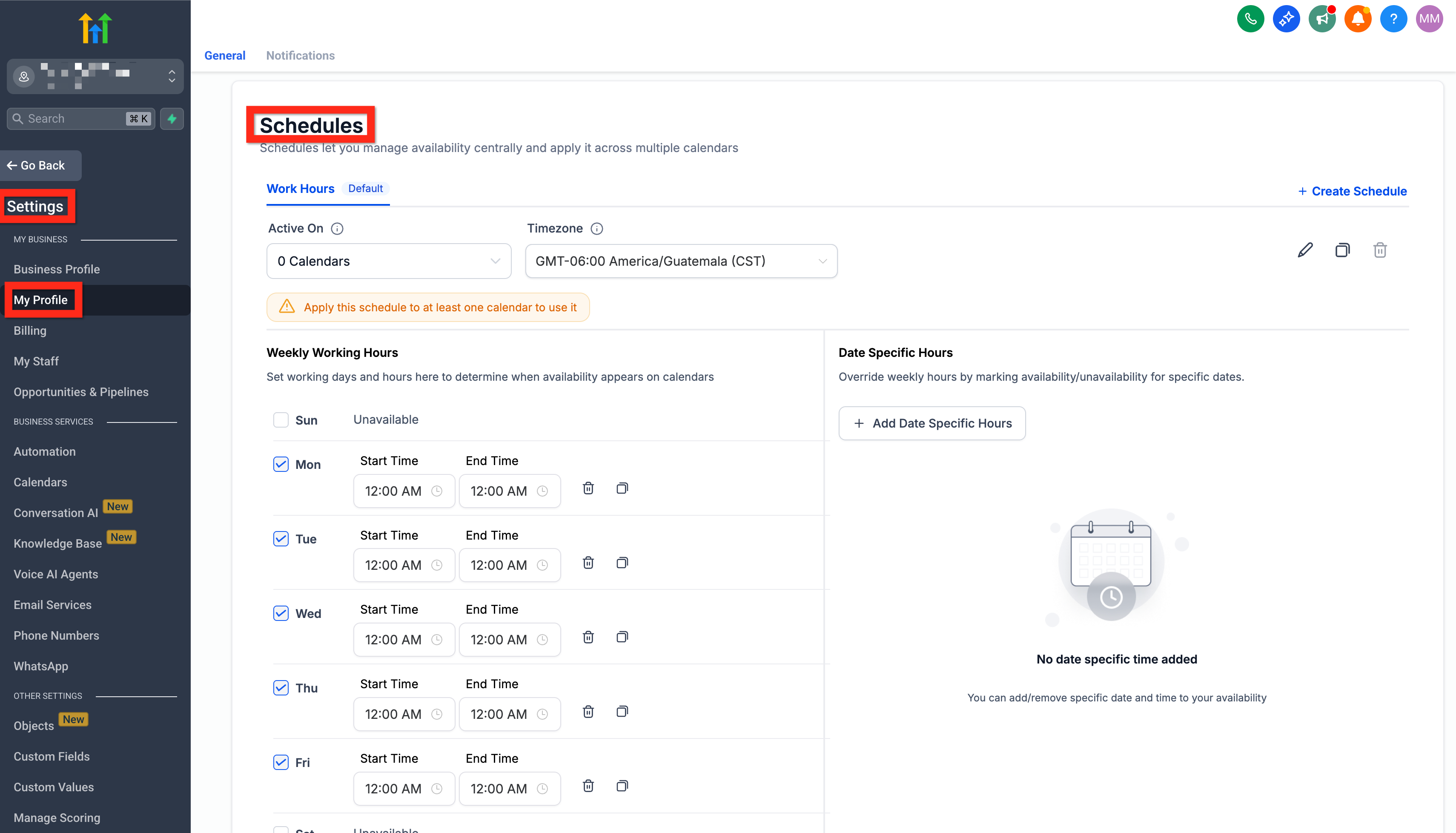
An individual user can mange their own Schedule by navigating to Settings > My Profile > scroll down to Schedules.
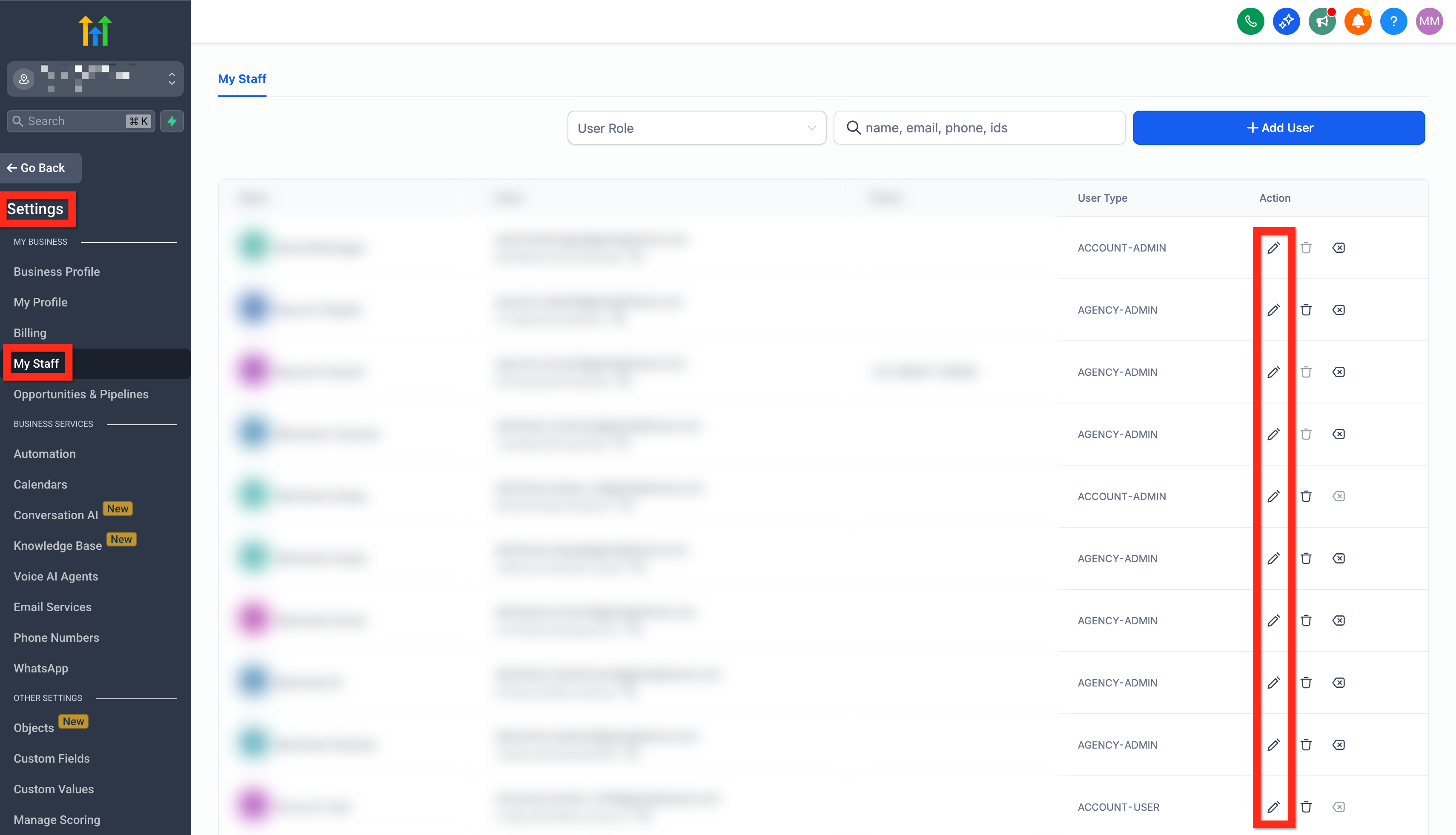
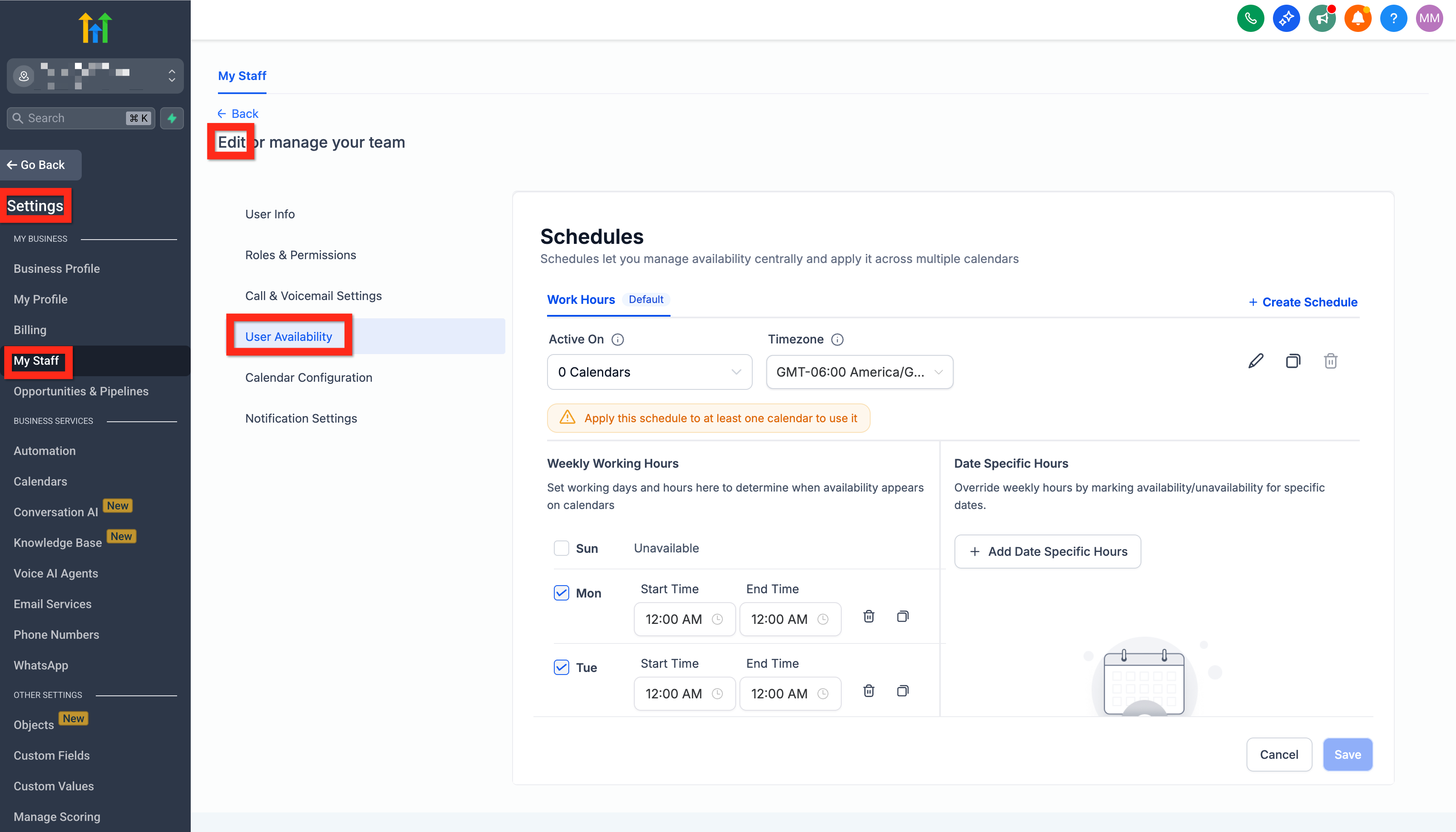
An admin can manage any individual's schedule by navigating to Settings > My Staff > click the edit pencil icon next to a specific user > User Availability.
Select User
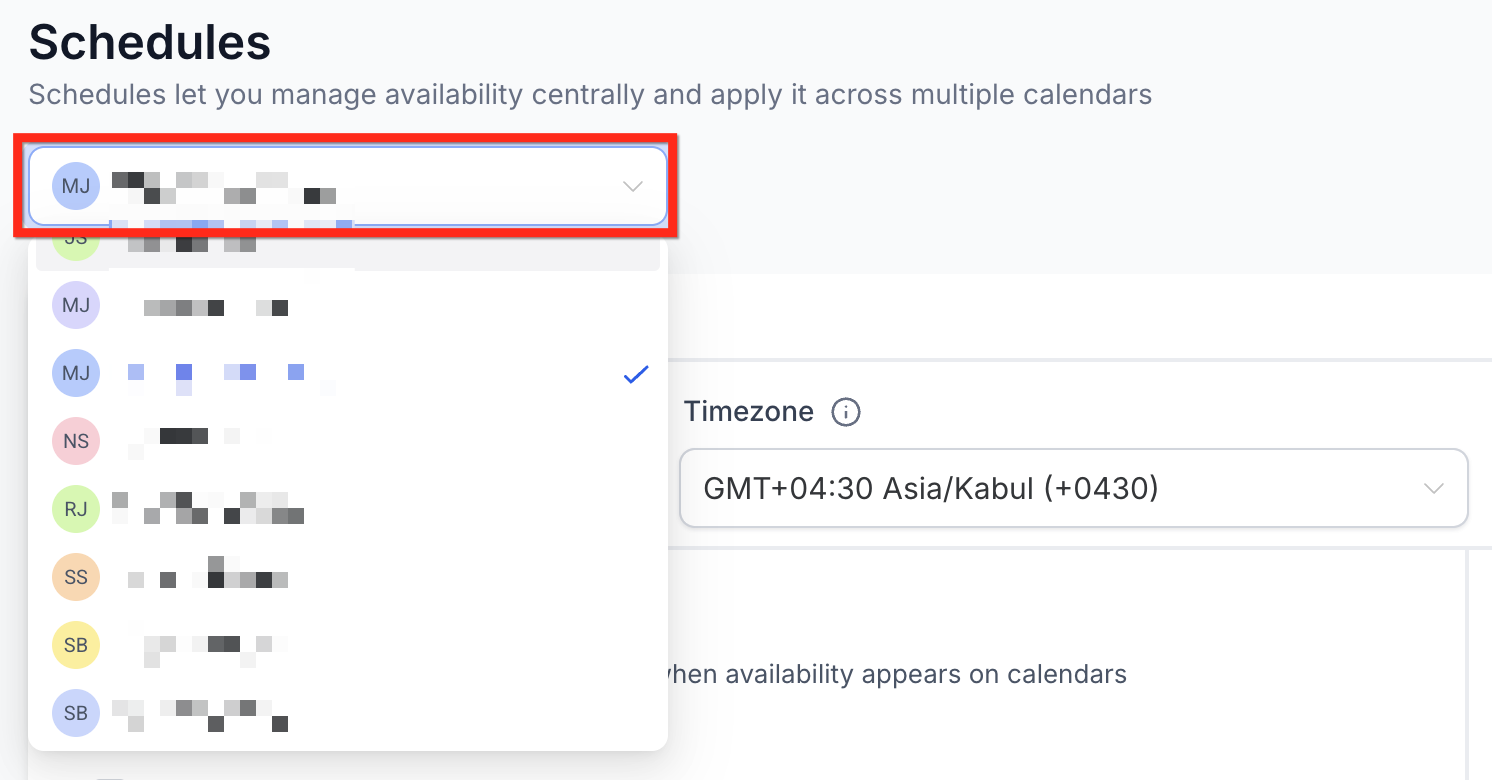
Select the staff member whose availability you want to manage through the user dropdown.
Create New Schedule
- Click Create Schedule > Enter its Name > Click on Create
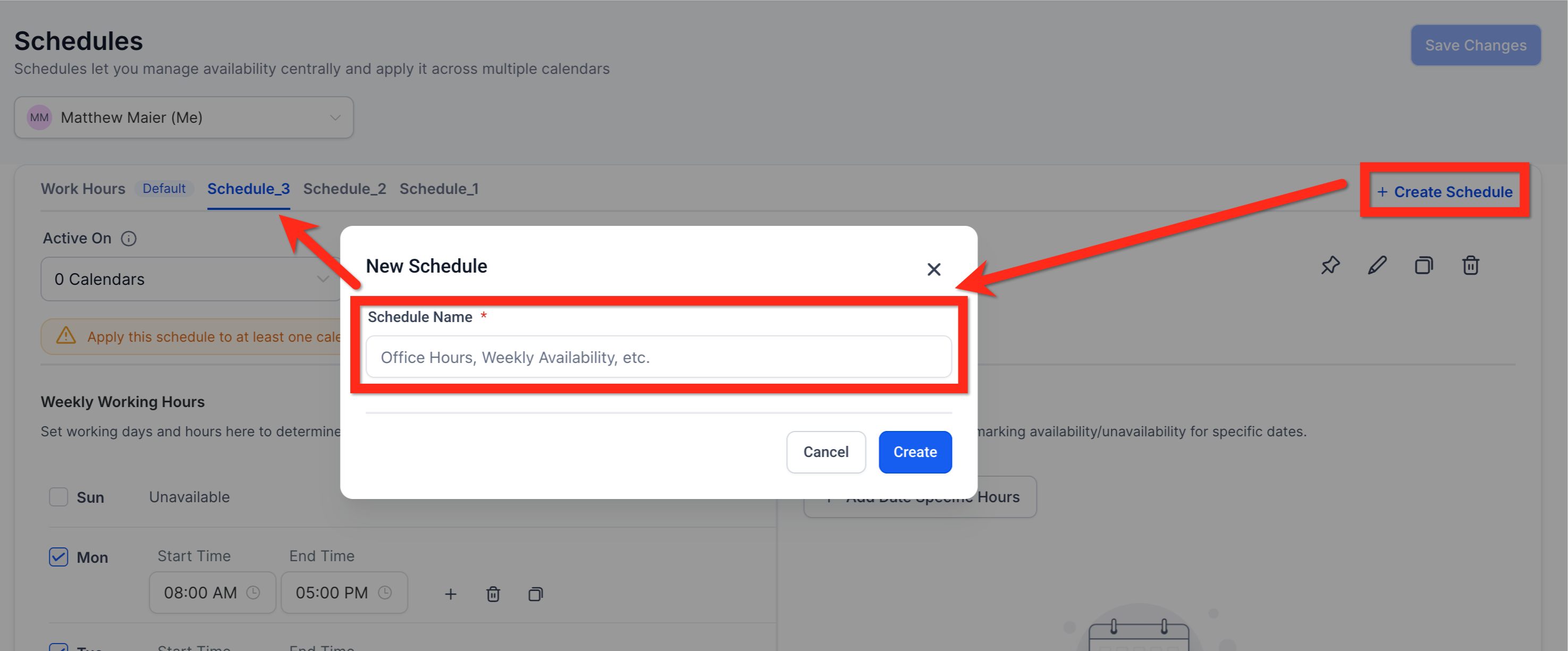
- Configuring a schedule:
- Weekly working hours — Set working days and hours to determine when availability appears on the calendars
- Time Zone — Set the timezone in which the schedule’s availability is stored and evaluated
- Date-Specific Overrides — Override weekly working hours by marking availability/unavailability for specific dates
- Use the Active On dropdown to select which calendars this schedule should apply to for the chosen staff member.
- Save the schedule.
You can create multiple Schedules (ex: Consultations, Demos, On-Site, etc) and assign them to different Calendars.Edit Schedule
From the Schedules list, you can manage your existing schedules with the following actions:
Set as Default: (Pushpin) A default schedule is automatically applied whenever a staff member is added to a new calendar. This ensures the staff member has availability configured right away, without requiring manual assignment. You can set any schedule as default by clicking on the "Set as Default" icon.
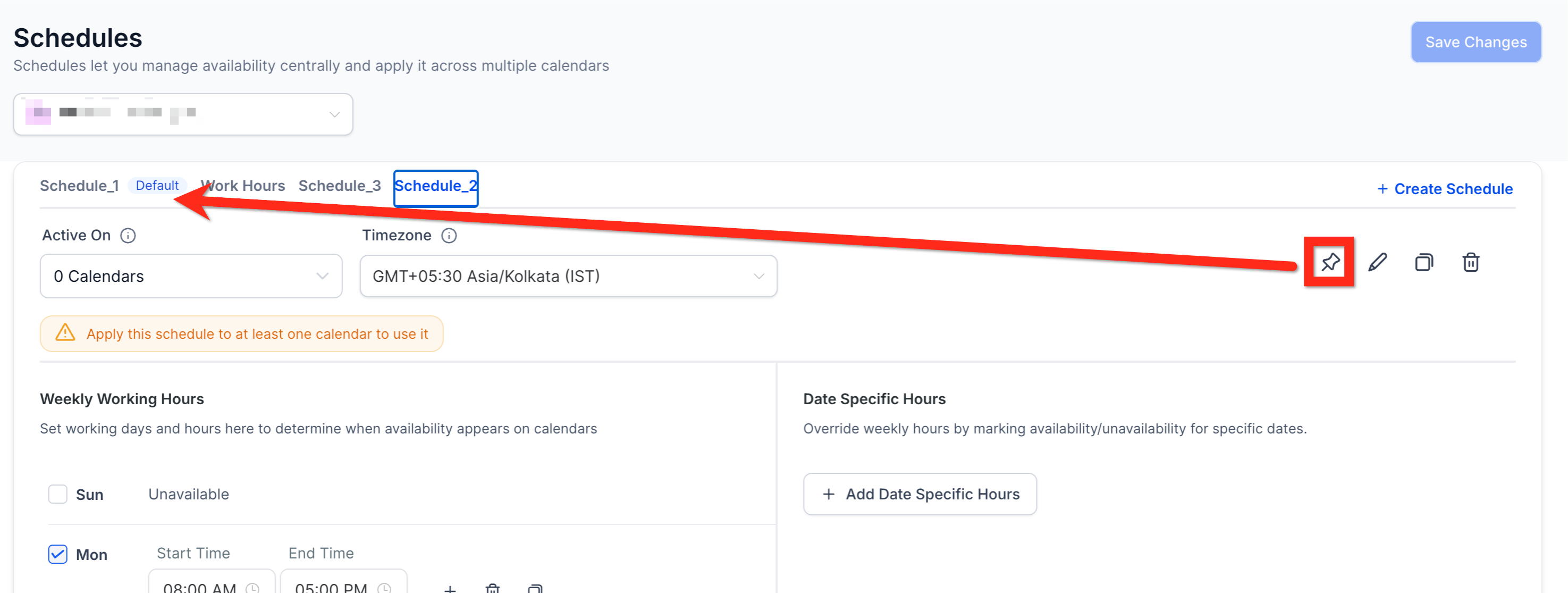
Rename: (Pencil) Update the name of a schedule for clarity.
Duplicate: (Papers) Copy an existing schedule to quickly create a variation without starting from scratch.
Delete: (Trashcan) Remove a schedule (only available if it is not currently active on any calendars).
Edit Schedule - Calendar Link
You can also manage the schedule for a specific calendar by navigating to Calendars > Calendar Settings > Edit Calendar (in Calendars List) > Availability tab.
- Switch Calendar to use a different Schedule.
- Create and use a Custom Schedule for that Calendar.
Any updates made to a Schedule apply to all Calendars linked to it (even if the edit was initiated from a specific Calendar).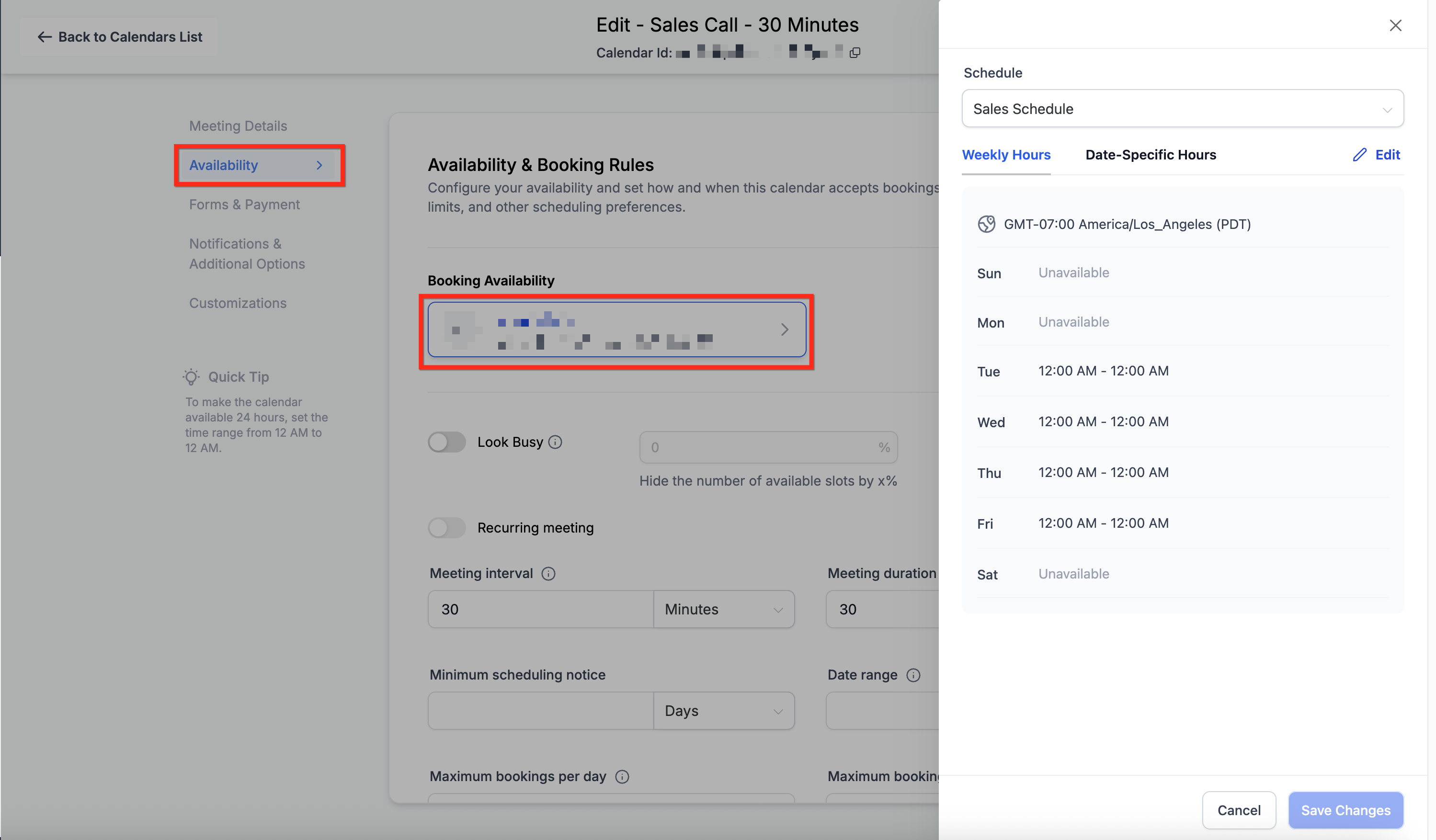
Custom Schedules (Calendar-Specific Availability)
- Custom schedules:
Apply only to that calendar.
Include their own weekly hours, time zone, and date-specific overrides.
A Custom Schedule can be created directly in a calendar’s Availability tab.
To create a Custom Schedule, under the Availability tab > Select the staff member > Edit > Customize schedule for this calendar only
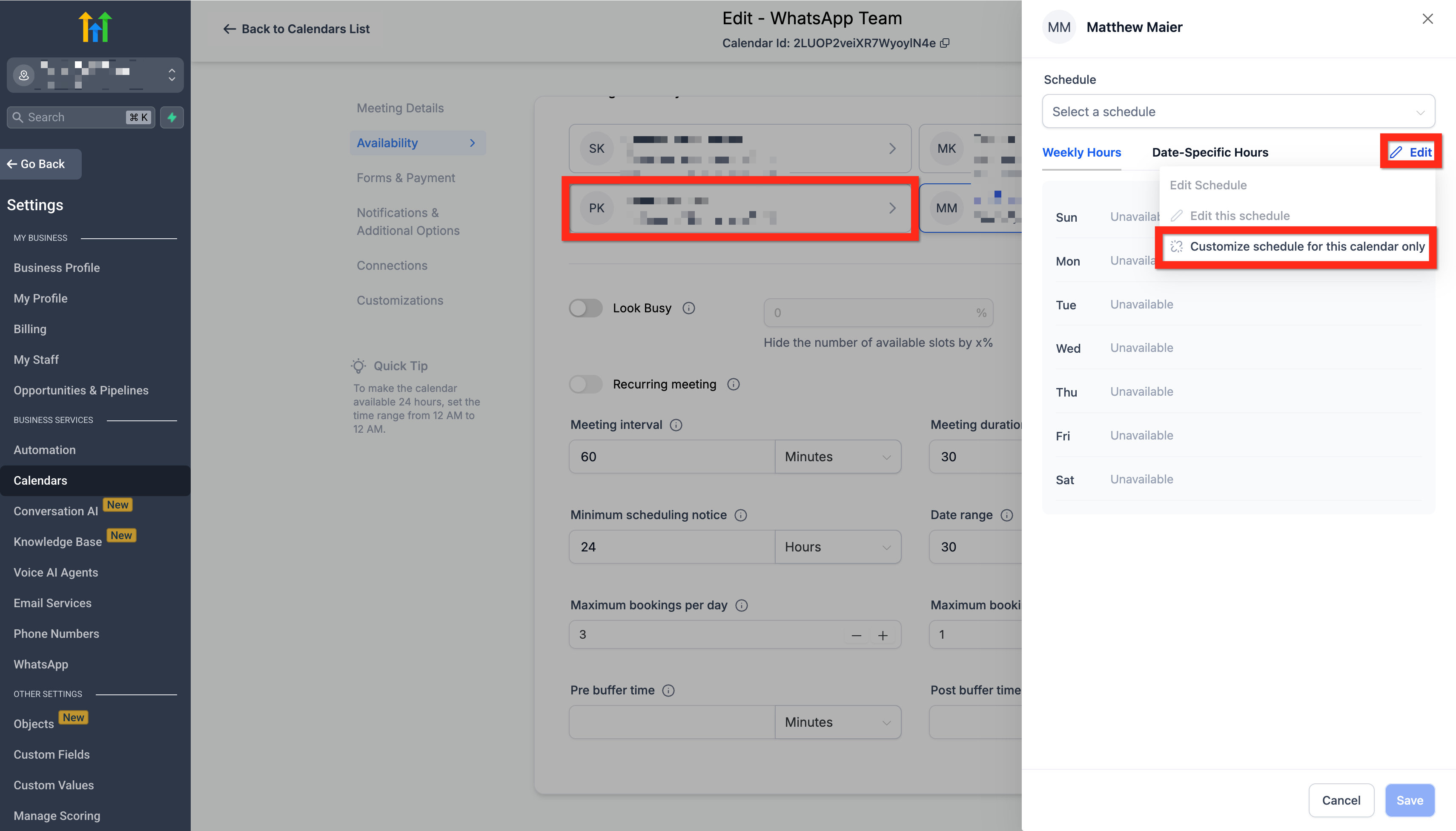
Custom Schedules don't appear in the Schedules list. They are only managed from within the Calendar that created them.Transition for Existing Calendars (Custom Schedules)
To ensure a smooth transition, a Custom Schedule will be created for each of your existing calendars as per your configured availabilities.
These appear only in that calendar’s Availability tab.
You can edit them or replace them with reusable schedules at any time.
Frequently Asked Questions
Q: What happens to my old availability settings?
A: Chat To Clients CRM automatically migrated them into custom schedules, so nothing breaks.
Q: Can I attach the same schedule to Round-Robin calendars?
A: Yes—simply select the schedule for each user inside the Round-Robin group.
Q: Do date-specific overrides affect all calendars using the schedule?
A: Yes. If you need an exception for only one calendar, create a custom schedule inside that calendar.
Q: How many schedules can I create?
A: There’s no hard limit; create as many as your workflow requires.
Q: Can I prevent double-booking if a user appears on multiple calendars?
A: Because each calendar references the same schedule, occupied times are automatically removed from availability, avoiding overlaps.
Q: Will updating a schedule cancel existing appointments?
A: No. Existing events remain; only future open time slots update.
Q: How does the staff-level time zone interact with a calendar’s time zone?
A: The schedule respects the staff time zone; the booking widget converts slots to the visitor’s browser zone automatically.
Q: Can I import schedules via API?
A: Not yet. Today, schedules are managed in-app; API endpoints will be announced in a future release.
Related Articles
• Understanding Calendar Availability Settings
• Calendar Availability – Weekly Working Hours & Date-Specific Hours
• Round Robin Calendars: The Setup Guide
• Configuring Staff in Services
• Why Appointment Time Slots Are Missing on Your Calendar