
How to Duplicate and Reuse Events
Event duplication in Chat To Clients CRM helps you reuse an existing event’s setup when creating a new event. This article shows how to duplicate an event, duplicate ticket types, and copy page design and settings.
TABLE OF CONTENTS
- What is Event Duplication in Chat To Clients CRM?
- Key Benefits of Event Duplication
- What Can Be Duplicated?
- How To Duplicate an Event
- How To Duplicate a Ticket Type
- How To Copy Page Design and Settings From Another Event
- Frequently Asked Questions
- Related Articles
What is Event Duplication in Chat To Clients CRM?
Event duplication in Chat To Clients CRM lets you create a new draft from an existing event without rebuilding the event from scratch. You can control which supported event elements are carried over, preview the result before confirming, and make changes to the duplicated draft before publishing.
You can also duplicate individual ticket types within the same event or copy page design and content settings from another event when you do not need to duplicate the entire event.
Key Benefits of Event Duplication
- Faster event setup: Create a new event draft from an existing event instead of rebuilding common settings.
- Selective duplication: Choose which supported design, content, ticket, and schedule settings are copied.
- Preview before duplication: Compare the source event with the new event before confirming.
- Flexible ticket duplication: Duplicate an existing ticket type inside the same event.
- Reusable page design: Copy selected page design and content settings from another event without duplicating the full event.
What Can Be Duplicated?
Chat To Clients CRM lets you choose which supported event elements should be copied into the new draft. Some event information is always included, while other elements can be selected or deselected.
Copied to the new draft
The following event information is included when creating the duplicate:
- Event name and details
- Short summary and description
- Cover image
- Date and time
- Location
- Organizer information
Optional elements
You can choose whether to copy the following:
Design
- Colors
- Fonts
- Layout
- Custom CSS
Content & settings
- Page text
- FAQ
- Checkout configuration
Tickets & sessions
- Ticket types and pricing
- Schedule
- Speakers
Speakers are included with the schedule when the schedule is copied.
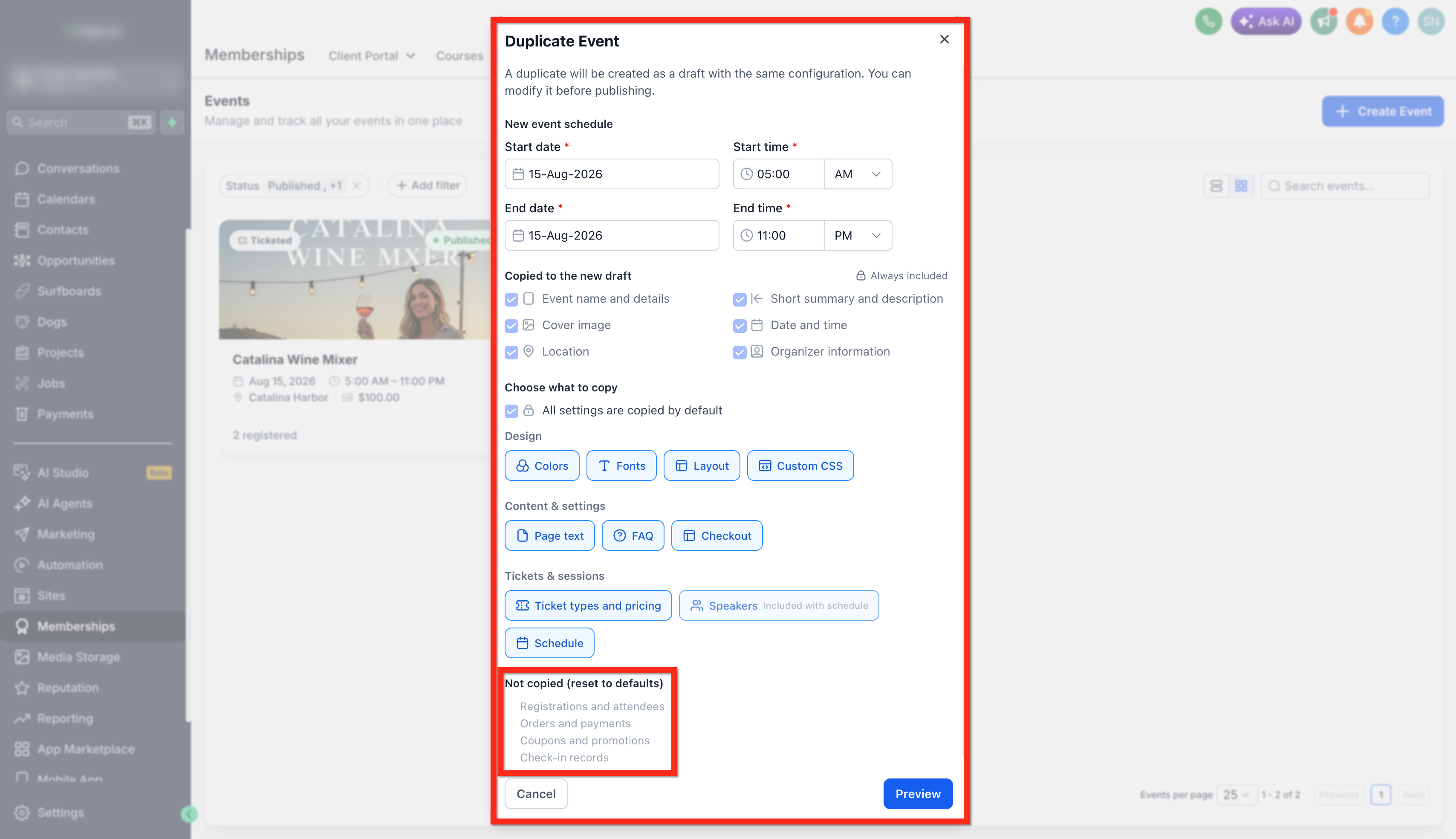
Not copied
The following data is not carried into the duplicated event and is reset for the new draft:
- Registrations and attendees
- Orders and payments
- Coupons and promotions
- Check-in records
How To Duplicate an Event
Duplicating an event creates a new draft that you can review and edit before publishing. Select only the elements you want to carry over so the new event starts with the right configuration.
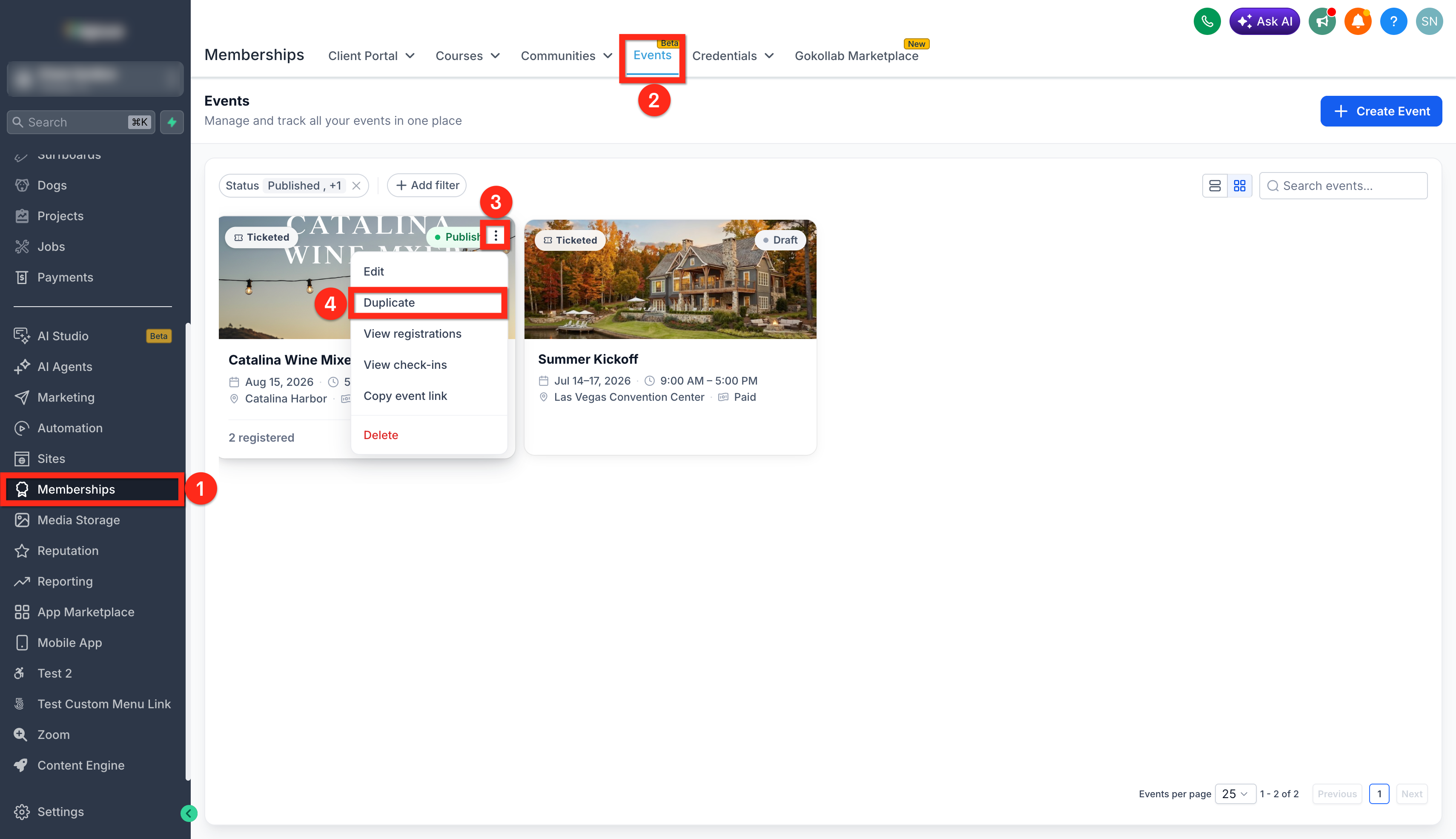
- Go to Memberships > Events.
- Hover over the event you want to duplicate.
- Click the three-dot menu on the event card.
- Click Duplicate.
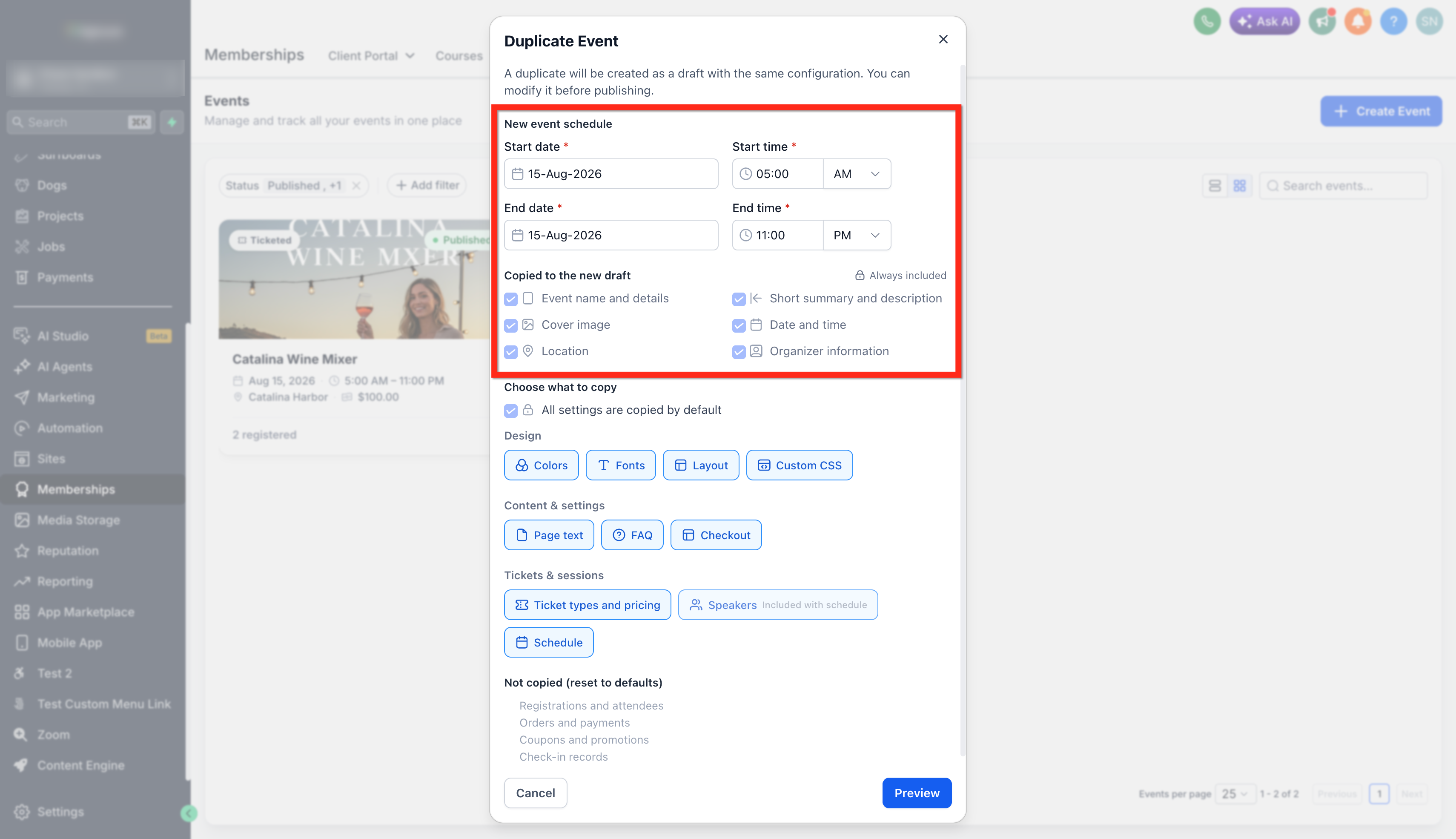
- In the Duplicate Event window, set the new event:
- Start date
- Start time
- End date
- End time
- Review the information being copied to the new draft. (Always Included)
- Under Choose what to copy, select or deselect the supported elements you want to duplicate.
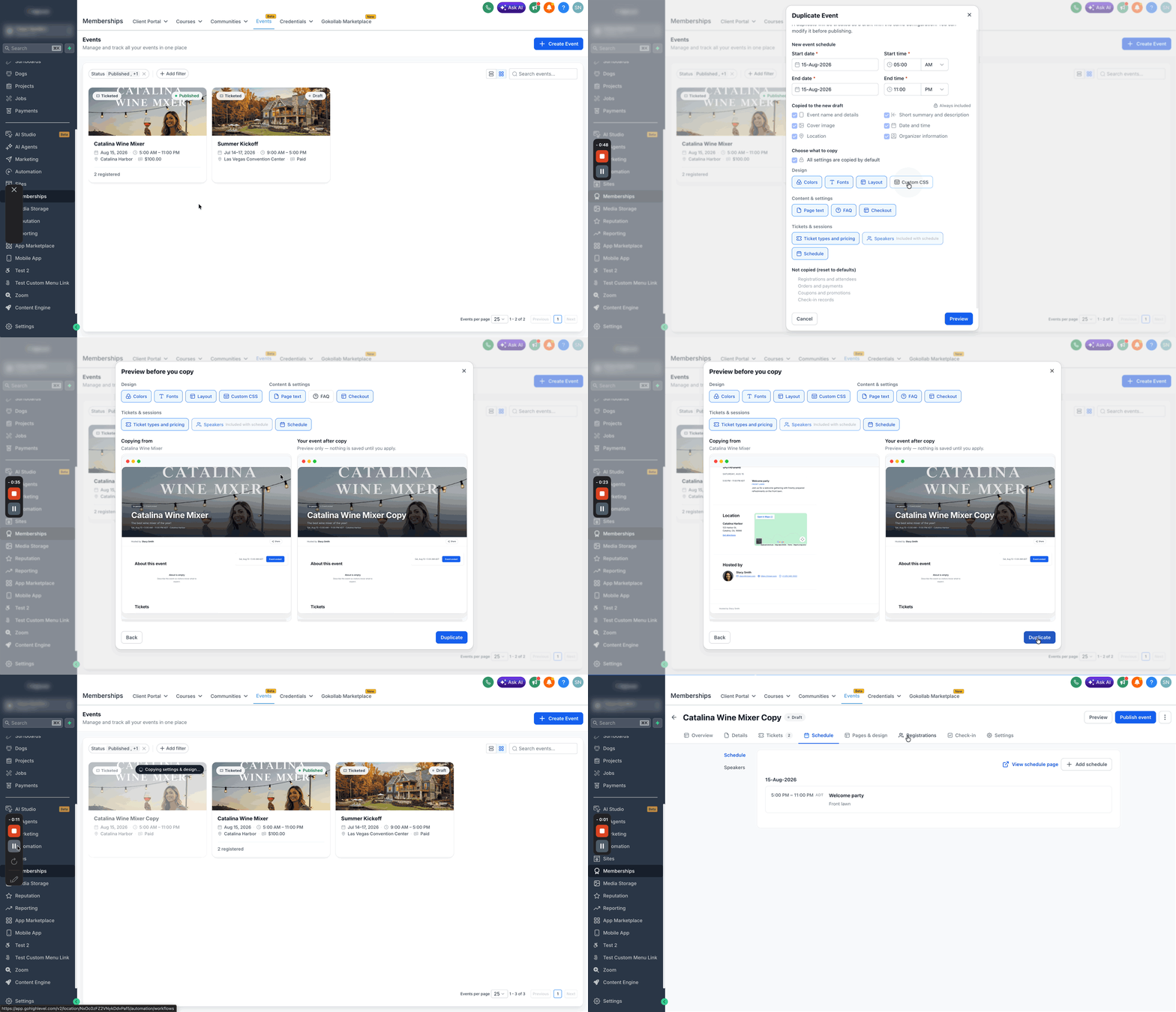
- Click Preview.
- Review the Copying from and Your event after copy views side by side.
- Adjust the selected elements if needed.
- Click Duplicate to create the new draft.
- Open the duplicated event to make any additional changes before publishing.
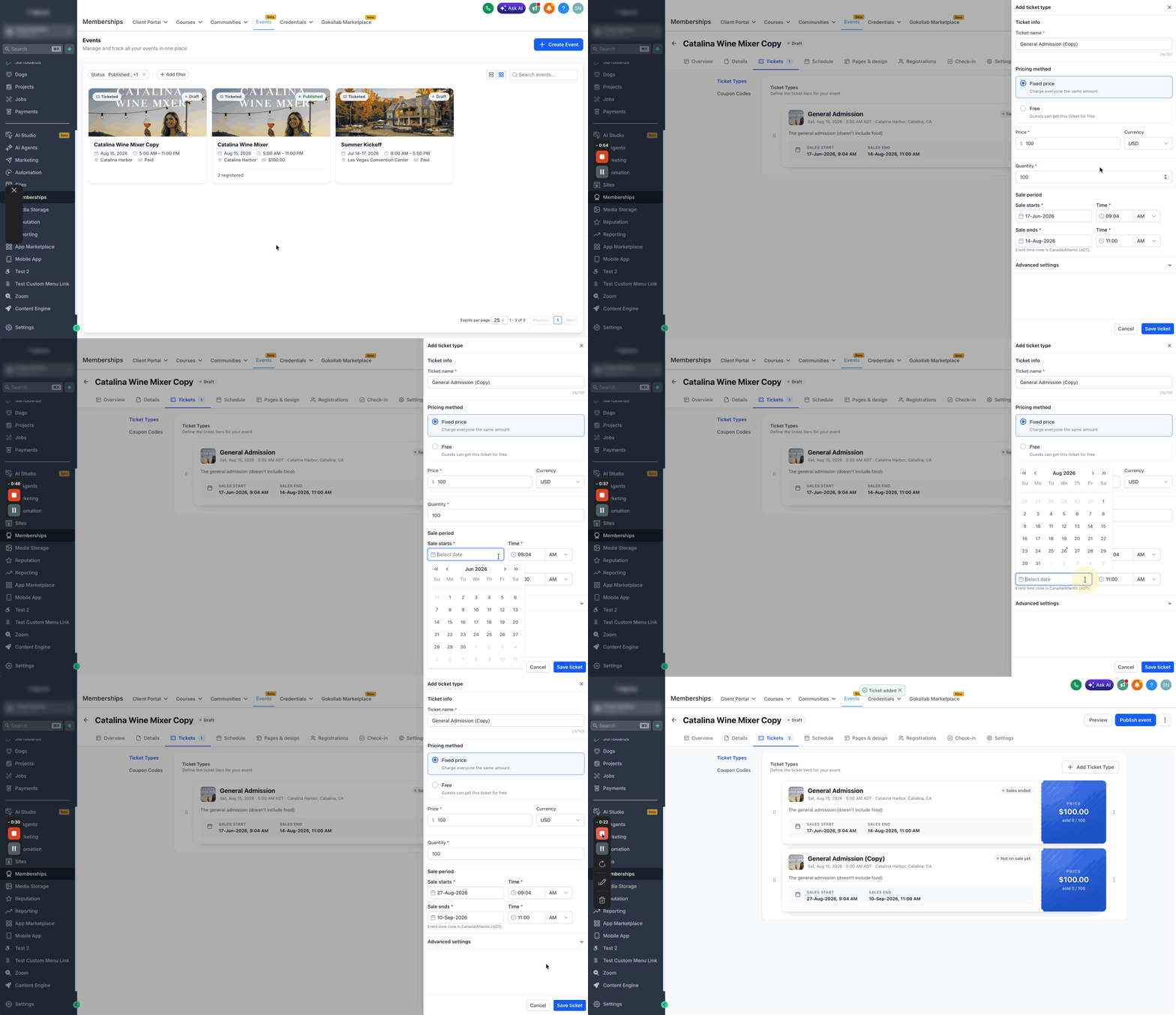
How To Duplicate a Ticket Type
Duplicating a ticket type lets you create another ticket inside the same event using an existing ticket configuration as the starting point.
- Open the event.
- Go to Tickets.
- Find the ticket type you want to duplicate.
- Click the three-dot menu beside the ticket type.
- Click Duplicate.
- Review and update the duplicated ticket settings as needed, including:
- Ticket name
- Pricing method
- Price
- Currency
- Quantity
- Sale period
- Sale start and end date or time
- Short description
- Visibility
- Click Save Ticket. The duplicate is added as a separate ticket type inside the same event.
How To Copy Page Design and Settings From Another Event
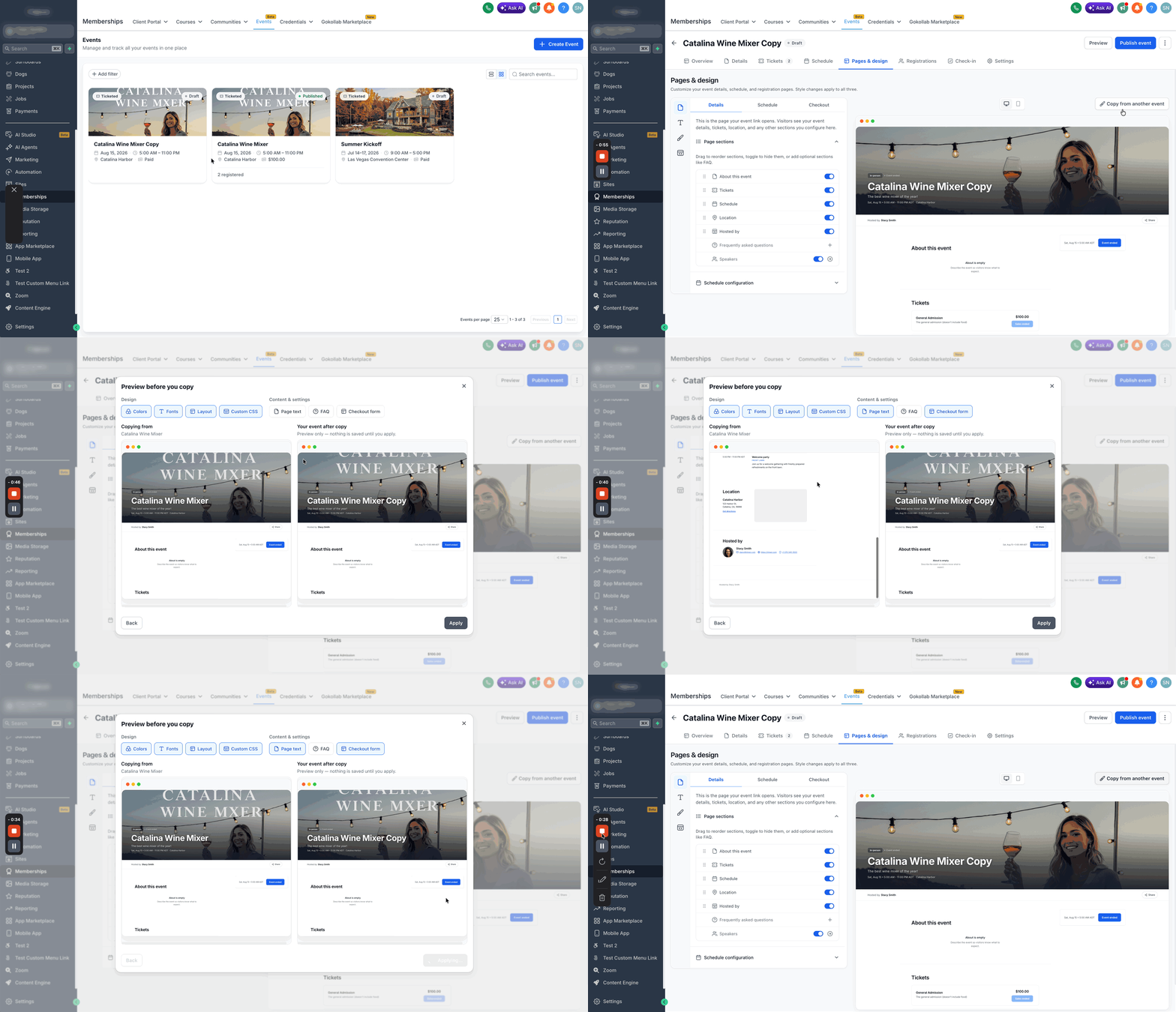
Copying page design and settings is useful when you want to reuse selected branding or page content from another event without creating a duplicate of the entire event.
- Open the destination event.
- Go to Pages & Design.
- Click Copy from another event.
- Select the event you want to copy from.
- Choose the elements you want to copy.
Available options can include:- Design
- Colors
- Fonts
- Layout
- Custom CSS
- Content & settings
- Page text
- FAQ
- Checkout configuration
- Design
- Review the preview.
- Click Apply to copy the selected settings into the current event.
Frequently Asked Questions
Q: Does duplicating an event copy registrations and attendees?
No. Registrations and attendee records are not copied to the new event.
Q: Are orders and payments copied to the duplicated event?
No. Orders and payment records are not carried over.
Q: Can I duplicate only the tickets without duplicating the full event?
Yes. You can duplicate an individual ticket type from inside the event's Tickets area.
Q: Can I copy design settings without duplicating the entire event?
Yes. Use Copy from another event in Page and Design to copy selected design and content settings.
Q: Are speakers copied separately from the schedule?
Speakers are included with the schedule when the schedule is copied.
Q: Is the duplicated event published automatically?
No. The duplicated event is created as a draft so you can review and edit it before publishing.
Q: Can I review the duplicated event before creating it?
Yes. The preview screen shows the source event and the resulting event side by side before you confirm duplication.