
Events: Custom CSS with Live Element Selection
Events: Custom CSS with Live Element Selection
Customize your event pages in Chat To Clients CRM using the Custom CSS Editor with live element selection and instant previews. You can adjust colors, typography, spacing, and other design elements to match your brand.
This guide explains how to apply custom CSS, use quick style presets, and preview your changes across event pages.
TABLE OF CONTENTS
What is the Custom CSS Editor?
The Custom CSS Editor allows you to customize the appearance of your public event pages directly within Chat To Clients CRM. With live element selection, you can identify CSS selectors, insert starter code, and preview styling changes without manually inspecting the page's HTML.
Key Features
The Custom CSS Editor makes it easier to personalize event pages and maintain consistent branding across the attendee experience.
How to Use the Custom CSS Editor
The Custom CSS Editor lets you select page elements, apply custom styles, and preview changes before saving them.
Navigate to Client Apps → Events and open the event you want to customize.
Select Pages & design, then click the Custom CSS icon in the left toolbar.
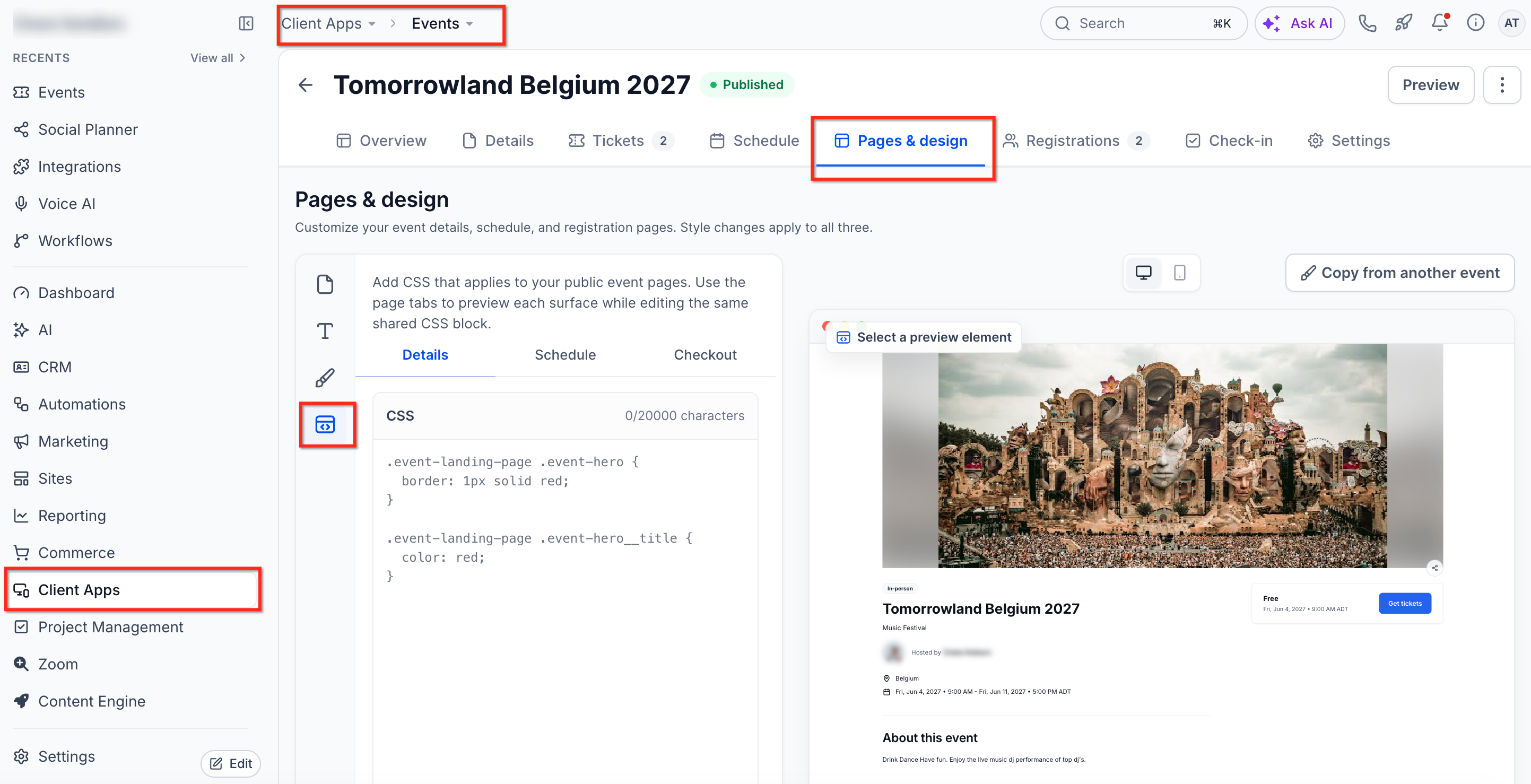
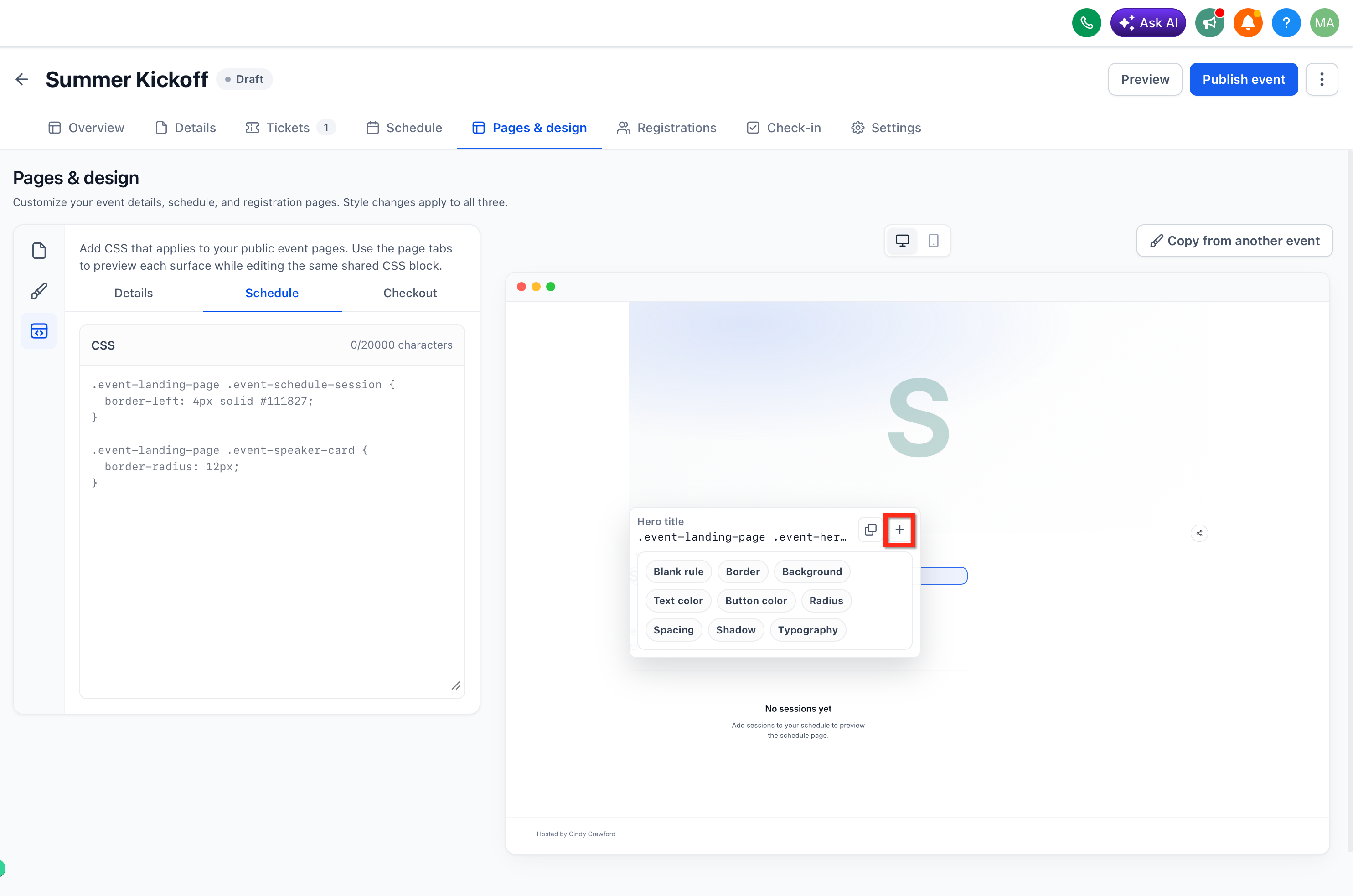
Click any element in the page preview to identify its CSS selector. The selector appears in a popup with options to copy it or insert a starter CSS rule into the editor.
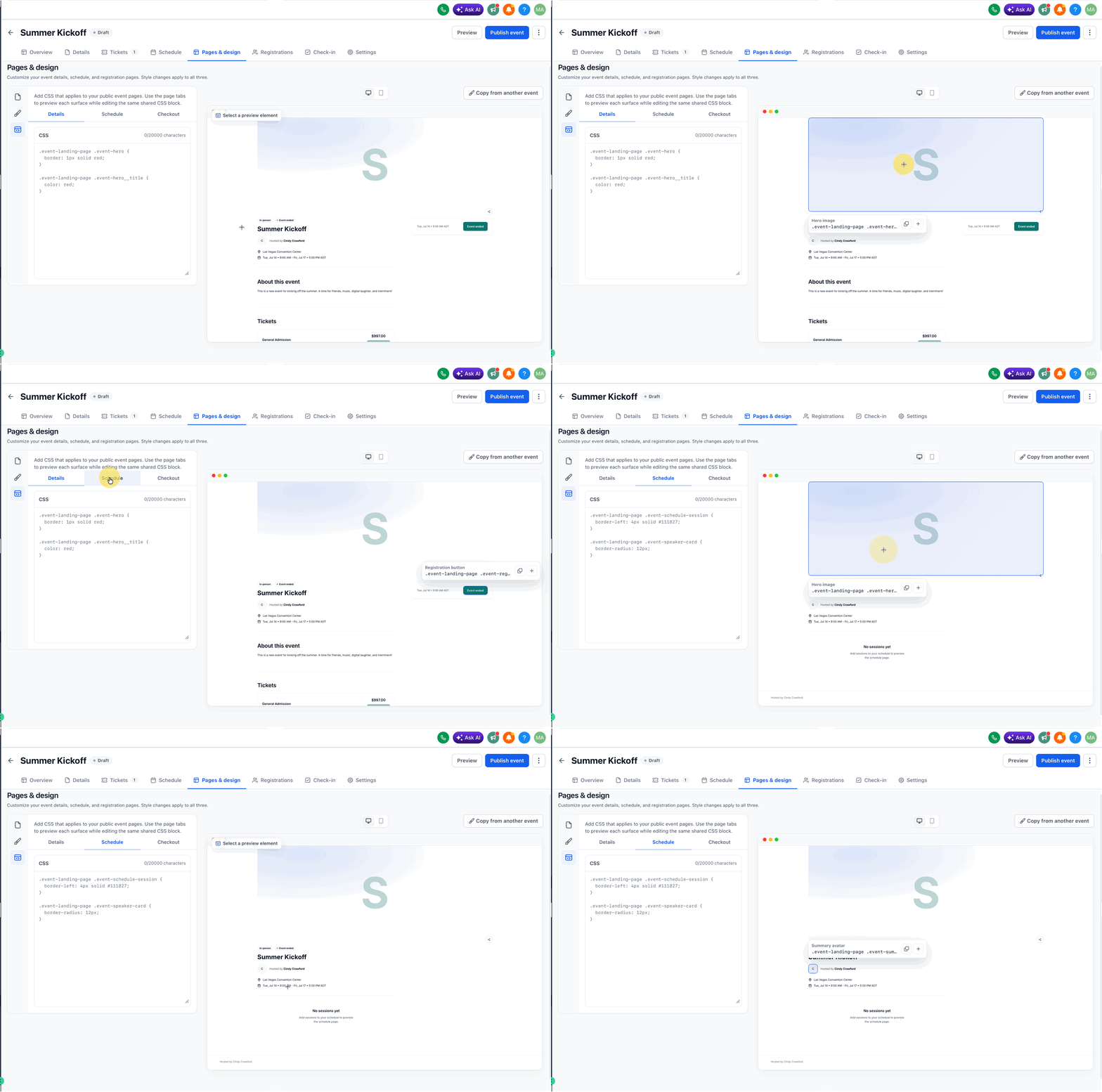
Add your custom CSS rules in the editor. You can write CSS manually or use the quick style presets (see next section) to generate starter code for common styling properties. Changes appear instantly in the preview pane.
Review your changes in real time using the preview pane. Once satisfied, save your custom CSS. The styles will apply to all public event pages automatically.
Use the click-to-select feature to quickly identify complex nested elements without inspecting the DOM manually.
Quick Style Presets
Quick style presets allow you to generate starter CSS code for commonly customized properties without writing CSS from scratch. After selecting an element, choose a preset to insert pre-configured CSS rules into the editor.
The following presets are available:
Inserts CSS rules to customize border width, style, and color for the selected element.
Generates CSS to change the background color or image of the selected element.
Inserts a CSS rule to modify the text color of the selected element.
Generates CSS to change the background and text color of buttons.
Inserts CSS to adjust the corner rounding of the selected element.
Generates CSS rules to modify padding and margin of the selected element.
Inserts a CSS rule to add or modify box shadow effects on the selected element.
Generates CSS to change font family, size, weight, and line height of the selected text element.
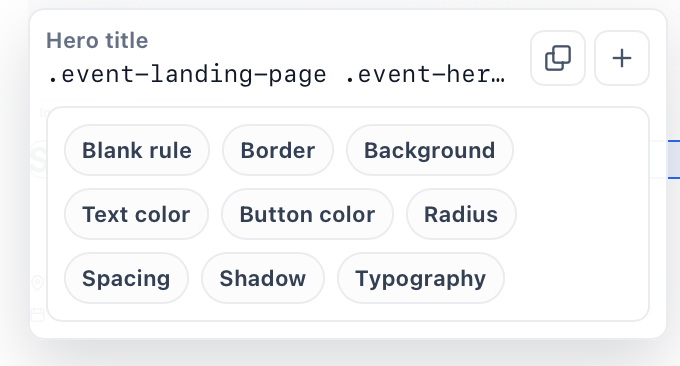
After inserting a preset, customize the generated CSS values to match your brand guidelines. The starter code provides a working foundation you can refine.
Public Page Coverage
Custom CSS applies globally to all public-facing event pages. This ensures consistent branding and styling across your event participant experience.
The following event page types support Custom CSS:
Important Considerations
Understanding how Custom CSS is applied helps prevent unintended styling changes and makes it easier to reuse event designs.
Event-Specific Styling: Custom CSS applies only to the selected event's supported public pages.
Responsive Design: CSS affects desktop and mobile layouts. Use media queries when device-specific adjustments are needed.
CSS Conflicts: If a style does not apply, check selector specificity before using additional overrides.
Event Duplication: When duplicating an event or using Copy from another event, select Custom CSS among the available design options to retain its styling.
Removing Styles: Delete the custom CSS rules and save to restore the affected elements to their default appearance.
For detailed duplication instructions, see How to Duplicate and Reuse Events.
Copying and Duplicating Events with Custom CSS
When you duplicate an event or copy settings from another event, custom CSS is automatically retained. This allows you to quickly replicate your styling across multiple events without re-entering CSS code.
Use these workflows to preserve custom CSS:
When you duplicate an event, all custom CSS from the original event is copied to the new event. The duplicated event will have identical styling out of the box.
When you copy settings from one event to another, custom CSS is included in the copied settings. This allows you to apply an existing event's design to a new or different event.
After duplicating or copying settings, you can modify the custom CSS in the new event without affecting the original event's styles.
Frequently Asked Questions
!important flags to increase rule priority.@media (max-width: 768px)) in your custom CSS to target smaller screens.