
Search and Smart Filter View in Social Planner
Find and organize your social media posts faster with Search and Smart Filter Views in Chat To Clients CRM Social Planner. Search post content by keyword, filter posts by status, platform, or category, and save frequently used filters for easy access.
This guide explains how to create, manage, and reuse custom filter views.
TABLE OF CONTENTS
- What is Search and Smart Filter View?
- Key Benefits of Search and Smart Filter Views
- How To Use Search and Filter Views in Social Planner
- Search Within Post Content
- Saved Filter Views
- Important Considerations
- Frequently Asked Questions
- Related Articles
What is Search and Smart Filter View?
Search and Smart Filter Views help you locate specific social posts and organize content without scrolling through your entire post history. Search finds posts using keywords from their content, while filters narrow results by criteria such as publishing status, social channel, and category. You can also save filter combinations for repeated use.
Key Benefits of Search and Smart Filter Views
Search and filtering tools help you manage large volumes of social content and quickly find posts that need attention.
Quick Post Search: Find posts using keywords from captions, descriptions, and other text content.
Flexible Filtering: Narrow results by post status, social channel, and category.
Reusable Views: Save frequently used filter combinations to avoid repeated setup.
Easy Organization: Update, rename, or delete saved views as your content needs change.
How To Use Search and Filter Views in Social Planner
Search and filters work together to help you locate specific posts based on their content and publishing details.
Navigate to Marketing → Social Planner.
Open List View to display your social posts.
Enter a keyword or phrase in the Search bar to find matching posts.
Click Filters to open the available filtering options.
Select one or more criteria, such as:
Status: Draft, Scheduled, or Published.
Channel: A specific social media platform or account.
Category: Posts assigned to a selected content category.
Review the filtered list to find the posts you need.
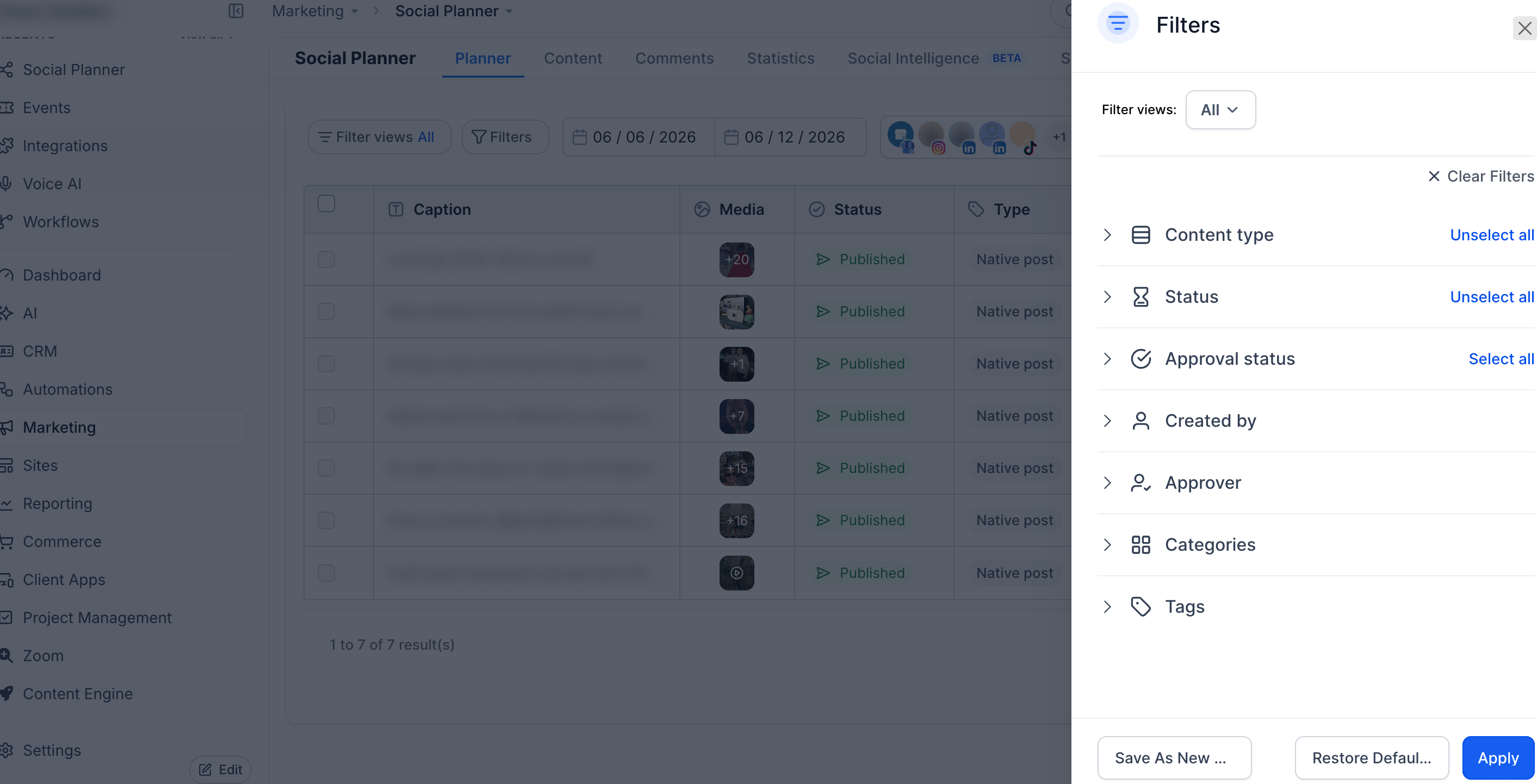
Example: Search for “Black Friday” and filter by Scheduled status to find upcoming posts containing that campaign name.
Search Within Post Content
Search allows you to quickly locate posts using specific keywords found in the content body.
This feature is especially useful when managing large volumes of posts. Instead of scrolling through pages of posts, simply enter a keyword, and matching posts will be pulled up in real time.
Saved Filter Views
Saved Filter Views help you organize content for repeat workflows, like reviewing drafts or tracking scheduled posts on a specific platform.
By combining multiple filter attributes (e.g., category, status, and platform), you can create focused views that eliminate repetitive filtering every time you use the Social Planner.
You can:
- Create up to 4 views.
- Update filter combinations or rename saved views anytime.
- Quickly switch between views using the dropdown for efficient content management.
Important Considerations
Understanding how search and saved views work helps prevent confusion when organizing posts across accounts and publishing workflows.
Searchable Content: Keyword search covers post text, including captions and descriptions.
Saved View Limit: Chat To Clients CRM's existing documentation specifies up to four saved filter views per account.
User-Specific Views: Saved views are documented as user-specific and are not automatically shared with other team members.
Filter Combinations: You can combine available criteria, including status, channel, and category.
Post Organization: Saved views help locate posts; they do not change post status, publish content, or create Category Queues.
Recurring Content: Recurring posts have separate management options, so their appearance in List View may differ from individual scheduled posts.
Frequently Asked Questions
Q: How many filter views can I save in the Social Planner?
You can save up to 4 custom filter views per account.
Q: Can I edit or rename my saved views?
Yes, saved views are editable. Click the view, then use the Edit or Rename options to make changes.
Q: What post content is searchable?
The search feature scans post content such as captions, descriptions, and text fields.
Q: Can I delete a saved filter view?
Yes. Select the saved view and click the Delete icon to remove it.
Q: Are saved views shared with my team?
No, saved views are currently user-specific and not shared across accounts.
Related Articles
- How to connect Facebook to social planner
- How to Leverage Chat To Clients CRM Social Planner Analytics
Next Steps
- Start by searching for common keywords like product names, campaigns, or dates to test the search functionality.
- Create a saved view for your most-used filters (e.g., “Published Instagram Stories”).
- Explore other powerful tools in the Social Planner like calendar scheduling, media library access, and post duplication.