
How to connect to your Facebook Page(s)
Social Planner gives you the ability to add all your fan pages to publish posts and engage with your Facebook audience through a Facebook Page.
Facebook Page Publishing Setup Guide
Following the steps below, you will be able to connect your Facebook pages with the platform.
1. If you have already connected your Facebook pages from any profile previously and want to add some new pages, you will have to 'Remove' the application from your Facebook Settings > Business Integration section on your Facebook account and follow the steps below all over again as demonstrated in the image below.
2. To add all your Facebook pages, it is necessary that you have Admin rights. It is mandatory for you to log yourself in with the same profile that has all the pages in which you are an admin.
Due to Facebook's recent API changes, it will no longer promote posting to Facebook personal profiles, however, you can add pages from different profiles for Social Planner.
How to connect Facebook Page
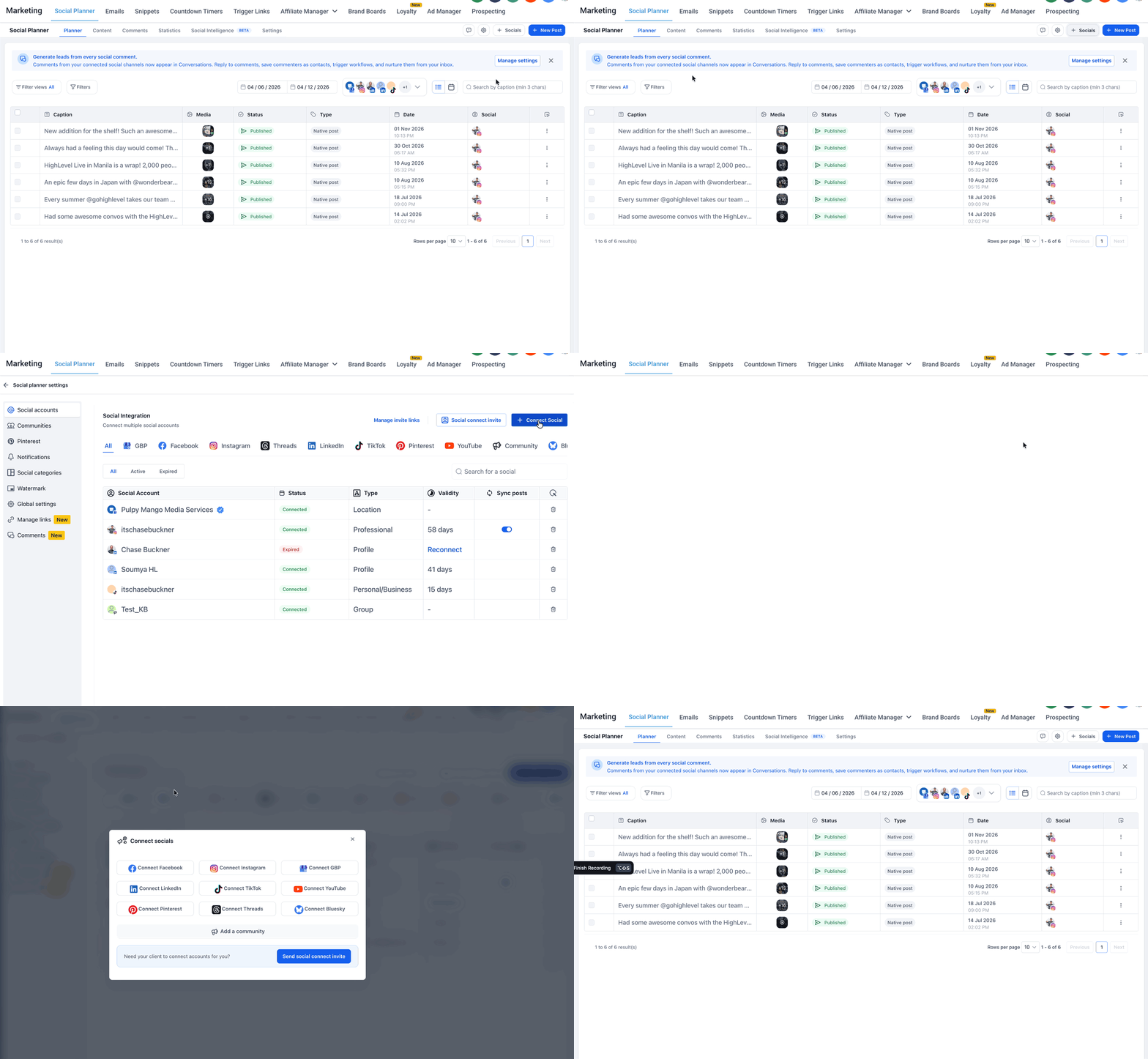
Step 1. Go to Connect social Option
To get started, please go to Social Planner. In the top right corner of Social Planner, there is a Setting option (Gear icon). Please navigate to Settings by clicking it.
From Social Planner, you can connect or manage social accounts in three ways:

• Click + Socials to open the Connect socials window directly.
• Click the gear icon to open Social planner settings.
• Click the Settings tab to open Social planner settings, then click + Connect Social.
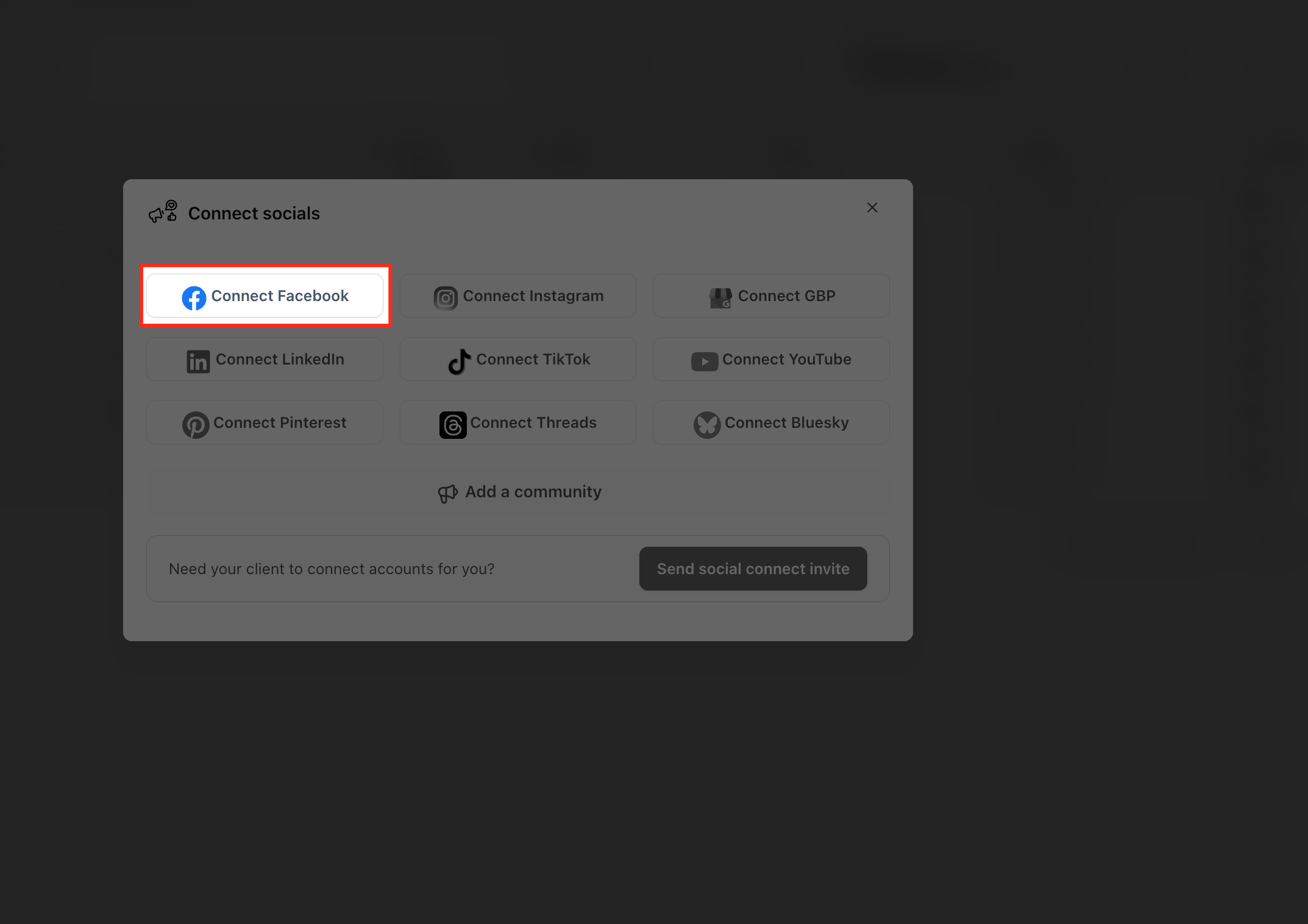
Step 2. Select Facebook as a Social Platform
Click Facebook Option. This will take you to Facebook Login Page where you will be required to enter your login information.
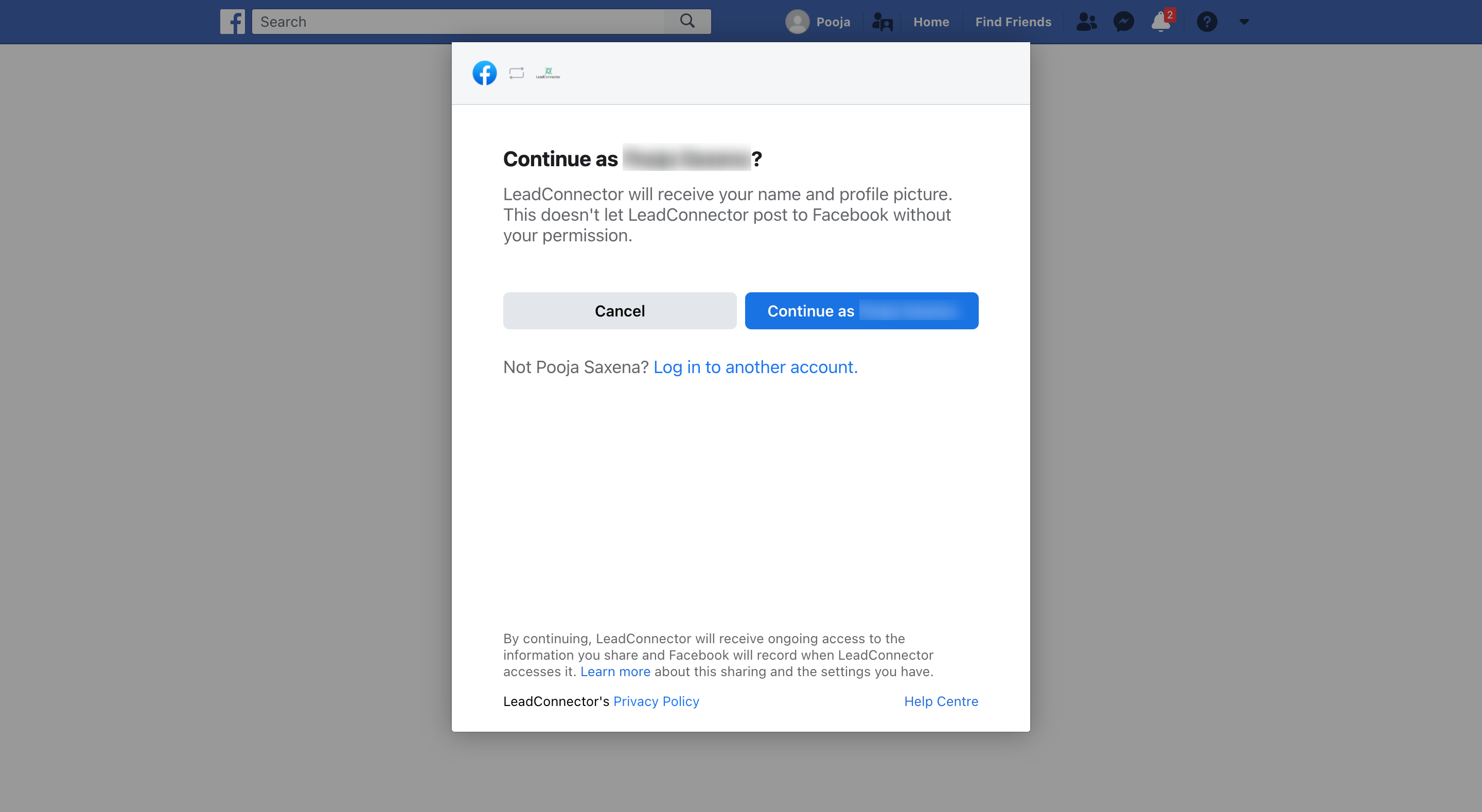
Step 3. Give permissions to fetch Facebook page(s)
If you're connecting any profile for the first time, you will have to make sure you give all the permissions to it. Please click Continue to complete the authorization process for fetching the Facebook page(s).
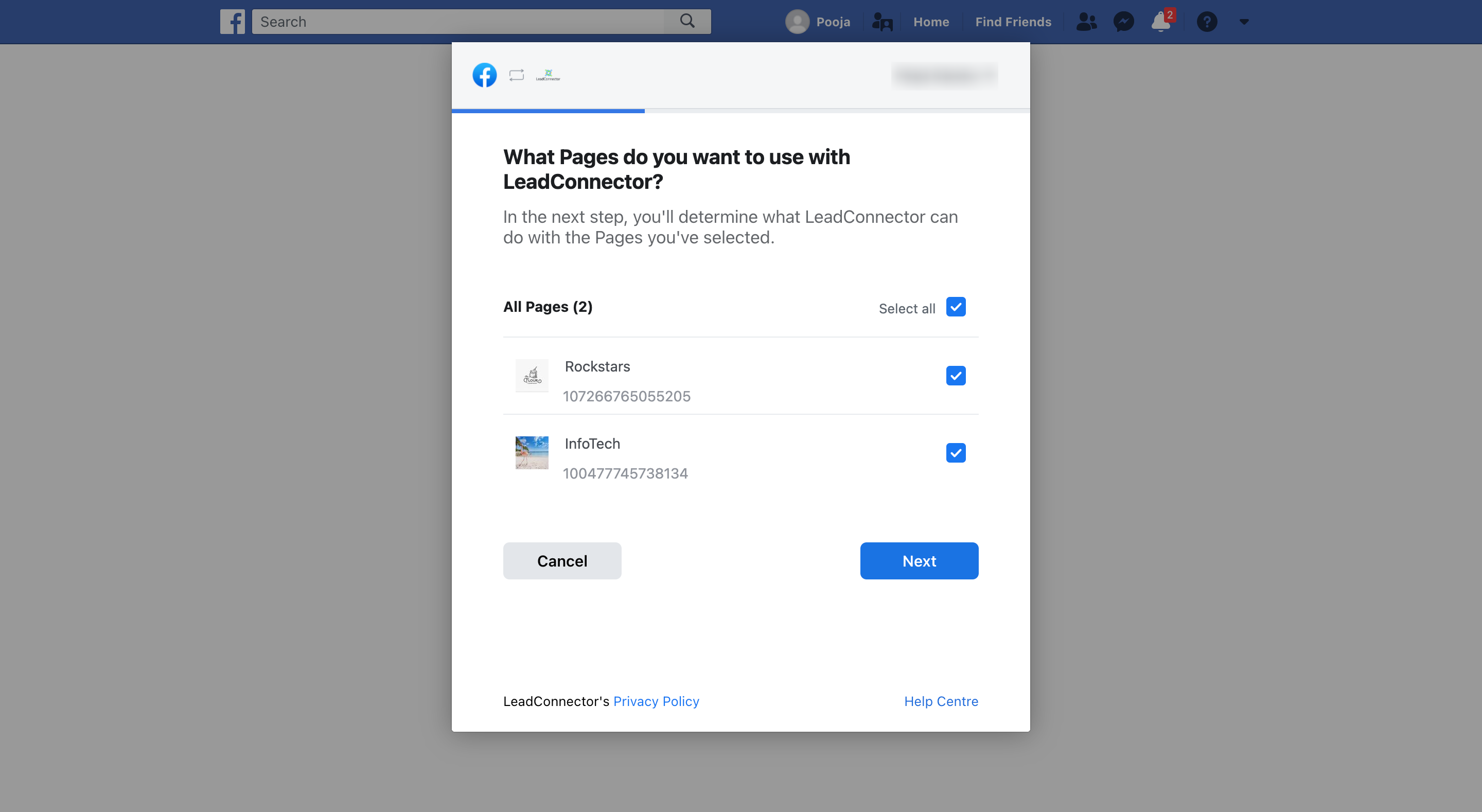
Step 4. Select Facebook Page(s) to connect
It will list all the Facebook pages for this profile, select the list of the ones you wish to connect for Social Planner.
Step 5. Verify your connection
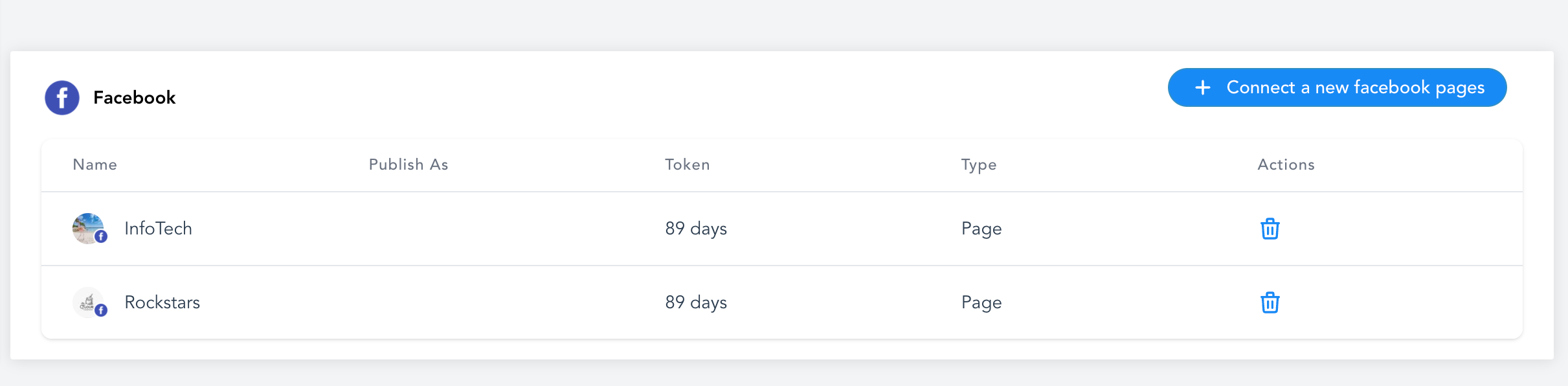
Last but not least, all of the selected pages in the previous step will be listed down showing a successful connection; as shown in the image below.
Following these instructions, you can add as many pages as you wish from the same or different Facebook profiles.
Frequently Asked Questions
Q: Can I connect more than one Facebook Page to Social Planner?
Yes. You can connect multiple Facebook Pages to Social Planner. The Facebook account you use during authorization must have the required access to each Page you want to connect.
Q: Can I connect Facebook Pages from different Facebook profiles?
Yes. You can connect Pages managed by different Facebook profiles. When connecting a Page, sign in with the Facebook profile that has the required access to that Page and complete the authorization process.
Q: Why is my Facebook Page not showing when I try to connect it?
A Page may be missing if the Facebook account does not have the required Page access or if the Page was not included during Facebook authorization. Review the Page permissions in Facebook and reconnect the account if needed.