
How to Enable and Resell Ad Manager
This article explains how agencies can enable and resell Ad Manager for their sub-accounts in Chat To Clients CRM. It covers setup steps, resale pricing options, client onboarding flow, and billing details to help you efficiently monetize advertising services through the Chat To Clients CRM platform.
TABLE OF CONTENTS
- What is Ad Manager?
- Pre-requisites
- How to enable Ad Manager for your sub-accounts using SaaS configurator
- Setting up Reselling for Ad Manager
- Personalizing offers for certain clients/sub-accounts
- Offering Ad Manager for Free
- Disabling Ad Manager for certain clients
- How Clients Discover and Purchase Ad Manager
- Understanding Billing and Subscriptions
- Final Notes:
- Related Articles
What is Ad Manager?
Ad Manager is a Chat To Clients CRM feature that allows agencies to offer and manage ad services for their clients (sub-accounts) directly within the platform.
It provides a centralized experience where agencies can:
Create, monitor and optimize ad campaigns for clients.
Set their own pricing and resell the service to sub-accounts.
Simplify campaign management across platforms like Meta, Google and LinkedIn Ads.
Unlike native Ad Manager platforms, this tool is designed for agencies to package and monetize ad services efficiently inside Chat To Clients CRM.
Note: Ad Manager is a SaaS feature that gives you the tools to resell and manage ad services. It doesn't include ad copywriting or creative design. those remain part of the services your agency can choose to offer alongside the tool.
Pre-requisites
Before setting up Ad Manager for your clients, make sure:
Your Agency Stripe Account is connected.
This is required to collect monthly subscription payments from your clients.
Once Stripe is connected, you can manage resale pricing and subscriptions through the Reselling tab in your Agency Settings.
How to enable Ad Manager for your sub-accounts using SaaS configurator
If you offer SaaS services, go to Agency view > SaaS Configurator.
Select your active SaaS plans and click Edit Details.
Open the Addons Tab and ensure Ad Manager tile is checked.
Click Save to apply changes.
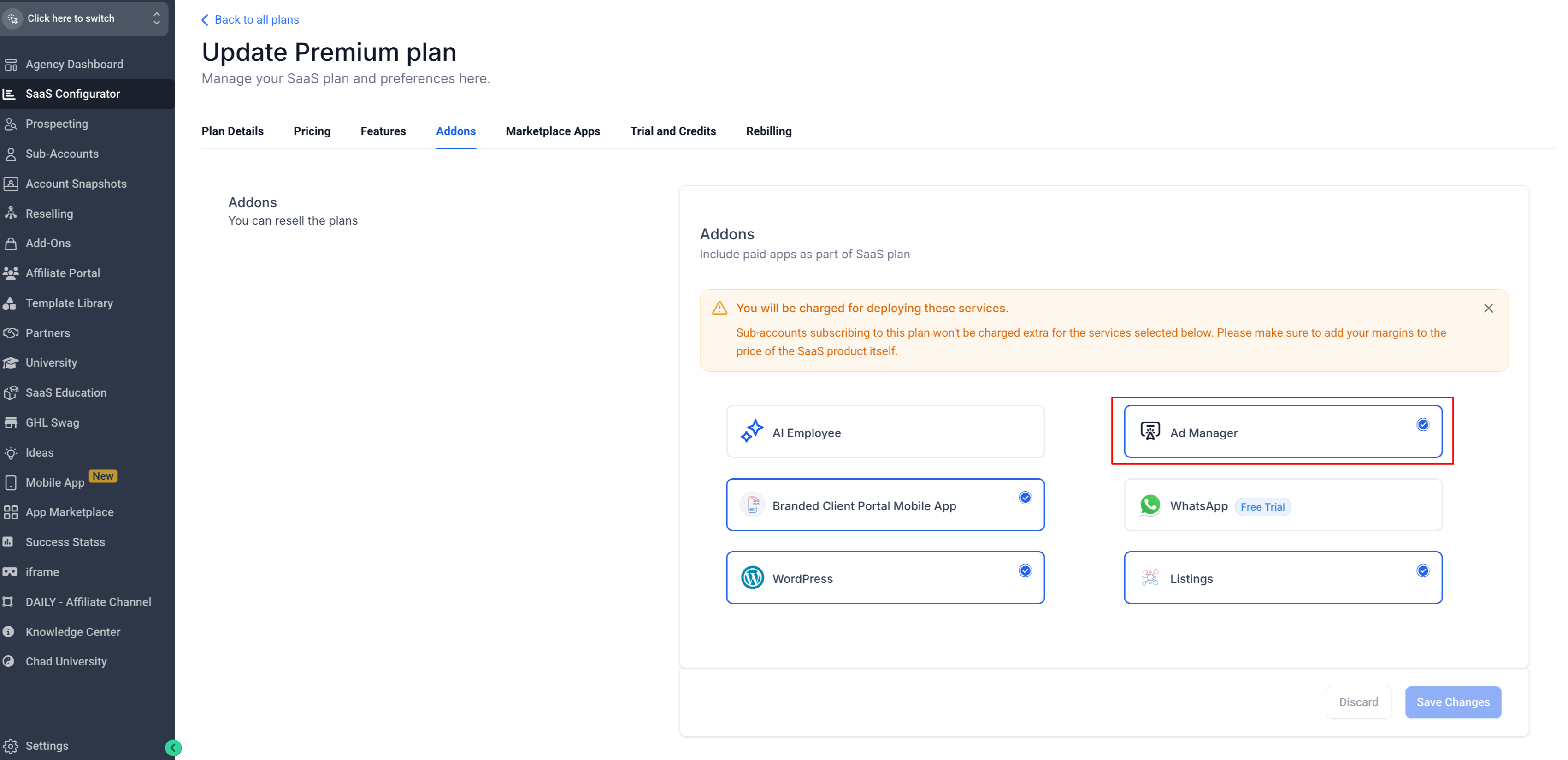
Note: All agencies have access to Ad Manager at no cost. “You Pay” is fixed at $0.
Setting up Reselling for Ad Manager
You can choose to offer Ad Manager to your sub-accounts for free or resell it at your own price.
At the Agency Level
Go to Agency view > Reselling tab.
Locate the Ad Manager section/card.
Choose your resale preference using the thumbs icons:
? Yes : You plan to resell Ad Manager.
? No : You don’t plan to resell.
In the Your Price field, enter the resale price you’d like your sub-accounts to pay.
Default value is $0 (free for sub-accounts).
Click Save.
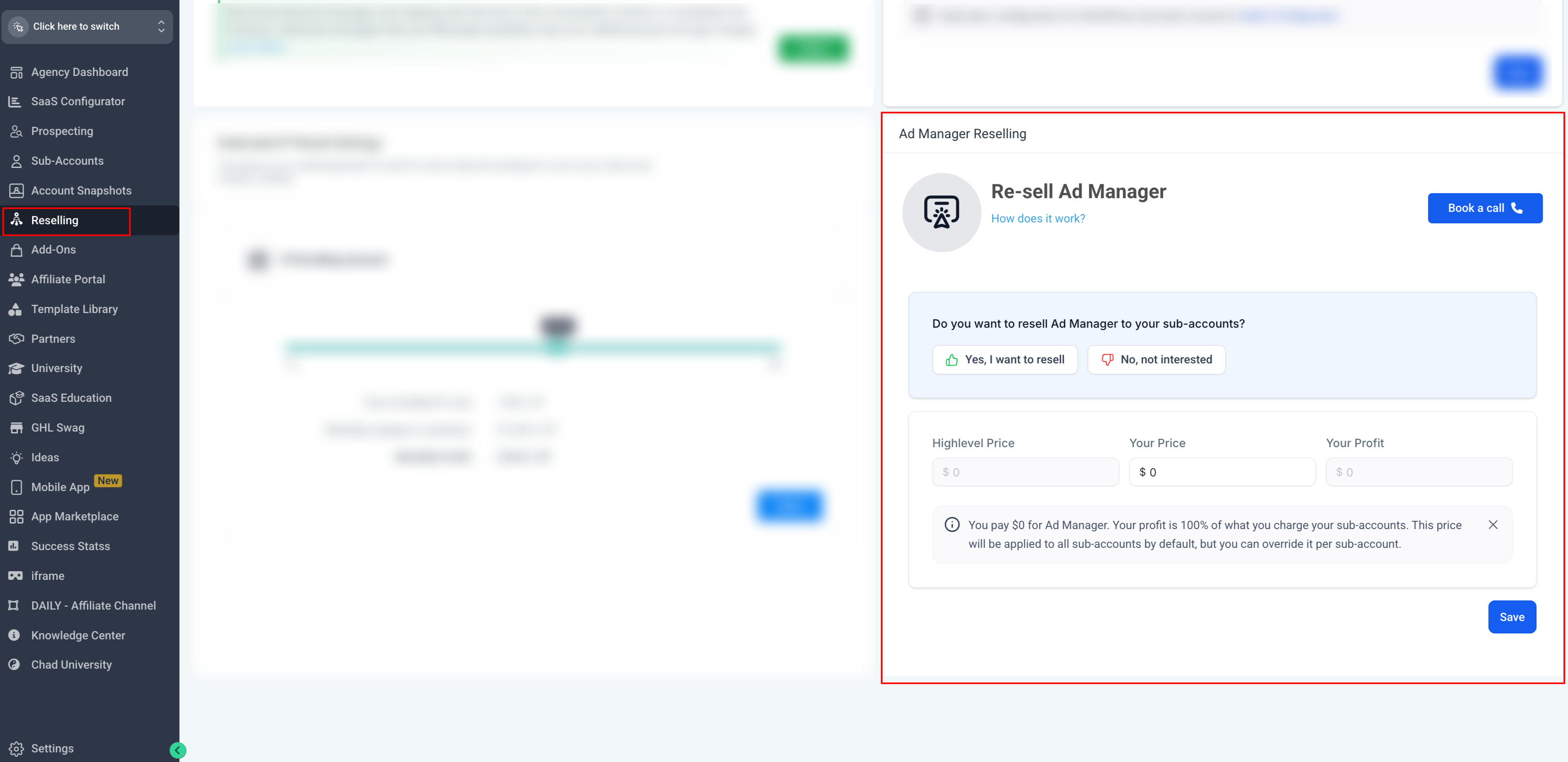
This price will automatically apply to all sub-accounts unless you customize it at the sub-account level.
Personalizing offers for certain clients/sub-accounts
You can personalize Ad Manager pricing for specific clients to match their plan or package.
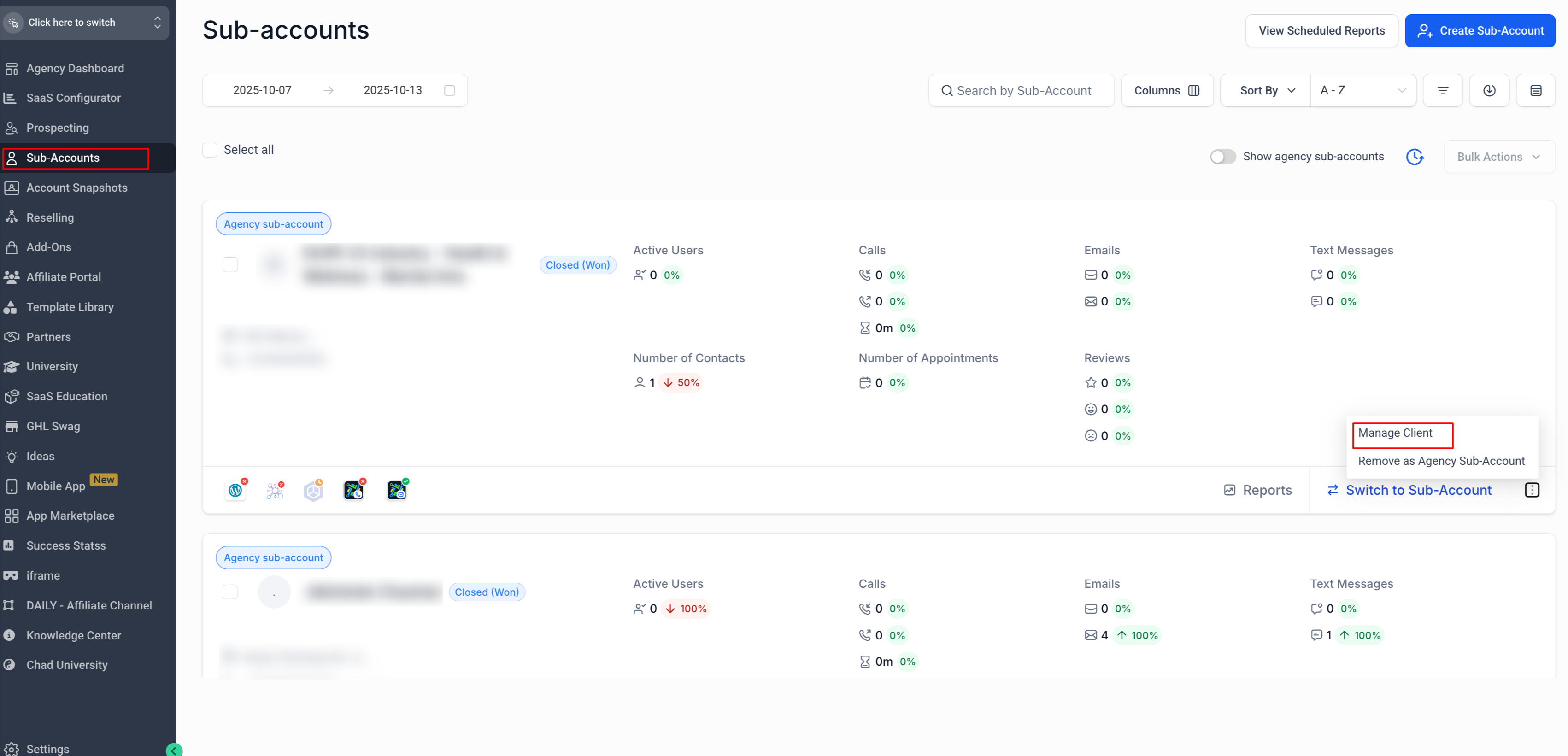
Go to Agency view > Sub-Accounts.
Select the client (sub-account) you want to customize.
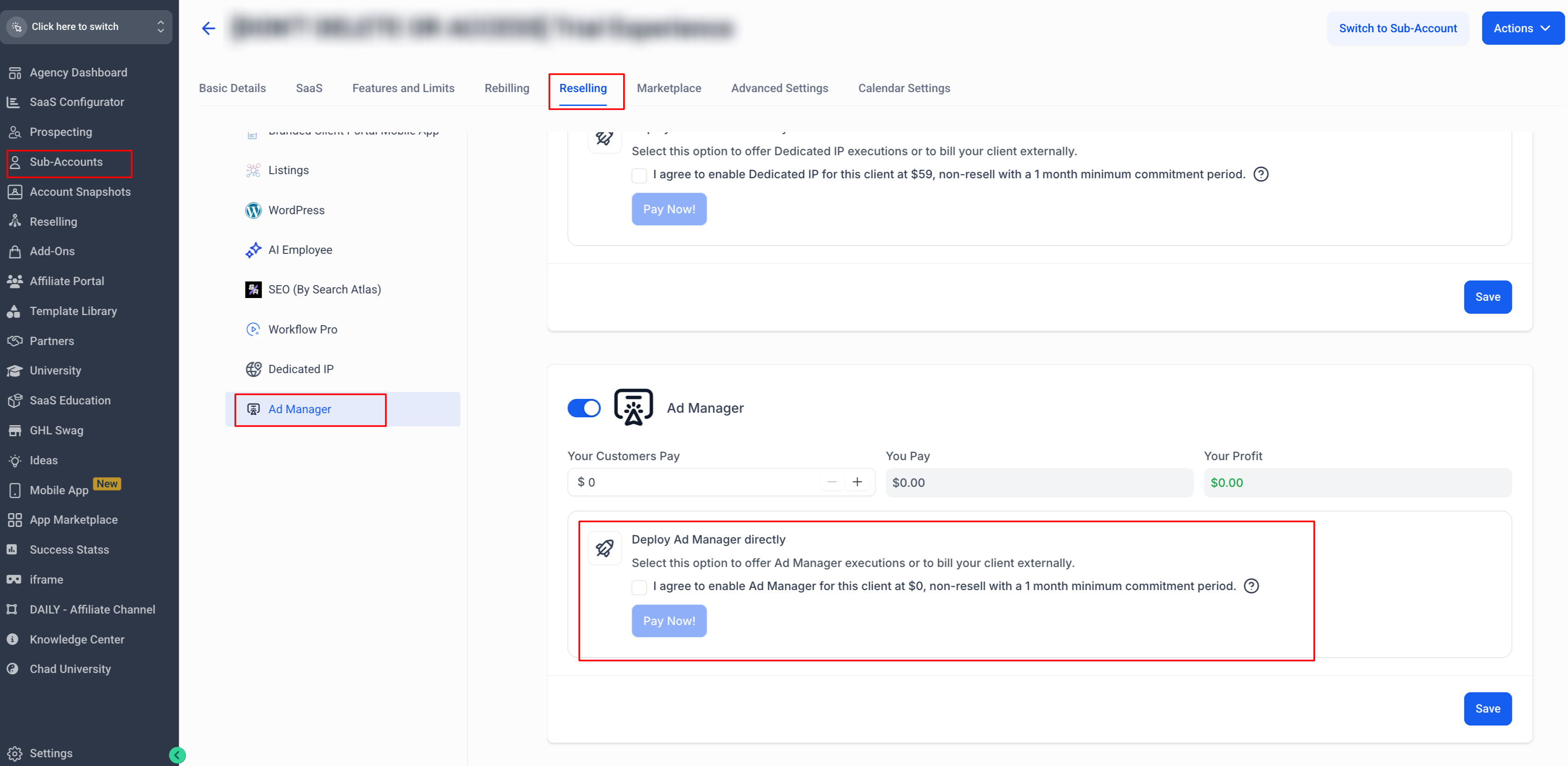
Click Manage Client > Reselling Tab.
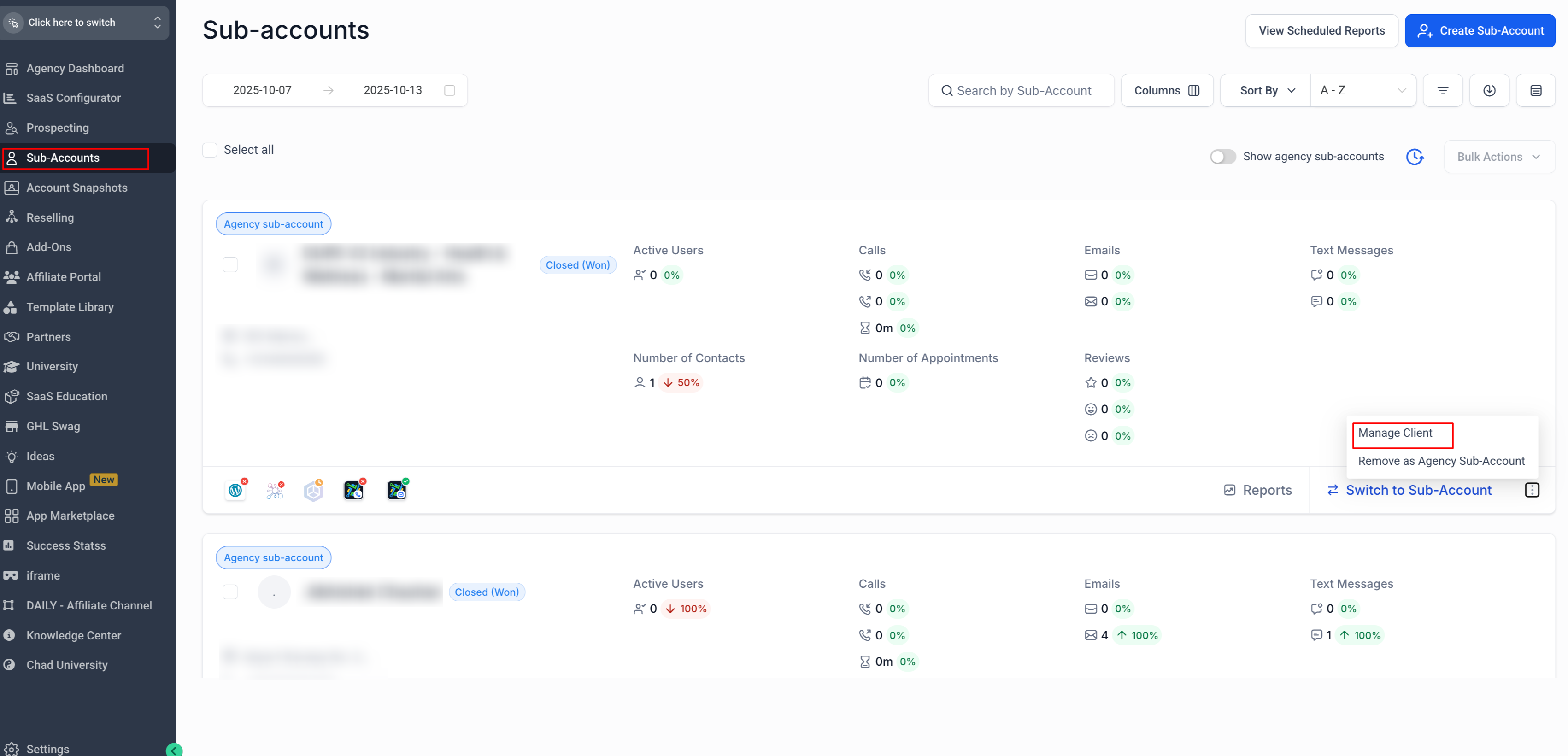
Scroll to the Ad Manager section.
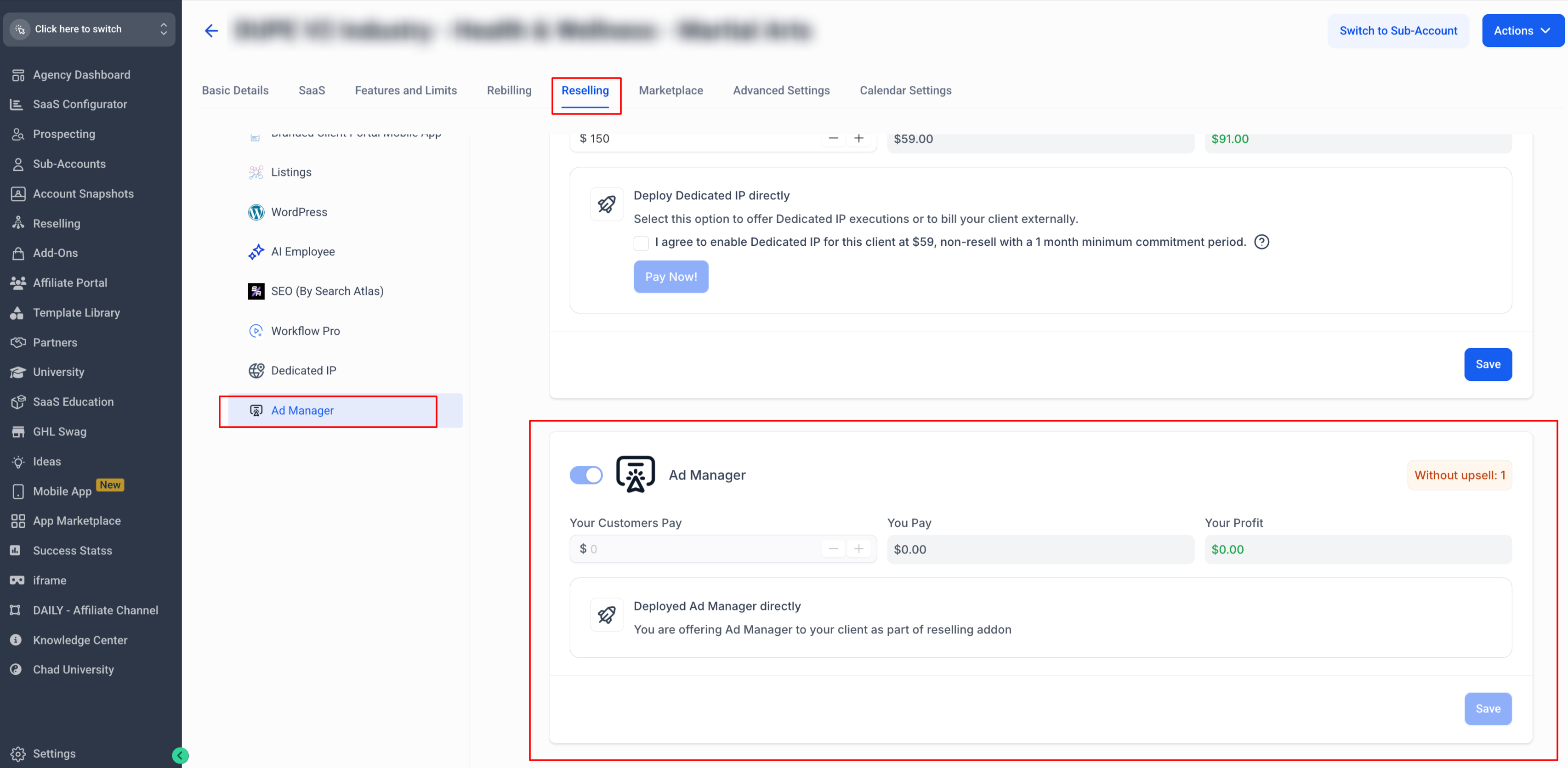
Set a custom Your Customers Pay amount for this client.
Save your changes.
Note:
- If the client already has Ad Manager active, pricing changes will apply to new subscriptions only — existing subscriptions remain on their current rate.
- Once price is set and customer subscribes to that price, the reselling amount cannot be changed unless subscription is canceled and customer resubscribed with the new price.
Offering Ad Manager for Free
If you wish to include Ad Manager as a free add-on for some clients:
Go to Agency view > Sub-Accounts.
Select the client you want to offer Ad Manager to.
Click Manage Client > Reselling Tab.
Under Ad Manager, check the checkbox for Deploy Ad Manager Directly which automatically sets Your Customers Pay = $0.
Click Save.
That sub-account will have instant access to Ad Manager without a paywall.
Disabling Ad Manager for certain clients
To remove or prevent Ad Manager access for a specific sub-account:
Go to Agency View > Sub-Accounts.
Open Manage Client > Reselling Tab.
Under Ad Manager, toggle OFF.
Click Save.
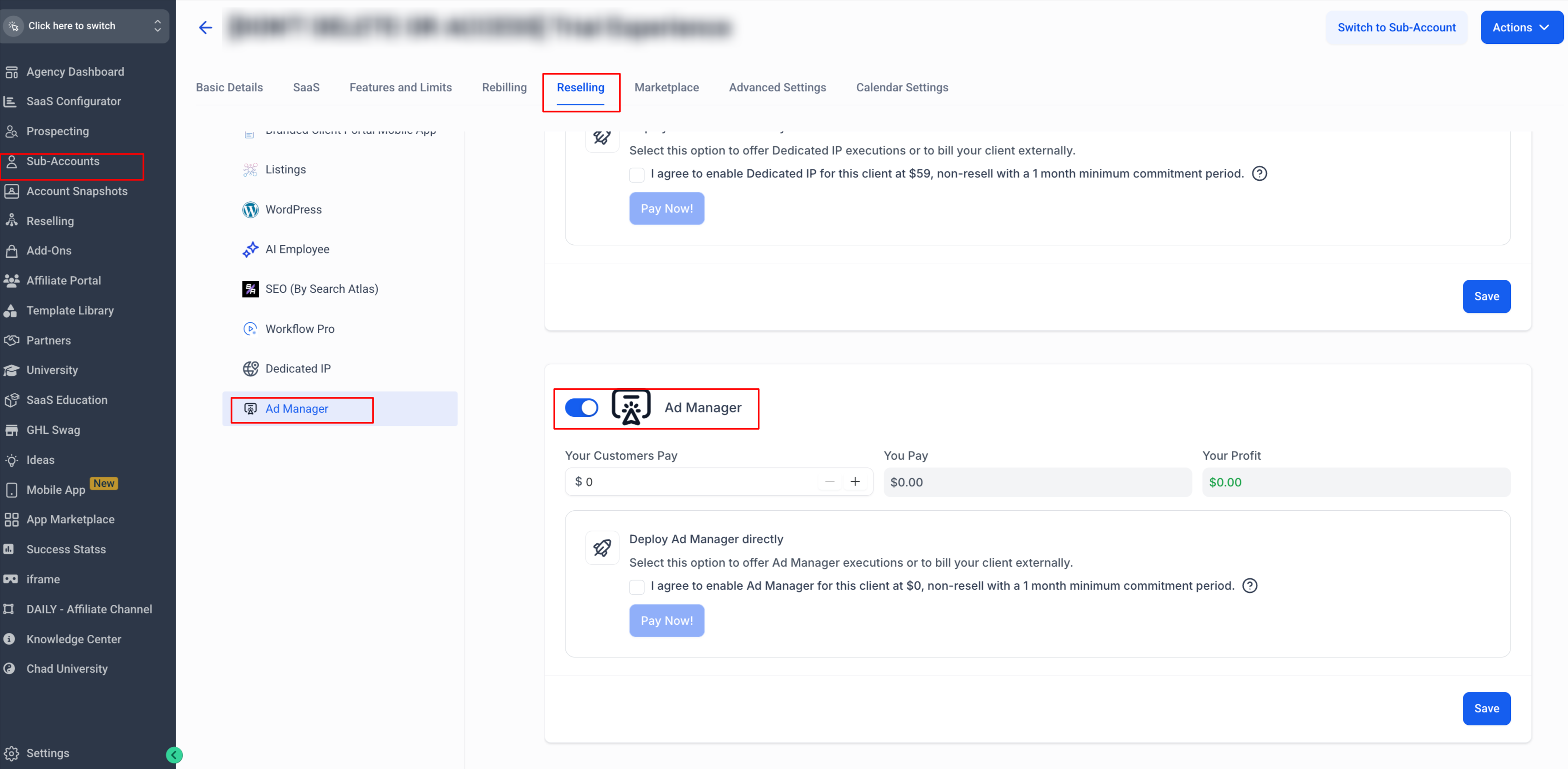
Note: Once a client has purchased or activated Ad Manager, the feature cannot be disabled retroactively for that account.
How Clients Discover and Purchase Ad Manager
Your clients can find and activate Ad Manager from their account directly:
Log in to their sub-account.
Go to Marketing > Ad Manager from the left menu.
Depending on your resale configuration, they’ll see one of the following CTAs:
“Activate Ad Manager for $X/month”: if resale price > $0.
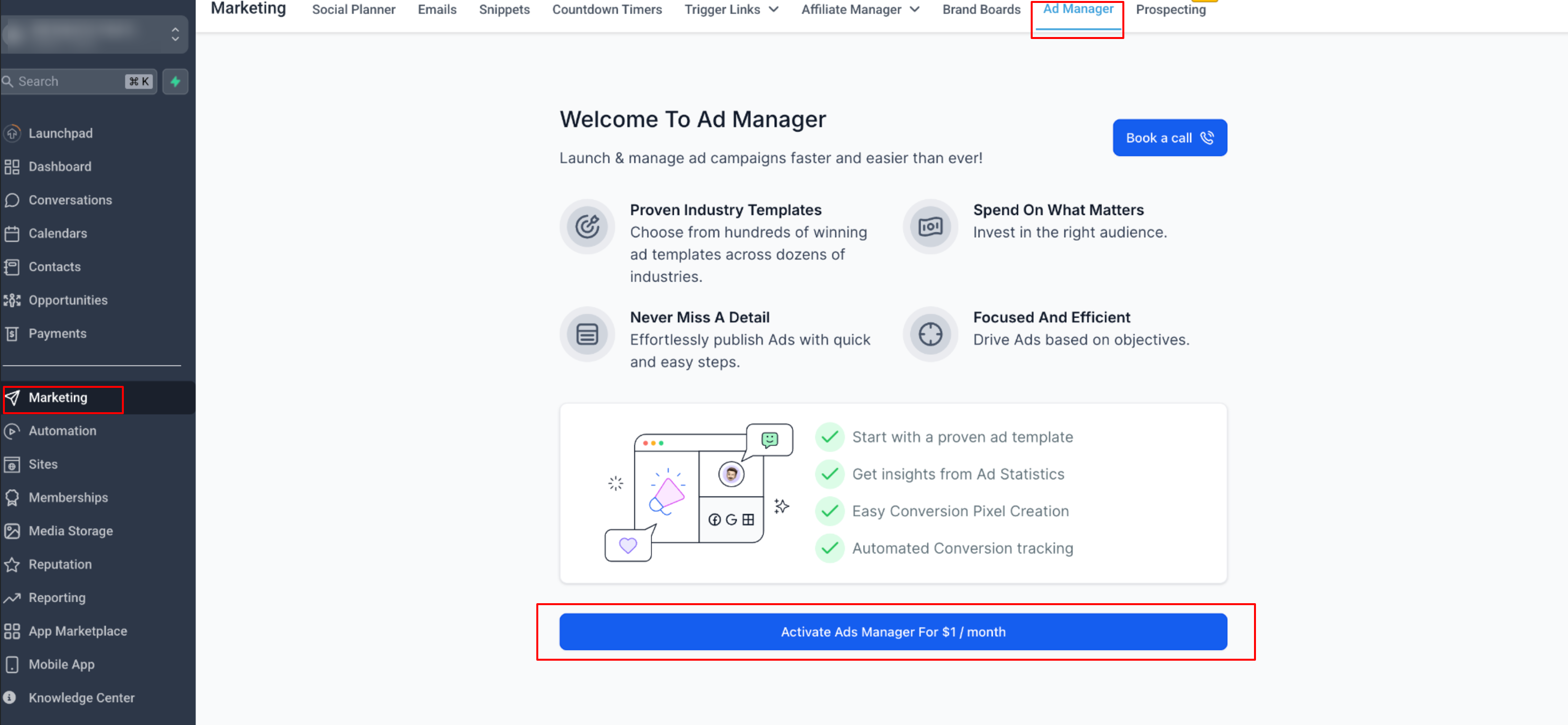
“Get Started”: if resale price = $0. This is directly the one time onboarding screen which customers will see.
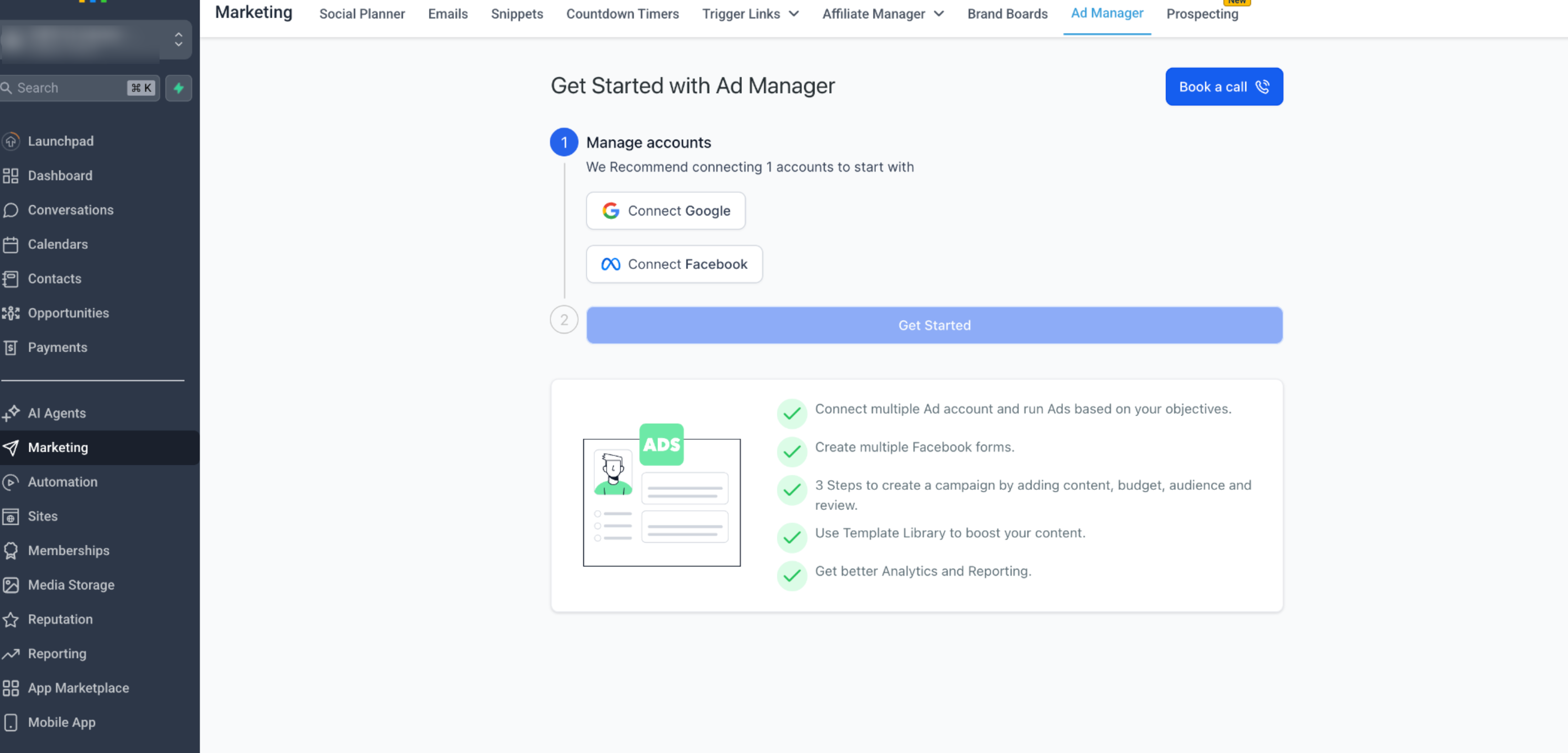
When a client activates Ad Manager:
A subscription is automatically created between their payment method and your agency’s Stripe account.
The client is then guided through the Ad Manager onboarding flow.
Understanding Billing and Subscriptions
For Agencies
Agencies no longer pay Chat To Clients CRM for Ad Manager — the agency cost is $0.
Agencies can freely define resale pricing for sub-accounts.
Existing agencies with sub-accounts already using Ad Manager under Utility or Founder’s plans will continue to see those plan cards — no cancellations or billing changes have been made.
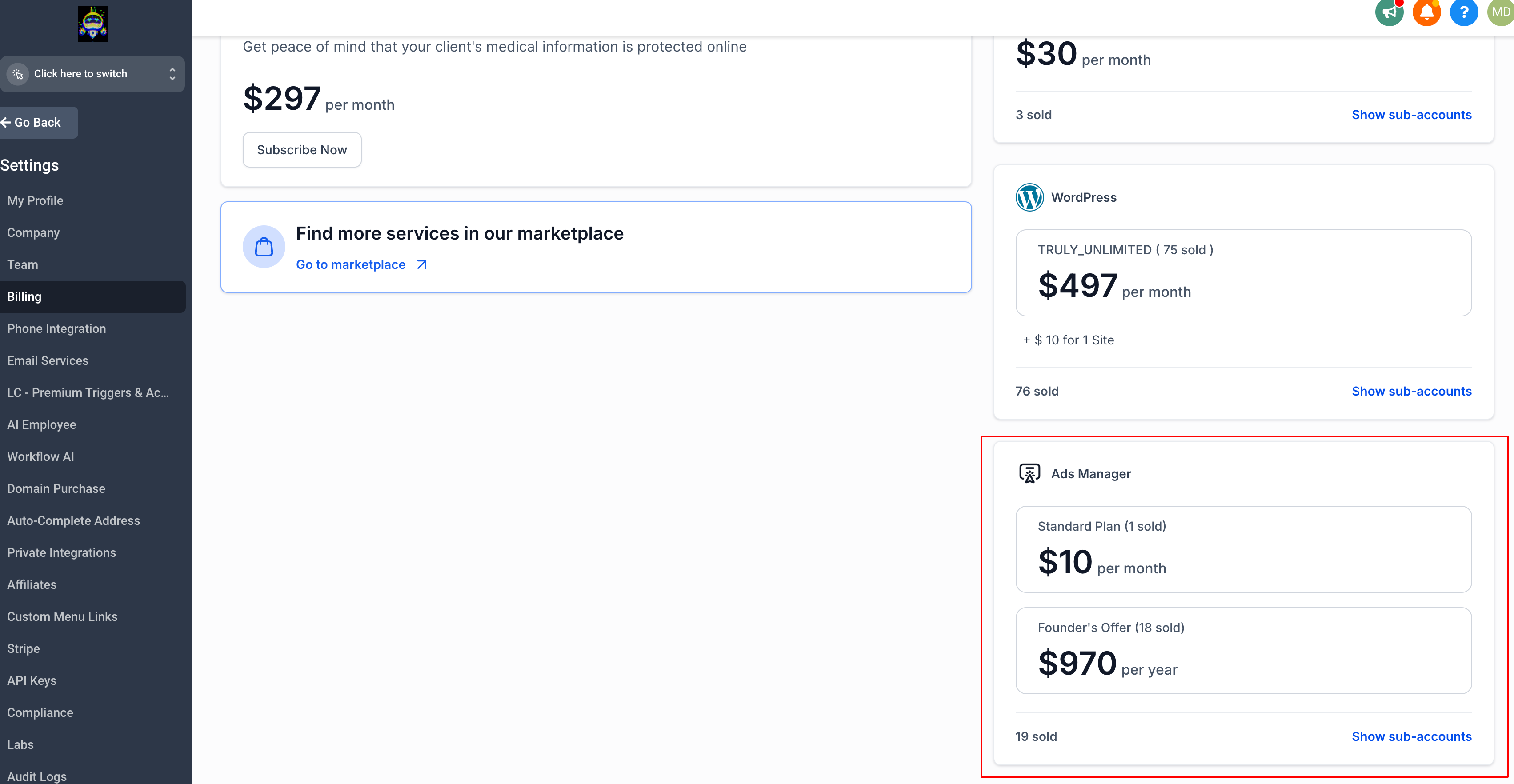
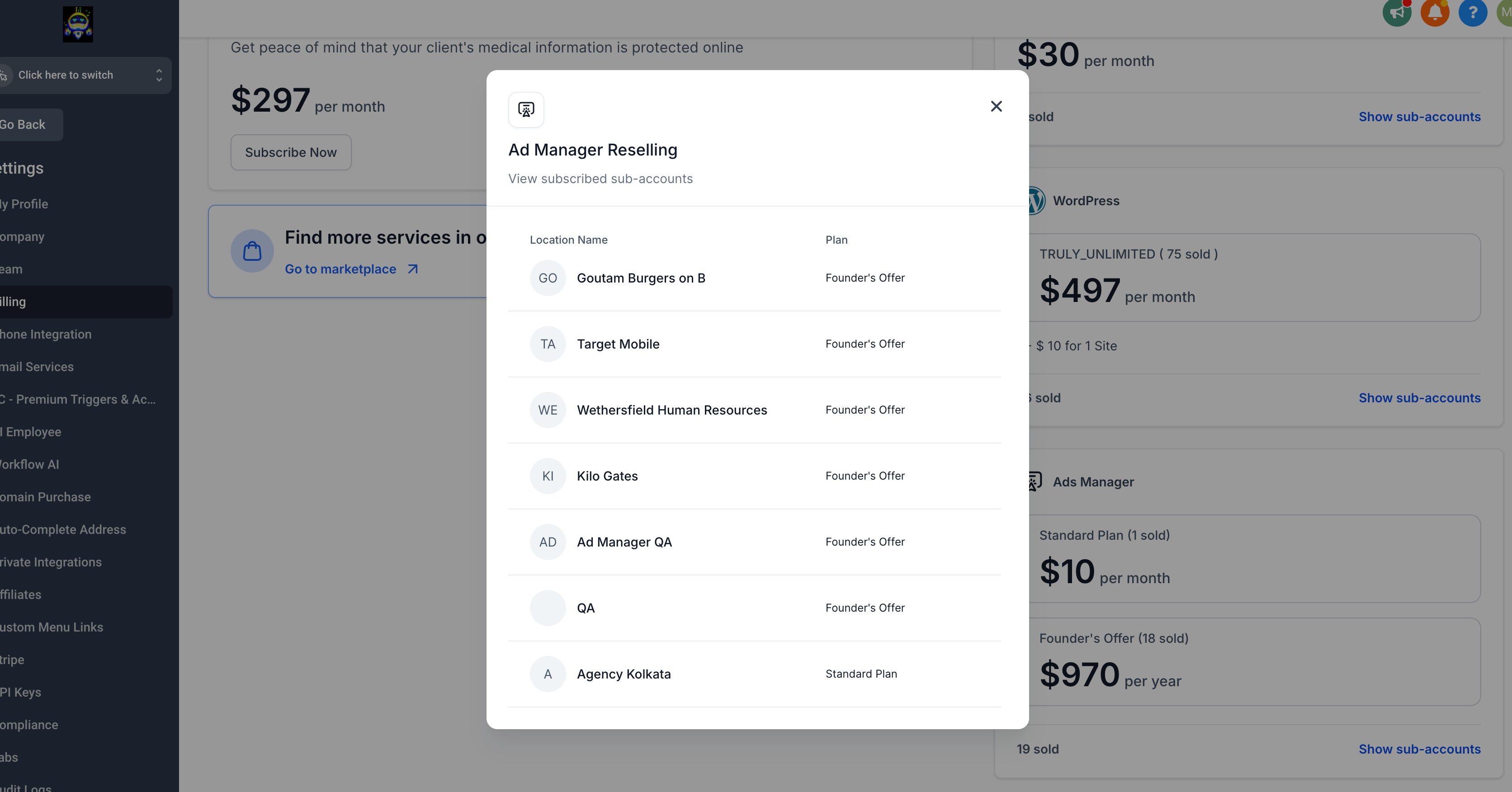
For Sub-Accounts
Sub-accounts paying agencies for Ad Manager will continue at their current rate.
New sub-accounts will follow the agency’s resale price setup (either $0 or custom).
To view billing details:
Go to Agency Settings > Billing.
Locate the Ad Manager card.
See what each sub-account is currently paying under your resale setup.
Final Notes:
Ad Manager is always free for agencies — “You Pay = $0.”
Agencies can monetize through reselling at their chosen rate.
Existing subscriptions remain untouched — continuity and stability are maintained.
Use the ? / ? icons to share whether your agency plans to resell Ad Manager.