
Workflow Action - Instagram DM
The Instagram DM workflow action in Chat To Clients CRM allows you to automatically send personalized Instagram direct messages to contacts through workflows. This article explains how to configure the action, use it with Instagram triggers, add message templates and attachments, and understand the 24-hour messaging requirements for successful delivery.
TABLE OF CONTENTS
- What is the Instagram DM Workflow Action?
- How to Set Up and Use the Instagram DM Workflow Action
- Instagram DM Action Fields and Settings
- Instagram DM Delivery Rules and Recommendations
- Recommended Alternative: Instagram Interactive Messenger
- Frequently Asked Questions
- Related Articles
What is the Instagram DM Workflow Action?
The Instagram DM workflow action allows you to send automated direct messages to contacts who have recently interacted with your connected Instagram account. It helps businesses manage Instagram conversations, respond to inquiries, and share relevant information without manually sending each message.
You can customize messages using templates, custom values, trigger links, and attachments. However, successful delivery depends on Instagram's messaging restrictions, including whether the contact has sent your business a DM within the previous 24 hours.
How to Set Up and Use the Instagram DM Workflow Action
Setting up the Instagram DM action requires a connected Instagram account, a workflow trigger, and a configured message. Choosing the appropriate trigger and understanding Instagram's messaging requirements helps ensure that messages reach the intended contacts.
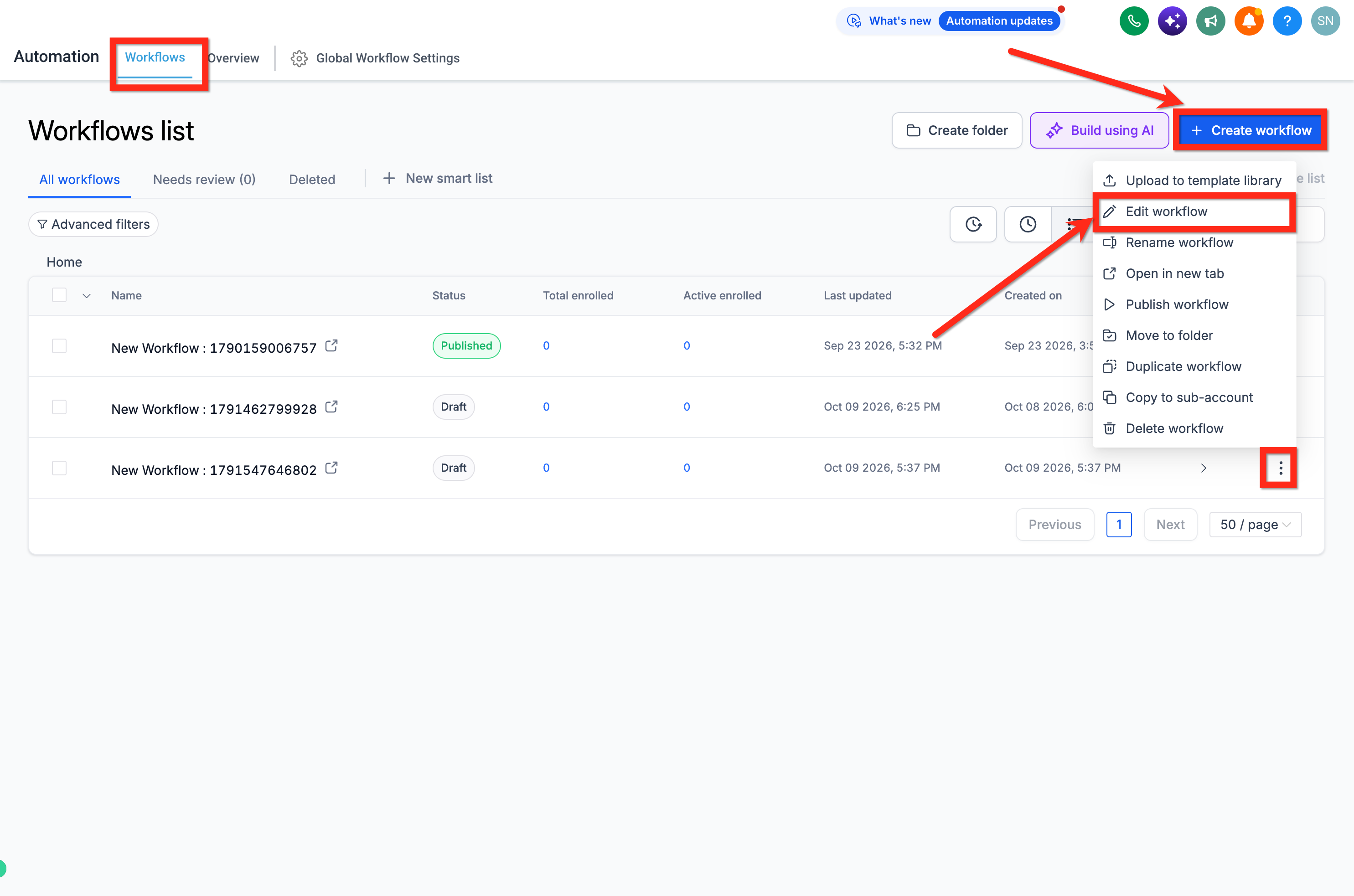
Step 1: Create or Open a Workflow
Navigate to Automations > Workflows.
Click Create Workflow to create a new workflow, or open an existing workflow.
Open the workflow in the Workflow Builder. You can use either the Standard Builder or Advanced Builder.
Step 2: Add a Workflow Trigger
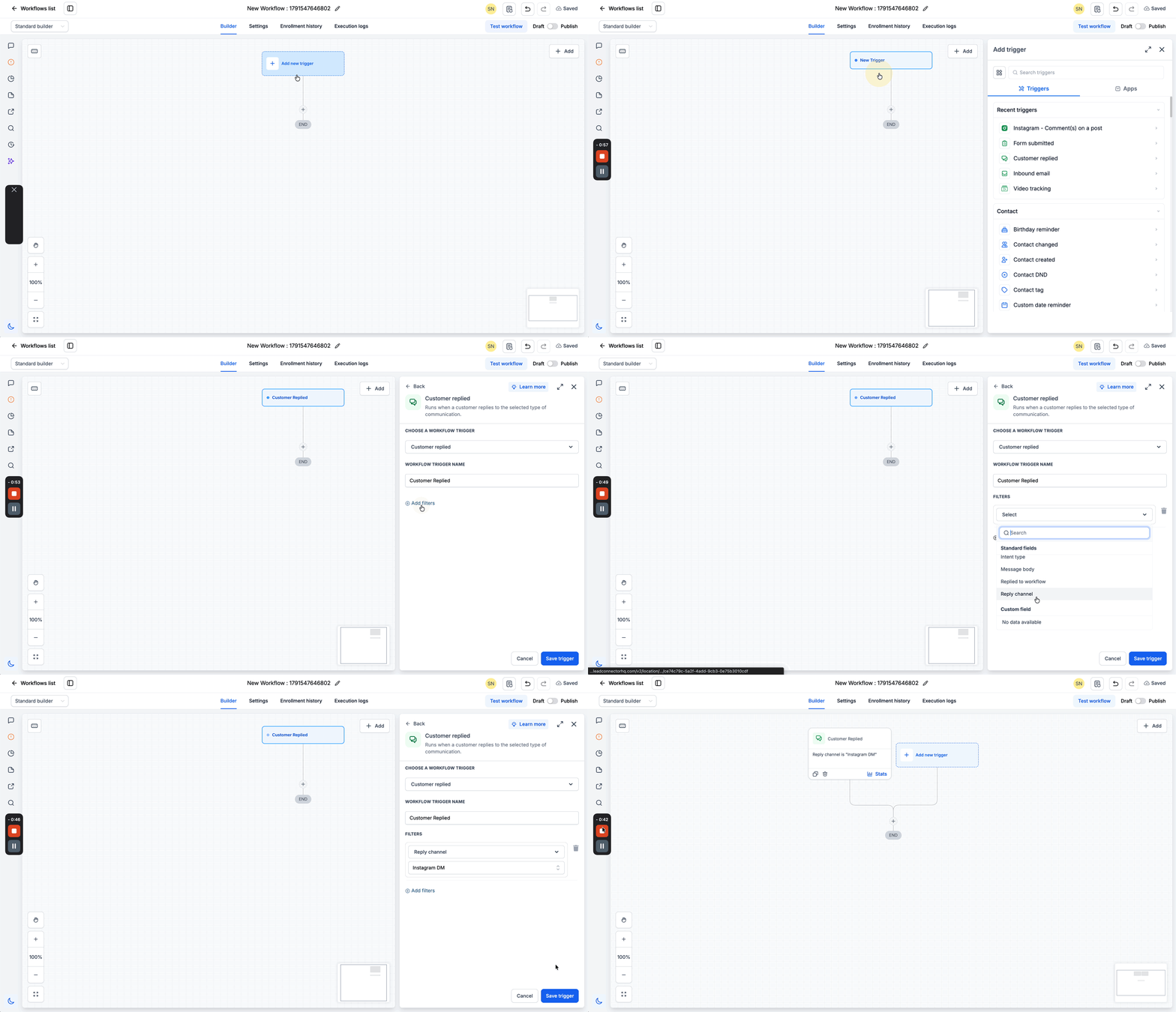
A workflow trigger determines when a contact enters the automation. For Instagram DM responses, the Customer Replied trigger with the reply channel set to Instagram DM is a recommended option.
Click + Add New Trigger.
Search for and select Customer Replied.
Click + Add Filters.
Select Reply Channel and choose Instagram DM.
Add other filters if needed to narrow down the incoming messages.
Click Save Trigger.
Step 3: Add & Configure the Instagram DM Action
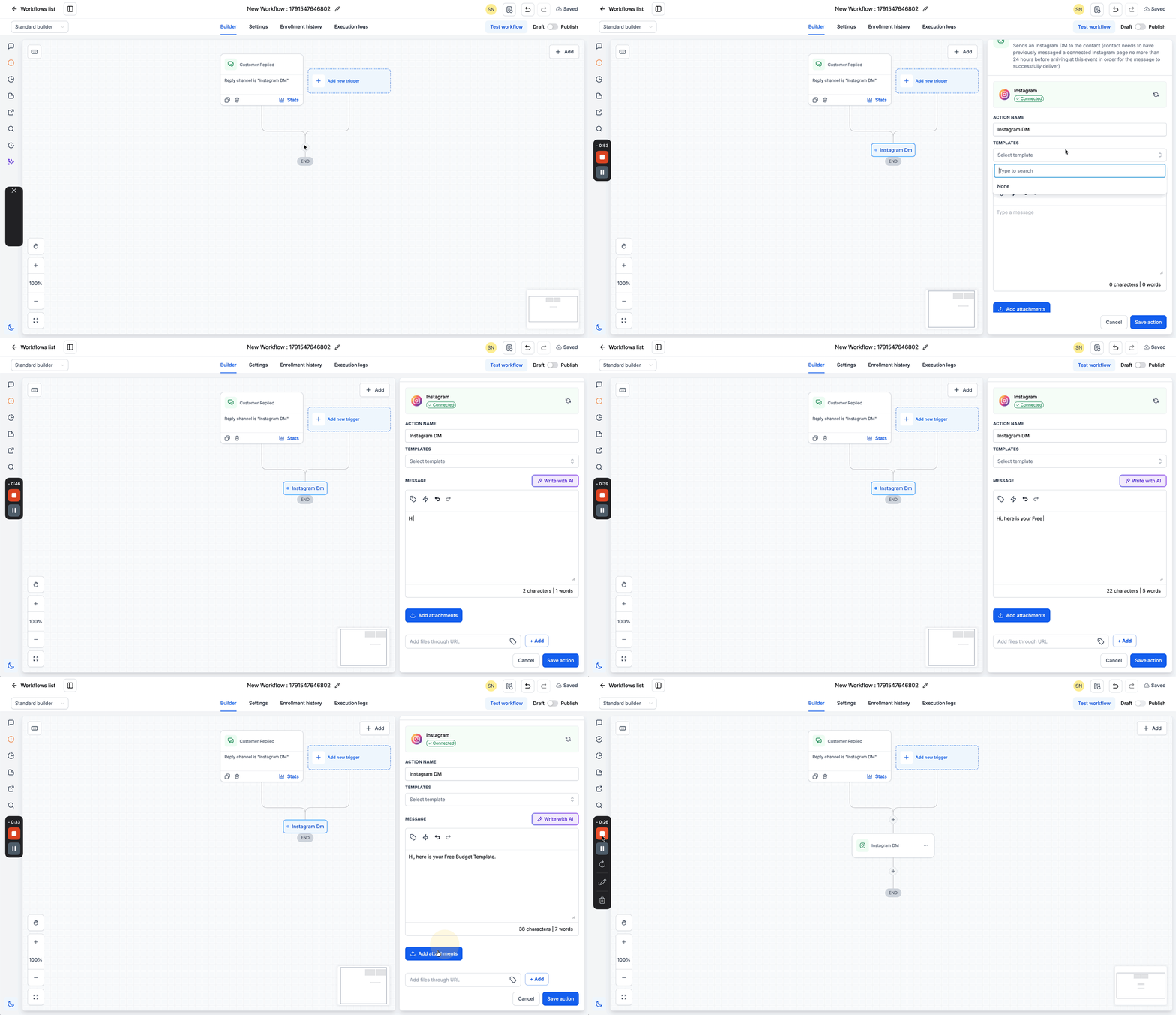
Once the trigger is configured, add the Instagram DM action to define the message contacts will receive.
Click the + icon below the workflow trigger.
Search for Instagram DM in the workflow actions.
Select Instagram DM to open the action configuration panel.
Enter an Action Name to identify the action within the workflow.
Select a Template (Optional): Choose an existing message template if you want to reuse previously created content.
Enter Your Message: Type the message you want to send to the contact.
Personalize the Message: Use Custom Values or Trigger Links to include contact-specific information or clickable resources.
Write with AI (Optional): Use the Write with AI option to help draft message content.
Add an Attachment (Optional): Click Add Attachment to upload a file from your device or select an existing file from Media Storage.
Add Files Through URL (Optional): Use the file URL option to attach a resource hosted online.
Click Save Action.
Instagram DM Action Fields and Settings
Each field in the Instagram DM action controls a different part of the outgoing message. Understanding which fields are required helps you configure messages correctly and avoid unnecessary setup errors.
| Field | Description | Mandatory |
|---|---|---|
| Action Name | Specifies the name used to identify the action within the workflow. | Yes |
| Templates | Allows you to select a preconfigured message template for consistent communication. | No |
| Message | Defines the content sent to the contact. Supports custom values for personalization. | Yes |
| Add Attachment | Allows you to attach files or media, such as images or documents, to the message. | No |
| Add Files Through URL | Allows you to add externally hosted files using their URLs. | No |
Instagram DM Delivery Rules and Recommendations
Instagram applies messaging restrictions to automated direct messages. Understanding these rules helps you choose the appropriate workflow action and avoid delivery failures.
24-Hour Messaging Requirement
The Instagram DM workflow action should only be used to send messages to contacts who have sent a direct message to your connected Instagram business account within the previous 24 hours.
If a contact has not sent a DM within this period, the Instagram DM action cannot be relied upon to deliver a new direct message.
Important: A contact commenting on an Instagram post does not automatically establish the 24-hour direct messaging window required for a standard Instagram DM.
Behavior with Instagram Comment Triggers
When the Instagram DM action is used with the Instagram Comment(s) On A Post workflow trigger, its behavior depends on the contact's recent interactions.
Recent Instagram Comment: If the contact has a recent comment on your Instagram post, the message is sent as a reply to that comment through DM.
No Recent Instagram Comment: If there is no recent comment, the action attempts to send a direct DM. This requires the contact to have sent your business a DM within the previous 24 hours.
Recommended Alternative: Instagram Interactive Messenger
For Instagram comment-based automation and interactive conversations, Chat To Clients CRM recommends the Instagram Interactive Messenger workflow action.
Select the appropriate Reply Type based on the interaction:
Reply to Comment via DM: Use when you want to send a private message in response to an Instagram post comment.
Reply to DM: Use when you want to respond to a contact's Instagram direct message.
Instagram Interactive Messenger also supports interactive elements such as buttons and quick replies, making it useful for more advanced conversation workflows.
For additional details, refer to Workflow Action - Instagram Interactive Messenger.
Note: Instagram messaging behavior was updated following a Meta-side issue resolved on August 31, 2024. Workflows should not assume that a post comment alone authorizes unrestricted direct messaging through the standard Instagram DM action.
Frequently Asked Questions
Q: Why is my Instagram DM workflow running but the message is not being delivered?
The contact may not meet Instagram's messaging requirements, or the Instagram account connection may need attention. Verify that the contact has sent a DM within the previous 24 hours, check your connected account, and review the workflow execution details.
Q: Can I send an Instagram DM to a contact who submitted an Instagram lead form?
You can configure workflows based on lead form submissions, but submitting a form does not automatically satisfy the Instagram DM action's messaging requirements. The contact must also have an eligible recent Instagram DM interaction for standard direct message delivery.
Q: Does commenting on an Instagram post automatically open a 24-hour DM window?
No. A comment alone does not establish the standard 24-hour DM window. For comment-based private replies, use Instagram Interactive Messenger with the appropriate Reply Type.
Q: Can I use the same Instagram DM message across multiple workflows?
Yes. You can select an existing message template in different Instagram DM actions to maintain consistent messaging across workflows.
Q: Can I personalize Instagram messages using contact information?
Yes. The Message field supports Custom Values, allowing you to insert available contact or workflow information into your messages.
Q: What is the difference between Instagram DM and Instagram Interactive Messenger?
Instagram DM is primarily used to send a configured direct message with optional attachments. Instagram Interactive Messenger supports comment-to-DM reply types and interactive conversation elements such as buttons and quick replies.
Q: Can I use a keyword to send different Instagram messages to different contacts?
Yes. You can configure trigger filters such as Contains Phrase or Exact Match to identify specific incoming messages or comments. For more complex scenarios, use separate workflow paths or conditions to send the appropriate message.
Q: Can I use an online file instead of uploading an attachment?
Yes. The Add Files Through URL option allows you to provide a URL for a hosted file instead of uploading it directly from your device or Media Storage.