
Workflow Action - Instagram Interactive Messenger
The Instagram Interactive Messenger action in workflows helps you automate Instagram DM conversations with interactive elements like buttons and quick replies.
In this article, you’ll learn what this action does, where to find it, and how to configure its components effectively.
We’ll also cover practical examples and best practices so you can design engaging Instagram interactions that drive results.
TABLE OF CONTENTS
- What is Instagram Interactive Messenger
- Key Benefits of Instagram Interactive Messenger
- How to Configure Instagram Interactive Messenger Workflow Action
- Frequently Asked Questions
What is Instagram Interactive Messenger
The Instagram Interactive Messenger workflow action allows you to automatically respond to comments or direct messages on Instagram by sending personalized DMs. Instead of replying manually, you can set up automated conversations that feel interactive and engaging. This action is especially useful when you want to quickly capture leads, share resources, or continue a public comment thread in a private message.
At its core, the feature combines automation with flexibility. You can decide why to use it—whether it’s nurturing prospects, sending offers, or delivering checklists—and how to structure the experience through message templates, attachments, buttons, or quick replies. By understanding when to use it (for example, after a comment on a promotional post or when a user initiates a DM), you can design workflows that guide followers seamlessly from engagement on Instagram into your broader marketing funnel.
Key Benefits of Instagram Interactive Messenger
- Automated Engagement at Scale: Instantly reply to comments or DMs without manual effort, ensuring followers receive timely and consistent responses.
- Drive Conversions Directly from Instagram: Use interactive buttons or quick replies to guide users toward actions like visiting your website, downloading a resource, or booking a call.
- Personalized User Experience: Leverage templates, custom values, and trigger links to send tailored messages that feel relevant and personal to each contact.
- Streamlined Lead Capture: Move prospects seamlessly from public interactions on posts into private conversations where you can collect details and nurture them further.
- Save Time for Your Team: Reduce repetitive tasks by letting workflows handle common interactions, freeing your team to focus on higher-value activities.
How to Configure Instagram Interactive Messenger Workflow Action
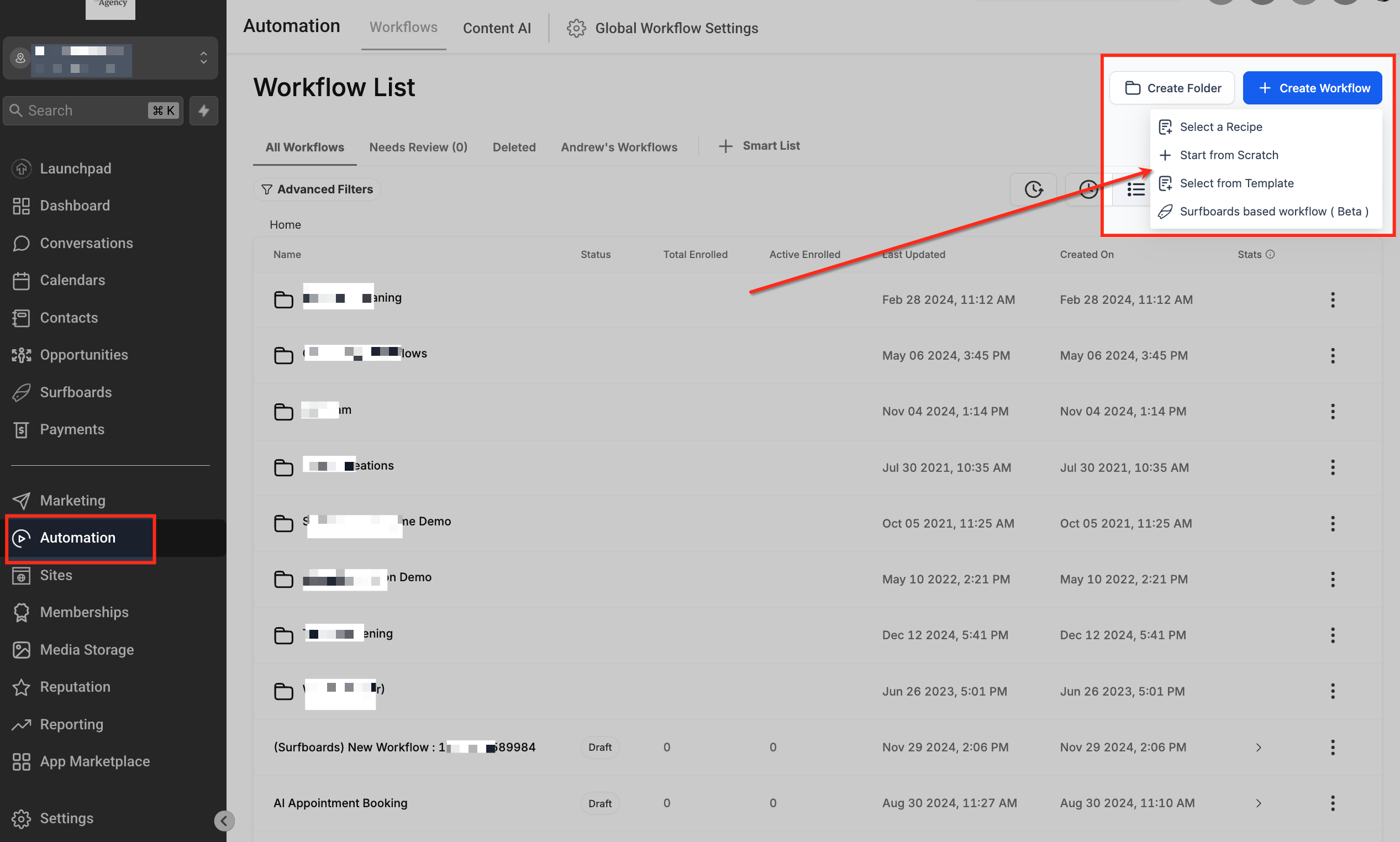
Open the Workflow Builder
Go to Automation → Workflows → Create Workflow (or open an existing workflow) to access the Workflow Builder canvas.
Add the Instagram Trigger
Click + Add Trigger and choose one of the following:
- Instagram Comment on Post – for when a follower comments on your Instagram post.
- Customer Reply (Instagram) – for when a contact sends or replies to a DM.
This is required in order to use the Instagram Interactive Messenger action. If another type of trigger is used, this action will remain unavailable.
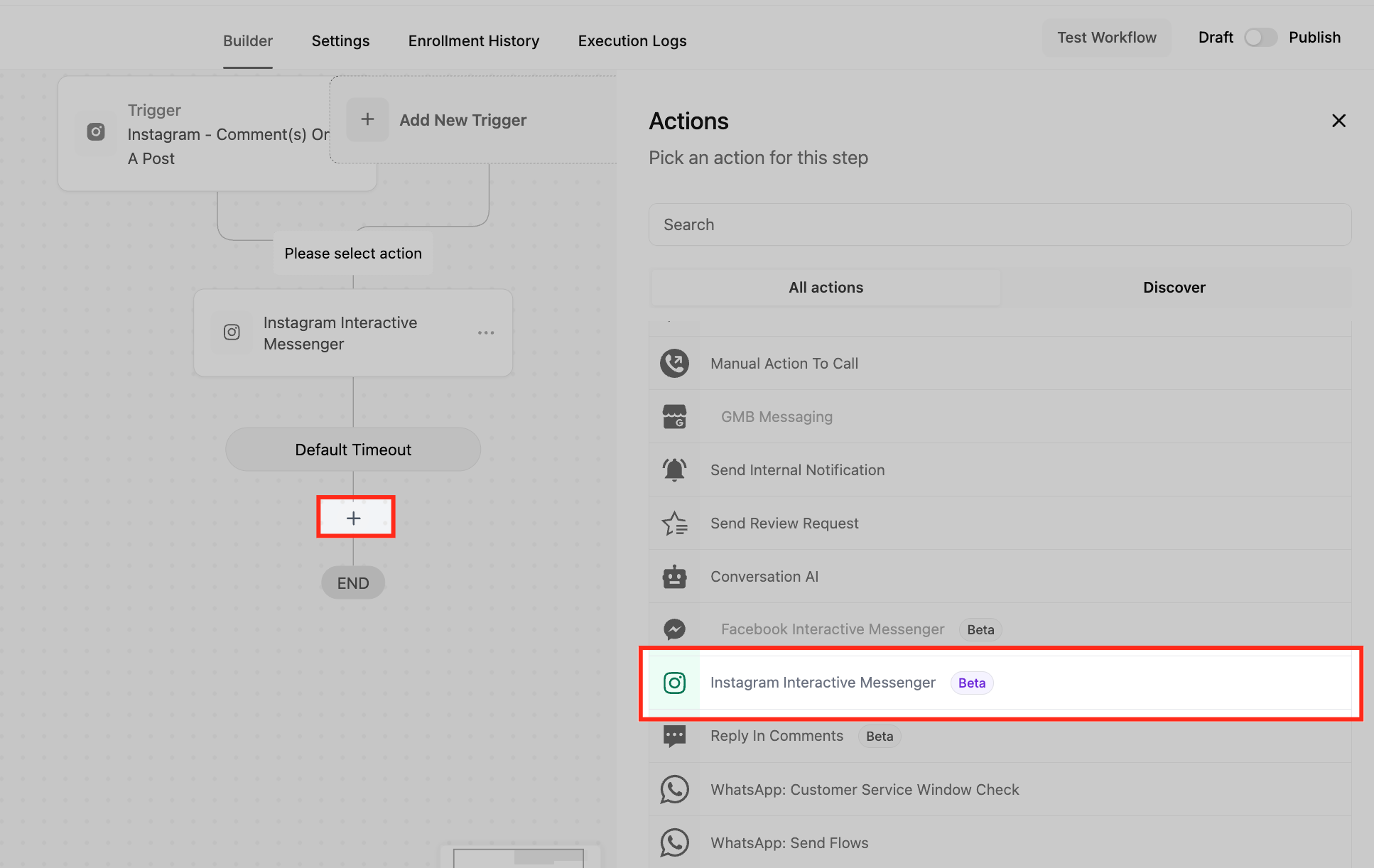
Place the Instagram Interactive Messenger Action
On the workflow canvas, click + where you want the message to send, then select Actions → Communication → Instagram Interactive Messenger.
Name the Action Clearly
In Action Name, give this step a descriptive label (e.g., “IG DM – Send Lead Magnet Prompt”) so it’s easy to find in complex workflows.
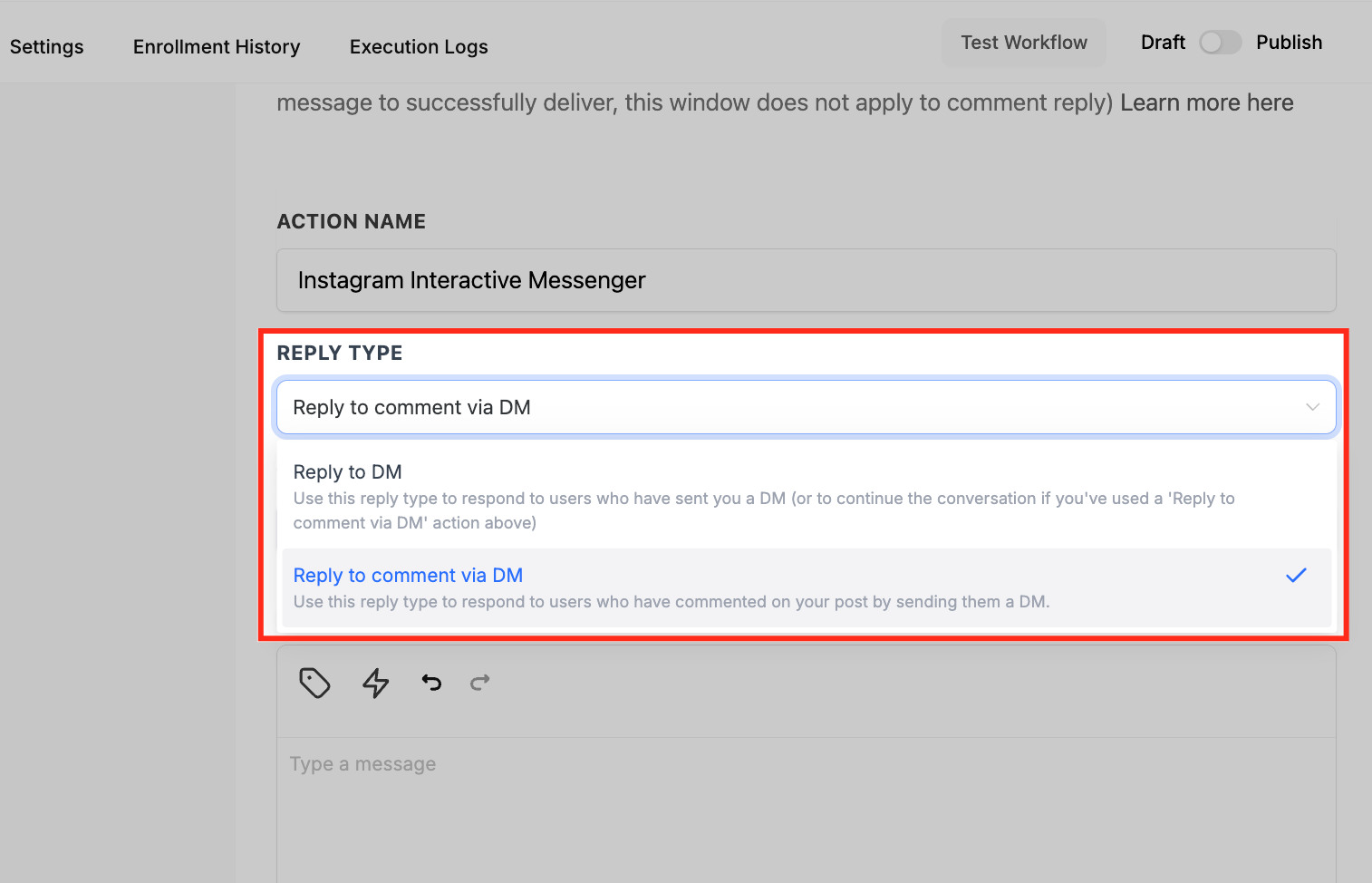
Choose the Reply Type
Under Reply Type, select:
- Reply to Comment via DM if the trigger is a new comment and you want to take the conversation private.
- Reply to DM if you’re responding to an incoming DM.
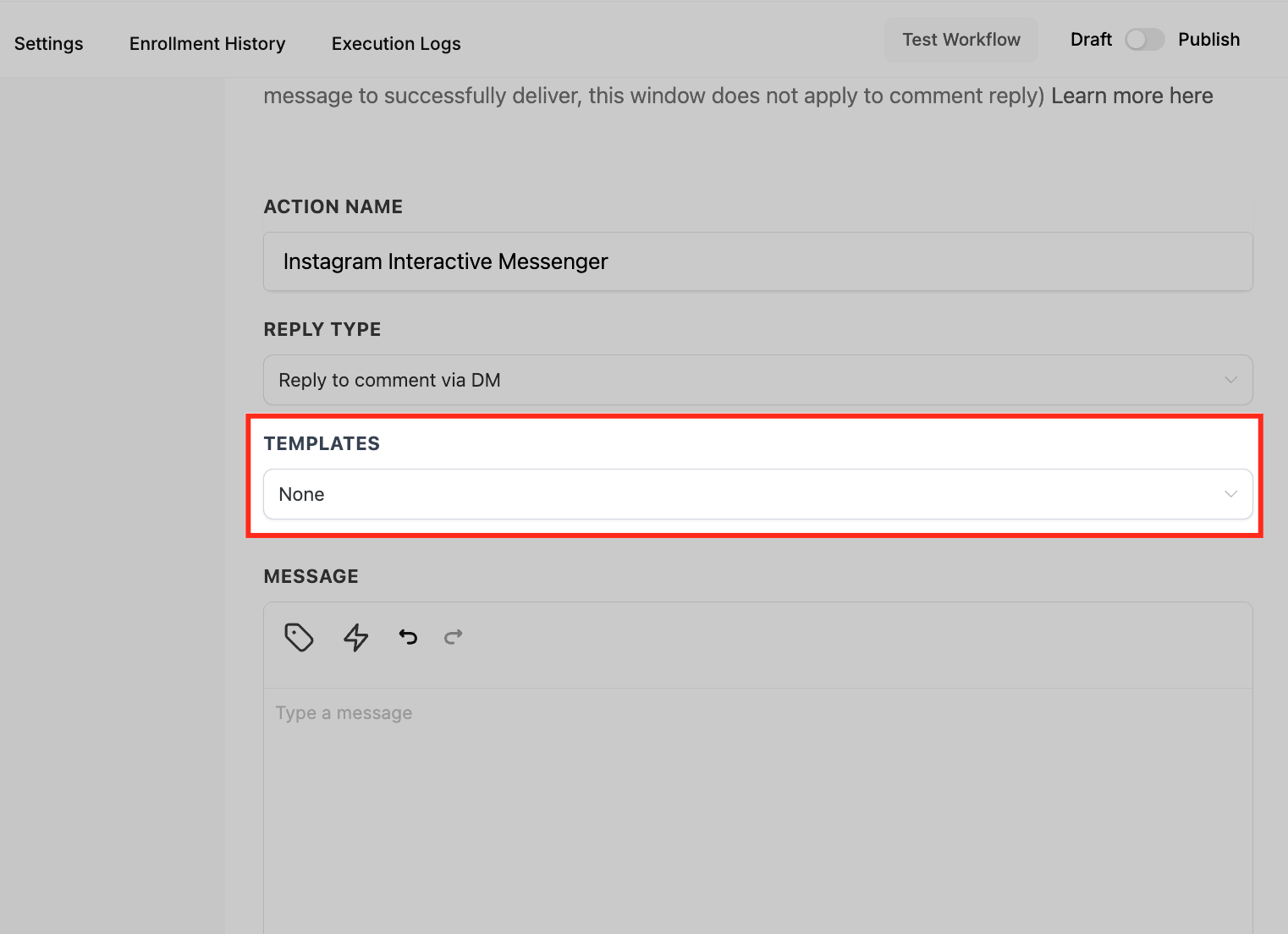
(Optional) Pull a Template
If you have reusable copy, choose Templates (Snippets) from Marketing → Snippets. This helps keep tone and compliance consistent across campaigns.
Compose the Message
In Message → Body, write your DM. Use Custom Values (from Settings → Custom Values) for personalization and Trigger Links (from Marketing → Trigger Links) to track clicks or route users to specific URLs.
Tip: Start with a short hook, then a single clear call-to-action. Keep messages concise to suit the DM format.Add an Attachment (If Needed)
Use Add Attachment to upload a file or Add file through URL to attach a hosted asset. Attachments are great for checklists or guides.
important: Quick Replies cannot be added when an attachment is included in the same message. If you need quick replies, skip the attachment here or send it in a later action.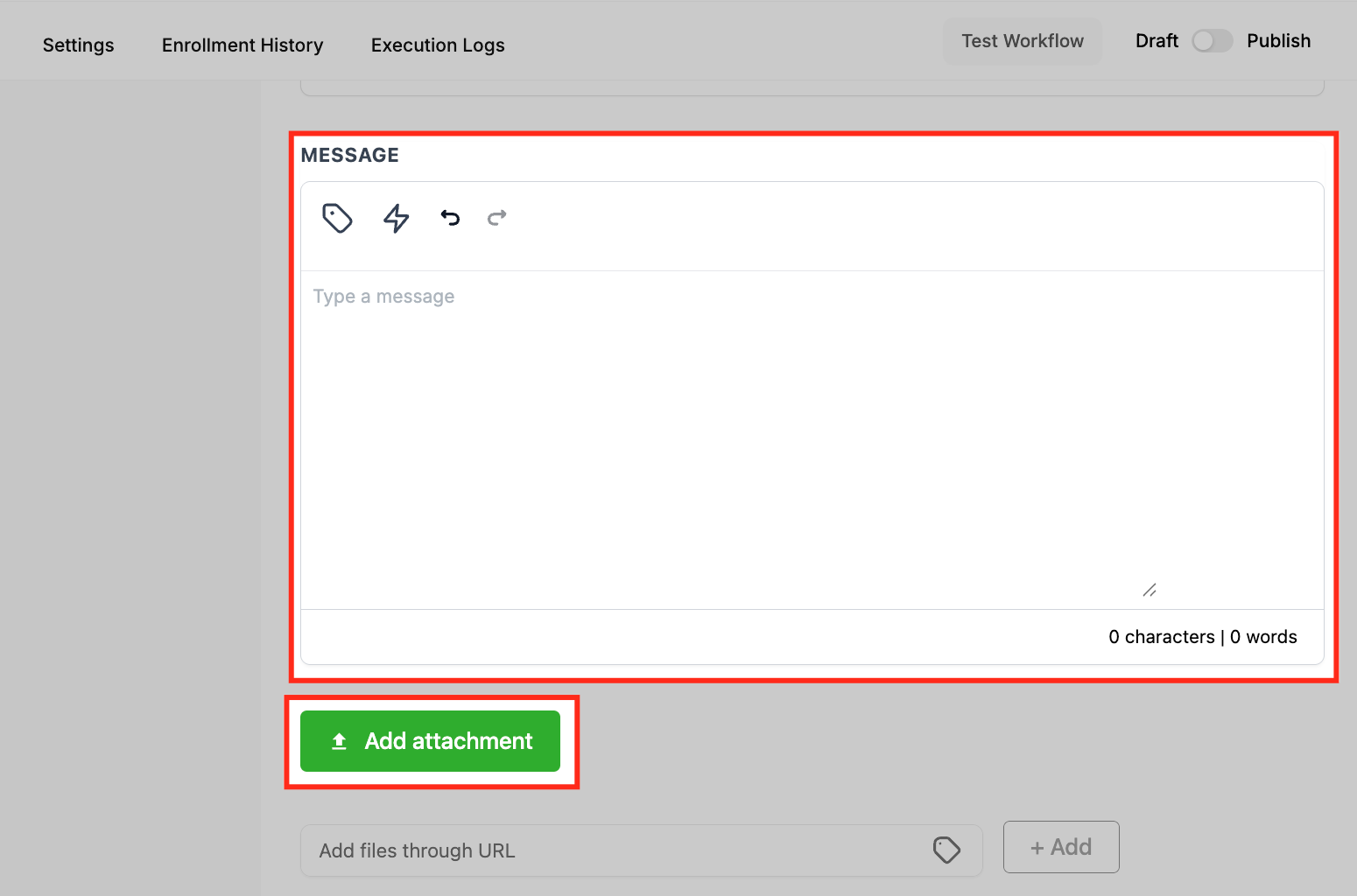
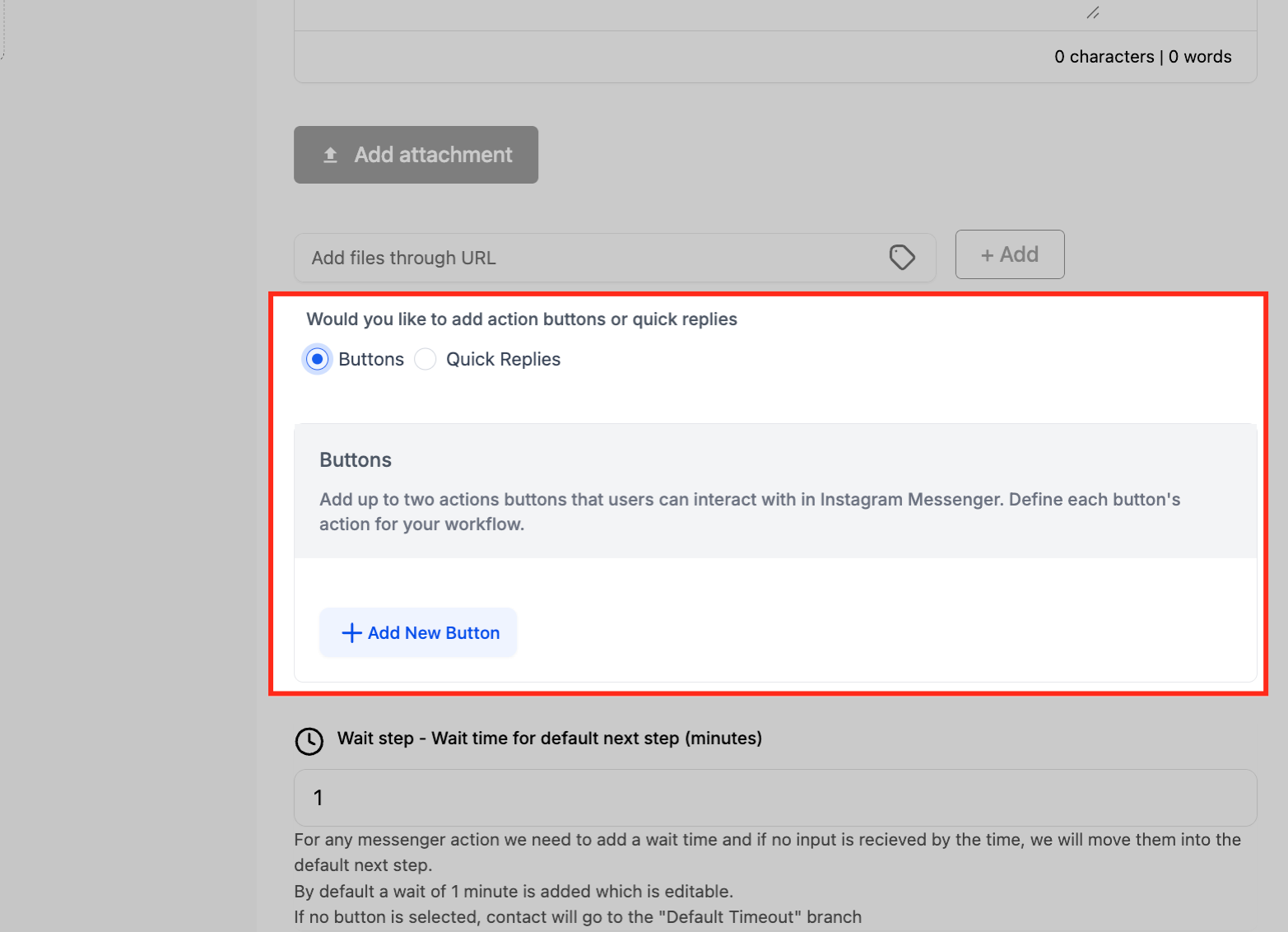
Add Interactive Controls: Buttons or Quick Replies
Choose one of the following for this message:
- Buttons: Buttons allow you to present persistent actions that remain visible in the conversation even after a user interacts with them. They’re ideal for driving specific outcomes such as opening a website, dialing a phone number, or branching into another part of your workflow. Use buttons when you want to give users durable options they can come back to later.
- Quick Replies: Quick Replies on the other hand, are designed for short, one-tap responses that disappear after the user makes a selection. They’re best for guiding conversations in real time—like asking whether someone wants a checklist, pricing info, or a demo. Quick replies keep the flow focused and lightweight, helping you capture intent without cluttering the user’s Instagram DM experience.
Tip: Use Buttons for durable, utility actions (e.g., “Book Call”, “Visit Site”). Use Quick Replies to ask targeted questions (“Yes/No”, “Pricing/Demo/Docs”).
Create and Configure Branches
When you add a Button (Perform Action) or a Quick Reply, the system automatically creates a workflow branch. Each branch represents the path a user will take if they click that specific option. Inside each branch, you can add further actions such as sending a follow-up message, applying a tag, updating a pipeline stage, or triggering another workflow. This branching logic is what makes the Instagram Interactive Messenger action dynamic, allowing you to build tailored experiences for each user choice.
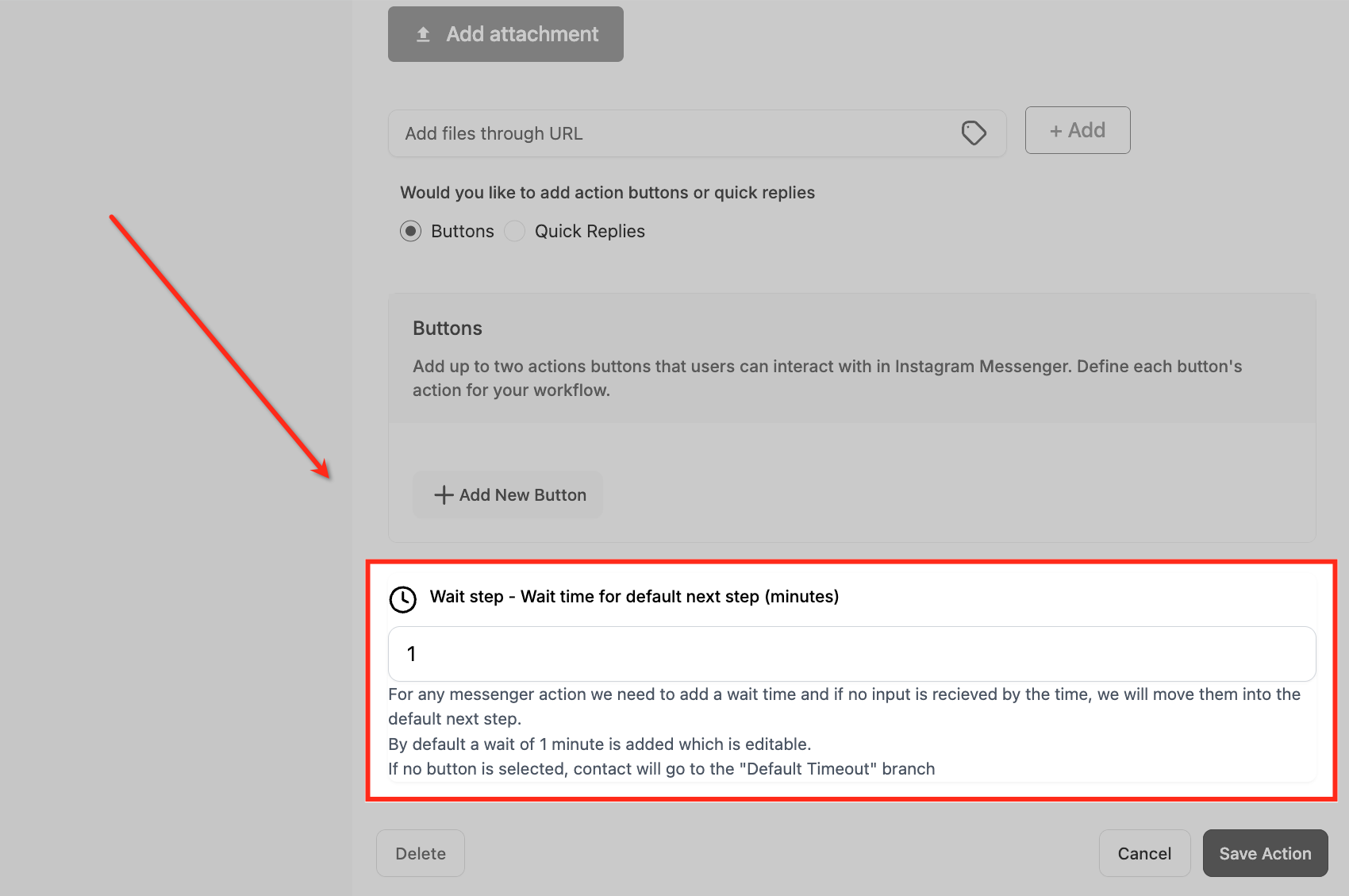
Set the Wait Time and Default Path
Every messenger action requires a Wait Step, which determines how long the system should pause while waiting for the user to click a button or select a quick reply. By default, this is set to 1 minute, but you can edit it to match your campaign needs—for example, a few minutes for quick offers, or several hours if you expect slower responses.
If the user doesn’t interact within the set time, they are automatically routed into the Default Timeout branch. This branch is useful for sending reminders, applying tags like “No Response,” or gracefully ending the conversation. Designing a thoughtful default path ensures no lead is lost, even if they don’t engage with your interactive elements.
Save, Publish, and Test
Click Save and Publish the workflow. Test by triggering the exact scenario (comment with the keyword or send a test DM). Verify:
The message sends with the right Reply Type
Buttons/Quick Replies behave as expected
Branch actions run properly
Monitor and Iterate
Track responses, clicks (via Trigger Links), and downstream conversions. Refine message copy, button labels, and branch logic based on performance. Small tweaks (e.g., fewer choices, clearer labels) often yield better outcomes.
Frequently Asked Questions
Q: Why is the Instagram Interactive Messenger action greyed out in my workflow?
This action only becomes available if your workflow uses an Instagram-specific trigger, such as Instagram Comment on Post or Customer Reply (Instagram). Without one of these triggers, you won’t be able to select this action.
Q: What’s the difference between Buttons and Quick Replies?
Buttons are persistent actions that remain visible in the conversation and can perform tasks like opening a website, dialing a number, or branching into another workflow path. Quick Replies are temporary options that disappear once selected, keeping the conversation focused and clean.
Q: Why do I need to set a Wait Step with this action?
The Wait Step ensures the system pauses to allow users time to interact with your buttons or quick replies. If no response is received in the set timeframe, the contact automatically moves into the Default Timeout branch, so no lead is left hanging.
Q: Are there any limitations I should be aware of?
Yes. Instagram follows Meta’s 24-hour messaging rule, meaning you can only send automated DMs within 24 hours of the last user interaction. Additionally, you cannot include Quick Replies in the same message when attachments are present.