
Create Website QR Codes That Follow Page Changes
Chat To Clients CRM lets you create QR codes for website pages without manually entering URLs. Generate a QR code directly from the Website Builder or select a website and page in the QR Code Builder. Website QR codes stay connected to their destination even when the page slug or domain changes.
Table of Contents
- What Are Website QR Codes?
- Key Benefits of Website QR Codes
- Prerequisites and Limitations
- How to Create Website QR Codes
- Manage and Customize Website QR Codes
- Frequently Asked Questions
- Related Articles
What Are Website QR Codes?
Website QR codes link directly to specific Chat To Clients CRM website pages rather than fixed URLs. They allow businesses to share website pages through printed materials and digital channels while automatically maintaining the correct destination after page slug or domain changes.
Key Benefits of Website QR Codes
Website QR codes simplify page sharing and provide flexible customization options.
- One-click creation: Generate QR codes directly from the Website Builder.
- Automatic destination updates: QR codes continue opening the correct page after slug or domain changes.
- No manual URL entry: Select a website and page directly in the QR Code Builder.
- Custom branding: Personalize colors, shapes, logos, and backgrounds.
- Flexible sharing: Download as PNG, SVG, or PDF, or use Add to Wallet.
Prerequisites and Limitations
To generate a QR code from the Website Builder, the website must have a connected domain.
Important: The original QR type labeled Website has been renamed URL. Existing QR codes continue working as before. The new Website type links directly to selected Chat To Clients CRM website pages.
How to Create Website QR Codes
Create a QR code from the Website Builder for the current page or use the QR Code Builder to select a website and page.
Method 1: From the Website Builder
Generate a QR code for the page you are editing without manually selecting its destination.
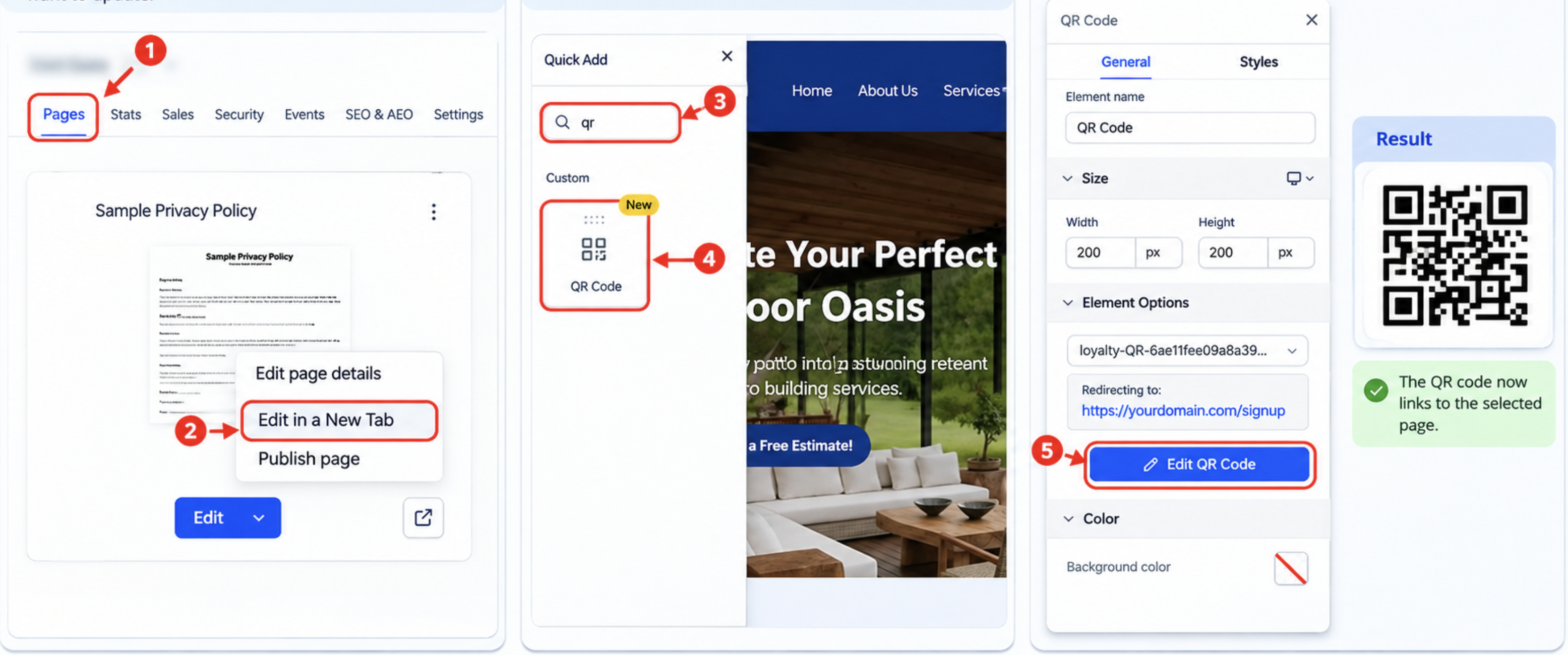
- From your Sub-Account view, navigate to Sites → Websites.
- Open a website with a connected domain.
- Select Pages, choose your page, and click Edit Page.
- Click the QR code icon beside the page URL.
- In the QR code window, select Download to export as PNG, SVG, or PDF. Alternatively, click Edit QR to open Step 3 of the QR Code Builder for customization.
- Scan the QR code to verify that it opens the correct page.
Method 2: From the QR Code Builder
The Website QR type lets you select a destination directly without copying or pasting a URL.
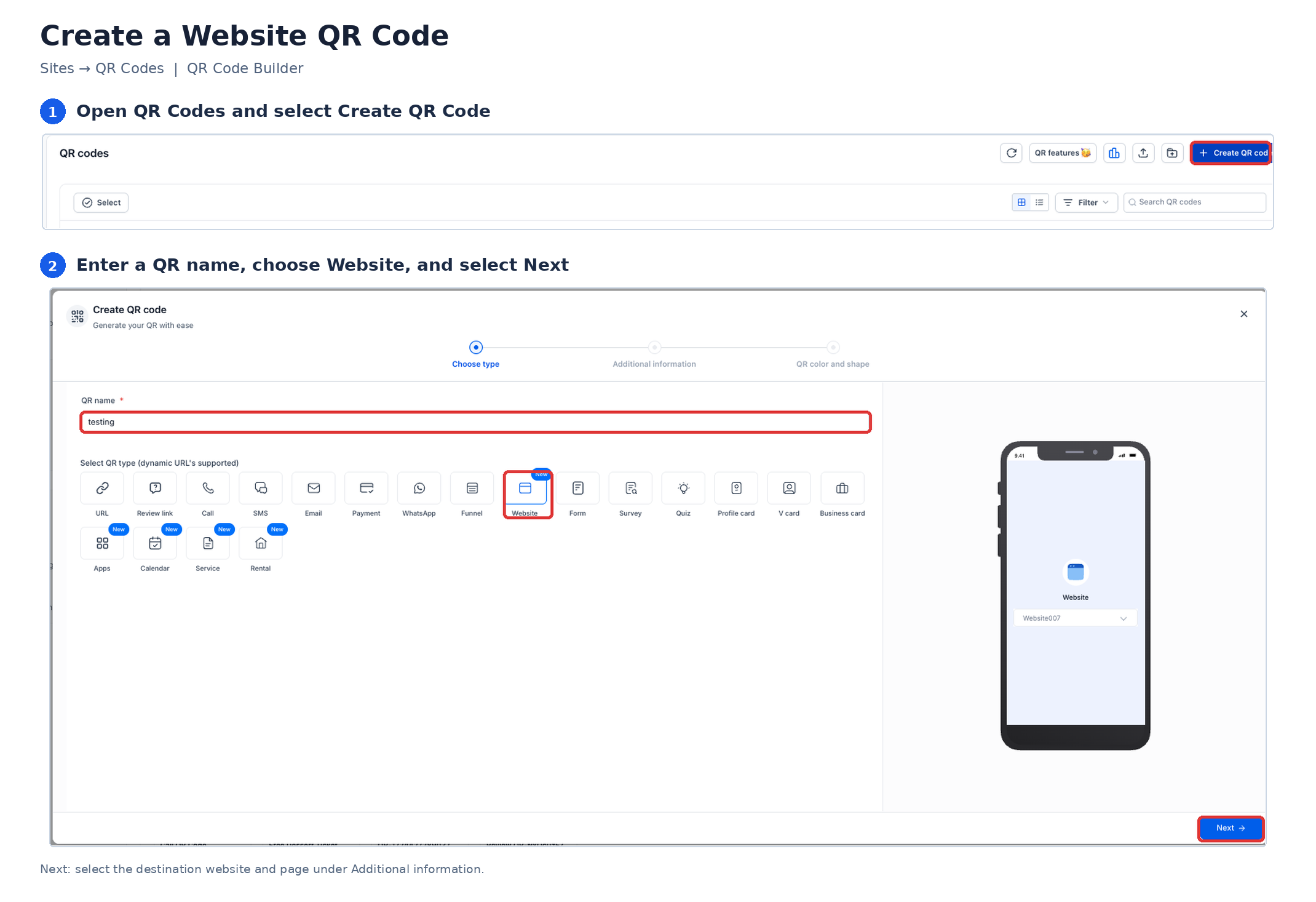
- From your Sub-Account view, navigate to Sites → QR Codes.
- Click Create QR Code.
- Enter a QR name, select the new Website type, and click Next.
- Under Additional information → Content, select your Website and Page from the drop-down.
- Click Next.
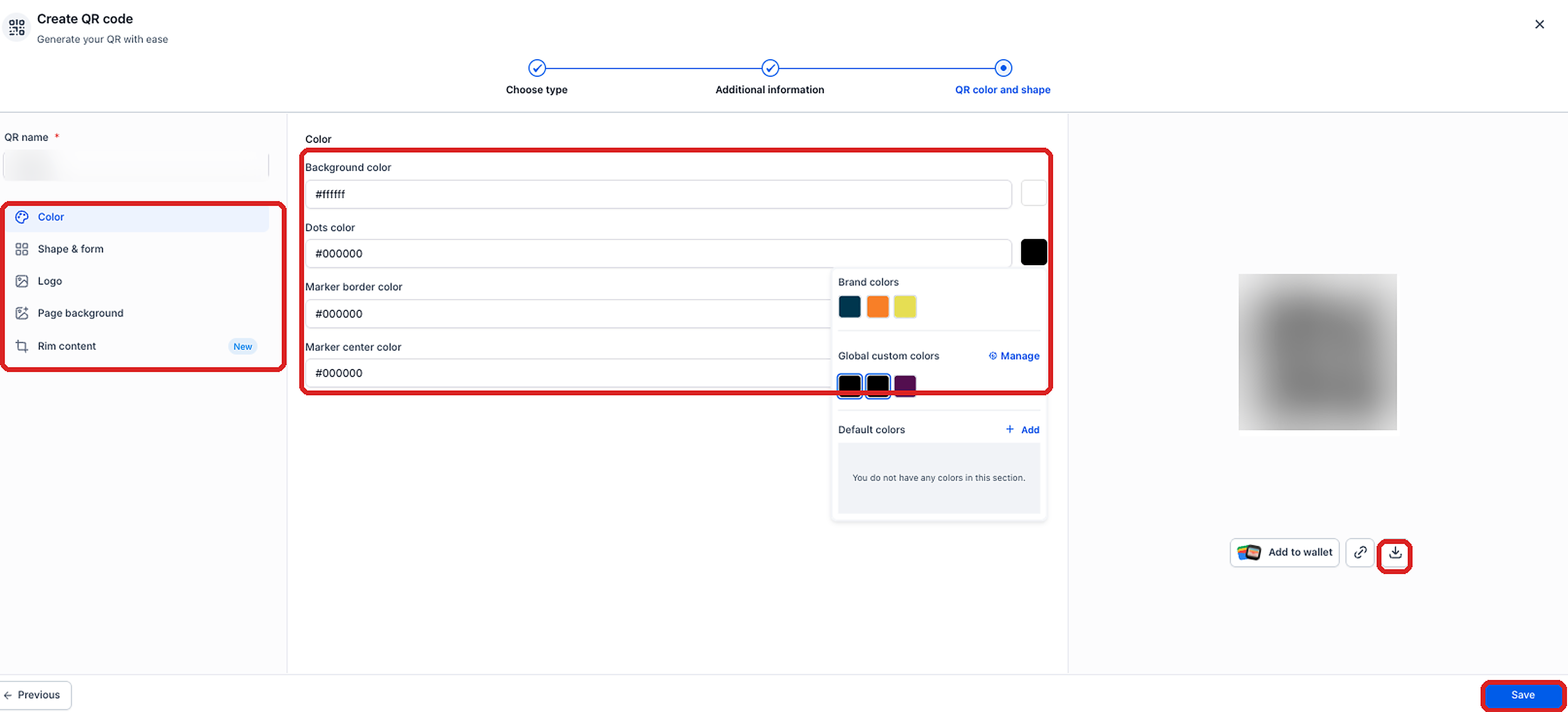
- Under QR color and shape, customize the appearance of your QR code.
- Click Save, then download the QR code in your preferred format.
Manage and Customize Website QR Codes
Website QR codes can be edited, downloaded, saved to a digital wallet, and filtered from the QR Codes library.
Customize an Existing QR Code
You can update a saved QR code's appearance to match your branding without recreating the code.
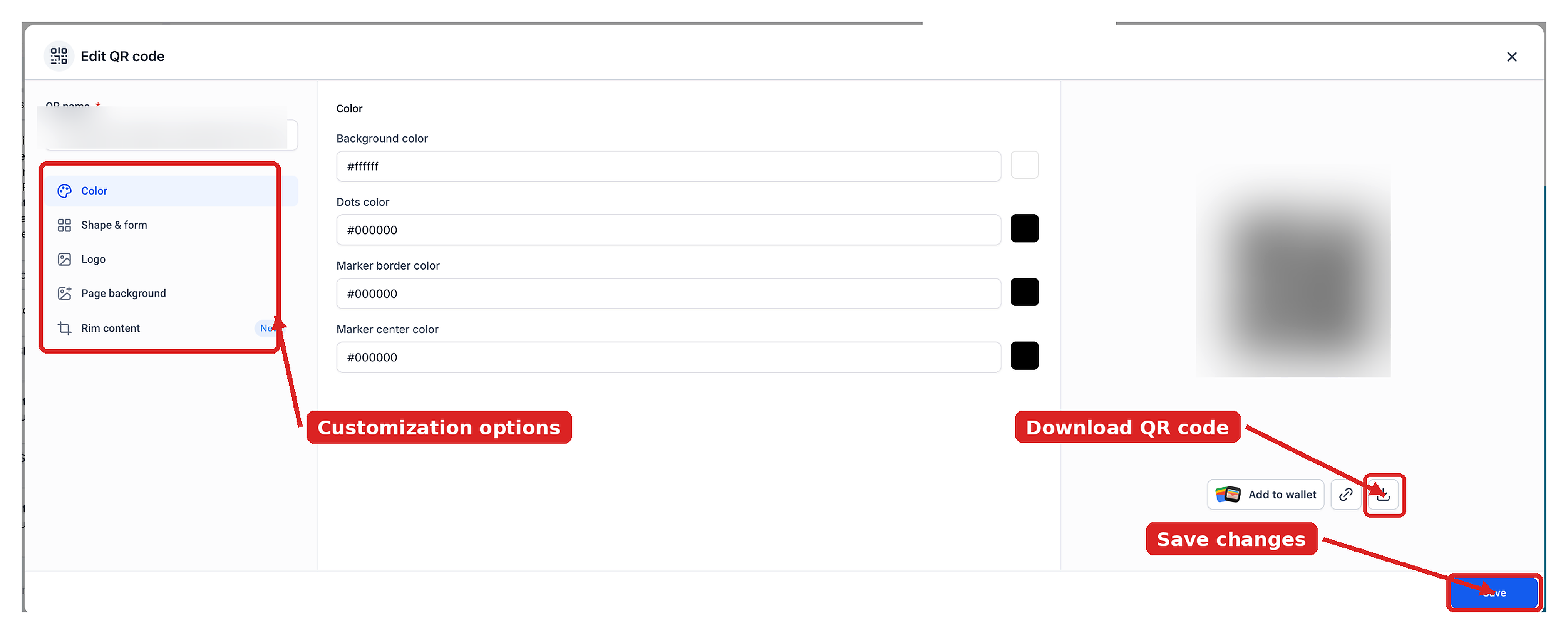
- From your Sub-Account view, navigate to Sites → QR Codes.
- Locate your website QR code and click Edit.
- Customize the available settings: Color, Shape & form, Logo, Page background, and Rim content.
- Click Save.
Additional Management Options
The QR Codes library provides options for keeping codes accessible and sharing them with your audience.
- Add to Wallet: Open the QR code editor and click Add to Wallet below the preview. The wallet pass displays the Website and Page names.
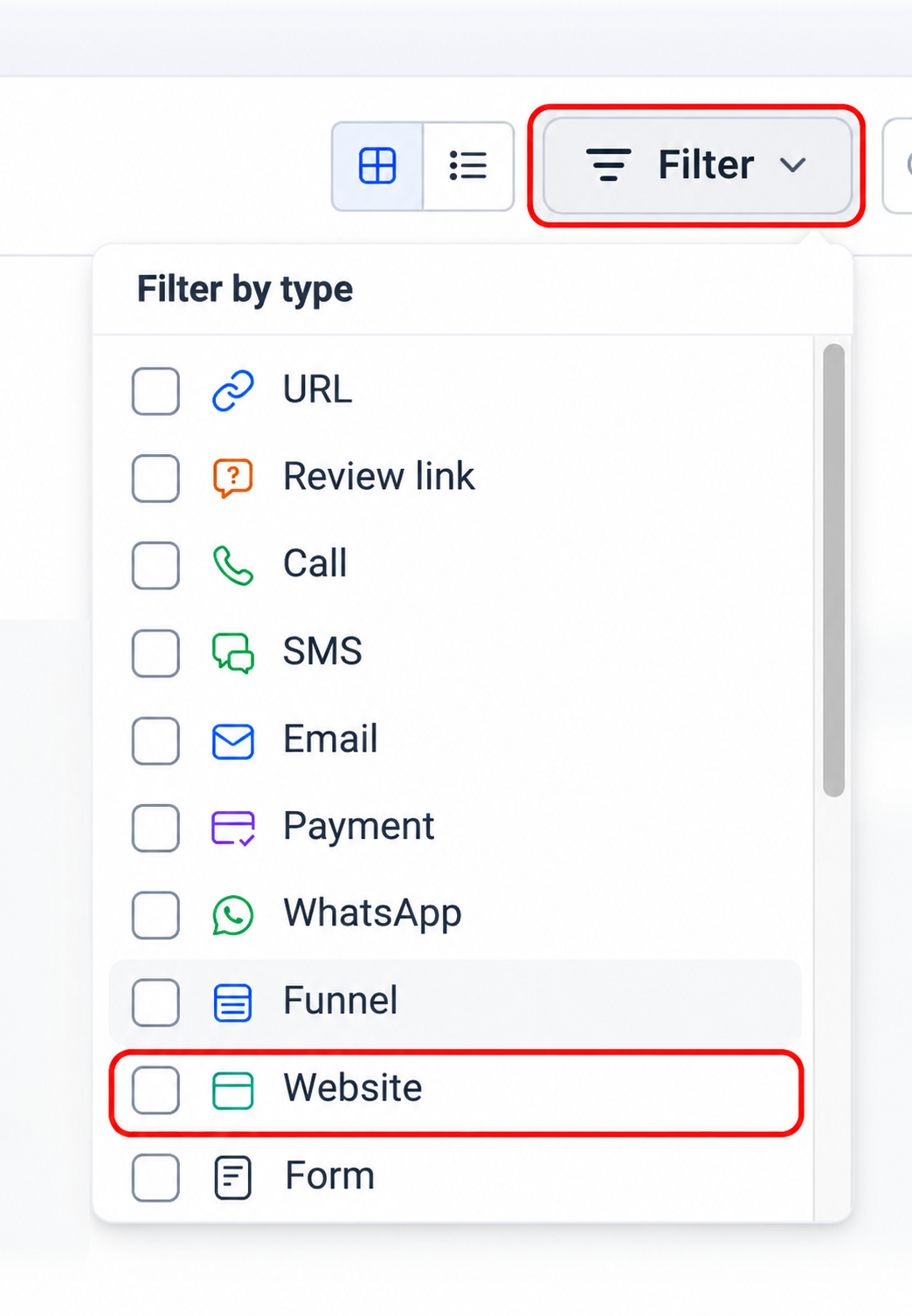
- Filter Website QR codes: Navigate to Sites → QR Codes, click Filter, and select Website to view website-specific QR codes.
- Share a QR code link: Use the available copy-link option to share a QR code without downloading its image.
Frequently Asked Questions
Q: Can I still create a QR code for a manually entered URL?
Yes. Select the URL QR type. This is the previous Website QR type, renamed in the new release.
Q: Can I create a QR code for a funnel page?
Yes. Select the Funnel QR type instead of Website.
Q: Can I share a QR code without downloading the image?
Yes. Use the copy-link option from the QR code window or QR Codes library.
Q: Can I access a saved wallet pass offline?
Yes. The wallet pass can be viewed offline, but opening the linked website may require an internet connection.