
How to Share Email Templates Across Agencies in Chat To Clients CRM
Sharing email templates in Chat To Clients CRM makes it easy to reuse professionally designed emails across agencies and sub-accounts without rebuilding them from scratch. With a shareable link, authorized users can distribute templates and allow recipients to clone them into selected locations. This helps teams maintain consistent branding, streamline campaign creation, and collaborate more efficiently. Learn how to share, import, and customize email templates using Chat To Clients CRM's built-in sharing functionality.
TABLE OF CONTENTS
- What is Email Template Sharing in Chat To Clients CRM?
- Key Benefits of Email Template Sharing
- Email Template Sharing Permissions
- Email Template Sharing Options
- How to Share an Email Template in Chat To Clients CRM
- How to Import a Shared Email Template
- Frequently Asked Questions
- Related Articles
What is Email Template Sharing in Chat To Clients CRM?
Email Template Sharing allows authorized Chat To Clients CRM users to distribute reusable email designs through a shareable link. Instead of exporting HTML files or manually recreating an email layout, recipients can import a copy of a shared template into a selected sub-account.
Shared email templates retain their reusable design structure and can be customized in the destination account. This makes sharing particularly useful for agencies that manage multiple client accounts, collaborate with other teams, or distribute standardized email designs.
The process consists of three main actions:
Share: Generate a link for an existing email template.
Import: Open the shared link and clone the template into selected sub-accounts.
Customize: Access the imported template and update its content, design, or branding as needed.
Important: Email Marketing template sharing is different from sharing assets through the agency's Admin Template Library. For instructions on the separate Template Library workflow, see Steps for Agency A to Share Templates Effectively with Agency B.
Key Benefits of Email Template Sharing
Reusing templates helps agencies save time while maintaining consistent messaging across client accounts. Rather than designing the same email repeatedly, teams can distribute an existing design and customize it for different audiences or business requirements.
Faster Template Distribution: Share existing email designs using a link instead of manually recreating them in multiple accounts.
Consistent Branding: Maintain standardized layouts, design elements, and messaging across agency teams and client locations.
Editable Templates: Customize imported templates directly in the Chat To Clients CRM email editor without downloading HTML files.
Improved Collaboration: Distribute approved email designs to authorized users and teams.
Simplified Template Management: Maintain reusable email designs that can be imported and adapted for different clients.
Reduced Setup Time: Give teams a ready-made starting point for building email campaigns.
Email Template Sharing Permissions
Sharing permissions determine who can distribute templates and who can access them through a shared link. Understanding these permissions helps prevent unauthorized distribution and ensures the intended recipients can use the template successfully.
According to the original Email Template Sharing documentation, agency admins and agency users can initiate the sharing process.
The following permissions are relevant:
Agency Admin: Can share email templates using the documented sharing workflow.
Agency User: Can share email templates using the documented sharing workflow.
Account Admin: Identified as an eligible role in Chat To Clients CRM's white-label email template sharing documentation.
Account/Location User: The white-label sharing guide states that the Share action is unavailable to this role.
Important: The ability to generate a sharing link should not be confused with the ability to open a shared link and import a template. Import access may depend on the recipient's role, destination account access, and sharing settings.If the Share option is unavailable, verify the user's assigned role and access permissions.Email Template Sharing Options
Chat To Clients CRM provides access settings that control how an email template can be shared. Choosing the appropriate option helps agencies distribute templates to their intended audience while limiting unintended access.
The original sharing workflow documents two access choices:
Anyone within the agency: Intended for sharing with users within the agency, subject to their applicable access permissions.
Anyone with the link: Intended for link-based distribution, allowing eligible recipients to access the shared template through its URL.
The access option you choose should reflect the intended audience. For internal template distribution, use the agency-restricted option when appropriate. For external collaboration, select the link-based sharing option if it is available and suitable for the recipients.
How to Share an Email Template in Chat To Clients CRM
Sharing starts with an existing template in Email Marketing. Selecting the correct template and configuring its access settings ensures recipients receive the intended design and can open the sharing link successfully.
Follow these steps to generate and distribute an email template share link.
In Chat To Clients CRM, open the appropriate account and navigate to Marketing → Emails (Email Marketing) → Templates.
Locate the email template you want to share.
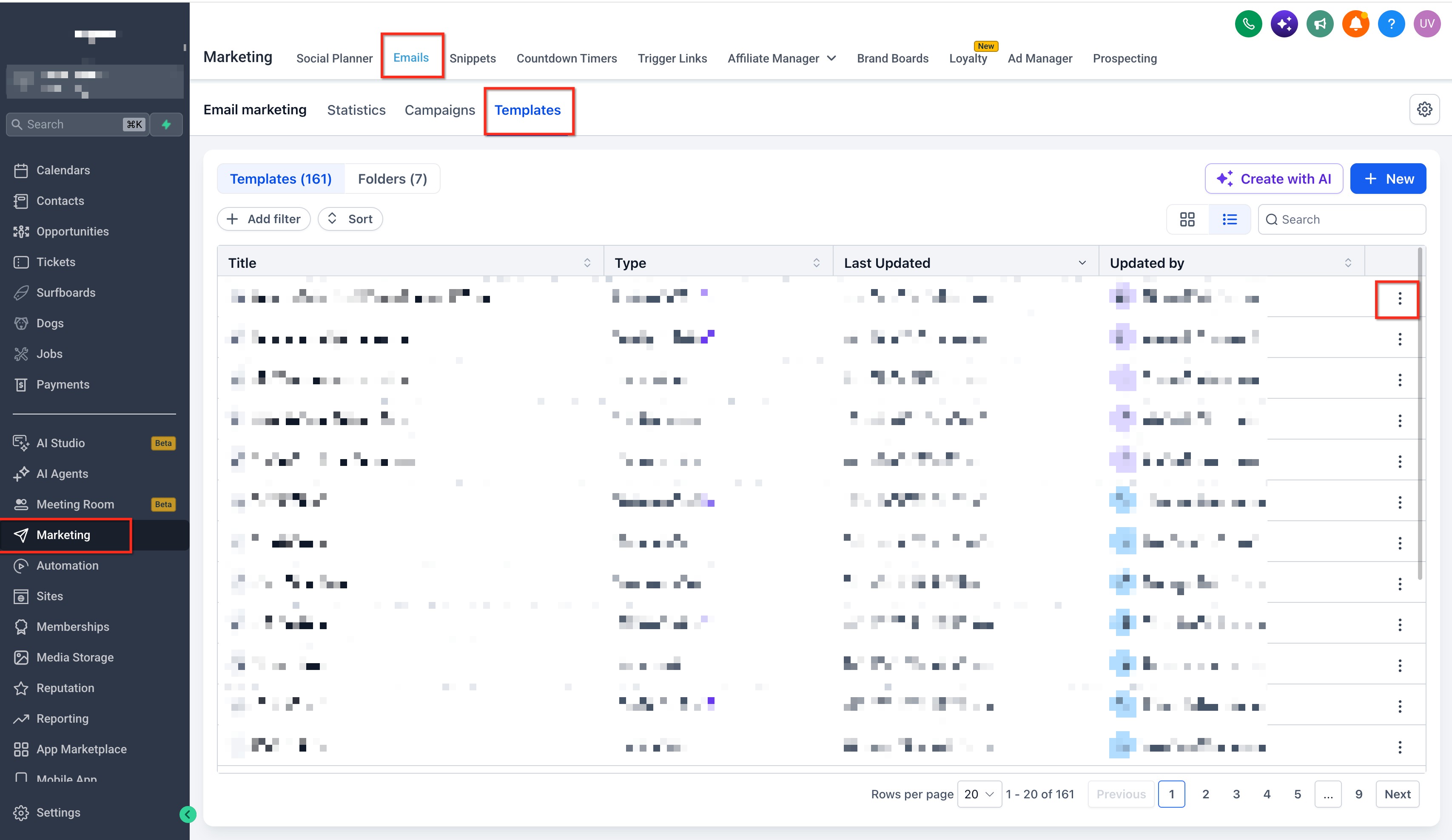
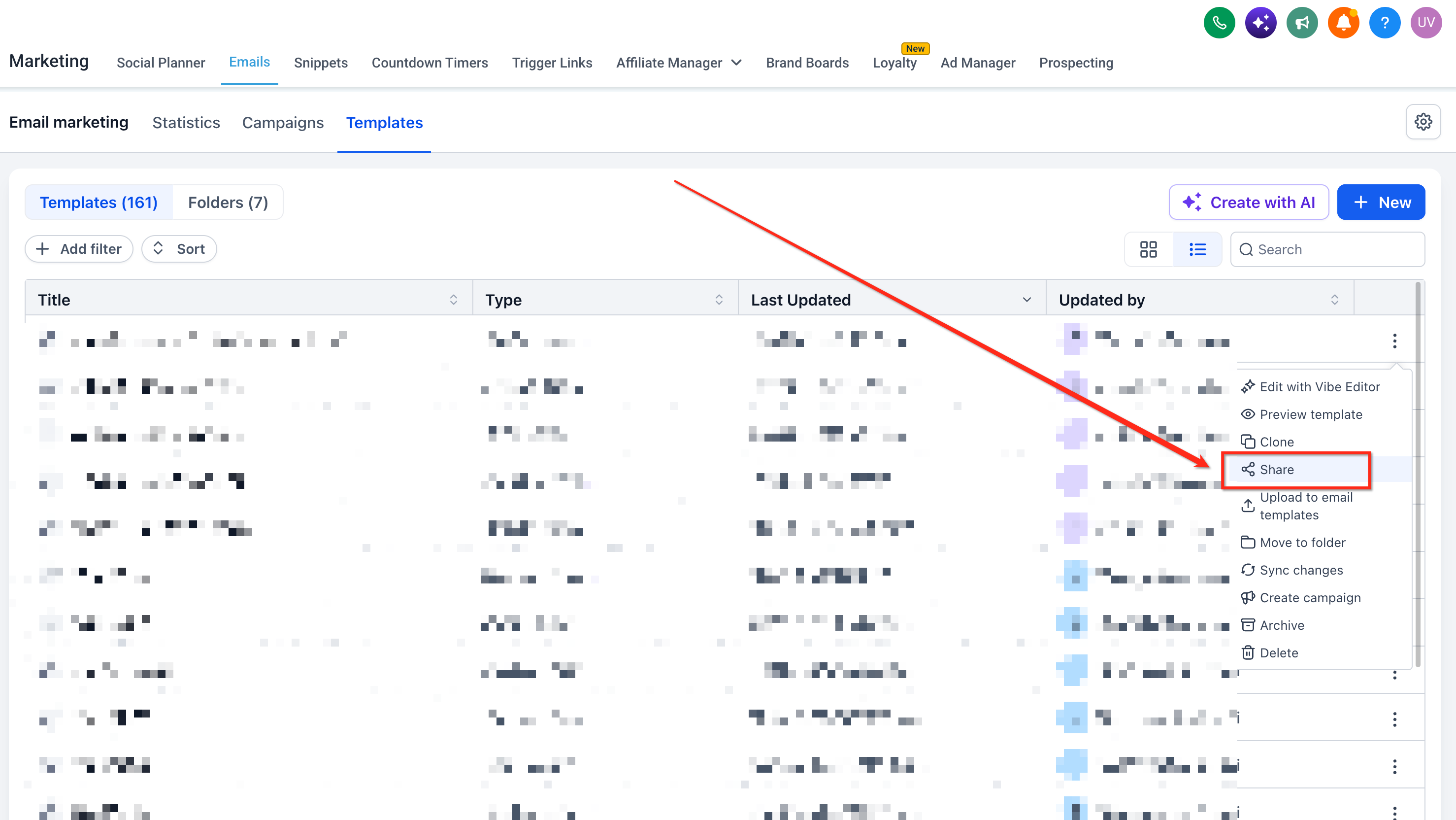
Find the template you want to distribute. Click the three-dot menu (⋮) next to the template and select Share.
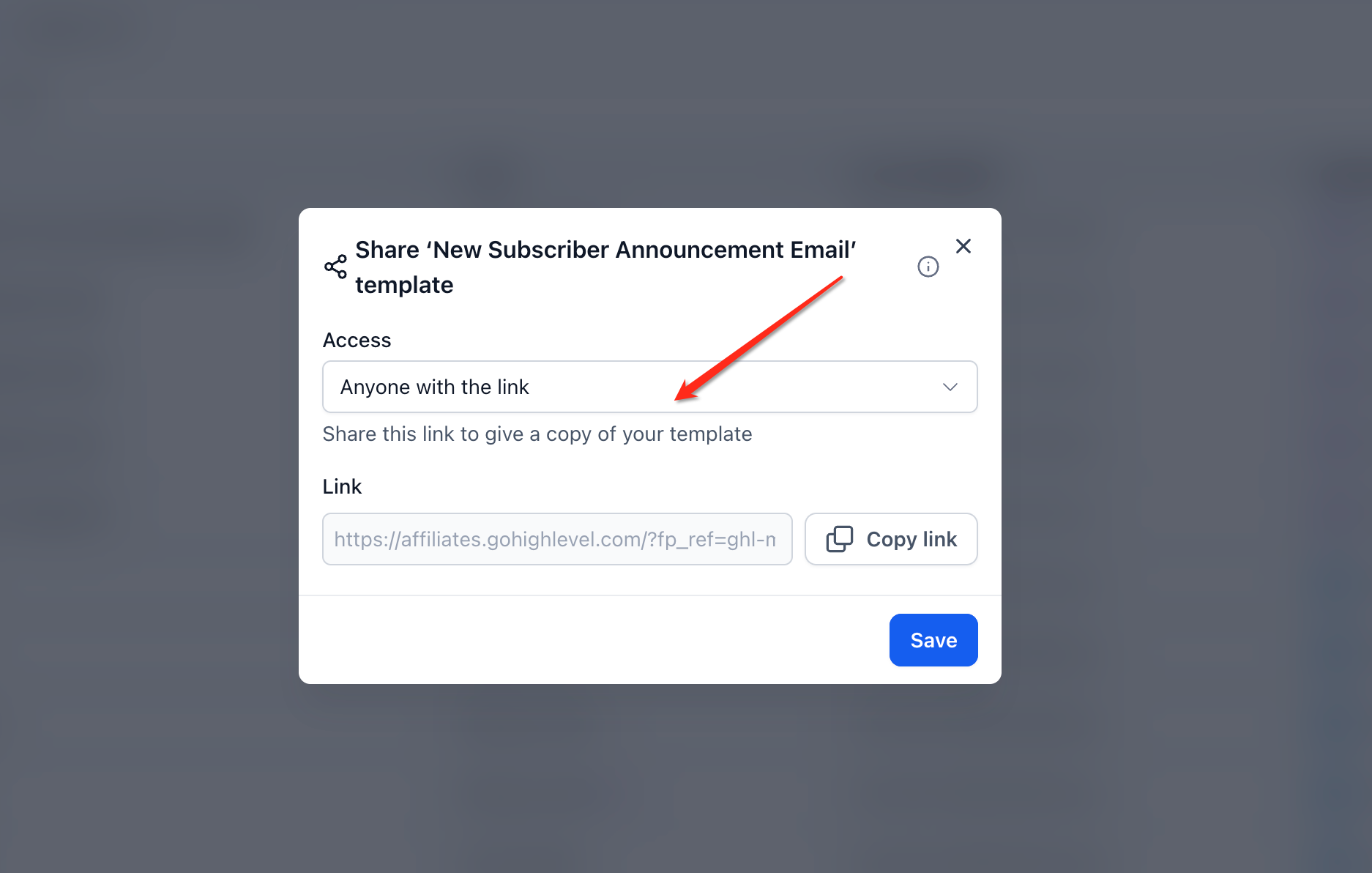
Configure Sharing Access. Review the sharing settings in the Share dialog. Choose the available option that matches your intended recipients, such as:
Anyone within the agency
Anyone with the link
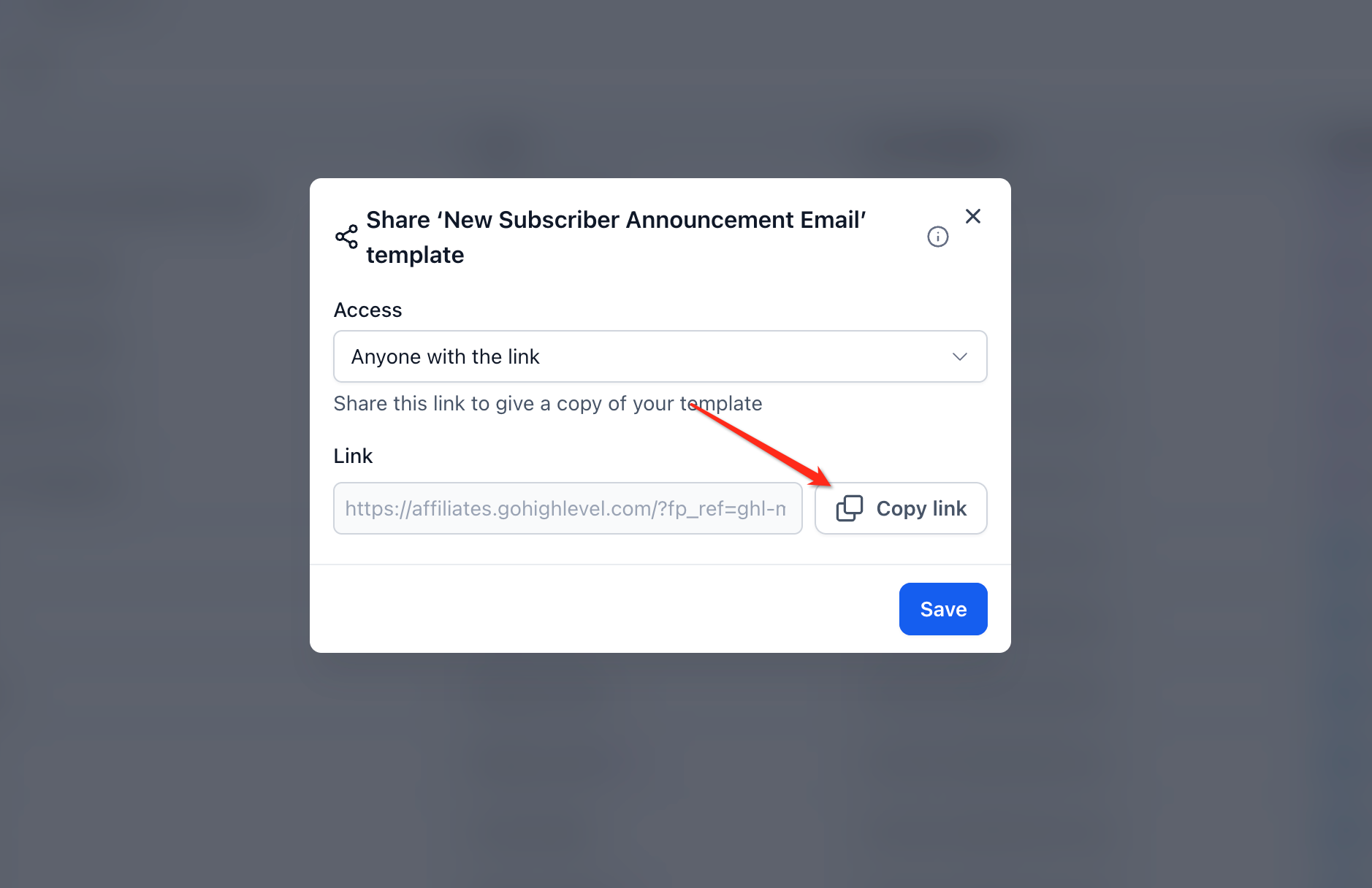
Once the sharing settings are configured, copy the generated template link.
Send the link to the intended recipient using email, messaging, or another preferred communication channel. The recipient can use the link to access the shared template and begin the importing process.
Tip: Include the template name and a brief description when distributing the link, especially if sharing several templates with the same team.
How to Import a Shared Email Template
Importing creates a copy of the shared email design in the destination sub-account. Selecting the correct destination is important because the imported template will appear in that account's template list.
Follow these steps to import an email template from a shared link.
Copy the email template sharing URL provided by the sender. Paste the link into your browser and open it. If prompted, sign in to Chat To Clients CRM with an account that has the necessary access.
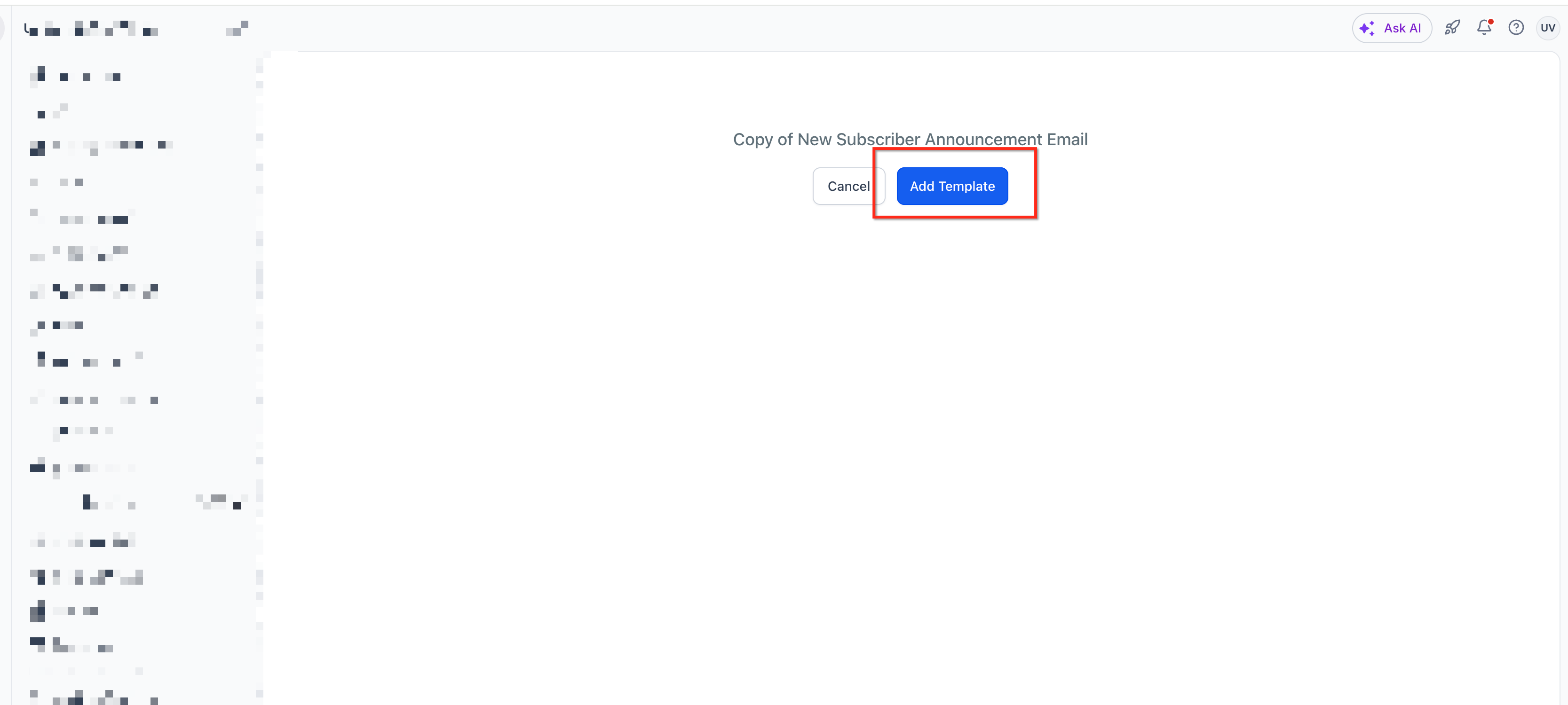
The shared template page displays the option to import the template. Click Add Template to proceed.
In the cloning dialog, review or update the template name. Choose a descriptive name that helps users identify the template after importing it. For example, a generic template named "Welcome Email" could be renamed "New Client Welcome Email."
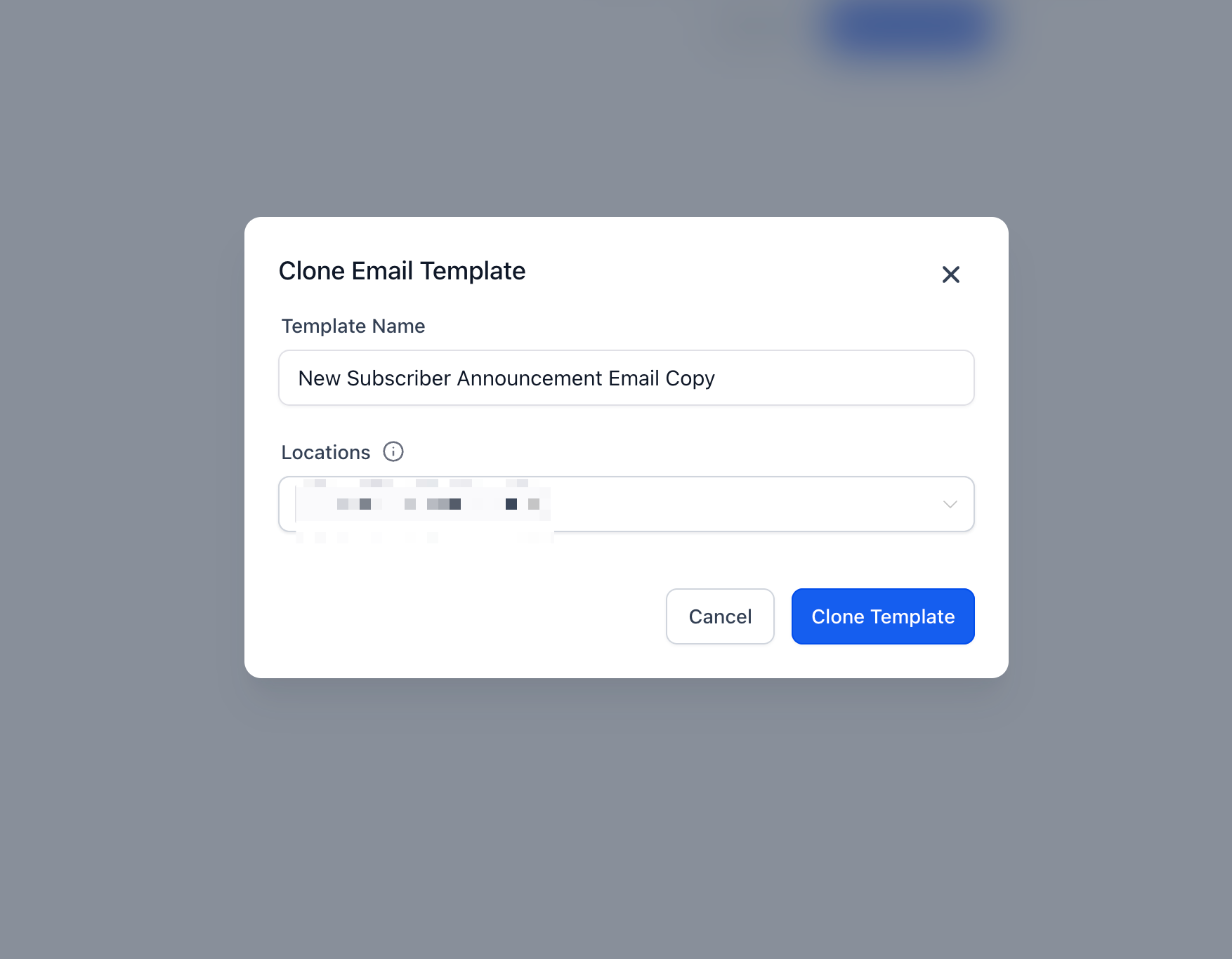
Select the location or sub-account where the template should be cloned. The original sharing documentation describes the ability to select up to three locations during the cloning process.
Note: The three-location limit is documented in the original article and should be confirmed against the current product interface before publication.After cloning, the original documented workflow redirects the user to the Templates area of the first selected location. Find the imported email template in the destination account's template list.
Tip: When importing into more than one location, visit each selected account to confirm that the template is available.
Frequently Asked Questions
Q: Why don't I see the Share option for an email template?
The Share option may be unavailable because of your assigned user role or account access. The original sharing article documents agency admins and agency users as authorized to share templates. Check your permissions with your agency administrator if the option does not appear.
Q: Can I share an email template with someone outside my agency?
Chat To Clients CRM documents a link-based access option and separately supports sharing between agencies through the Admin Template Library. For Email Marketing templates, review the available sharing settings and confirm that the intended recipient has the appropriate access.
Q: What happens if someone forwards my email template sharing link?
Anyone receiving the URL may attempt to open it. Their ability to use the template depends on the link's configured access settings and applicable permissions. Select the appropriate sharing option and distribute the link carefully.
Q: Can I import the same shared template into more than one sub-account?
The original documentation describes selecting multiple destination locations during cloning, with a documented limit of three locations per operation. The current limit should be confirmed in the product interface.
Q: Will editing an imported template change the original template?
The sharing workflow creates a cloned copy. The original documentation does not establish ongoing synchronization between templates cloned across sub-accounts. For that reason, users should not expect edits to the imported copy to update the original automatically.
Q: Can I share an email template without exporting an HTML file?
Yes. Chat To Clients CRM's built-in email template sharing workflow uses a shareable link and allows recipients to import the design into their accounts. Exporting the HTML file is not required for this workflow.
Q: Can I use my agency's branded domain for email template sharing links?
Yes. Chat To Clients CRM documents a white-label sharing method that uses a template Share ID and the agency's white-labeled domain. See the dedicated white-label sharing guide for setup instructions.