
Whitelabel Email Template Sharing: Step-by-Step Guide
White-Labeled Email Template Sharing allows agencies to share email templates through custom-branded URLs instead of standard Chat To Clients CRM share links. Recipients can open these links and import reusable email templates into their sub-accounts without rebuilding the designs. Using your agency's white-label domain helps maintain a consistent branded experience when sharing templates with clients or team members.
This guide explains how to generate a share link, convert it into a branded URL, and import the template.
TABLE OF CONTENTS
- What is White-Labeled Email Template Sharing?
- Key Benefits of White-Labeled Email Template Sharing
- Understanding Email Template Share Links
- How to Set Up White-Labeled Email Template Sharing
- Frequently Asked Questions
- Related Articles
What is White-Labeled Email Template Sharing?
White-Labeled Email Template Sharing uses an existing email template's Share ID to create a URL that opens through your agency's configured white-label application domain. The URL directs recipients to the shared template, where they can add a copy to an eligible destination sub-account.
For example, a standard email template sharing link might look like this:
The same template can be shared using a branded URL such as:
https://app.yourdomain.com/emails/share/6438b5b145411d0ce4332f1b
Both links reference the same shared email template. The branded version uses your agency's application domain.
Key Benefits of White-Labeled Email Template Sharing
Sharing email templates through your agency's branded domain makes it easier to distribute reusable email designs while maintaining a consistent client-facing experience. Instead of manually recreating campaigns or distributing HTML files, authorized users can share editable templates through a link.
Consistent Agency Branding: Display your agency's white-label application domain in shared template links for a more cohesive branding experience.
Simplified Template Distribution: Share reusable email templates with eligible users through a link instead of rebuilding the template in each sub-account.
Faster Template Reuse: Allow recipients to import existing email designs and customize them for their own campaigns.
Editable Email Templates: Recipients can work with imported templates in the Chat To Clients CRM email editor instead of relying on static HTML files.
Flexible Sharing Permissions: Use available sharing access settings to control who can open a shared template link.
Reduced Manual Work: Reuse existing layouts, designs, and content across eligible sub-accounts to minimize repetitive setup.
Understanding Email Template Share Links
Email template share links contain a unique identifier called a Share ID. This identifier tells Chat To Clients CRM which template the recipient should open. Understanding how the Share ID fits into the branded URL helps you create accurate links without changing the original template.
Standard Email Template Share Link
A standard generated link may look like:
The email_template_share= parameter identifies the shared email template.
In this example, the Share ID is:
6438b5b145411d0ce4332f1b
White-Labeled Email Template Share Link
Use the following structure to build your branded link:
https://YOUR-WHITELABEL-DOMAIN/emails/share/SHAREID
Replace:
YOUR-WHITELABEL-DOMAIN: The complete hostname configured for your agency's white-label desktop application, such as
app.yourdomain.com.SHAREID: The unique identifier copied from the original template share link.
Example:
https://app.yourdomain.com/emails/share/6438b5b145411d0ce4332f1b
Important: Copy only the Share ID value, not the entire standard sharing URL. Preserve the /emails/share/ path when constructing the branded link.How to Set Up White-Labeled Email Template Sharing
Creating a branded email template share link involves generating the original template link, extracting its Share ID, and combining that ID with your agency's white-label application domain. Following these steps in order helps ensure that the resulting URL points to the intended email template.
Open the appropriate sub-account in Chat To Clients CRM.
Navigate to Marketing → Emails → Templates.
Locate the email template you want to share.
Click the three-dot menu next to the template.
Select Share.
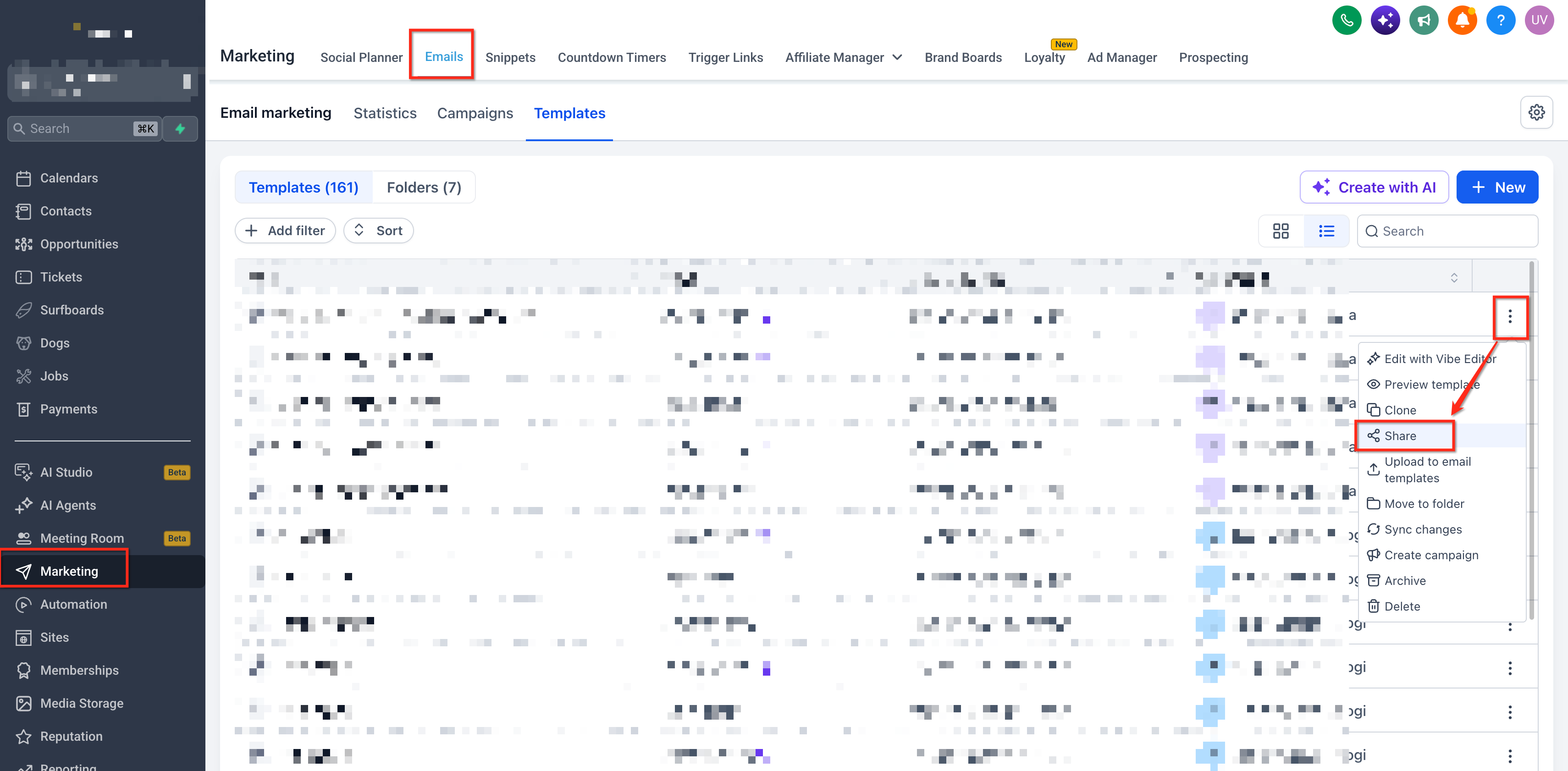
Choose the appropriate sharing access option available in the Share Template dialog.
Copy the generated template share link.
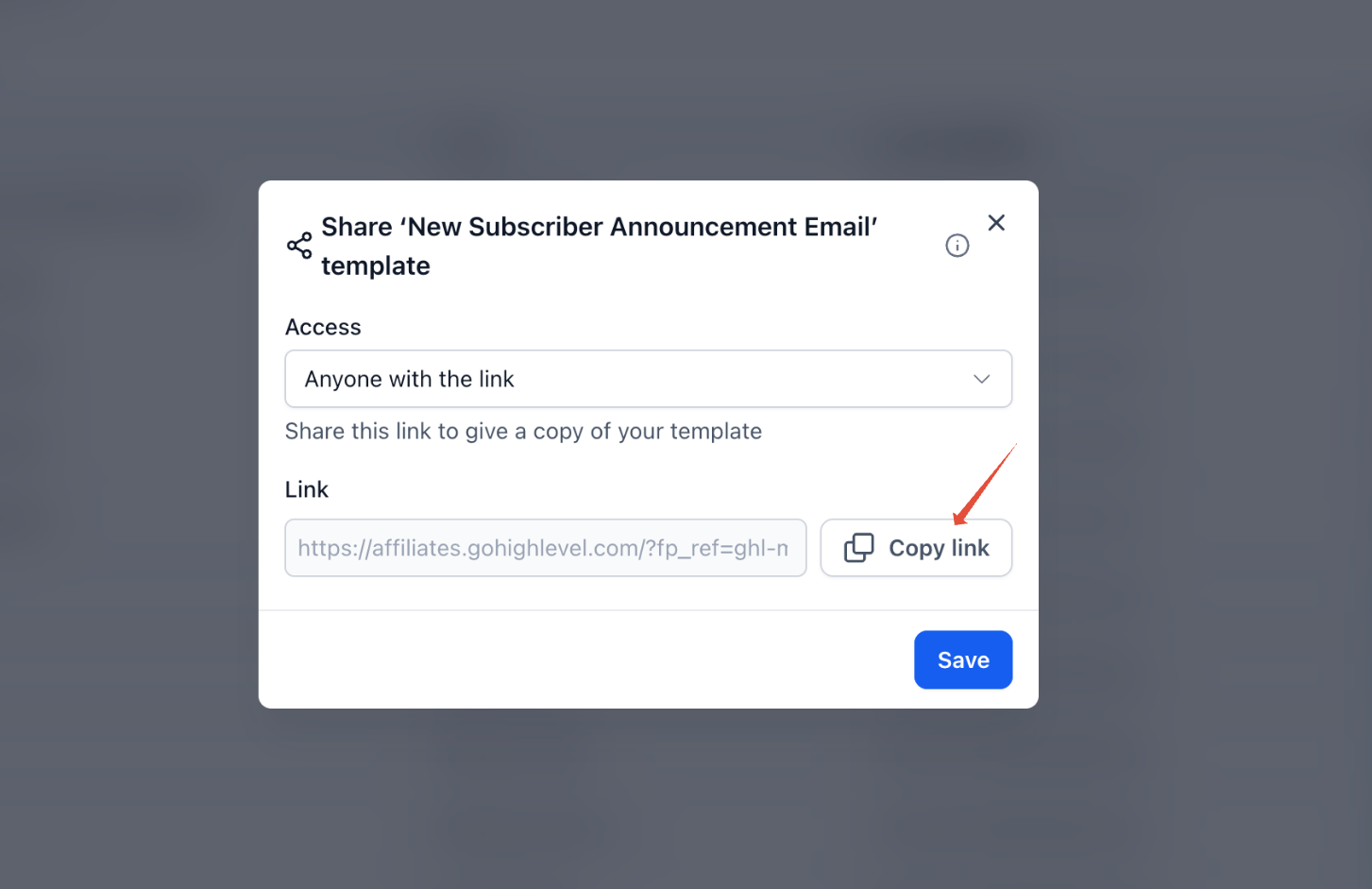
Depending on the sharing options available, you may be able to allow access within your agency or to anyone with the link.
Extract the Share ID
The generated link contains a unique Share ID that identifies the email template being shared.
Paste the copied URL into a text editor or another location where you can inspect the full link.
Locate the parameter
email_template_share=.Copy the identifier immediately following the equals sign.
Do not include additional URL parameters or unrelated characters.
For example, consider this link:
The Share ID is: 6438b5b145411d0ce4332f1b
Construct the White-Labeled Share Link
Once you have the Share ID, combine it with your agency's configured white-label application domain.
Copy the following URL structure:
Replace
YOUR-WHITELABEL-DOMAINwith your actual configured application hostname.Replace
SHAREIDwith the identifier extracted in Step 2.Confirm that the final URL contains the correct custom domain,
/emails/share/path, and Share ID.
For example:
https://app.yourdomain.com/emails/share/6438b5b145411d0ce4332f1b
Important: The hostname must match the domain configured for your agency's white-label application. Do not insert an additional app. prefix if your configured hostname already includes it.
Share the Custom Link
After constructing the branded URL, you can distribute it to users who need to import the email template.
Copy the completed white-labeled URL.
Open the link in a browser to confirm that it directs to the intended template-sharing experience.
Share the URL with the intended recipient through your preferred communication channel.
Ask the recipient to open the link and follow the import steps.
Recipients must satisfy the applicable sharing permissions and have access to an eligible destination sub-account.
Import the Shared Email Template
Opening the link allows an eligible recipient to add the shared template to a destination sub-account. Importing creates an editable copy that can be customized for the recipient's email campaigns.
Open the shared email template link.
Select Add Template.
Enter or modify the template name if needed.
Select the destination sub-account or available locations.
Click Clone Template.
Open the destination sub-account.
Navigate to Marketing → Emails → Templates and locate the imported template.
Chat To Clients CRM's cross-agency sharing documentation describes selecting up to three locations during cloning. The actual destinations available depend on the user's access and the applicable sharing workflow.
For more information, refer to Share Email Template across Agencies.
Frequently Asked Questions
Q1: Can I create a white-labeled share link without configuring a white-label application domain?
A: You can use the standard template share link, but a branded link using your agency's domain requires a working white-label application domain. Configure and verify the domain before constructing the branded URL.
Q2: Can I use my API/Branded Links domain for email template sharing?
A: The documented URL format uses the white-label desktop application domain. The API/Branded Links domain serves a different purpose and should not be substituted unless Chat To Clients CRM explicitly supports that configuration.
Q3: Does creating a branded link modify the original email template?
A: No. Constructing the branded URL changes how the existing shared template is accessed. Recipients use the sharing workflow to import a copy.
Q4: Why can one user see the Share option while another cannot?
A: Sharing availability depends on user roles and permissions. Review the assigned roles and confirm access to the email template sharing feature.
Q5: Can I share the same template with multiple recipients?
A: The sharing workflow supports distributing a share link to recipients permitted by its access settings. Each recipient must have the appropriate access to import the template into an eligible destination.
Q6: Why doesn't my imported email template contain a working countdown timer?
A: When a shared email template is copied to another sub-account, its countdown timer becomes a placeholder. Select or create a timer in the destination sub-account before using the imported template.
Q7: Can I customize an imported template?
A: Yes. After cloning the template, you can open the imported copy in the destination sub-account's email editor and modify its content or design.
Q8: Are white-labeled email template sharing and Template Library distribution the same feature?
A: No. White-labeled sharing uses a branded URL to distribute an individual email template. Template Library distribution uses a separate publishing and access workflow.