
Moving Phone Numbers across accounts (US and International)
Phone numbers can be moved between Chat To Clients Phone and Twilio or between Chat To Clients Phone sub-accounts that belong to different agencies. The exact information required depends on the migration direction and whether the number is US-based or international.
Chat To Clients CRM Support coordinates these supported cross-account migrations end-to-end, so you do not need to open a separate Twilio Support ticket. Preparing the correct Account SID, Location ID, phone numbers, and any applicable regulatory information helps prevent delays.
This guide explains which migration path to use, what to prepare, how to submit the request, and what to verify after the numbers move.
Do not manually delete, release, disable, or disconnect a phone number while a migration is in progress unless Chat To Clients CRM Support specifically instructs you to do so. Wait until Support confirms the move is complete and you have tested the number in the destination environment.
What is Phone Number Migration Across Accounts?
Phone number migration moves an existing phone number from one supported phone environment to another without requiring you to purchase a replacement number. Chat To Clients CRM Support coordinates supported Chat To Clients Phone → Twilio, Twilio → Chat To Clients Phone, and Chat To Clients Phone → Chat To Clients Phone migrations when the Chat To Clients Phone sub-accounts belong to different agencies.
This process is different from porting. Migration is used when moving supported Chat To Clients Phone or Twilio-managed numbers across compatible accounts. If the number currently belongs to a non-Twilio external carrier, use the phone-number porting process instead.
Key Benefits of the Phone Number Migration Process
A coordinated migration allows businesses to retain established phone numbers while changing the account or phone environment that manages them. Preparing the required information before submitting the request helps reduce delays and makes post-migration validation easier.
- Keep Existing Numbers: Move eligible phone numbers instead of replacing numbers customers already know.
- Centralized Coordination: Chat To Clients CRM Support coordinates supported cross-account moves from request through cutover.
- Clearer Migration Planning: Required IDs and regulatory details can be prepared before the migration request is submitted.
- Support for Multiple Numbers: Multiple eligible numbers can be included in the same migration request.
- Post-Migration Validation: Calls, SMS, compliance, routing, and number assignments can be verified after cutover before normal traffic resumes.
Supported Migration Scenarios
The correct migration path depends on the phone system currently holding the number and where the number needs to go. Use the table below to identify the correct process before collecting IDs or submitting a request.
| Migration | When to Use It | Process |
|---|---|---|
| Chat To Clients Phone → Twilio | Move an Chat To Clients Phone-managed number into the customer's own Twilio account. | Chat To Clients CRM Support coordinates the migration. |
| Twilio → Chat To Clients Phone | Move a number from the customer's Twilio account into an Chat To Clients Phone sub-account. | Chat To Clients CRM Support coordinates the migration. |
| Chat To Clients Phone → Chat To Clients Phone, Different Agencies | Move an Chat To Clients Phone number between sub-accounts that belong to different Chat To Clients CRM agencies. | Chat To Clients CRM Support coordinates the inter-agency move. |
| Chat To Clients Phone → Chat To Clients Phone, Same Agency | Move a number between two Chat To Clients Phone sub-accounts under the same agency. | Use the in-app Move Numbers tool instead of this cross-account process. |
| External Carrier → Chat To Clients CRM | The number is held by a carrier outside the supported Chat To Clients Phone/Twilio migration paths. | Use the phone-number porting process. |
No separate Twilio ticket is required for the three cross-account scenarios covered by this article. Submit the required migration information to Chat To Clients CRM Support and the migration will be coordinated for you.
What You Need Before Migrating
Gathering the correct identifiers before contacting Support prevents unnecessary back-and-forth. The information required changes depending on the migration direction, so confirm the source and destination before submitting your request.
| Scenario | Prepare |
|---|---|
| Chat To Clients Phone → Twilio | Gaining Twilio Account SID, Chat To Clients CRM Location ID for the affected Chat To Clients Phone sub-account, phone number(s), and preferred cutover window. |
| Twilio → Chat To Clients Phone | Losing Twilio Account SID, destination Chat To Clients CRM Location ID, phone number(s), and preferred cutover window. |
| Chat To Clients Phone → Chat To Clients Phone, Different Agencies | Destination Location ID, phone number(s), preferred cutover window, and source Location ID when available. |
| International Number | Applicable Regulatory Bundle SID, Address SID, destination Location ID when applicable, phone number(s), country, number type, and preferred cutover window. |
Provide each phone number in E.164 format whenever possible. For example, a US number should be submitted as +1XXXXXXXXXX.
Security: Do not include your Twilio Auth Token, password, payment information, or other credentials in a standard migration ticket unless Chat To Clients CRM Support specifically provides an approved method for submitting that information.
How to Set Up a Phone Number Migration Across Accounts
The migration begins by identifying the source and destination, collecting the required account identifiers, and submitting one complete request to Chat To Clients CRM Support. Providing all required details in the initial request gives the migration team the information needed to coordinate the cutover.
Step 1: Identify the Migration Direction
Confirm whether the number is moving from Chat To Clients Phone to Twilio, from Twilio to Chat To Clients Phone, or between Chat To Clients Phone sub-accounts in different agencies. This determines which Account SID or Location ID must be included.
Step 2: Find the Twilio Account SID When Required
The Twilio Account SID identifies the Twilio account involved in a US Chat To Clients Phone ↔ Twilio migration.
- Chat To Clients Phone → Twilio: Provide the gaining Twilio Account SID for the destination Twilio account.
- Twilio → Chat To Clients Phone: Provide the losing Twilio Account SID where the number currently resides.
- Chat To Clients Phone → Chat To Clients Phone across different agencies: A Twilio Account SID is generally not required for this LC-to-LC move.
In Twilio, open the Account Dashboard and locate Account Info. Copy the Account SID for the applicable account.
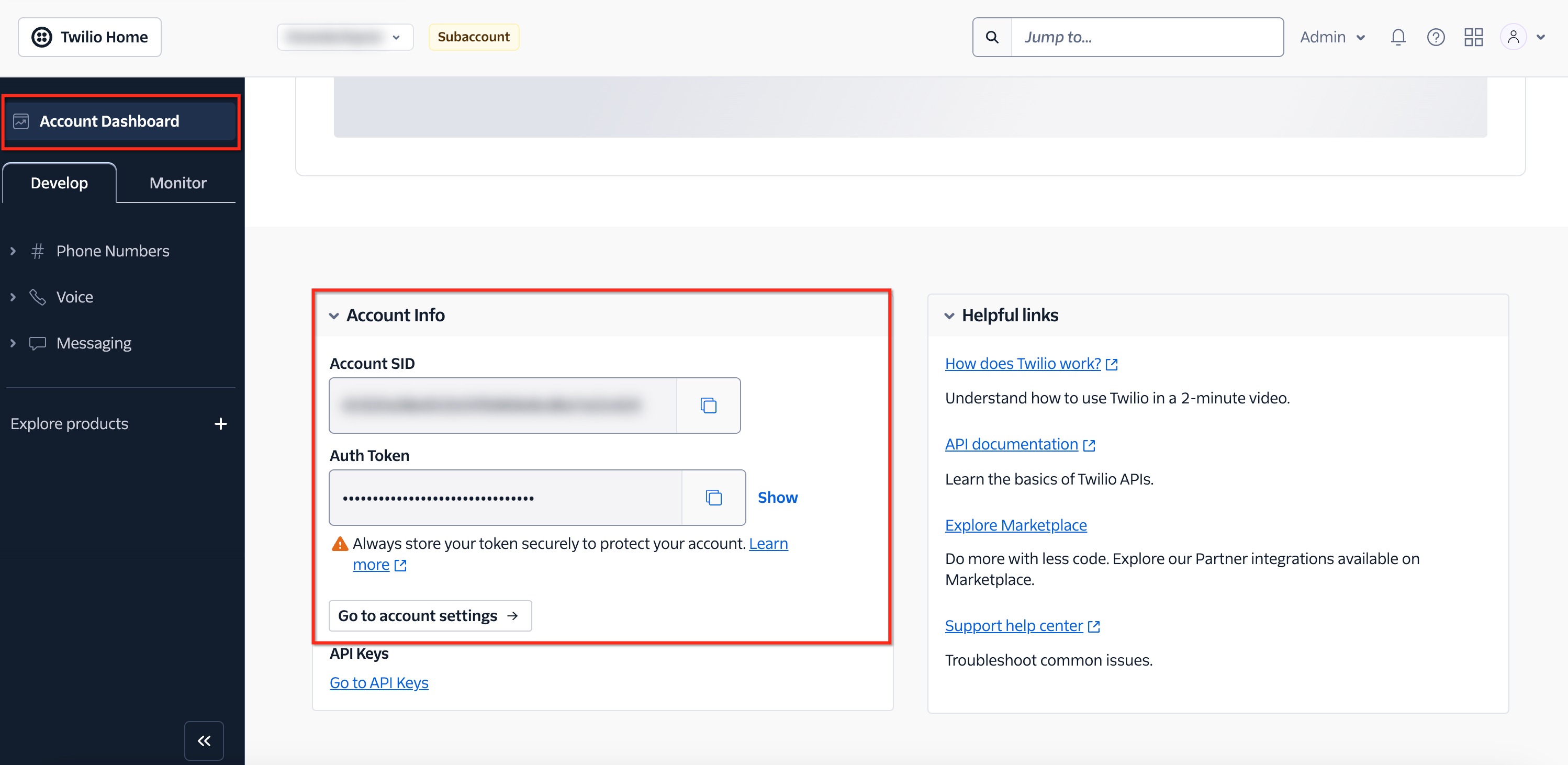
The Twilio Account SID is available from the Account Dashboard under Account Info. Only the Account SID is required for the standard migration request.
Step 3: Find the Chat To Clients CRM Location ID
The Location ID, also called the Sub-account ID, identifies the Chat To Clients CRM sub-account involved in the migration. For Twilio → Chat To Clients Phone and inter-agency Chat To Clients Phone moves, the destination Location ID is especially important. For Chat To Clients Phone → Twilio, include the Location ID of the affected Chat To Clients Phone sub-account so Support can identify the source location.
- Open the applicable Chat To Clients CRM sub-account.
- Go to Settings → Business Profile.
- Locate and copy the Location ID.
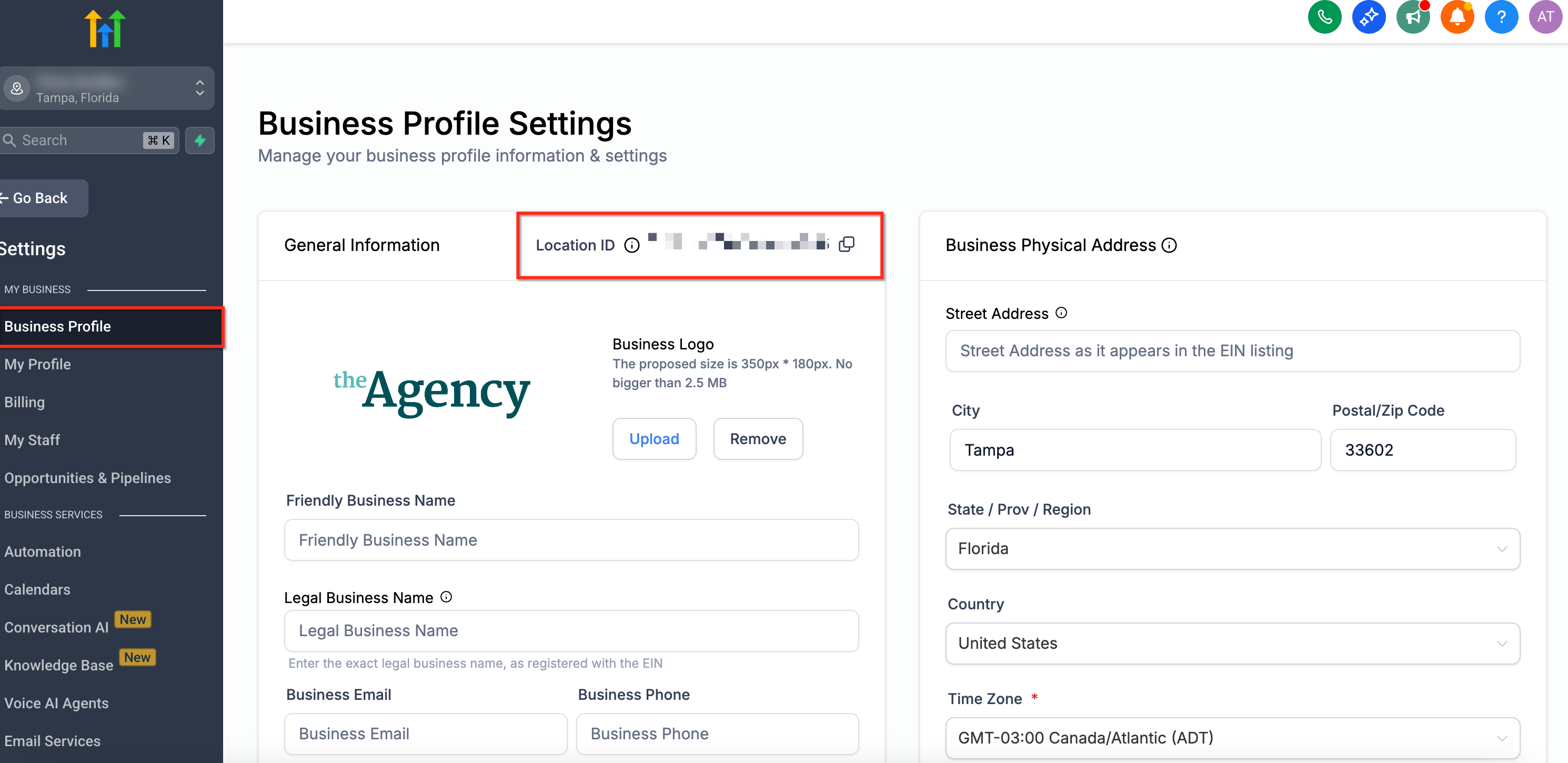
The Location ID is available in Settings → Business Profile for the applicable Chat To Clients CRM sub-account.
Step 4: Submit the Migration Request to Chat To Clients CRM Support
Submit one Chat To Clients CRM Support request containing all migration details. Support will coordinate the supported cross-account migration and notify you when the number is ready for validation.
- Migration direction: Chat To Clients Phone → Twilio, Twilio → Chat To Clients Phone, or Chat To Clients Phone → Chat To Clients Phone across different agencies
- Phone number(s) in E.164 format
- Applicable Twilio Account SID for US Chat To Clients Phone ↔ Twilio moves
- Applicable Chat To Clients CRM Location ID(s)
- Regulatory Bundle SID and Address SID for applicable international numbers
- Country and number type for international numbers
- Your preferred cutover window
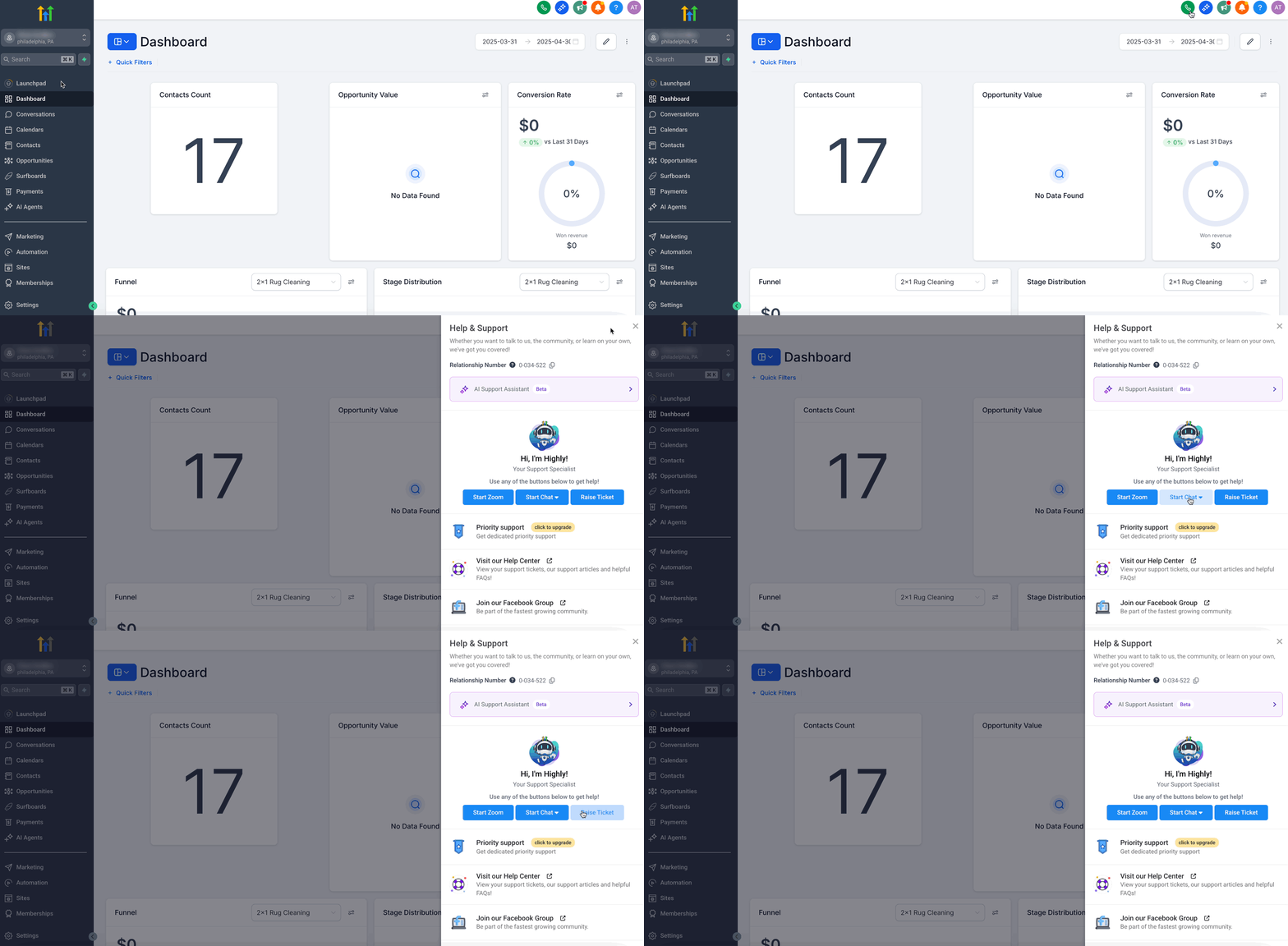
Contact Chat To Clients CRM Support and provide the migration details in one request so the phone team can coordinate the move.
Moving International Phone Numbers
International phone numbers can require country- and number-type-specific regulatory information before they can be moved. Preparing the correct Regulatory Bundle and Address information before submitting the migration request helps prevent the transfer from being blocked by compliance requirements.
- Regulatory Bundle SID applicable to the number's country and number type
- Address SID
- Destination Location ID when applicable
- Phone number(s), including country code
- Country and number type, such as local, mobile, or toll-free
- Preferred cutover window
Check Regulatory Approval Before the Move
Regulatory requirements vary by country and number type. Confirm that any required Address or Regulatory Bundle is current and approved and that the submitted documentation matches the destination requirements.
What to Check After the Migration
A successful number move does not guarantee that every routing, messaging, compliance, or user setting in the destination environment is already configured. Validate the number immediately after Support confirms the migration so issues can be identified before normal call or SMS traffic resumes.
- Confirm the number appears in the destination environment.
- Place an inbound test call from another phone.
- Place an outbound test call from the migrated number.
- Test inbound and outbound SMS when messaging is enabled.
- Review call routing, forwarding, voicemail, user assignments, and workflow references.
- Review A2P 10DLC status. A2P registration is associated with the account/sub-account environment and should not be assumed to transfer with the number. Complete or verify registration in the destination and attach applicable numbers to the approved campaign.
- Review Toll-Free Verification and country-specific compliance. Confirm the migrated number meets the destination environment's current compliance requirements before relying on SMS.
- Keep the migration ticket open until validation is complete.
Historical recordings and voicemails: Moving the phone number does not migrate historical recordings or voicemail assets into a new phone environment. Download any historical assets you need to retain before losing access to the source environment.
Troubleshooting Phone Number Migrations
Migration delays are commonly caused by missing identifiers, regulatory requirements, incorrect destination information, or post-migration configuration. Start with the migration ticket and confirm that the source, destination, and phone numbers match the original request.
Confirm that the ticket includes the phone numbers, migration direction, applicable Twilio Account SID, Chat To Clients CRM Location ID, and regulatory information for international numbers.
Verify that the applicable Regulatory Bundle and Address are approved for the correct country and number type. Country-specific requirements can delay the move until compliance information is complete.
Review the destination's A2P 10DLC, Toll-Free Verification, SMS permissions, and other applicable compliance requirements. A phone-number move does not automatically guarantee messaging compliance in the destination account.
Review the destination number's forwarding settings, voicemail, user assignments, call routing, and any workflows or automations that reference the number.
Do not use the cross-account process when both eligible Chat To Clients Phone sub-accounts belong to the same agency. Use the in-app Move Numbers tool under Agency Settings → Phone Integration.