
WordPress Plugin and Theme Management
Manage installed WordPress plugins and themes directly from Chat To Clients CRM. You can review versions, update supported items, and activate, deactivate, or delete extensions from your WordPress hosting dashboard.
WordPress Plugin and Theme Management lets you maintain installed extensions without opening native WordPress for routine changes. You can review versions, update items, and manage their status from Chat To Clients CRM.
TABLE OF CONTENTS
- Key Benefits of WordPress Plugin and Theme Management
- Plugin and Theme Actions
- Installing New WordPress Plugins
- Live and Staging Environments
- How to Manage WordPress Plugins and Themes
- Frequently Asked Questions
- Related Articles
Key Benefits of WordPress Plugin and Theme Management
Centralized plugin and theme controls make routine WordPress maintenance faster and easier.
Centralized management: Manage installed plugins and themes from Chat To Clients CRM.
Version visibility: Compare current and available versions.
Quick updates: Update supported plugins and themes to the latest version.
Flexible access: Use native WP Admin when you need additional WordPress controls.
Safer testing: Use Staging to test changes before publishing them to Live.
Plugin and Theme Actions
Each action affects an installed plugin or theme differently, so choose the option that matches your goal.
Activate: Enables an installed item.
Deactivate: Disables the item without deleting it.
Delete: Removes the installed item.
Update: Updates the item to the latest available version.
Version details help you identify which plugins or themes need updates.
Current Version: The version installed on your site.
Available Version: The latest version available.
Chat To Clients CRM does not support downgrading plugins or themes from this dashboard.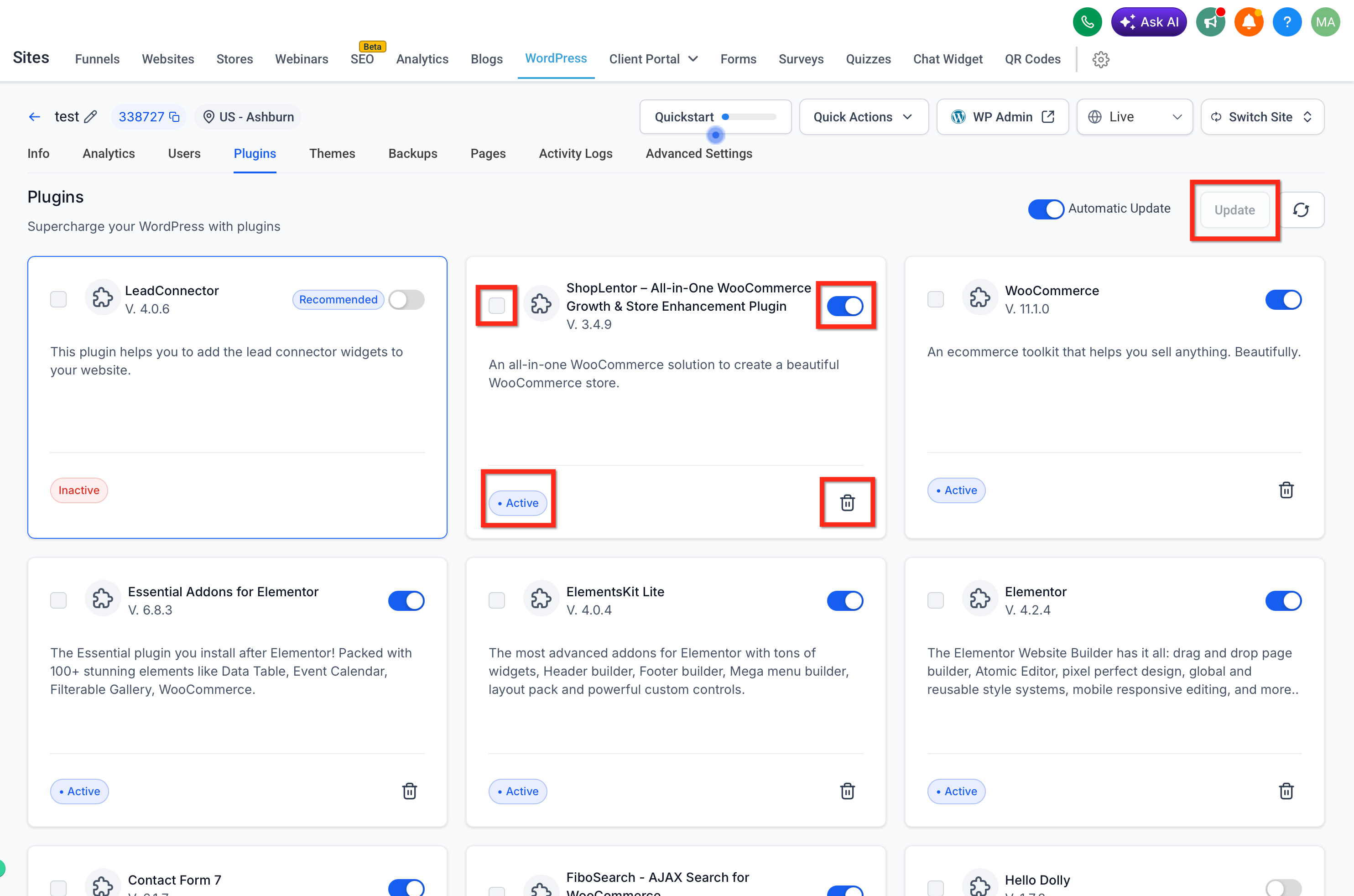
Installing New WordPress Plugins
The management dashboard is designed for extensions that are already installed. New plugins must be added through another supported workflow.
You can:
Select supported plugins during WordPress site creation.
Install additional plugins through native WordPress under Plugins > Add New.
Manage installed plugins afterward from Chat To Clients CRM.
Live and Staging Environments
Staging lets you test plugin and theme changes separately from your live website. This can reduce risk when making larger updates or troubleshooting site behavior.
Changes made in Staging do not affect the live site until Staging is published to Live. Changes made in the Live environment affect the production site.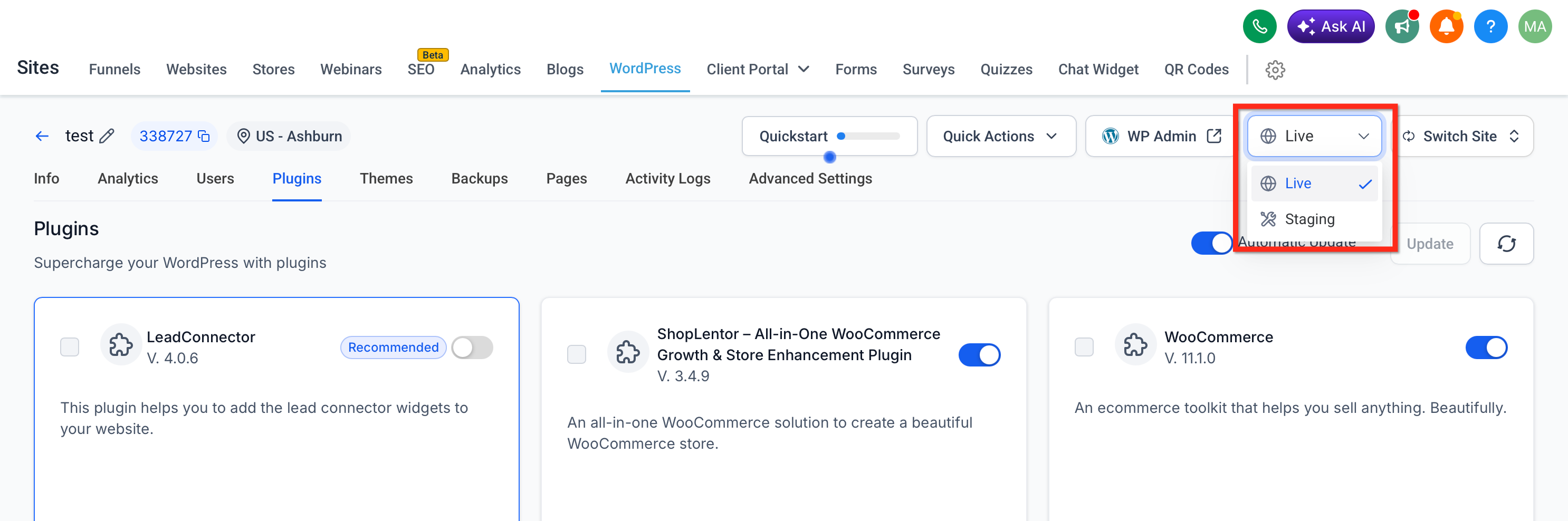
How to Manage WordPress Plugins and Themes
Following the correct workflow helps ensure you make changes to the intended site and environment.
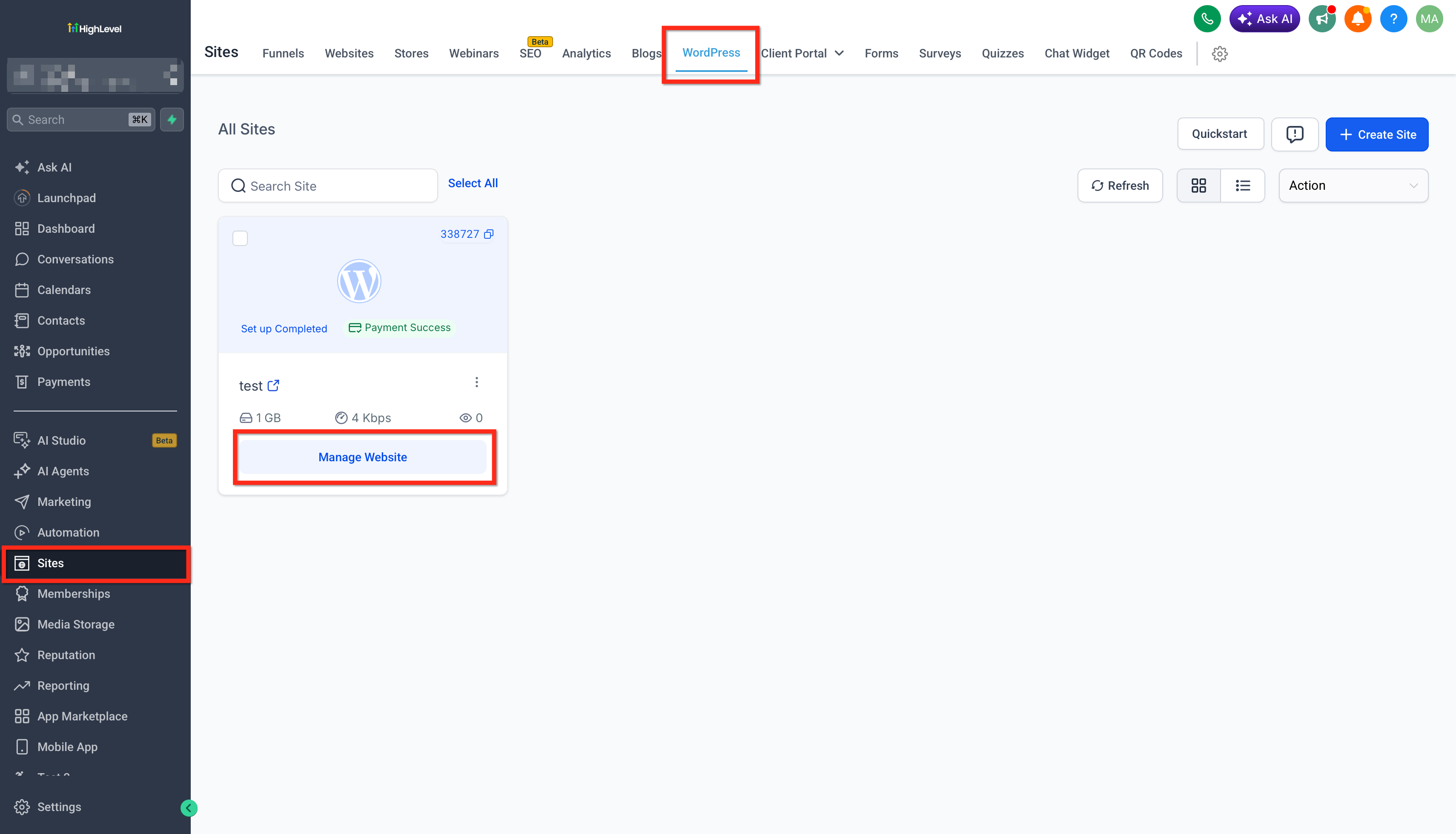
Go to Sites > WordPress. Click Manage Site to open the WordPress site you want to manage.
Confirm whether you are working in Live or Staging.
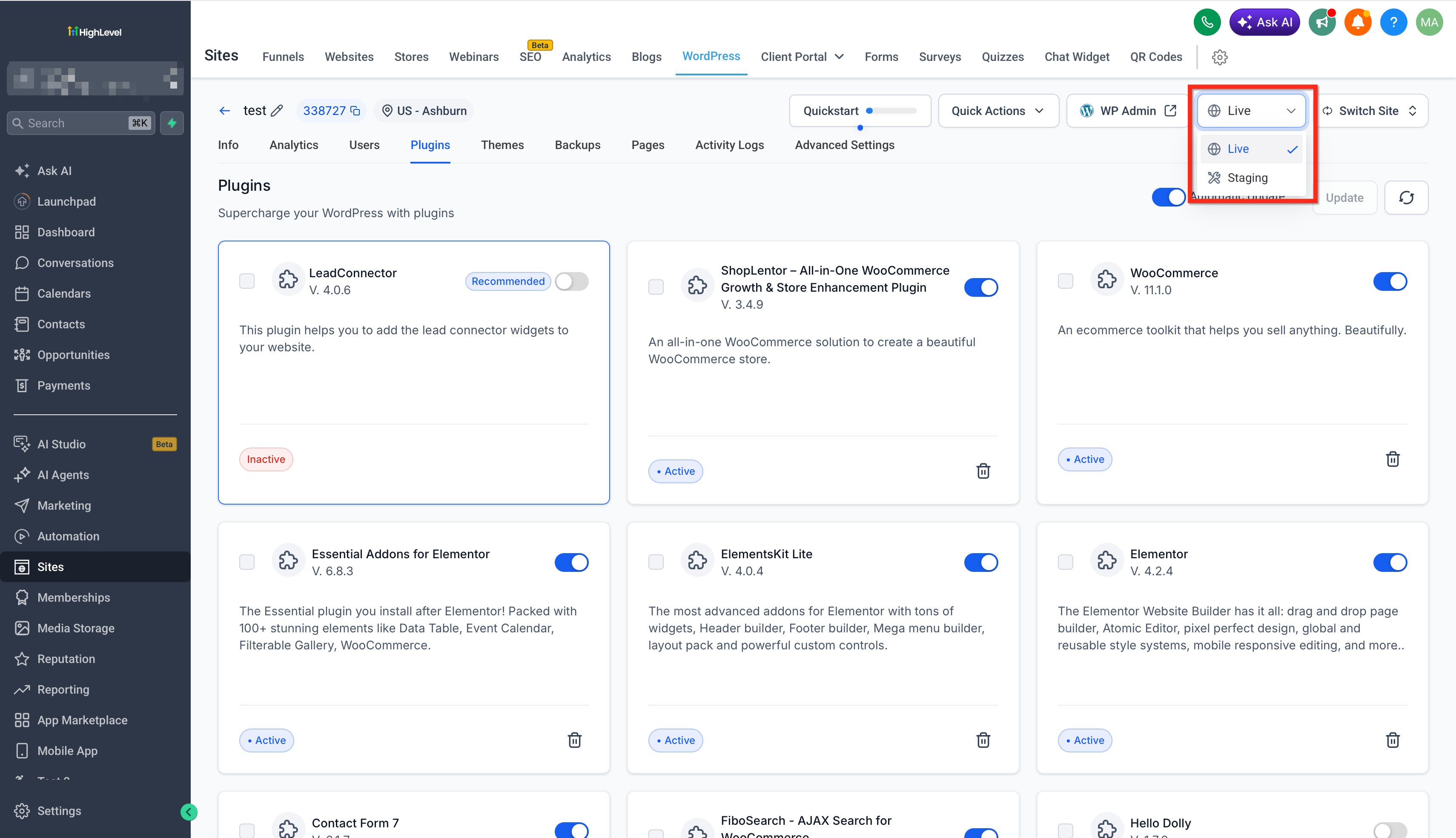
Open Plugins or Themes. Locate the plugin or theme you want to manage.
Review the Current Version and Available Version.
Update the item if a newer version is available.
Open the action menu to Activate, Deactivate, or Delete the item.
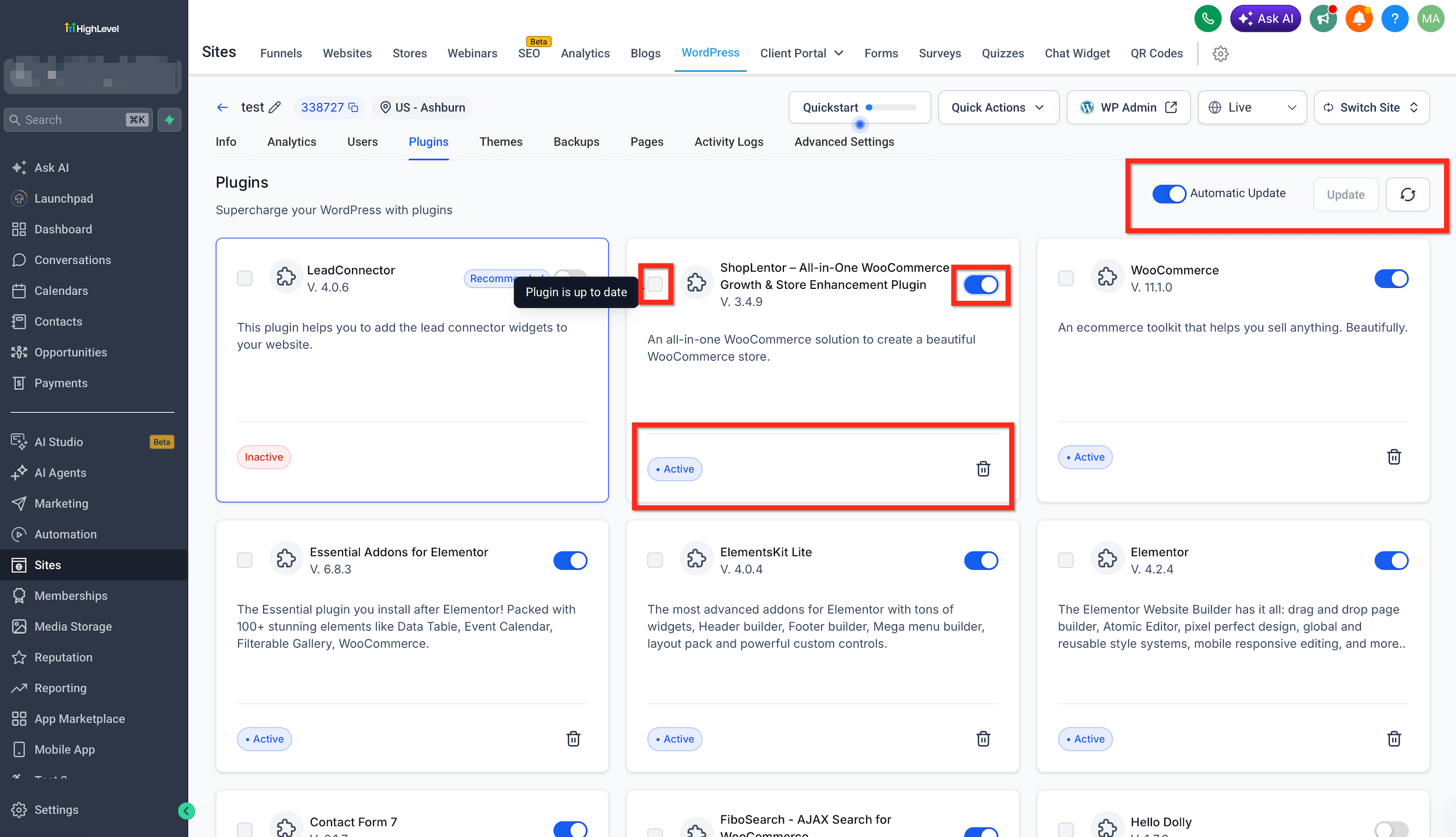
Review your website after making changes.
Frequently Asked Questions
Q: Can I install a new plugin from this dashboard?
A: No. Install new plugins during site creation or through native WordPress.
Q: Can I downgrade a plugin or theme?
A: No. The Chat To Clients CRM management dashboard only supports updating to the latest available version.
Q: What should I do if a plugin causes a site issue?
A: Use the WordPress Plugin Troubleshooter or restore the site from an available backup.
Q: Do Staging changes immediately affect my live site?
A: No. Staging changes remain separate until you publish Staging to Live.
Q: Can I still manage plugins and themes in native WordPress?
A: Yes. Use the WP Admin button to access the native WordPress dashboard.
Q: Why can’t I use a specific plugin?
A: Some plugins are restricted in Chat To Clients CRM’s WordPress hosting environment. Check the blocked-plugin list for current restrictions.