
Two Way Email Sync for Outlook
Outlook Two-Way Email Sync creates a bidirectional connection between a user’s personal Outlook inbox and Chat To Clients CRM, allowing supported one-to-one email conversations to stay synchronized across both platforms. Messages sent from Chat To Clients CRM can appear in Outlook, while replies and emails from existing contacts can sync back into Chat To Clients CRM Conversations, helping users maintain a complete contact history without constantly switching between systems.
TABLE OF CONTENTS
- Key Benefits of Outlook Two-Way Email Sync
- How to Connect Outlook Two Way Email sync?
- How Outlook Two-Way Email Sync Works
- Emails Started in Chat To Clients CRM
- Emails Received From Existing Chat To Clients CRM Contacts
- Emails Sent From Outlook to a New Contact
- Other functionalities
- Email Types and Sender Behavior
- Outlook Two-Way Sync Limitations
- Frequently Asked Questions
- Related Articles
Key Benefits of Outlook Two-Way Email Sync
- Centralized conversations: Keep supported Outlook email conversations visible in Chat To Clients CRM alongside other contact activity.
- Two-way communication: Send individual emails from Chat To Clients CRM and keep supported replies synchronized with Outlook.
- Existing-contact synchronization: Incoming Outlook emails from existing Chat To Clients CRM contacts can appear in Conversations automatically.
- Contact creation with BCC: Add a new contact and conversation to Chat To Clients CRM when initiating an Outlook email to someone who is not already a contact.
- Personal sending identity: Use the connected Outlook account for supported one-to-one emails rather than relying on the sub-account email provider for those messages.
How to Connect Outlook Two Way Email sync?
1. Open the appropriate sub-account in Chat To Clients CRM, then go to Settings > My Profile,
2. Scroll to Email (2-way sync), select Outlook, and click Connect.
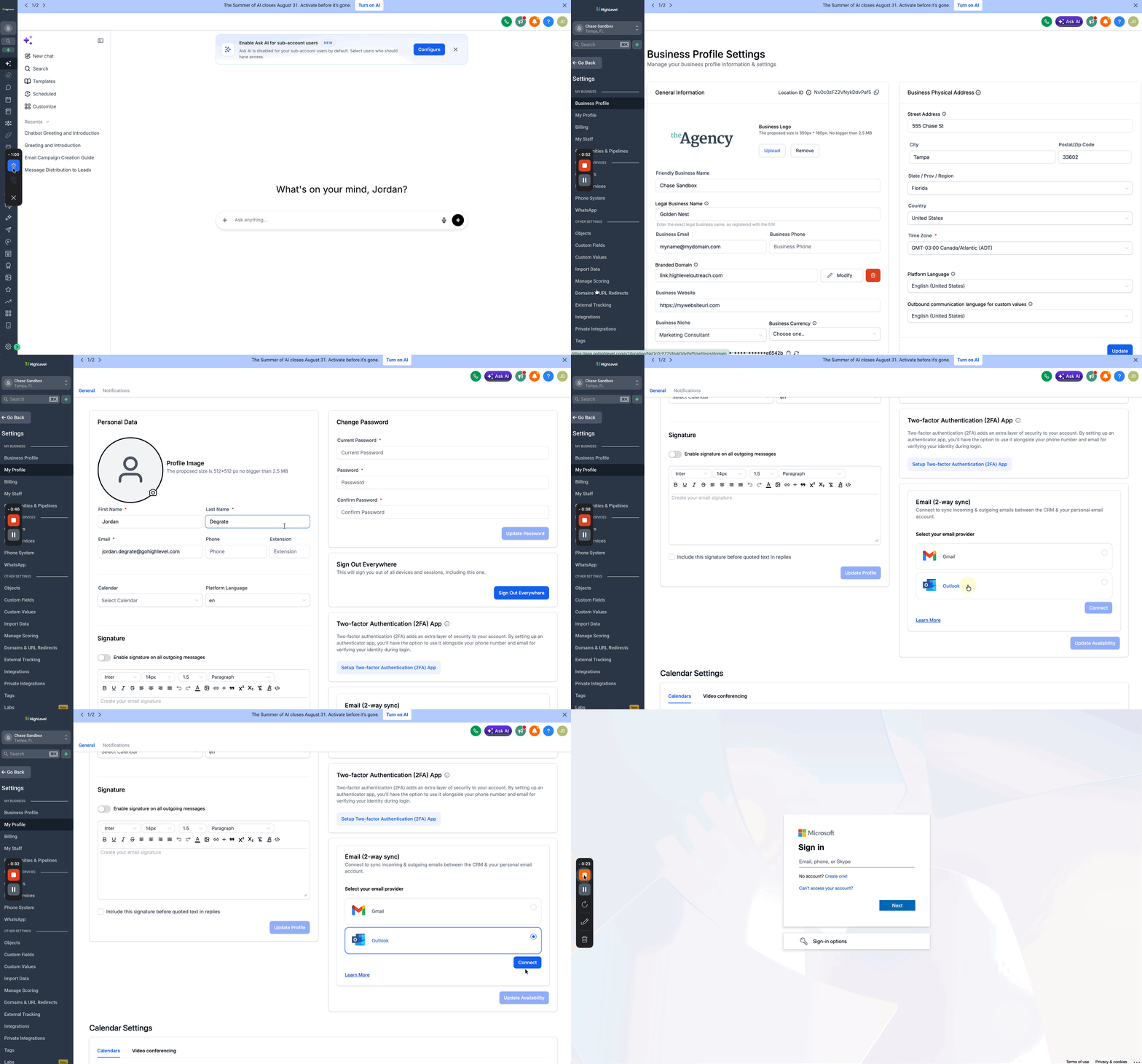
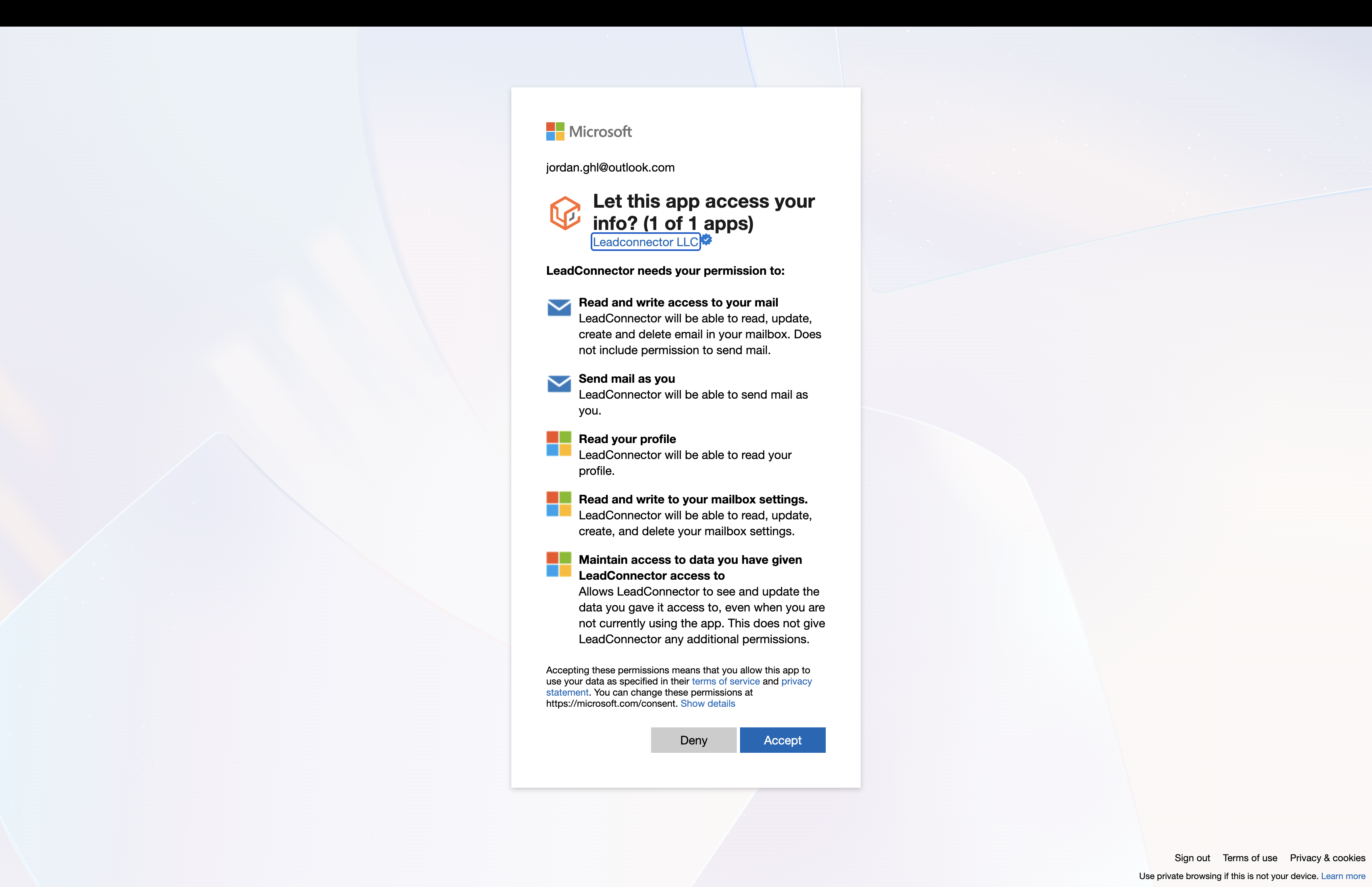
4. Sign in with the Outlook or Microsoft 365 account you want to connect, review and approve the permissions
requested by Chat To Clients CRM/Chat To Clients CRM,
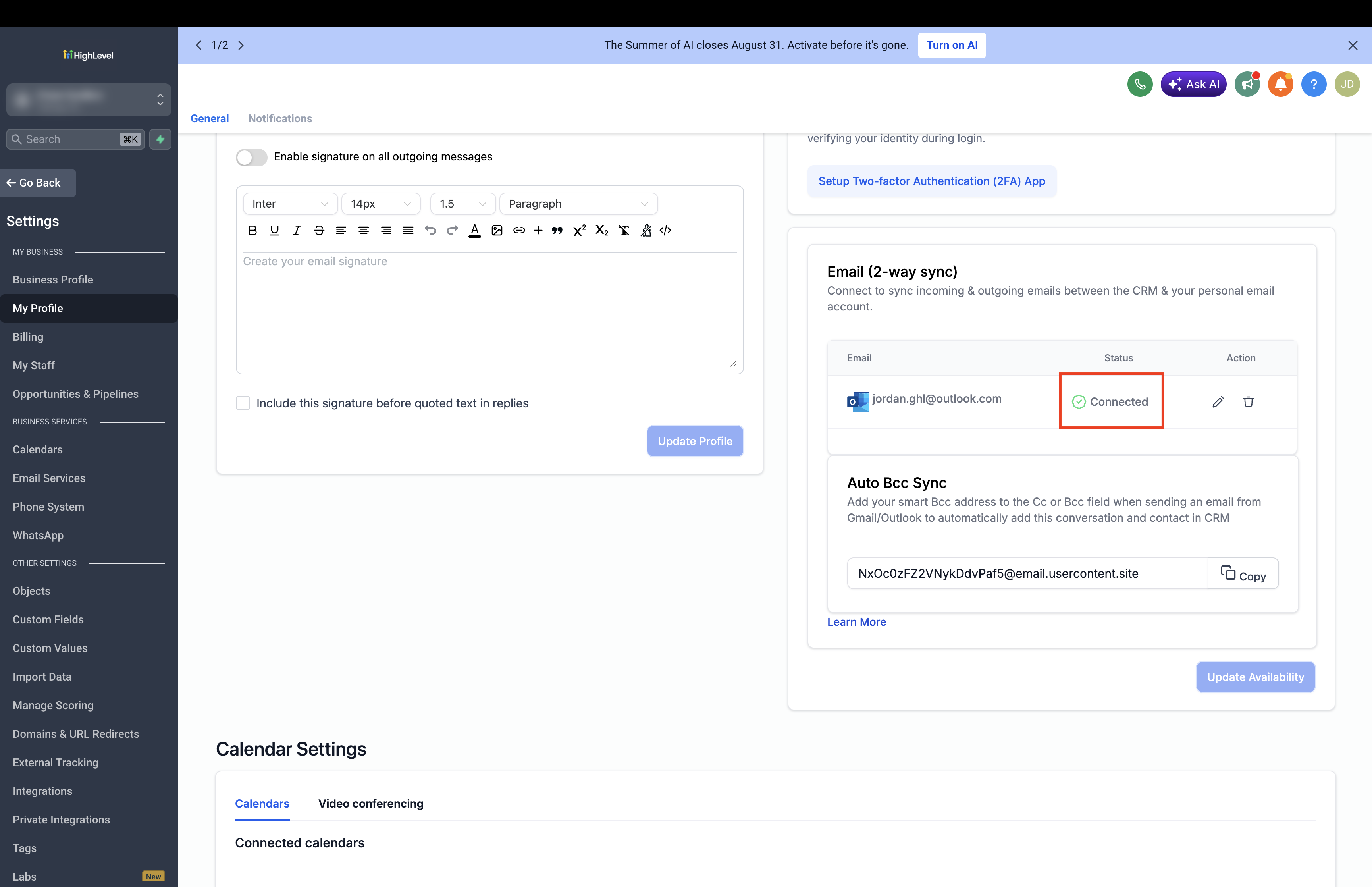
5. Return to Settings > My Profile > Email (2-way sync) and confirm that the Outlook email address appears as connected.
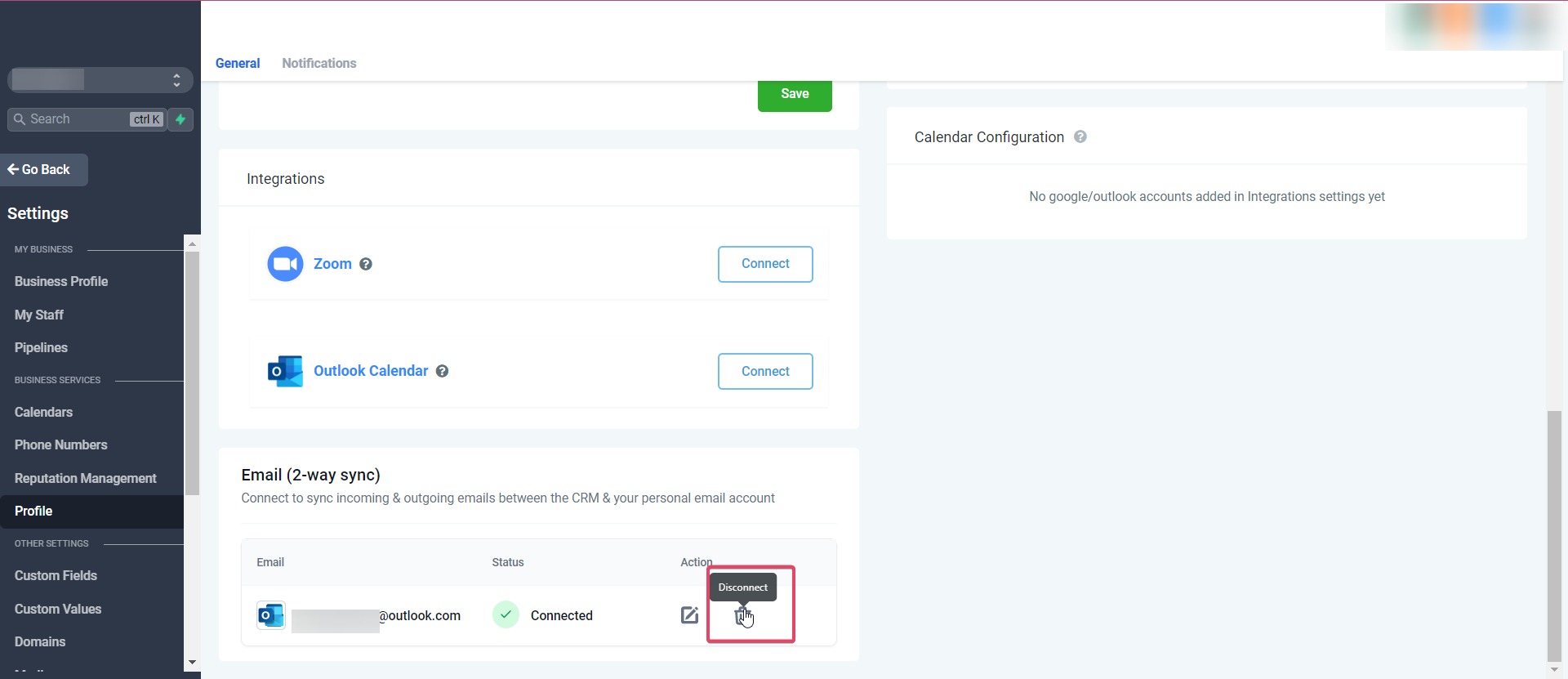
In "Settings" > "My Profile" scroll down to the section "Email (2-way sync)" to view your email in the connection status.
How Outlook Two-Way Email Sync Works
The way a message enters the conversation determines whether it can synchronize automatically. Knowing these common scenarios helps prevent confusion when a message appears in Outlook but does not immediately appear in Chat To Clients CRM.
Emails Started in Chat To Clients CRM
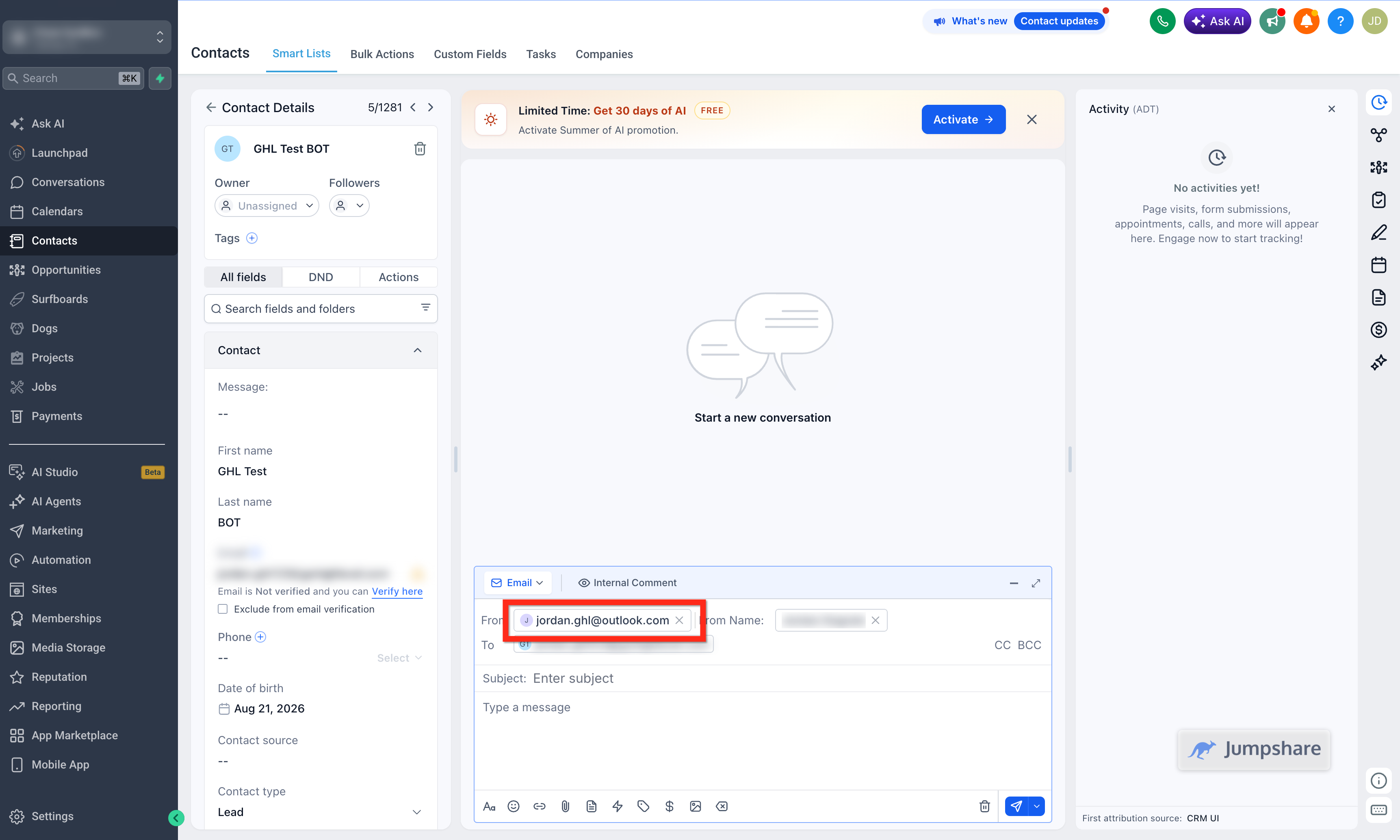
When you send an individual email from Chat To Clients CRM using your connected Outlook account, the email thread can remain synchronized between Chat To Clients CRM and Outlook. Subsequent supported replies in that thread can continue appearing in both places.
Emails Received From Existing Chat To Clients CRM Contacts
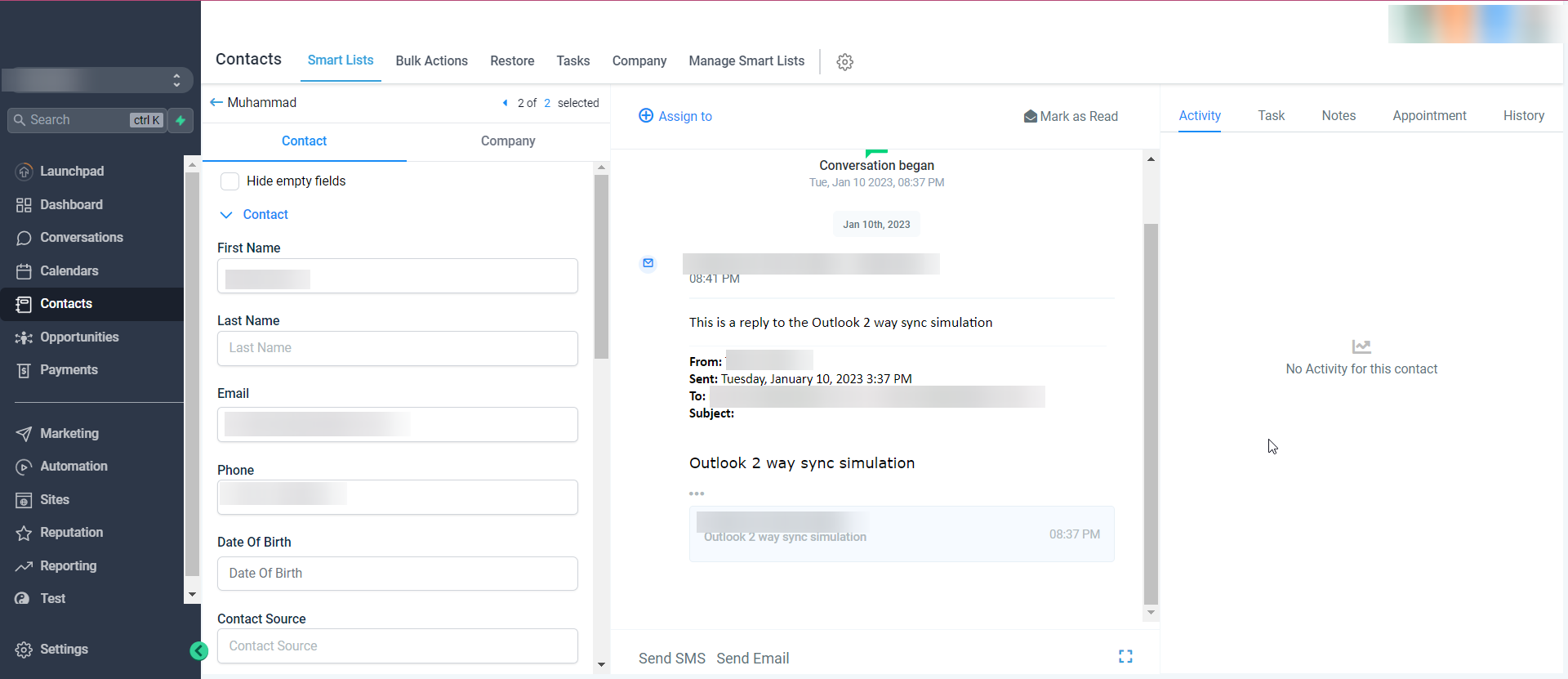
When an existing Chat To Clients CRM contact sends an email to the connected Outlook inbox, the incoming message can synchronize into that contact's conversation in Chat To Clients CRM. Replies in the supported thread can continue syncing between the two platforms.
Emails from contacts who are also users in the same sub-account are not synchronized. This protects potentially confidential communication between Chat To Clients CRM users.
Emails Sent From Outlook to a New Contact
Outlook two-way sync does not reliably capture every cold inbound or outbound email involving someone who is not already represented as a Chat To Clients CRM contact. When sending a new email from Outlook to someone who is not yet a contact, use the Chat To Clients CRM BCC address in the Cc or Bcc field. This can create the contact and conversation in Chat To Clients CRM so future supported communication can synchronize.
- Sync the contact.
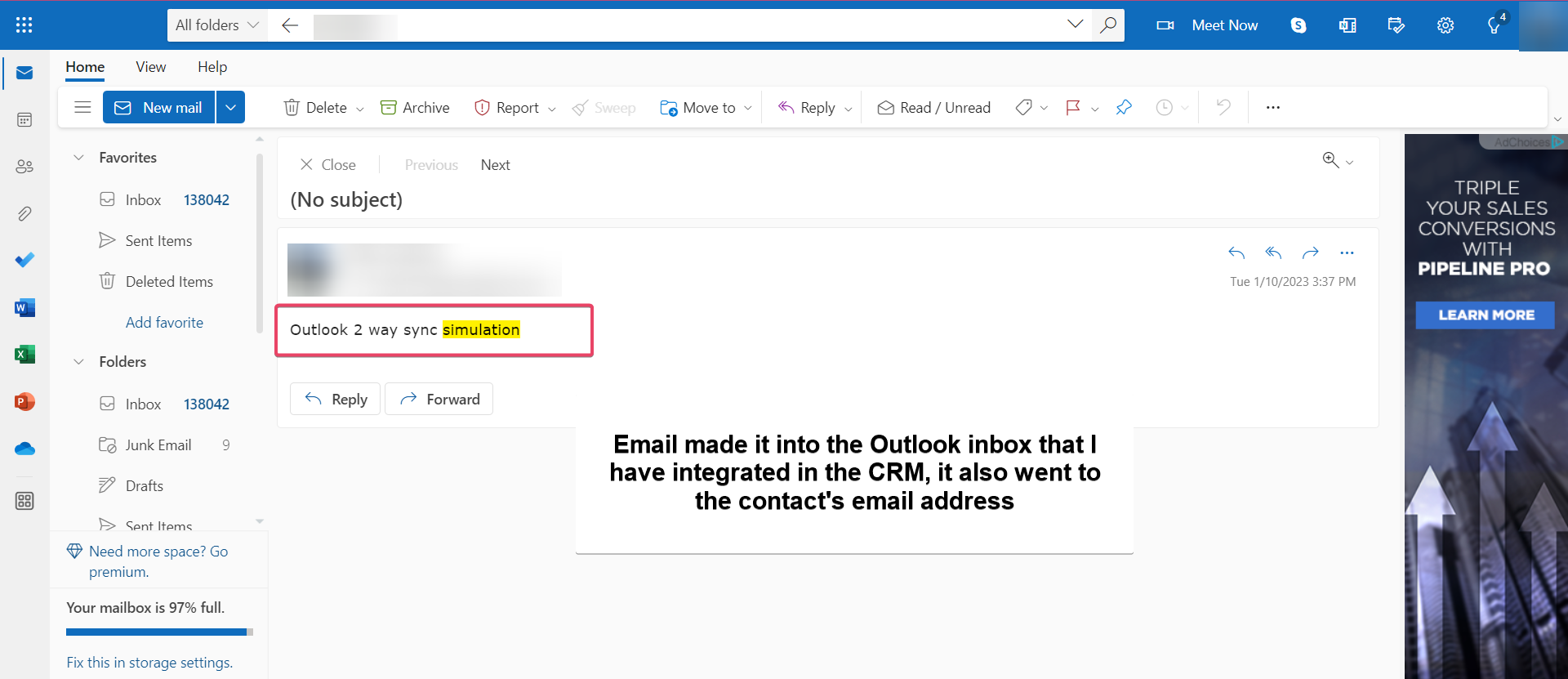
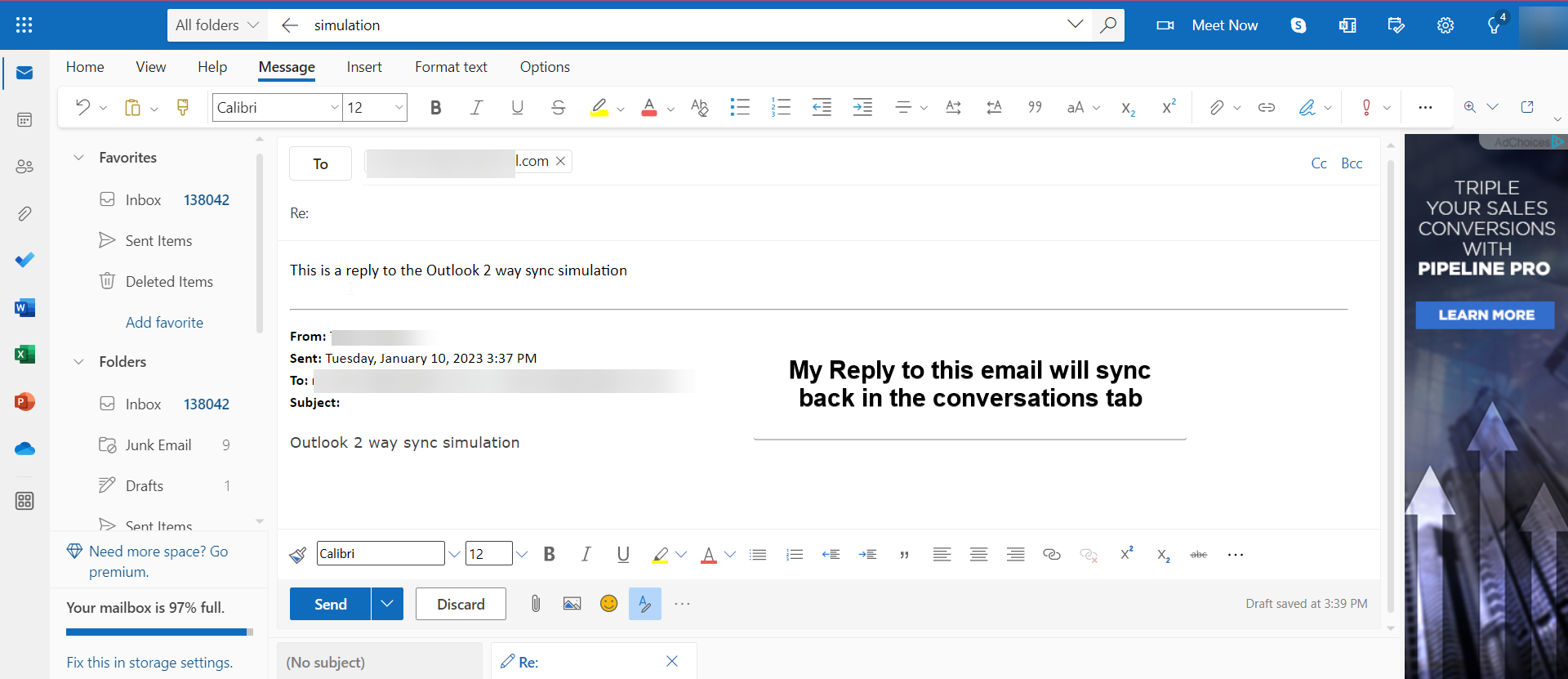
All subsequent messages in the email thread (initiated from the CRM) will be in sync. Outbound
emails sent from your email will start reflecting in the CRM and vice versa.
Please note
Attachments of up to 3 MB size work across this sync, any attachments larger than this size will cause the message to not sync over.
Supported file types: JPG,JPEG,PNG,MP4,MPEG,ZIP,RAR,PDF,DOC,DOCX,TXT
Other functionalities
Update Email: This helps users change their connected email ID to another one without disconnecting the previous connection.
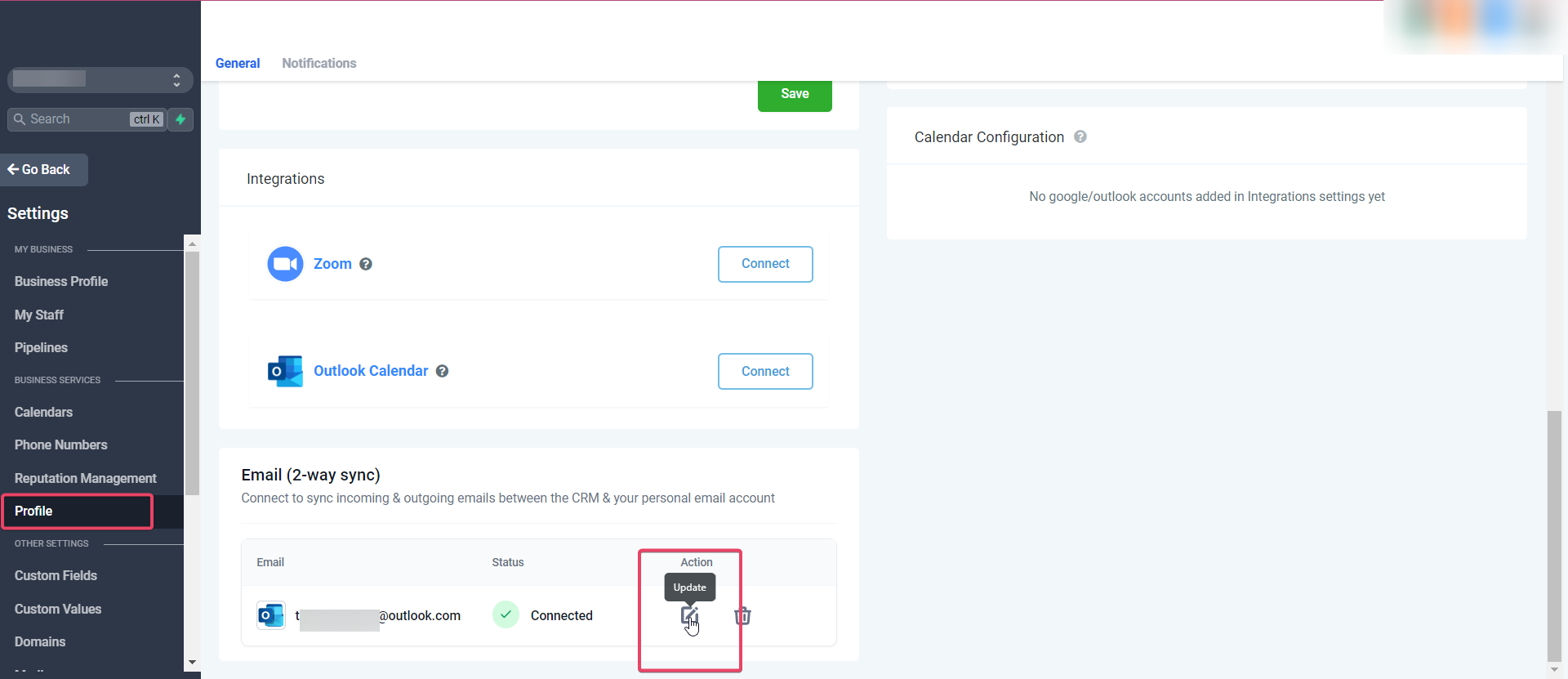
New outbound emails from the CRM will start syncing with the newly added email address. Upcoming messages in the previously connected email ID (same thread) will stop syncing between the CRM & personal email.
Disconnect Email: This will disconnect their connection and stop the sync with the CRM. Once disconnected, emails or messages will not sync between both platforms.
Email Types and Sender Behavior
Outlook Two-Way Email Sync is intended primarily for direct, one-to-one conversations. Bulk and automated messages use different sending infrastructure, so they should not be expected to behave like personal Outlook conversations.
- Individual emails: Supported one-to-one emails can use the connected Outlook account and synchronize with the personal inbox.
- Bulk emails: Bulk email sending is handled separately from personal two-way sync and may use the configured sub-account email provider.
- Workflow and automation emails: Automated emails are sent through the configured sub-account-level provider rather than through the user's personal Outlook two-way sync. These messages do not synchronize with the Outlook inbox in the same way as individual emails.
Troubleshoot Outlook Two-Way Email Sync
My Profile Is Missing
The My Profile tab is available when the user is added to the sub-account currently being viewed. If you cannot see My Profile:
- Confirm that you are inside the intended sub-account rather than the agency-level view.
- Verify that your user has been added to that sub-account.
- If appropriate for your access level, use Login As for a user of that sub-account.
- Return to Settings and check for My Profile again.
Outlook Two-Way Sync Limitations
- Emails from contacts who are also sub-account users are not synchronized because they may contain confidential user-to-user communication.
- Gmail/Outlook two-way sync does not reliably capture cold inbound email from unknown senders; Chat To Clients CRM documents inbound email from existing contacts as supported for this configuration.
- Workflow and automation email is sent through the configured sub-account email provider rather than the personal Outlook connection.
- Removing or disconnecting a synchronized account stops new synchronization, but previously synchronized email remains available.
- Historical messages from before a personal inbox connection was established are not backfilled through two-way sync.
Frequently Asked Questions
Q: Does connecting Outlook import my historical email?
No. Messages from before the integration was connected are not synchronized retroactively. Only supported conversations after the connection is established can sync.
Q: Why can I not see My Profile?
The My Profile tab is available when the user has been added to the sub-account currently being viewed. Verify that you are in the correct sub-account and that your user has access to it before troubleshooting Microsoft permissions.
Q: What should I do if Reconnect is not displayed?
Verify that you are in the correct sub-account and that the Outlook mailbox appears under Settings > Email Services. If the mailbox is present but the expected reconnect or account-management control is still missing, contact Chat To Clients CRM Support instead of repeatedly reauthorizing Microsoft permissions.
Q: When should I contact Chat To Clients CRM Support?
Contact Chat To Clients CRM Support if reconnecting does not restore synchronization, the same permission error continues after verifying the correct Microsoft account and permissions, or the expected Chat To Clients CRM controls are unavailable. Include the affected email address, error details, screenshots, provider, approximate start time, and troubleshooting steps already completed.
Related Articles
- Getting Started - Connect Personal Inbox
- Email Failure: Insufficient Permission for 2-Way Sync
- Connect Google to Use Gmail for Email
- Inbound Email Workflow Trigger in Chat To Clients CRM